
 2 hours ago
4
2 hours ago
4
Not long ago, we covered the non-X3D version of Gigabyte's X870E Aorus Xtreme AI Top motherboard and, in general, liked what it had to offer (especially at the lower refurbed price point). The elephant in that review, though, was that this X3D board was already on the market, with notable improvements in design and functionality. Like the original, the X3D is a flagship-class product through and through. From the appearance to the features, there’s no doubt it’s a premium offering. And now priced at $999.99, it’s one of the more affordable flagships. But as you’ll see, it measures up with the others.
The Xtreme X3D AI Top comes with five M.2 sockets (up from four on the non-X3D) and two SATA ports (from four) for storage. Dual 10 GbE ports and fast Wi-Fi 7, unique flagship-class audio codec, plenty of USB ports including 10 on the rear IO (two USB4 40 Gbps Type-C), and multiple DIY-friendly features (including screwless M.2 designs, to EZ Wi-Fi plugs) sweeten the pot when considering this board against its high-end competitors. We love the appearance, and it is no doubt better than the non-X3D version all around. You even get a fancy LCD Edge View display like its peers, placing this in the crosshairs of other, more expensive flagships like the MSI X870E Godlike X, and the Asus X870E Extreme Glacial, both of which we reviewed in recent months.
Performance on this board using the latest BIOS (F7a with AGESA 1.3.0.0a) was among the best we’ve seen, too. It’s this way because, by default, there’s some magic sauce in the RAM settings increasing bandwidth (we only enabled Expo profile for the RAM; Expo AI Boost, and high-bandwidth support were disabled). As you’ll see later, what Gigabyte is doing improves all facets of our AIDA64 testing rather significantly.
The increased bandwidth and slightly reduced latency improved some of our results, yielding the fastest times we’ve seen in some tests. The board is a great gamer, and did well in productivity tests as expected. In short, this board performs quite well across a wide range of tests and games, thanks to the bandwidth increase that seems baked in when enabling the Expo profile on the base kit.Below, we’ll examine the Gigabyte X870E Aorus Xtreme X3D AI Top's performance and other features to determine whether it deserves a spot on our list of the best motherboards. But before we share test results and discuss details, here are the specifications from Gigabyte’s website.
Specifications of the Aorus Xtreme X3D AI Top
Swipe to scroll horizontally
Socket | AM5 (LGA 1718) |
Chipset | X870E |
Form Factor | E-ATX |
Voltage Regulator | 28 Phase (18x 110A SPS MOSFETs for Vcore) |
Video Ports | (1) HDMI (v2.1) |
USB Ports | (2) USB 4 (40 Gbps) Type-C |
Network Jacks | (2) 10 GbE |
Audio Jacks | (2) Analog + SPDIF |
Legacy Ports/Jacks | ✗ |
Other Ports/Jack | ✗ |
PCIe x16 | (1) v5.0 (x16/x8) |
PCIe x8 | ✗ |
PCIe x4 | ✗ |
PCIe x1 | ✗ |
CrossFire/SLI | ✗ |
DIMM Slots | (4) DDR5-9000(OC), 256GB Capacity |
M.2 Sockets | (1) PCIe 5.0 x4 (128 Gbps) / PCIe (up to 110mm) |
SATA Ports | (2) SATA3 6 Gbps |
USB Headers | (1) USB v3.2 Gen 2x2 (20 Gbps) Type-C |
Fan/Pump Headers | (12l) Through various 4-Pin, and integrated headers |
RGB Headers | (1) Integrated header (4 total) |
Diagnostics Panel | (1) Debug port (1) 2-character Debug |
Internal Button/Switch | Clear CMOS/Power/Reset buttons |
SATA Controllers | ✗ |
Ethernet Controller(s) | (1) Marvell AQtion AQC113C (10 GbE) |
Wi-Fi / Bluetooth | Qualcomm QCNCM865 Wi-Fi 7 - 320 MHz, 6 GHz, 5.8 GHz, BT 5.4 |
USB Controllers | ASMedia ASM4242, Realtek RTS5411S/RTS5420 |
HD Audio Codec | ESS ES9080, ES9290DAC |
DDL/DTS | ✗ / ✗ |
Warranty | 5 Years |
Inside the Box
Inside the retail packaging are a wide variety of accessories, including an inline USB DAC for audio, an apparatus with a ~60mm fan to help cool the RAM, and even a “CPU Thermal Matrix” designed to reduce VRM and RAM temperatures, with Gigabyte stating improvements of up to 8.5 degrees Celsius. Outside of that, it comes with your typical collection of accessories, though it is a bit light compared to other flagship-class motherboards that come with additional add-in cards (for more M.2 slots), for example. See the complete list, below:
- Installation guide/User’s Manual/Stickers
- ESSential USB DAC (Type-C to 3.5mm)
- M.2 Thermal Guard Xtreme
- (2) SATA cables
- DDR5 Windblade fan
- G-Connector
- Quick connect Wi-Fi antenna
- (2) Thermistor cables
- Speaker
- (2) Velcro strips
- Xtreme M.2 cooler
- Front panel extension cable
- (2) Fan power extension cables
- (2) Integrated extension cable for sys fan/water cooling
- CPU Thermal Matrix
- 3-in-1 bottle opener
- Aorus insulated tumbler
Design of the Aorus Xtreme X3D AI Top
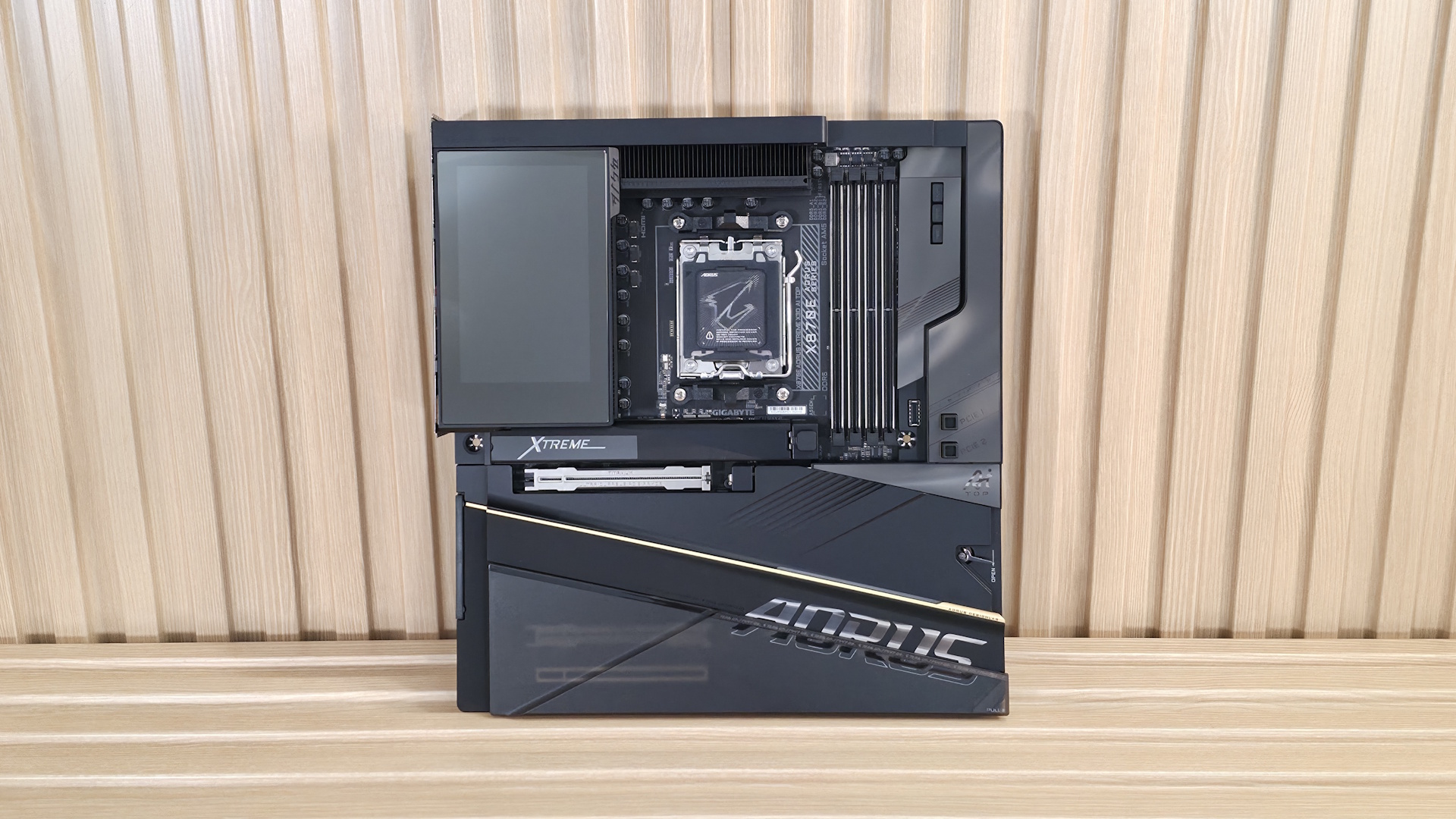
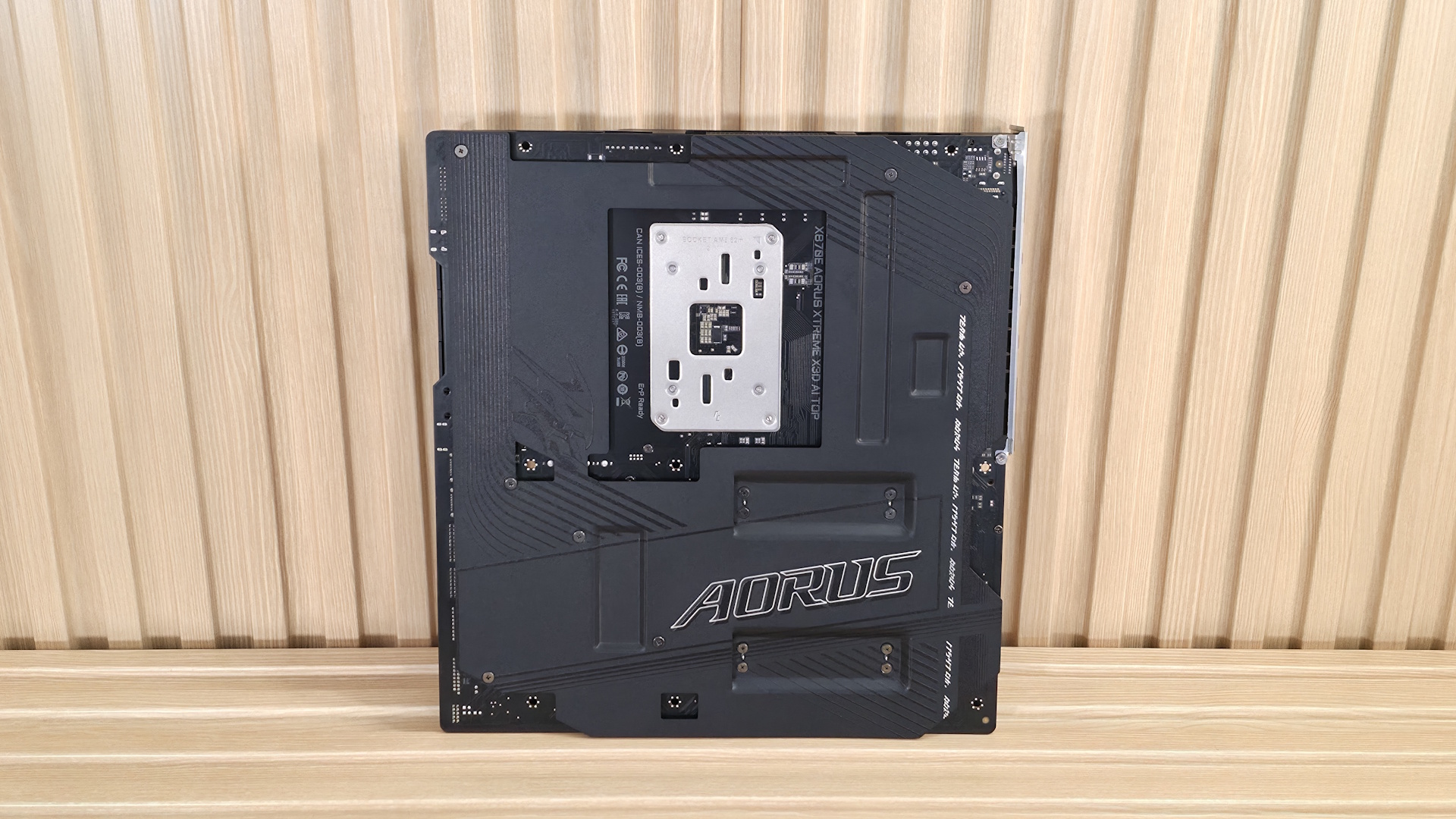
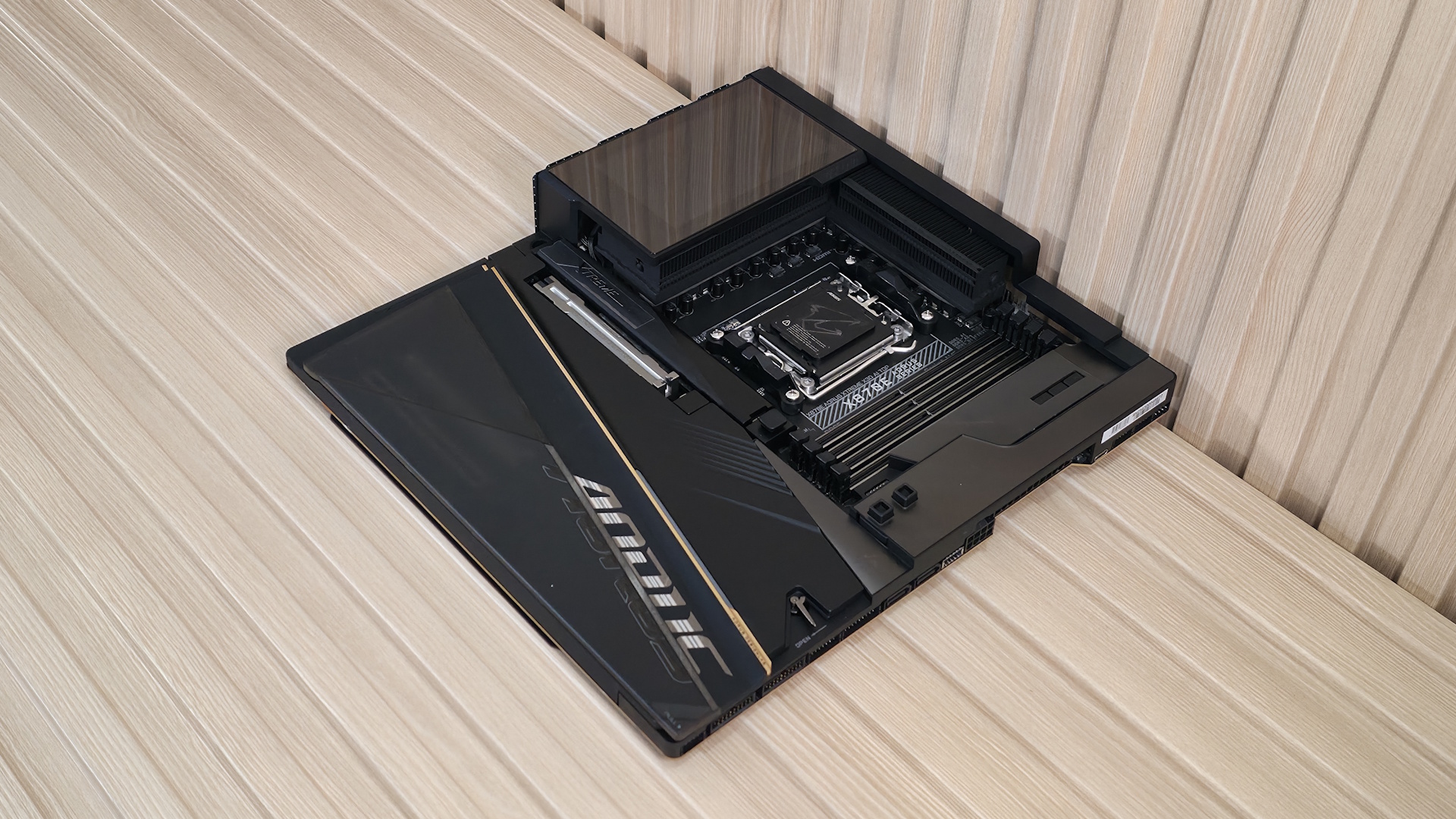
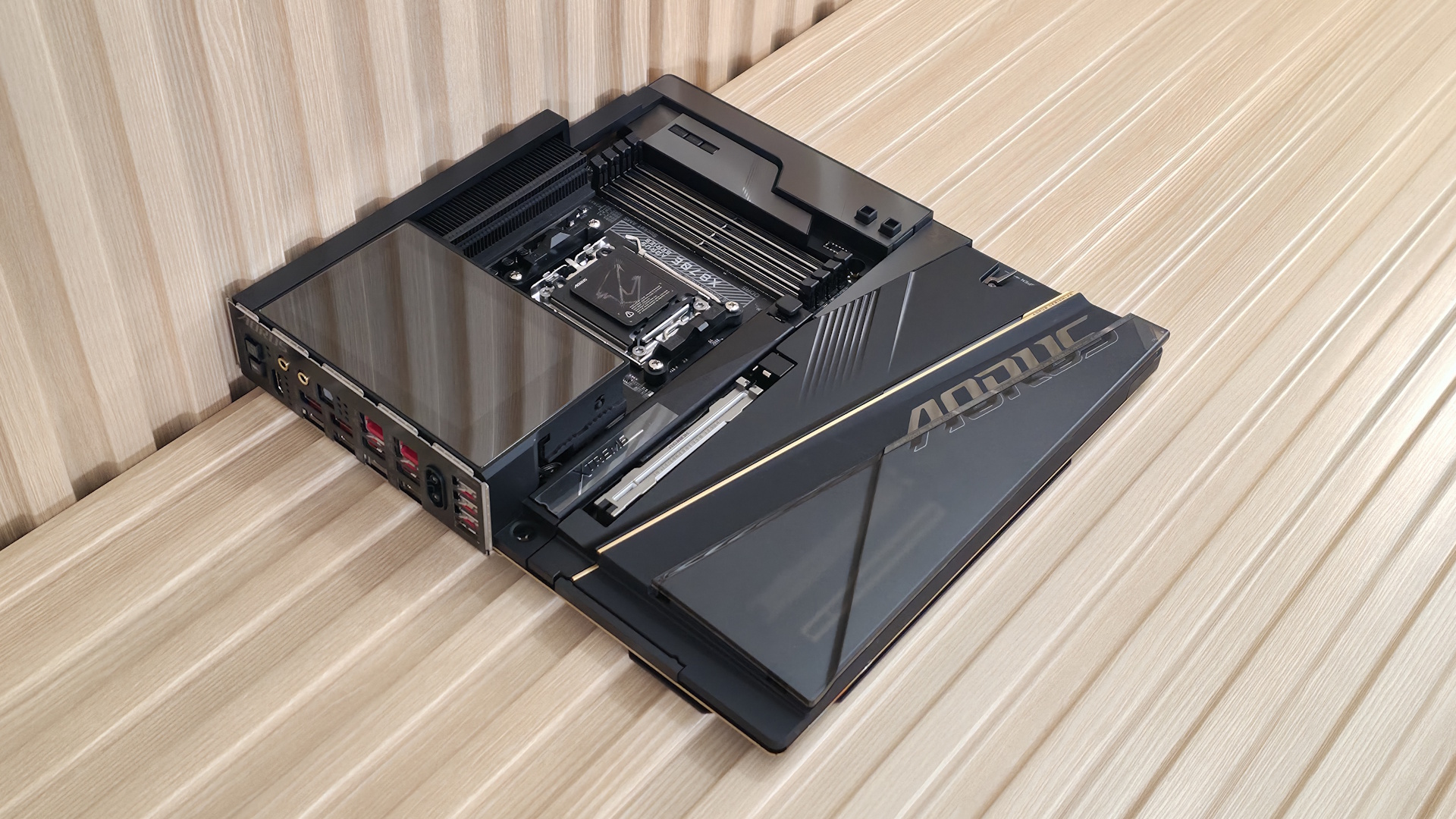
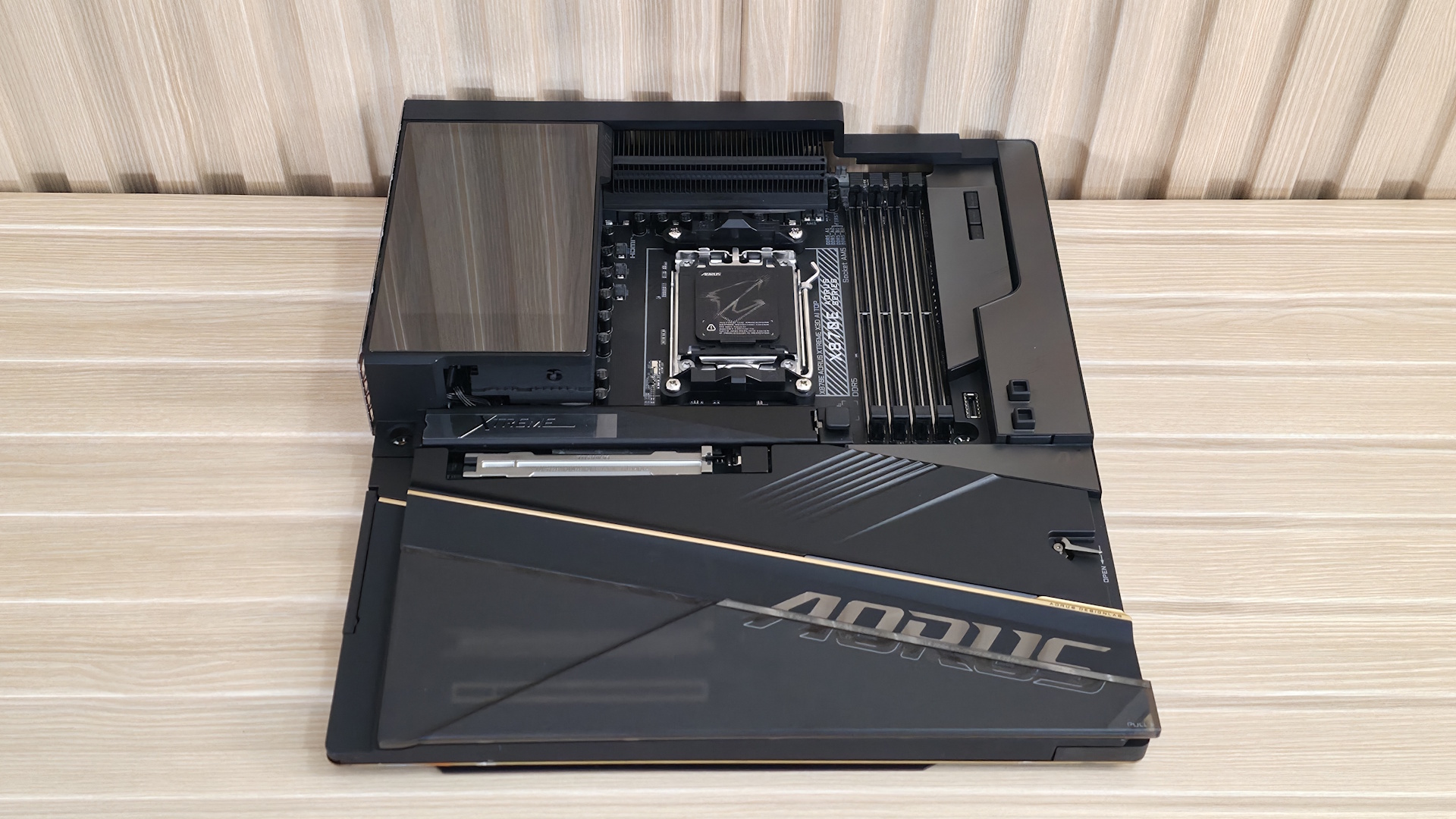
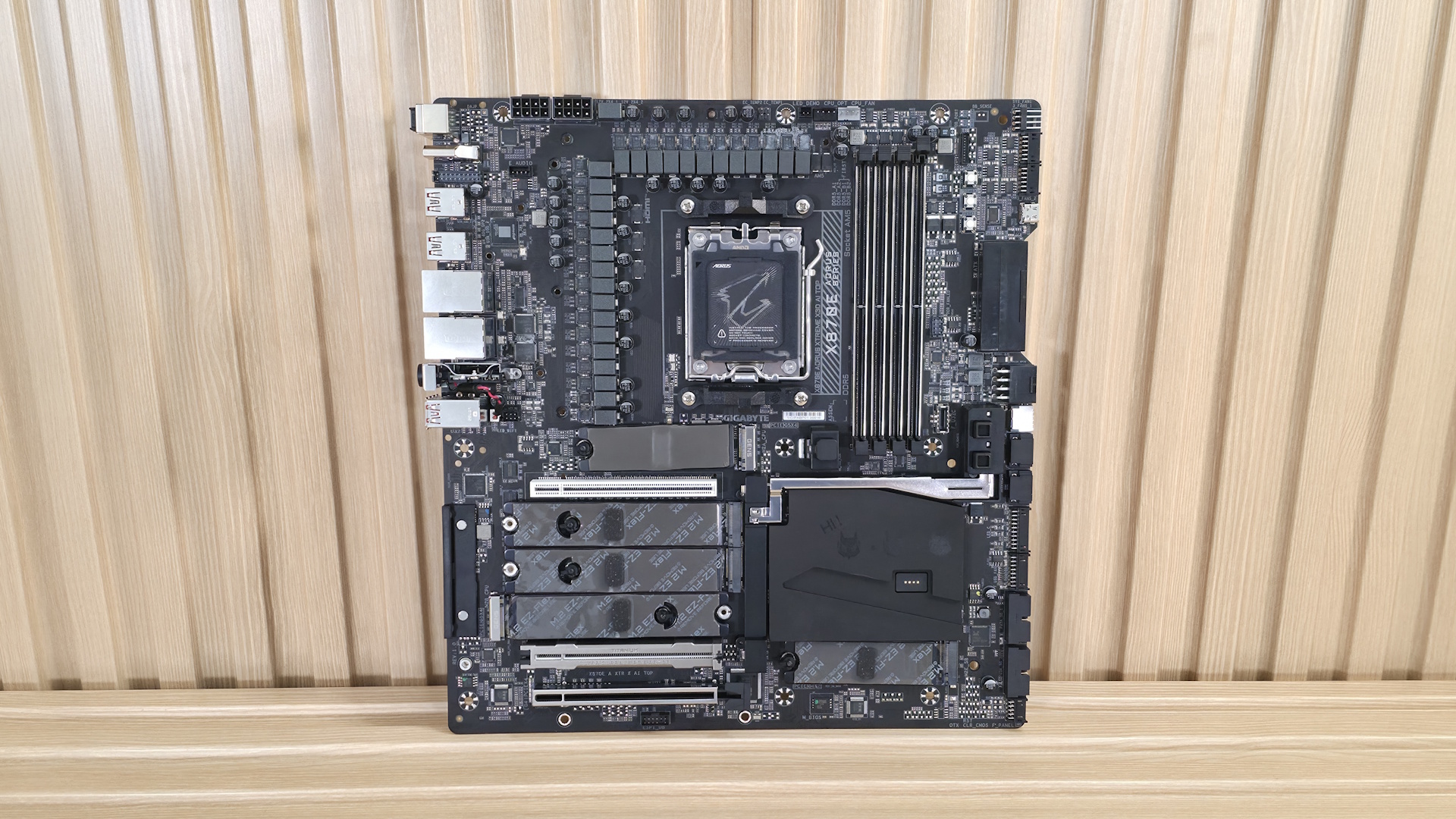
The Aorus Xtreme X3D AI Top looks the part of a premium motherboard, with only a small amount of the 8-layer PCB exposed. There’s a large, oversized heatsink with the LCD Edge View display on top, plus a large heatsink for the top PCIe 5.0 M.2 socket (with an even larger one included in the accessories) sporting ‘Xtreme’ branding in RGBs. The bottom heatsink is a large plate that connects via magnets on the left, above the audio, and has a simple latch for removal. Covering two of three PCIe slots is a magnetically attached plastic shroud. If you need to use the bottom two PCIe slots, simply remove the plastic shroud exposing the slots. This two-piece heatsink and shroud configuration allows you to retain the premium ‘covered’ appearance while still having access to the slots. I like this a lot better than Asus’ implementation, where you need to remove a fancy-looking metal cover to expose the other PCIe slots, which takes away from its appearance.
Overall, we like the look, and it gives off the premium vibes you'd expect from a flagship-class offering – you can barely see any PCB, it has a large LCD screen, and a clean overall appearance with only a single PCIe slot and CPU socket visible. The design is much improved over the Xtreme non-X3D, and looks the part of a flagship motherboard, fitting in with the likes of the X870E Godlike X and Asus ROG Crosshair X870E Glacial.
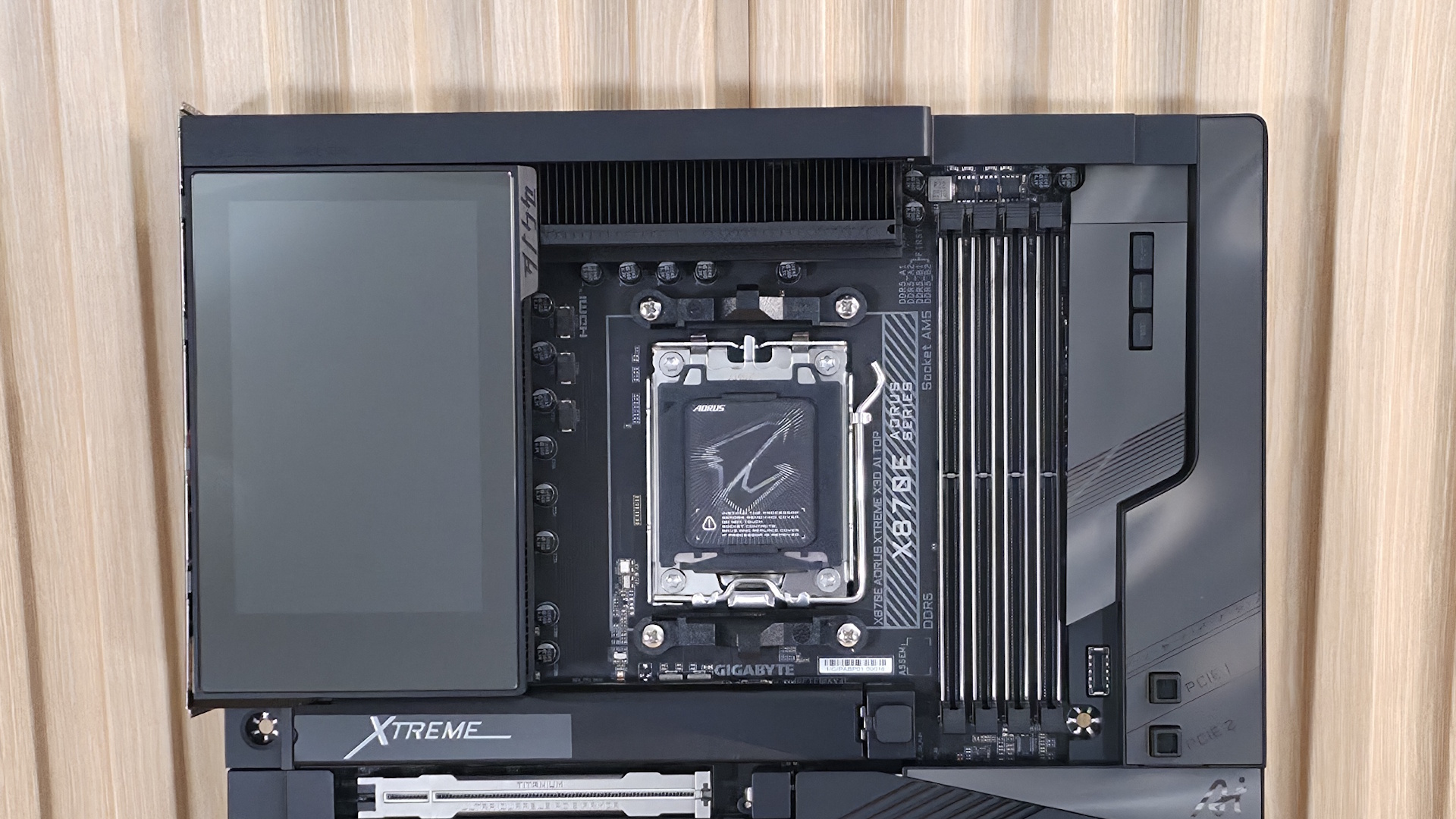
Focusing on the top half, starting on the left, we get a better look at the 5-inch LCD Edge View screen, which displays system parameters for instant insights, including temperatures, voltages, and clock speeds. You can also customize the display to show your own GIFs or still images for your own special touch. The VRM heatsink below uses fins (with a ‘nano carbon coating’), a lot of mass, and a heatpipe connecting to both, helping to dissipate heat from the MOSFETs below. Between this and the high-quality VRMs underneath, you can run and overclock any compatible chip to its limit (which will be your cooling method). Above the socket area, Gigabyte includes another magnetic shroud, this one designed to cover the dual 8-pin EPS connectors and some unsightly bits along the top edge, maintaining the clean appearance.
Just past the socket area, to the right, are the DRAM slots. Here, all four slots use Gigabyte Memory UD Slot D5 reinforcement (only two are reinforced on the non-X3D), and all four have locking mechanisms on both sides to secure the sticks in place. Gigabyte lists support of up to DDR5-9000, which is plenty fast for the platform and is a slight increase over the original Xtreme AI Top. We didn’t have any issues running any of our three kits, up to DDR5-8000 with an APU, as expected. The X3D also includes a RAM fan with a shroud that slides over your RAM (secured via a magnet) to help cool the warmer-running DDR5 sticks. We didn’t crank the voltage to see any differences, but we did observe a ~4°C drop during our 30-minute stress test using our DDR5-7200 kit, which runs at a higher 1.4V.
Above the DRAM slots and below that shroud are the first two (of three - 10 total fans through internal headers) 4-pin fan headers. Each header supports both PWM- and DC-controlled devices and delivers 2A/24W, which is plenty for fans and pumps. Control over the headers is handled by the BIOS, Smart Fan 6, or Gigabyte’s Control Center (GCC) software. Just to the right, left, and above the VRM heatsink are two 2-pin temperature sensor headers for additional monitoring capabilities.
Rounding the corner and working our way down the right edge, we first see the 2-character debug display. Below that are power, reset, and Clear CMOS buttons. Next, in the upper-right corner, we see another 4-pin system-fan header and two more fan headers (those that split into three each - cables included). Below that is a front USB Type-C connector with DisplayPort capability (for installing an extra monitor on your chassis). Continuing down the edge, we then run into the 24-pin ATX to power the board, along with supplemental PCIe power (6+2) for additional board power (think RTX 5090 or a pair of graphics cards).
Next is another 3-pin fan header, a 2-pin temperature header (use the included thermistors), and the front HDMI output for easy installation of additional monitors (think an internal display for sensors or the like). Last but not least is the front-panel USB 3.2 Gen 2x2 (20 Gbps) connector.
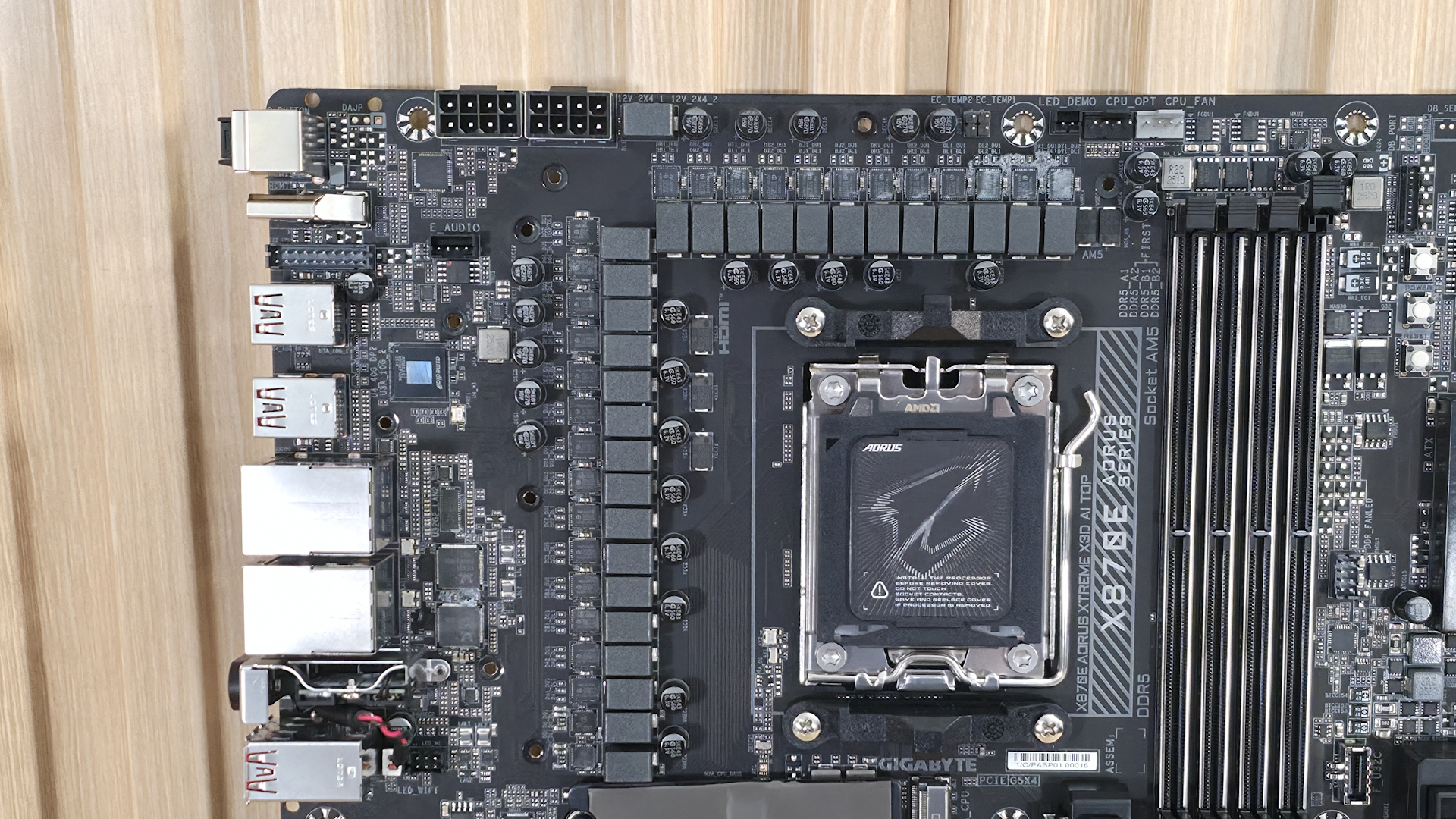
Power delivery on the X870E Aorus Extreme X3D AI Top consists of 24 phases, with 22 dedicated to Vcore, again, more than the non-X3D version. Power heads from the 8-pin EPS connector(s) in the top-left corner, onto an Infineon XDPE192C3D 12-channel controller. From there, it moves to the 22 Infineon PMC41430 110A SPS MOSFETs. It’s a robust solution that will handle anything you throw at it, including the Ryzen 9 9950X, the recently released Ryzen 7 9850X3D (fastest gaming processor around), or the Ryzen 9 9950X3D2, even if you want to use extreme (sub-ambient) cooling methods.
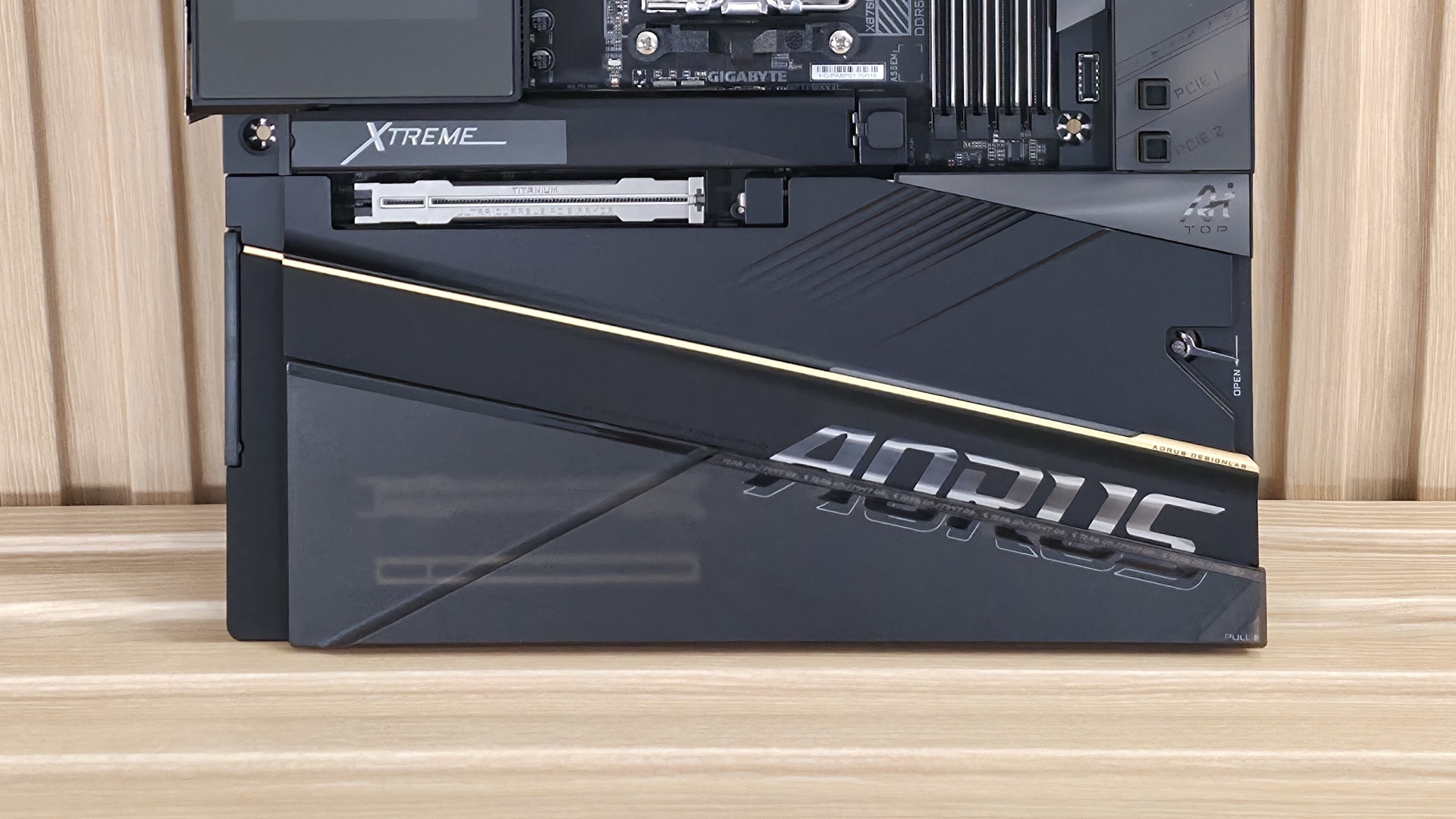
On the bottom half of the board, starting on the front-left side and under the plate heatsink, is the audio section. Gigabyte equips the Xtreme X3D AI Top with unique ESS ES9080 chips (versus the Realtek ALC4000-series we’re used to) and an ESS ES9280AC DAC chip. On paper, the specs are similar: Both offer 7.1 channels and around 110 dB SNR. You’d be hard-pressed to hear a difference between them, and we have no issue with the audio selection as it is excellent. Gigabyte also includes a USB DAC that connects your 3.5mm headphones to the DAC and system.
In the middle of the board, under the heatsinks, are the five M.2 sockets. The top socket (M2A_CPU), with its own larger heatsink (another massive heatsink is included in case you have a hot-running 5.0 x4 M.2 drive and plan to beat on with extended transfers), supports up to 110mm devices and runs at PCIe 5.0 x4 (128 Gbps), as does M2B-CPU, but it’s under the plate heatsink. Also below the large plate heatsink are three other sockets, each supporting up to 110mm modules. The top-most, M2C/D_SB and M2E_SB, run at PCIe 4.0 x4 (64 Gbps) again, supporting up to 110mm devices, and connect through the chipset. Compared to the non-X3D AI Top, this board has one more total socket and a second PCIe 5.0 x4 slot, which we expect from a flagship.
Visible around the plate heatsink are three full-length PCIe slots. The top two connect through the CPU and are reinforced with their Titanium PCIe UD Slot X, which connects to the CPU. The top slot supports PCIe 5.0 x16 (also x8), while the second supports PCIe 5.0 x8. The top slot is your PCIe 5.0 x16 slot for your video card, and both use the PCIe EZ-Latch Plus to secure your expensive graphics card. Simply install the card, then press the button to lock it and remove it. Easy. The bottom full-length slot connects to the chipset, supports PCIe 4.0 x4, and is used for expansion cards.
Moving right, past the chipset, the first item we run into is next to the PCIe release buttons. Along the edge is a front USB 3.2 Gen 2x2 (20 Gbps) port, followed by two SAT ports below it. Next are the LED header, USB fan header, two USB 3.2 Gen 1 (5 Gbps) headers, and, finally, the front panel port.
We've also captured several images of the IC's used to make this motherboard work consisting of a mix of Infineon bits for power and Realtek brand networking and USB support. Typical fare.
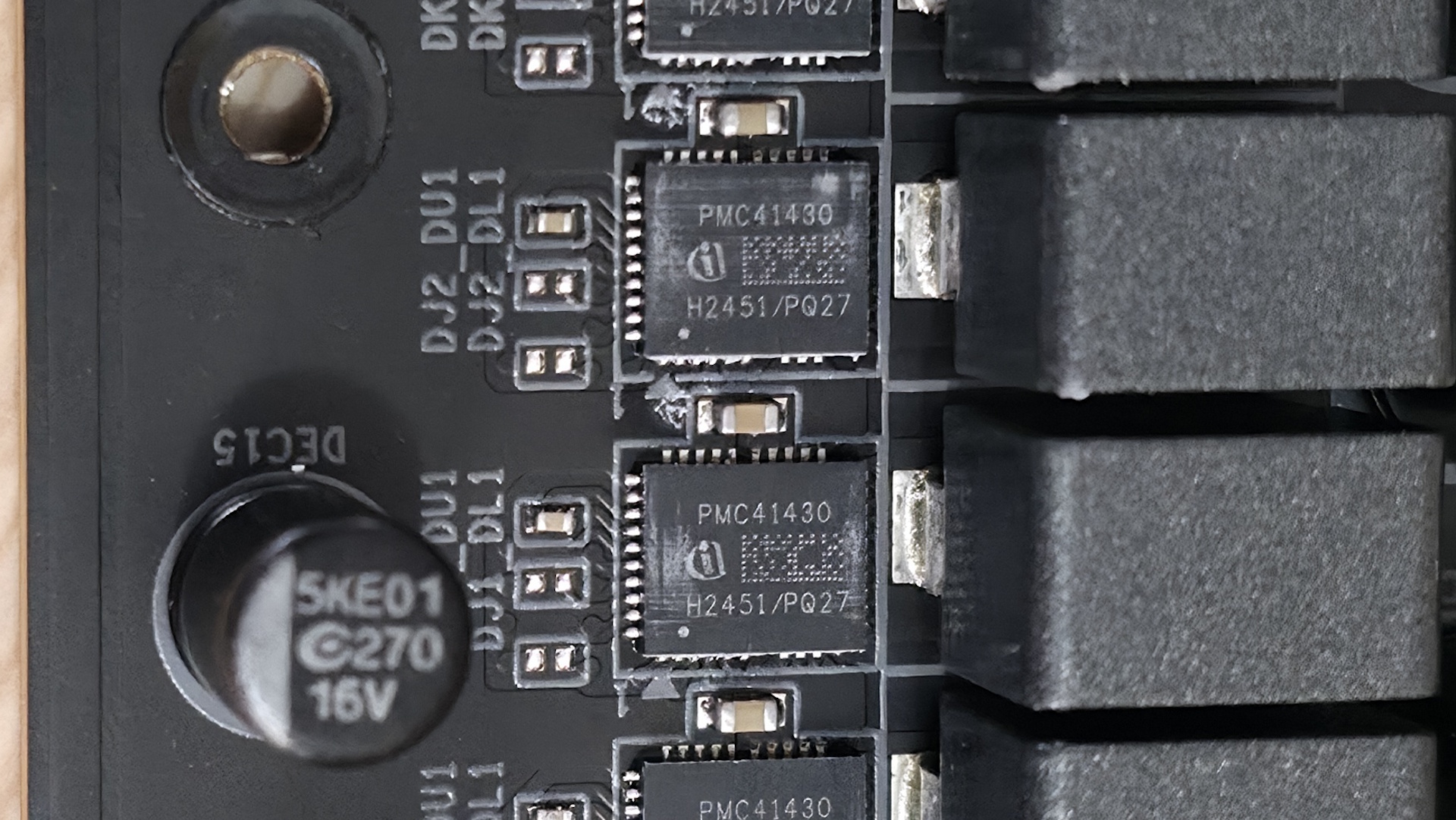
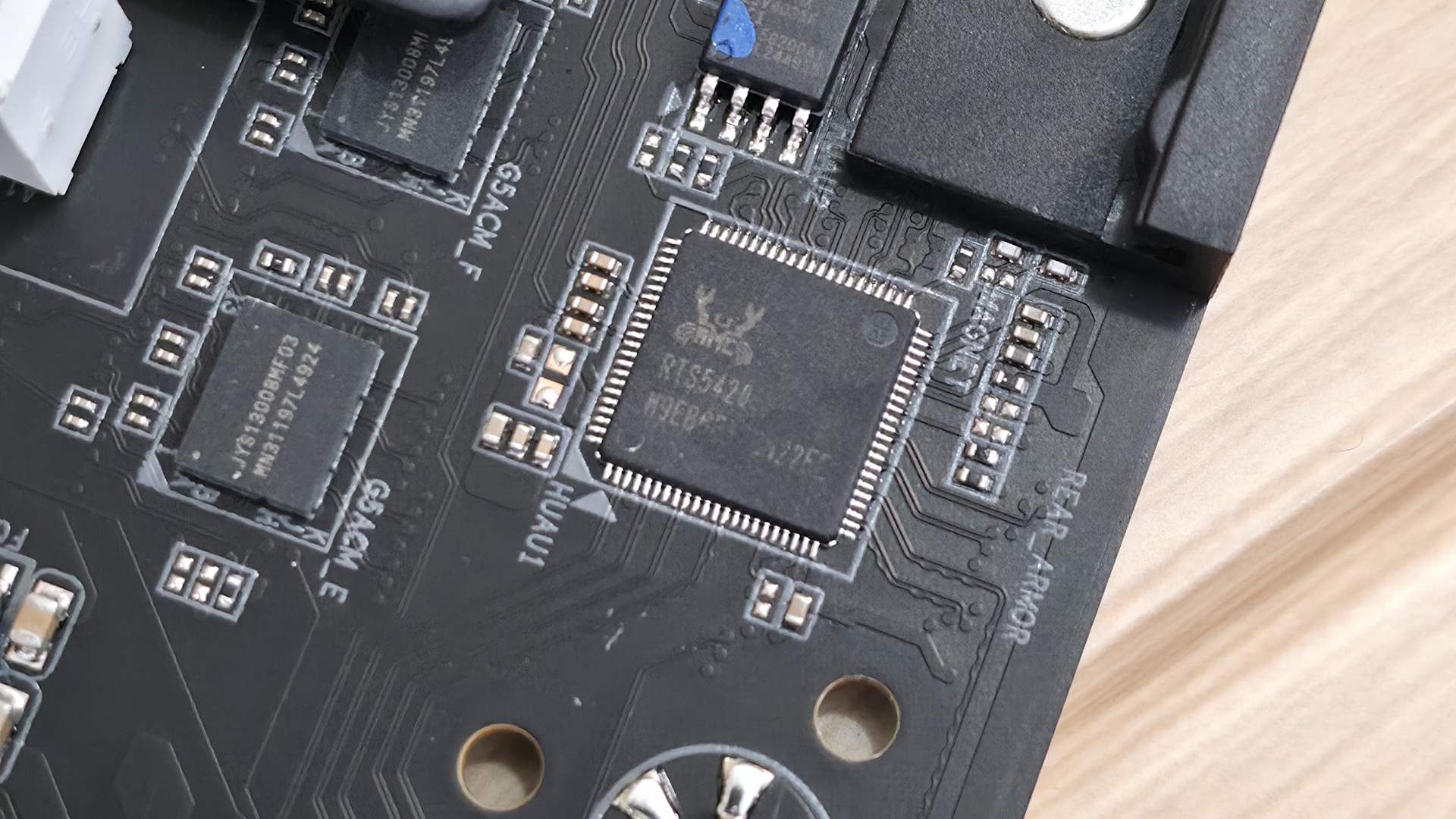
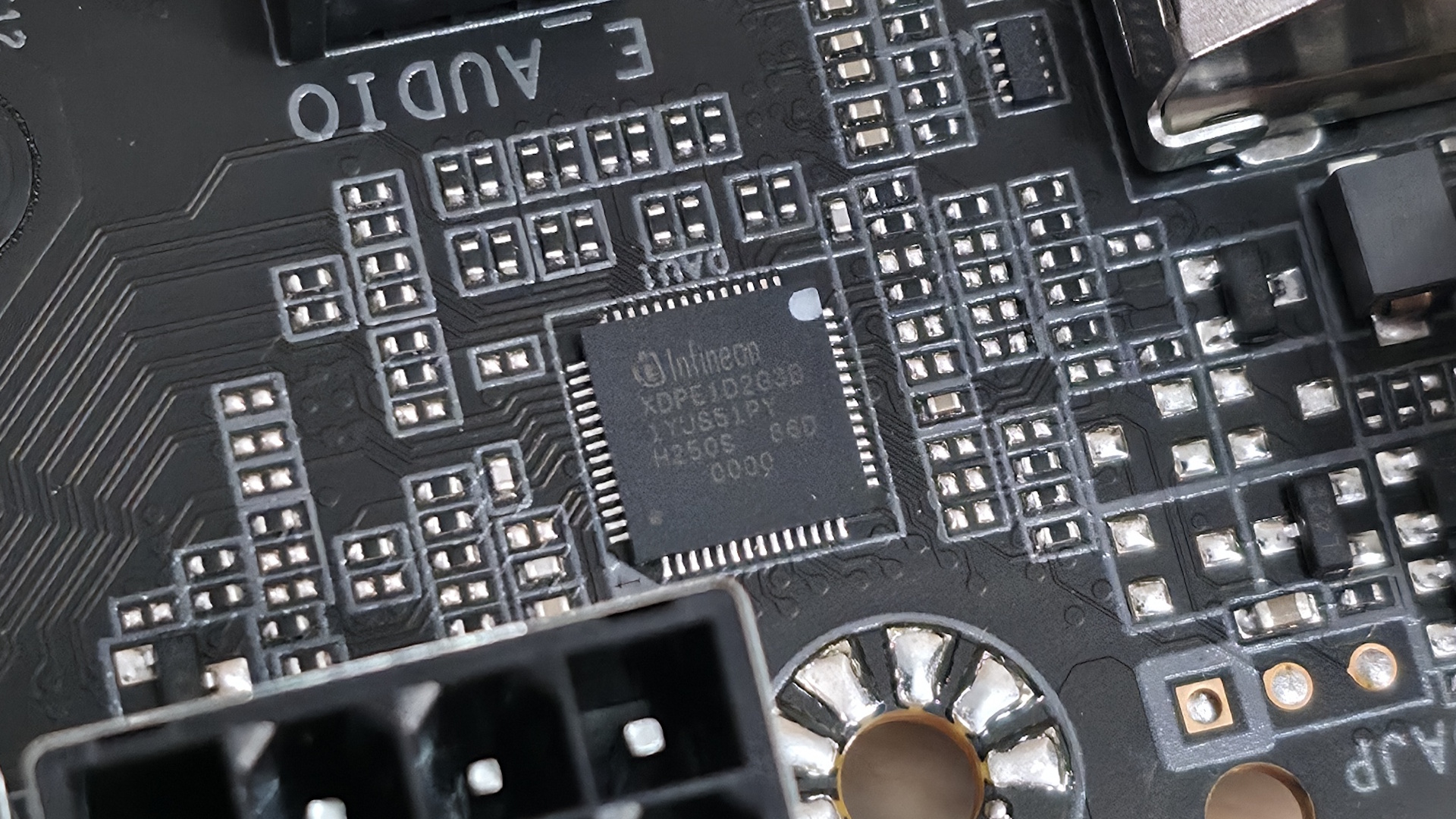
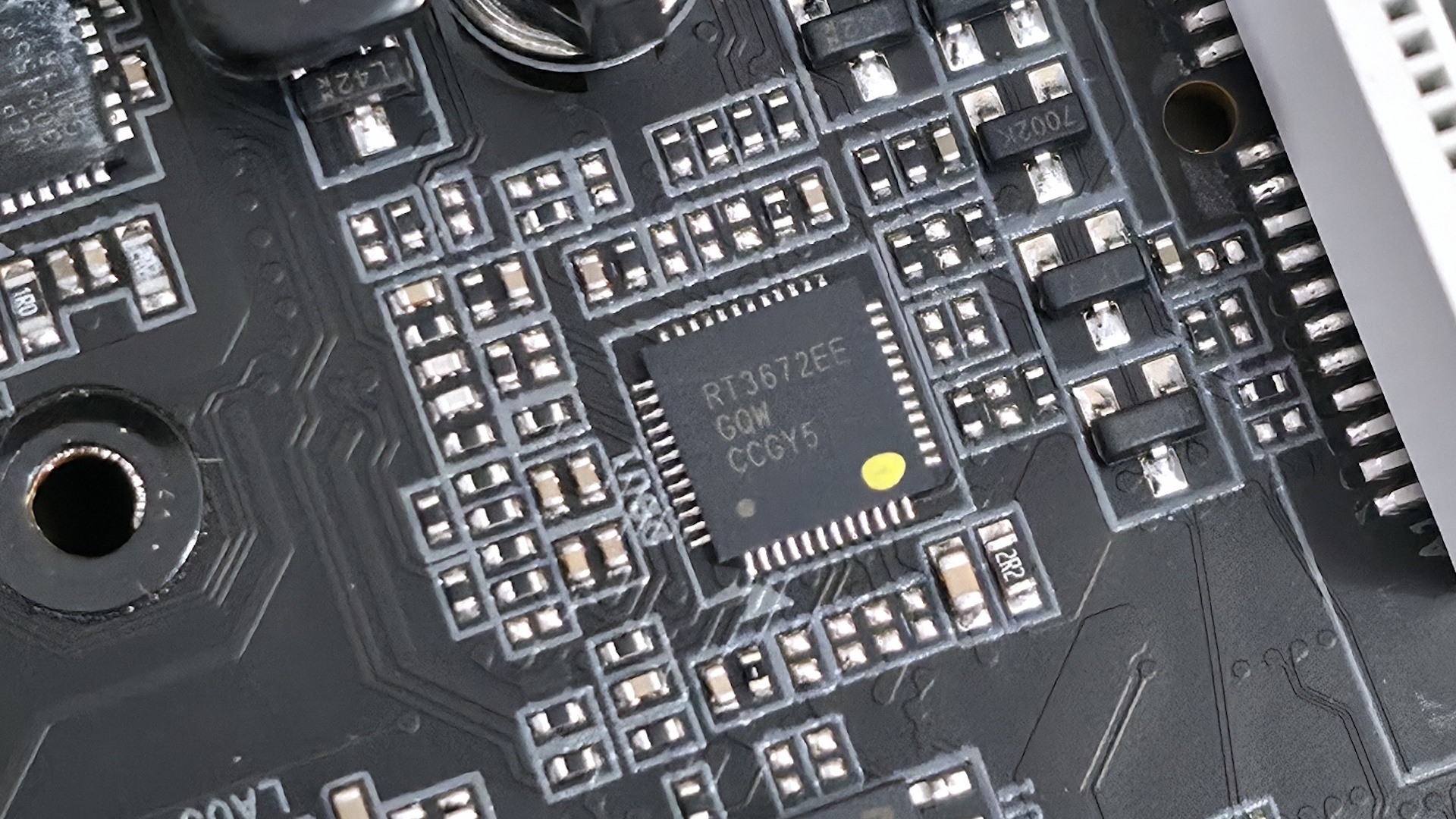
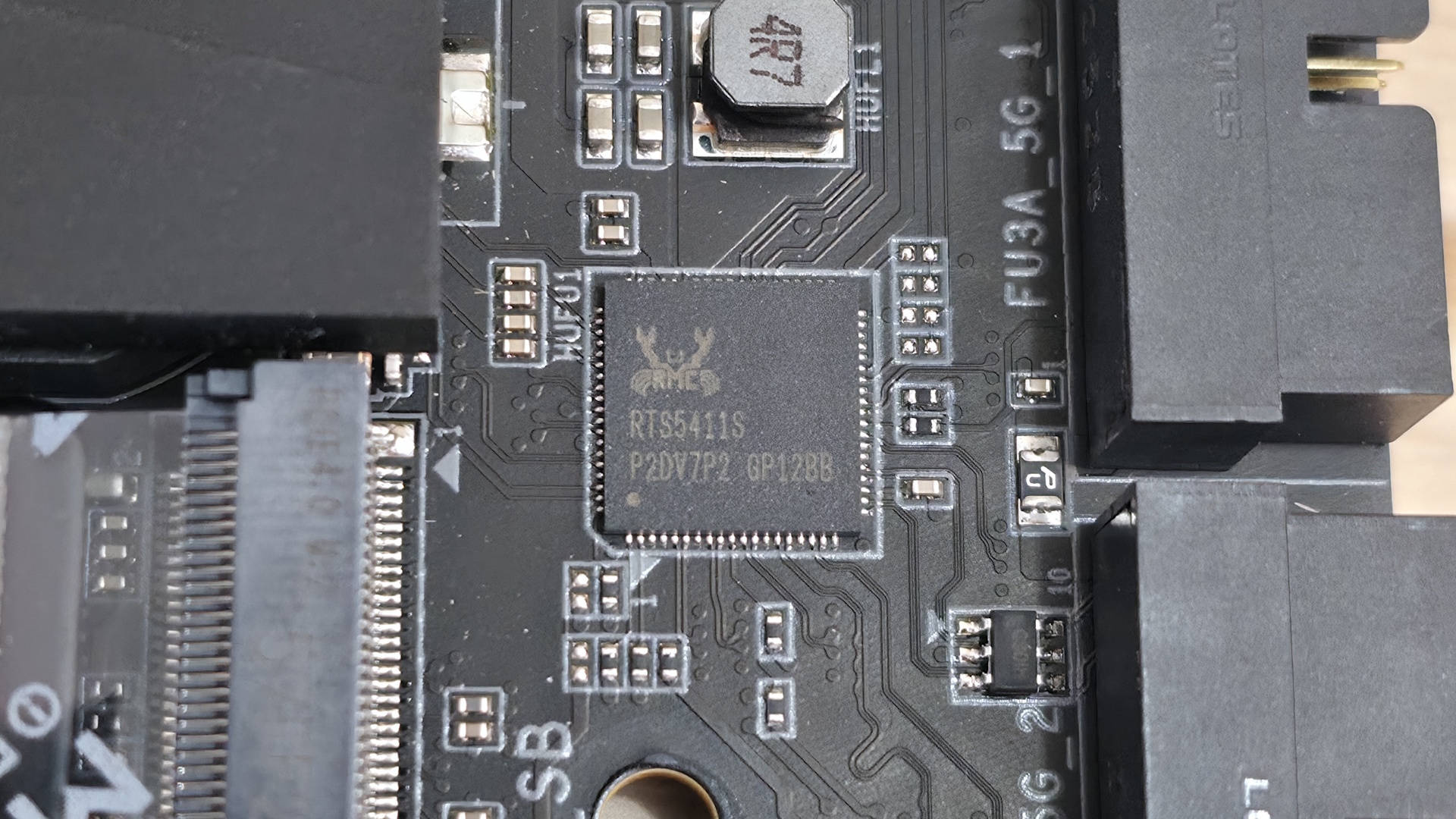
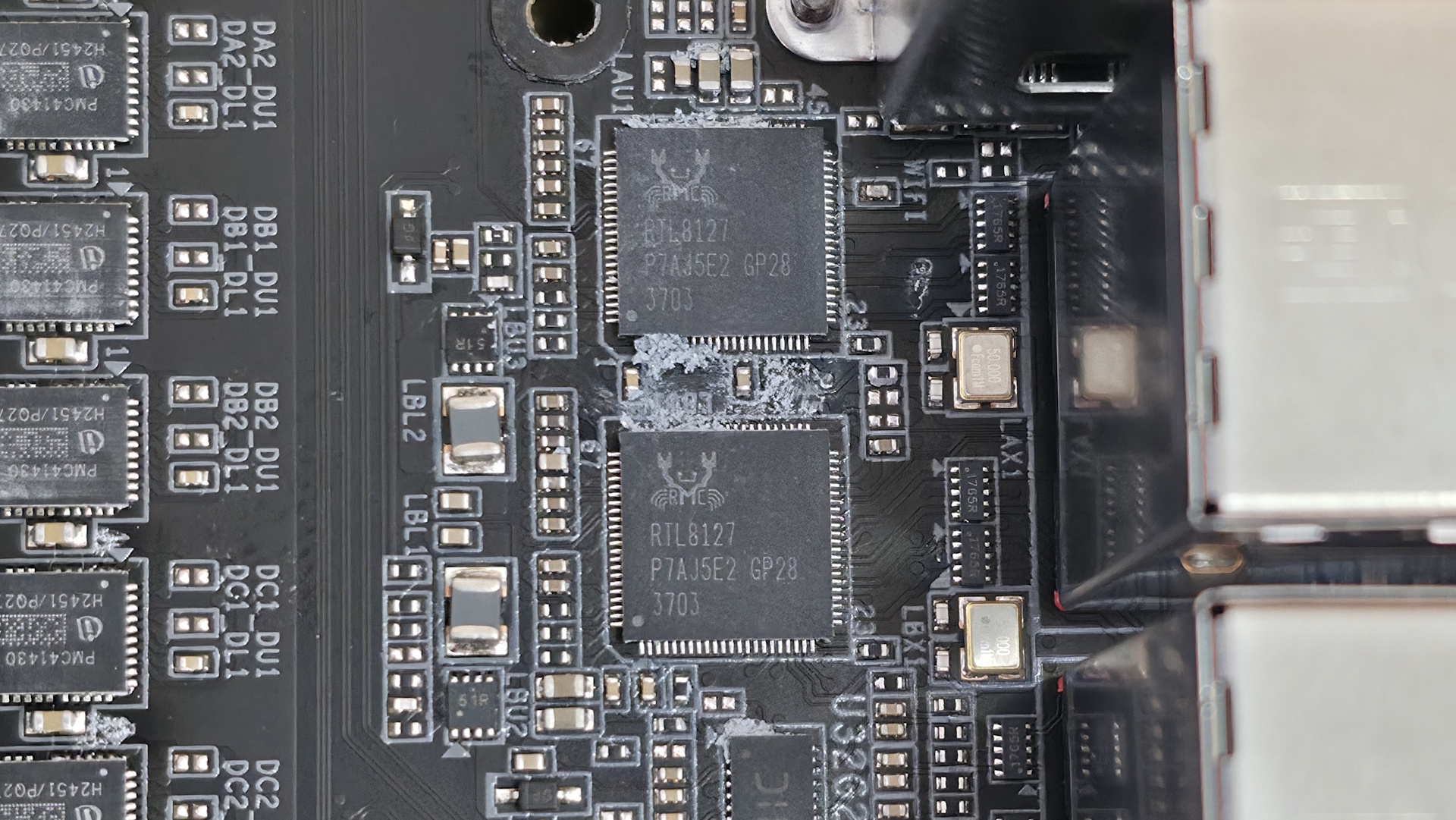
Normally, we’d list all the headers across the bottom, but unlike most motherboards, all the headers you typically see are on the right edge and covered above.
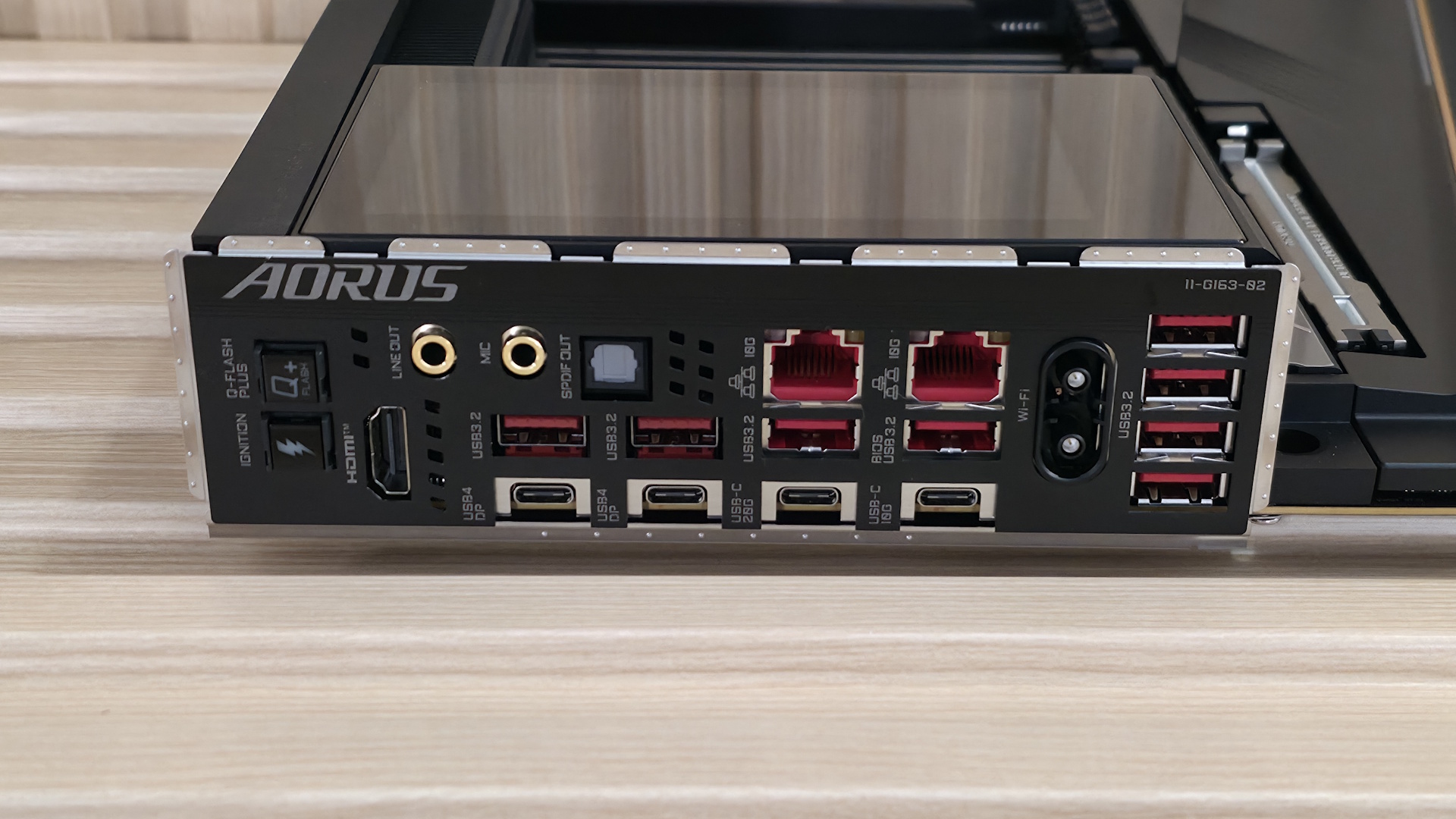
The rear IO on the Aorus Xtreme X3D AI Top offers enough connectivity, including 10 USB ports. Starting on the left, we see the convenient Q-Flash Plus buttons (for CPU-less BIOS flashing) and the OC Ignition button for one-touch overclocking. Next to that is the rear HDMI (v2.1) port for using the integrated graphics on (most) CPUs. Above that is the audio stack (2x 3.5mm plus SPDI/F). There are two USB4 (40 Gbps) Type-C ports, one 20 Gbps Type-C port, and a 10 Gbps Type-C port, for a total of four. You get eight Type-A ports, all running at USB 3.2 Gen 2 (10 Gbps). Above the USB ports are the two Marvell AQTion 10 GbE ports, and finally, the Mediatek-based Wi-Fi 7 (5.8 Gbps) quick connect. I would have liked to see more USB Type-A ports here, like the competition, but most users won’t need or miss them.






 English (US) ·