
 3 weeks ago
49
3 weeks ago
49
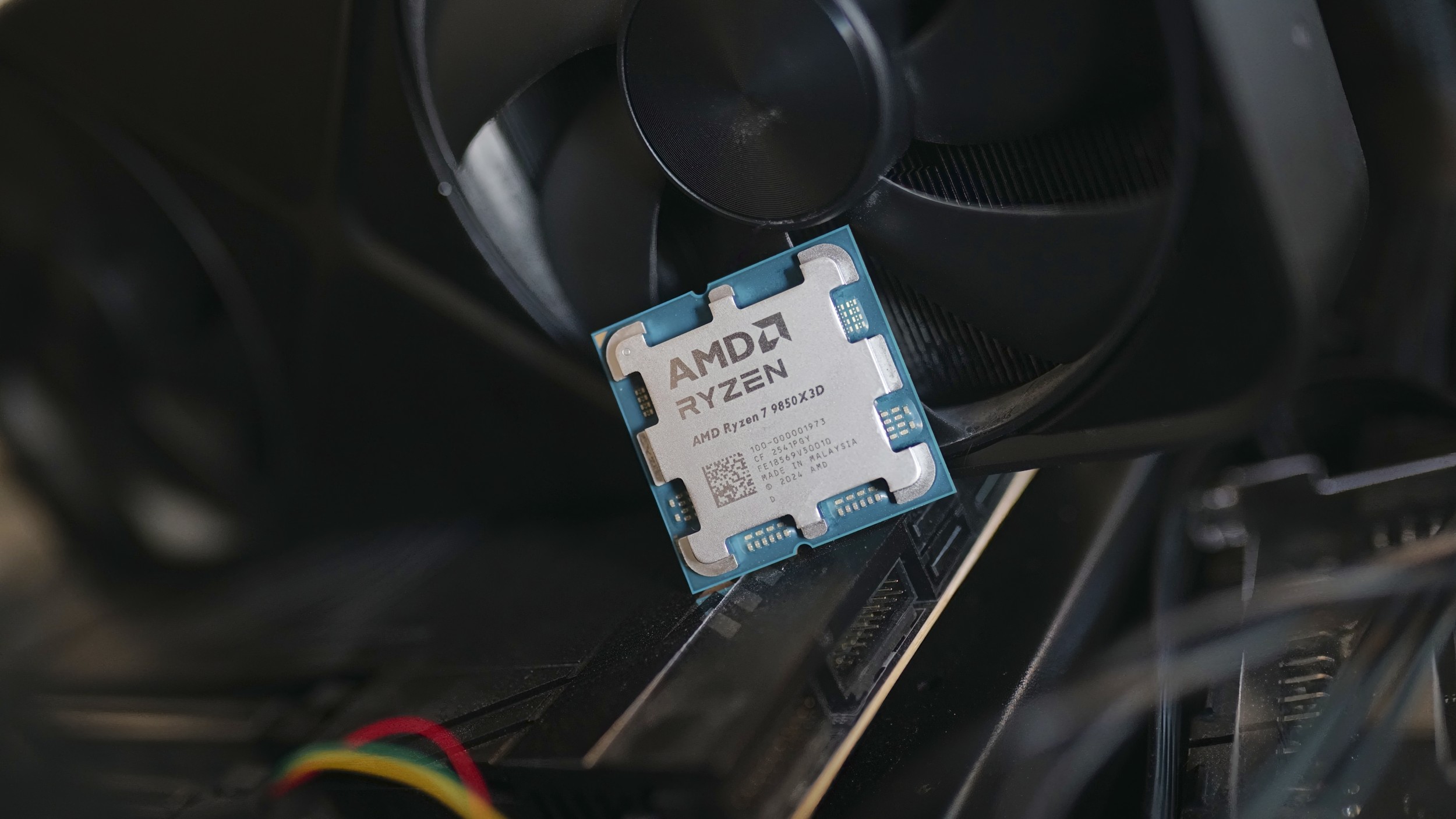
AMD’s Precision Boost Overdrive (PBO) and Curve Optimizer (CO) are two powerful tools that can help squeeze additional performance out of Ryzen desktop processors. Primarily a feature that removes power limits but is classified as overclocking, PBO can increase power, current, and voltage limits to boost clock speeds for improved performance. Since it works in real-time, it allows the CPU to run faster during heavy workloads without requiring manual overclocking. If you want more detail on manual overclocking or on stress testing approaches, head to our How to Overclock your CPU article, but for the basics of using AMD's Ryzen Master for PBO and CO, you are in the right place.
CO is a feature available within PBO that can be used to adjust the voltage-frequency curve of all or individual cores. As modern desktop processors ship with slightly higher stock voltages to ensure stability, reducing the voltage leads to less power consumption and lower heat generation while sustaining their rated clock speeds.
Article continues below
Download and install AMD Ryzen Master
Head over to the official AMD website and visit the Ryzen Master download page. Click on the download button for Ryzen Master and grab the latest version that is compatible with your operating system and CPU generation. Once the installation file is downloaded, locate the file and double-click on it to start the installation process. Follow the setup wizard to install Ryzen Master on your system.
After the setup finishes, the installer may ask you to restart your system. Once you boot into Windows, launch the Ryzen Master software. Heed the warning that appears each time you open the software; overclocking voids your warranty, and all forms of PBO are strictly classified as overclocking.
The software will open in Basic View with limited controls and a dashboard showing key system information, including your processor model, clock speeds, temperature, voltage, and various overclocking profiles.
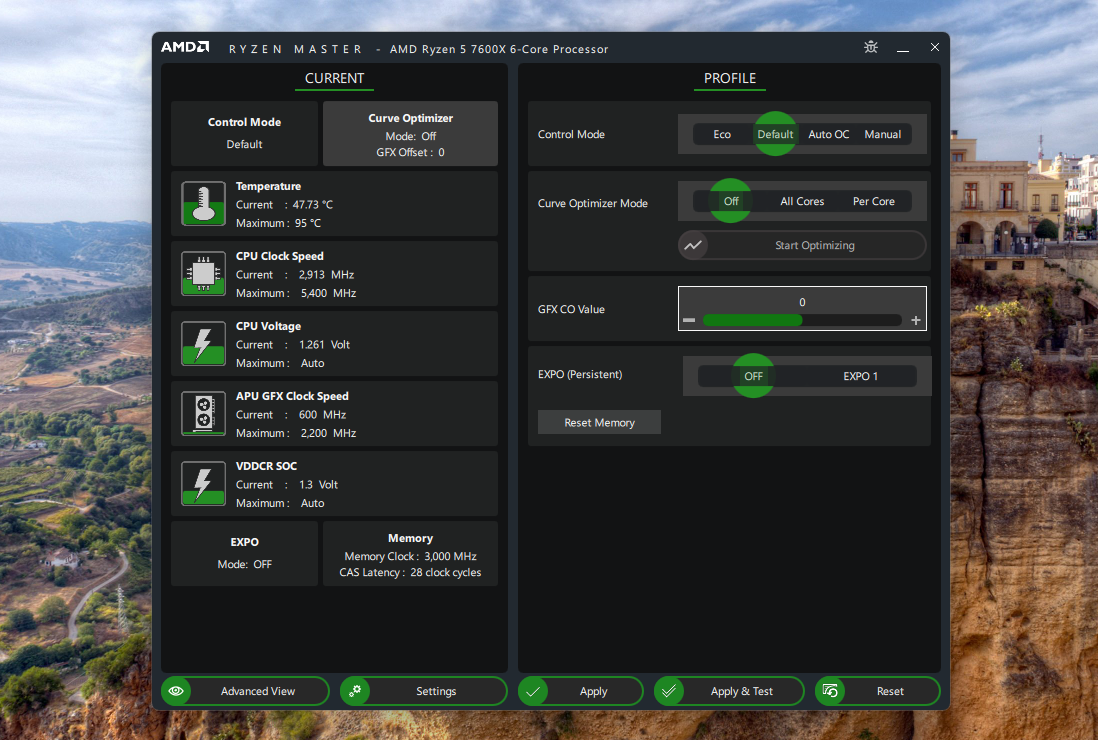
To access performance tuning features such as Precision Boost Overdrive and Curve Optimizer, switch to Advanced View by clicking the button at the bottom of the interface.

Enable Precision Boost Overdrive (PBO)
Enabling Advanced View gives access to a wide range of controls along with system monitoring tools. On the top left are multiple performance profiles, including Creator Mode, Game Mode, and two additional options, all of which can be tweaked.
You can also adjust additional parameters, including PPT (Package Power Tracking), EDC (Electrical Design Current), and TDC (Thermal Design Current) with the different PBO modes.
Under Control Mode, you can select Precision Boost Overdrive, which has basic automated EDC, TDC, and PPT values. These values are automatically set to motherboard limits, as the motherboard firmware automatically determines safe values based on its power delivery capabilities.
For more granular control, you can choose Auto Overclocking mode, which allows you to define a Boost Override CPU value that increases the clock speed of the processor beyond the rated boost clock, but this maxes out at +200 MHz. This also unlocks the PBO Scalar option, which increases the amount of time the processor runs at a higher boost clock.
Once you select your desired options, hit Apply and Test at the bottom. The Ryzen Master software will now apply your settings and run a quick test to check for system stability.
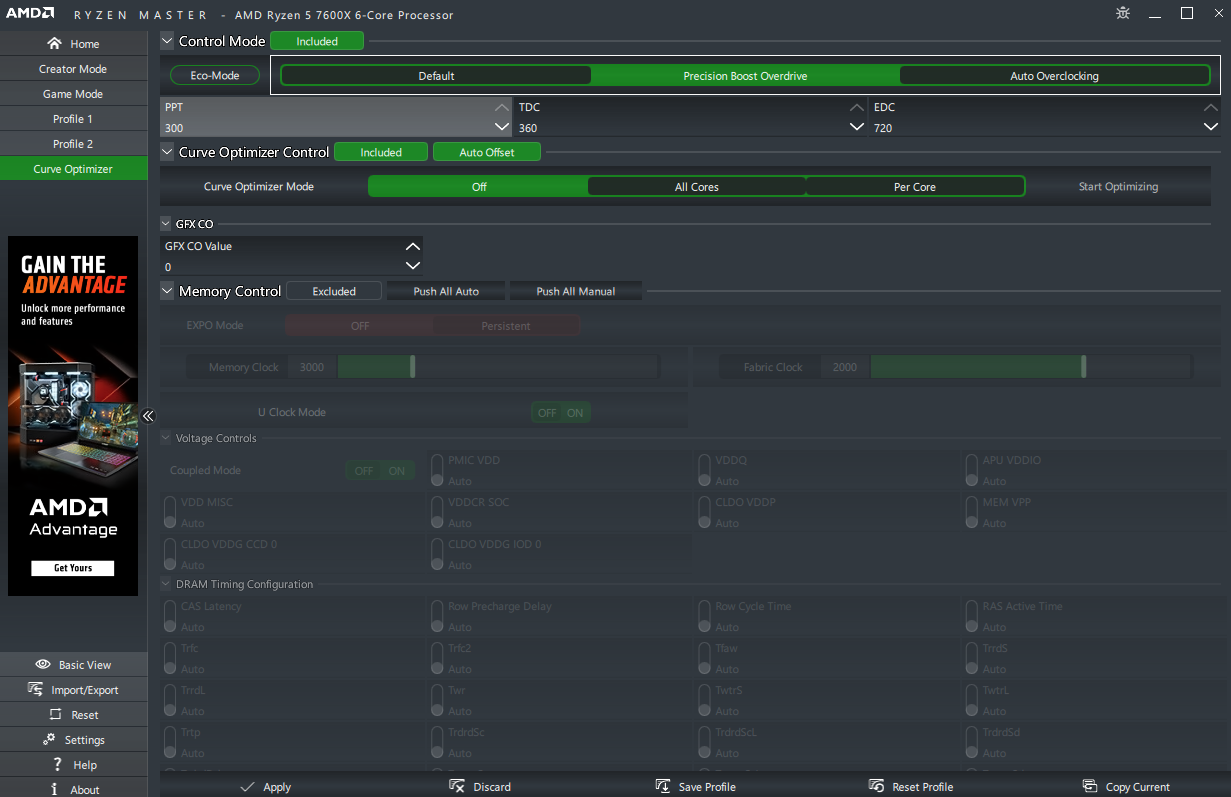
Once PBO is active, the CPU should begin using any additional headroom to boost more aggressively during heavy workloads.
Using Curve Optimizer (CO)
With Precision Boost Overdrive enabled, you can now fine-tune the processor using Curve Optimizer. As mentioned earlier, this feature allows you to adjust the voltage-frequency curve of the CPU cores, or in simpler terms, reduce the voltage required for a given clock speed.

Select the Curve Optimizer section from the menu on the left. You can choose between applying a curve adjustment to all cores at the same time or tuning each core individually. We recommend applying the same voltage offset to all cores as it is less tedious and make sure that Eco Mode is disabled.
Since our goal is to apply a negative curve offset, begin by selecting All Cores to reveal a new section called CO All Core Value. Next, enter a negative value. A good starting point would be –10 before gradually working your way to a lower value, as we don’t want to push the processor beyond its stability limits.
After entering the value, click on Start Optimizing. The Ryzen Master software will run a short validation test to check for stability issues. If the system remains stable, you can save the configuration as a profile.
Testing system stability
While Ryzen Master runs a quick validation test, it is best to perform a long stress test to confirm that the undervolt is truly stable, as real-world workloads can behave differently from short synthetic tests. You can test for system stability by running a CPU-demanding game or a benchmark like Cinebench R23 or Prime 95.
Validate your results by running the benchmark before applying a negative voltage offset and comparing the results after applying the offset. Ideally, the benchmark score after undervolting the CPU should improve by a small margin.
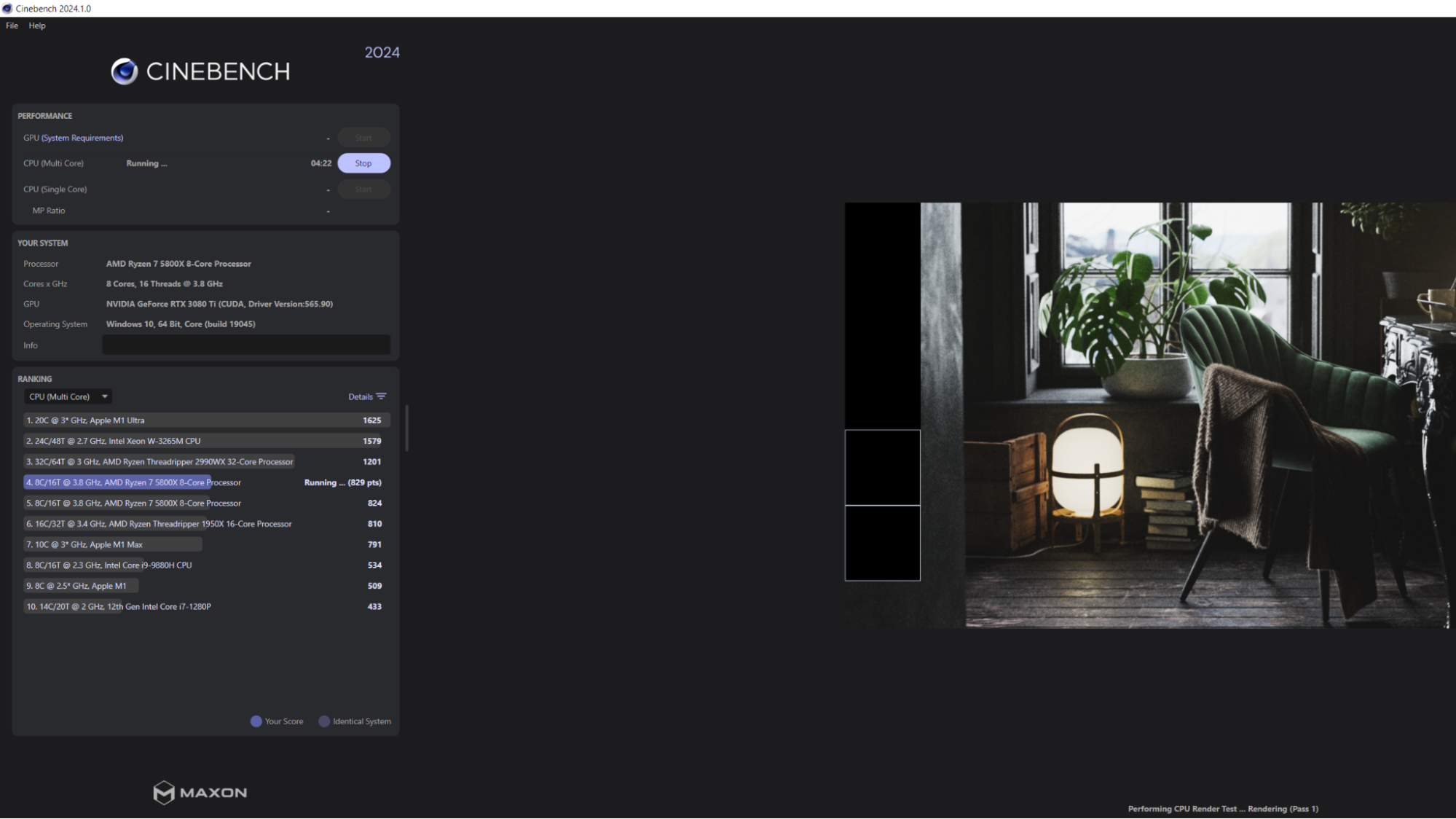
Make sure that you also monitor the CPU temperatures, thermal throttling, clock speeds, and system stability during testing. In the event of a system crash, freezing, or hardware error, the curve offset might be too aggressive. Reduce the negative offset slightly and repeat the testing process until you find a stable configuration.
With the right settings dialed in, Precision Boost Overdrive and Curve Optimizer can help unlock additional performance and reduce temperatures on your Ryzen processor. By carefully offsetting the voltage, you are allowing the CPU to sustain higher boost clocks for longer during demanding workloads.
Remember, patience is key. Every processor behaves differently, and the ideal settings for one system may not work for another. Take your time to make gradual adjustments and test for stability before settling on a final configuration.







 English (US) ·