
 7 hours ago
5
7 hours ago
5
Gigabyte’s Z890 Aorus Elite Wifi7 Plus motherboard is the next of multiple Z890 refresh motherboards to land in our test lab. This mid-range offering ($269.99) is a well-balanced motherboard that doesn’t break the bank. It natively supports the latest Intel Core Ultra chips like the Core Ultra 7 270K Plus and 250K Plus released earlier this year, so you don’t have to worry about flashing the BIOS (though it does have flashback capability) for full support. You get just about everything Gigabyte has to offer for the platform, including fast networking, ample storage options, enough USB ports for most users, and an aesthetic (including integrated RGBs) fit for the price point.
For the money, you get enough of everything, but nothing in wasteful abundance. One of the positives of this board is the fast networking. Gigabyte stuck a 5 GbE port on the back and includes integrated Wi-Fi 7 (320Hz, 8,774 Mbps). It also has room for expansion with three full-length PCIe slots, with the two at the bottom, far enough apart to house a large video card and still use the two bottom slots. It has four M.2 sockets and four SATA ports for storage, which should be plenty, though only one of the M.2 sockets is PCIe 5.0 x4-capable.
There are 10 USB ports on the rear IO, with one USB4 (40 Gbps) Type-C port and nine Type-A ports. The audio solution uses a Realtek ALC1220 codec, which was the flagship of its generation, but it’s not the newest audio codec. As for appearance, the plate-style heatsink covers much of the unsightly bits on the PCB, and the all-black look, with Aorus branding spattered here and there, also looks good with most build themes.
Performance on the Elite Wifi7 Plus matched that of our other motherboards across most scenarios. Whether gaming, office work, or creative workflows, the Aorus Elite WiFi 7 Plus can handle anything you throw at it. It also uses Gigabyte’s Ultra Turbo modes to extract even more out of your system with the click of a button in the BIOS. Performance isn’t a concern on this motherboard.
Below, we’ll examine the board's performance and other features to determine whether it deserves a spot on our list of the
best motherboards. But before we share test results and discuss details, here are the specifications from Gigabyte.
Latest Videos From

Specifications of the Z890 Aorus Elite Wifi7 Plus
Swipe to scroll horizontally
Socket | LGA 1851 |
Chipset | Z890 |
Form Factor | ATX |
Voltage Regulator | 19 Phase (16x 60A DrMOS MOSFETs for Vcore) |
Video Ports | (1) DisplayPort (v2.1) |
USB Ports | (1) USB 4 (40 Gbps) Type-C |
Network Jacks | (1) 5 GbE |
Audio Jacks | (2) Analog + SPDIF |
Legacy Ports/Jacks | ✗ |
Other Ports/Jack | ✗ |
PCIe x16 | (1) v5.0 (x16/x8) |
PCIe x8 | ✗ |
PCIe x4 | ✗ |
PCIe x1 | ✗ |
CrossFire/SLI | ✗ |
DIMM Slots | (2) DDR5-9466+ MT/s (OC), 256GB Capacity |
M.2 Sockets | (1) PCIe 5.0 x4 (128 Gbps) / PCIe (up to 110mm) |
SATA Ports | (4) SATA3 6 Gbps |
USB Headers | (1) USB v3.2 Gen 2 (20 Gbps) Type-C |
Fan/Pump Headers | (6) 4-Pin (Accepts PWM and DC) |
RGB Headers | (3) 3-pin ARGB headers |
Diagnostics Panel | (1) Debug port (1) 2-character Debug |
Internal Button/Switch | ✗ |
SATA Controllers | ✗ |
Ethernet Controller(s) | (1) Realtek RTL8126 (5 GbE) |
Wi-Fi / Bluetooth | Intel Wi-Fi 7 (BE200NGW) - 320 MHz, 6 GHz, 5.8 GHz, BT 5.4 |
USB Controllers | ✗ |
HD Audio Codec | Realtek ALC1220 |
DDL/DTS | ✗ / ✗ |
Warranty | 3 Years |
Inside the Box
Inside the retail packaging are multiple accessories to help get your system up and running. Gigabyte includes the typical things: manuals, a quick-connect Wi-Fi 7 antenna, a Q-connector, two SATA cables, some pads for M.2 drives, and an Aorus sticker. There isn’t a lot here, but it’s also not lacking compared to similarly priced offerings from other board partners.
Design and Features of the Aorus Elite Wifi7 Plus
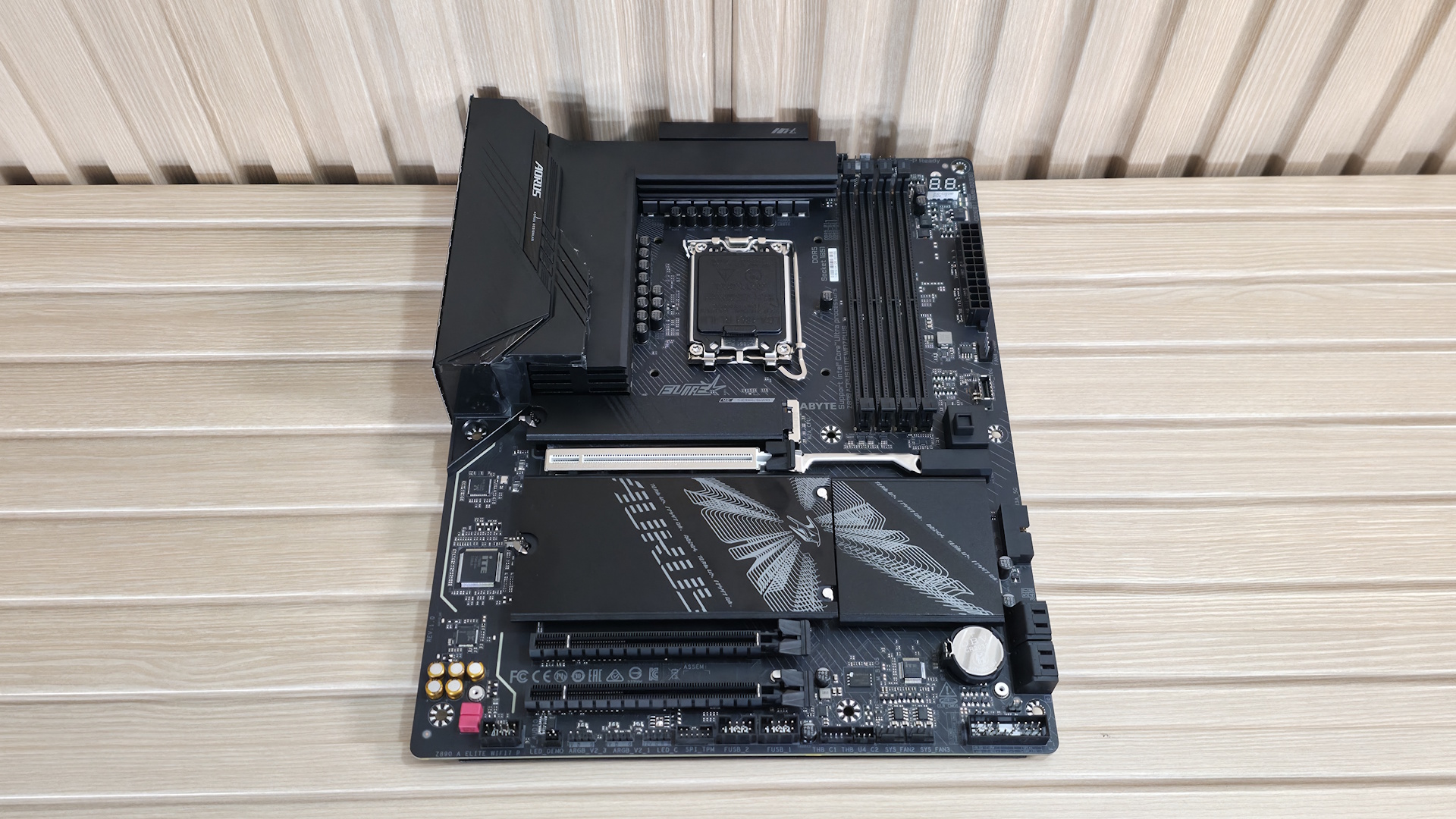
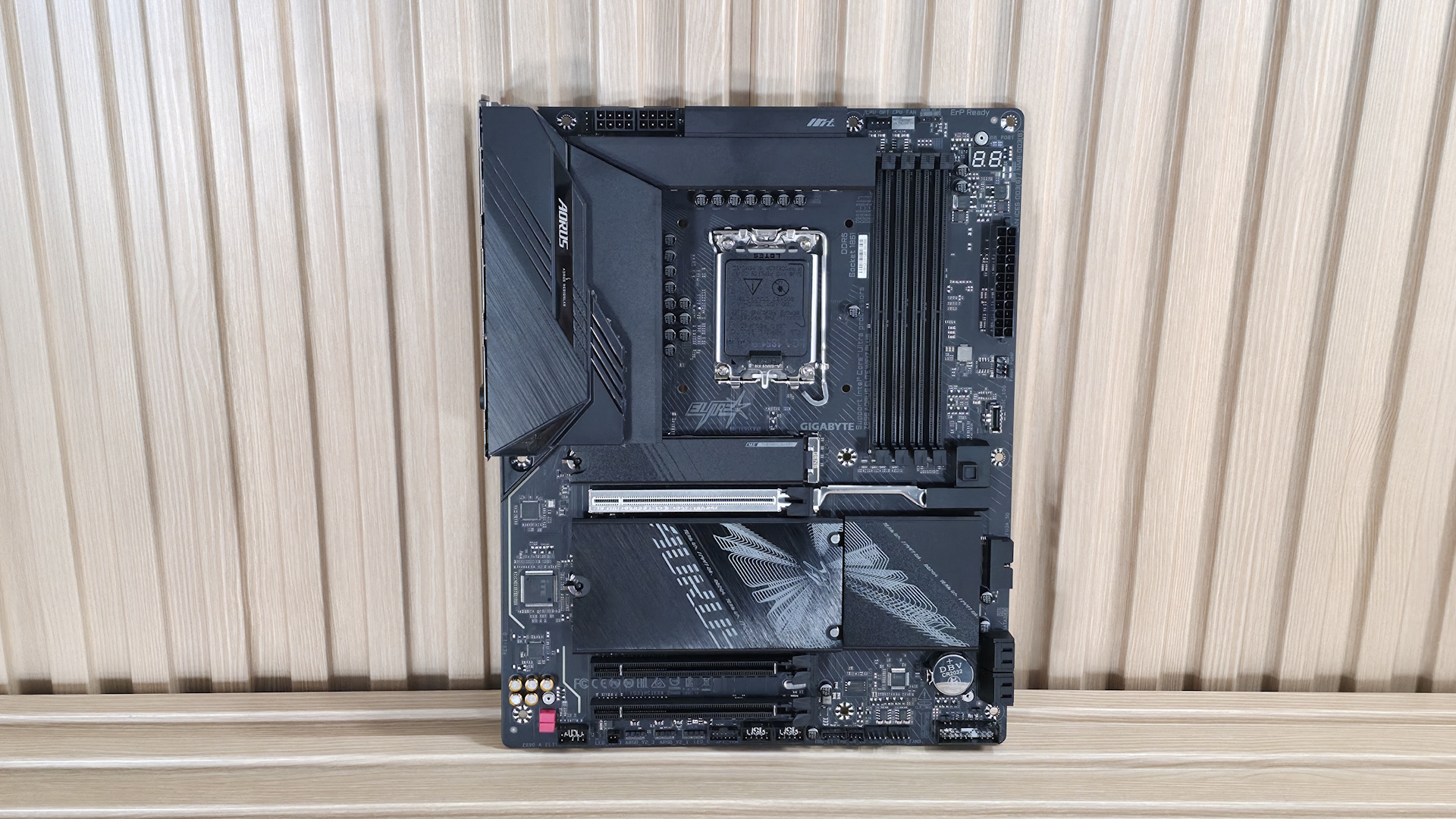
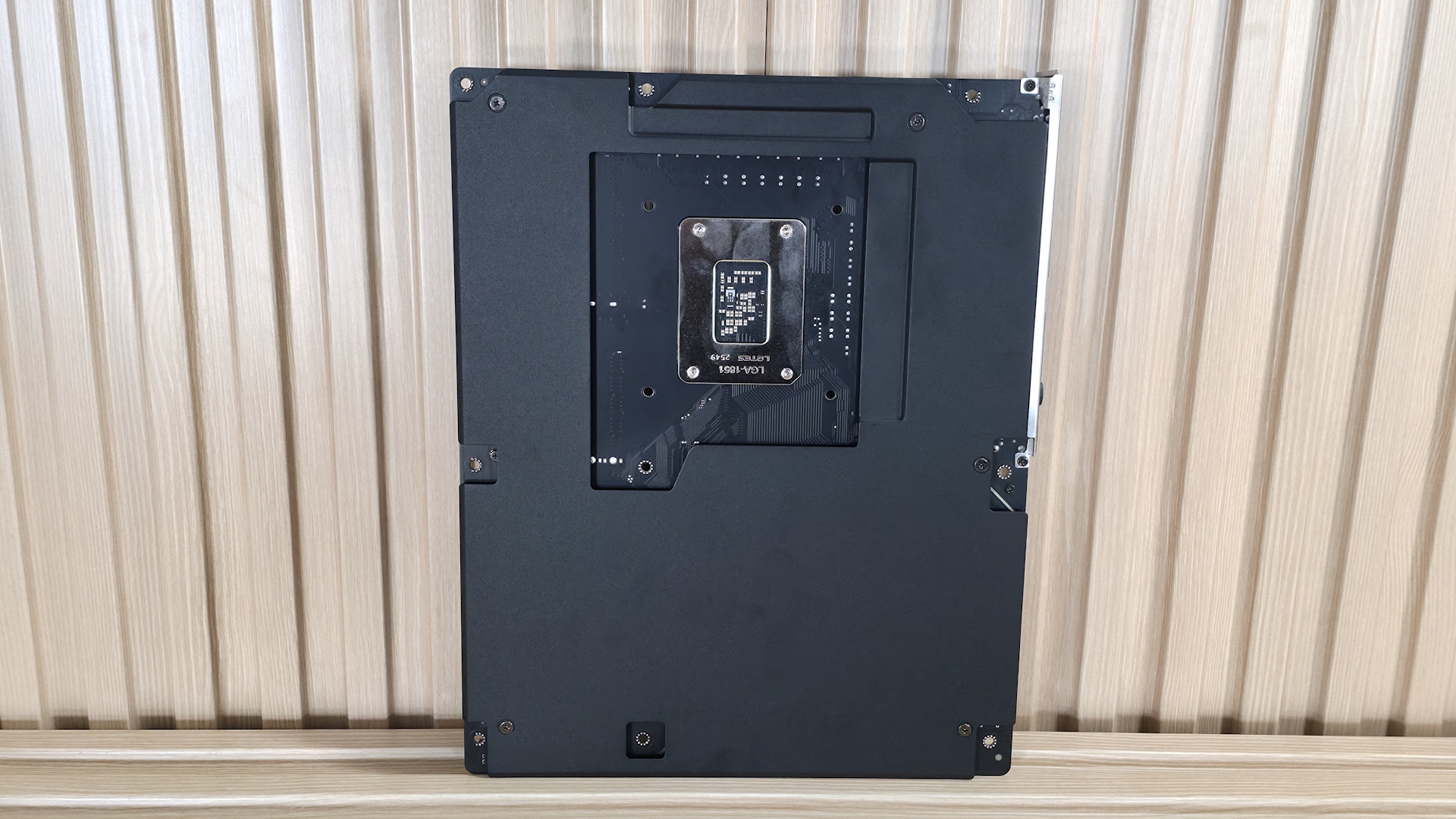
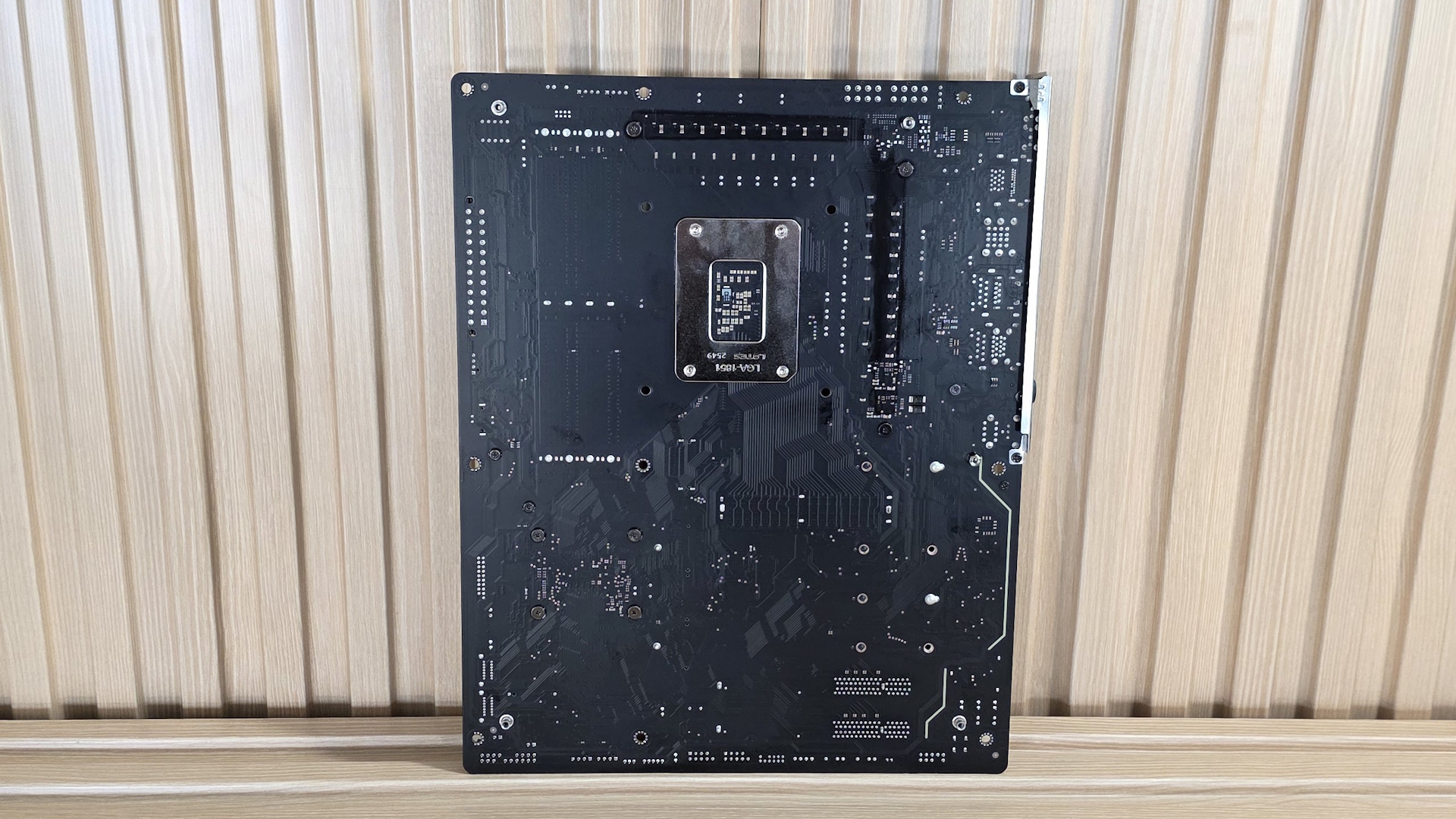
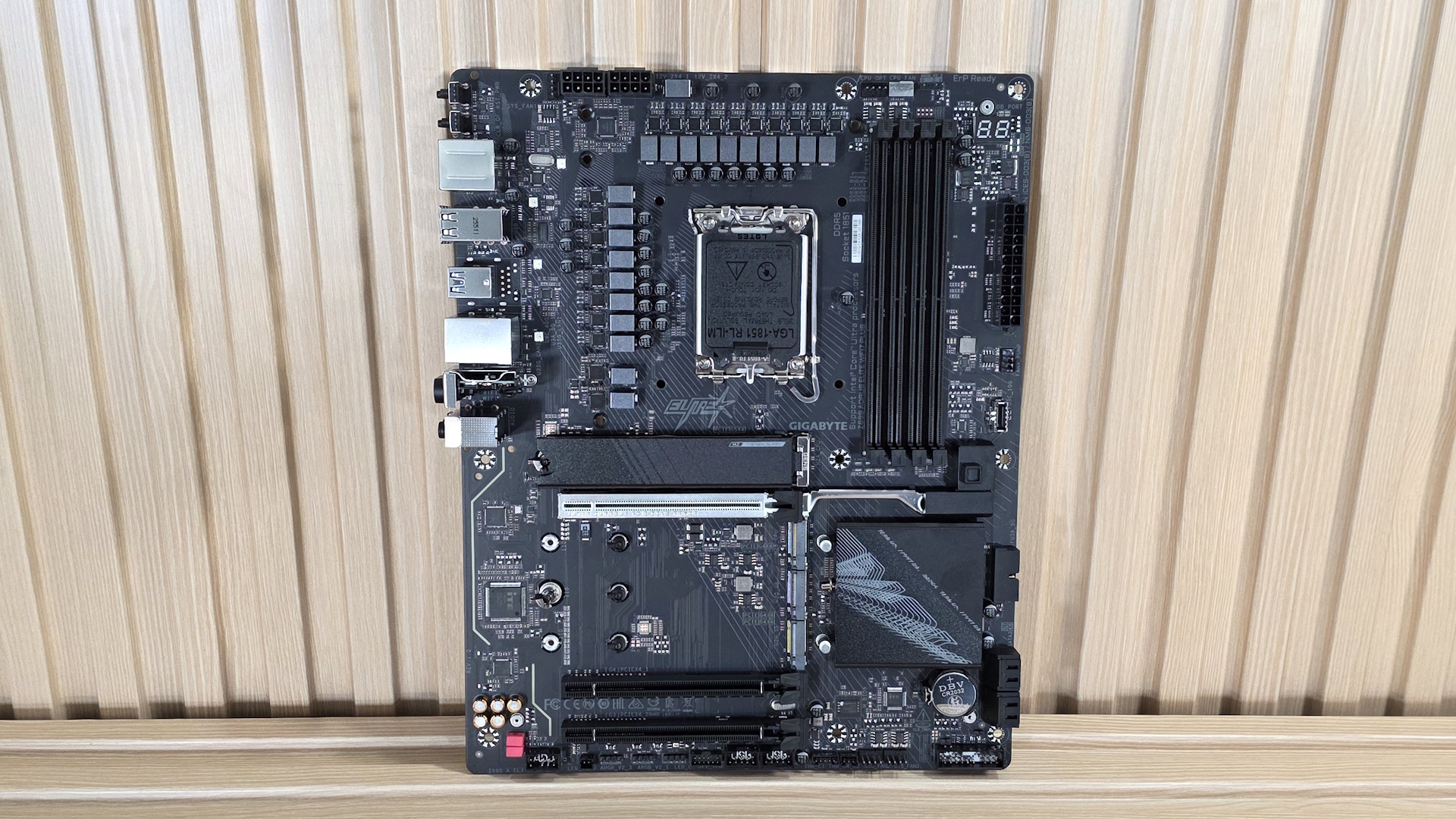
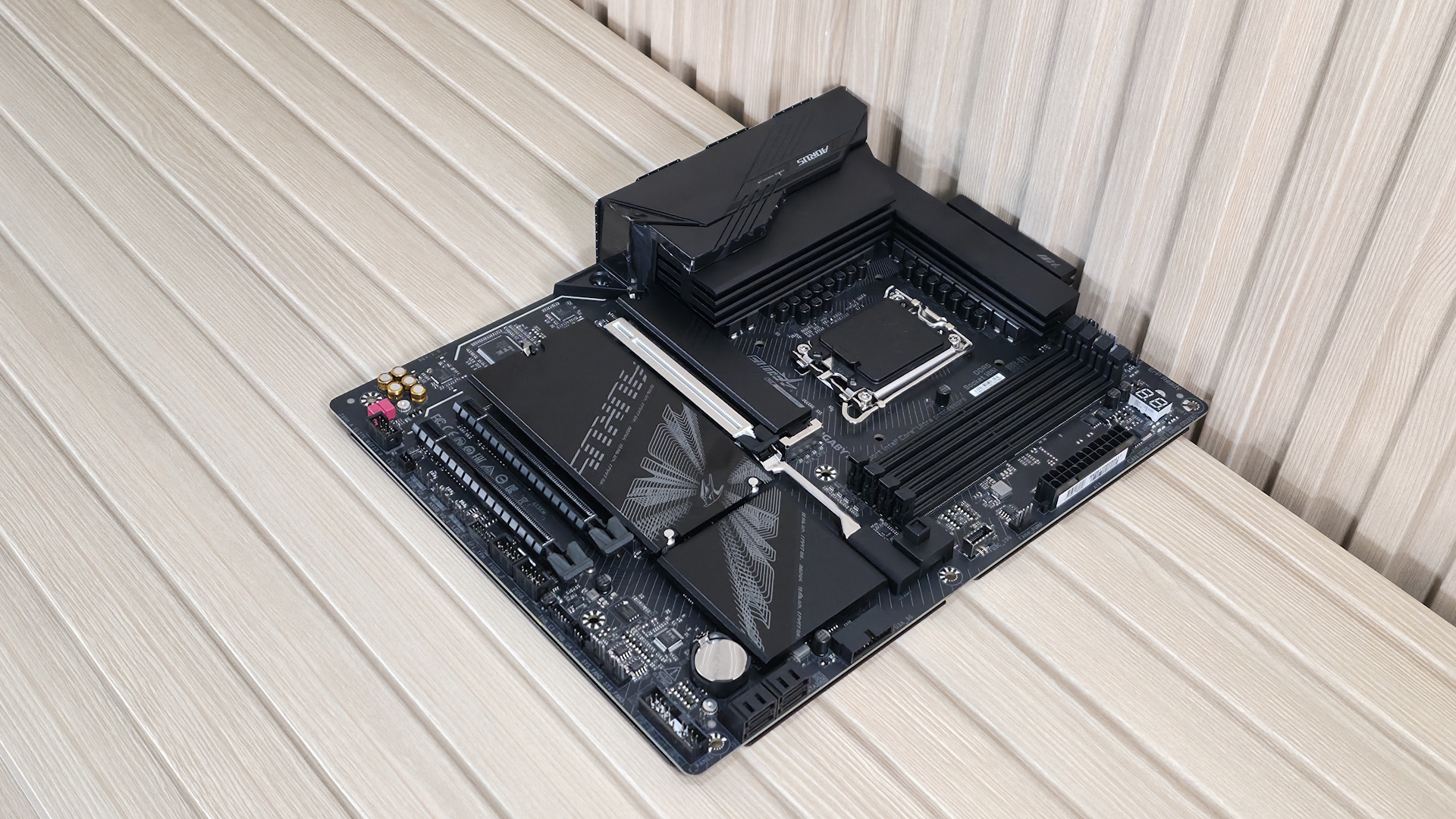
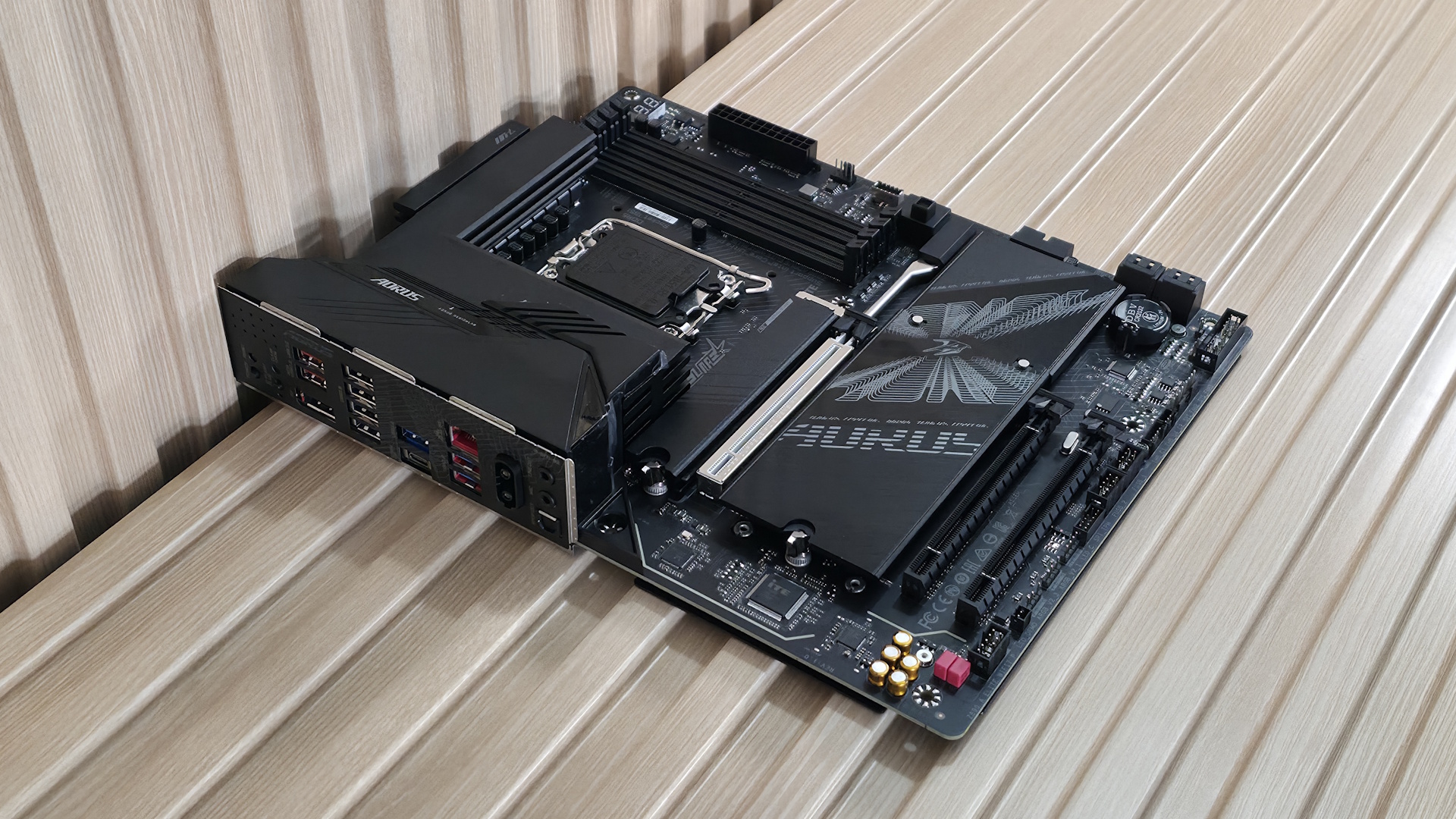
The mostly-black appearance starts with the multi-layer PCB and extends to almost all the heatsinks and connections, including the four DRAM slots. The Elite Wifi7 Plus sports a brushed aluminum finish on the plate heatsinks and some VRMs, with the other VRM heatsinks featuring a textured matte finish. There’s Aorus branding on both heatsinks (RGB backlit on the top left) as well as some gray-lined pattern stenciled on the PCB. Under the chipset heatsink are a couple of RGB LEDs. Gigabyte Control Center (GCC) and RGB Fusion app control the integrated and any attached RGB strips.
In all, this is a simple design aesthetic that’s par for the course (read: price) and should blend well with any black- or dark-themed builds. And if you read our Z890 Aorus Elite Duo X review, the specifications and features should be familiar, as they are the same board, except the Duo X has two DIMM slots, and with that, supports high-density, high-speed CQDIMMs.
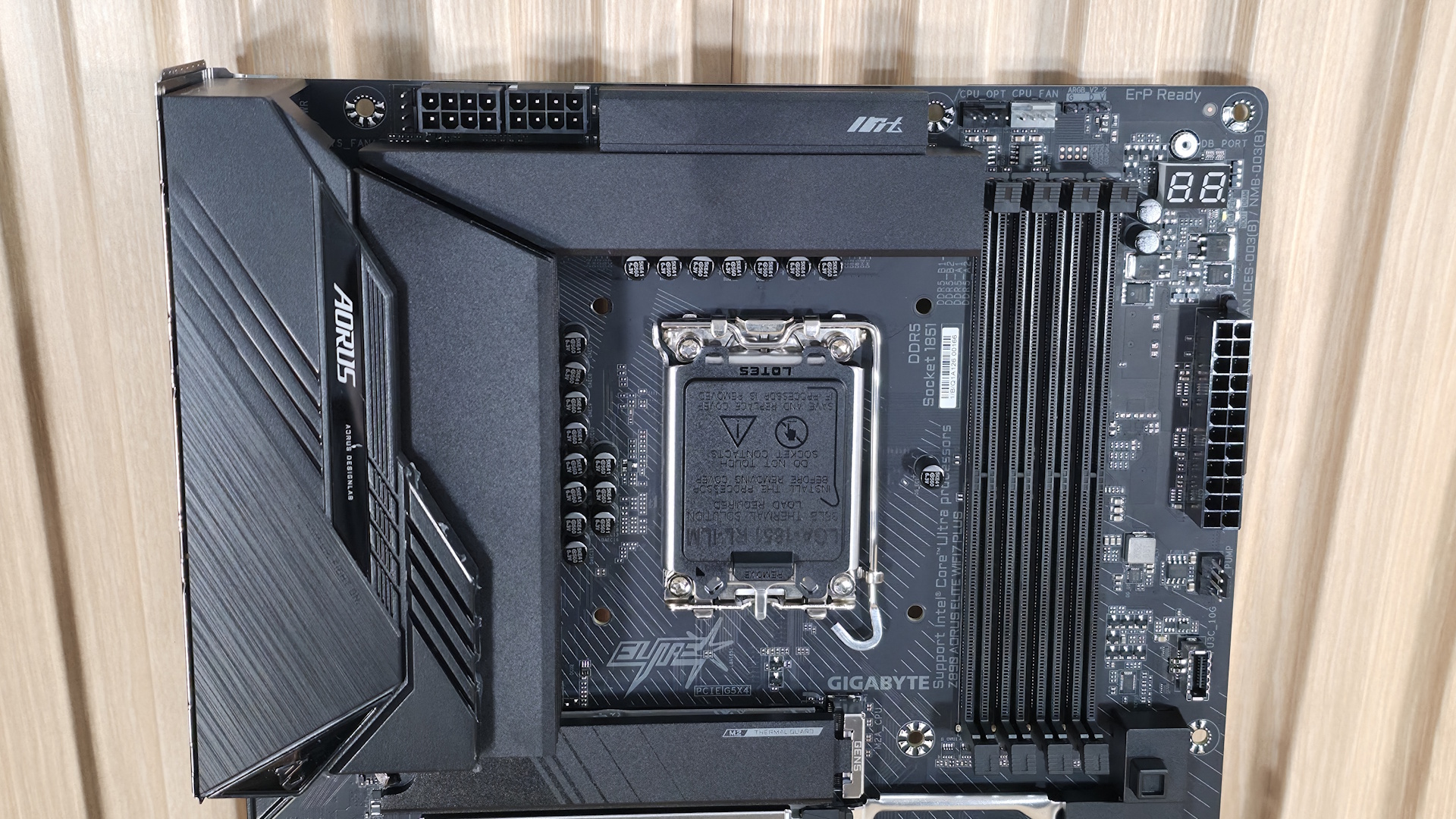
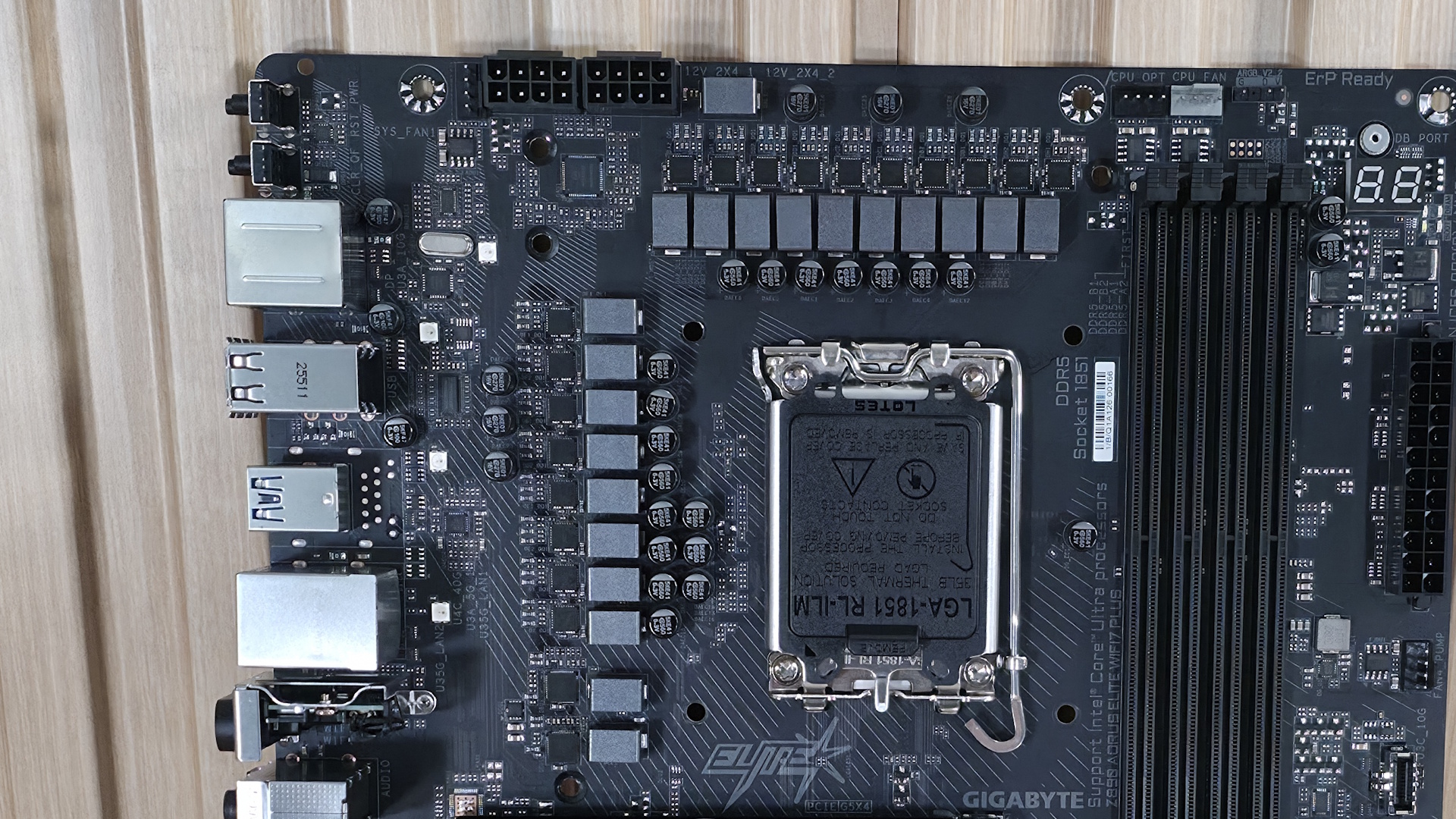
Zooming in on the top half of the board, we get a better look at the two VRM heatsinks that cool the MOSFETs below. They are large, have plenty of surface area, and do a good job of keeping the hot bits below running in spec. Above that are two 8-pin Ultra Durable EPS power connectors (one required) for the processor. If you’re overclocking or pushing a high-end CPU to the limit, you’ll want to use both to share the loads. Personally, I plug them both in, regardless of my use case.
Moving past the socket area to the right, the next thing we run into are the four DRAM slots with locking mechanisms at the top and bottom. Gigabyte lists support for up to DDR5-9466 MT/s (OC), which is plenty fast for the platform and we’d say well past Intel’s sweetspot. Both our kits (DDR5-7600 and DDR5-8200) worked as expected during testing. As always, stick to the memory QVL to ensure compatibility.
Above the DRAM slots are the first three (of six) 4-pin fan/pump headers. Each header supports PWM- and DC-controlled devices. Gigabyte lists the output for each header at 2A/24W, which is plenty to support multiple fans or a custom water-loop pump/ecosystem. Control over these headers is managed via GCC and Fan Expert in Windows, or via the BIOS.
Along the right edge, the next items we run into are the two debug features. The first is the 2-character debug port/LEDs, and the second is the four-LED debug area. Both tell you where problems are during the POST process. The 2-character debug port gives you details, while the four LEDs generically tell you where the problem is (CPU, DRAM, BOOT, VGA). Looking down the edge, we see the 24-pin ATX power connector, another 4-pin fan header, and finally a front-panel USB 3.2 Gen 2 (10 Gbps) port. Those looking for 20 Gbps connectivity on the front panel will have to look elsewhere (or get an add-in card that supports it).
Power delivery on the Z890 Aorus Elite Wifi7 Plus has a total of 19 phases, with 16 dedicated to Vcore. Power is supplied to the OnSemi NCP81537 controller via the 8-pin EPS connectors. From there, it heads on to 16 OnSemi NCP302155 60A SPS MOSFETs. While the 960A isn’t a lot, it can easily handle the Core Ultra 7 270K Plus, Core Ultra 5 250K Plus, as well as the Core Ultra 9 285K. You can even overclock; just be sure to keep good airflow in your chassis, as the components here can get warm with sustained heavy use.
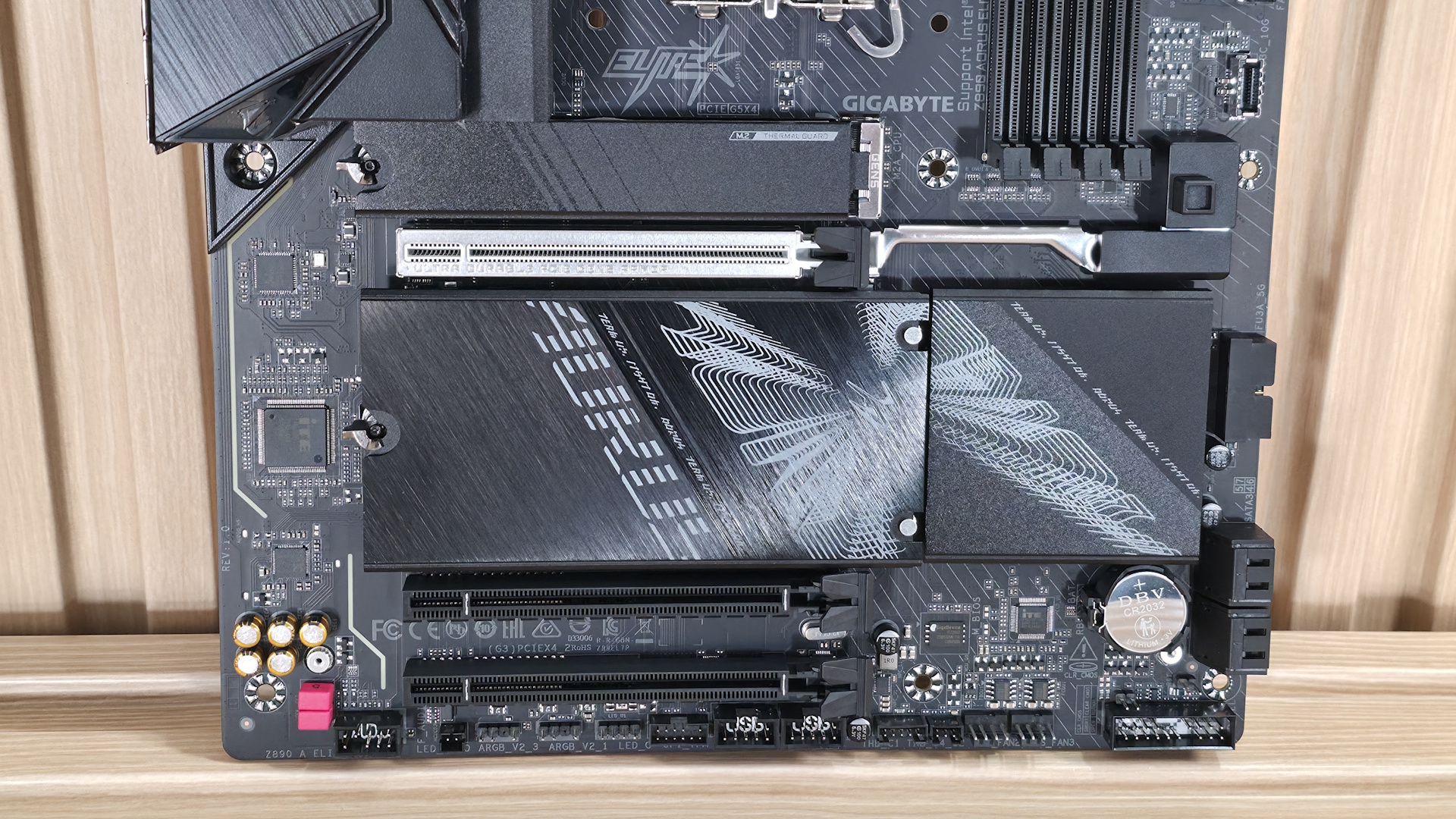
On the bottom half of the board, starting on the left, is the audio section, which includes the previous-generation flagship Realtek ALC1220 codec and a mix of standard (yellow) and WIMA (red) audio caps. It’s a solid audio solution for this class of board, the same as the Z890 Aorus Elite Duo X, though I would like to see the newest codecs (Realtek ALC408X) on the latest boards. You’d be hard-pressed to hear a difference, however.
In the middle of the board, between the M.2 heatsinks, are three full-length PCIe slots. The top slot sports an “UD” (Ultra Durable) reinforced slot and features the company's PCIe EZ-Latch Plus button for unlocking and releasing your graphics card. The slot connects the CPU, runs at the full PCIe 5.0 x16, and is the primary slot for discrete video cards. The bottom two full-length slots connect via the chipset, and both support PCIe 4.0 x4 speeds, making them good for high-speed expansion.
Mixed in with the PCIe slots are four other M.2 sockets. The top socket, above the primary graphics slot and working with its own (anemic-for-a-PCIe 5.0) heatsink, connects through the CPU and is the only PCIe 5.0 4x (128 Gbps) socket. It, like the others, supports devices up to 110mm. The three M.2 sockets below share the same heatsink, and all run through the chipset at up to PCIe 4.0 x4 (64 Gbps) speeds. The bottom-most, M2M_SB, also supports SATA-based SSDs. These M.2 sockets and SATA ports support RAID 0/1/5/10 for additional speed or redundancy (though RAID is not a backup).
Moving right, past the chipset heatsink on the right edge, is the 19-pin USB 3.2 Gen 1 (5 Gbps) connector and the four SATA ports (supporting RAID 0/1/5/10). We've also captured several images of the ICs used to make this motherboard work, including a mix of OnSemiconductor for power and Realtek for networking and audio.
We've also captured several images of the IC's used to make this motherboard work consisting of a mix of Realtek for USB hub, Ethernet, and audio, and Vishay for MOSFETs.
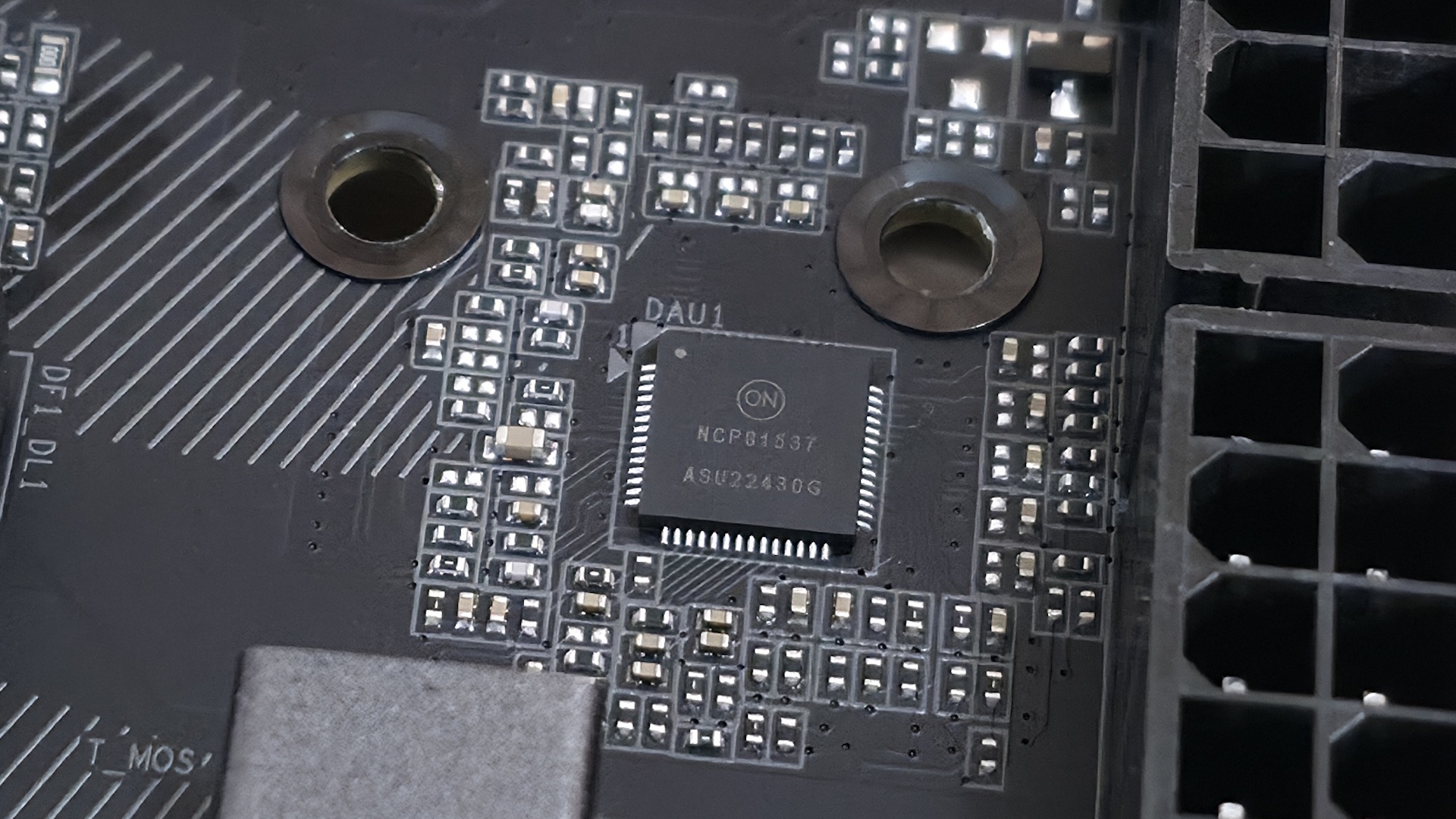
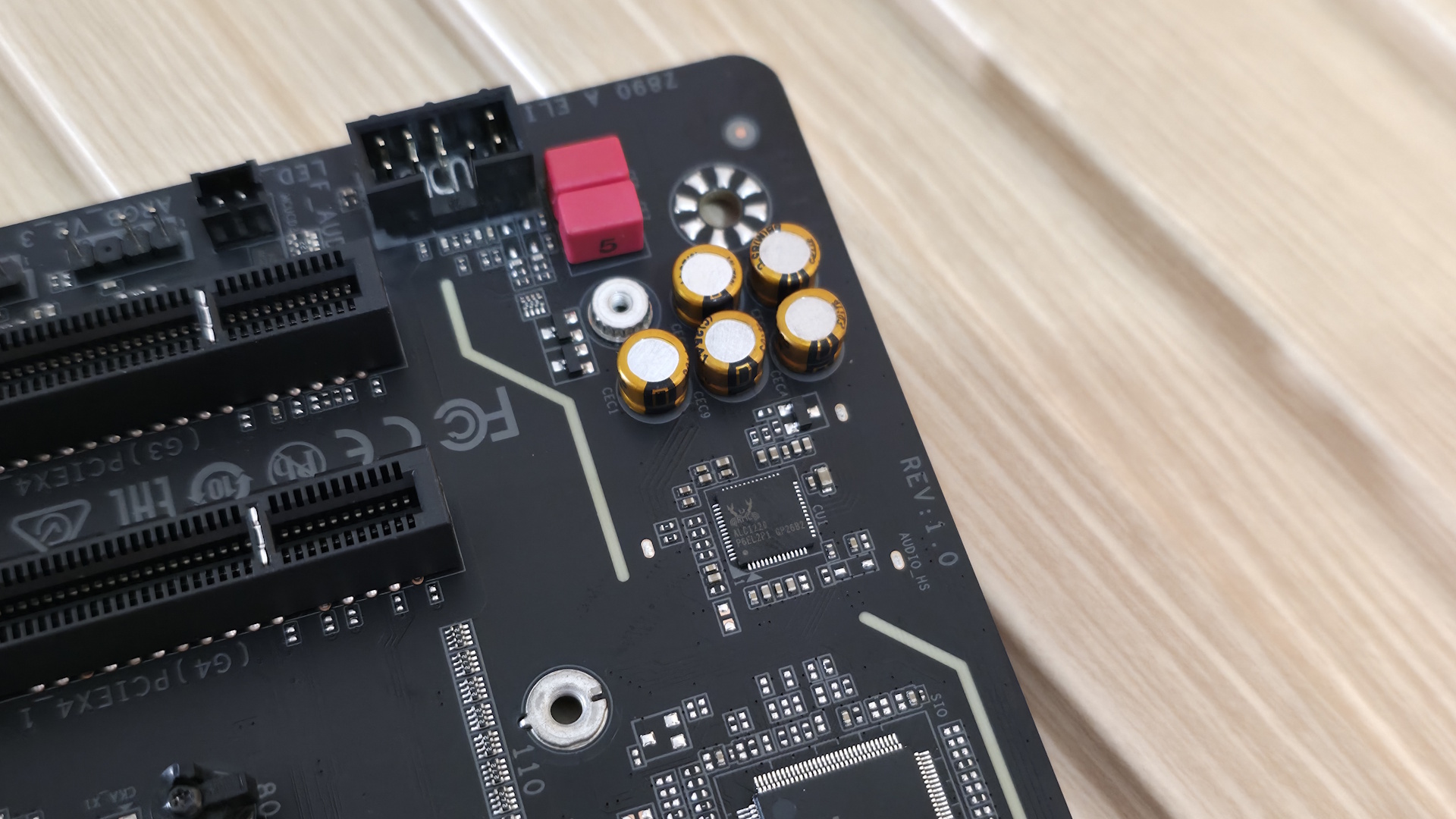
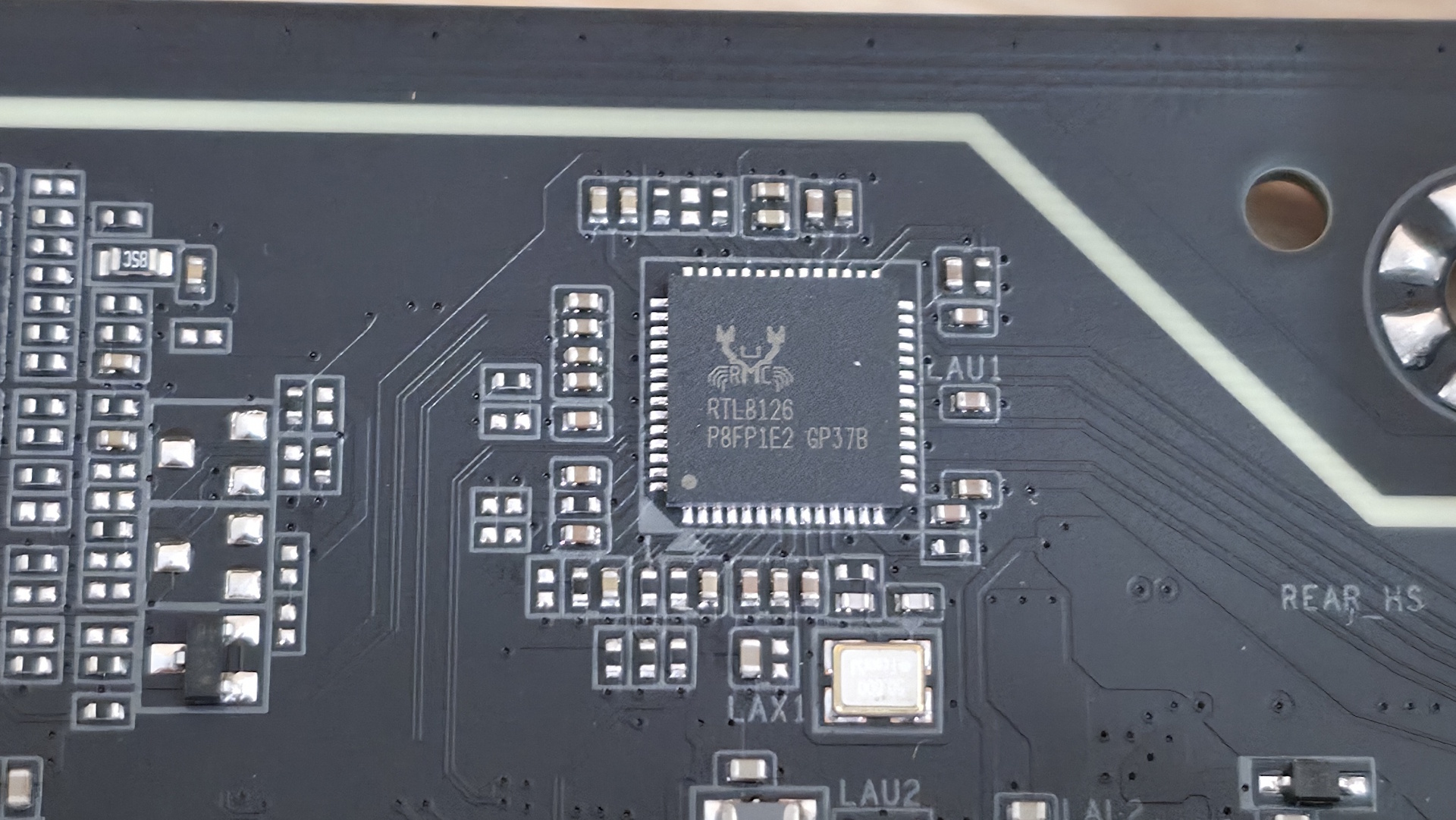
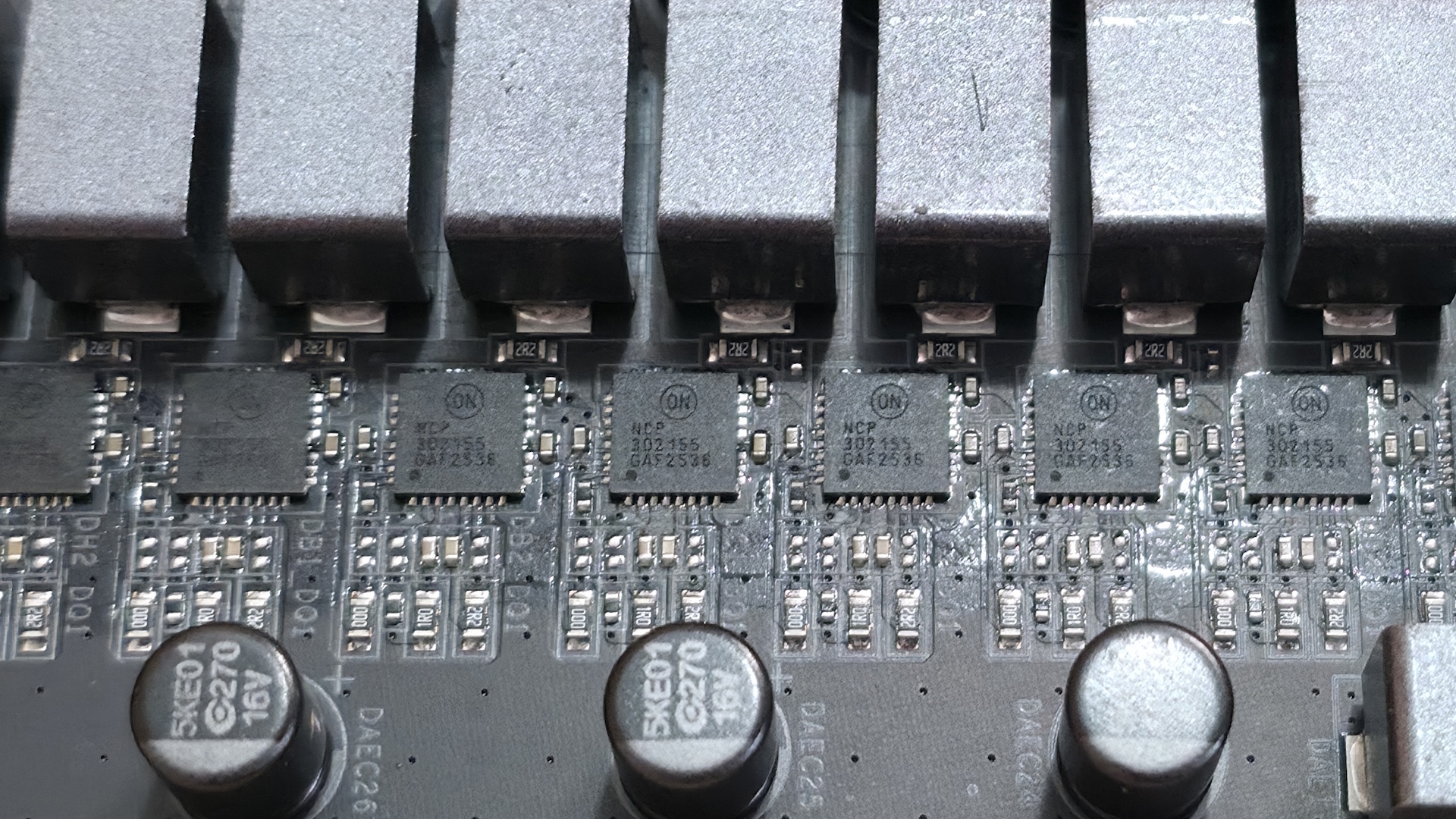
At the bottom of the board are a slew of headers. You get your typical connectivity, with nothing missing or worth a specific mention. Below we’ve listed all the connections across the bottom (rear) of the board.
- Front panel audio
- (2) 3-pin ARGB
- 4-pin RGB
- SPI TPM header
- (2) USB 2.0 headers
- Thunderbolt AIC headers
- (2) 4-pin system fan headers
- Front panel
- 2-pin Clear CMOS
- 2-pin Reset
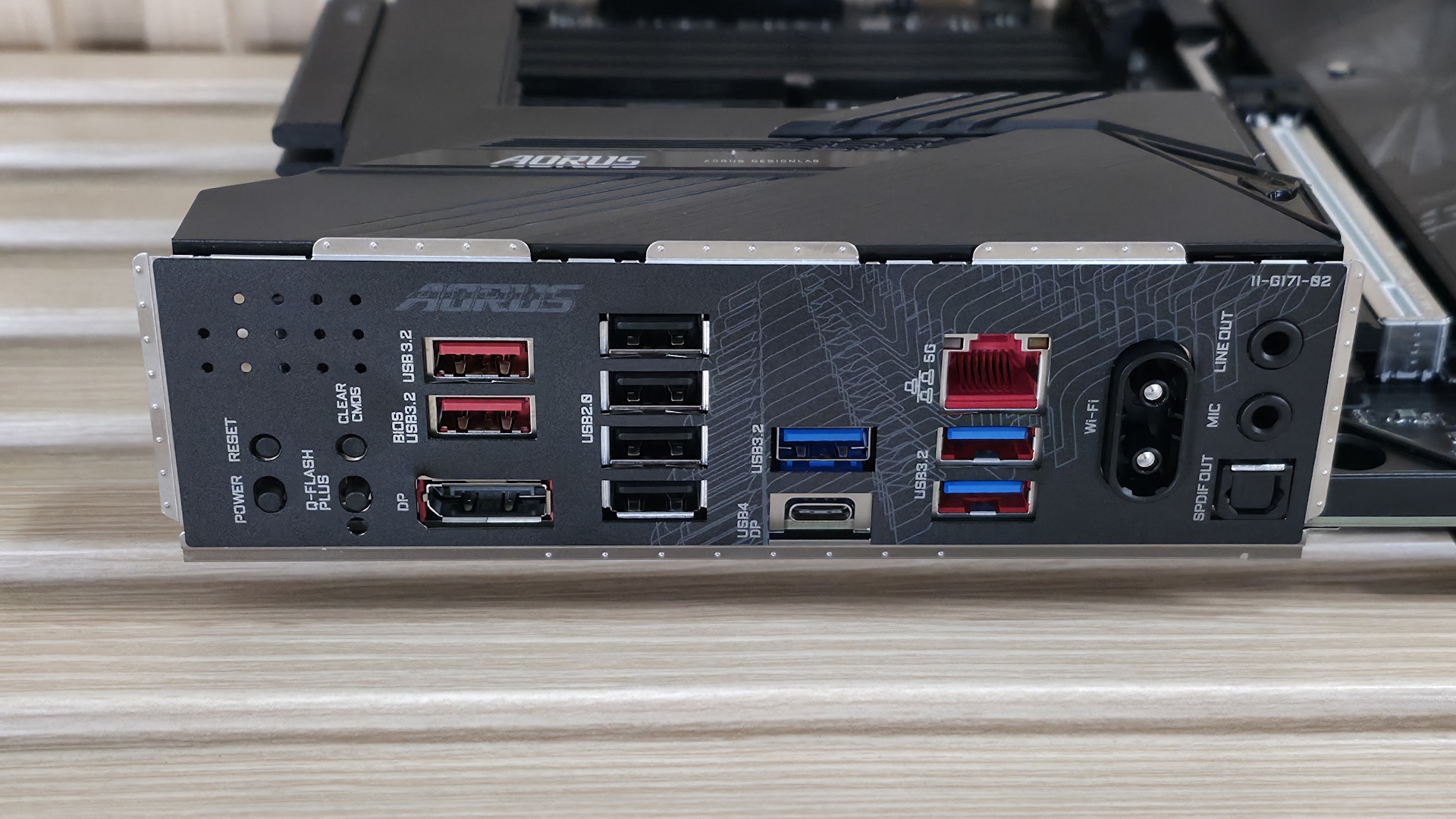
The rear I/O on the Aorus Elite WiFi7 Plus offers enough connectivity and includes a couple of buttons typically found on the motherboard itself. From left to right, we see those power and reset buttons, along with Clear CMOS and the Q-Flash Plus functionality. To the right is a DisplayPort output to use with integrated graphics. For USB ports, there are a total of 10: one USB4 40 Gbps Type-C port (that’s correct, USB4, not Thunderbolt 4), two USB 3.2 Gen2 (10 Gbps) ports, three USB 3.2 Gen 1 (5 Gbps) ports, and four USB 2.0 (480 Mbps) ports. Above the blue USB ports is the Realtek 5 GbE, and next to that, the quick-connect Intel Wi-Fi 7 (BE200NGW, 320Hz). Finally, on the right edge is the audio stack with two 3.5mm jacks (mic and line out) and SPDIF out.







 English (US) ·