
DM Disk Editor and Data Recovery Software (DMDE) is a popular name among data recovery loyalists. It’s not as flashy as some other modern tools, but those in the data recovery domain often swear by DMDE’s reliable recovery features.
In this article, we’ve put DMDE to the test to see if all the community chatter about this oldish-looking data recovery software is worth it. Read on till the end as we discuss DMDE’s performance, interface, pricing, and our final verdict based on in-house tests.
DMDE: Plans & pricing
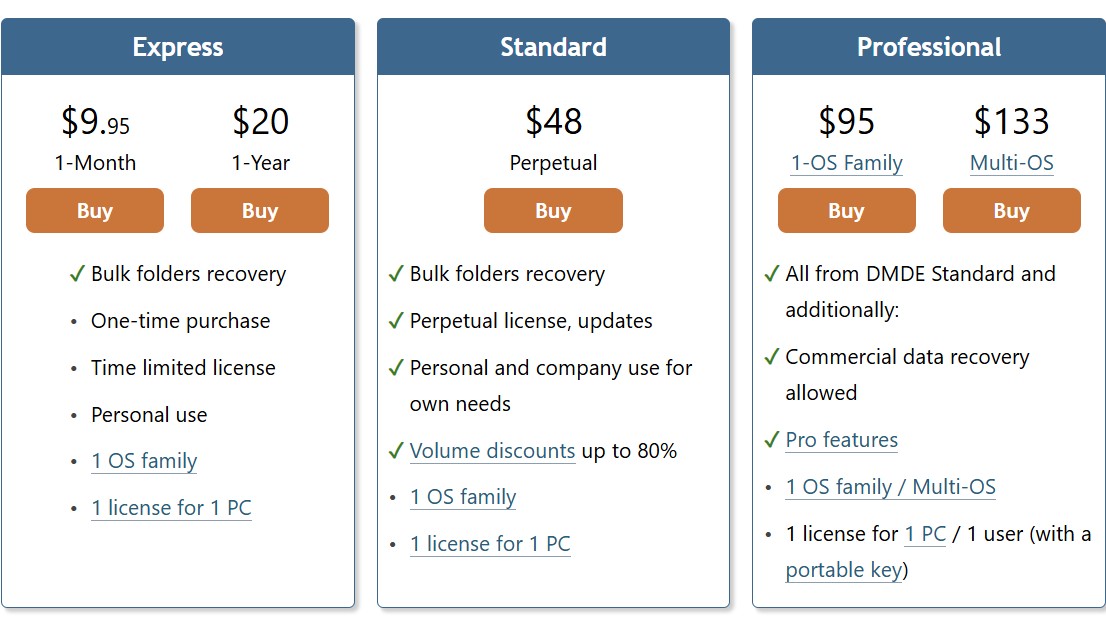
DMDE has one of the most generous free plans we have seen across the board. Its free version allows you to recover up to 4,000 files from a selected directory per request, without any limit on the number of requests you can make.
This means you can potentially use DMDE for free forever if you have the time to recover each directory individually, with a hard upper cap of 4,000 files per directory. However, this usually involves a lot of time and organizational headaches, which is why you should consider one of its extremely affordable paid plans.
You can get started with its Express plan, which costs $9.95 per month or $20 per year. This is ideal for individual users who want to recover a few files every now and then. Alternatively, you can opt for the Standard plan, which costs $48 for a perpetual license. This is recommended for regular home users and small businesses with personal recovery needs.
Lastly, there’s the Professional plan, which costs $95 for a single OS family and $133 for multi-OS. This plan is designed for medium and large enterprises, with several professional features such as read support for E01 disk image files, log support to resume disk copying, DMA mode support in DOS, and I/O handler script customization.
DMDE: Key features
DMDE supports a wide range of operating systems, including Windows, macOS, Linux, and even DOS, along with a host of file systems such as FAT12, FAT16, FAT32, exFAT, NTFS, HFS+, HFSX, Ext2, Ext3, Ext4, and so on. And if that’s not enough, you can provide DMDE with a custom file type, and the platform can recognize signature patterns to find and recover similar files from your desired location.
Besides this, DMDE is very good at detecting and restoring lost partitions, even after a complete partition wipeout. It can recover boot sectors and partition headers and works with both legacy and modern partition styles, which is very useful if you are trying to restore old systems.
However, it’s DMDE’s RAID reconstructor that sets it apart from other recovery software on the market. Its RAID module allows you to build a virtual RAID from either individual disks or disk images, while supporting RAID 0, RAID 1, RAID 4, RAID 5, RAID 6, delayed parity, custom striping, JBOD/spanned disks, along with automatic detection of RAID configurations.
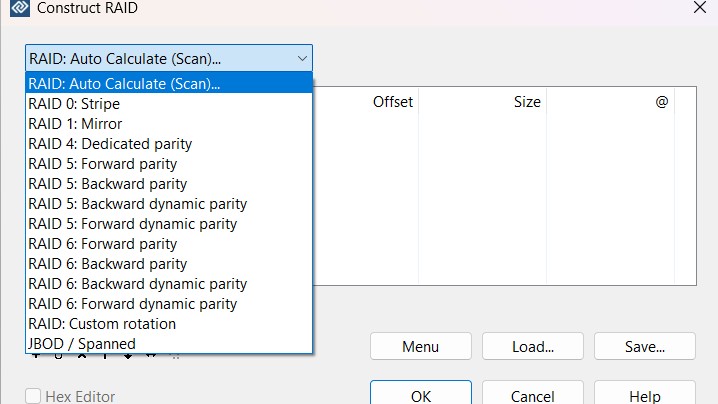
This lets you recover data even when the original RAID is broken or inaccessible, without needing to rebuild it physically. Since everything is done virtually, your source disks remain safe throughout the process.
Scanning
I was impressed by the number of scanning options DMDE offers. For starters, there are quick and deep scan options that you can choose based on your recovery needs. Besides this, before each scan begins, you can preset various parameters. For example, you can choose which area of the disk to scan or whether you want to scan raw file signatures.
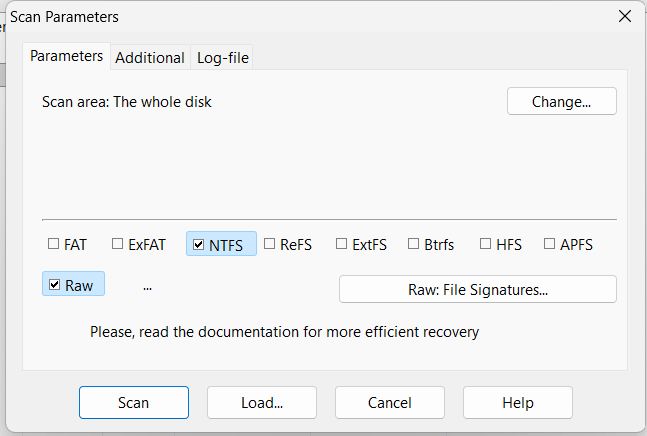
DMDE’s quick scan is much faster than some other recovery software. However, given its lackluster interface, you won’t see a prominent scanning status bar – only a small battery-style bar. That said, if the scan takes longer than expected, you can save the scans to load later. You also have the option to view the files being scanned by clicking the ‘Open Volume’ option at the bottom.
Once you see the deleted file you want to recover, select the small checkbox on the left and click ‘Recover’. You’ll again see some advanced selection options, where you’ll need to choose the recovery destination and filter out results based on file size, last modified date, and IDs.
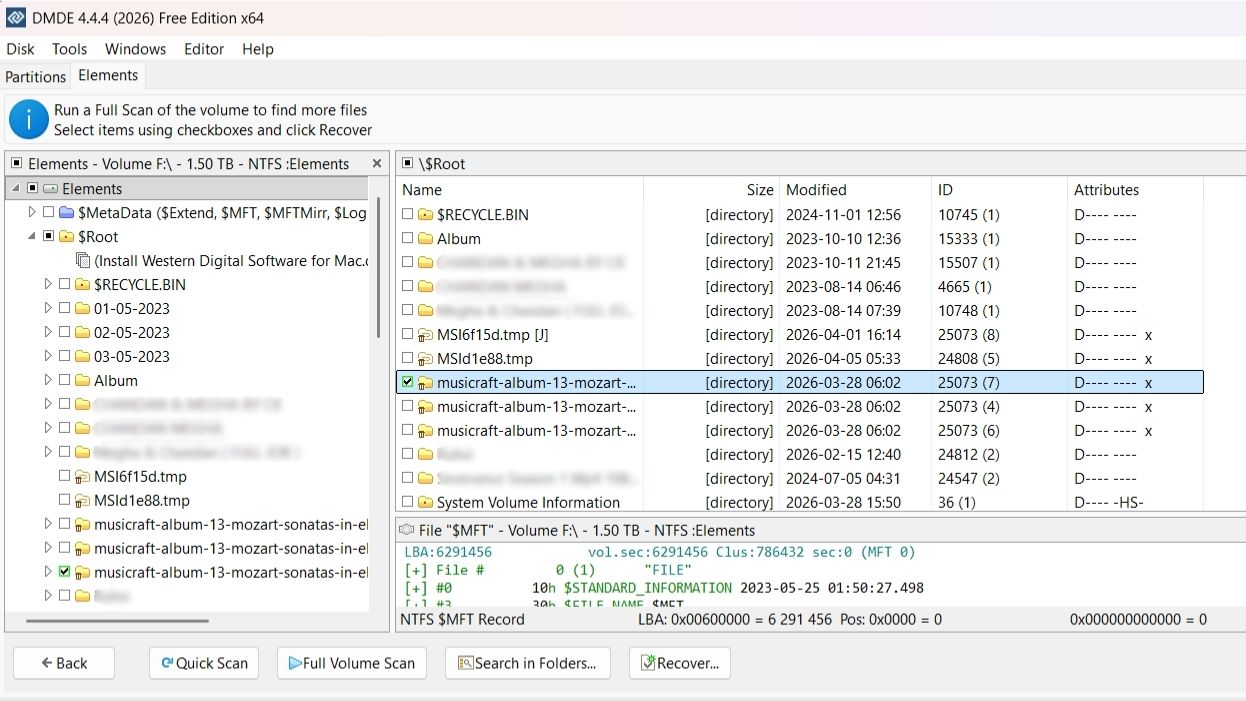
Once you hit ‘Recover’, the files will appear in your chosen destination within a matter of minutes. However, do note that in the free edition, files can be processed from the active panel only. So, you’ll need to open a subdirectory in the active panel before you can recover any files.
DMDE: Installation and in-use
Installing DMDE is a piece of cake – a simple click of the free download button on its website will install the application on your system. Follow the prompts to complete installation, and it will automatically launch on completion.
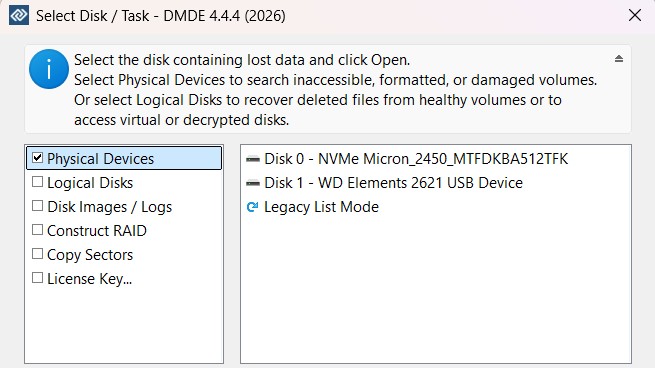
Unlike most data recovery software, which welcomes you with a homepage or dashboard, DMDE is pretty vanilla. All you’ll see is a disk selection window, where you’ll need to select the disk you want to scan or choose other features you want to access.
Now, the first thing that struck me was how old the interface looked. DMDE seems to be stuck in the ’90s, and using it feels like you’re cranking up an old motorcycle on a new highway. Needless to say, there’s a steep learning curve involved. You’ll have to fiddle with tiny menu options to find what you’re looking for.
Thankfully, there are ample resources on its website that guide you through the process. Even then, it can take you a few days to get the hang of this oldish-looking software.
DMDE: How we tested
I installed the free version of DMDE on my Windows 11 system, with 16GB of RAM and a 12th Gen Intel(R) Core(TM) i5-12500H processor. To test DMDE’s versatility, I downloaded Mozart's album from the Internet Archive, which consisted of 22 files – 13 JPG files, 4 PNG files, 2 MP3 files, 2 FLAC files, and 1 torrent file.
I copied this folder onto a 1.36 TB NTFS hard drive and connected it to my Windows 11 system. I then deleted this folder and emptied the Recycle Bin. After this, I ran a quick scan with DMDE. I clicked ‘Open Volume’ while the scan was still running and found the said Mozart folder. I opened the folder to select the files I wanted to recover and clicked ‘Recover’, and within a minute, the files appeared in my chosen destination in perfect condition.
DMDE: Support
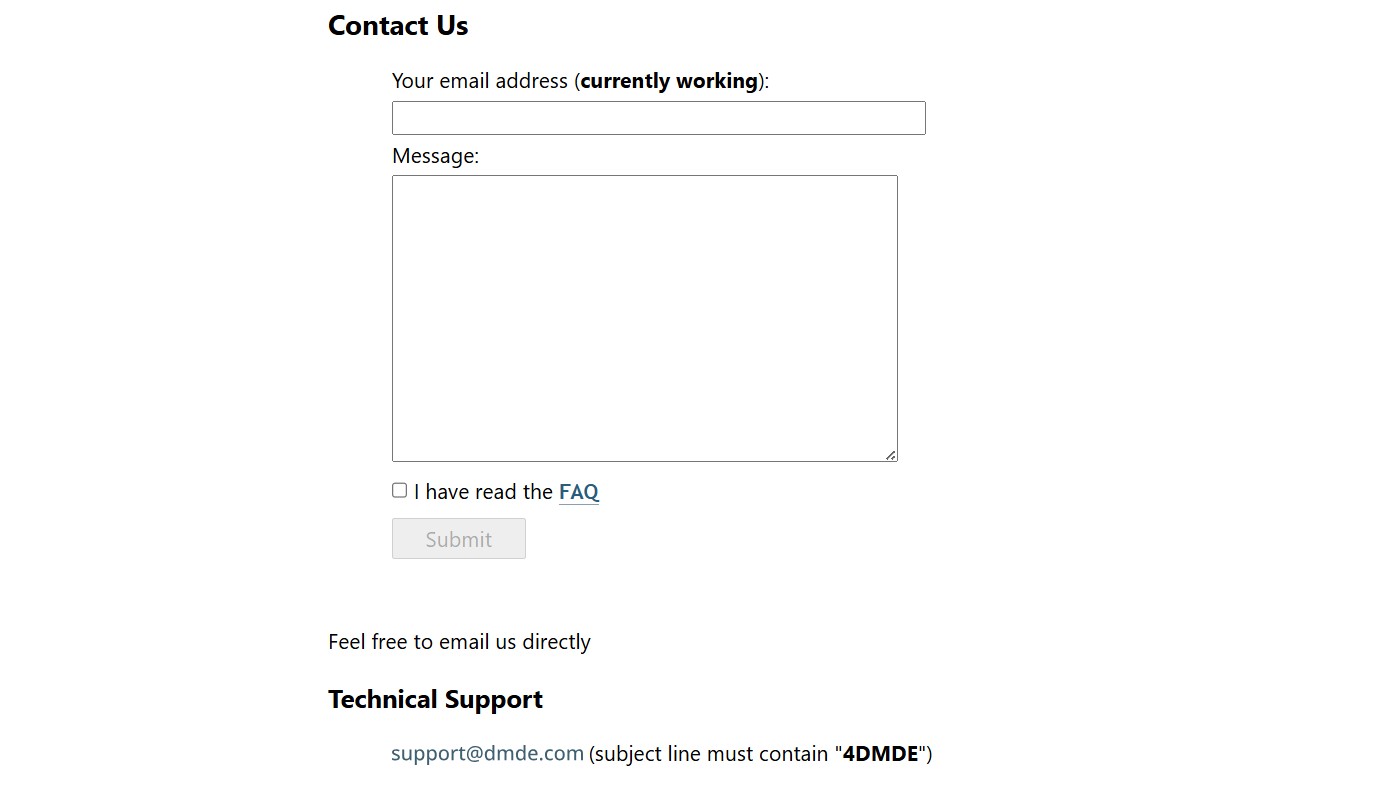
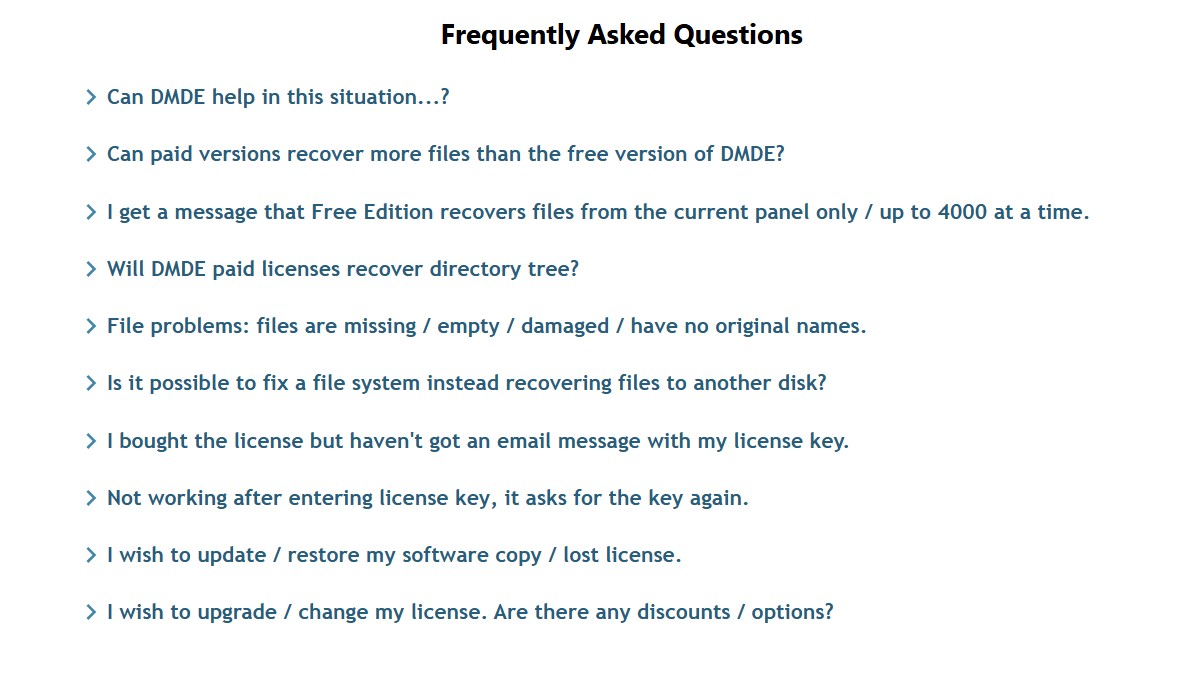
Additionally, there’s a FAQ section that covers common issues and usage questions. While it’s not as detailed as we would like, it still gets the job done for most basic queries.
DMDE: Final verdict
DMDE is one of the most value-for-money data recovery software solutions we have tested. At an annual cost of $20, you get advanced scanning features that support all common and even customizable file formats across systems like Windows, macOS, Linux, and DOS.
Not only can you recover lost partitions, but DMDE’s RAID reconstructor also allows you to build a virtual RAID while automatically detecting RAID configurations. Its quick scan is fairly fast and allows you to recover files while the scan is still in progress. You also have the option to save scans and resume them at a later date.
The only downside to DMDE is its outdated interface and steep learning curve. You’ll have to find your way around the menus and hidden settings. However, once you get past that, DMDE is a reliable recovery tool that rewards patience with powerful results.




 English (US) ·