
 1 day ago
15
1 day ago
15
Though the bulk of my reviews are of the best gaming monitors, I like to highlight innovation and advancement whenever possible. Gamers get ever-faster, smoother video processing with new tech like G-Sync Pulsar, but what motivates professionals to plunk down thousands of dollars on a new screen? A trend I’ve observed is the inclusion of a built-in calibrator with fully automated adjustment. I’ve seen these in Asus’ ProArt models, most recently the PA32KCX reviewed here.
That monitor costs over $8,000, but if you want the same level of convenience and are OK with 4K resolution instead of 8K, Dell offers its UltraSharp U3226Q. It’s a 32-inch QD-OLED panel with 4K resolution, 120 Hz, Adaptive-Sync, HDR10, HLG, Dolby Vision, DisplayHDR True Black 500, industry-standard color modes, and a built-in calibrator. And it can be yours for around $2,600 at the time of this writing. Let’s take a look.
Dell UltraSharp U3226Q Specs
Swipe to scroll horizontally
Panel Type / Backlight | Quantum Dot Light Emitting Diode (QD-OLED) |
Screen Size / Aspect Ratio | 32 inches / 16:9 |
Max Resolution and Refresh Rate | 3840x2160 @ 120 Hz |
| Row 3 - Cell 0 | FreeSync and G-Sync Compatible |
Native Color Depth and Gamut | 10-bit / DCI-P3+ |
| Row 5 - Cell 0 | HDR10, HLG, Dolby Vision |
| Row 6 - Cell 0 | DisplayHDR True Black 500 |
Measured Response Time (black to white, 1-inch square) | 0.12ms |
Brightness (mfr) | 300 nits full field |
| Row 9 - Cell 0 | 1,000 nits 1.5% window (HDR) |
Contrast | Unmeasurable |
Speakers | None |
Video Inputs | 1x DisplayPort 1.4 |
| Row 13 - Cell 0 | 2x HDMI 2.1 |
| Row 14 - Cell 0 | 2x Thunderbolt in/out |
Audio | 3.5mm headphone output |
USB 3.2 | 1x C upstream, 3x A downstream, 2x C downstream |
Additional I/O | 1x RJ-45 |
Power Consumption | 25.6w, brightness @ 200 nits |
Panel Dimensions WxHxD w/base | 28.3 x 18.7-24.6 x 8.6 inches (719 x 475-625 x 218mm) |
Panel Thickness | 2.6 inches (66mm) |
Bezel Width | Top: 0.35 inch (9mm) |
| Row 22 - Cell 0 | Sides: 0.47 inch (12mm) |
| Row 23 - Cell 0 | Bottom: 1.18 inch (30mm) |
Weight | 20.9 pounds (9.5kg) |
Warranty | 3 years |
That’s a lot of money for a computer monitor, but in the pro realm, the U3226Q is a relative bargain. It gives nothing away to more expensive screens being every bit the equal of any premium mastering monitor I’ve tested. At the core, it’s a QD-OLED panel with 140ppi density, wide gamut color, and 120 Hz. It also includes support for every HDR standard, HDR10, Hybrid Log Gamma, and Dolby Vision. OK, there’s no HDR10+. It can emulate any of these with SDR content, which is important to video postproduction when mastering to multiple formats at once.
The color modes conform to industry standards and cover every TV and video spec currently in existence. You get sRGB, Adobe RGB, BT.709, BT.2020, P3 in Cinema and Display formats, and there are six user memories where you can create your own configurations.
The built-in color meter emerges from a little garage at the bottom of the screen when you engage in either auto calibration or validation. You can schedule the activity for after hours and set an interval where the U3226Q adjusts itself, hands off. If you prefer your own solution, the monitor interfaces with Calman’s Autocal function, where you can use any meter and pattern source you wish. You can also create picture modes with traditional OSD controls for gamut, color temp, and gamma.
Pro monitors are rarely good for gaming, but the U3226Q is an exception. It runs up to 120 Hz, which isn’t blindingly fast, but since it’s an OLED, blur is minimal. And you get Adaptive-Sync, which few mastering monitors offer. That makes it ideal for all types of content creation, from videos and TV shows to premium rendered games. And here’s a teaser: you’ll be surprised at its input lag and response results from my tests with Nvidia’s LDAT sensor.
The U3226Q is a super-flexible display, too. It ships with a quality rigid light hood that snaps on. It has plenty of inputs, including DisplayPort 1.4, HDMI 2.1, and Thunderbolt. The latter includes an output for daisy chaining. And there are plenty of USB ports (Type A and C), along with KVM functionality. Video production tools include screen markers for composition, framing, and multiple aspect ratios.
Assembly and Accessories
Dell has gone fully over to recyclable packaging, and the U3226Q arrived snuggled securely in molded pulp. The stand is a quality piece that goes together with a captive bolt. The panel then snaps on. The light hood is a single piece and attaches magnetically. If you’d rather use an arm, there’s a 100mm VESA mount in the back with fasteners provided. Cables include HDMI, DisplayPort, two USBs ,and IEC for the internal power supply.
Product 360
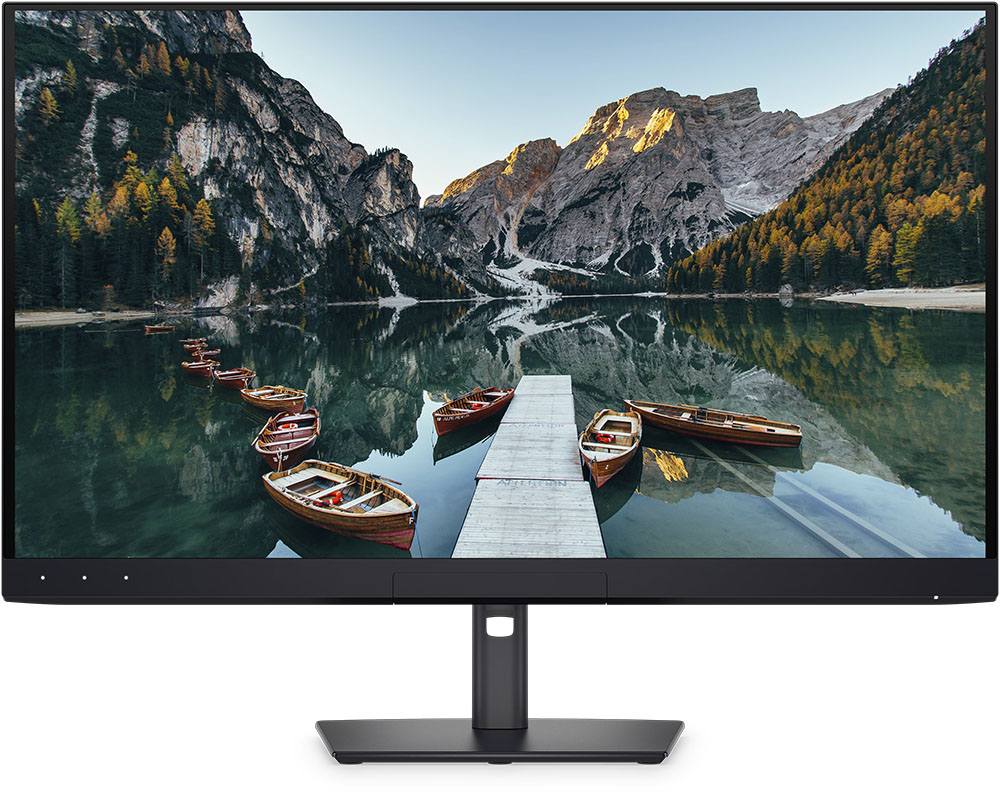
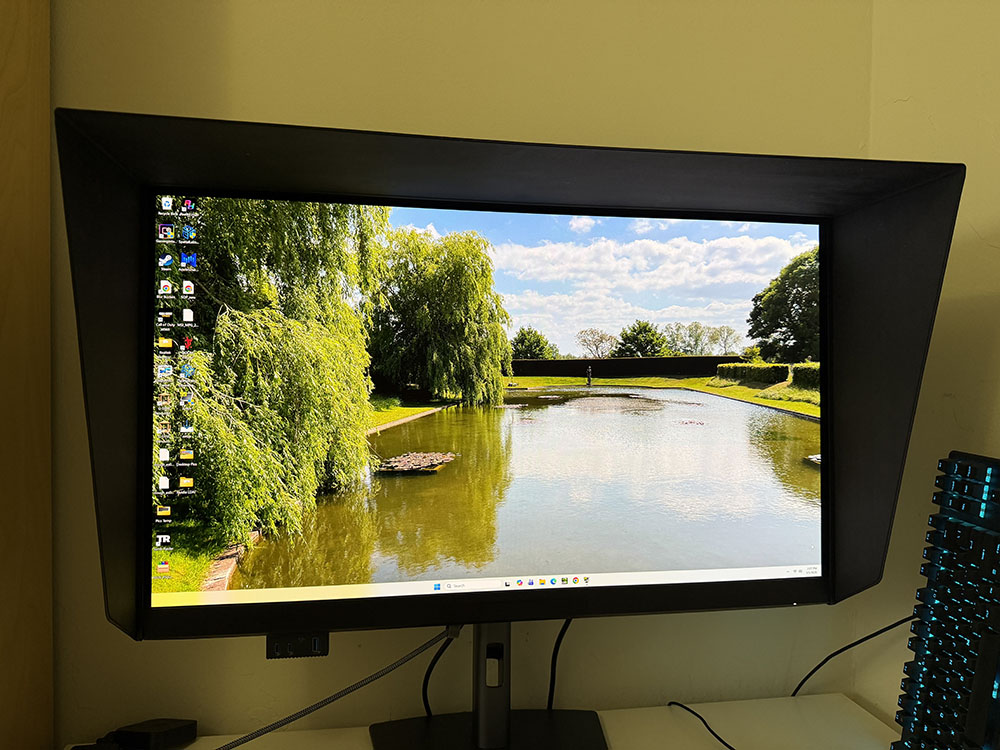
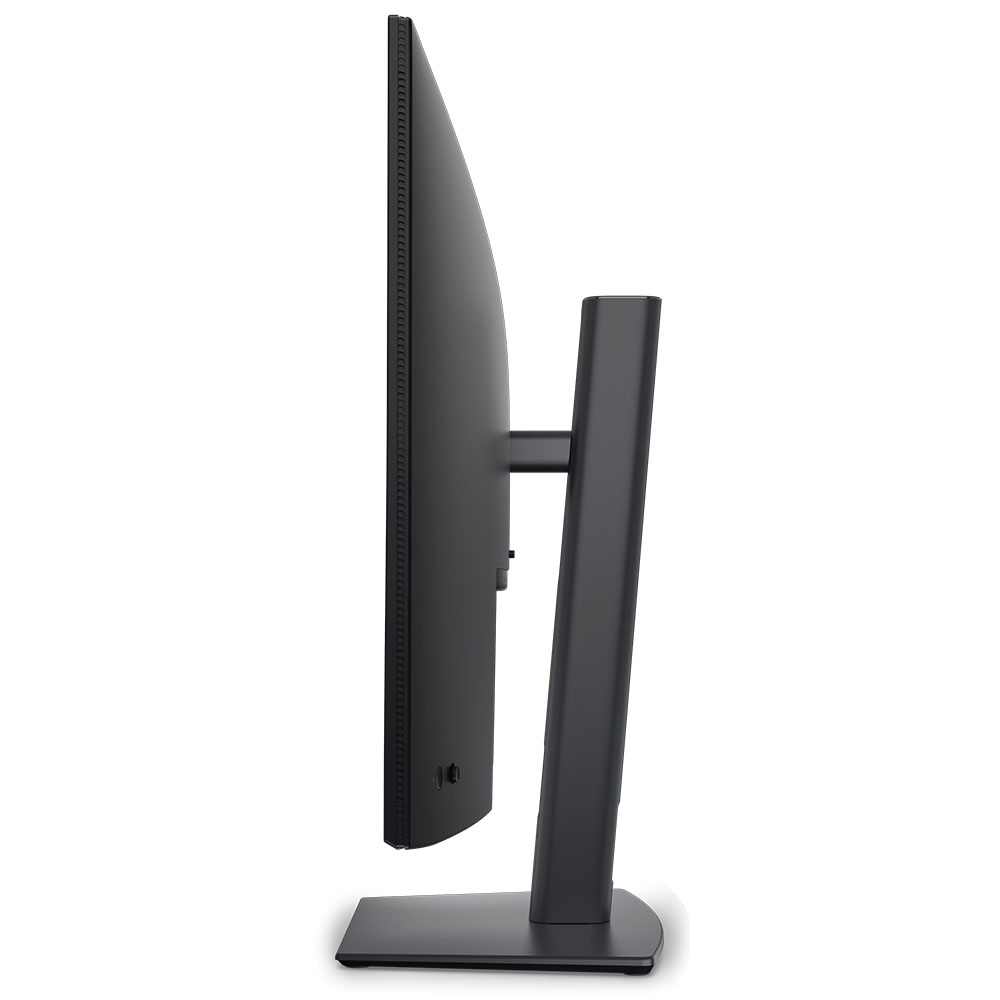
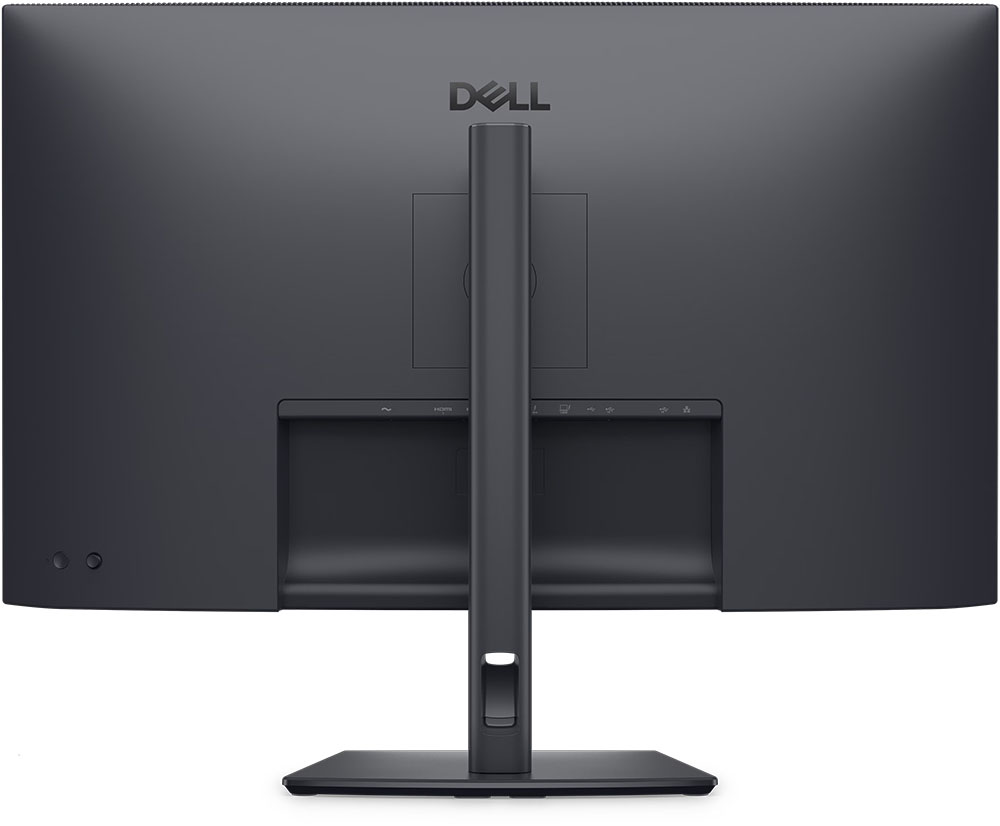
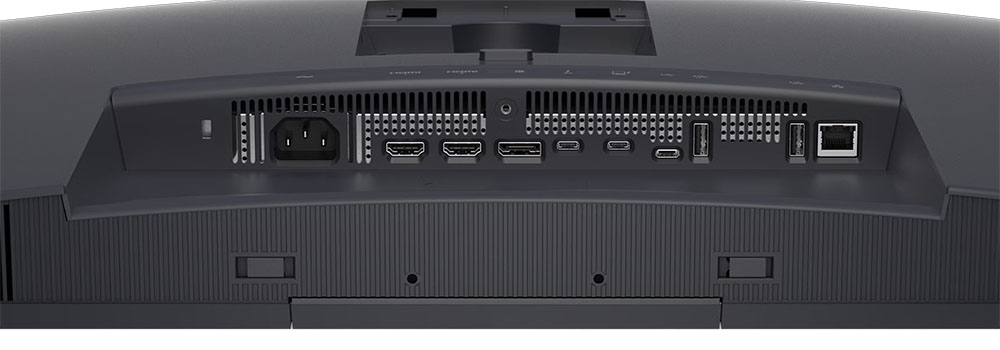
The U3226Q is simply styled with a firm nod towards function. Surfaces are near matte with smooth tapers and slightly rounded corners. There isn’t a straight line in sight past the screen’s front, which isn’t shiny like most OLEDs. It has an aggressive light-rejection layer, keeping the picture at maximum contrast, even without the light hood. Snap it on and you have even better quality in rooms with some ambient light. It’s a one-piece folding design and attaches magnetically in about three seconds. It’s the least fiddly hood I’ve seen yet and should be a model for others to emulate, kudos.
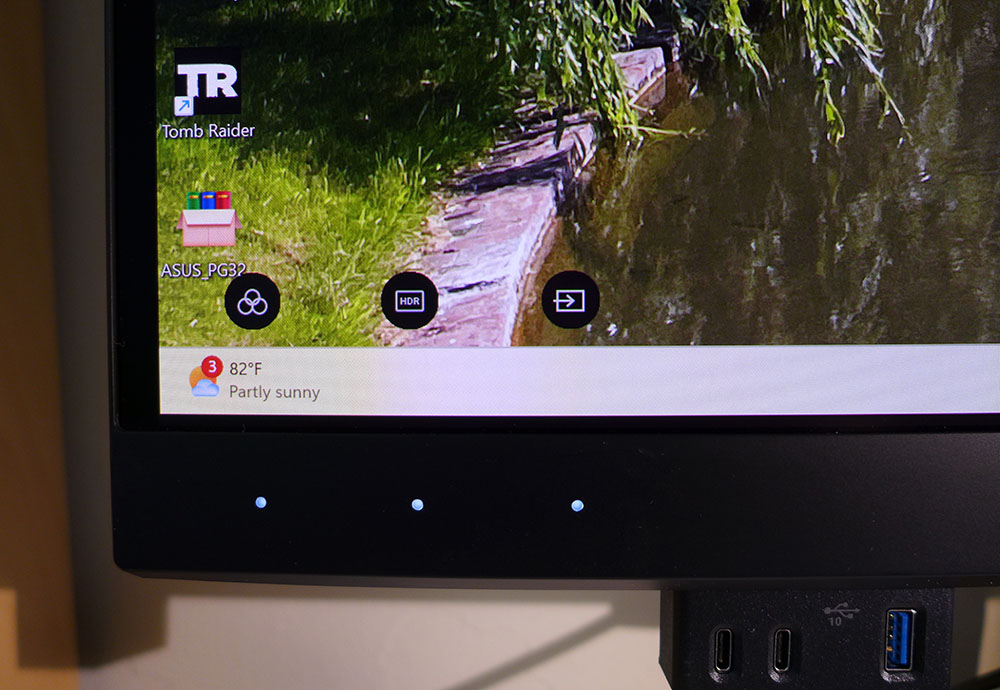
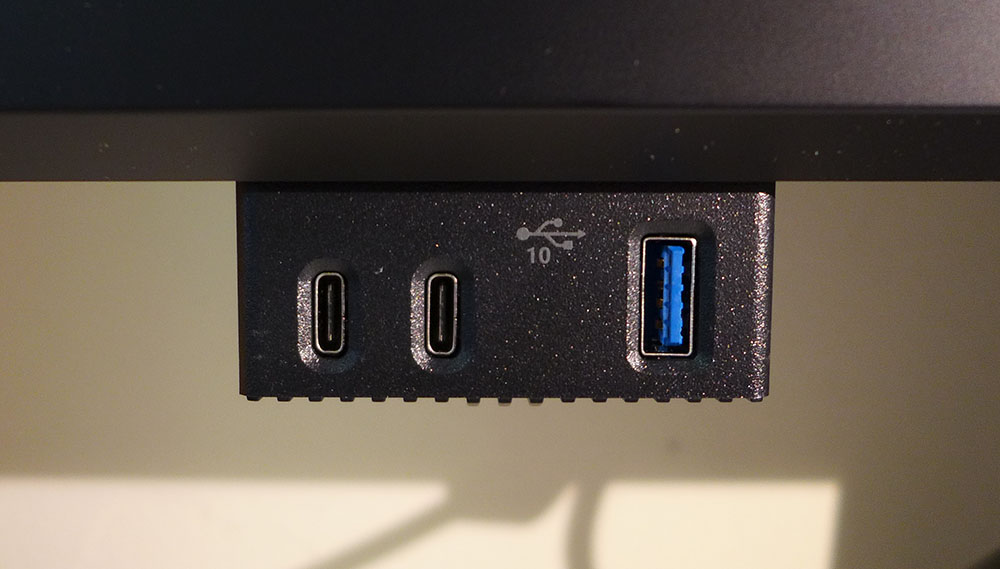
Also in front is a cool pop-out port block with USB ports, two Cs and an A. This is super convenient and if you don’t need them, just push the block up and it disappears. Above it, on the bezel, are three touch-sensitive buttons that light up when your hand gets close. I enjoyed waving at the screen like Harry Potter to make them appear. They’re programmable with small function icons that show on the screen. Just keep tapping them to scroll through available options like color mode, HDR or input selection which are the defaults.
The stand is very solid and capable of supporting far more weight than the U3226Q’s 20 pounds. It has full ergonomics with 5/31 degrees tilt, 30 degrees swivel and a 5.9-inch height range. It also rotates 90 degrees for portrait mode with auto rotate for the OSD.
The inputs are many and include just about everything except a headphone jack. There are no internal speakers either. For video, you get one DisplayPort 1.4, two HDMI 2.1 and Thunderbolt in/out. The output is for daisy chaining, where you connect multiple monitors to a single video card output. The USB hub has three type As and a type C. And there’s an Ethernet port, RJ-45, for remote admin.
OSD Features
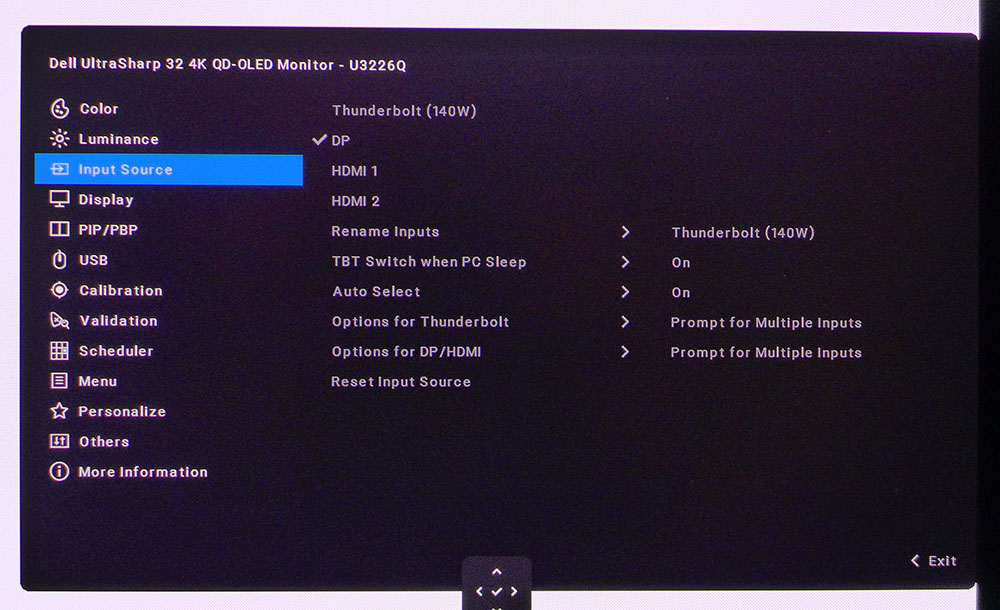
The U3226Q’s OSD is huge with more calibration options than I could have imagined. But don’t be fooled, adjusting this monitor is about as easy as it gets. Bear with me as I go through the 14 photos below, there’s a lot to see.
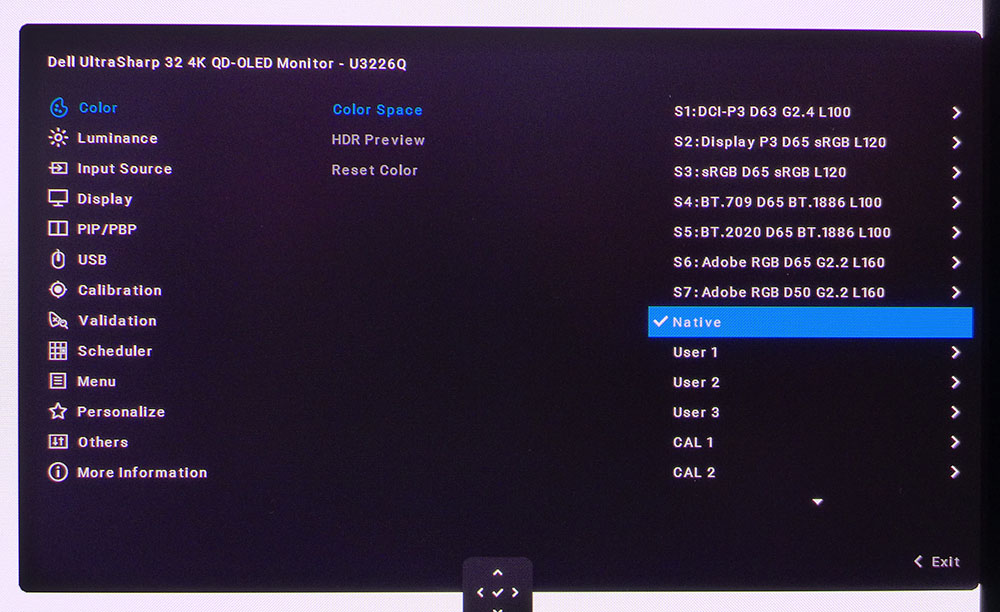
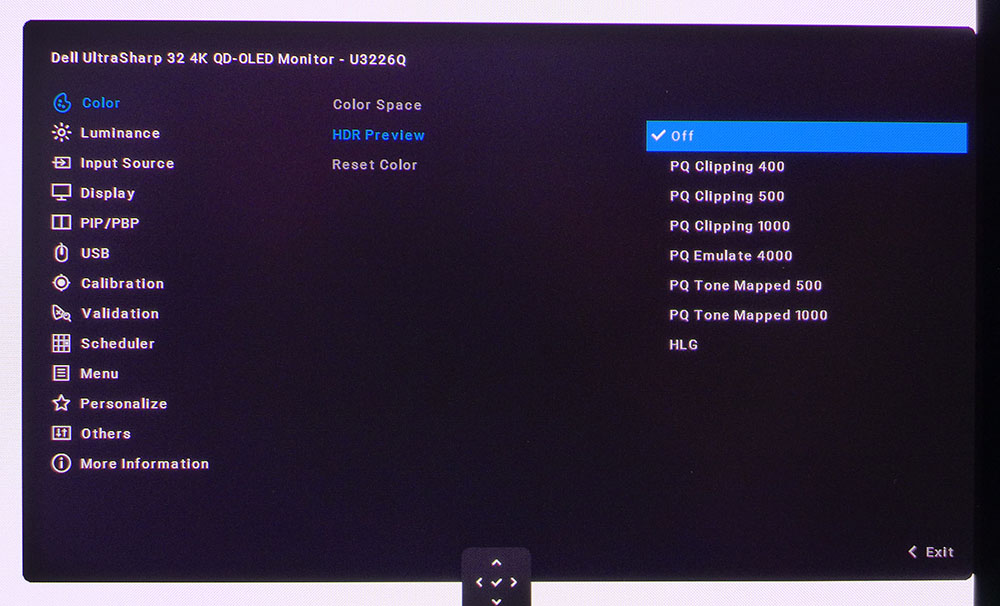
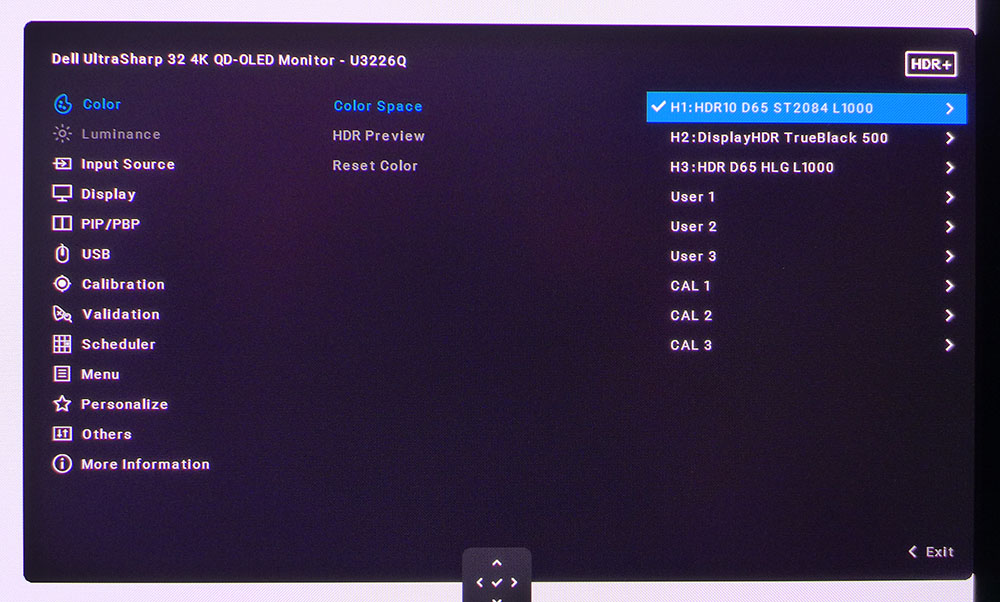
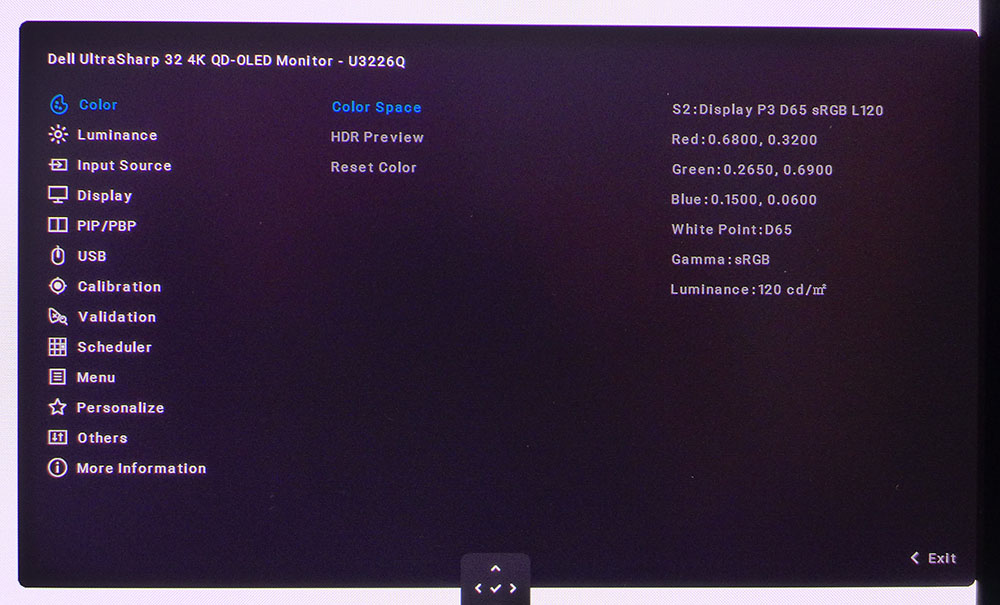
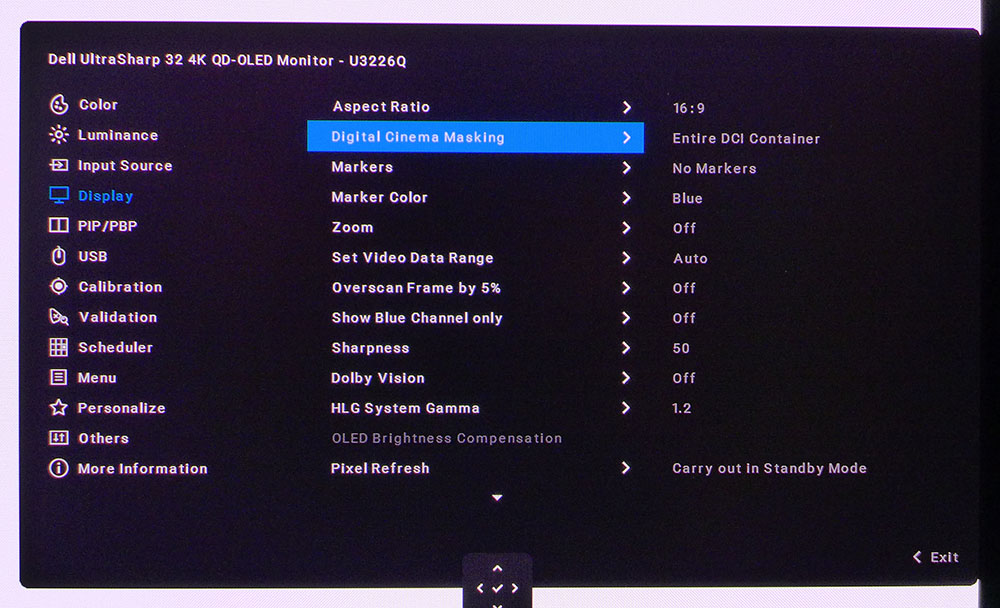
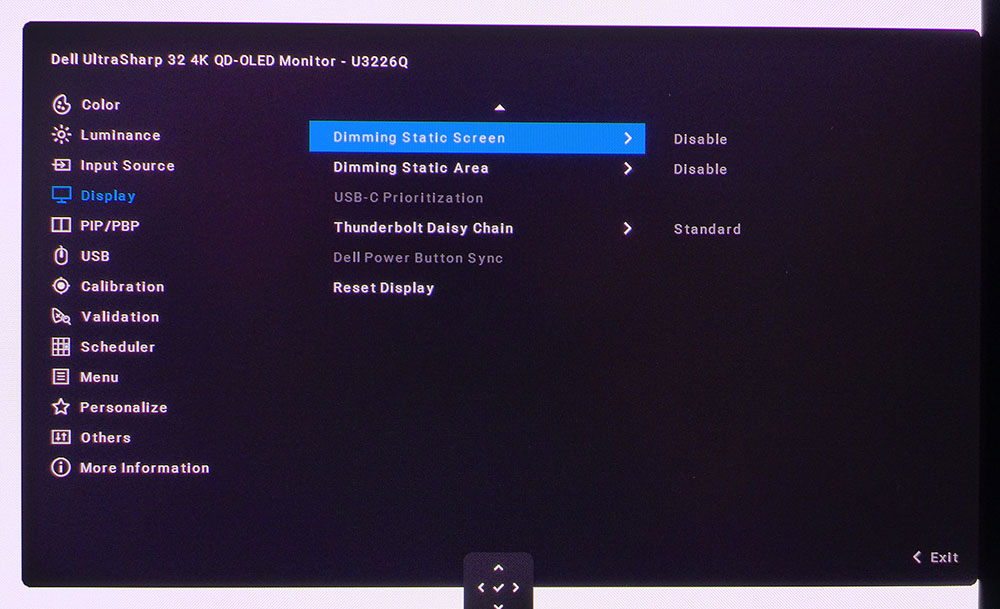
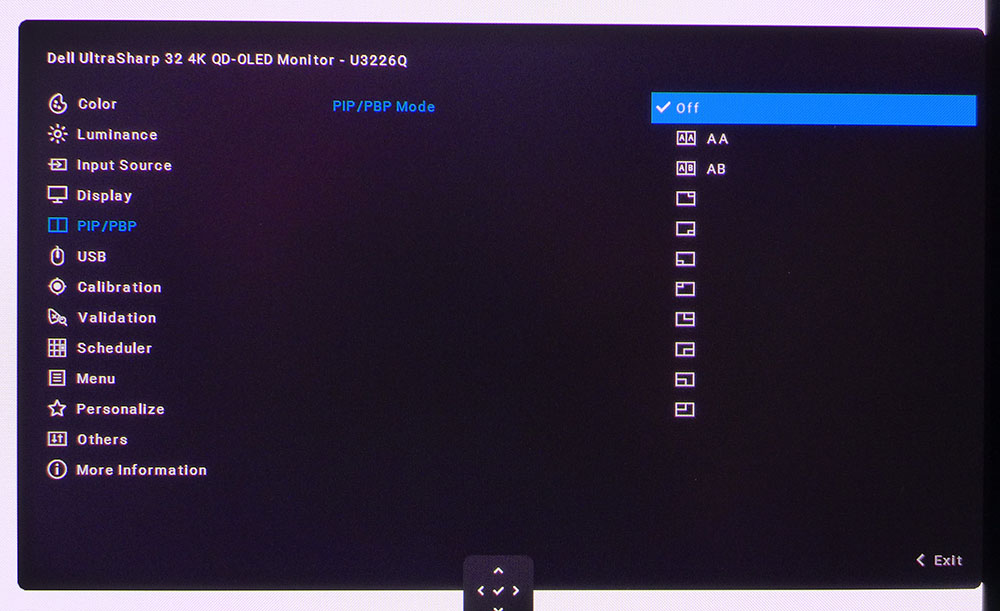
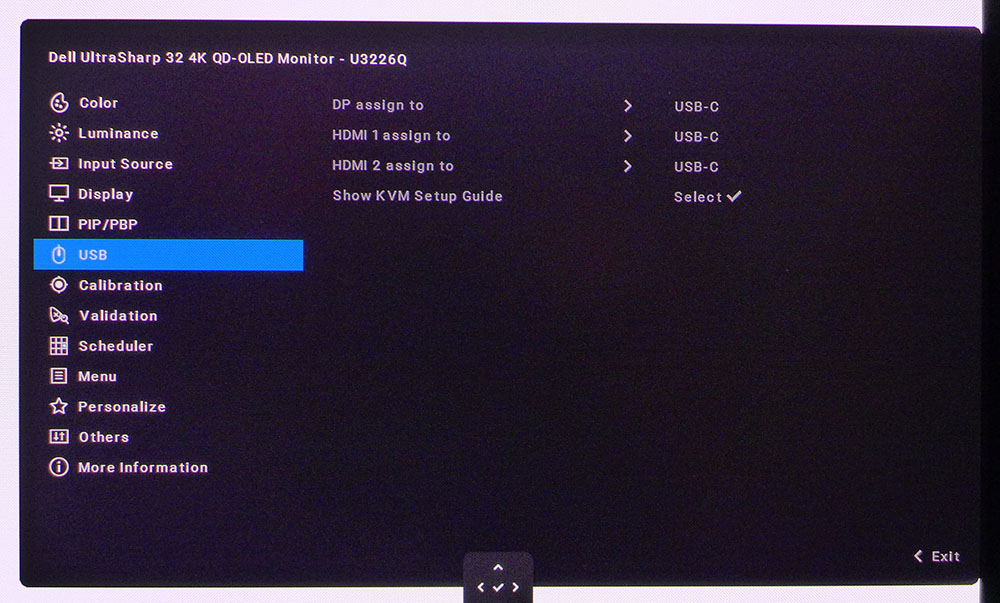
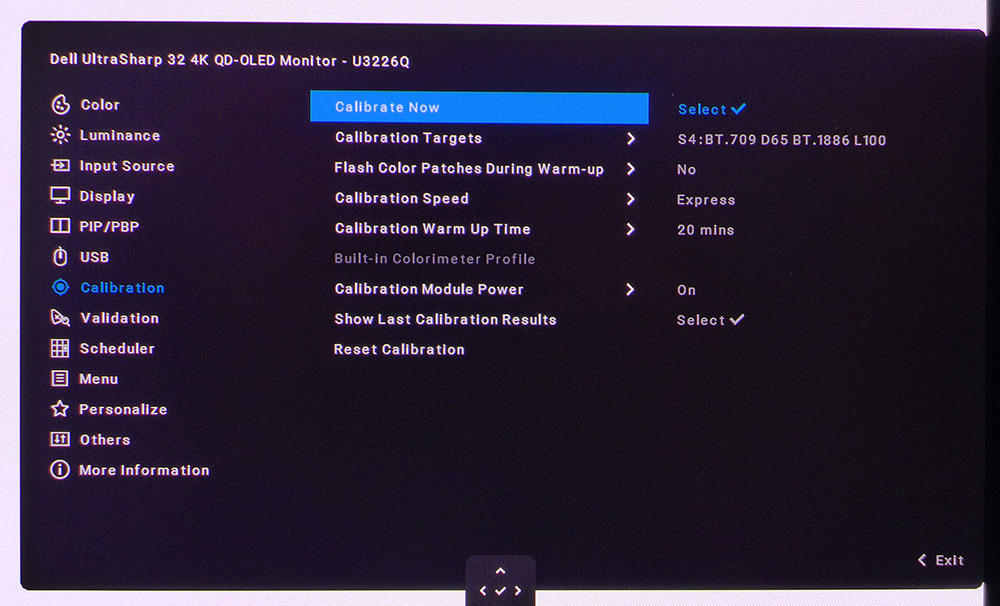
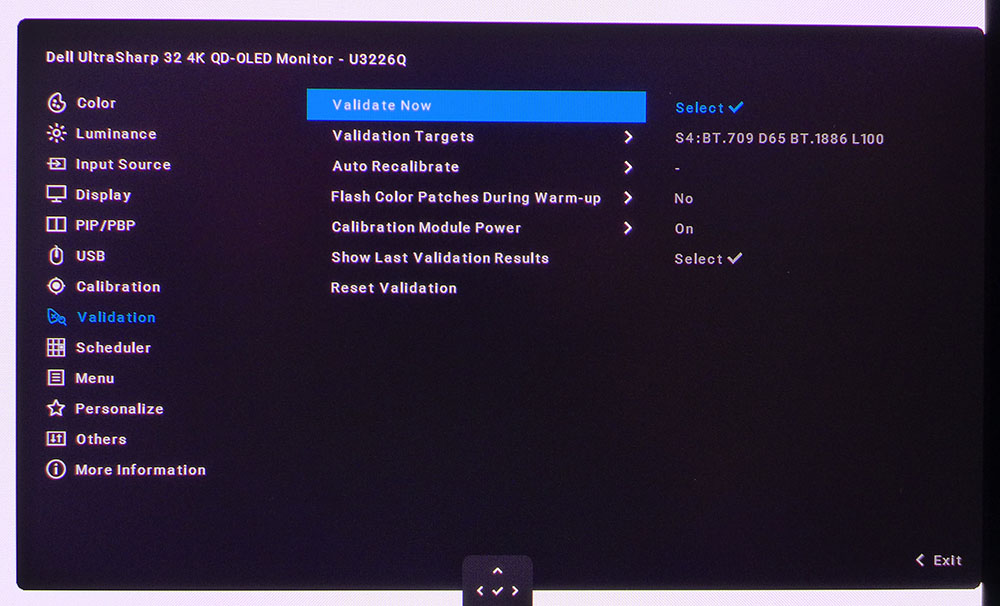
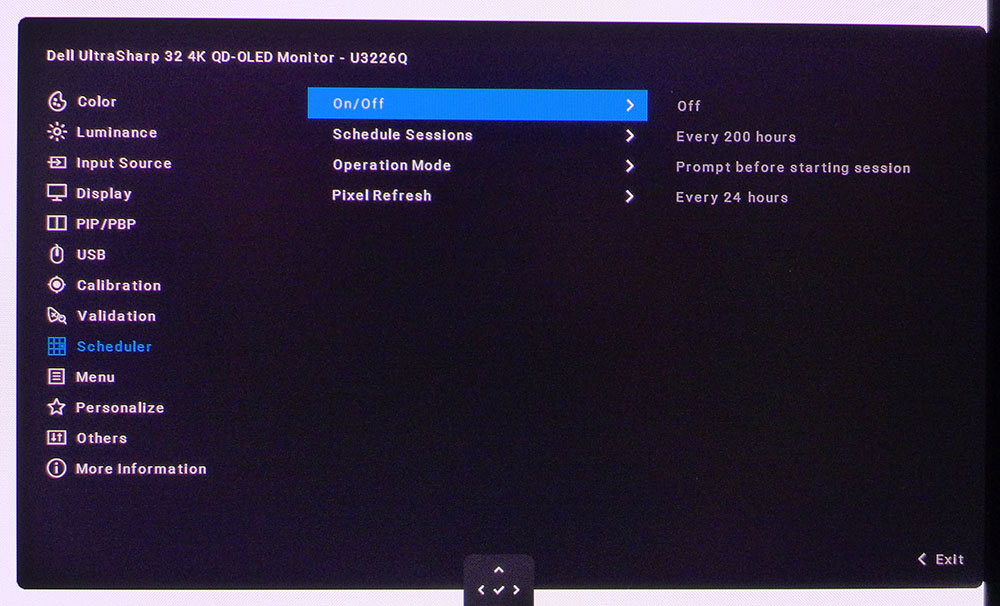
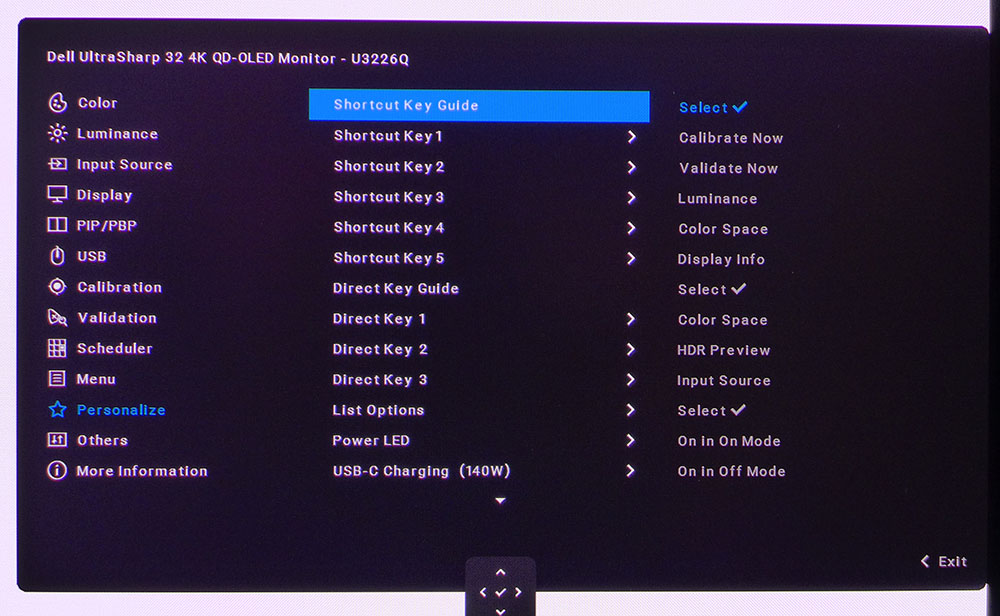
The OSD starts with seven fixed color modes that conform to industry standards for TV and video production. You get both kinds of P3, Cinema and Display, along with sRGB, Adobe RGB, BT.709 and BT.2020. Adobe includes D65 and D50 color temps as well. If you click one more time to the right, it shows the gamut, color temp, gamma and luminance for each preset. You can change the peak brightness if you wish, but it will reset to the default value every time you switch back to that mode.
For custom setups, there are six memories that can be any combination of settings you wish. You can go to the user modes and simply adjust the gamma, color temp and gamut to your preference. Or use the Cal modes with the built-in meter to calibrate automatically. You can even use a 3D LUT if you want. I’ll talk more about the calibration process later.
When working with content for both SDR and HDR, you can use HDR Preview and its seven options to simulate the PQ curve without switching the U3226Q to HDR mode. When working directly in HDR mode, there are three HDR10 modes plus the same six memories. Dolby Vision also has Dark and Bright modes. All of these can be calibrated. Each mode includes a succinct table of information, so you know exactly what its parameters are.
Input sources are many and you can control the behavior of the Thunderbolt ports. When auto select is on, it will prompt the user to switch when a new signal becomes active. In the Display menu, you’ll find all the masking and marking options one might want in a mastering display. There are content frames, aspect ratio markers, a zoom function and overscan. The markers can be any color to best contrast with the content you’re working on.
This menu has an option called OLED Brightness Compensation, which is variable brightness, but for HDR only. In SDR mode, the U3226Q is constant brightness only. There are also OLED care options like pixel refresh and dimming. Full PIP and PBP functions are available with multiple window sizes and positions for viewing two video sources at once. KVM gets its own menu called USB, where you can bind video and USB ports together for multiple system control by a single set of peripherals.
Calibration and Validation use the integrated color meter to both adjust and verify any picture mode either existing or created by the user. There are options for warm up time, and speed, express or comprehensive. Express takes just a few minutes to complete. It’s a simple matter to set a target and go. The U3226Q takes care of business completely hands-off. The Scheduler lets you set calibration times and intervals, as well as running the pixel refresh at a period of your choosing.
When you click any joystick direction, a quick menu appears with five icons. These are all programmable for easy access to things like modes, calibration, signal info and the like. You can also customize the three touch-sensitive buttons on the bezel’s left front.
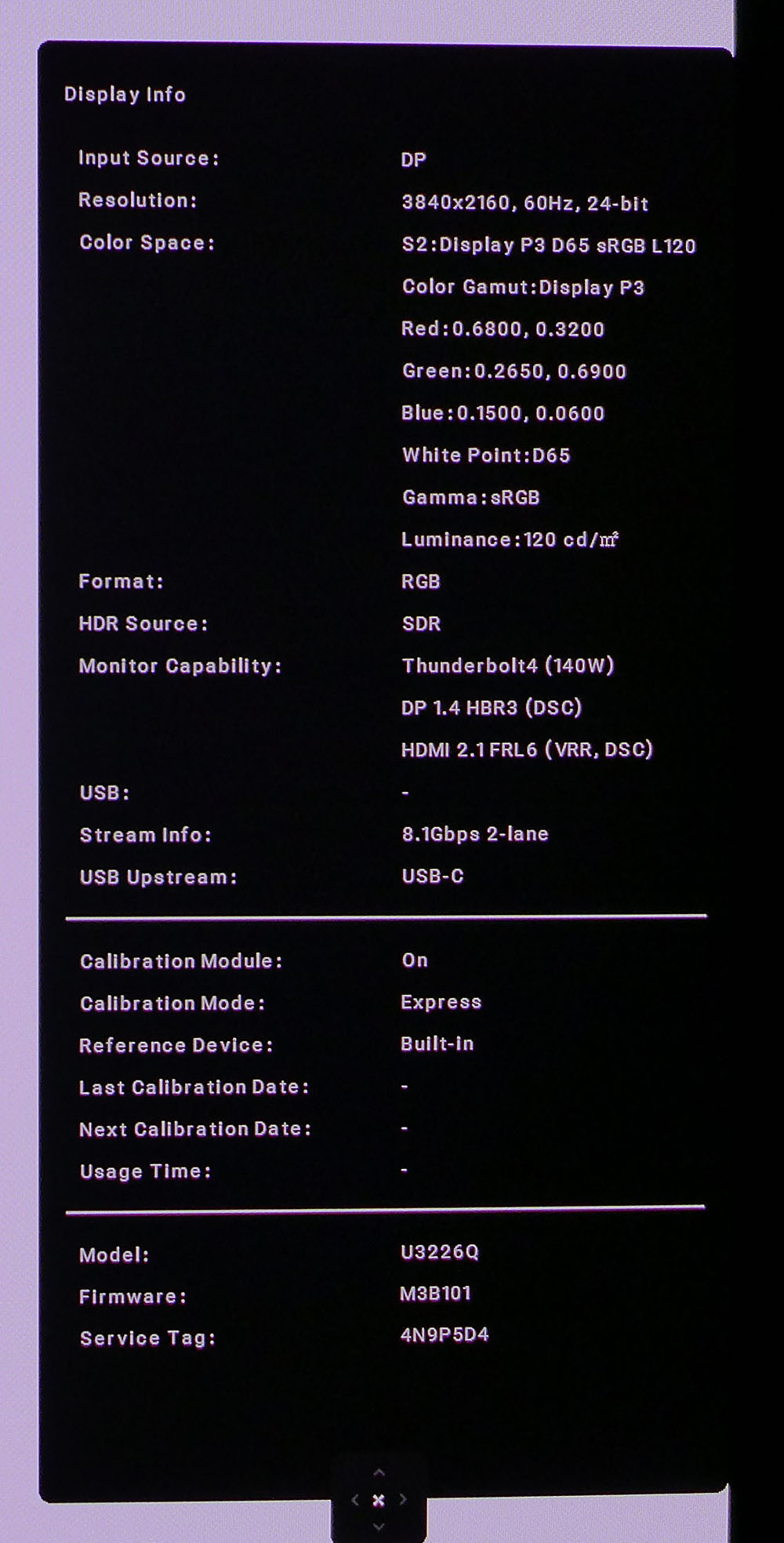
I noticed there was no signal or mode info in the main OSD screens, but when you find the Info option, it displays a huge table of data. You can see exactly what’s going into the U3226Q and what’s coming out. It also has USB info with bandwidth. The calibrator gets its own section too and if you need the Dell Service Tag, it’s at the bottom.
Dell U3226Q Setup And Hands-on
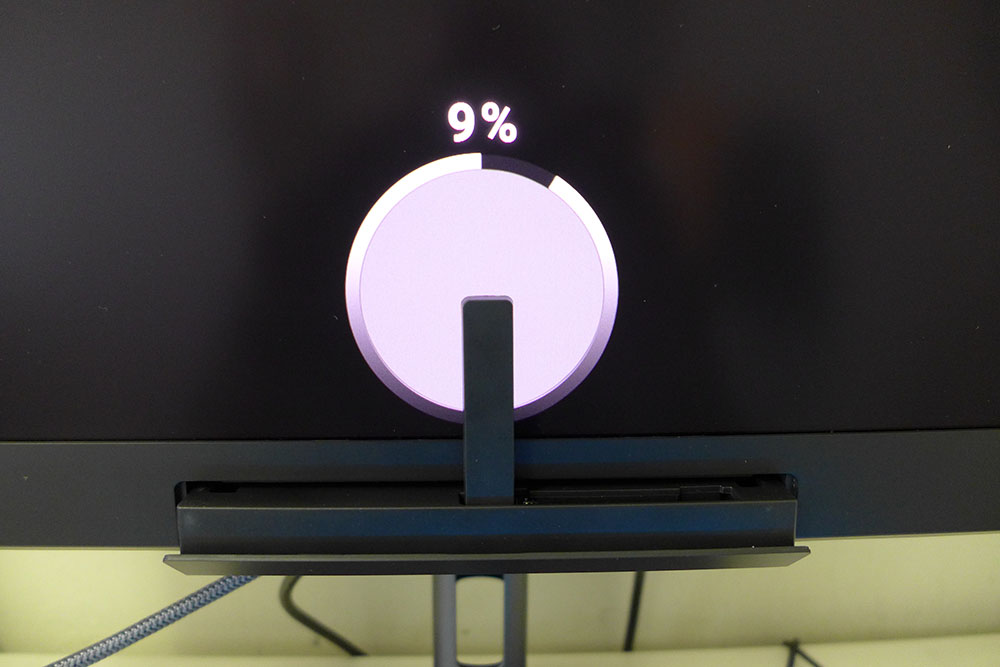
The U3226Q doesn’t need much setup out of the box. All modes are verified at the factory to be 1dE or lower for color, and I confirmed this in testing. But the integrated calibrator is easily the coolest version of this feature I’ve seen yet. It flips up and out of a little garage at the center of the bezel while a ring appears in the screen’s center that scrolls down to meet the meter. This becomes the test patch zone while the rest of the screen goes black.
In the User modes, I could simply select a color temp, gamma, gamut and luminance level and save it. In the Cal modes, you specify the parameters, then activate the calibration. In Express mode, it takes about six minutes. Comprehensive takes around 30 minutes, and that’s where to go if you want to use a 3D LUT for greater precision across the entire color space. When finished, a multipage report appears showing the results, where the monitor was, and where it is now.
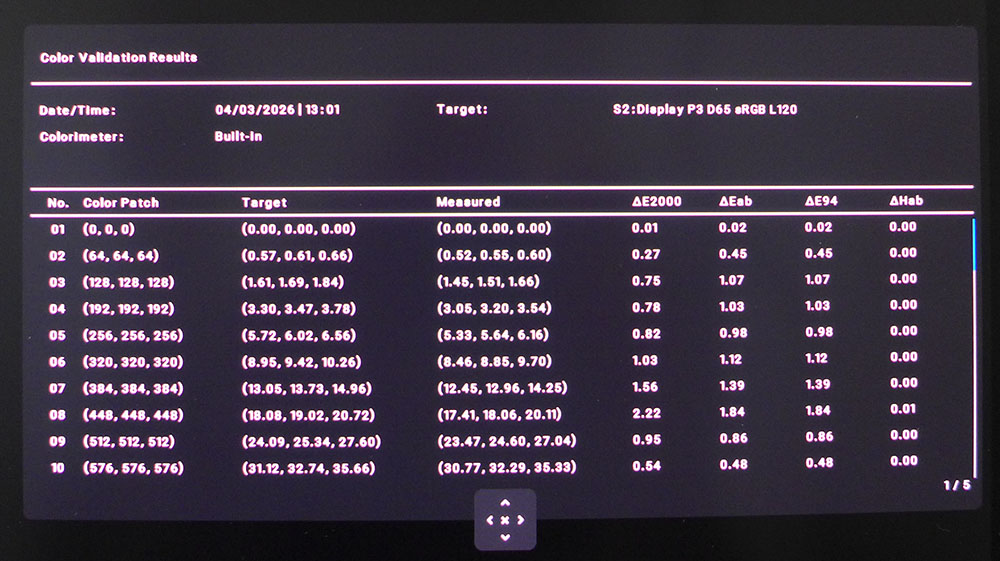
For me, I was happy with the Native mode, which uses the entire gamut, 108% of DCI-P3 with D65 color temp and 2.2 gamma, at 200 nits. I also set up a Display P3 mode and a BT.2020 HDR mode using the User and Cal memories. All of this took very little time. The U3226Q is extremely convenient and intuitive in practice. And it’s equally functional for seasoned pros and novices alike.
I said earlier that the U3226Q had more gaming potential than other pro monitors I’ve reviewed. With Adaptive-Sync and 120 Hz, it should be OK for casual fragging. My experience was definitely better than what I’ve seen from the average 60 Hz screen. There was some blur during fast-paced battles, but not enough to distract my aim. Input lag was extremely low though, which I was not expecting. Turn-and-shoot and circle strafe were as easy to accomplish as when I’m playing on a 240 Hz or faster display. The U3226Q delivers a solid gaming feel and unless you’re a skilled player, you won’t notice the motion blur. That said, a ULMB feature would be welcome.
I played both SDR and HDR games and enjoyed the extra impact and color available from the latter format. The U3226Q’s Quantum Dot layer delivers over 108% coverage of DCI-P3 so it’s among the most colorful monitors in any category. Its fine accuracy showed up as well with natural hues that look correct to the eye, even though the virtual worlds are totally alien. It adds to the suspension of disbelief.
Obviously, the U3226Q is total overkill for the average office cubicle where you’re running Microsoft Office and checking email. But its clarity, vivid color and deep contrast make editing documents a pleasure. I’ve never met an OLED I didn’t like for all tasks be they graphical or textual.
Takeaway: The U3226Q is designed for use in a professional setting where color must always be precise, and it’s priced accordingly. But it’s compelling as a workday and entertainment monitor too. It games better than any other pro monitor I’ve used, and it delivers a stunning OLED image. Users with big budgets might be drawn to it even if they don’t need the auto calibration function. And that is head and shoulders above any other solution I’ve tried. This is a supremely flexible and capable display.
MORE: Best Gaming Monitors
MORE: How We Test PC Monitors
MORE: How to Buy a PC Monitor






 English (US) ·