
 16 hours ago
6
16 hours ago
6
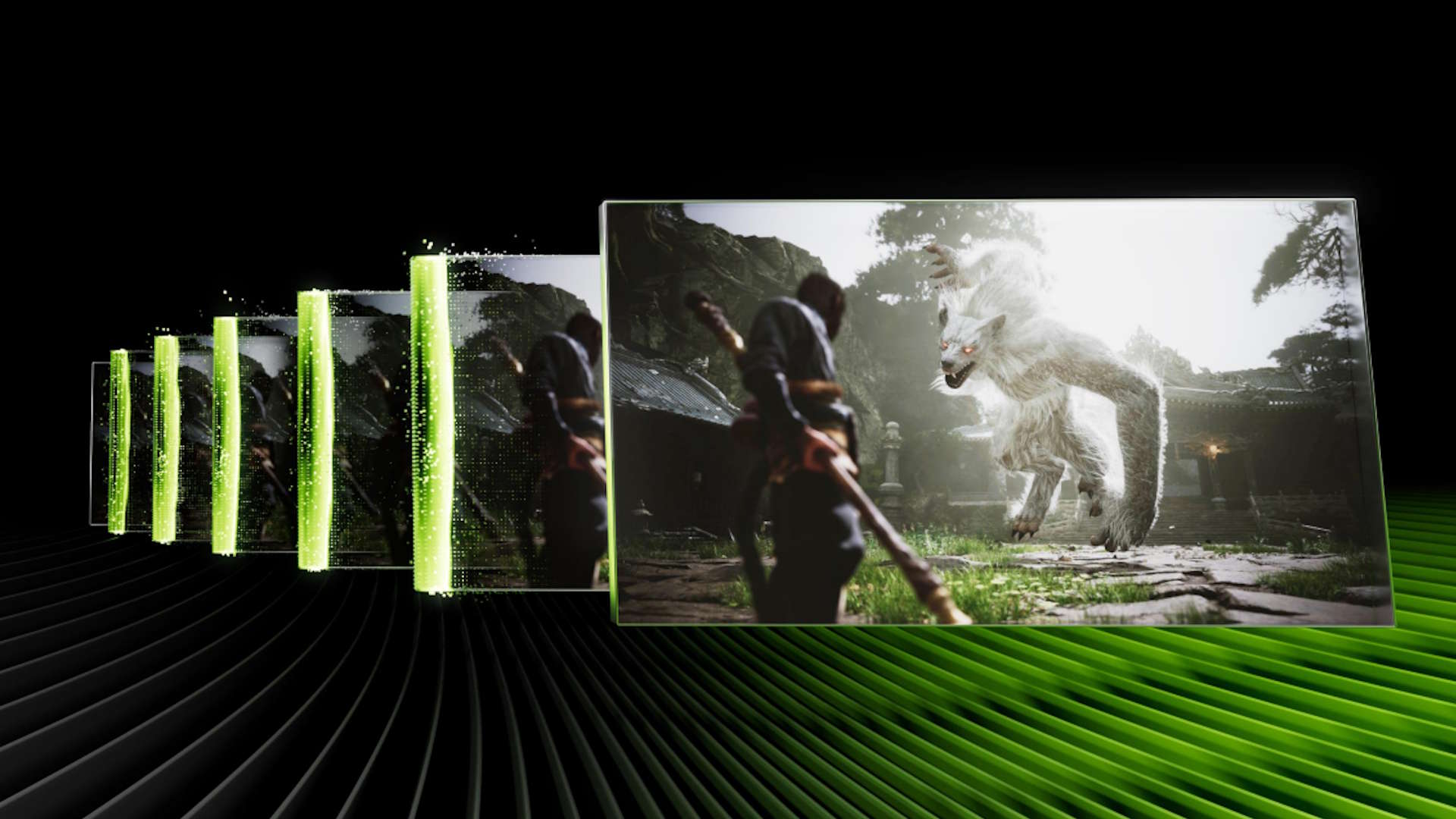
For GeForce gaming, 2026 has so far been the year of software updates to existing GPUs as the world's cutting-edge silicon gets swallowed up by AI demand. DLSS 4.5 upscaling was the first of those updates to arrive all the way back at CES 2026. That new upscaling model runs best on RTX 50- and 40-series GPUs, but it technically works with graphics cards stretching all the way back to the RTX 20-series family if you’re willing to tolerate a performance hit.
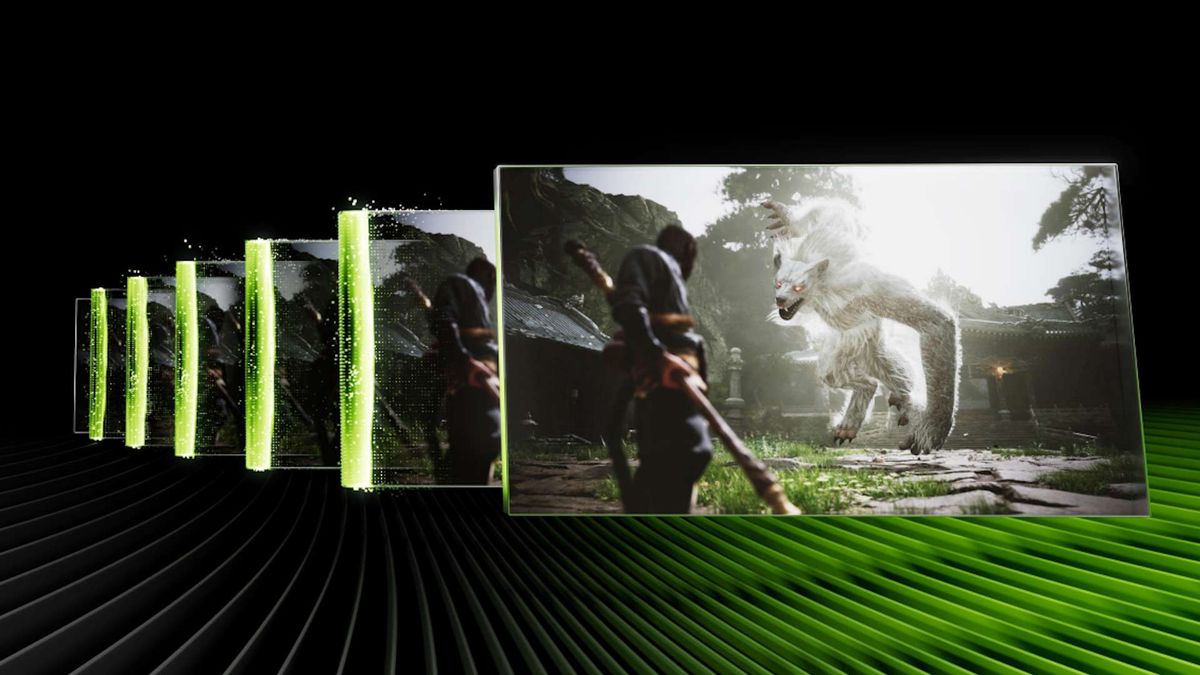
The second new piece of the software-defined performance puzzle, Dynamic Multi Frame Generation (MFG) with 5X and 6X modes, arrives today as part of a beta update for the Nvidia App, and it’s exclusively for RTX 50-series cards. We’ve been playing with the tech to determine whether even more generated frames can make for a better gaming experience, and at what cost, if any, it has for critical measures of responsiveness.
As a quick refresher, MFG so far has offered fixed multipliers of 3X or 4X in addition to the baseline 2X framegen introduced with RTX 40-series cards. Because those options are static, they don’t account for the changing demands of gaming workloads, and it’s easy to end up straddling a line where your graphics card is generating output frame rates above or below your monitor’s peak refresh rate. Neither situation is ideal, but until now, finding the multiplier that splits the difference well enough has been the only way to run MFG.
Article continues below
Dynamic MFG takes a step toward smoothing out that awkwardness. Give it a target frame rate, and the tech can automatically shift multipliers on the fly to maintain it. The new 5X and 6X modes can be used statically if you wish, but they’re better understood as additional gears that let Dynamic MFG work at its best. Or at least that’s the promise. Whether Nvidia’s MFG AI model can conjure up four or five additional frames from just one input frame’s worth of data with acceptable latency is the pressing question that’s been facing us for the past few days.
The setup
The first step in getting Dynamic MFG running starts with the latest Nvidia App. Once installed alongside the latest 595.97 driver release, the app should expose a global Frame Generation Mode override in its graphics settings, from which you can force Dynamic mode along with a target frame rate and, optionally, a maximum multiplier cap. Toggle Dynamic mode to on, enter your target frame rate (typically your monitor's maximum refresh rate), and the foundation is laid.
However, simply toggling this global setting doesn’t mean Dynamic MFG will work with every game. Nvidia provides a list of supported titles to play with (filter by 6X in the MFG column for the relevant results), but in the meantime, the Nvidia App will tell you whether a game is compatible with your global Dynamic MFG override or not right in its settings list.
With this global toggle enabled, simply turning on MFG in compatible games should generally let Dynamic MFG take over. With the latest Nvidia App version launching today, you can confirm that your DLSS MFG, upscaling, and ray reconstruction settings are all working as expected by pressing Alt + Z to invoke the Nvidia overlay before calling up the most verbose reporting mode it offers.
Smoothness, responsiveness, and image quality
The first test for Dynamic MFG is whether its shifts between multipliers cause any hitches or stutters during gameplay. Happily, I didn’t see any such unevenness as Dynamic MFG did its thing. You can always see the multiplier shift in the Nvidia App performance overlay, of course, but without that visual confirmation, it might as well be seamless. Whatever variance might occur during these mode shifts seems to be smoothed over by a variable-refresh-rate display like our testbed’s monitor.
That leads us to the output image quality of MFG’s new 5X and 6X modes. Despite the warranted skepticism one might have about stretching one frame’s worth of input data into four or five extra frames, my initial impression is that MFG’s new 5X and 6X modes do work, and they work well enough that they’re mostly unnoticeable in practice. In other words, it’s remarkable that they’re unremarkable.
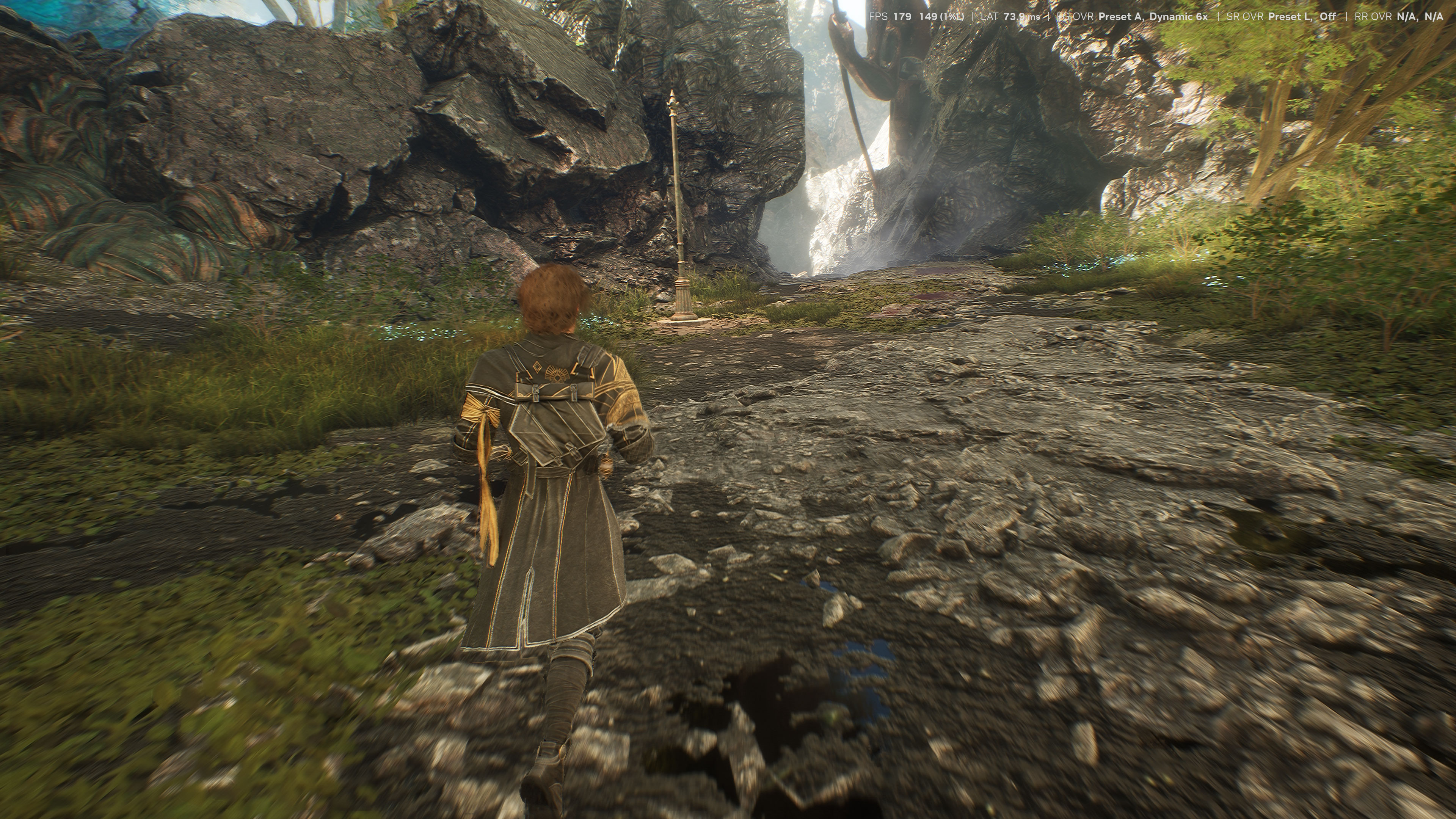
I say mostly because you can still see some potential artifacting from MFG in some games if you’re looking for it. The worst examples I’ve seen so far are in Clair Obscur: Expedition 33, where I noticed that the edge of Gustave’s waving coat can leave ghostly trails behind it, and player shadows start to get “noisy” or less solid at the edges than they ought to be in motion. (Enlarge the image above to see the first issue.) These issues are only minor with MFG 4X, but they become slightly more obvious with MFG 5X and 6X.
Hogwarts Legacy and Cyberpunk 2077 also show a bit of ghosting or raggedness at the bottom edge of the screen in motion with MFG enabled, but it’s milder and easy enough to overlook since it’s well outside of the typical focus point for such games (i.e., the center of the screen).
Looking beyond those minor image quality concerns, the new combination of MFG multipliers up to 6X and the upscaling prowess of DLSS 4.5’s improved models opens up high-refresh-rate experiences at settings that would previously have been difficult to realize on lower-end graphics cards.
As an extreme example, MFG 6X and DLSS 4.5 Ultra Performance with Preset L makes Cyberpunk 2077 totally playable at a 240 FPS target on even the RTX 5070 with ultra settings and path tracing enabled, all with an input latency of about 52 ms.
We also measured PC latency with framegen off, at 2X, at 4X, and at a forced 6X to see whether the extra frames incur extra input latency, but in line with Nvidia’s claims, PC latency (as measured by the FrameView app) remained largely the same as with 4X.
Swipe to scroll horizontally
MFG multiplier | Input latency (ms) |
Off | 35.0 |
2X | 46.6 |
4X | 53.2 |
6X | 52.6 |
However, performance scaling across the various modes didn’t track as cleanly with those multipliers as we would have expected. In another round of testing with our RTX 5080 in Cyberpunk 2077, the average frame rates captured by FrameView with MFG active all fall short of the lofty figures you might expect from each multiplier.
Swipe to scroll horizontally
MFG multiplier | Average FPS |
Off | 60.0 |
2X | 103.1 |
4X | 178.8 |
6X | 247.7 |
As you can see from the figures above, despite our 60 FPS-ish baseline with DLSS Performance and a 4K target resolution, adding MFG to the picture didn’t result in the full boost you would expect, even with such a powerful graphics card in play. We’re investigating the reasons behind this shortfall and will update this article with further details as we’re able.
All that said, unlike dynamic resolution (or upscaling) modes that noticeably sacrifice image quality to maintain frame rates, Dynamic MFG mostly preserves the highest practical image quality from a given game and graphics card while transparently adjusting output frame rates as needed.
It’s the closest a dynamic performance mode has ever come to letting me stop worrying about output FPS entirely while gaming, and it’s another clear step into a future where output frame rate is just another setting to tweak instead of a hard limit of silicon.
Bottom line and what’s next
If you’re already sold on what MFG has to offer, the combination of Dynamic MFG and its expanded multipliers makes framegen a set-and-forget experience instead of an exercise in constant adjustment. Enable Dynamic MFG globally and dial in your monitor’s peak refresh rate as your frame rate target in the Nvidia App, choose the in-game quality settings that produce a level of input latency you’re comfortable with, enable MFG in-game, and let Dynamic MFG take over.
That’s a fair amount of setup, but once it’s done, you’ll never have to worry about micromanaging your MFG multiplier to stay near the peak of your display’s refresh rate range ever again. It’s a great refinement of this tech, and we didn’t see any hitches or stutters as a result of multiplier shifts during gameplay.
The bigger question mark for many gamers is whether Nvidia can successfully generate even more frames from the same limited input data that MFG already ingests. As wild as stretching a single frame’s worth of input data into four or five generated frames may sound, MFG’s new 5X and 6X modes work well in our experience so far, and they work without introducing new or worse visual artifacts than we’ve already seen from past versions of the tech.
We also didn’t measure a large increase to input latency in exchange for the extra frames, which we’re glad for as Nvidia leans harder and harder on neural rendering techniques like MFG to enhance perceived performance.
If you haven’t tried MFG yet, and you already have a Blackwell GPU and a sufficiently high-refresh-rate monitor at your disposal, Dynamic MFG and its 5X and 6X modes are well worth a shot. You have nothing to lose, and if it’s not to your liking, you can turn it off again. If you still insist that every pixel of every frame be natively shaded at 4K, well, Nvidia has a graphics card for you, and it’s called the RTX 5090.
Joking aside, and as our past testing has already demonstrated, MFG still isn’t a performance panacea. It can only work off the baseline experience a given graphics card can offer, whether for better or for worse. It doesn’t let a weaker graphics card run more demanding settings than it otherwise could (which is still the domain of DLSS upscaling).
If you crank settings too high on too weak a GPU before adding framegen to the picture, your input latency will still rise beyond the baseline you need for a playable experience, and all the new MFG bells and whistles launching today don’t change that.
That leads us to another important point: If you’re still running a 1080p or 60Hz monitor (or worse, a 1080p and 60 Hz monitor) alongside any 12GB or 16GB Blackwell GPU that can capably run MFG, it’s time to consider an upgrade.
Especially with the advent of the DLSS 4.5 upscaling model and the fidelity it offers in its Performance and Ultra Performance presets, a high-refresh-rate 1440p or 4K monitor no longer requires a top-of-the-line graphics card to achieve a fluid and responsive experience with high image quality. Any 1080p monitor, however, puts a hard cap on upscaling image quality, and a 60 Hz monitor of any resolution puts a hard cap on fluid motion and (to a degree) responsiveness.
If you’re still running such a setup and have the means to upgrade to a higher-resolution, higher-refresh-rate display, there’s never been a better time amid spiraling costs for basics like RAM and SSDs. Monitors remain relatively insulated from the RAMpocalypse and NANDpocalypse, so if you’re pondering what your next upgrade should be, check out our list of the best gaming monitors for inspiration and put Dynamic MFG to work maxing out their refresh rates.





 English (US) ·