
 1 hour ago
10
1 hour ago
10
A USB device that doesn’t stay connected consistently is no use at all.
Kjekol/Getty Images
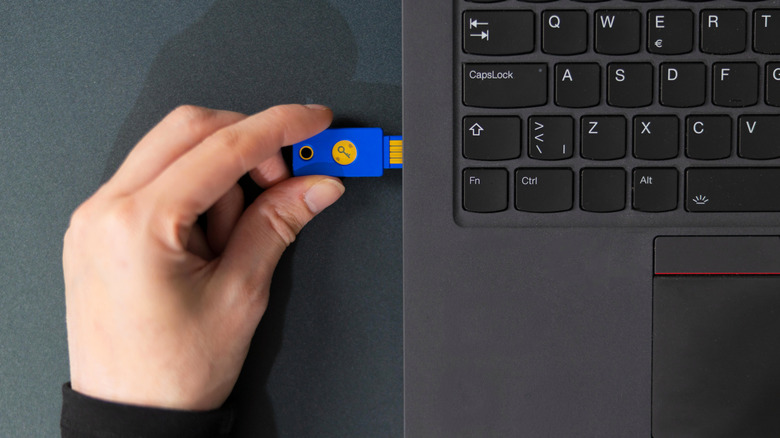
USB is supposed to be simple: Plug in a device and your computer can interface with it until you decide to eject it. But at times, a device will constantly disconnect, which poses a major problem since nearly all USB devices rely on a consistent connection. Your mouse will stutter, your keyboard will miss half your inputs, your video camera will cut out and file transfers to an external drive won't be able to complete.
When this happens, you'll need to run through some troubleshooting to see if the device, cable, port or even computer is to blame. In many cases, the solution isn't difficult, but it's always best to start with the easiest potential fix: restarting your computer. You don't want to spend time on extended troubleshooting for a temporary bug.
Check the ports and cables
Octavian Lazar/Shutterstock
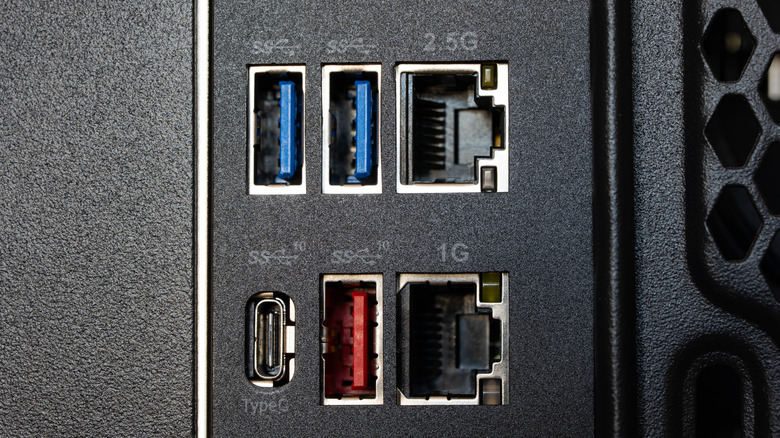
First, you should try to isolate the problem. Try using the same USB device in another USB port, then use a different USB device in the same port. If one accessory has trouble in every port, then something with the device or your computer is likely at fault. If various accessories all start having issues only when connected to a specific port, you can narrow the problem down to that port.
Inspect the USB connector of your device to see if it's super loose, has bent pins or has suffered other damage. Also check the cable itself for any tears in the jacket, extreme bends or similar issues. Damaged cables are much more likely to cut out frequently, so replace any that are removable.
Shine a light into the port in question to see if anything looks out of place in it; debris buildup could be preventing a good connection. Gently use a wooden toothpick (nothing metal) to loosen it. For anything really stuck, use short bursts of canned air to carefully clean the USB port. If the pins inside the port are warped or otherwise blocking a clean insert, you'll likely need to have a professional look at it unless you're comfortable with hardware repairs.
If you're using a USB hub, try bypassing that and connecting directly to the computer to see if there's a difference. Hubs introduce a new point of failure, especially if you connect high-power devices to a basic model that relies on USB for power. For best results, use a powered USB hub that plugs straight into the wall.
On a desktop, it's best to connect long-term devices to the back ports when possible. Those are directly wired to the motherboard and thus have slightly less overhead than the front USB ports that rely on extension cables.
Review computer and driver settings on Windows
Windows has a few options that cut power to USB ports when they're not being used, which can misbehave and shut off a device you're working with. To adjust the first one, right-click the Start button or press Win + X to open the Windows shortcut menu, then choose Device Manager. In that panel, expand the Universal Serial Bus controllers section. One by one, double-click each item under it, switch to the Power Management tab and uncheck Allow the computer to turn off this device to save power. Be sure to save your changes with OK.
Once that's done, type "power plan" into the Start menu and click the Choose a power plan entry that appears. Next, choose Change plan settings next to the one that's currently enabled and select Change advanced power settings from the resulting screen. Finally, in the pop-up that appears, expand USB settings > USB selective suspend setting and change Setting to Disabled. You've now prevented Windows from turning off USB ports to save power, but be aware that Microsoft "strongly recommends" keeping selective suspend enabled.
It's also possible that the driver for your USB ports is outdated or corrupted, though this is unlikely unless you're using a specialized hub. Back in the Device Manager menu, visit the Driver tab for each USB device and click Update Driver to check for newer versions (it likely won't find any). If you've identified a specific port as troublesome, you can try the Uninstall Device button for that one, then reboot to have it reinstall automatically.
It can be difficult to identify which Device Manager entry corresponds to each port on your PC; a quick method is inserting and removing a device while watching the page. If that doesn't help, try the free USBDeview tool. In theory, you could run through them all in succession, but don't disable the one your keyboard or mouse is plugged into, or you'll lose control.
Further USB troubleshooting steps
Benedek Alpar/Shutterstock
We've mostly focused on the computer side, but it's also important to check the device you're trying to connect, especially if it doesn't work with any port. It's possible that something like a mouse, external hard drive or similar has failed, particularly if you've just dropped it or it's otherwise gone through a shock (like getting wet).
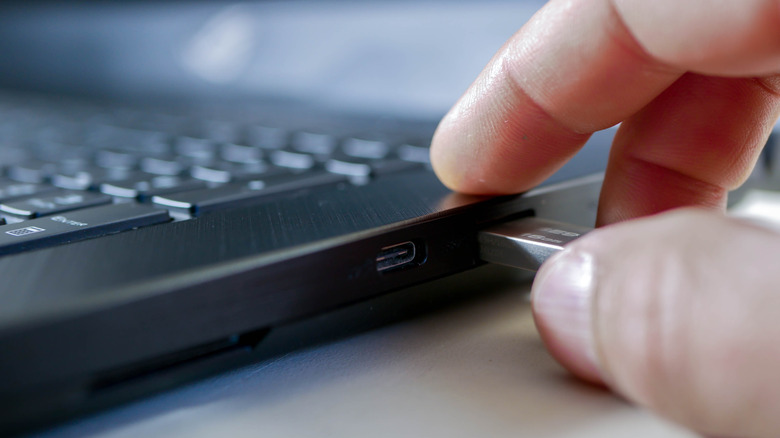
It's also a possibility that the USB connection is fine, but what you're trying to do isn't supported by that port (or cable). For instance, not all USB-C ports support video, and sometimes only one of several USB-C ports on a given device works for charging. Assuming there are no markings on the USB ports to make sense of, check the product specs to see what each is intended for.
Make sure you're using the right cable for the job, as well. Some are only meant for charging devices and won't carry data. If you can't transfer files between your phone and PC, for instance, try another cable that's equipped for those tasks.
USB ports are available on more than just PCs, where much of the above also applies. If you're troubleshooting a USB port on your router, car, TV or other device, double-check the manual or online guide to see what each is approved for. A common issue is the USB port on your TV not outputting enough power to run your streaming stick. Or if CarPlay isn't working in your vehicle because it keeps cutting out, a new high-quality cable is in order.
If you've walked through all the above and an accessory won't work with any port or on any PC, consider contacting the manufacturer for support.







 English (US) ·