
 4 hours ago
6
4 hours ago
6
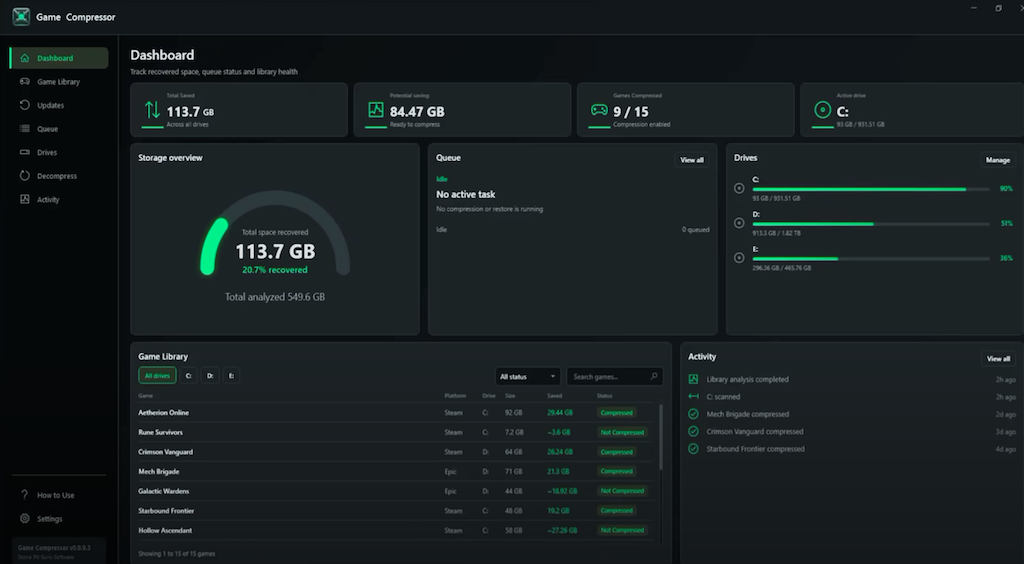
With NAND prices flying into the stratosphere, buying a large SSD has become a cold-sweat-inducing event, with even the cheapest 2 TB models now approaching $250 — and desirable performant models going for well beyond that. With no end to either memory or storage shortages in sight, the next best option for gamers is to save on used disk space — and the recently-upgraded Game Compressor utility is a fine tool for that end.
Depending on the game in question, savings can be massive, with ARK Survival Evolved reportedly going down from 169 GB to 91 GB (54% of the original size) and Crimson Desert slimming down by 32 GB. Not every game bears high compressibility, but if even just one of your titles goes down by tens of gigabytes, that's enough to install another. This is handy on most every PC, and even more so for handhelds and machines where disk space is at a premium.
How do you log in to your PC?
The application, which costs $5.99 / 5.99€ on Steam, leverages Windows' built-in LZX folder and file compression to transparently compress on-disk games — sometimes with massive savings. I've used NTFS compression for over two decades with no ill effects, and I occasionally enjoy improved game load times. That might sound counterintuitive, but with a compressed game, there's less I/O data to shuffle around. The only cost is a little bit of CPU overhead, which is almost guaranteed to be available as almost no games can fully utilize all the system's cores.
While it's easy to say that Game Compressor is just a UI for Windows' built-in functionality, the amount of convenience is impressive. You first set up a number of watched folders, of which presumably the ones for Steam games will be filled in. After Compressor scans which games are available, it will actually preview what kind of space savings you can expect, to save you the hassle of going through a long-running task for no benefit.
Once you select your games to compress, the tasks go into a queue, and can be paused or cancelled at any point — a convenience the Windows command line doesn't offer. You can also selectively decompress games later, and there's a log of operations just in case something goes awry. As you might expect, Compressor tries to detect which files (such as videos) aren't worth squeezing further.
One of Game Compressor's neat tricks is that it can monitor games that have received patches to reapply compression. Normally if, say, a 50GB game file gets a patch, it could be decompressed post-patch — this way, the space savings are kept in place.
Just about the only "con" to this notion is that it's not advisable to use compression on DirectStorage-enabled games, because that API relies on IO-to-VRAM operations and adding a CPU decompression step could introduce stuttering. Those titles are few and far between, though.
Some of you may be scoffing at this article and pointing out that ever since Windows 10, the "compress" command supports LZX compression. But paying just $5.99/5.99€ for Game Compressor will save your time, add visibility into compression status, and automatically recompress patches. If you'd rather strike a middle ground, there's also the open-source CompressGUI — which is also pretty nifty, though not quite as feature-filled.

Follow Tom's Hardware on Google News, or add us as a preferred source, to get our latest news, analysis, & reviews in your feeds.







 English (US) ·