
 6 hours ago
9
6 hours ago
9
One of the coolest things to come to the professional monitor genre is the built-in calibrator. These monitors have a tiny sensor that swings up or down from the bezel, and along with internal test patterns, the display literally calibrates itself. While there are plenty of aftermarket software and hardware solutions, such as Portrait Displays’ Calman and the Calibrite line of meters, the convenience of simply clicking a menu option and calibrating your monitor in a few minutes is extremely attractive.
I’ve already covered monitors like this from Dell and Asus, and here, I have one from BenQ, the DesignVue PD2770U. It’s a 27-inch IPS panel with 4K resolution, multiple color modes, integrated color meter, HDR10 and HLG, wide gamut color, and a cool remote control. Let’s take a look.
BenQ DesignVue PD2770U Specs
Swipe to scroll horizontally
Panel Type / Backlight | IPS / W-LED, edge array |
Screen Size / Aspect Ratio | 27 inches / 16:9 |
Max Resolution and Refresh Rate | 3840x2160 @ 60 Hz |
Native Color Depth and Gamut | 10-bit / Adobe RGB |
Response Time (GTG) | 5ms |
Brightness (mfr) | 400 nits |
Contrast (mfr) | 1,000:1 |
Speakers | None |
Video Inputs | 1x DisplayPort 1.4 |
| Row 9 - Cell 0 | 2x HDMI 2.0, 1x USB-C |
Audio | 3.5mm headphone output |
USB 3.2 | 1x up type C, 2x down type A |
Power Consumption | 28.2w, brightness @ 200 nits |
Panel Dimensions WxHxD w/base | 24.2 x 18.1-22.7 x 9.5 inches (615 x 460-577 x 240mm) |
Panel Thickness | 2.3 inches (58mm) |
Bezel Width | Top: 1.4 inches (36mm) |
| Row 16 - Cell 0 | Sides: 0.3 inch (8mm) |
| Row 17 - Cell 0 | Bottom: 0.47 inch (12mm) |
Weight | 19.4 pounds (8.8kg) |
Warranty | 3 years |
The PD2770U is first and foremost a professional display. It has no gaming features, no Adaptive-Sync, no overdrive, no fast refresh, and no built-in speakers. But like its competitors, it has color modes that align with industry standards like Adobe RGB, sRGB, BT.709 and both Cinema and Display P3. It also includes support for DICOM (medical imaging), CAD/CAM and M-book. HDR comes in HDR10 and Hybrid Log Gamma variants. Unfortunately, there is no Dolby Vision or HDR10+.
The color gamut is wide, of course; BenQ calls their tech AQColor, and the panel is Nano Matte Black. This ensures that ambient light has a minimal effect on black levels, and it delivers a very wide color gamut. Rather than going for BT.2020 as most pro monitors do, the PD2770U is an Adobe RGB panel. Why is that significant? Because that gamut has considerably more green than P3. I’ve noticed in testing that many of today’s pro monitors come up short in the Adobe RGB test by five or six percent because they are short on green. The PD2770U fills almost 99% of that gamut. It also covers around 96% of P3. Out of the box, it promises less than 1.5dE color error and each sample is calibrated before leaving the factory.
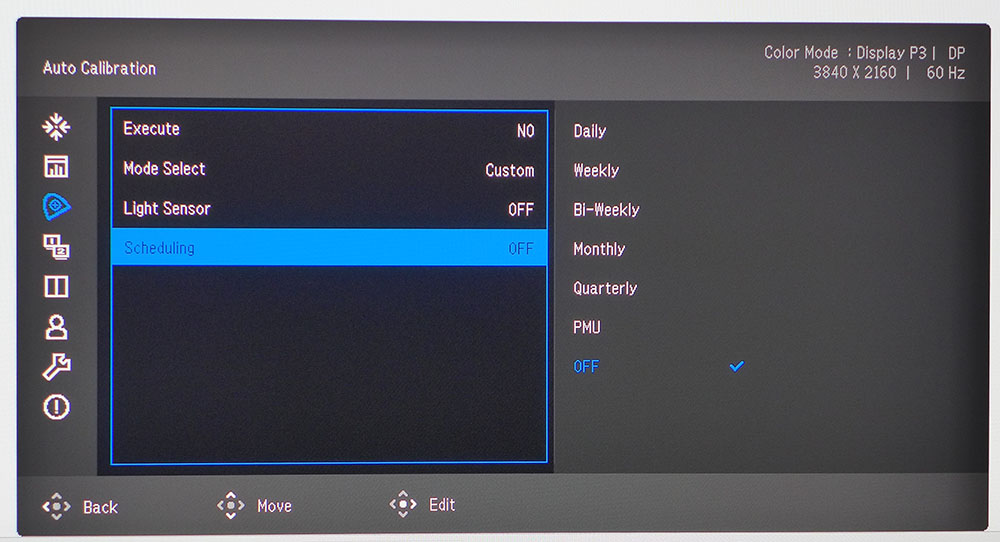
Speaking of calibration, there are several ways to keep the PD2770U in precise tune. The OSD lets you adjust and verify any or all of the color modes in a single step. This procedure can be scheduled so it takes place at regular intervals during off-hours. BenQ also offers Palette Master Ultimate software that can create custom configurations and manage multiple displays. And you can tie in auto calibration with a custom Calman workflow.
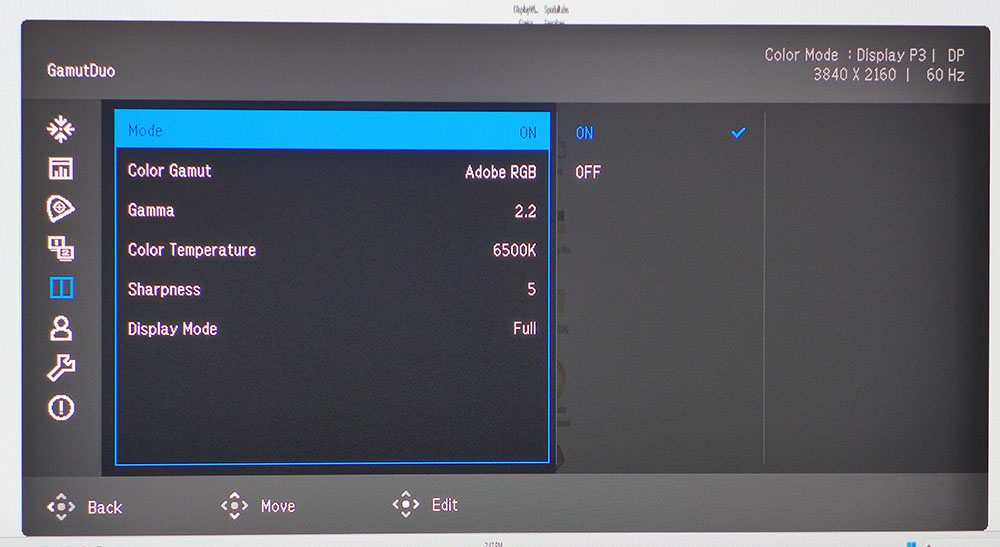
To enhance and streamline the creative process, the PD2770U includes some cool extras that are unique in my experience. One is GamutDuo, which lets you compare color settings in a side-by-side display. Two versions of the image are shown, and you can change parameters in the right pane to easily make a visual evaluation. You can calibrate while taking ambient light into account using a front-mounted sensor, and Uniformity Compensation is included.
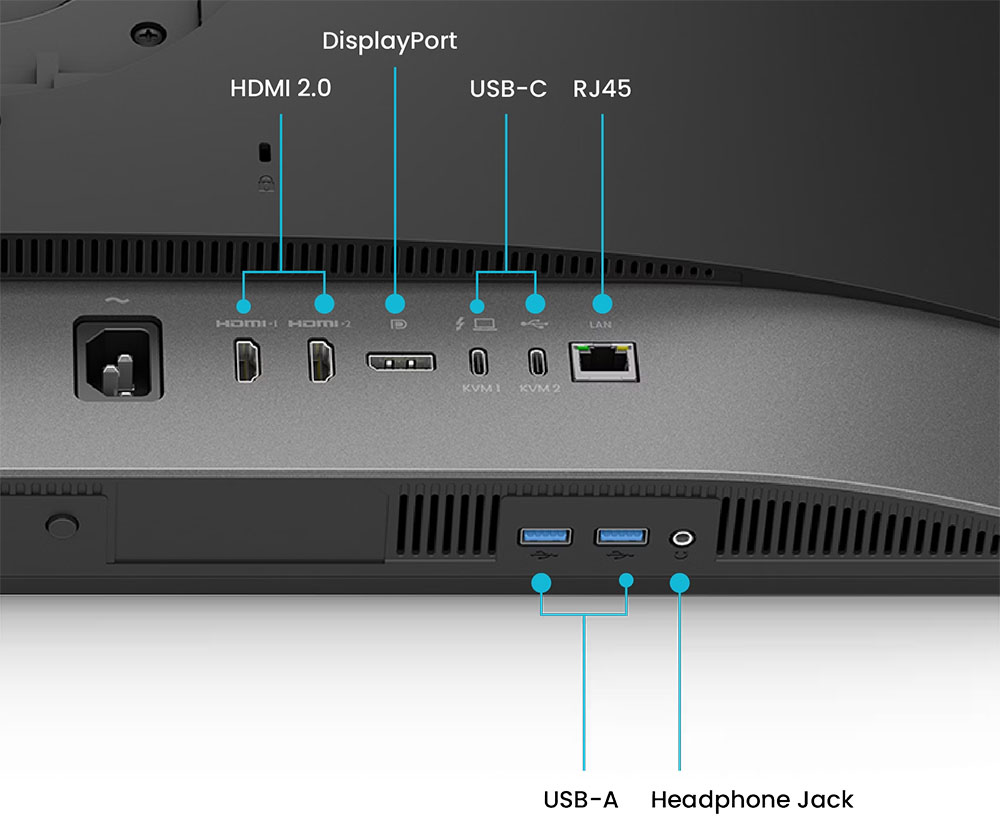
BenQ has always been a standout in its design of remote controls, and the latest version of the HotKey Puck is my new favorite. It’s wireless and features a large dial on top, which defaults to the brightness adjustment. Changing luminance the way you’d adjust volume is super intuitive. It has programmable buttons that can access monitor functions or open most-used apps through a BenQ utility called DisplayPilot. You can also manage multiple displays through an Ethernet connection. And speaking of ports, they are aplenty with HDMI, DisplayPort, USB-C/A, and a headphone jack. These are all conveniently located either facing back or under the bezel in front.
The PD2770U is a decent value among professional screens for $1,700 at this writing. It’s built to BenQ’s usual high standard and, with all its features, makes for a compelling choice if you’re shopping for a color reference monitor.
Assembly and Accessories
The PD2770U comes in fully recyclable packaging with no crumbly foam in evidence. The panel, upright and base are heavy and substantial and form a solid package when assembled, no tools required. The accessory bundle includes a screen cleaning cloth, DisplayPort and two USBs, IEC power, and the HotKey Puck controller. BenQ doesn’t include batteries, so you’ll need to find two AAAs to power it. You also get a nice snap-on light hood lined with light-absorbing material.
Product 360
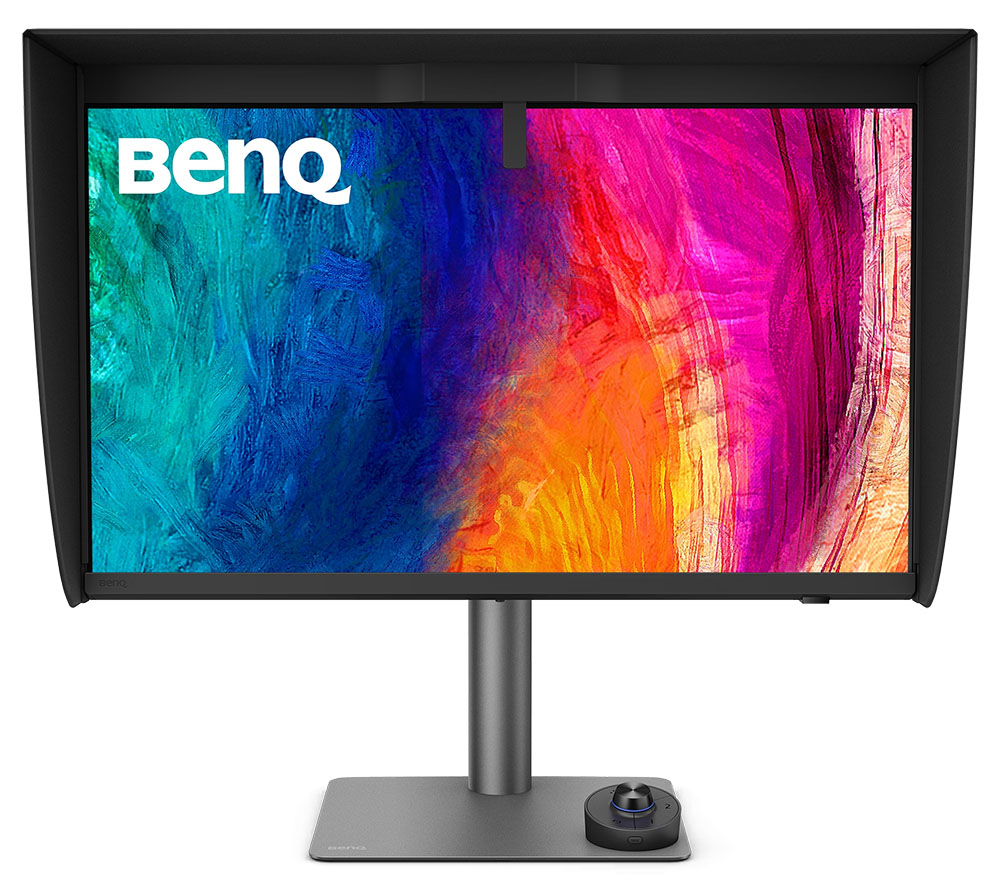
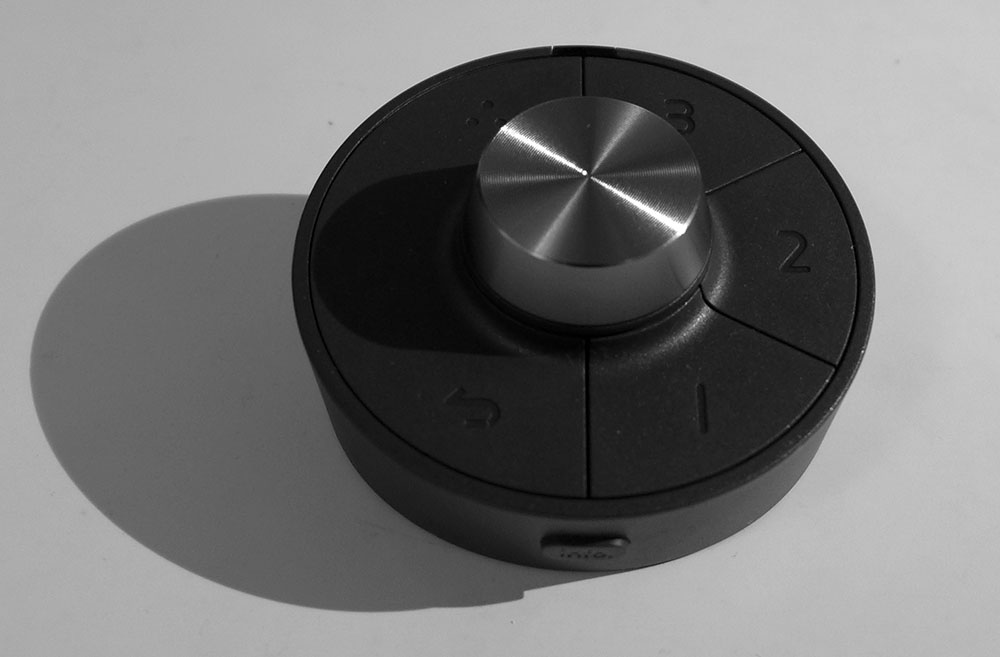
The PD2770U looks upside down from the front because of its large meter housing at the top. It’s over an inch wide with a bulge in the middle. The rest of the bezel is flush and narrow. Underneath are control keys and an OSD joystick. You’ll never need them once you’ve acquainted yourself with the HotKey Puck. BenQ is better than anyone else at designing remotes and this is my new fave. It’s wireless and features a large dial in the center flanked by five buttons. On one edge is a key to display signal information. The dial adjusts brightness when the menu isn’t showing. Pressing it brings up a quick menu that is programmable. The full OSD is loaded with goodness, which I’ll talk about below.
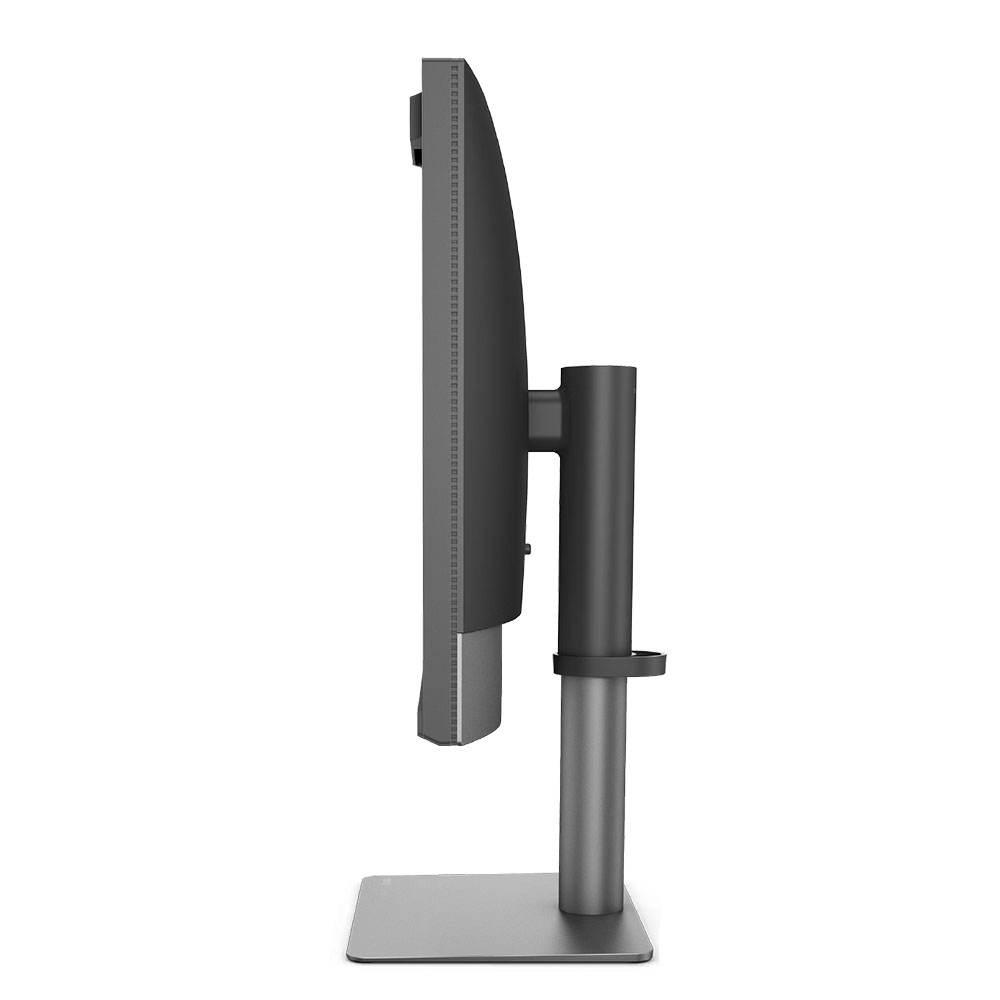
The side view is slim unless you attach the light hood, which is over eight inches deep. You can see in the photo that there is a cable management loop on the upright, which telescopes through its 4.6-inch range. You also get 5/20 degrees tilt, 15 degrees swivel and a 90-degree portrait mode with OSD auto-rotate if you wish. Movements reflect BenQ’s premium build quality. The PD2770U is clearly built to last.
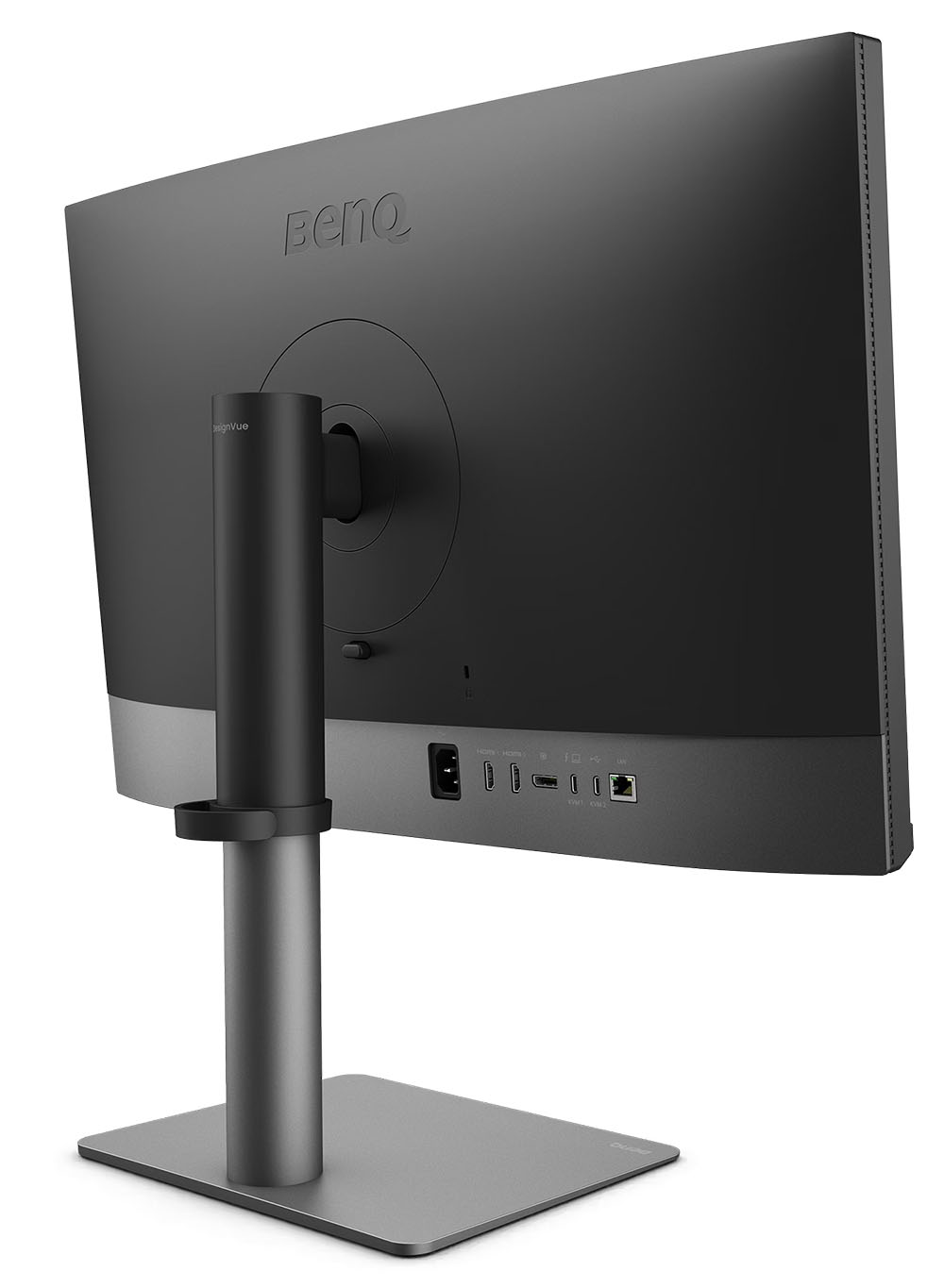
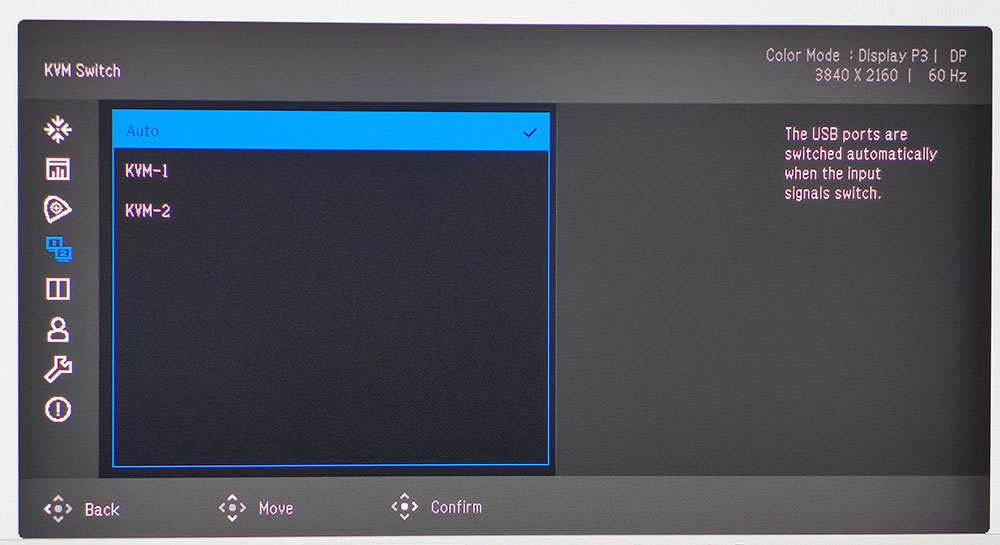
Facing out the back is a well-stocked input panel. There are two HDMI 2.0, one DisplayPort 1.4 and two USB-Cs. One handles video and provides 96 watts of power and the other is an upstream port for USB hub functions. The PD2770U has two KVM modes that let you bind video and USB ports for control of multiple systems. On the bottom of the bezel are two USB-A ports (v3.2) and a headphone jack. There are no internal speakers.
OSD Features
The PD2770U’s OSD is all business and includes everything needed for calibration and color management. Pressing the puck’s dial brings up a quick menu that is user programmable. Another press opens the full OSD.
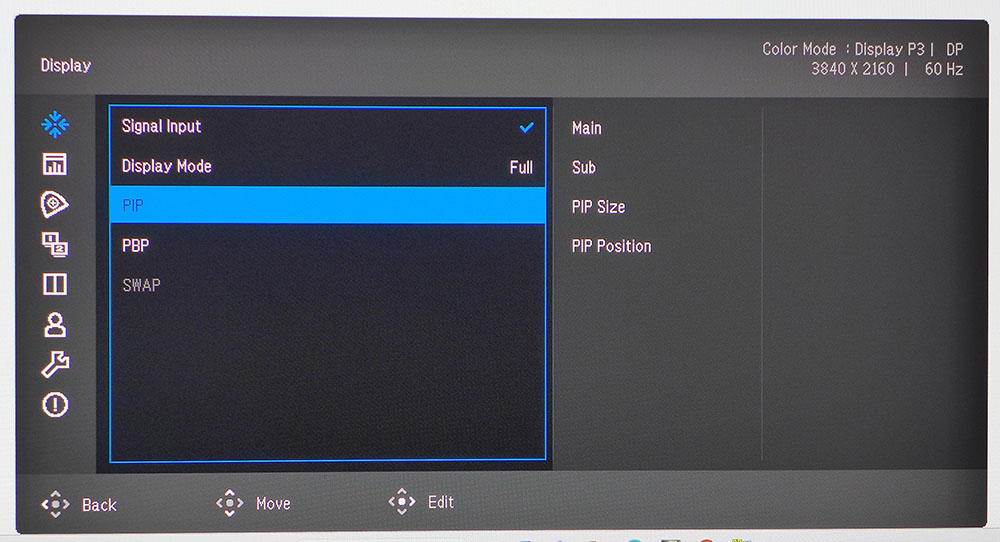
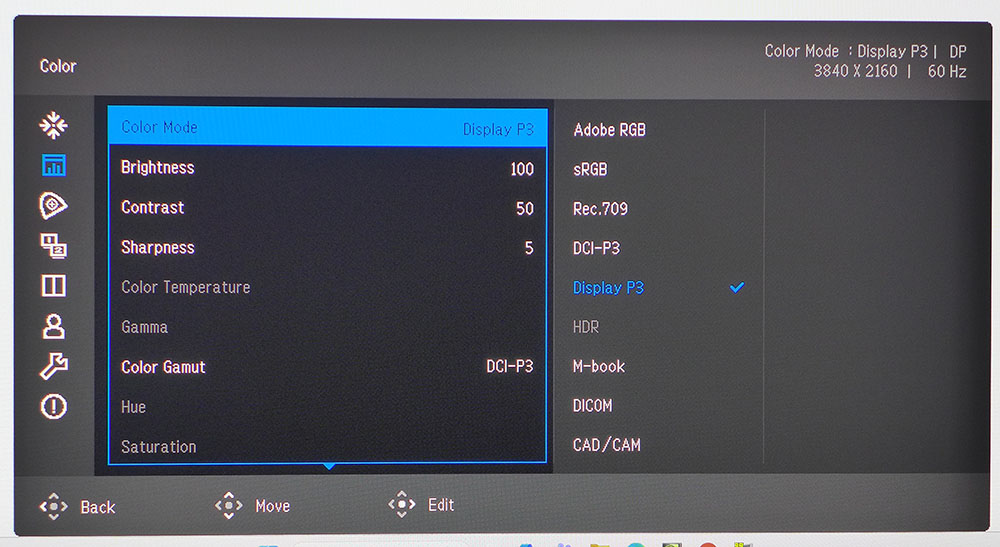
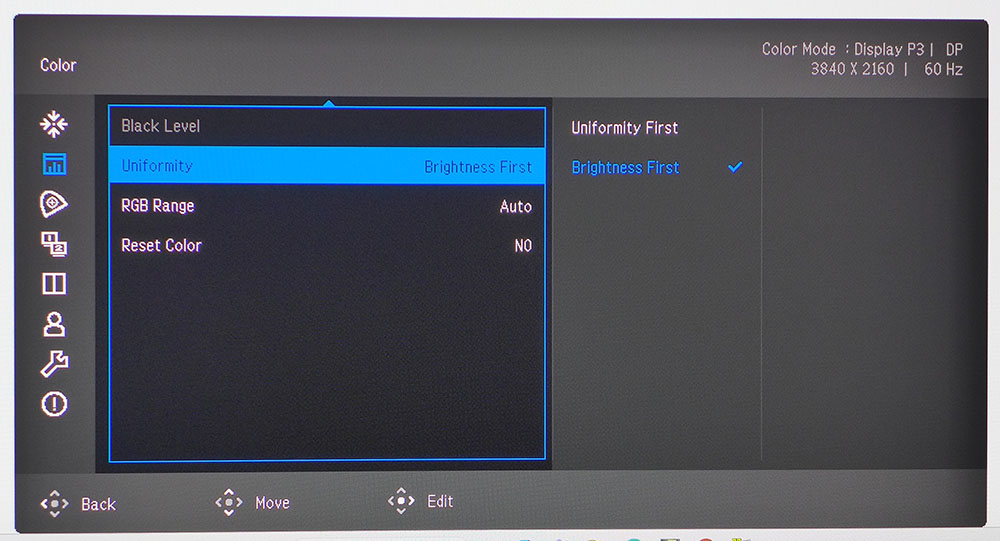
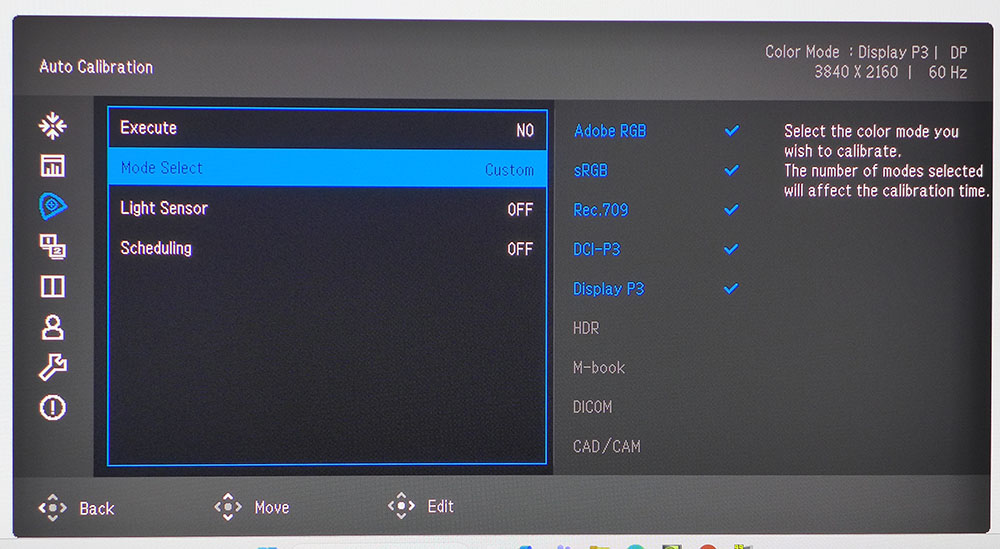
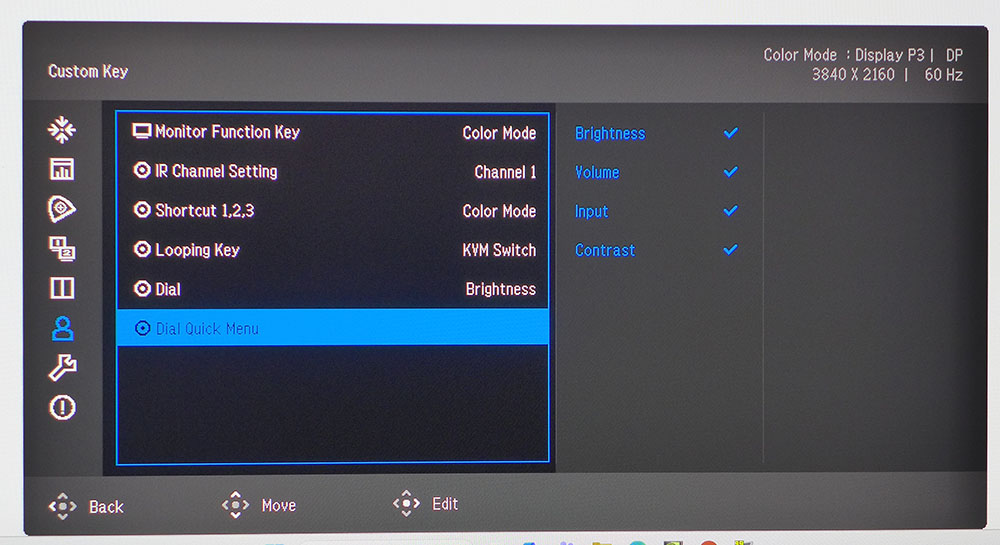
The first sub-menu, Display, has an input selector, aspect ratio control and PIP/PBP functions to view two sources at once. That’s followed by the Color menu where you can make manual tweaks to the 12 color modes. Different presets allow different adjustments, in other words, you can’t change gamma or color temp in certain modes. But there is a way to create custom calibrations using the three Custom memories. They connect with BenQ’s Palette Master Ultimate app where you can set up any combination of gamut, gamma, color temp and luminance that you like.
Each preset mode has a choice of screen uniformity or brightness as the priority. Choosing the former limits brightness to around 230 nits. The latter setting bumps that up to 315 nits. I found very good uniformity in my sample, so I turned the compensation off in all modes.
The calibration menu is a simple affair. Just pick one or more modes to adjust, then select execute. Each mode takes around 12 minutes to complete. If you use Palette Master Ultimate, it takes the same amount of time. This menu lets you use the light sensor, or not, and schedule calibrations for any period you wish.
GamutDuo is a cool feature that lets you compare different color parameters side by side. You get two versions of the image, and the toggles change the right pane. You can view differences in color gamut, color temperature and gamma. You can also see the effect of sharpness on the image.
Control of the PD2770U is firmly in the hands of the user, with multiple functions available for the HotKey Puck, monitor keys and OSD joystick. The dial has a quick menu of its own with five adjustable slots. My favorite thing of all is the ability to change brightness with the dial, just like a volume control.
BenQ DesignVue PD2770U Setup And Hands-on
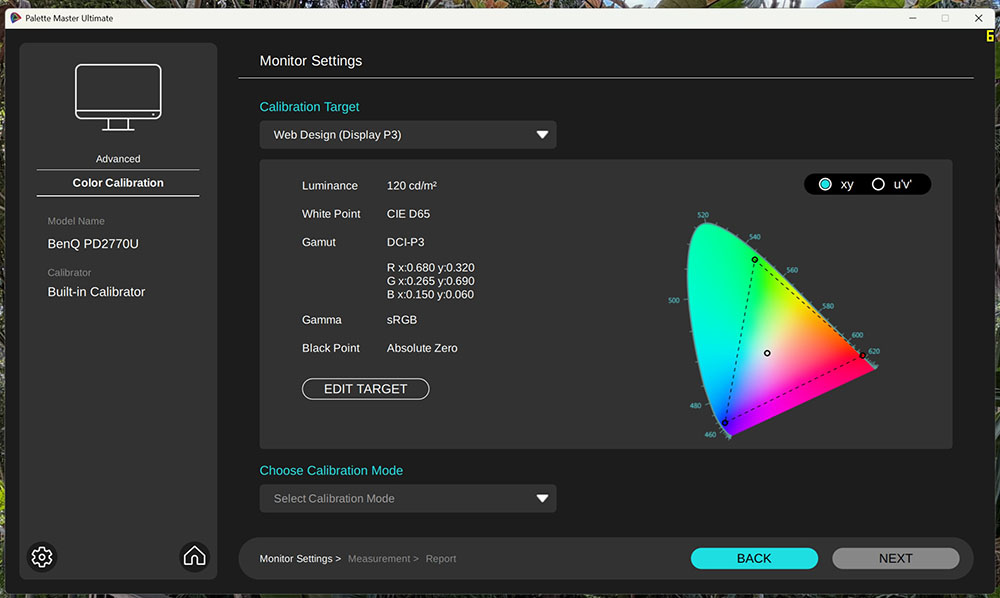
The PD2770U is ready to go out of the box with a factory calibration in place. You’ll see in the tests that it is spot on for gamut tracking, nearly perfect for gamma and just inside the visible error threshold for grayscale. My sample benefited from an initial calibration using the built-in meter. I did this using the OSD and BenQ’s Palette Master Ultimate (PMU) app. Either method takes around 12 minutes per mode. You can create custom configurations, up to three, with PMU. It lets you specify luminance, gamut, color temp and gamma. When finished, it shows you all the data along with reference photos to help you evaluate flesh tones and other familiar things like landscapes and black and white images.
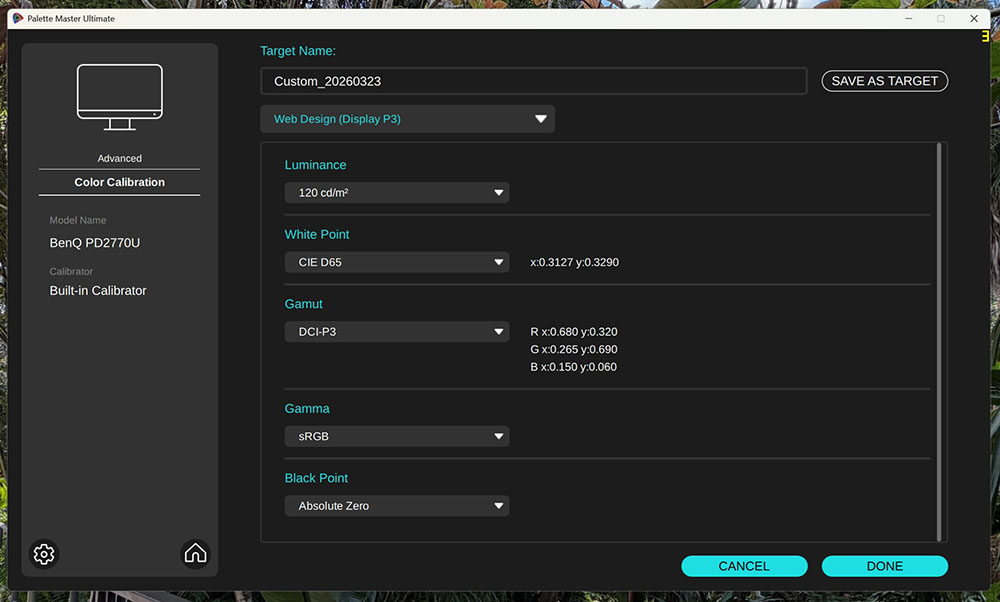
I explored the color modes I would use most: Display and Cinema P3, Adobe RGB, sRGB, and BT.709. They default to specific gamma and color temperature settings, which I’ve listed in the table below.
Swipe to scroll horizontally
Mode | Gamut | Color Temp | Gamma |
Adobe RGB | Adobe RGB | D65 | 2.2 power |
sRGB | sRGB | D65 | 2.2 power |
BT.709 | BT.709 | D65 | 2.4 power |
Cinema P3 | P3 | D63 | 2.6 power |
Display P3 | P3 | D65 | 2.2 power |
These are not absolute specs, and in fact, BenQ is a bit different than the Asus ProArt screens I’ve covered here. sRGB gamma has undergone revisions in the past, and its latest spec is closer to 2.4 power. BT.709 is more commonly associated with BT.1886 gamma, though 2.4 power is also correct. I noted that the PD2770U made the correct distinction between Display and Cinema P3 by altering the color temp for Cinema to compensate for the reddish Xenon bulbs used in theater projectors. If you want to change any parameter, run the PMU app and save the result to one of the three Custom modes. To recalibrate any fixed mode, the OSD makes it very easy. And you can do multiple modes in one go, and schedule it for off-hours if you like.
In use, the PD2770U is simply gorgeous to look at. Though it doesn’t have the deep blacks of an OLED, its Nano Matte panel manages ambient light better than most LCDs, which makes the image appear deeper and more realistic. It looks even better with the light hood installed.
My absolute favorite thing here is the HotKey Puck. I know a remote seems like a minor part of the equation, but how I interact with a display is important, especially since most of the pro screens I review are close in performance. Dialing brightness up and down like an old-fashioned volume control is super fun and easy. The dial also makes OSD navigation a snap. It has three buttons that can be set to monitor functions or, through Display Pilot, to open your most-used apps. Press button one and get Photoshop, for example. And viewing signal info with one press is handy.
I’ll talk about this during the test notes later, but I must give BenQ kudos here for making the PD2770U a true Adobe RGB monitor. This standard isn’t common for on-screen graphics or photography, but it is used extensively in the print industry because of its ties to Pantone Matching. The PD2770U is both Pantone and Calman certified. In days of old, when LCD backlights were CCFL tubes, Adobe monitors had a special version of this tube that increased green saturation. Adobe RGB green is a little greener than P3 green. Today’s LED backlights, even with Quantum Dot films, can’t quite get there. BenQ has found that extra color. If you grade content for print, the PD2770U is a class leader.
The only thing I wish for here is something for game content creators. The PD2770U is a 60 Hz display with no Adaptive-Sync or overdrive. It has decent input lag relative to other 60 Hz screens, but fast-motion gaming is just too blurry to be fun. With so much content creation focused on motion, it seems like an unnecessary omission. It’s great for video postproduction, but rendered content needs more than 60fps to be smooth.
Takeaway: If you’re a content creator, the PD2770U is an awesome choice for photography, print, onscreen graphics, video postproduction or any workday task. It has a thoughtfully designed calibration routine that’s equally convenient whether you use the OSD or outboard software. It’s easy to manage with scheduled calibration and multiple display monitoring. It’s also one of the few true Adobe RGB monitors you can buy at any price. It sports premium build quality and can serve as a trusted tool for the long term.
MORE: Best Gaming Monitors
MORE: How We Test PC Monitors
MORE: How to Buy a PC Monitor







 English (US) ·