
 3 hours ago
7
3 hours ago
7
Disabling this security feature grants more freedom, but is it worth the risk?
Eza_Nanda/Shutterstock
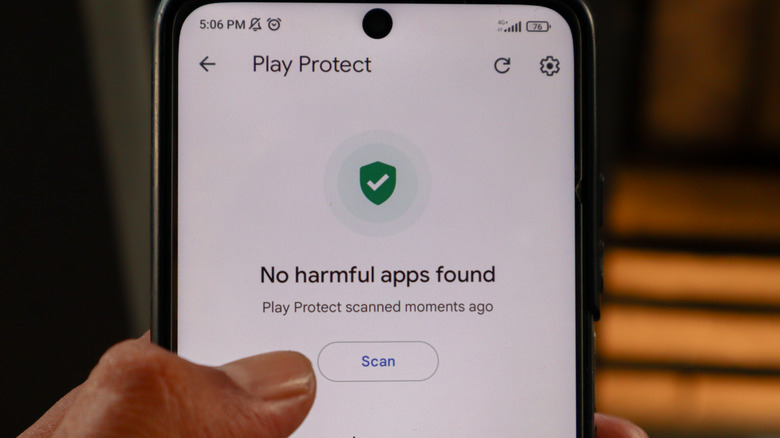
Google launched Play Protect in 2017 to serve as a free, built-in protection system for your Android device. It's your first line of defense, there to shield you from harmful apps even if you don't have a third-party antivirus program installed. The company said Play Protect detected over 27 million new malicious apps in 2025 and either warned users about them or prevented them from running.
Play Protect doesn't just check apps from the Play Store before you download them; it also scans your device for malware and other potentially harmful programs that you may have gotten from somewhere else. It will send you privacy alerts about apps that can access your personal information, and it will warn you about deceptive apps, such as those that piggyback on another application's installation or hide their true function.
If you sideload apps, Play Protect will let you know if you could be downloading malicious files or even prevent you from installing them altogether. It could also deactivate or automatically remove apps from your device. Google said the program blocked 266 million side-loading installation attempts of risky apps in 2025.
Yes, those last few features aren't quite popular with people who want freedom to be able to install whatever they want on their Android devices. If that's how you feel and would rather disable Play Protect, we'll walk you through the steps in a moment. Just take note that you will lose the safeguards it provides if you do. You'll have a higher chance of getting infected by malware, since you won't get warnings about suspicious apps you're downloading anymore, especially if you don't have a third-party anti-malware program. You'll also be more at risk of installing apps that can steal your sensitive information.
How do I turn off Google Play Protect?
Before we proceed, you must know that there are instances in which you may be blocked from disabling Play Protect. If you have a Google account managed by your school or workplace and you're unable to find a way to switch it off, the administrator might have restricted your ability to disable security features.
You won't be able to switch it off if you're enrolled in Google's Advanced Protection Program, either. That's the company's highest level of security designed specifically for users who are most at risk of targeted attacks, such as journalists, activists, celebrities and people working on political campaigns.
You should also know that there have been reports of Google removing sideloaded apps it deems risky anyway, even with Play Protect disabled. All that said, it's pretty easy to switch the feature off.
 Screenshot by Mariella Moon (Google)
- On your Android phone, go to the Google Play Store.
- Tap on your profile icon at the top right corner of the Play Store interface.
- Scroll down and tap on the Play Protect option. On this interface, you'll see when the feature last scanned your apps.
- Click on the Settings gear icon at the top right corner of the screen.
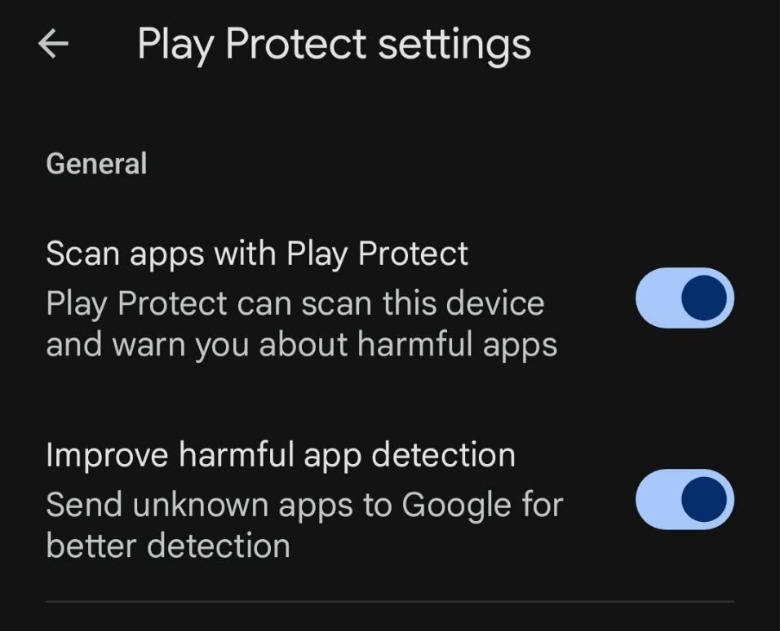
- Toggle off "Scan apps with Play Protect."
On that final screen, you can also toggle on or off the "Improve harmful app detection" feature. With this toggled on, your account automatically sends apps you download from outside the Play Store to Google, so that they can be inspected for malware or any suspicious behavior.
If you're enrolled in Google's Advanced Protection Program, you will need to disable it first:
- Log into your Google account on a browser and go to the Security & sign-in menu.
- Find the "Advanced Protection Program" and then select "Unenroll."
You may have to restart your device and wait for a while before Advanced Protection stops working and you can disable Play Protect.






 English (US) ·