
 5 hours ago
6
5 hours ago
6
Though OLEDs remain a premium gaming monitor category, there is no denying that they make up a large share of new model introductions. Looking over my reviews for the past two years, they represent just over half of the screens that have crossed my test bench. Prices are trickling down, and one company trying to make the best OLED gaming monitors more affordable is Alienware. Though it has plenty of high-end displays available, the newest models are aimed at more modest budgets.
The latest example is one that would have been a flagship not too long ago. The AW3226Q is a 32-inch 4K flat OLED with Tandem Stripe RGB technology, 165 Hz, Adaptive-Sync, HDR400 True Black, Dolby Vision, and wide gamut color. Let’s take a look.
Alienware AW3226Q Specs
Swipe to scroll horizontally
Panel Type / Backlight |
Tandem RGB Stripe Organic Light Emitting Diode |
Screen Size / Aspect Ratio |
32 inches / 16:9 |
Max Resolution and Refresh Rate |
3840x2160 @ 165 Hz |
| Row 3 - Cell 0 | FreeSync and G-Sync Compatible |
Native Color Depth and Gamut |
10-bit / DCI-P3 |
| Row 5 - Cell 0 | HDR400 True Black, HDR10, Dolby Vision |
Response Time (GTG) |
0.03ms |
Brightness (mfr) |
250 nits full field |
| Row 8 - Cell 0 | 1,000 nits HDR 3% window |
Contrast |
Unmeasurable |
Speakers |
None |
Video Inputs |
1x DisplayPort 1.4 |
| Row 12 - Cell 0 | 2x HDMI 2.1 |
Audio |
3.5mm headphone output |
USB 3.0 |
1x up, 2x down, 1x USB-C (15w) |
Power Consumption |
34w, brightness @ 200 nits |
Panel Dimensions WxHxD w/base |
28.2 x 19.2-23.5 x 9.1 inches (716 x 488-597 x 232mm) |
Panel Thickness |
2.3 inches (57mm) |
Bezel Width |
Top/sides: 0.31 inch (8mm) |
| Row 19 - Cell 0 | Bottom: 0.55 inch (14mm) |
Weight |
17.05 pounds (7.75kg) |
Warranty |
3 years |
Tandem RGB Stripe is the newest OLED variant, and it can be found in the AW3226Q as well as several new screens from Asus. I propose to simply call it TRS-OLED in this review. It takes the approach of stacking emissive layers to provide more light with less power consumption. It also broadens the color gamut to over 100% coverage of DCI-P3. In Alienware’s case, it’s four emissive layers behind an RGB sub-pixel layer that acts as a polarizer. By putting the pixels next to each other, hence the Stripe, rather than the triangular arrangement of QD-OLEDs, you get a wide color gamut and high brightness with sharper detail and no chance of fringing.
Latest Videos FromTom's Hardware
The AW3226Q produces 1,000 nits from a 3% window in HDR mode and around 275 nits full field as I measured it. The polarizing layer makes blacks more true by keeping ambient reflections from spoiling the image. Color volume came in at 101% of DCI-P3, which is more than a typical OLED, although a bit less than one equipped with Quantum Dots. And power consumption is low, with just 34 watts drawn at 200 nits brightness. HDR10 and Dolby Vision are supported, with a VESA DisplayHDR 400 True Black certification that I verified in testing.
Gamers benefit from the AW3226Q’s 165 Hz refresh rate that works with Adaptive-Sync to produce smooth motion processing. Like all speedy OLEDs, input lag is low and, in my tests, it managed to beat one 240 Hz screen that costs a good deal more. You also get AlienVision, which is a super cool aiming point and sniper mode editor that is unique to Alienware displays.
The AW3226Q is attractively styled and well-appointed with USB ports, a bit of LED lighting, and a solid stand with full ergonomics. It includes a DisplayPort 1.4 input and two HDMI 2.1 ports with FRL (48Gbps) and eARC, making it easy to integrate the monitor with soundbars or AV systems that also support HDMI eARC. There are no internal speakers, but you do get a 3.5mm headphone jack. Also included are USB ports: two Type-A, one Type-B, and one Type-C.
The AW3226Q is a decent value at its opening price of $699. That’s a significant discount over the $1,000 you’ll spend on an AW3225QF, which only has minor differences.
Stay On the Cutting Edge: Get the Tom's Hardware Newsletter
Get Tom's Hardware's best news and in-depth reviews, straight to your inbox.
Assembly and Accessories
The AW3226Q arrived in fully recyclable packaging consisting of a clamshell-style carton and molded pulp forms to protect the contents. The upright snaps onto the panel and the base attaches with a captive bolt. The resulting piece is solid and stable on the desktop. The power supply is internal, so you get a stout IEC cord plus cables for DisplayPort, HDMI, and USB-A/B.
Product 360
Image 1 of 4
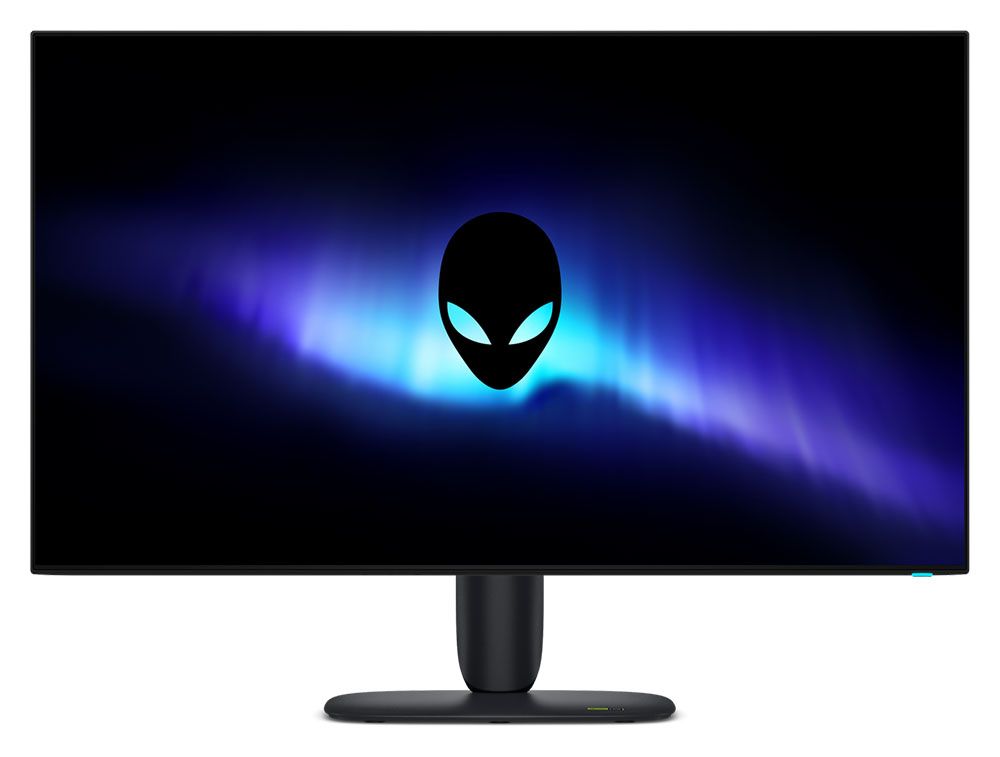
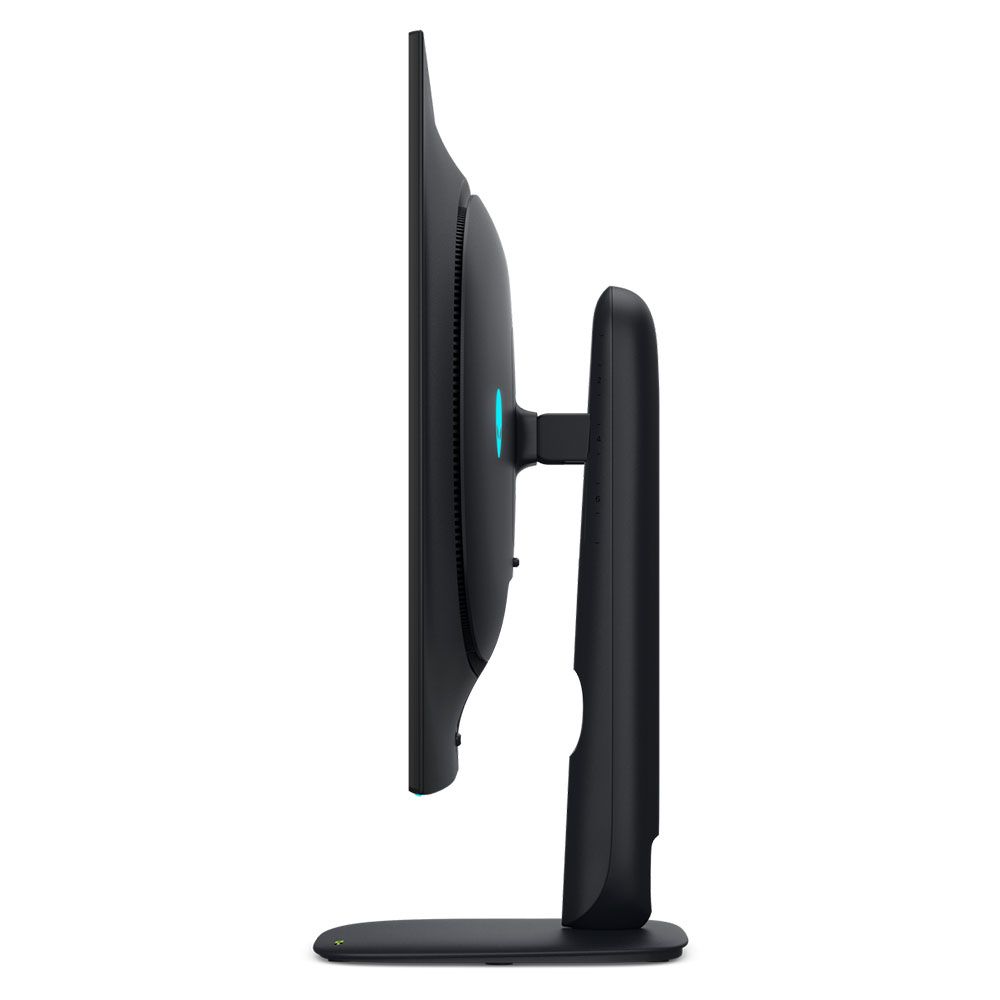
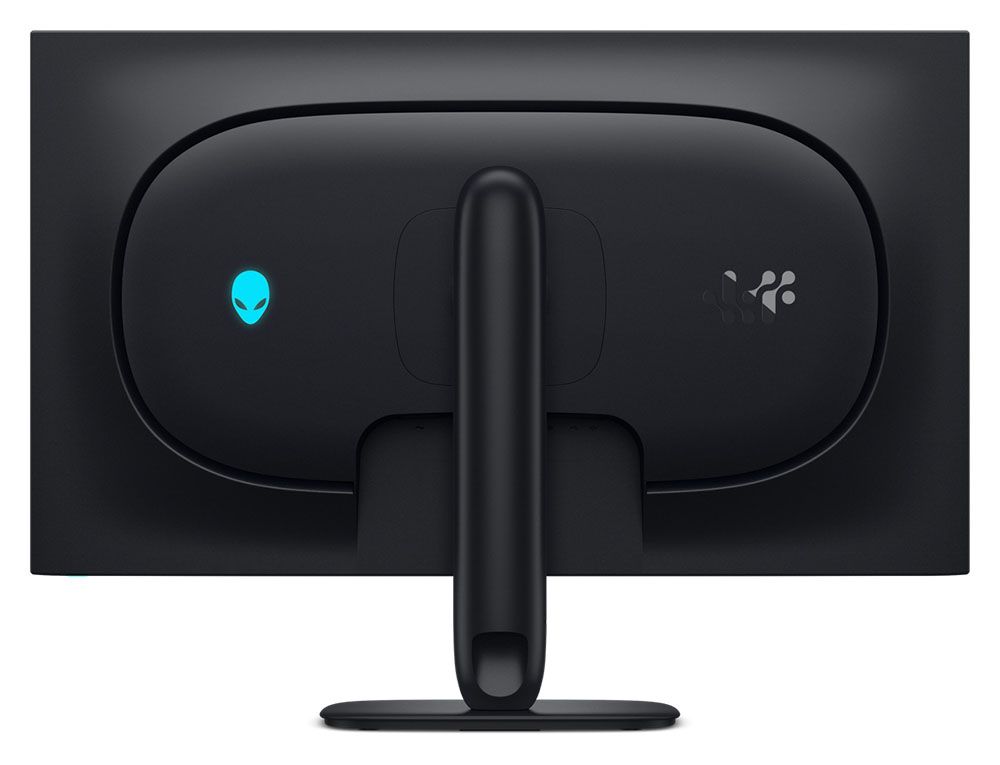
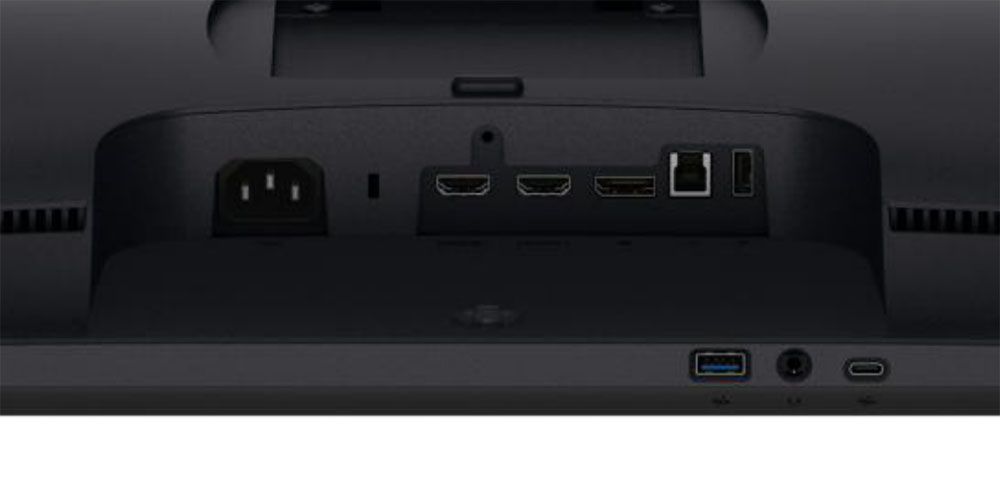
The AW3226Q’s screen is touted as “almost frameless”, and indeed, it is. The top and side frames are just 8mm, while at the bottom, it’s 14mm and flush on all sides. There is no extra protruding trim. The bottom is not without utility, though, as it puts a headphone jack and two USB ports within easy reach. The remaining I/O is in the usual spot, up and under, where you’ll find a DisplayPort 1.4, two HDMI 2.1, and more USBs, one upstream and one downstream.
The stand features Alienware’s latest design where the upright’s attachment point appears to float above the base. There are no sharp edges or square corners here. Everything is smoothly tapered, including the bulge in the back, which is generously vented around its perimeter. On one side is the Alienware head, which has the main LED feature. It can light up in a variety of colors and effects, all controlled from the OSD.
The upright has an angled cable management hole, which is cool because then you can’t see through it from the front. It features 5/21 degrees tilt, 20 degrees swivel, a 90-degree portrait mode, and 4.3 inches of height range. Movements are smooth and firm with no wobble or play. If you’d rather use an aftermarket support, the stand comes off to expose a 100mm VESA mount with fasteners included.
OSD Features
Pressing the AW3226Q’s joystick opens a well-stocked OSD with nearly every option a gamer or enthusiast could want. Except for one that I’ll tell you about below.
Image 1 of 10
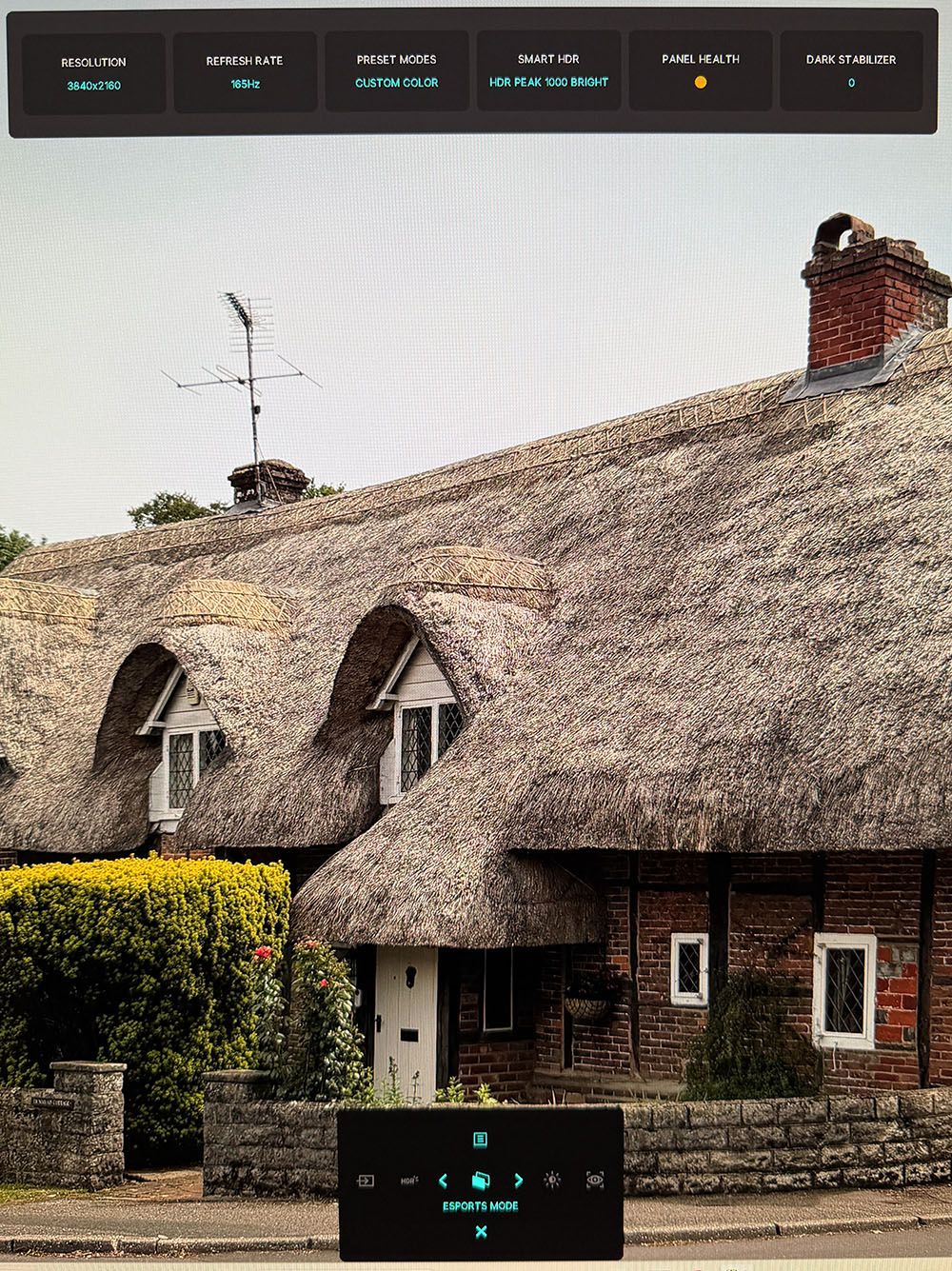
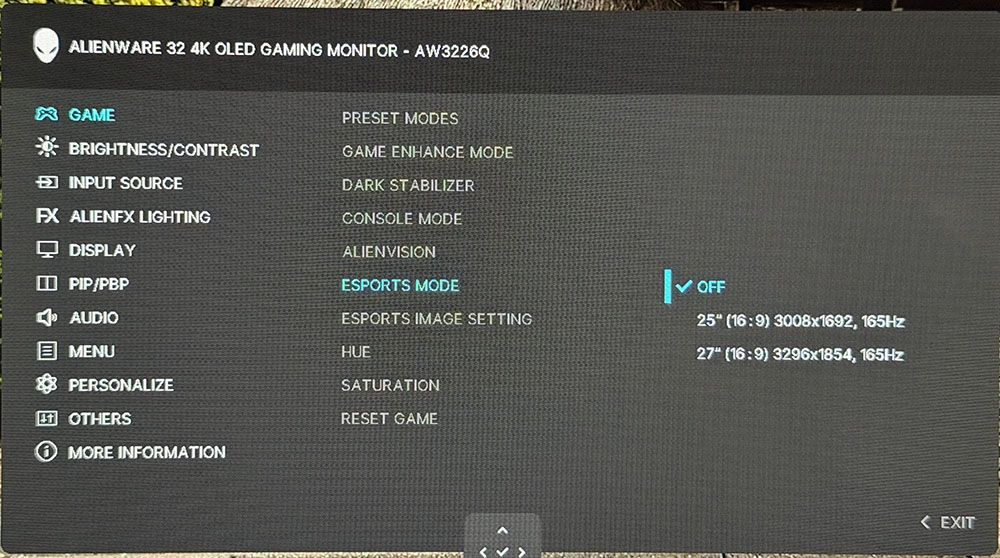
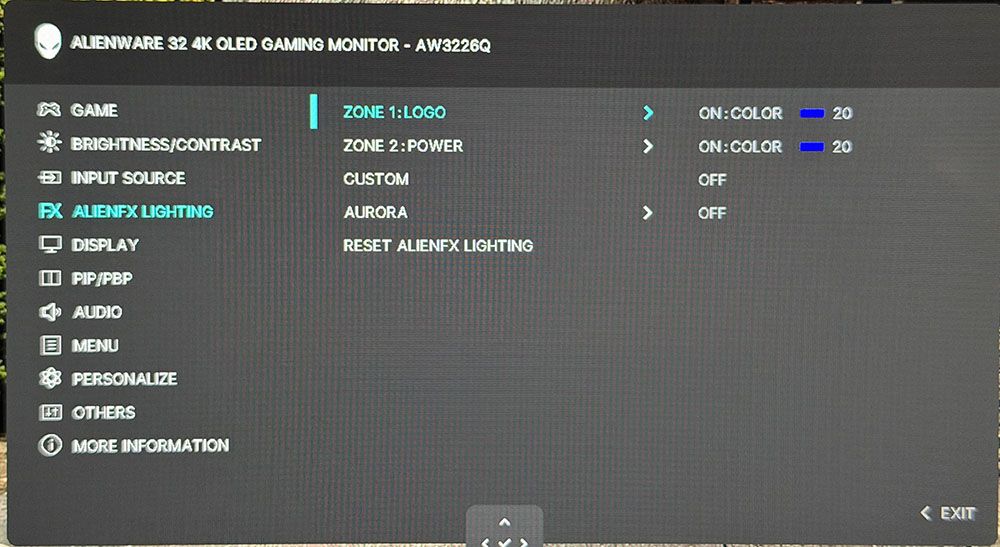
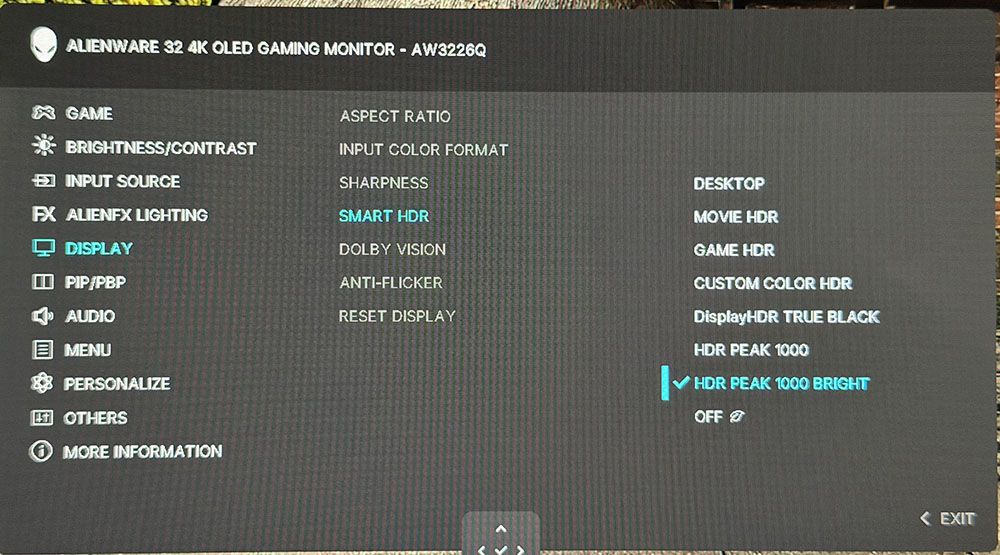
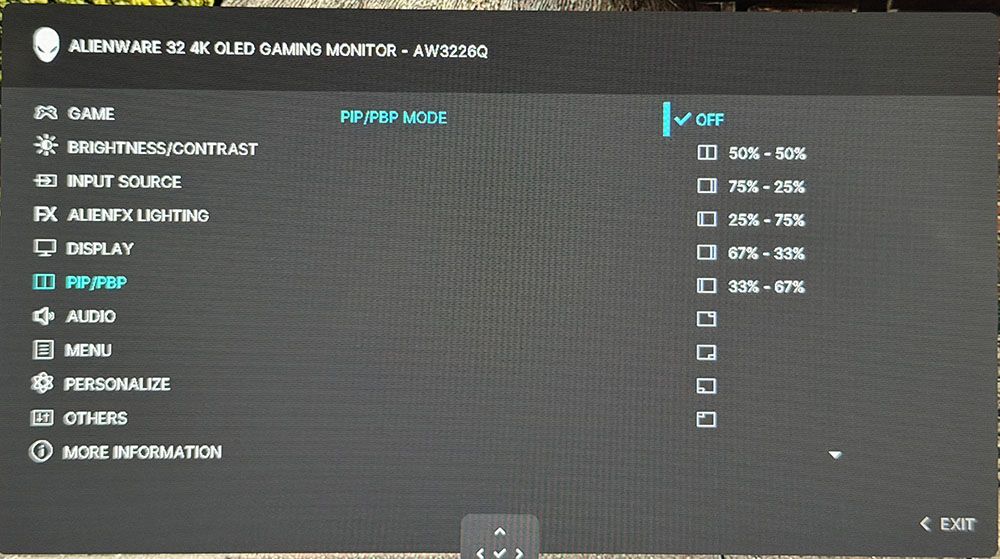
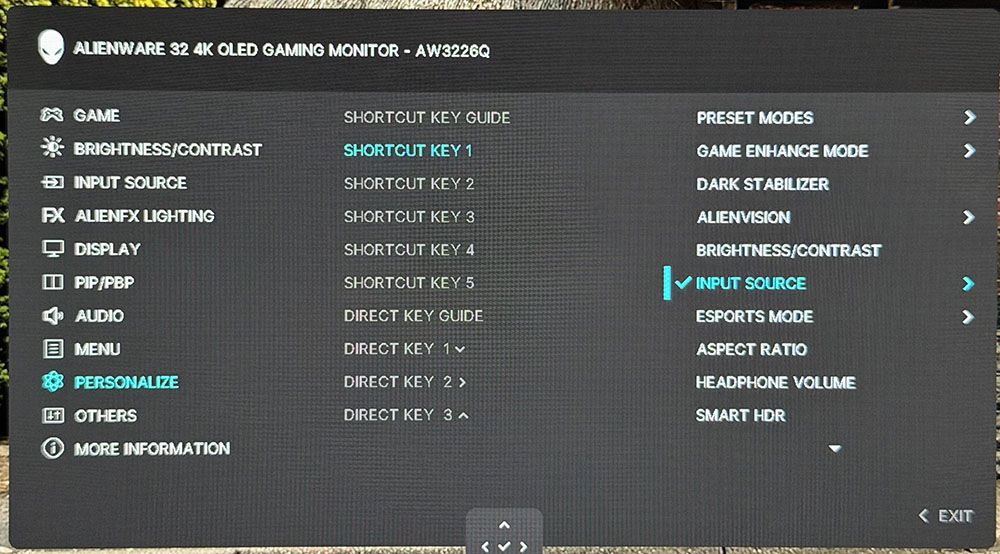
The first joystick press opens a quick menu with info at the top that shows resolution, refresh, current preset, HDR mode, panel health, and the dark stabilizer setting. At the bottom of the screen is a quick menu that can be programmed by the user. Fun fact: that thatch-roof house in the photo is down the street from where Jane Austen lived from 1809 to 1817 in Chawton, England.
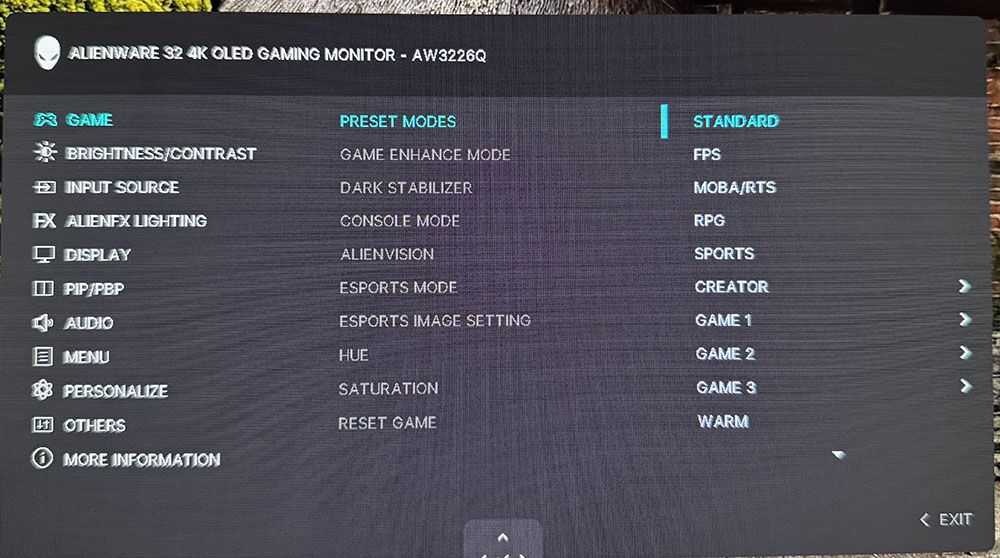
With another upclick, we get the full OSD, which has 11 sections starting with Game and the 12 picture modes. Standard is the default and its color is accurate, but you can get some improvement by using Custom Color and its two-point white balance sliders. Creator mode gives you access to the sRGB and DCI-P3 gamuts. The one thing missing, and this is true of every Dell and Alienware monitor I’ve ever reviewed, is a gamma control. Normally, this isn’t an issue, but in the AW3226Q’s case, the default gamma is too light with no practical way to correct. I’ll show you what I mean on page four.
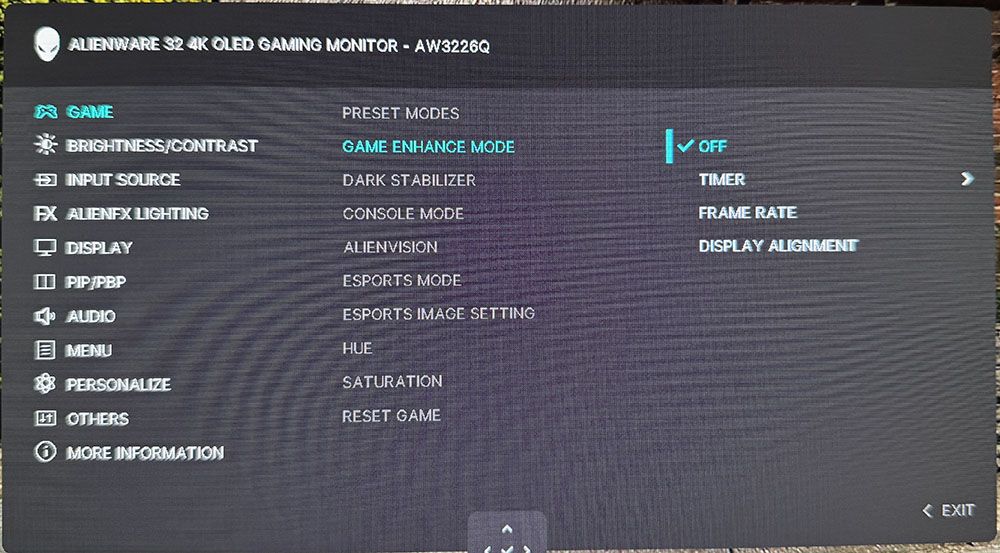
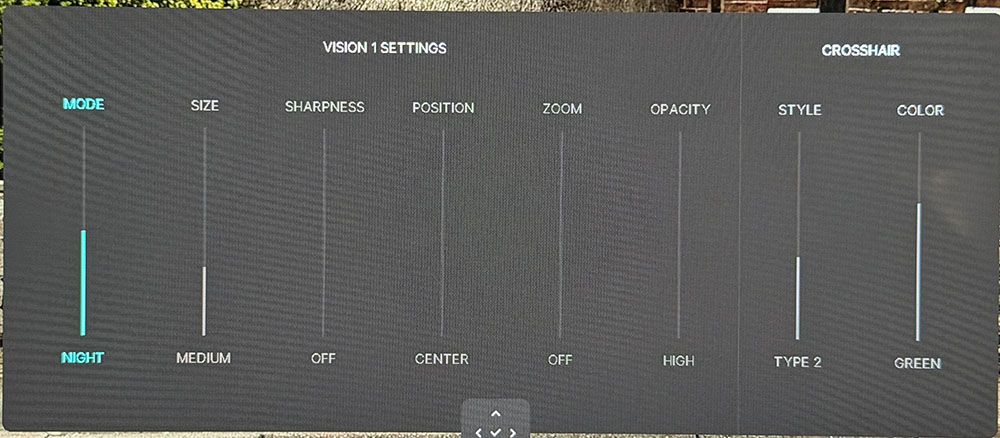
Game Enhance includes a set of timers and a frame rate counter. The aiming point editor is called AlienVision, and it gets its own screen with parameters for reticle shape, color, and position. You can also roll your own sniper mode with variable magnification and opacity. There are three memories to save your configurations. Esports modes include 25 and 27-inch images with reduced resolution, which is a benefit to frame rates, although you’re still capped at 165 Hz.
AlienFX lighting refers to the Alienware head in the back and the power button LED, which you can see from the front. They can display in any color or effect or be turned off if you want total darkness.
In the Display menu, you’ll find seven HDR modes plus a toggle for Dolby Vision. I found during testing that the HDR Peak 1000 Bright mode delivered the brightest and most impactful HDR.
The AW3226Q includes full PIP/PBP functions for viewing two video sources at once. You can move the PIP window to any corner or decide how to split the PBP mode.
In Personalize, you can program the quick menu seen in the first photo above and the four joystick directions. Many functions can be accessed this way, like presets, Alienvision, headphone volume, and more.
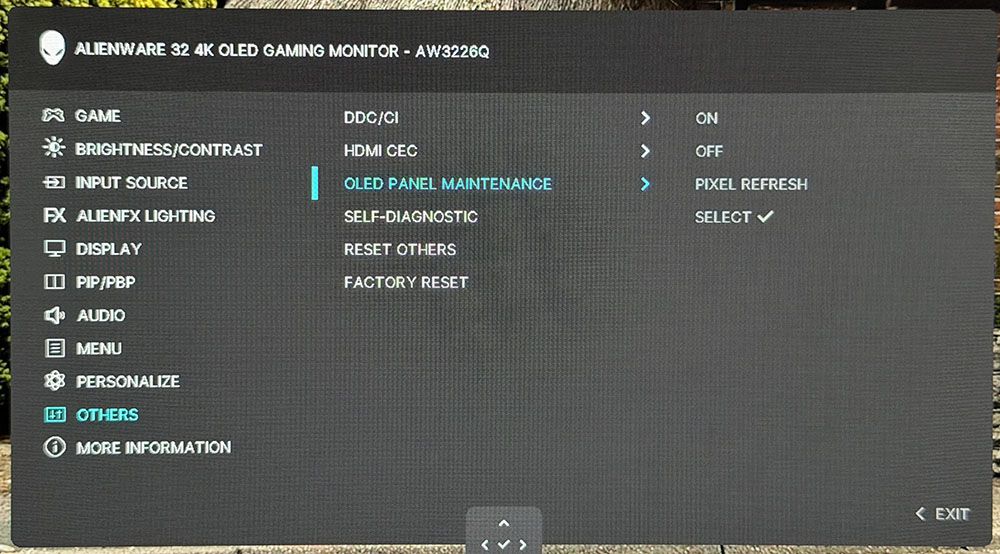
Most of the AW3226Q’s panel maintenance is handled by an algorithm that tracks the panel’s usage and manipulates pixel brightness accordingly. You can also initiate a panel refresh routine manually if you prefer.
Alienware AW3226Q Calibration Settings
Calibrating the AW3226Q was something of a compromise. In Standard mode, color and grayscale are without visible errors, but gamma is too light. And there is no gamma control in the custom color mode. You can adjust gamma in Creator mode and select sRGB if you like, but then you give up grayscale calibration. There’s also a gamma control in Console mode, but this only works over HDMI. I have long wished that Alienware and Dell would add gamma to the options in Custom Color mode. And when they do, I hope it’s a fine resolution slider like the Asus XG27AQNGV has, not the usual presets that are 0.2 apart. Anyway, my suggested settings are below.
For HDR10 signals, you get seven specific picture modes. Desktop is the default, but for the highest brightness and impact, choose Peak 1000 Bright.
Swipe to scroll horizontally
Picture Mode |
Custom Color |
Brightness 200 nits |
84 |
Brightness 120 nits |
47 |
Brightness 100 nits |
38 |
Brightness 80 nits |
28 |
Brightness 50 nits |
13 (min. 24 nits) |
Contrast |
75 |
Color Temp User |
Gain – Red 99, Green 98, Blue 97 |
| Row 8 - Cell 0 | Bias – Red 50, Green 50, Blue 50 |
Gaming and Hands-on
Gameplay on the AW3226Q was satisfying and successful. But it didn’t quite have the shooting-fish-in-a-barrel feel of some of the 240 Hz monitors I’ve experienced. Motion was smooth and quick, but I had to concentrate a bit more on my aim to make sure I wasn’t wasting ammo. I’m in nit-pick mode here because I play on so many different monitors. After a short time, I adapted to the AW3226Q and was handily dispatching gory monsters and aliens in Doom Eternal.
Frame rates stayed at 165fps thanks to a GeForce RTX 4090, and there was only a slight amount of motion blur. The picture didn’t smear like some slower screens, but there was just a little less definition in hard edges when I moved the mouse quickly. Again, it was something I noticed, then adapted to. I played with the AlienVision options a bit and found them very useful. And once I had created a couple of setups, I could switch them on and off quickly using the programmable menu and joystick options.
The AW3226Q was a monitor I could easily live with long term. The image is gorgeous for starters. Tandem RGB Stripe OLEDs (TRS-OLEDs) are sharper than other variants, by enough that you can tell the difference in a side-by-side comparison. I spend a lot of time in Photoshop, and this monitor is easily on par with the best professional displays I’ve reviewed. It’s also colorful and accurate. I noted light gamma during testing, which only had a minor effect. It wasn’t that I found the picture lacking; it was that I didn’t have a practical option to darken the gamma to my liking.
In a nutshell, Standard mode has no adjustments. Custom Color lets you tweak grayscale with a two-point control, but there are no gamma presets. Creator has color gamut options for sRGB and DCI-P3 and gamma presets, but no RGB sliders. So, whatever you choose, there’s a compromise.
Physically, the AW3226Q is a presence in a good way. I love Alienware’s newest styling aesthetic, which has been around for a while now. The almost frameless screen delivers on its promise. When the picture is on, the bezel disappears. Taking away the bottom trim strip makes a big difference there. Though I missed internal speakers, I appreciated the inclusion of USB ports, especially the ones right under the bezel. They, along with the headphone jack, are within easy reach. And even though it is a value-oriented display, it has the same premium build quality and solid feel as Alienware’s flagship models.
Takeaway: The AW3226Q has a gorgeous image with super crisp detail and deep texture. Its Tandem RGB Stripe technology eliminates any hint of fringing and gives the picture more dimension. The 165 Hz refresh rate produced a little blur, but I soon adapted to it. I reminded myself that the lower number comes with a $200 cost savings. My favorite use for the AW3226Q was as an everyday screen. It’s a premium tool for Photoshop or any graphics app you might wish to use. And it makes a great personal TV as well thanks to its support for Dolby Vision and HDMI eARC. Just hook up an external AV system or soundbar, and you’ve got a desktop home theater.
MORE: Best Gaming Monitors
MORE: How We Test PC Monitors
MORE: How to Buy a PC Monitor




 English (US) ·