
 2 days ago
10
2 days ago
10
An OLED is a premium gaming monitor for sure, but with so many new models coming out, the bread-and-butter categories are emerging. For the speediest screen, the go-to is the 27-inch size. Most of these displays are QHD 2560x1440, running at 240 Hz or higher, but recently 4K panels have appeared. They offer terrific pixel density and present a smooth image with no visible dot structure. You can press your nose right up to the screen and see photo-quality graphics and video with no jaggies or artifacts.
Prices have been inching downward for the best OLED gaming monitors, and now we have a solid value from Acer: the Predator X27 X1. It’s a 27-inch Quantum Dot OLED with 4K 3840x2160 resolution, 240 Hz, Adaptive-Sync, DisplayHDR 400, and wide-gamut color. It promises 1,000 nit highlights in HDR mode and delivers speed and saturated color for gaming and entertainment. Let’s take a look.
Acer Predator X27 X1 Specs
Swipe to scroll horizontally
Panel Type / Backlight | Quantum Dot Light Emitting Diode (QD-OLED) |
Screen Size / Aspect Ratio | 27 inches / 16:9 |
Max Resolution and Refresh Rate | 3840x2160 @ 240 Hz |
| Row 3 - Cell 0 | FreeSync and G-Sync Compatible |
Native Color Depth and Gamut | 10-bit / DCI-P3+ |
| Row 5 - Cell 0 | HDR10, DisplayHDR 400 |
Response Time (GTG) | 0.03ms |
Brightness (mfr) | 250 nits full field SDR |
| Row 8 - Cell 0 | 1,000 nits 3% window HDR |
Contrast | Unmeasurable |
Speakers | 2x 5w |
Video Inputs | 2x DisplayPort 1.4 |
| Row 12 - Cell 0 | 2x HDMI 2.1, 1x USB-C |
Audio | 3.5mm headphone output |
USB 3.2 | 1x up, 2x down |
Power Consumption | 41.4w, brightness @ 200 nits |
Panel Dimensions WxHxD w/base | 24 x 16.8-21.5 x 12.3 inches (610 x 427-546 x 312mm) |
Panel Thickness | 1.5 inches (38mm) |
Bezel Width | Top: 0.28 inch (7mm) |
| Row 19 - Cell 0 | Sides: 0.43 inch (11mm) |
| Row 20 - Cell 0 | Bottom: 0.51 inch 13mm) |
Weight | 12.2 pounds (5.6kg) |
Warranty | 3 years |
Speed and color saturation are major selling points in any monitor category, and the X27 X1 has plenty of both. A Quantum Dot layer delivers over 103% coverage of DCI-P3 with decent accuracy. That is a little less than some of the competition, but it is visibly more colorful than monitors that lack QD tech. It also sits in a somewhat rare category of screens that move 8.3 million pixels at 240 Hz. 4K packed into a 27-inch screen yields 163ppi. You can sit as close as you like and never see the dots. A shiny front layer means optical clarity and high contrast.
The 240 Hz refresh rate is accompanied by Adaptive-Sync and smooth video processing. The X27 X1 is one of the most responsive OLEDs I’ve tested so far using Nvidia’s LDAT tool. It has decently low input lag as well, so those with sufficient graphics card horsepower can enjoy frame rates north of 200fps in their favorite games set to max detail.
There are plenty of convenience features here as well. Gaming aids include the requisite aiming points, sniper modes, timers, and frame counter. You get a decent pair of internal speakers and USB ports for peripherals. Video inputs include two each of DisplayPort and HDMI, and a USB-C port with 65-watt Power Delivery.
I mentioned value already. The X27 X1 comes out of the gate for $899 as of this writing. That’s not a small investment, but it is a little less than the other 27-inch 4K 240 Hz OLEDs. And it’s a complete package with only LED lighting absent from the party.
Assembly and Accessories
The X27 X1’s packaging is fully recyclable and made from strong molded pulp forms that fully protect the contents. The stand and base bolt together, and the panel snaps on. If you’d rather use an arm, there’s a 75mm VESA mount in the back. You’ll need to source your own fasteners, though. The cable bundle includes a power brick plus HDMI and two USB ports.
Product 360
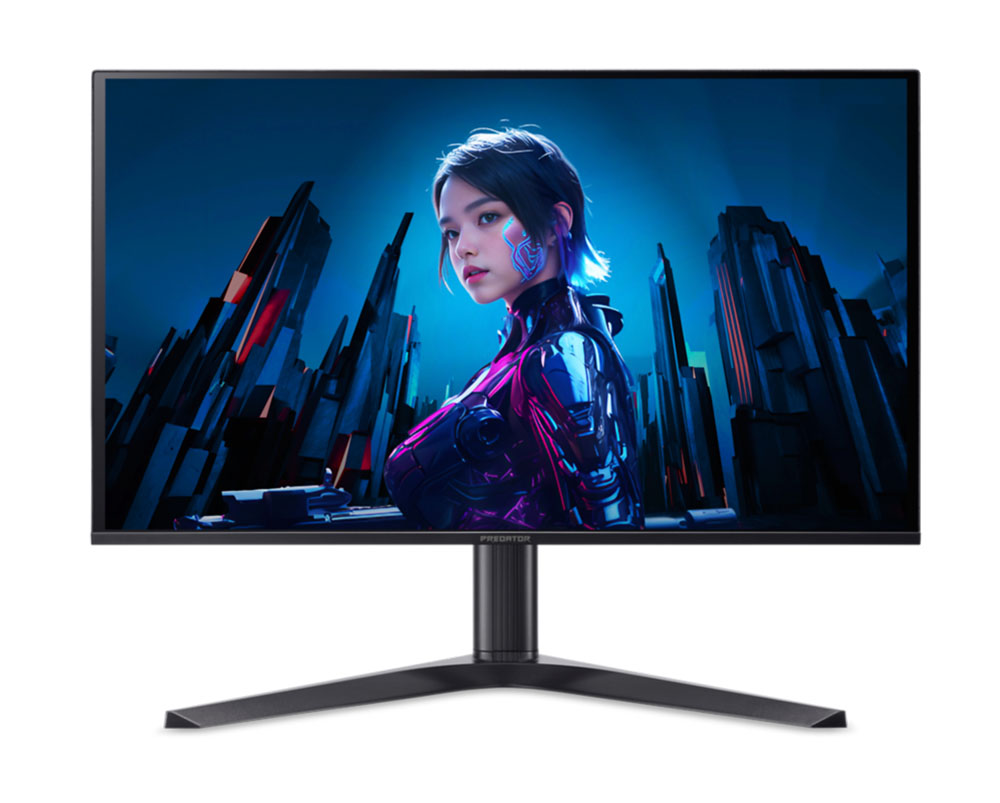
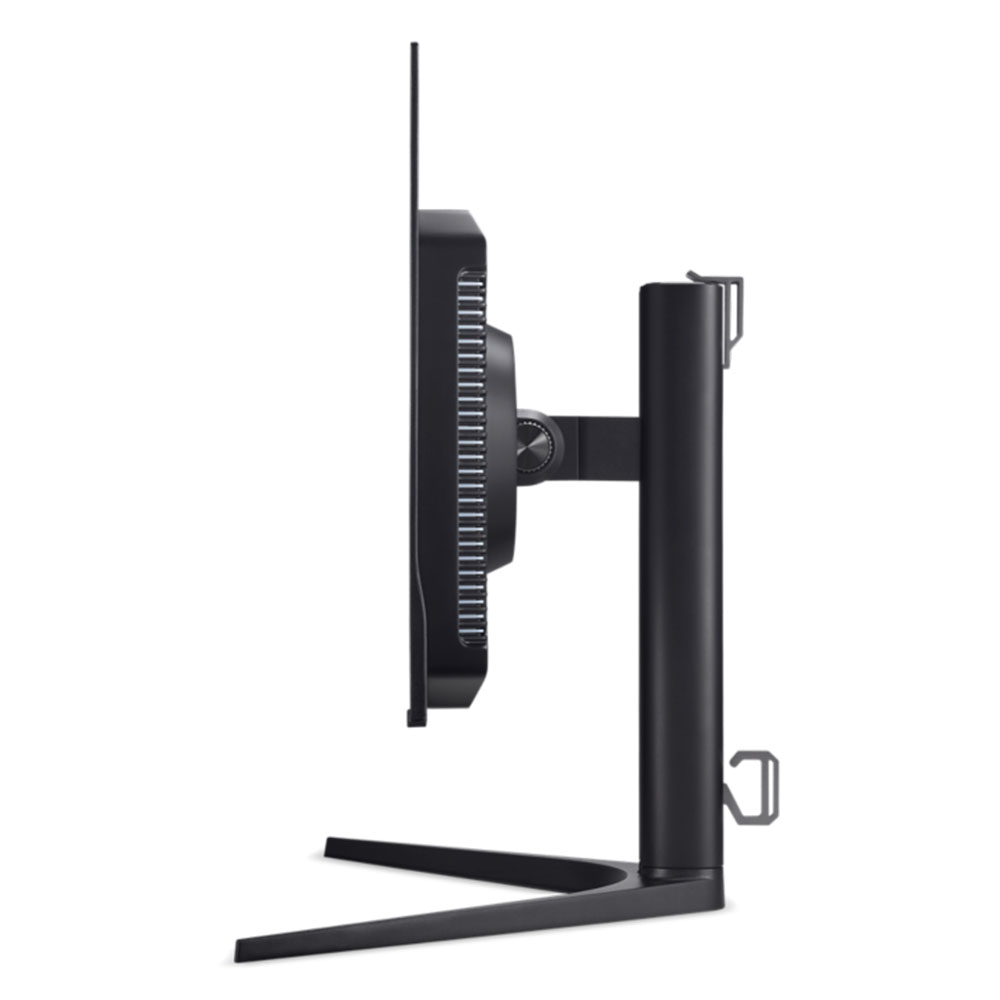
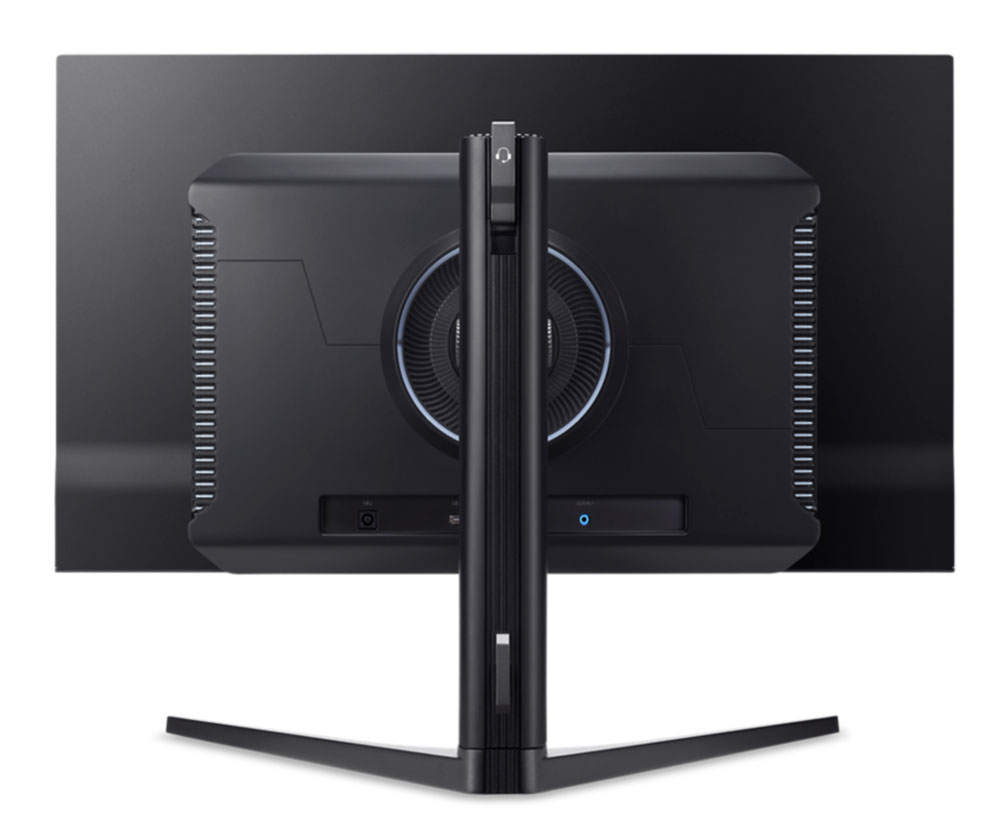
The X27 X1’s styling clearly marks it as an OLED monitor. The panel has a metal backing, and around its perimeter is only 3mm thick. It flares out a bit at the bottom, and a component bulge is attached to the back, bringing the total depth to 1.5 inches. It’s one of the slimmest monitors I’ve seen in a while. The backing is all metal while the bulge is enrobed in hard plastic with a matte finish. The screen is shiny and rejects light reasonably well, but it won’t hold up to bright sunny windows or harsh desk lamps. Keep the light controlled, and you’ll be rewarded with a crystal-clear image that’s colorful and contrasty. There are no artifacts or grain here.
The back photo above shows a white ring around the panel’s attachment point. It does not have a backlight, but it glows a bit when light hits it. The louvered vents on the sides do the same thing. The stand is very solid and makes liberal use of metal in the wide footprint base and for chunky bits like the headphone hook up top and the cable manager on the bottom. Ergonomics include a 4.7-inch height adjustment plus 5/20 degrees tilt, 20 degrees swivel and a 90-degree portrait mode. Movements are firm and befit a premium display. The base is very large and will ensure the X27 X1 stays put.
The input panel faces backward, making it super easy to access. It contains two DisplayPort 1.4 and two HDMI 2.1 inputs, plus a USB-C (DP Alt) port with 65 watts of power. There’s a 3.5mm headphone jack to supplement the two five-watt internal speakers. And USB ports are version 3.2 with one upstream and two downstream.
OSD Features
Press the X27 X1’s joystick in the bottom center, and a small quick menu appears with input selection, modes and brightness options. Press it again and the full OSD is revealed.
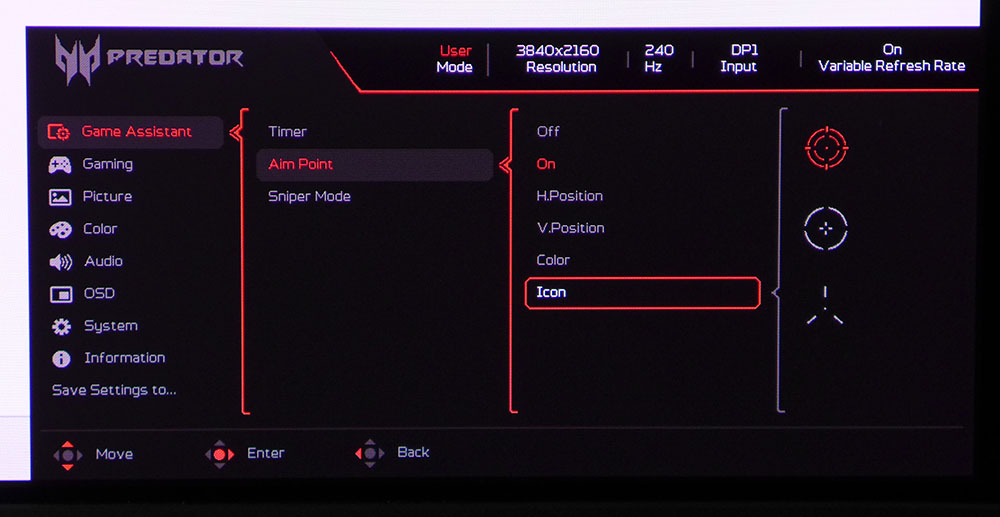
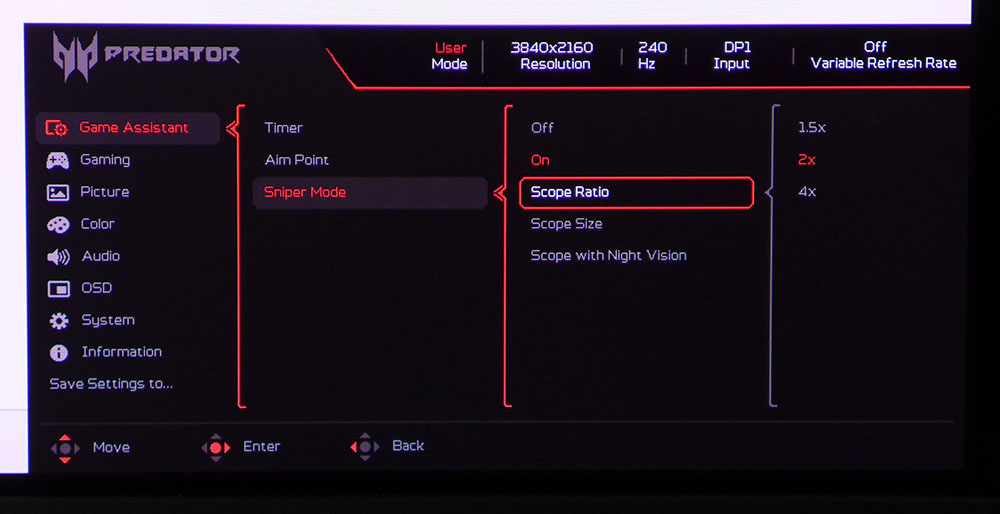
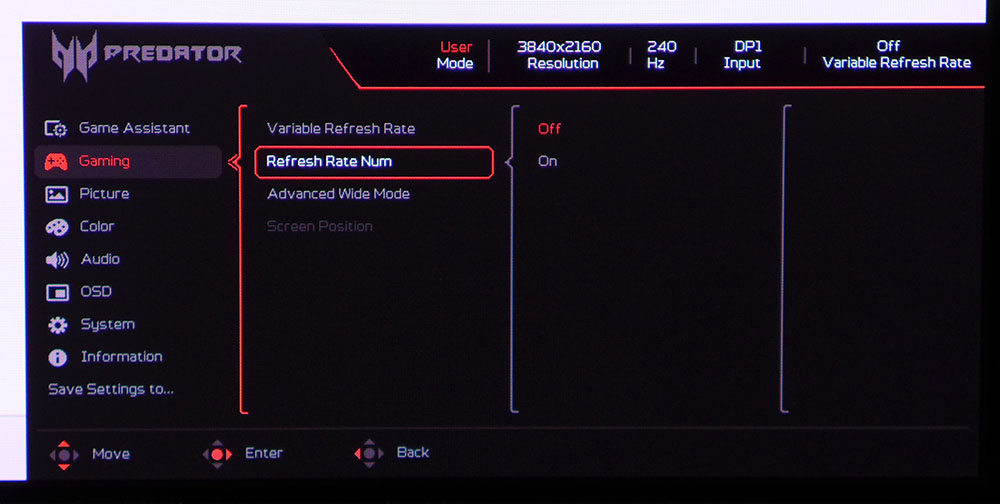
The video processing and game aids are grouped into two sub-menus. The first one has aiming points, sniper modes with night vision, and a set of countdown timers. The second one has aspect options, a VRR toggle, and a frame counter.
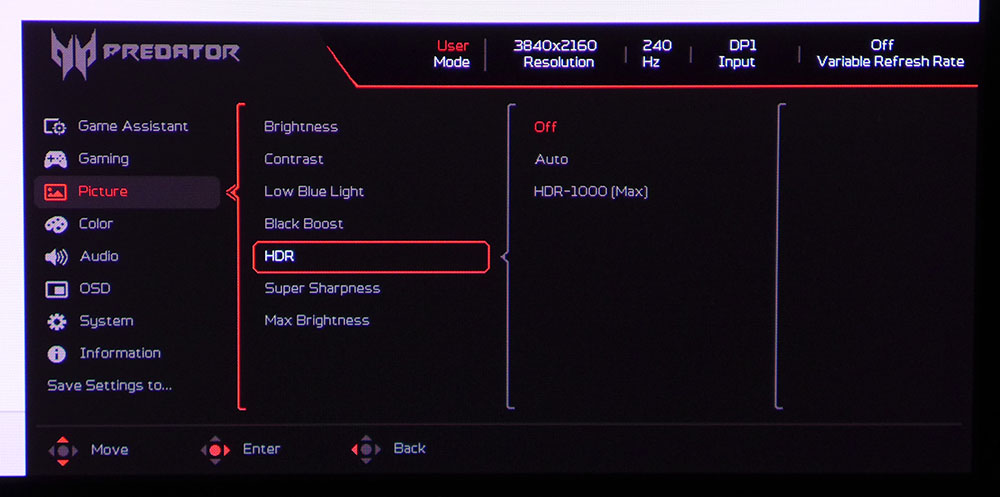
The X27 X1 includes most of the picture options you’d find in a professional monitor. In the Picture menu, the important one is called Max Brightness, which you need to turn on to have, you know… The HDR options include Auto and HDR-1000(Max). They measure and appear to be the same, and I noted that the signal change was not automatic. If you leave it set to Auto, it will remain in HDR mode for SDR signals, which is effectively an emulation mode. This can be used to give SDR content more impact. It isn’t strictly accurate, but it might be preferred by some users.
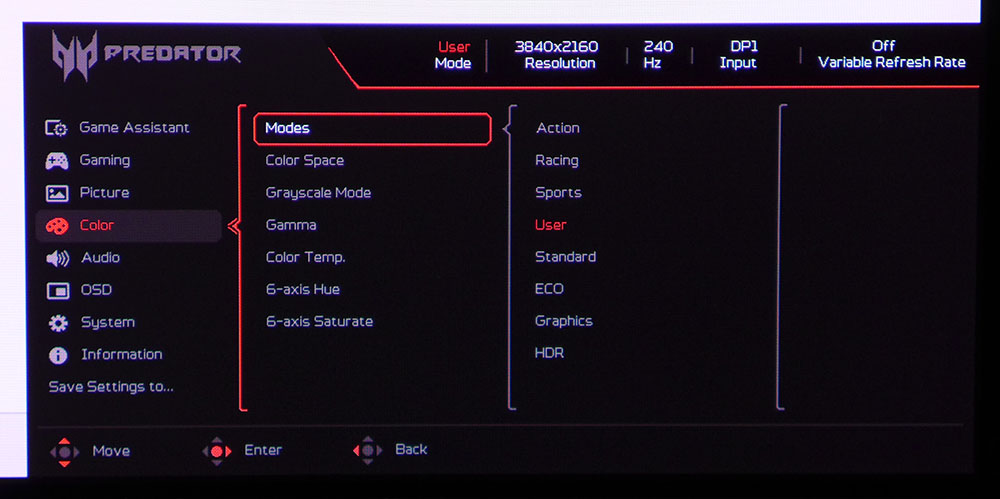
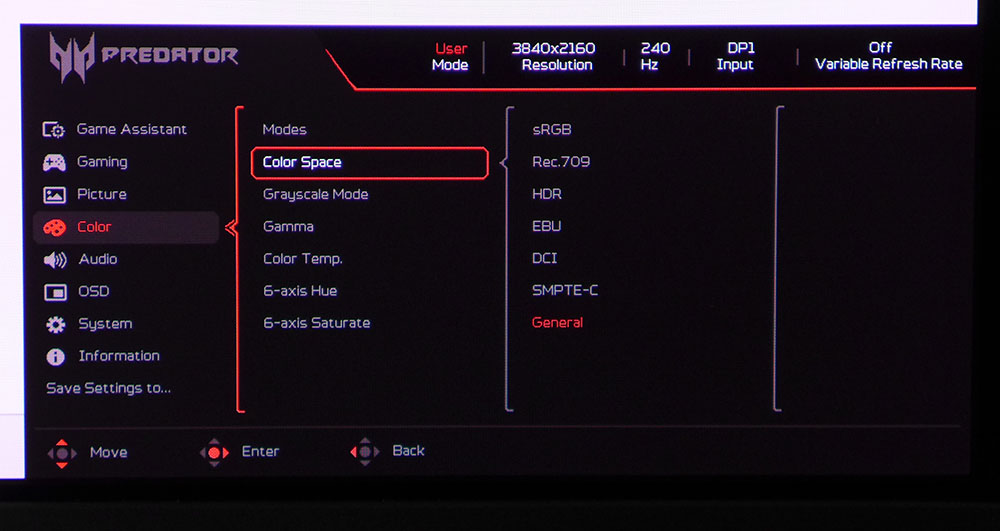
In the Color menu, there are eight picture modes. The default one is Standard, but if you make any changes to other options, it changes to User. The choice of color spaces covers most industry standards. HDR equates to BT.2020 while General uses the X27 X1’s full native gamut that covers around 103% of DCI-P3. This menu also has five gamma presets and four color temps. The RGBs have gain and bias sliders for fine control of grayscale tracking. You can also tweak hue and saturation for all six colors.
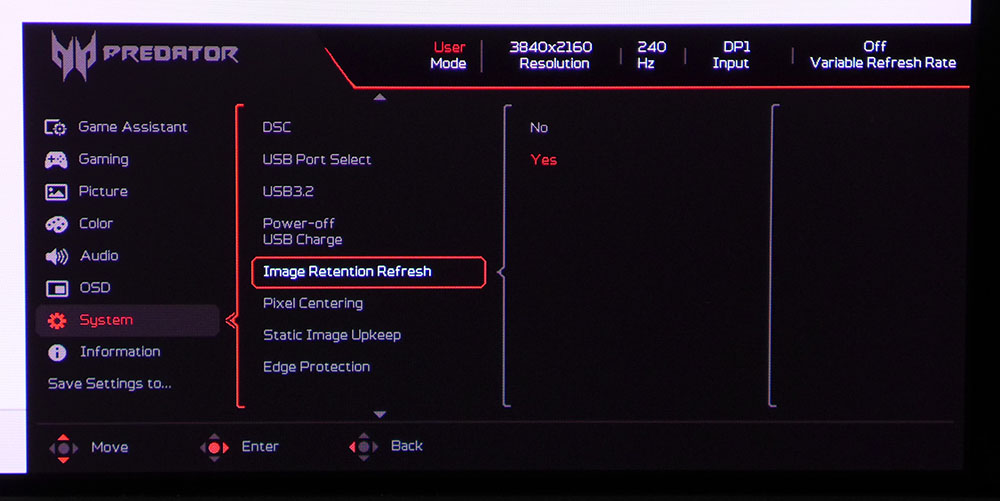
The System menu is a catchall for everything not found in the other sections. You can control the USB port versions, toggle Display Stream Compression for the DP ports, and set OLED care options. They include pixel refresh, orbiter, static image protection, and edge protection. To reset all options to defaults, go to the Information menu. And once you’ve got the X27 X1 to your liking, save the configuration to one of the three user memories.
Acer Predator X27 X1 Calibration Settings
The X27 X1’s color and gamma are nearly spot-on out of the box, but I noticed a slight purple tint in grayscale step patterns. I was able to correct this, but gamma became too light in the brighter parts of the image. Switching back and forth between calibrated and uncalibrated modes, I found I preferred the calibration even with its skewed gamma. Some highlights were less vibrant, but the overall image looked better to my eyes. My settings are below.
I noted that there was no option for variable brightness in SDR mode. Window and full field patterns measured the same. But variable brightness is active for HDR content, which increases perceived contrast and gives that material more impact with small highlights nearing the 1,000-nit level.
Swipe to scroll horizontally
Picture Mode | User |
Brightness 200 nits | 95 |
Brightness 120 nits | 41 |
Brightness 100 nits | 36 |
Brightness 80 nits | 31 |
Brightness 50 nits | 17 (min. 31 nits) |
Contrast | 47 |
Gamma | 2.2 |
Color Temp User | Gain – Red 50, Green 52, Blue 51 |
| Row 9 - Cell 0 | Bias – Red 50, Green 50, Blue 51 |
Gaming and Hands-on
It bears mentioning in any 4K monitor review that you will want the fastest video card you can afford to run at 240 Hz. The X27 X1 is a decent value, but it’s still expensive, and you don’t want to play below its potential. To see perfect motion resolution, you’ll want at least 150fps and preferably, 200fps. I accomplish this with a GeForce RTX 4090, and it does break a sweat in the process. I’d say that I enjoy the sound of fans at full honk and a swirl of warm air around my legs coming from the PC tower on the floor. But I live in Florida, and it’s hot here.
Climate control aside, the X27 X1 is a superb gaming monitor in every respect. The panel is incredibly fast, fast enough that I could dial the frame rate down to 144 Hz and still see perfect motion resolution. By this, I mean that fine detail remains clear whether objects are moving or stationary. I also enjoyed super low input lag. In testing, which you can read about on the next page, it was one of the fastest 4K OLEDs I’ve reviewed, pipped only by an Asus ROG Strix display.
Smooth motion and low lag mean precise aiming, easy avoidance of incoming fire, and the ability to stay a step ahead of the enemy. I could time movements and shooting to make them occur exactly where and when I wanted. The X27 X1 is a true extension of the hand and eye. Competition gamers will want to add one of these to their systems. And that would be true for PC or console. The HDMI inputs support full bandwidth signals at 3840x2160 with VRR and HDR at 240 Hz.
The picture is gorgeous as well. You’ll want to add more leisurely games to the library so you can enjoy the rich color, deep contrast, and fine detail. Though I don’t usually rate resolution above contrast, a 27-inch 4K monitor like the X27 X1 delivers compelling pixel density. You can sit as close as you like and never see a dot or a jagged line. 163ppi is a significant and visible upgrade from a QHD 27-inch screen’s 109ppi, and a 32-inch UHD’s 138ppi.
During calibration, I noted that a compromise was necessary. Out of the box, the X27 X1 has nearly perfect gamma but slightly warm grayscale tracking. After tweaking, grayscale is perfect, but gamma became skewed with slightly elevated highlights. I preferred the latter state, but some users may want to leave the RGB sliders alone.
The X27 X1 includes a large variety of gamut options that cover everything except Adobe RGB. This makes it more versatile for color-critical use. It can easily serve as a post-production monitor or a photographer’s tool. It’s great for the more mundane spreadsheet or word processor, too, with crystal-clear rendering of tiny fonts and thin lines.
I appreciated the inclusion of internal speakers. They played with good volume and low distortion. They’re great in a pinch when you don’t have a pair of headphones handy, and for system sounds. The stand includes a sexy metal hook for your cans so you can always have them within reach. I also noted the extra DisplayPort input as well as the USB-C, making a total of five video jacks. There are plenty of USB ports for peripherals too, but sadly, no KVM.
Takeaway: The X27 X1 is a supremely useful everyday monitor that happens also to be a gaming weapon. It’s super-fast and smooth with everything an enthusiast might want. It’s built well with liberal use of metal and a slick headphone hook. It’s flexible with lots of USBs and video inputs, and it has a decent pair of internal speakers. The only thing you don’t get is LED lighting, but that doesn’t affect its extreme performance or gaming capabilities.
MORE: Best Gaming Monitors
MORE: How We Test PC Monitors
MORE: How to Buy a PC Monitor








 English (US) ·