
Looking after your photos, cataloguing them, colour correcting them, improving them and all round preserving them is a job onto itself, and you need an excellent application to sort all of this for you, and more.
Thankfully, there are a host of options for you to choose from out there, which creates a whole other problem onto its own: which one should you choose? I’ve looked at a few in the past, but now, it’s time to explore Zoner Studio.
It's effectively a Windows-only take on both Photoshop and Lightroom. An entry-level or intermediate photo editor and organizer that stacks up as one of the best Adobe Photoshop alternatives for those new to this type of software.
Latest Videos FromTechRadar
Zoner Studio: Pricing & plans
- 7-day free trial with no card details
- Fairly priced subscription plans
- Windows-only
You can check out Zoner Studio by clicking here.
First, system requirements. Zoner Studio is a Windows-only program, compatible with Windows 10 and 11, requiring a 64-bit Intel or AMD processor and at least 8GB of RAM, among other specs. Mac and Linux users, I’m sorry, but you’ll have to look for alternatives.
Like most in the creative software space, it has subscription-based pricing, costing $5.99 a month or $59 a year for the Individual Plan. You can also grab a Family Plan license for $9.98 a month or $98 a year.
The website states “everyone in the household”, and since the cost of living means our kids can no longer afford to move out, that Family Plan looks like a pretty good deal.
Compare this with ACDSee’s Photo Studio Ultimate which I reviewed recently, which costs $89 a year for a single licence, or even better, Adobe’s Lightroom, which you can rent for $144 a year, and even Zoner’s individual licence looks very attractive.
Your Zoner subscription guarantees new features twice a year, the ability to order 15 photo prints for free annually, and 20GB of online storage. These last two apply to each member of your Family Plan.
All this sounds good, and there’s a sweetener for those who aren’t sure if they’d want to commit to yet another subscription: you can download the full version, use it for free for 7 days. There isn’t even a need to give Zoner any payment details (so you don’t have to worry about forgetting to cancel an agreement you never wanted to make in the first place, and the company starts charging you regardless).
Zoner Studio: Interface
- Remarkably clean interface
- Crammed with features
- ‘Catalog’ import option is great for RAW users but can be slow
Minimum requirements
Operating system: Windows 10 or Windows 11 64-bit
Processor: Intel or AMD CPU 64-bit with SSE 4.2 support
RAM: 8GB
Storage space: 2GB
Screen resolution: 1280 × 800
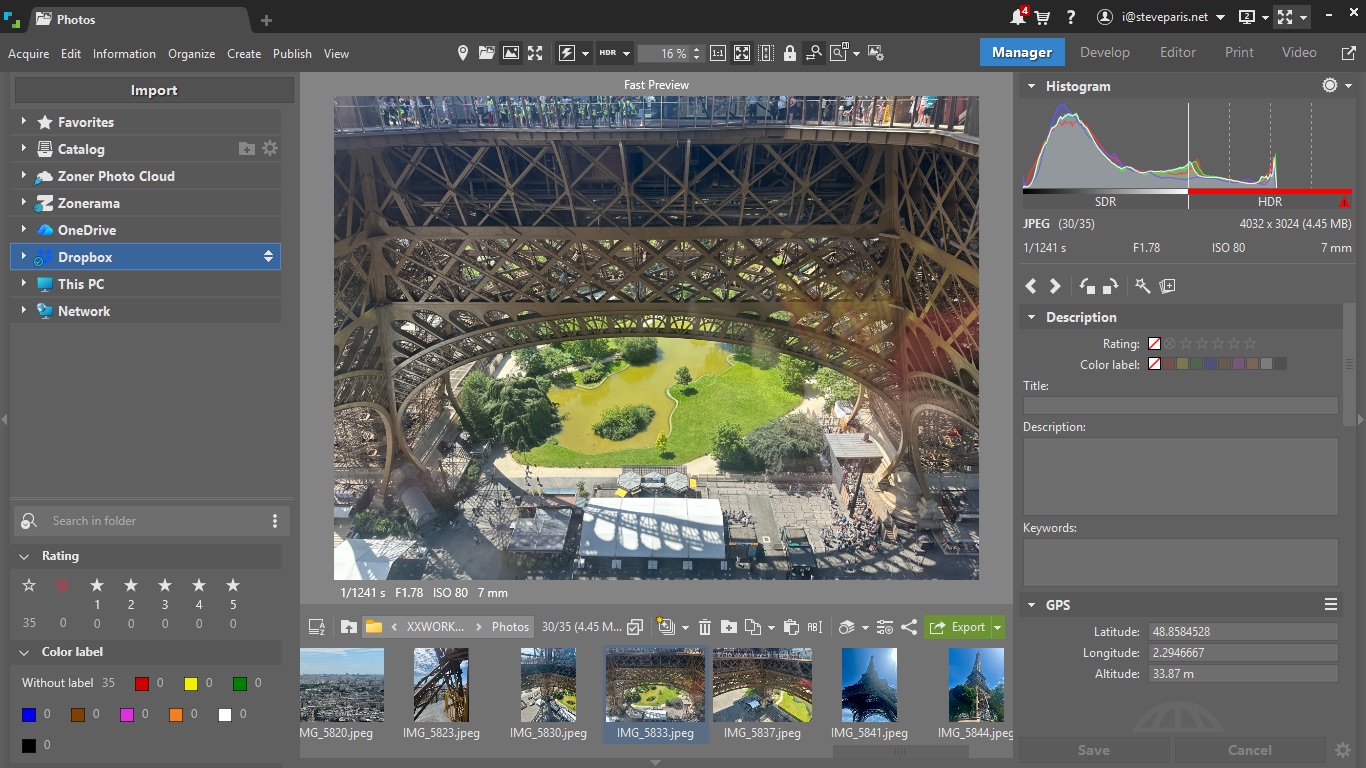
If you compare Zoner Studio with some of its competition, like ACDSee’s Photo Studio Ultimate, despite having a similar set of features, Zoner’s interface feels more spacious in the same screen real estate.
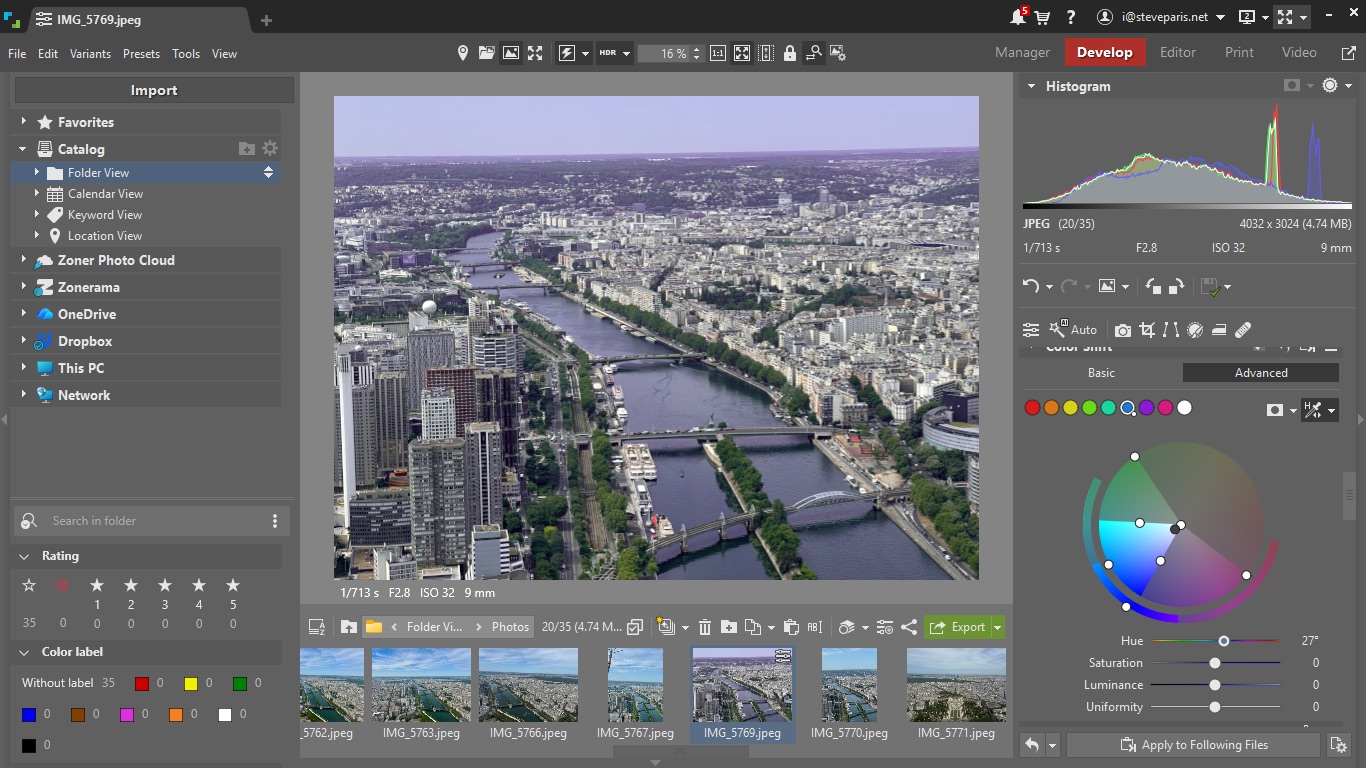
Top right, you’ve got a menu for you to access the app’s various modules, you have sidebars on either side of the screen, one to browse through your portfolio of images, be they online or on local physical drives, while the other is your contextual inspector window. The centre of the interface is reserved for your shots.
Each module is dedicated to a specific function: Manage is where you organize and catalog your shots, Develop is for the usual color correction and overall fixing of an image, Editor is for more Photoshop-like alterations, allowing you to work with multiple layers, add text and such like, Print is where you create and have published books, individual prints and other, and Video is to turn your shots or your clips into short video projects.
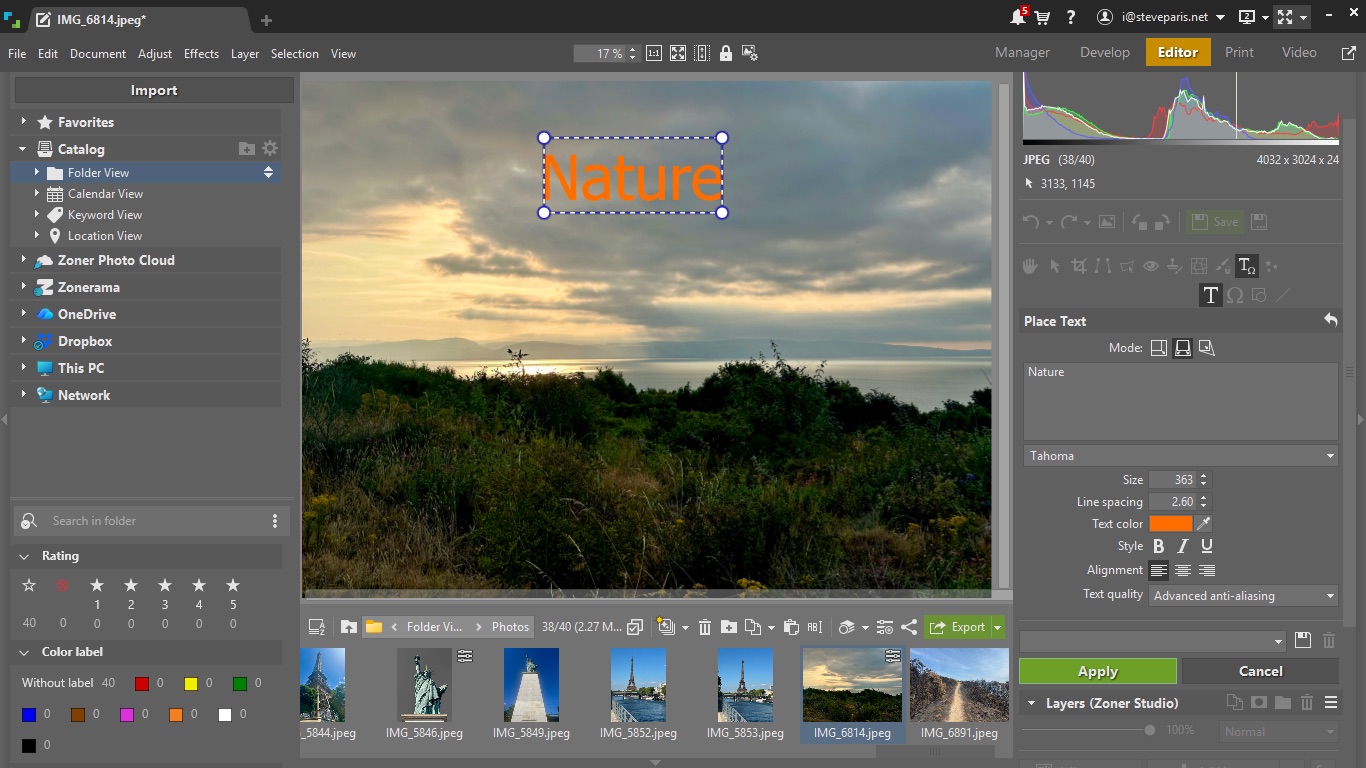
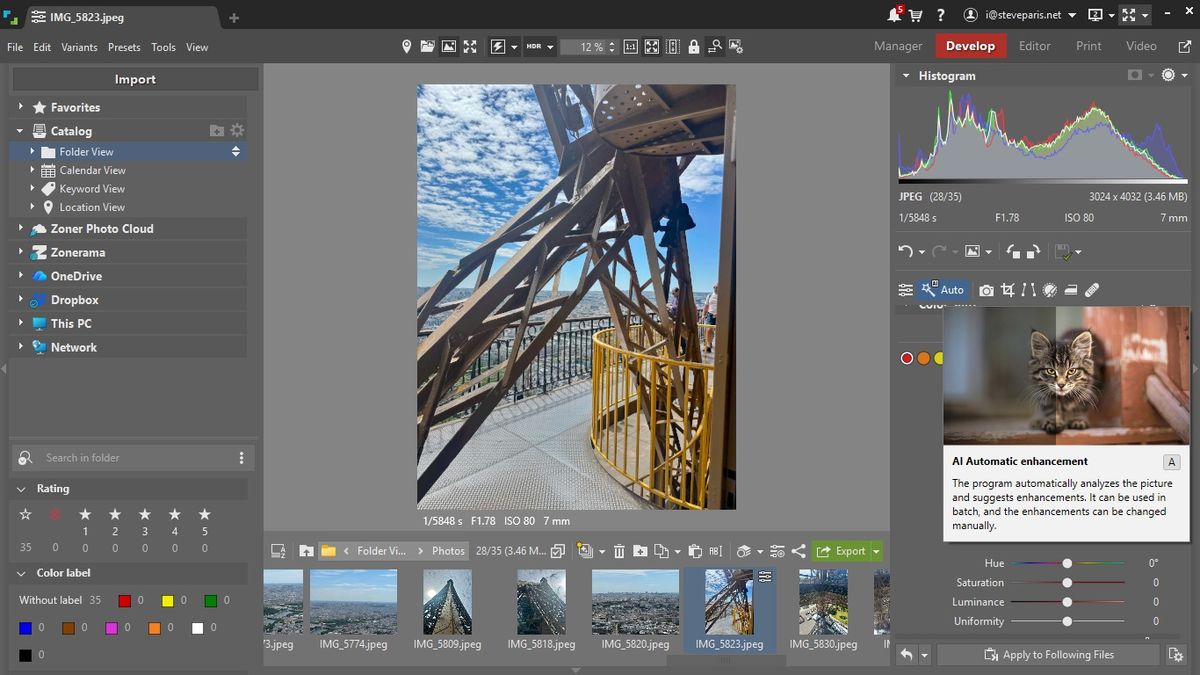
As you can see, it’s full-featured, and yet I never felt lost navigating it. All the tools I needed were be easily found. If you do get lost, hover over any tool icon and a large tooltip will appear, offering detailed information about it, with some having a link to an article for a more detailed description. Zoner also has a wealth of tutorials on YouTube.
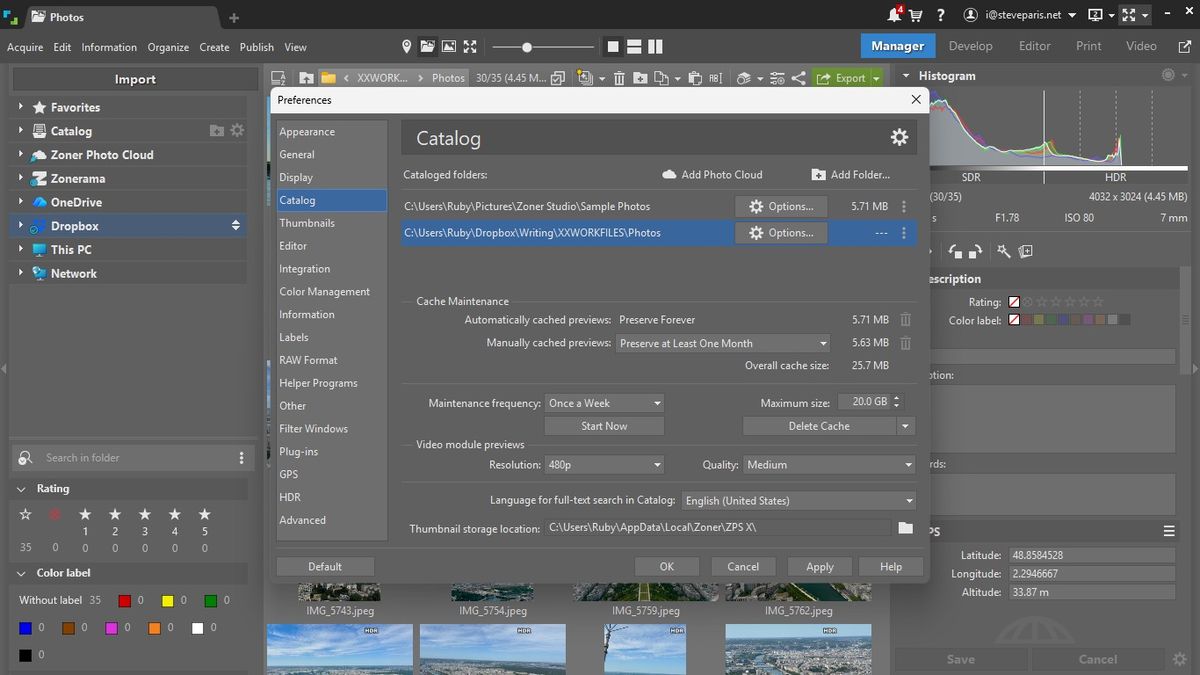
One thing worth mentioning is ‘Catalog’. Zoner offers two ways to browse through and work with footage: either directly, wherever they are currently stored, or by bringing a copy into its ‘Catalog’. Said ‘Catalog’ is always at the top of the left sidebar. The difference between these two options truly shines when you’re working in RAW.
Once in the ‘Catalog’, these RAW images are processed in a way that makes them accessible much faster, speeding up workflows immensely. That said, it can take a while for them to be ready when you import them into that ‘Catalog’, and the developers do suggest you grab a coffee or go out for a walk while your PC does the necessary computations. I haven’t noticed any speed difference when working with JPGs.
Zoner Studio: Tools
- Massive amount of tools, all well arranged, easy to find and use
- Work with layers, order books, create video projects
Such a rich app is hard to describe in a limited amount of space, so allow me to tell you how using the software felt instead, and I’ll also chat to you about some of the features which took me pleasantly by surprise.
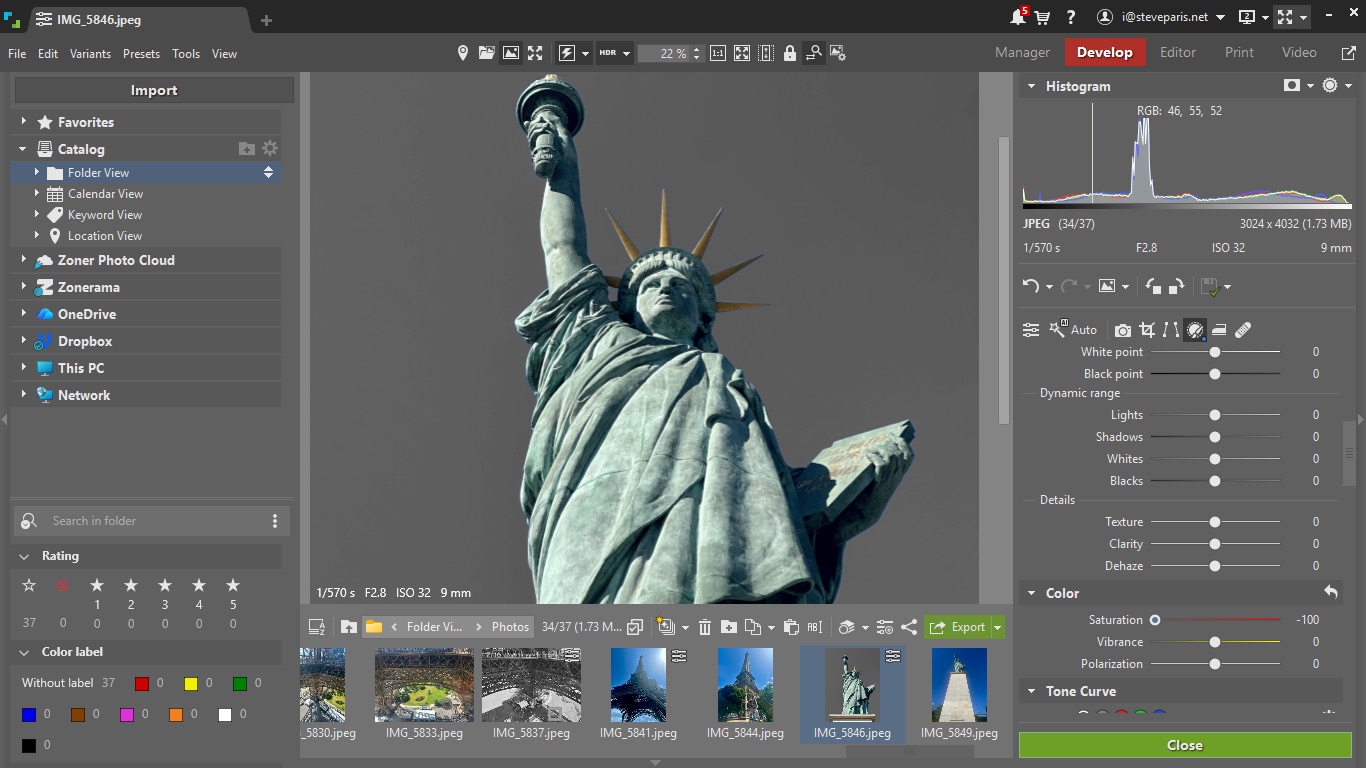
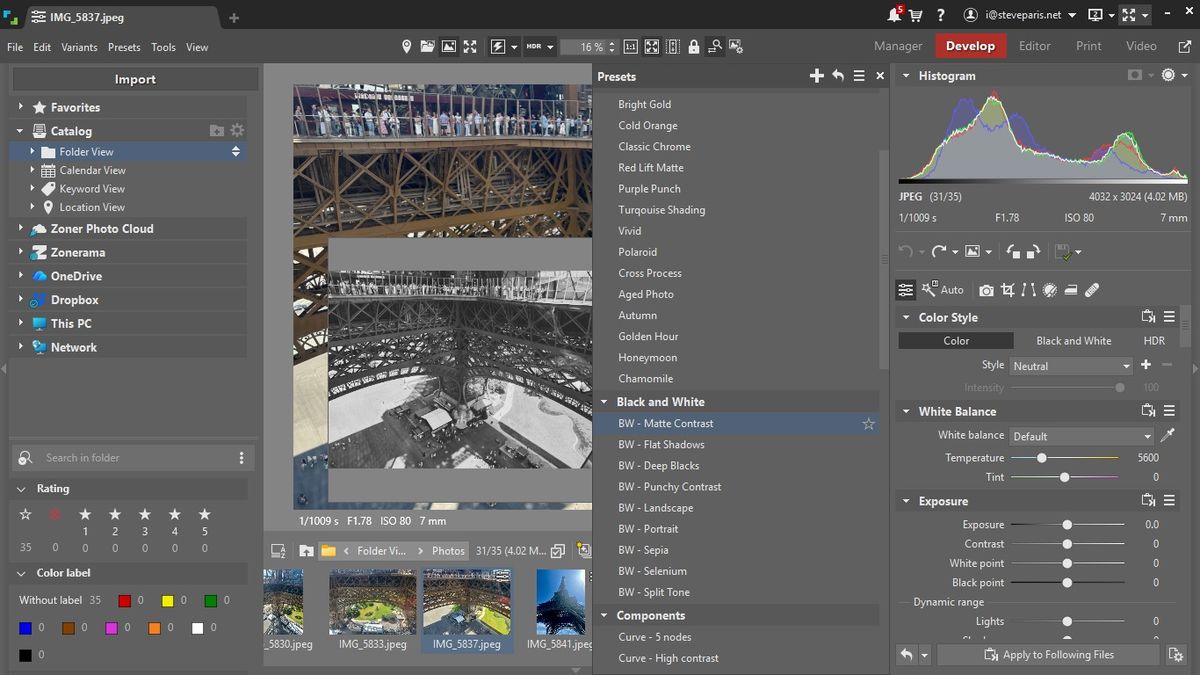
All the tools you’d expect to make the alterations you need to a photograph are there, present and correct, from the basic, like straightening an image, to doing standard color correction. You’ll also find some more advanced options for greater precision, including specific AI-based selections, enabling you to work on just part of a shot.
I really liked the advanced ‘color Shift’ tool, which allows you to select a range of color and alter it using a very easy to use and alter color wheel.
This isn’t the first time I encountered Photoshop-like editing options in such a software package, but I increasingly like the idea. You no longer need two apps to manage your collection, and can do it all from one.
Granted you won’t get as many tools as you’d expect from dedicated image compositing software, but if your needs aren’t intricate, you will likely feel quite satisfied by what’s on offer with Zoner.
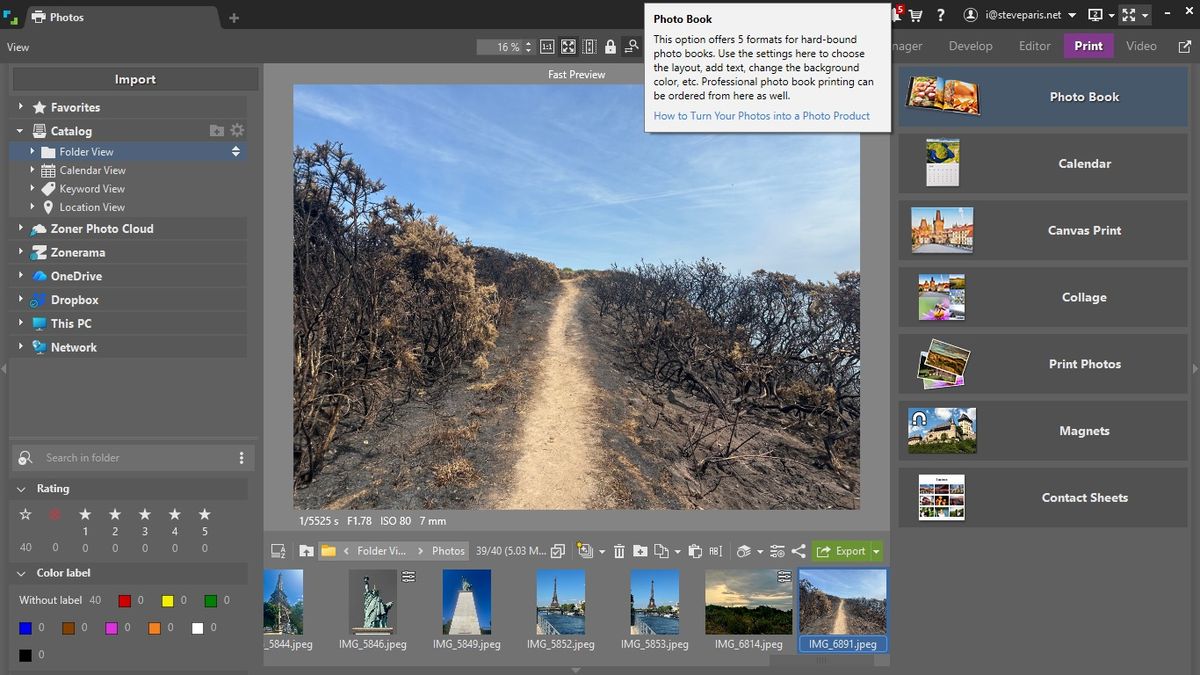
As for being able to design and order Books, Calendars, Prints and even Magnets and more, that’s a welcome inclusion. Yes, Adobe Lightroom offers something similar, but Zoner has gone into much greater detail here.
For instance, creating a book offers you 5 different hardcover sizes, you can change the number of pages, choose a format for any text you might wish to apply, you get to see how much the book will cost you upfront, and add it to your cart once you’re ready. Incredibly easy and satisfying.
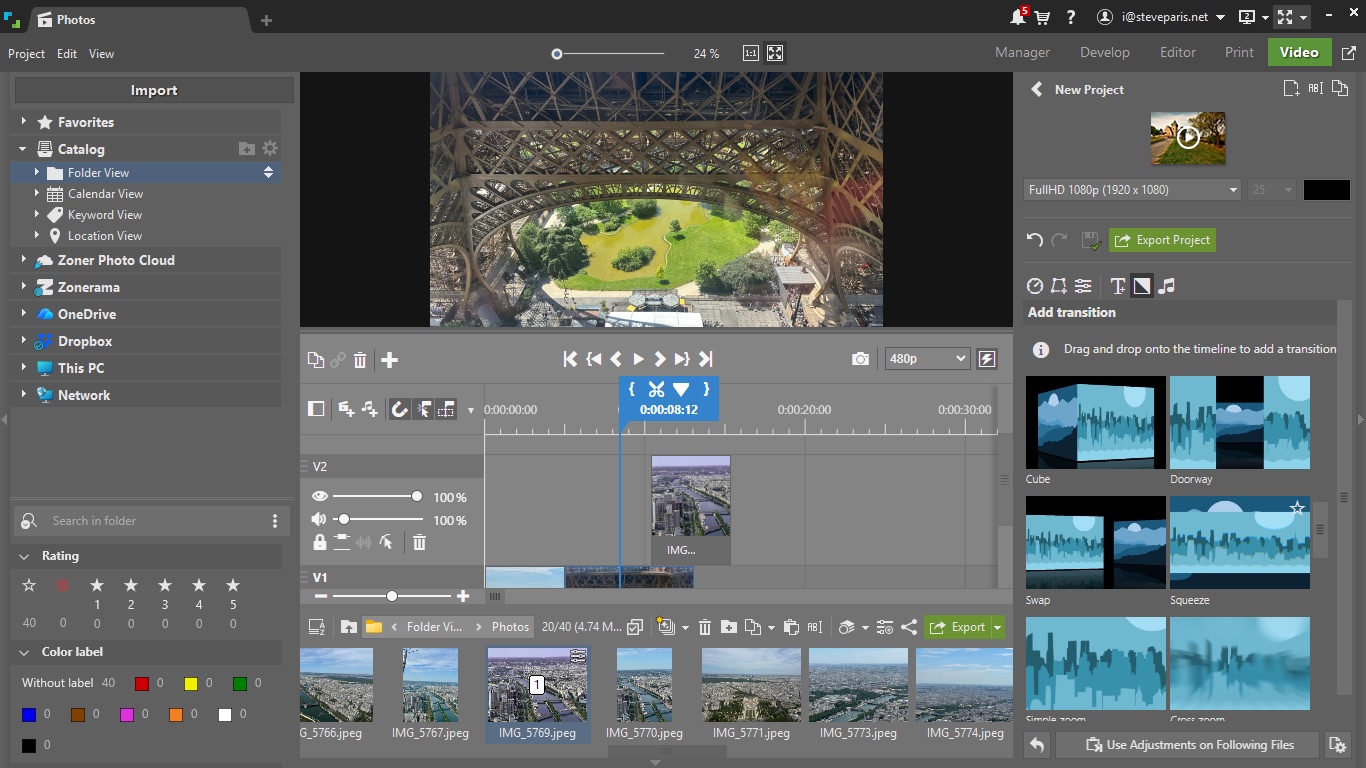
And finally we have Video, which is an unexpected option for an image editor, but at the same time, why wouldn’t you want to turn your stills into a short animated video complete with background music, keyframe effects and cool transitions?
As a video editor by trade, I wasn’t expecting much, and yet, clips snap to each other making building an edit a breeze, the transitions are impressive looking and easy to add, you can work with multiple layers, and the shortcuts above the playhead (in a blue box) are actually more useful than they look.
You can also add video clips - obviously - and although the default size for any new project is HD, you can work in anything from the tiny 620x480 up to 4K. The only downside I could find was the overly small timeline, making it tricky if you work on a longish project.
Should I buy Zoner Studio?
Buy it if...
You’re new to photo editing and organization, and you want a versatile, highly capable image cataloguing and editing software with more features than you can shake a stick at, and appreciate its affordable subscription price.
Don't buy it if...
You don’t have a Windows PC, your image editing needs are too light for such a powerful and versatile piece of software, you don’t like subscriptions, or you’re too wedded to the Adobe hegemony.
Image 1 of 4







 English (US) ·