
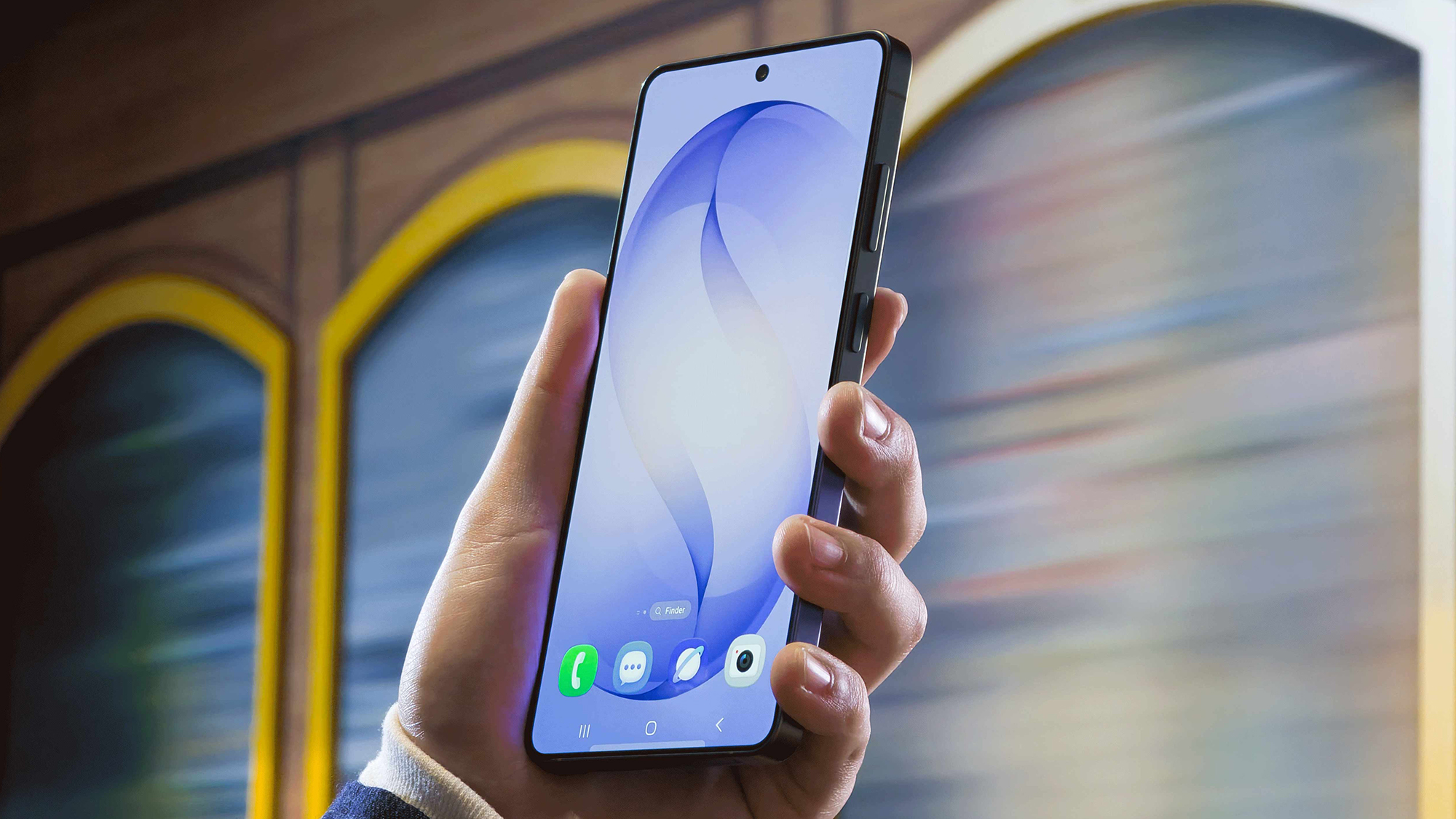
If your phone of choice is a Samsung Galaxy handset, then you'll know that the Android-based One UI software that comes with it is packed with handy settings and features. There's more to explore than there is on many other Android phones, including the Google Pixel series.
In fact there are so many options that Samsung has hidden some of them away. One UI includes a Connectivity labs menu, which includes a variety of useful features, but you have to jump through a number of hoops before you can find it.
Once you do have it enabled, you can check the strength of the Wi-Fi all around your home, troubleshoot problems you might be having with the network, change the way your phone switches between mobile data and Wi-Fi, and more besides.
Here's how to find Connectivity labs, and how to use it.
Enabling Connectivity labs and Wi-Fi scans
To get this menu visible, you need to head to Settings on your Galaxy phone and tap Connections then Wi-Fi. Tap the three dots in the top right corner, and select Intelligent Wi-Fi. You then need to tap the Intelligent Wi-Fi label at the bottom of the next screen seven times (you'll see a countdown appear after a few taps).
Hey presto — you now have a new Connectivity labs menu to make use of. Open this up and you'll see a host of different statistics about your network, and numerous features and options to explore. Right at the top, for example, you can see how long the device has been connected to Wi-Fi today, and what the daily average is.
Go further down the screen and there's a breakdown of the Wi-Fi bands that your Galaxy phone has been connected to, and the standard of Wi-Fi it's been using (so you can check that your new Wi-Fi 7 router is working as advertised). You're also able to see how many Wi-Fi networks are saved to the phone.
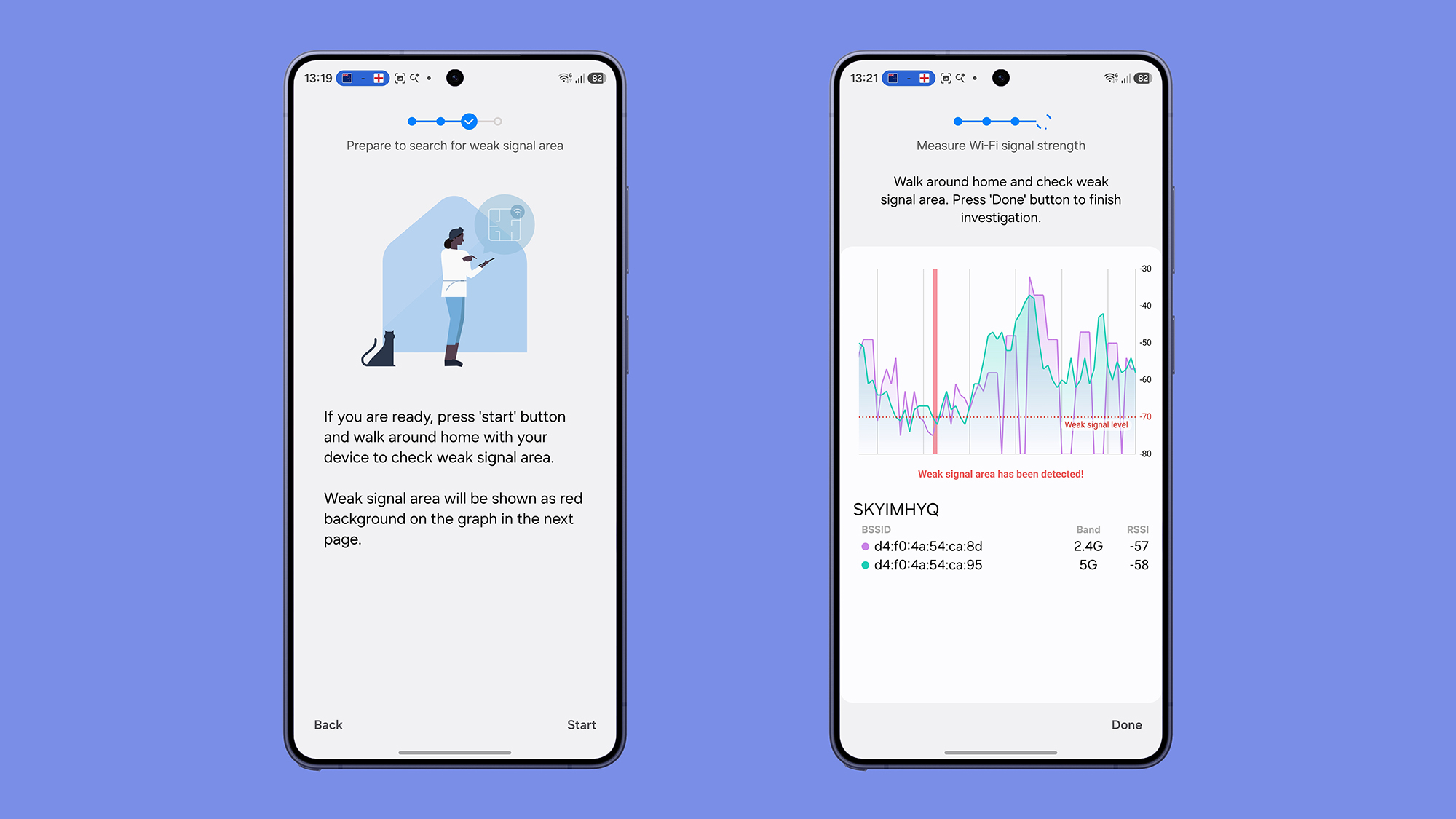
One of the most useful features in Connectivity labs for me is the Home Wi-Fi inspection. If you select this then choose Start, your phone will take you on a tour of your home, showing you in real time the Wi-Fi signal strength from your router and giving you warnings about areas with weaker connectivity.
Fortunately, the Wi-Fi in my home is relatively strong, but there are a couple of spots where the signal is weak, and the inspection tool flags them up. It can also be useful to make changes to the Wi-Fi setup (such as moving the router somewhere else) and seeing how that effects the signal coverage.
Other features you'll find in Connectivity labs
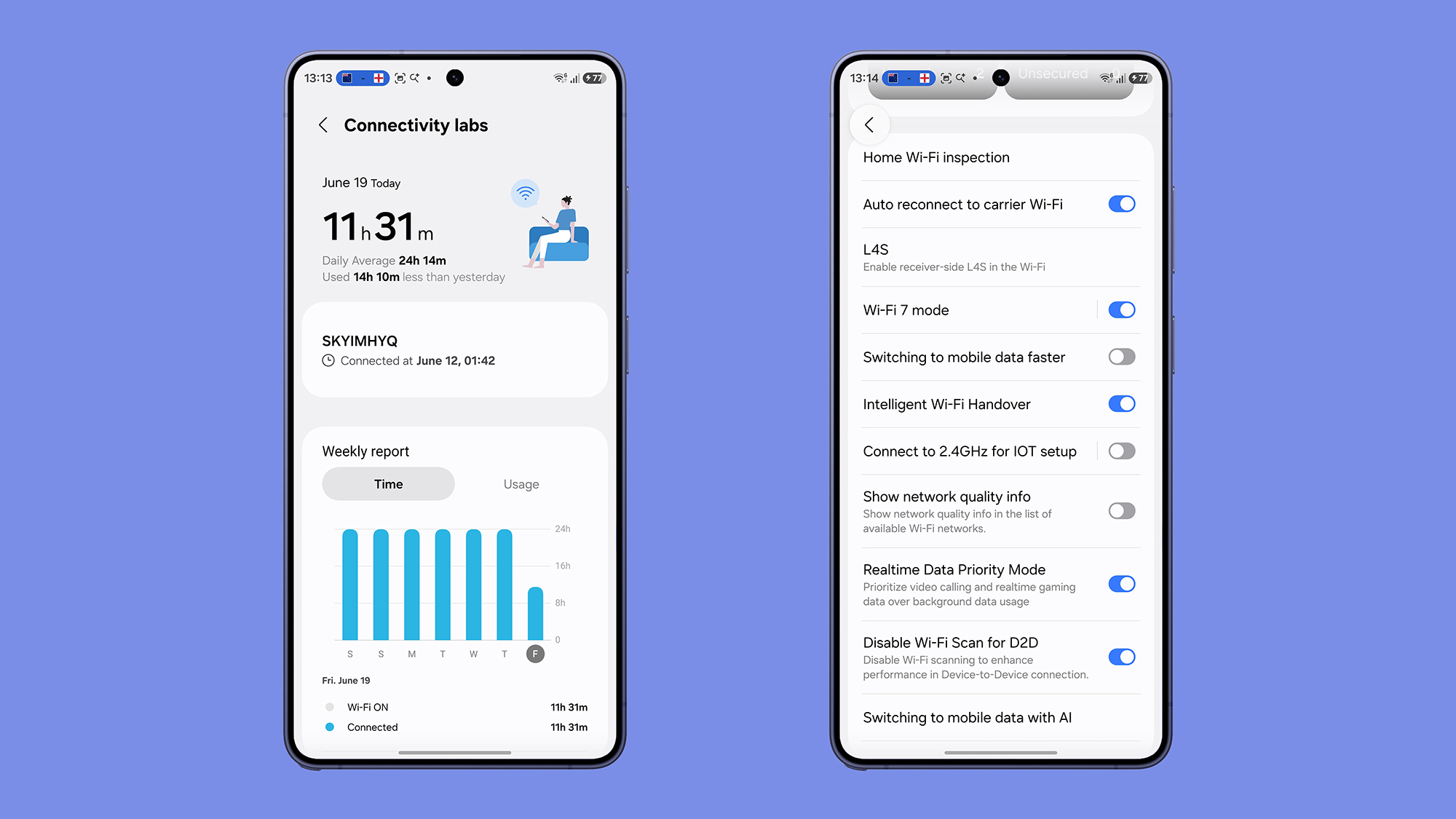
There's lots more you can do with Connectivity labs, as you'll see if you keep scrolling down the page. Turn on Auto reconnect to carrier Wi-Fi, for example, and your phone will automatically connect to public Wi-Fi hotspots operated by your carrier. There's also a Wi-Fi 7 toggle switch, to make sure you're always using the latest Wi-Fi standard, on networks where it's available.
If you enable the Switching to mobile data faster toggle switch, your phone then automatically hops to a cellular connection when it detects that the Wi-Fi it's using is spotty and weak. It means you might end up using more data, but you'll have fewer problems with interruptions when the Wi-Fi you're connected to isn't the best.
The Intelligent Wi-Fi Handover and Switching to mobile data with AI features work in a similar way. The former will hand over some tasks to cellular data on a weak Wi-Fi signal without disabling the Wi-Fi completely, while the latter uses your typical usage patterns (in terms of downloads, browsing, and so on) to decide when to switch off Wi-Fi.
You can use the Connect to 2.4GHz for IOT setup to force your phone to use the 2.4GHz band on your router — this is the one a lot of smart home devices attach themselves to, so you might have to do this to configure them — while L4S is a special low-latency connection protocol that can speed up your connection, if your router supports it.
There's also the option to Show network quality info in the list of networks when you're connecting to Wi-Fi, so you can see what the best pick is when you've got multiple options to choose from. These are all genuinely useful features to have access to, and it's not really clear why Samsung thinks they should stay hidden by default.

Follow TechRadar on Google News and add us as a preferred source to get our expert news, reviews, and opinion in your feeds.





 English (US) ·