
 33 minutes ago
2
A vent mount and a few settings changes are enough to block the drain.
Roman Vyshnikov/Shutterstock
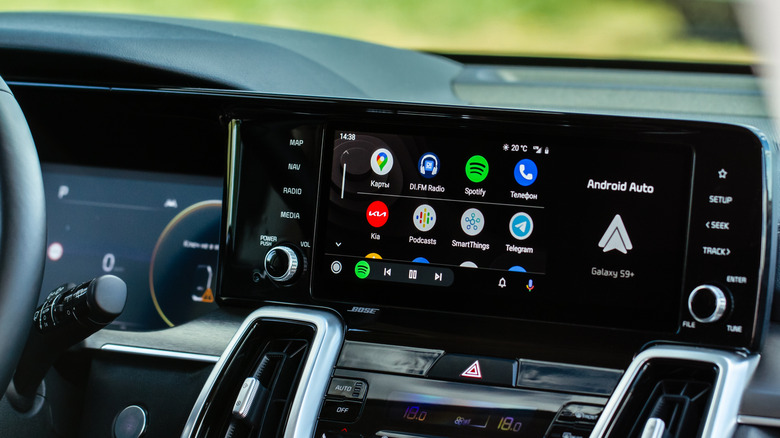
An hour of wireless Android Auto can sap up to 16 percent of a phone's battery when you've got everything turned on. Navigation, as well as music, can heat your phone up, which isn't great news since most people will charge their phones during the drive. That charging adds even more heat, and a phone that gets too hot may slow down its own charging to protect the battery.
After all, wireless Android Auto uses both Bluetooth and Wi-Fi, and both stay switched on for your entire drive. Long stints using navigation and other demanding apps while charging have been acknowledged as some of the reasons a Pixel can overheat. Once it's too hot, the phone might reduce processor performance or partly switch off mobile data, including 5G.
But there are a few things you can do to help mitigate battery drain and heat, like turning off 5G or using offline maps. And for longer drives, you can plug the phone in to maintain its charge and keep it out of direct sunlight, ideally near an air-conditioning vent to help it stay cool.
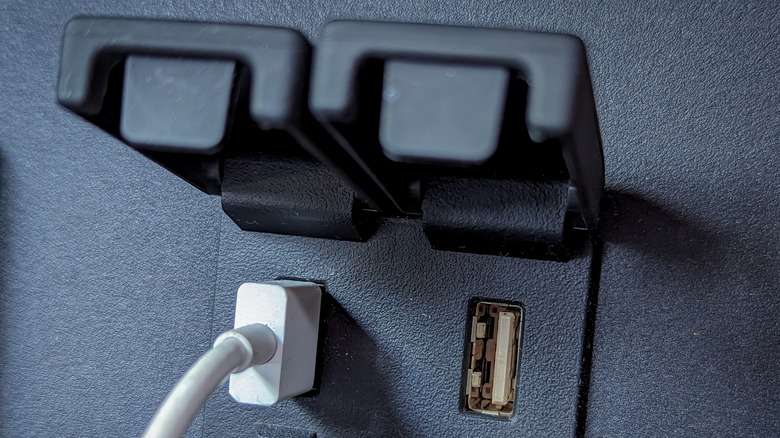
A USB cable can help keep your phone cooler than wireless charging
Alon Alexander/Shutterstock
Google has said that managing heat was one of the main reasons it capped the Pixel 10 and Pixel 10 Pro at 15W wireless charging, because a wireless pad can add even more thermal energy. A phone that's sitting on a pad, which itself is probably on a sunny dashboard while running navigation, can build up heat from several sources at once, potentially slowing charging.
Google's advice to prevent a Pixel from overheating is to keep it out of direct sunlight and away from hot vehicles and poorly ventilated spots. One way to reduce heat is to use a vent mount while the vent is blowing cold air instead of a dashboard cradle in full sun. Even moving the phone somewhere with ample airflow while not relying on charging during wireless Android Auto use can help substantially.
A USB connection can generally keep your phone cooler and charge it more effectively than wireless Android Auto on a wireless charging mount. But car ports vary, and some vehicle USB ports could be too slow to stop the battery from draining, depending on automaker specifications. If you want to switch to a wired connection, Android Auto has a developer menu you can access in seconds. While Google removed the wireless Android Auto switch from the app's regular settings in version 8.7, it remains available in the hidden developer settings, so you can turn wireless Android Auto off and connect the phone with a USB cable.
Adjust these Android settings to reduce battery drain
Georgeclerk/Getty Images
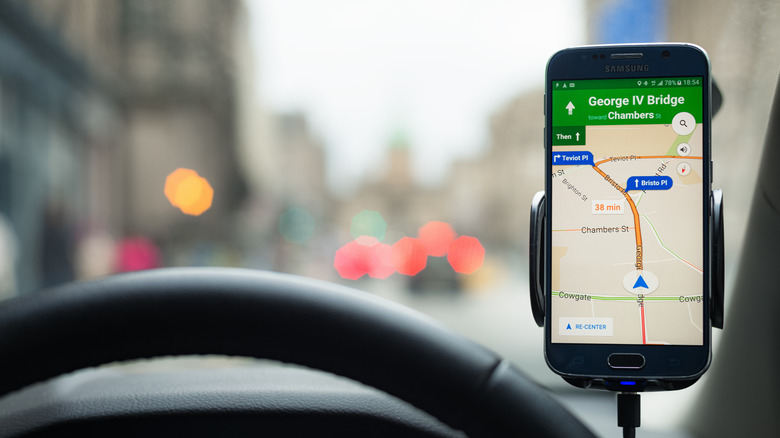
Switching from 5G to LTE appears to make the biggest difference to battery life, because some networks force a phone to maintain an LTE connection alongside 5G, which increases power consumption. LTE is thankfully fast enough for navigation and music. To improve your Samsung Galaxy's battery performance, go to Settings > Connections > Mobile networks > Network mode and select LTE preferred. On other phones, look for Network mode or Preferred network type. Turning off 3D buildings in Google Maps can also help to reduce heat. With your car parked, open Google Maps on the car's screen, go into its Settings and turn off 3D buildings.
Google Maps can save a map of your route before you leave, reducing mobile data use and strain on the device. Tap your profile picture, then Offline maps > Select your own map, adjust the area to cover your route and tap Download. Offline maps can't reroute around live traffic or new road issues as they develop, so going offline is generally best saved for long, predictable drives such as those on a highway or where you're familiar with the roads.
Wi-Fi and Bluetooth scanning help apps get better location information, too. You can switch both off under Settings > Location > Location services, removing another background job. Wireless Android Auto still needs Wi-Fi and Bluetooth turned on, though. To stop it launching when you don't want it to, you can toggle off the setting Start Android Auto while locked, which can prevent it from starting while your phone is locked. This doesn't stop calls from connecting over Bluetooth.







 English (US) ·