
 9 hours ago
5
9 hours ago
5
Damage, loss and corruption are all factors worth considering.
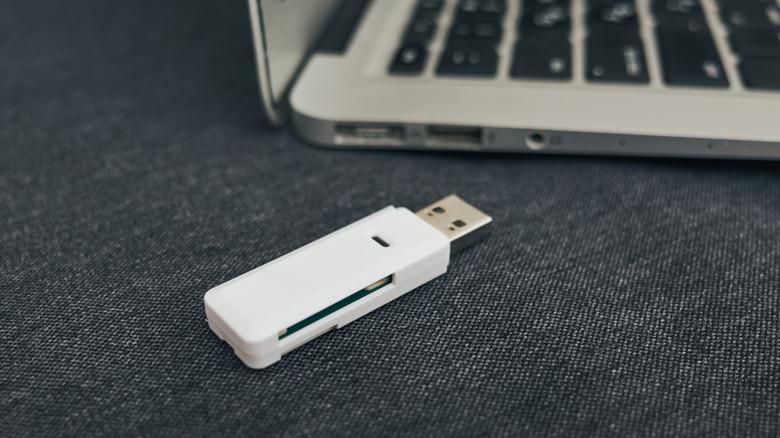
Aliaksander Pakhuchy/Shutterstock
Perhaps it's just anecdotal, but USB thumb drives don't seem as popular as they used to be. That would make sense, since they've been rendered unimportant or obsolete for many of the tasks they were built for. Technologies like email, chat and AirDrop make transferring small files a breeze. Larger files are often better stashed and shared using online services like iCloud, or else full-size external SSDs.
You may well be keeping some files on thumb drives, whether because they make sense for your lifestyle, or you're just clinging to media from a decade or two ago. And why wouldn't you? There's nothing more portable than a tiny USB stick. There's also no sense buying extra storage if you don't have to, certainly not with memory prices shooting into the stratosphere.
If you haven't already, though, it's time to create backups for those old thumbies. Their time is running out, either because of the odds of a disaster or the inevitable consequences of their design. You should even consider migrating away from them entirely.
You can't beat the laws of physics
yarrbush/Shutterstock
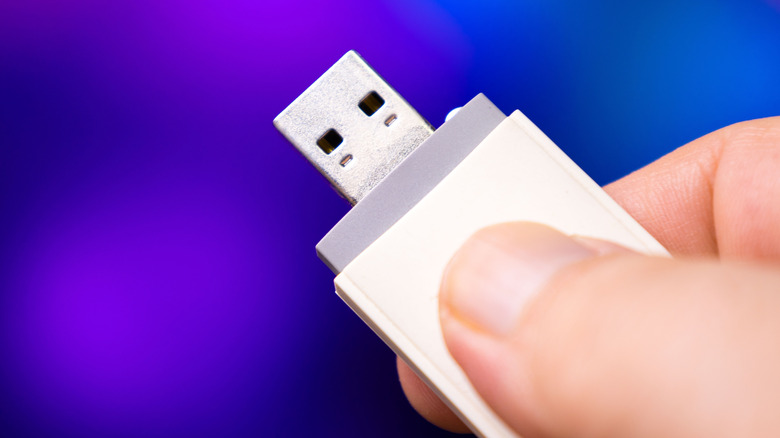
Anything as small as a thumb drive is at high risk of destruction or going missing. You might leave one at the office, or accidentally catapult it out of your bag as you race to catch a plane. And if you move frequently enough, some possessions can seemingly vanish into the ether.
Even without those concerns, there's a ticking clock. All flash storage has a finite number of write cycles, usually somewhere in between 10,000 and 100,000 for a thumb stick. This isn't much of a problem if you only use a drive for archival storage. If you're copying files daily or weekly, however, you're gradually reducing the amount of usable space, until one day the drive won't work at all. With thumb drives, you can't even run TRIM commands to recover some of that room, as you can on regular SSDs.
Adding to this is a less consistent threat known as bit rot. To represent data, flash memory depends on cells holding an electrical charge. Over time, those cells will lose electrons, which may eventually result in flipped bits. That translates into data corruption. Bits can even be flipped by cosmic rays, although the odds are relatively low — about one per gigabyte per month, at least at sea level. Bit rot is likely the least of your worries, yet on a long enough timeline, rare events become a certainty.
It's also worth remembering that while thumb drives don't have any moving parts, they still rely on components like connectors and controller chips. These can fail for various reasons, such as impacts, corrosion or shoddy manufacturing. A drive stored in an especially humid environment could be contaminated with mold.
How should you backup old thumb drives?
kamitana/Shutterstock
If data is truly important, the common rule of thumb (no pun intended) is known as 3-2-1. That is, data should be saved to at least three places: two local drives and one cloud upload. Some people go a step further, making sure one of those drives is at a separate address or in a fireproof safe. That's probably overkill for the average person, yet fires, floods and other disasters do happen.
In any event, you don't want to be entirely dependent on the cloud. On top of subscription fees, internet connections go down, and even billion-dollar datacenters can suffer catastrophic failures. You also don't want your data at risk if a business turns unethical. Some businesses play loose with security, or don't see any problem collaborating with authoritarian governments.
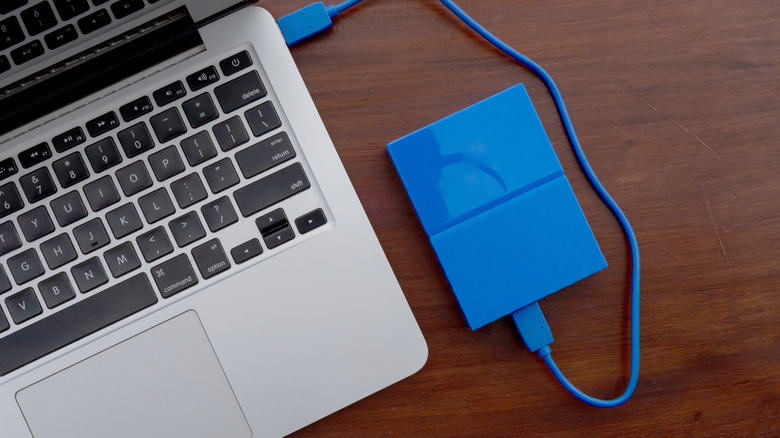
When files are less than critical but still nice to have, just make sure your copies are somewhere easily identifiable and retrievable. Your computer's internal drive(s) might do, although you're still better off with the cloud or an external SSD. If a computer stops working, retrieving files from it may be complicated, requiring you to physically extract a drive and find some means of plugging it into another machine.







 English (US) ·