
 3 hours ago
7
3 hours ago
7
Get back to doomscrolling or swiping right as quickly as possible.
Adnan Ahmed for Engadget
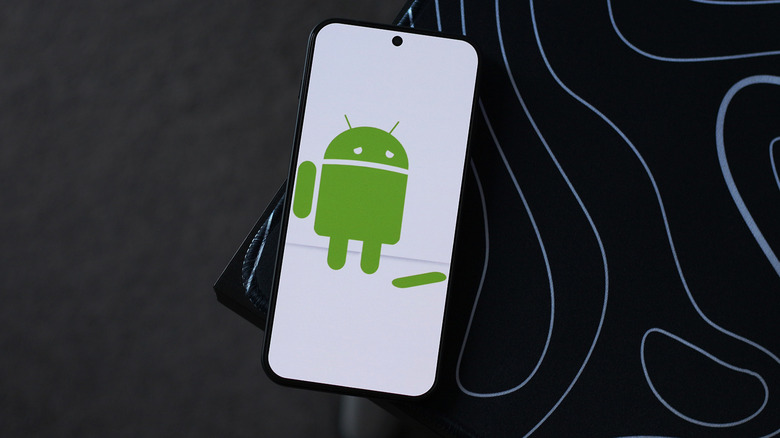
The Google Play Store is home to millions of apps, and it's also where developers push updates that introduce new features and squash bugs. I've been an Android user all my life, and in my experience, app crashes have mostly been caused by buggy updates rather than something being wrong with the phone itself. So, if an app has been acting strangely, heading to the Play Store is one of the first troubleshooting steps worth trying.
To do so, tap on your profile picture in the top-right corner, select Manage apps and device, and under the Updates available section, check to see if there's a newer version of the troublesome app waiting to be installed.
If there are no pending updates for you to install, you can dig a bit deeper into the app's settings. There are two ways to go about this. You can either long-press the app's icon on your home screen or app drawer and tap the tiny "i" icon to access the App info page, or head to Settings > Apps and select it from the list of installed apps. Depending on your phone's version of Android, these options may be labeled a bit differently.
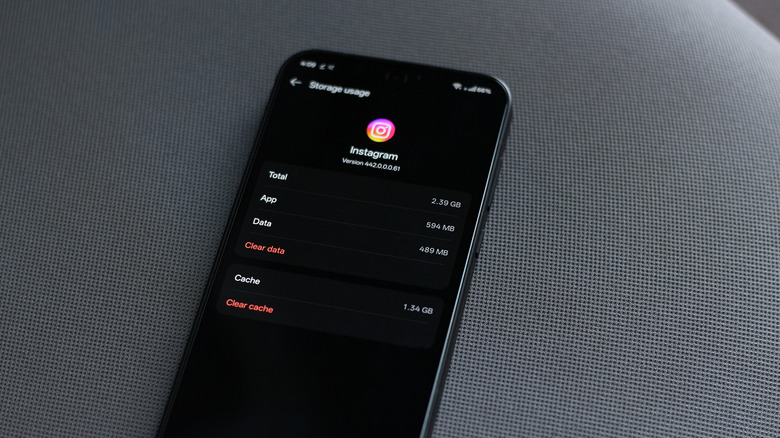
While you're in the App info settings, tap on Storage & cache and select the Clear cache option. Head back, tap on Force stop and try launching the app again. Clearing the cache removes temporary files the app has stored that could have become corrupted. Android has had this neat cache management system on a per-app basis for years, which can also help speed up apps that have become sluggish over time.
Clear the app's data
Adnan Ahmed for Engadget
If clearing the app's cache and force stopping it didn't do the trick, you can attempt to fully uninstall it and download it from the Play Store again. The downside to this approach is that you'll wipe any data the app has stored locally. This includes credentials, media files and other preferences. If the app has the ability to sync data to the cloud, all you'll have to do is sign back in. However, if you haven't enabled cloud backup for the app, you should consider setting that up before uninstalling it so you can preserve your data.
Alternatively, you can also head to the App info page for the app and tap on Clear data. This saves you the hassle of having to download the app again. That said, if you're connected to a decently fast network, reinstalling the app from the Play Store is the more thorough option if you're trying to fix persistent crashes.
Though you don't need to do it regularly, restarting your phone can sometimes be a surprisingly quick fix for a lot of issues. You can force restart most Android phones by holding down the power button until the screen goes black and the logo appears. Some models may require you to hold down either the volume up or volume down buttons in addition to the power button.
It's also worth checking if your phone itself has any updates available. Apart from getting to enjoy new features, staying on up-to-date software ensures you have the latest bug fixes and security patches, some of which may address system-level issues that could be triggering app crashes. Navigate to Settings > System > Software update and install any pending updates you find.
Install an older version of the app
Adnan Ahmed for Engadget
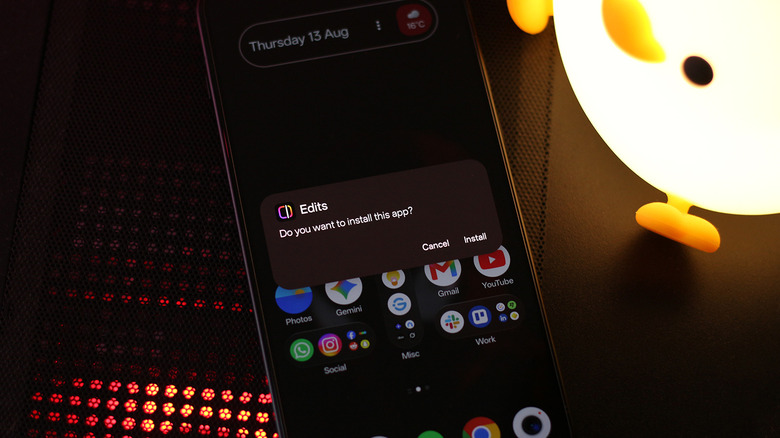
One of the beauties of Android as an operating system is how it lets you sideload applications relatively easily. Though Google is implementing a stricter security process for sideloading, you can still install apps outside the Play Store. On newer versions of Android, you will first have to enable developer mode by navigating to Settings > About Phone and tapping on Build Number seven times. You will be asked to restart your device as a preventative security measure. After a one-day wait, you can allow installation from unknown sources. This is a one-time security process that's designed to protect you against social engineering attacks.
You can now proceed to download an older, stable version of the app that's been giving you trouble. I recommend using APKMirror to find the installation file, since it's a source I trust. Remove the app from your phone and install its older version using its APK file by opening it from your file manager. Some apps that use split APKs may require you to use the APKMirror Installer app.
Keep in mind that this is a temporary fix until the app developer publishes an update that addresses whatever bug was causing the crashes. When this happens, you will have to remove the app and install it back via the Play Store to make sure you receive future updates normally.
Alternatively, if all of this is a hassle, you can simply resort to using the app's web version in your browser for the time being. Most popular apps that also have a web version are optimized reasonably well for mobile browsers. You can even enable notifications for supported websites and pin them to your home screen for quicker access.








 English (US) ·