
 1 day ago
7
1 day ago
7
Among the many AI-powered image enhancement tools, the one we show in this article is the first to come close to a one-click solution for print preparation, with nearly no additional cleanup required.
I'm always looking for ways to improve the quality of my photos, especially for print. The prints I create are not only meant to be viewed at a distance. I want viewers to get up close and explore the many details in my photos.
Because I cannot afford one of the fancy medium-format cameras with 100 MP sensors, the maximum print size I can produce is usually limited to 36", and even this is already stretching it and requires a lot of detail work on my photos. For five years, I have been shooting with a Canon EOS R5, and I'm not planning to switch any time soon.
But I still want the ability to print even larger from time to time. Yet the interpolation required when upscaling to 48" and beyond usually reduces the detail in my photos to a point I'm not comfortable with. At that size, a canvas print still works because of its inherent structure, but a print on smoother materials usually won't—at least for me.
In the past, I tried to mitigate this problem by using Topaz Gigapixel AI or Topaz Photo AI. But those tools haven't improved in recent years, despite many advancements in computer vision. They continue to produce unnatural results littered with artifacts. So, whenever I used them, I had to do additional work on top to remove artifacts and clean up flaws the software introduced across several parts of the image.
You can still achieve a result superior to that of regular Adobe Photoshop upscaling and sharpening, but it usually requires a lot of work. Even the introduction of Topaz Upscale and Topaz Sharpen directly in Photoshop doesn't make using this software any better. On the contrary, it removes the option to fine-tune the results and often produces oversharpened, pixelated images.
Aiarty
Thankfully, I tested the Aiarty Image Enhancer. At first, I was skeptical and thought of it as yet another AI upscaler—slow and prone to producing unnatural results.
In the past, only two AI-powered tools have convinced me: DxO PureRAW and Lightroom AI Denoise. Now, Aiarty is the third tool on this list. It convinced me with the first image I processed with it and continues to do so again and again.
By now, I have tested it with around 50 photos, including cityscape, landscape, and wildlife. And 80% of the time, I don't do any cleanup on top of it because the results are free of artifacts, and the details and sharpness Aiarty adds to my photos look natural.
In the feature video, I share several examples and compare Aiarty with similar software from Topaz and ON1. But I also want to highlight my findings in this article.
Ideal Use Case
The ideal use case for the Aiarty Image Enhancer is print preparation. If you already have high-quality images to start with, you can use the Aiarty Image Enhancer as a one-click solution to scale and sharpen them to your desired output size.
As long as you don't upscale beyond 1.5 times the original resolution, you'll need nearly no additional work. If you go beyond it, add some additional sharpening on top. In the video, I really push the limits of Aiarty by upscaling by nearly a factor of three. With this increase, the result will not be perfect, so you should avoid such use cases. The software has to interpolate heavily and make up details where none exist. The results still look more natural than what I could achieve with Topaz Upscale in Photoshop, though.
But if you must perform large upscalings, Aiarty is still your best bet.
Image Resque
To a point, Aiarty can also rescue slightly blurry or pixelated photos. For example, I took a frame from a video I recorded in Costa Rica of a sloth climbing some vines in the jungle. I really regret not taking photos instead of capturing video, but thanks to Aiarty, I could turn this 4K video frame into an image I can now print up to 24".
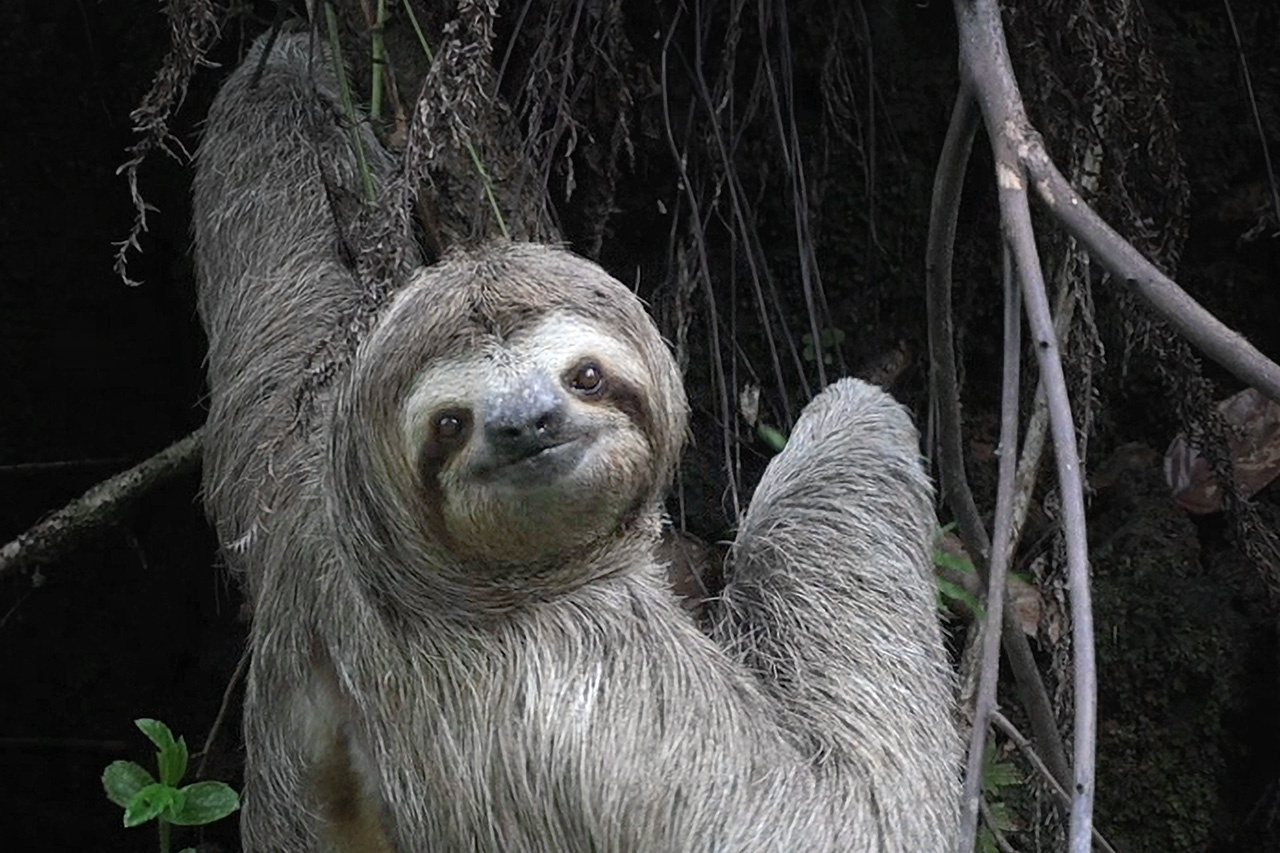
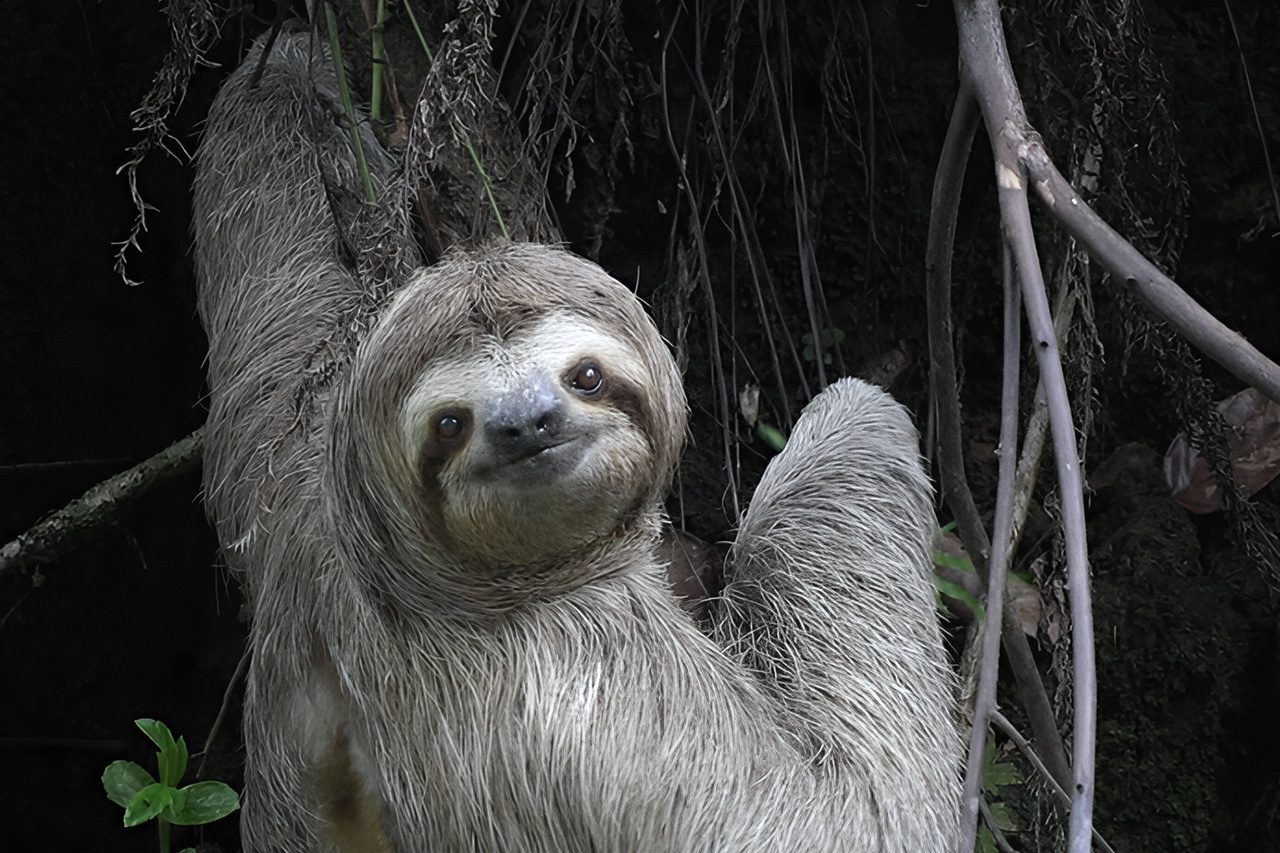
In the past, I tried to improve this image's quality with other software, but only now have I achieved a result I'm comfortable with. In the before-and-after comparison, you see that the photo shows less pixelation and more detail after upscaling to 6,000 px width with Aiarty.
Features
The Image Enhancer comes with a clean interface. You can drag and drop the images you want to process into the main window area, then select one of the models on the right. There, you can also choose a scale multiplier or a custom size for upscaling.
If you leave the upscale setting at 1x, Aiarty will still process your photo, removing pixelation and other artifacts and increasing detail and sharpness where appropriate. I noticed that the sharpening is selective and applied at different strengths depending on the detail already present. This way, you get an image with uniformly high quality. It also works well if your image is already sharp to begin with. Here, Aiarty will reduce sharpening fringes at high-contrast edges.
My favorite model to work with is the "More-Detail GAN v3." I use it on nearly all my images during print preparation now. If an image contains a bit more noise, I go with a "2-Pass processing" approach, which combines two models. Here, a combination of "Real-Photo v3" and, afterward, "More-Detail GAN v3" does a good job.
You can read more about the different models and when to use them here. You'll also find information on other settings, such as the "Max Tile Size." I haven't yet experimented with it, and I usually use a large size for smooth results. Performance will benefit if your hardware allows it.
You'll also find a "Face Restoration" setting in the panel on the right. I don't use it for my landscape and cityscape photos, but if you do portraits, it can further improve your results.
The "Color" settings are added for convenience if you don't want to switch to another software afterward. I recommend using Photoshop for color and contrast work, though, because Aiarty is currently limited to working with 8-bit.
This is currently a drawback of the software. As input, Aiarty only supports 8-bit sRGB images. If you use other images, they will be converted. I talked to the team at Aiarty, and it is something they plan to improve in the future by adding more input options.
But if you use the image enhancer, as I do, at the end of your editing workflow for print preparation, it doesn't matter as much. I usually reduce the bit depth at this stage anyway and don't do further editing afterward.
Conclusion
You can currently purchase a lifetime license of the Aiarty Image Enhancer for just $99. While the current models included are already great, the lifetime license will provide you with future improvements and, hopefully, even better results. Compared to the pricey subscriptions of some of the contenders, this is a very reasonable price.
Considering what the software can already do with the version 3 models, I cannot wait to see the next evolution. Especially if they increase the size of their training datasets or create specialized models for different genres of photography, we should see even better results in the future.
I hope they continue with their current approach and keep things natural. It may not be sufficient to magically turn a blurry 8 MP image into a photo rivalling the detail of a medium-format camera, but that's beside the point. Companies that focus on this often produce software that yields unnatural results across the board, even when only slight upscaling is required.
It's why Aiarty currently stands out to me as software that fits the workflows of professional photographers. They usually don't want to turn pixel garbage into masterpieces. They are looking for ways to speed up their workflows while improving the quality of photos that are already good. And this is what Aiarty excels at.



 English (US) ·