
 4 weeks ago
43
4 weeks ago
43
When I look at my collection of computer monitor reviews from the past 13 years, I see a tremendous number of displays from manufacturers that begin with the letter A. But there are lesser-represented companies with the same level of engineering expertise and high quality as mainstream brands when it comes to the best gaming monitors.
If you’re old enough to remember CRTs, then you’ve heard of the Sony Trinitron tube. This was an evolved display with a cylindrical shape rather than the bubble screens that fronted other CRTs. It wasn’t completely flat, but it curved only along one axis. And it was coveted by users for its sharp and undistorted image.
Today, you can still buy a premium gaming monitor from Sony, and here is its latest: the INZONE M10S II. It’s a 27-inch OLED with QHD resolution and 540 Hz refresh rate. It runs at 720 Hz in HD and supports Adaptive-Sync, HDR, and wide-gamut color. Let’s take a look.
Latest Videos FromTom's Hardware
Sony INZONE M10S II Specs
Swipe to scroll horizontally
Panel Type / Backlight |
Organic Light Emitting Diode (OLED) |
Screen Size / Aspect Ratio |
27 inches / 16:9 |
Max Resolution and Refresh Rate |
2560x1440 @ 540 Hz |
| Row 3 - Cell 0 | 1280x720 @ 720 Hz |
| Row 4 - Cell 0 | FreeSync and G-Sync Compatible |
Native Color Depth and Gamut |
10-bit / DCI-P3+ |
Response Time (GTG) |
0.02ms |
Brightness |
283 nits full field |
| Row 8 - Cell 0 | 543 nits 25% window |
Contrast |
Unmeasurable |
Speakers |
None |
Video Inputs |
1x DisplayPort 2.1 |
| Row 12 - Cell 0 | 2x HDMI 2.1 |
Audio |
3.5mm headphone output |
USB 3.2 |
1x up, 2x down |
Power Consumption |
43.5w, brightness @ 200 nits |
Panel Dimensions WxHxD w/base |
23.8 x 14.9-19.7 x 7.8 inches (604 x 378-500 x 197mm) |
Panel Thickness |
2.28 inches (58mm) |
Bezel Width |
Top: 0.28 inch (7mm) |
| Row 19 - Cell 0 | Top/sides: 0.3 inch (8mm) |
| Row 20 - Cell 0 | Bottom: 0.47 inch (12mm) |
Weight |
13.64 pounds (6.2kg) |
Warranty |
3 years |
The M10S II starts with an OLED panel that runs natively at 2560x1440 QHD resolution and 540 Hz. A dual-refresh mode bumps that up to 720 Hz at HD, 1280x720 pixels. Adaptive-Sync runs on both AMD and Nvidia platforms, and you get HDR support with the ability to calibrate for HDR10 content. The screen coating is unusual in that it’s matte, while nearly every OLED that crosses my desk is shiny. That finish is extremely effective at rejecting image-spoiling ambient light. It literally swallows up reflections and displays the image without any visible grain.
The M10S II delivers a huge color gamut that, in my tests, covered nearly 110% of DCI-P3. I found that calibration was necessary, but the reward was a beautifully saturated image. There’s an sRGB mode available if you need that smaller gamut for photography or graphics work. You also get variable brightness to stretch dynamic range. It has two settings that had a positive impact in both practice and testing. I’ll tell you more about that on page four. Peak output is around 475 nits in SDR mode and 543 nits in HDR mode when measuring a 25% window pattern.
For gaming, you get plenty of goodness in the form of static and dynamic aiming points, OLED anti-flicker, black frame insertion for blur reduction at low frame rates, an FPS indicator, and a set of timers. Missing are internal speakers and LED lighting, but you do get USB ports for peripherals. There’s panel protection in the form of advanced heat management and OLED care options, such as panel refresh and pixel orbiting. The latest I/O ports also include one DisplayPort 2.1 and two HDMI 2.1 ports. A pair of headphones can be plugged into the provided 3.5mm jack. There’s a comprehensive OSD for control, or you can use Sony’s INZONE Hub app, which is free to download.
The M10S II sells for $1,100 at this writing, so it’s primed to compete with other speedy competition displays. While it isn’t quite as loaded as an Asus ROG Swift screen, it delivers equal performance and image quality.
Stay On the Cutting Edge: Get the Tom's Hardware Newsletter
Get Tom's Hardware's best news and in-depth reviews, straight to your inbox.
Assembly and Accessories
The M10S II’s carton gets the full cardboard treatment with no crumbly foam in sight. The panel, upright, and base assemble without tools. If you plan to use an arm, there’s a 100mm VESA mount with fasteners included. Also in the box are a DisplayPort cable, an external power brick, and a sheet of INZONE stickers, in case you want to decorate your Trapper Keeper.
Product 360
Image 1 of 3
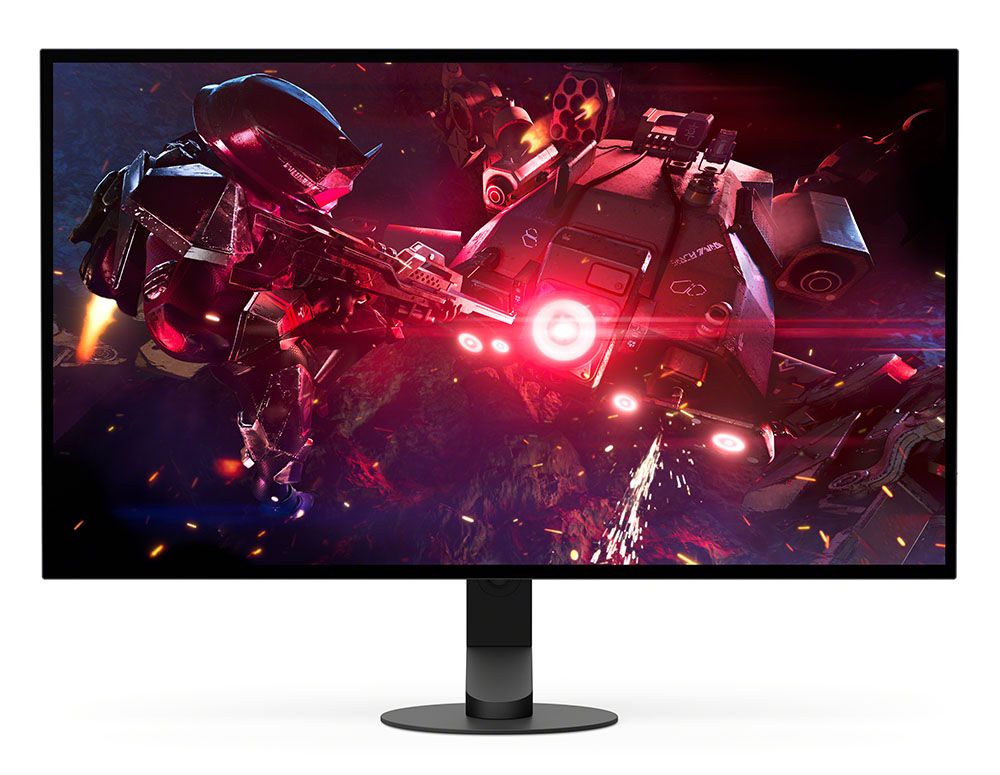
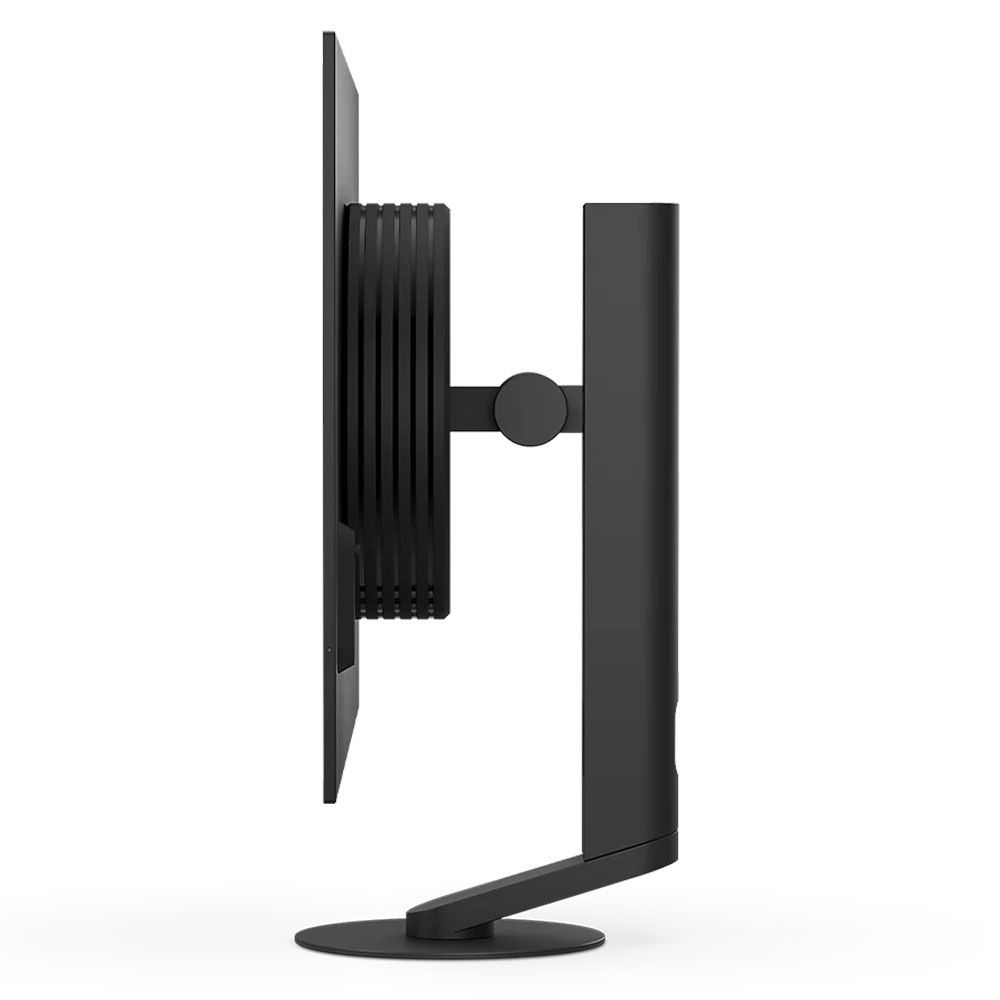
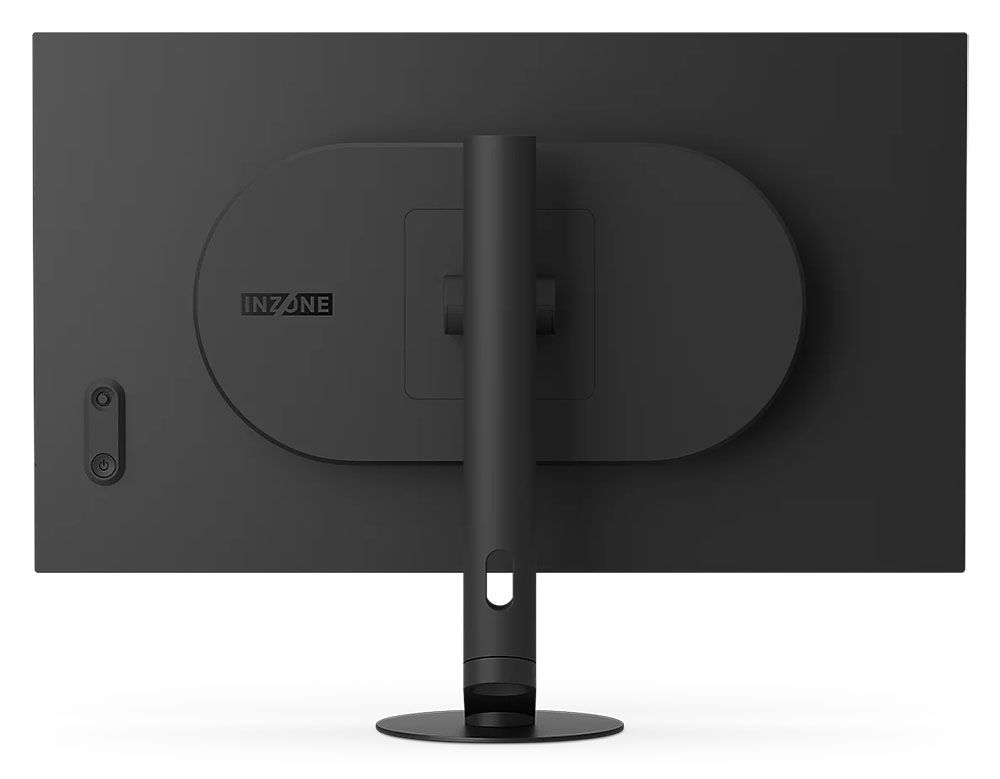
The M10S II’s most visible feature is its small-footprint base. Honestly, when I took it out of the box, I was dubious about its stability. It’s a heavy metal disc just six inches across. The upright bolts to its center with an offset that extends the depth to almost eight inches. It looks like it would fall over easily, but I gave it a few shakes, and it remained stable. This is geometry at work. The swivel point is where the upright and base meet, allowing you to swing the screen 360 degrees. You also get a 5/35-degree tilt and a 4.8-inch height range, no portrait mode, though. Movements are firm and smooth with no wobble or play.
Reach around the back right, and you’ll find a small protrusion with a power button and a joystick for the OSD. Uniquely, the power LED is positioned on the side, just the right spot to light up your hand when you press the button. It isn’t visible from the front, but you can turn it off if you wish.
The side view shows a thick component bulge attached to a thin screen backed by a metal plate. It’s just 5mm thick, and the bezel is narrow too: 7mm on top, 8mm on the sides, and 12mm at the bottom. It’s flush, so you can’t see it when the power’s off.
The I/O panel is up and under and includes two HDMI 2.1 ports, one DisplayPort 2.1, and USB, one upstream and two downstream ports. There are no internal speakers, so you can plug headphones into the 3.5mm jack. An additional USB port is there for service and firmware updates.
OSD Features
Pressing the M10S II’s joystick brings up an efficiently organized OSD. It’s divided into nine sections and has plenty of calibration and convenience options.
Image 1 of 5
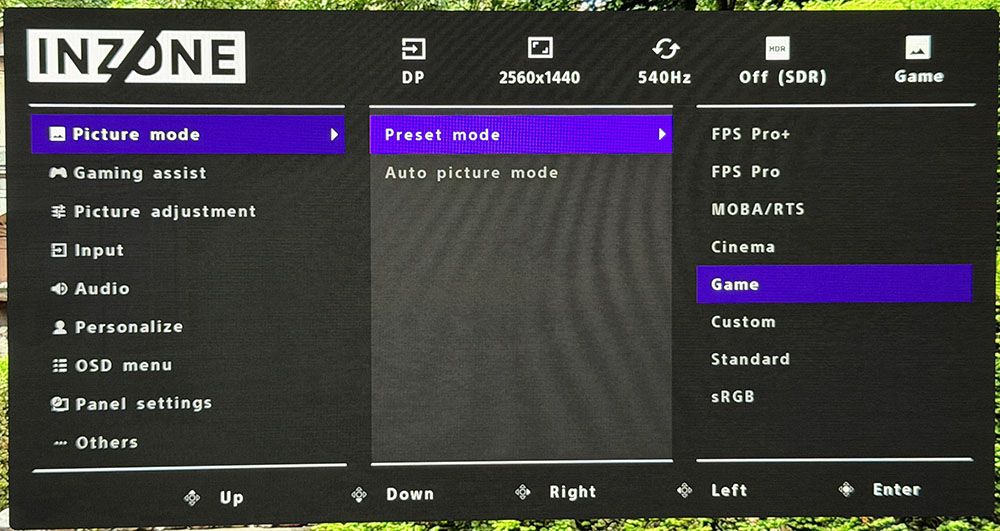
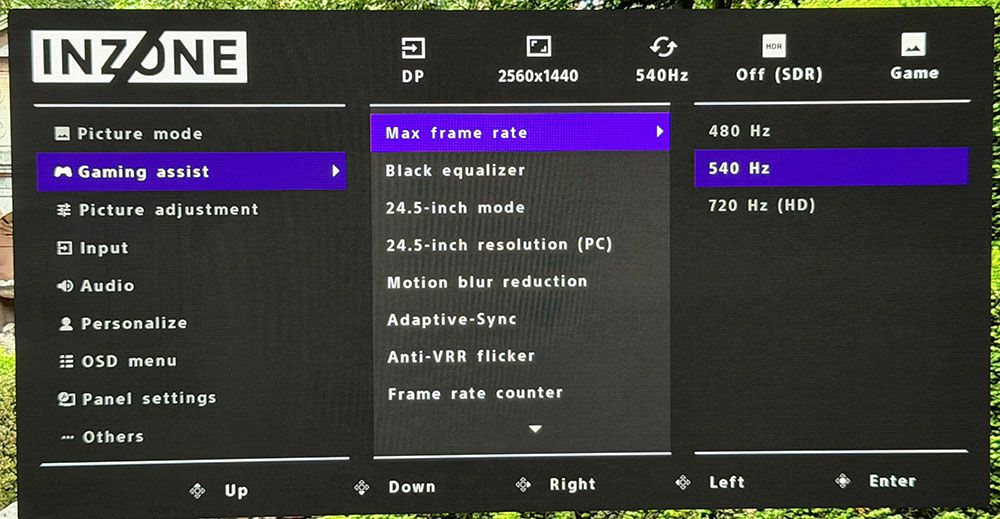
The OSD begins with picture modes, eight in total. The default is Game, and it looks good but needs a bit of tweaking to align it with broadcast standards. The other modes are aimed at specific game types or tasks, and there’s an accurate sRGB mode. I found the best results using Standard with a grayscale calibration, which you can read about below and on page four.
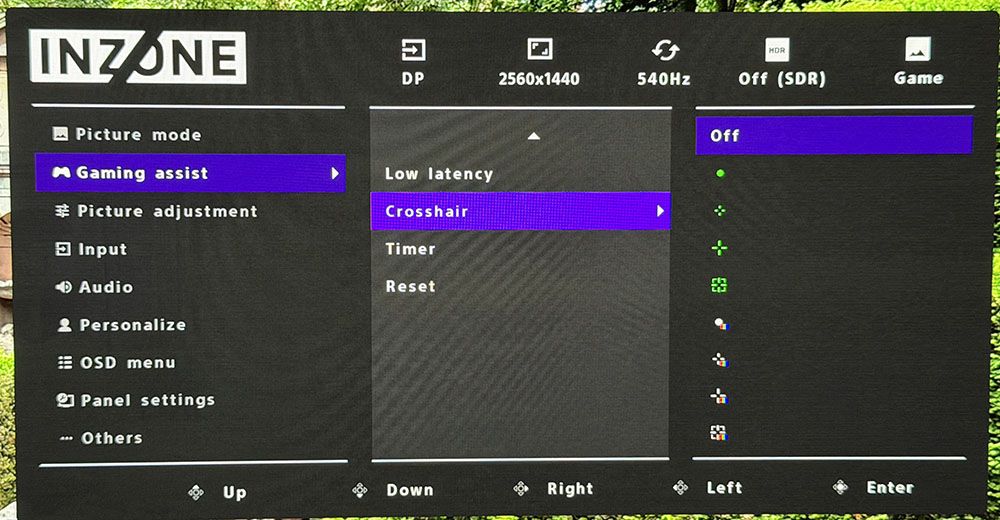
Gaming Assist includes the refresh rate switches and 24.5-inch modes which deliver 1080 vertical pixels while maintaining a 1:1 mapping. That way, there’s no scaling to soften the image. You also get motion blur reduction via a backlight strobe, which works well at low frame rates. It cuts brightness by around 30%. Anti-VRR flicker is unique to OLED monitors and prevents flickering during rapid frame-rate transitions. Hint: if your video card is fast enough to keep the action above 300 Hz, you won’t get flicker. Also in this menu are an FPS counter and aiming points, both static and dynamic.
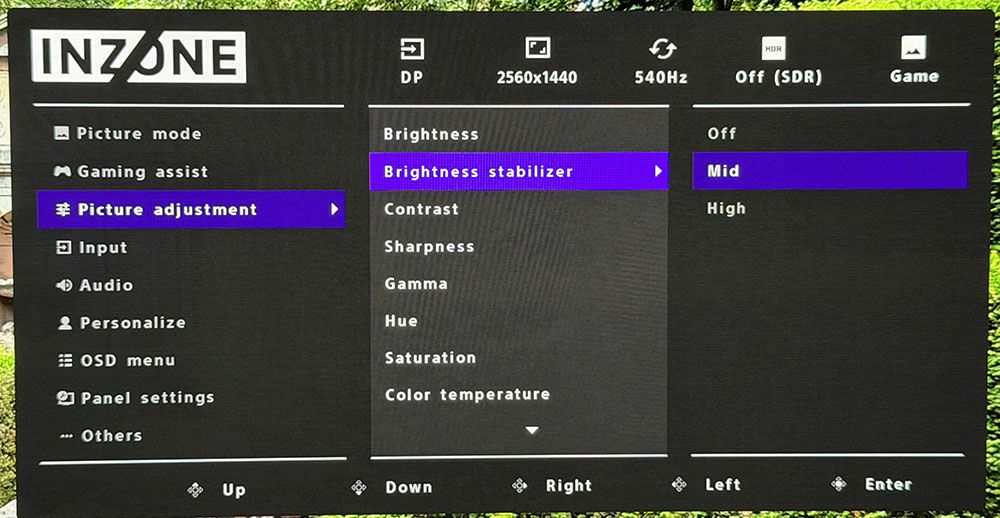
In the Picture adjustment menu, you’ll find the variable brightness options, which Sony calls Brightness stabilizer. It’s counter to other monitors I’ve encountered, in that off means variable brightness is fully engaged. I experimented with all three settings and found the best gamma, and therefore quality, on the Mid setting. Also, here are gamma presets and color temps with a set of RGB sliders. There is no color gamut selector, but you can opt for sRGB in the sRGB picture mode.
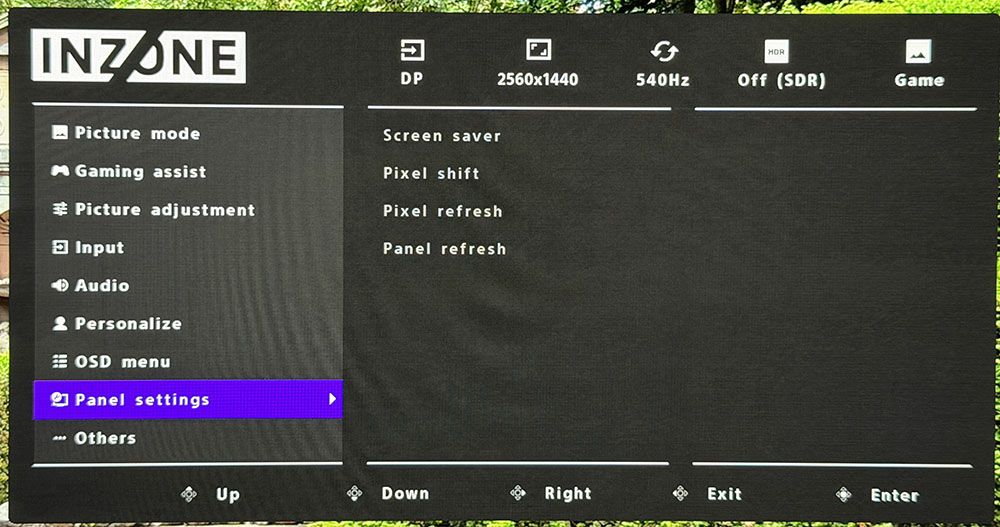
For panel care, the M10S II includes pixel shift, a screen saver, and refresh routines. Sony differentiates between pixel and panel refresh. I ran the pixel refresh when I first powered up my sample. Selecting panel refresh prompted a message that it should only be run once a year, so I concluded it was a very aggressive refresh routine.
Sony INZONE M10S II Calibration Settings
The M10S II arrived set to its Game mode, which had a cool grayscale and light gamma. I could fix the grayscale but not the gamma, so I turned to Standard mode, which was much better. After a few clicks of the RGB sliders, I had much improved grayscale, gamma, and color tracking. The gamut volume is just under 110% of DCI-P3, which is too large for the SDR standard but looks great, nonetheless. If you want sRGB, it’s there in the preset mode list. It has good gamut accuracy and supports grayscale calibration but not gamma adjustment. My recommended settings are below.
For HDR content, the M10S II switches over automatically and provides four specific picture modes. Game works the best, and I noted that it allowed grayscale calibration and brightness adjustment. You can see those test results on page five.
Swipe to scroll horizontally
Picture Mode |
Standard |
Brightness 200 nits |
51 |
Brightness 120 nits |
28 |
Brightness 100 nits |
23 |
Brightness 80 nits |
17 |
Brightness 50 nits |
8 (min. 22 nits) |
Contrast |
75 |
Gamma |
2.2 |
Color Temp User |
Red 100, Green 100, Blue 98 |
Gaming and Hands-on
Sony’s marketing for the M10S II clearly targets competition and hardcore gamers, and for those users, it delivers. Whether you need 540 Hz or not, it is super quick. Motion resolution is perfect, which means moving objects and backgrounds have the same clarity as stationary elements. Camera pans are free from blur or smearing. Adaptive-Sync worked perfectly for me when using a GeForce RTX 4090 video card. Frame rates in Doom Eternal set to max detail ranged from 350 to 540fps.
The M10S II has a couple of features designed to reduce motion blur and smooth out the image, but I didn’t find any need for them. Anti-flicker, which I’ve seen from Asus as well, is there to remove any flickering during frame rate transitions. I saw plenty of those with rates rapidly shifting 80-100fps by the second. There was no flicker. You also get blur reduction via backlight strobe. It only works below 270 Hz, and since my speeds never went below that, it wasn’t needed. To engage it, turn off Adaptive-Sync first. The M10S II will automatically reduce the refresh rate. It works well and shows no evidence of phasing or ghosting.
Input lag is low enough that I perceived instant response to control inputs during the most frenetic battle maneuvers. My skills are average, but I see this monitor’s benefit to a competitive gamer. The 720 Hz mode felt super quick even though its input lag is only a tad lower. Full-screen resolution is limited to 1280x720, but you can achieve dizzying frame rates in the process. Also available are 24.5-inch modes in which the picture occupies a portion of the screen. You can do 1920x1080 at 720 Hz this way or opt for 2368x1332 pixels in a 1:1 mapping.
In all scenarios, color and clarity are as good as it gets for the OLED genre. The M10S II has a huge color gamut, almost 110% of DCI-P3, and that shows in both SDR and HDR content. HDR has the additional capability of calibration, something most HDR monitors cannot do. I also liked the variable brightness options. The terminology is a little counterintuitive in that when Brightness stabilizer is off, variable brightness is engaged at maximum. The other settings, Mid and High, are less aggressive at modulating light output. I found the best gamma, and therefore picture quality, came from the Mid option.
As a 27-inch QHD flat panel, the M10S II is well suited for productivity and delivers a clean and colorful picture for general use. Small text is sharp and free of color fringing. Graphics and photos are deeply textured, and video looks great as well. The monitor makes a great personal TV. The only things I noted missing were internal speakers and LED lighting. But everything you need for gaming, entertainment, and work is there.
Takeaway: The M10S II is a competitor’s dream with its speedy response, smooth motion resolution, and multitude of refresh and resolution options. It delivers a clean and colorful picture for both SDR and HDR content. The anti-glare layer is among the best I’ve seen, with no effects seen from ambient light reflections. It’s a premium purchase for sure, but there is nothing it cannot do well.
MORE: Best Gaming Monitors
MORE: How We Test PC Monitors
MORE: How to Buy a PC Monitor








 English (US) ·