
 1 month ago
25
1 month ago
25
I've had a chance to sample a wide variety of augmented reality, extended reality, and virtual reality glasses over the years RayNeo's X3 Pro puts a new spin on augmented reality glasses by using micro-LED waveguide displays embedded into the lenses. As a result, the X3 Pro looks even more like a pair of regular glasses or sunglasses, while providing a simulated 43-inch 3D display for your eyes and leveraging the power of Gemini AI.
Rather than serving as a media consumption gadget like the RayNeo Air 3s or Xreal One Pro, the X3 Pro is more of a device that can provide navigation, real-time image and text translation, take pictures/video, and more. It allows you to interact in real time without feeling as if you're not "enjoying the moment" while a smartphone is crammed in front of your face.
Design of the RayNeo X3 Pro
The biggest compliment that I can give the X3 Pro is that they look and feel like a regular pair of sunglasses (or thick prescription glasses). They make me look a bit geeky, but they don’t have the same visual heft as traditional augmented or mixed reality glasses. At 2.68 ounces, they don’t feel too heavy on my face, and the frames around the lenses are much thinner than what you’d find on something like the RayNeo Air 3.
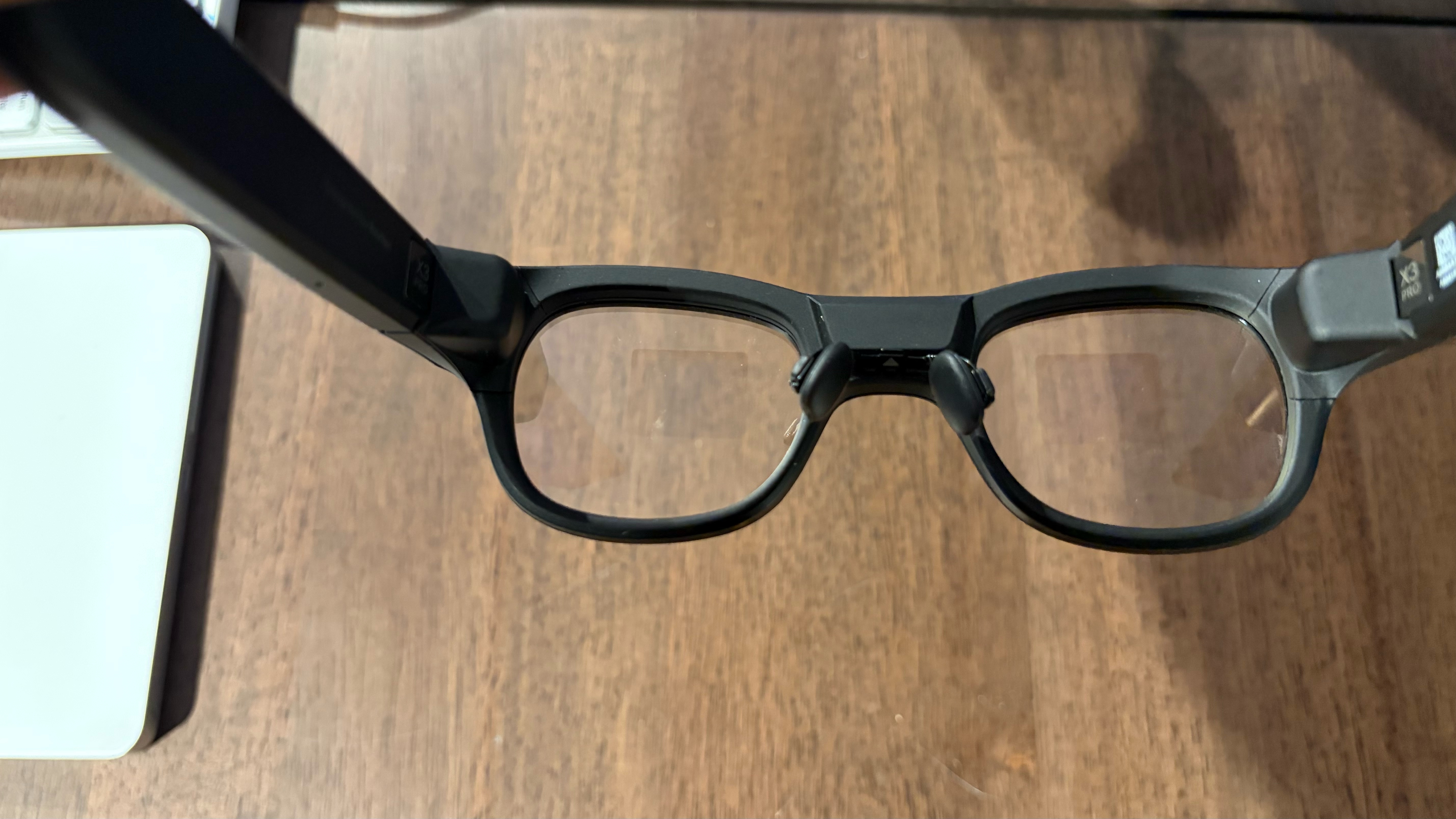
The first giveaway that you’re looking at something with more potential than a regular pair of glasses is the two cameras located up front, nestled in the bridge. Second, there are the protrusions near the temple hinges that house the micro-LED projectors and the slightly thicker-than-usual temples that house the electronics and speakers. Finally, you’ll notice a USB-C port at the end of the right temple.
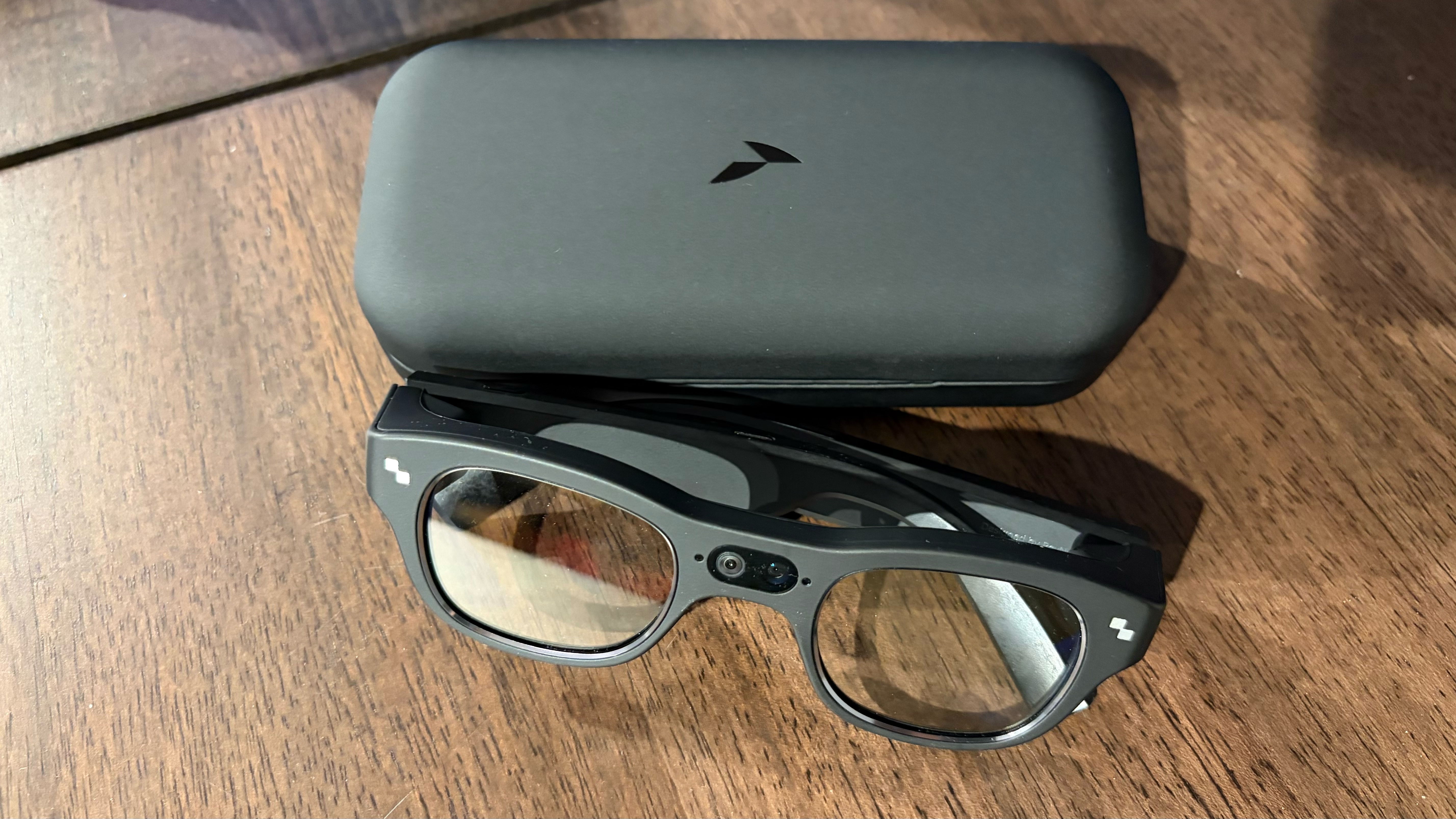
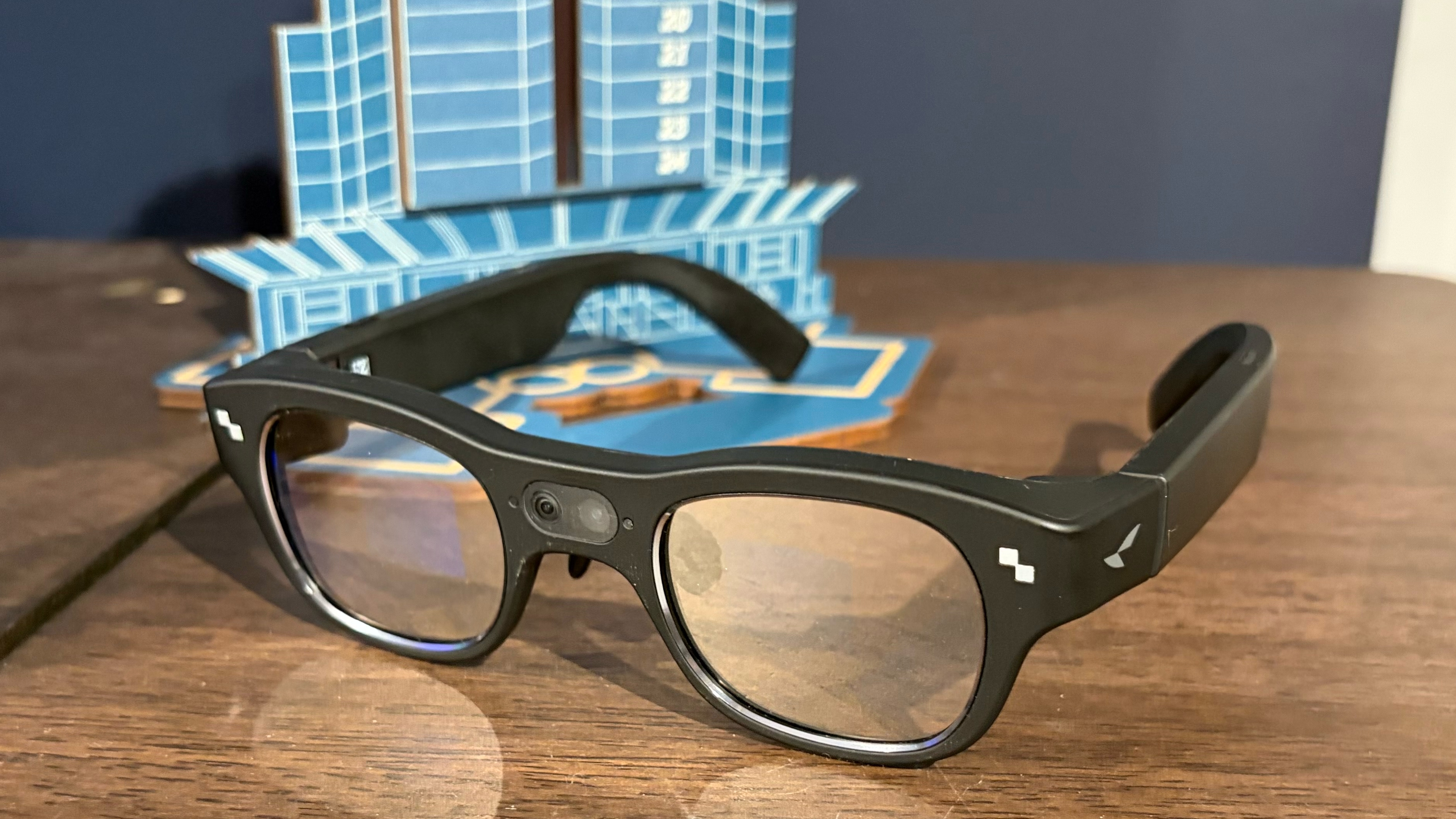
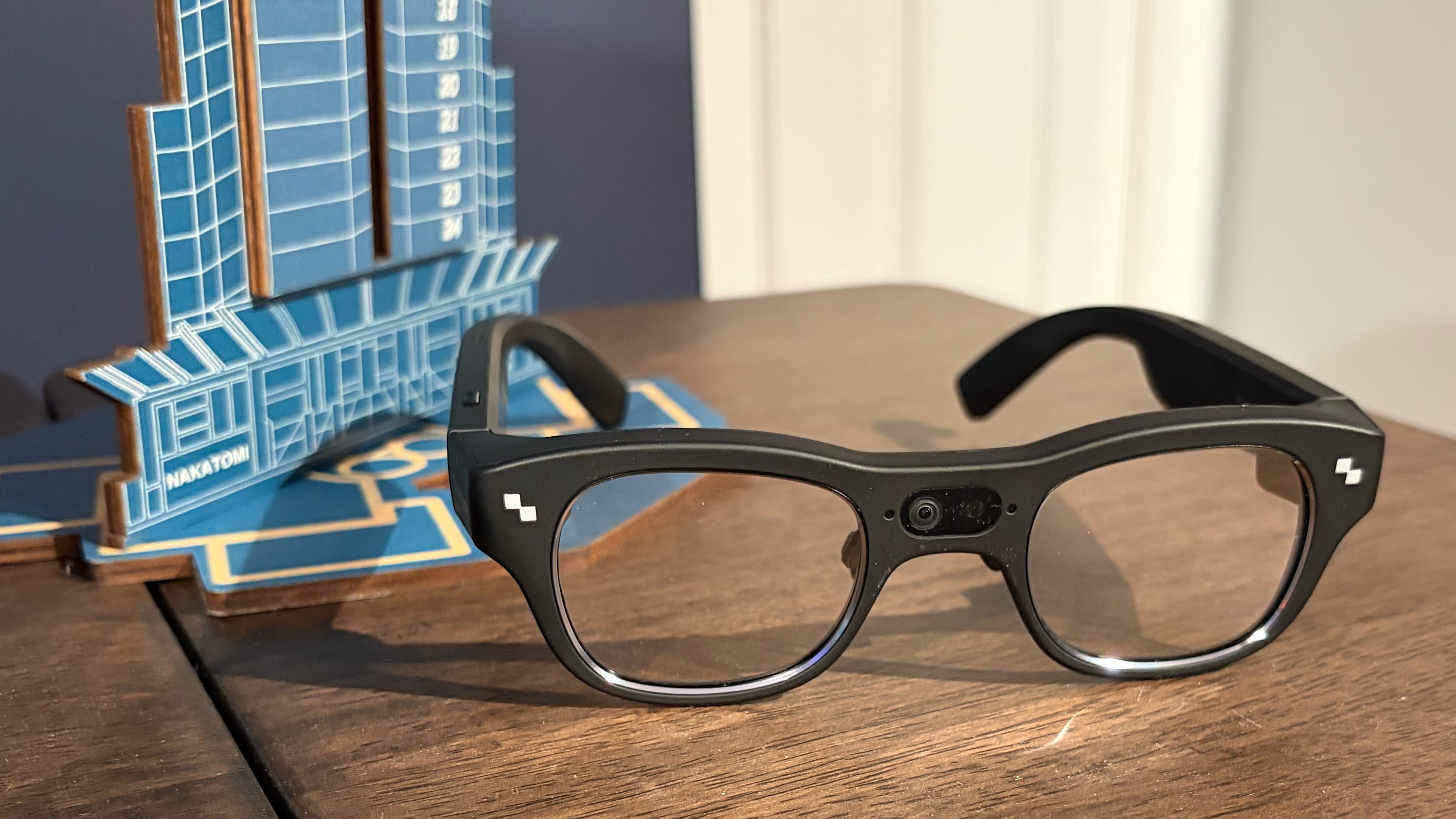
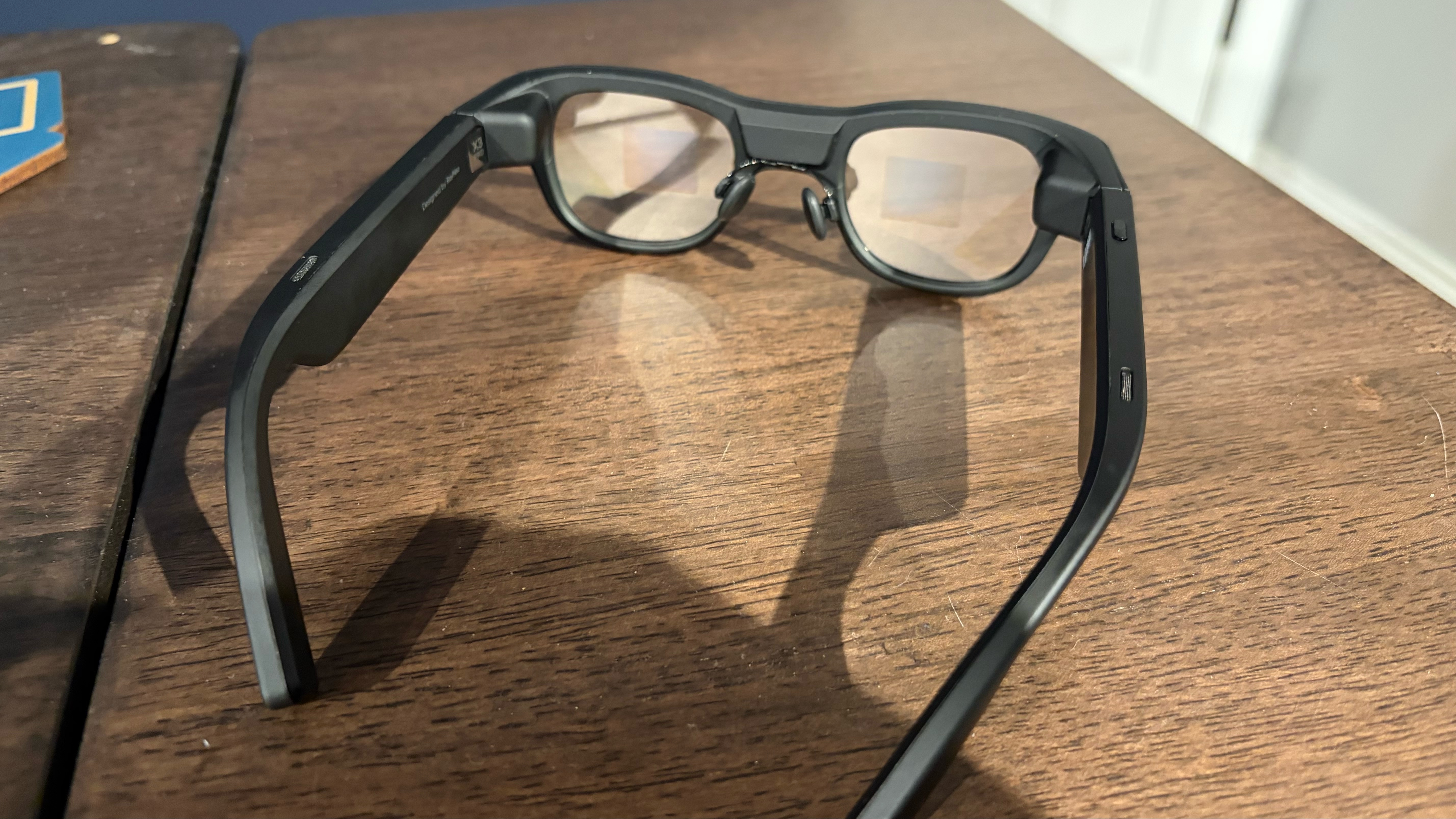
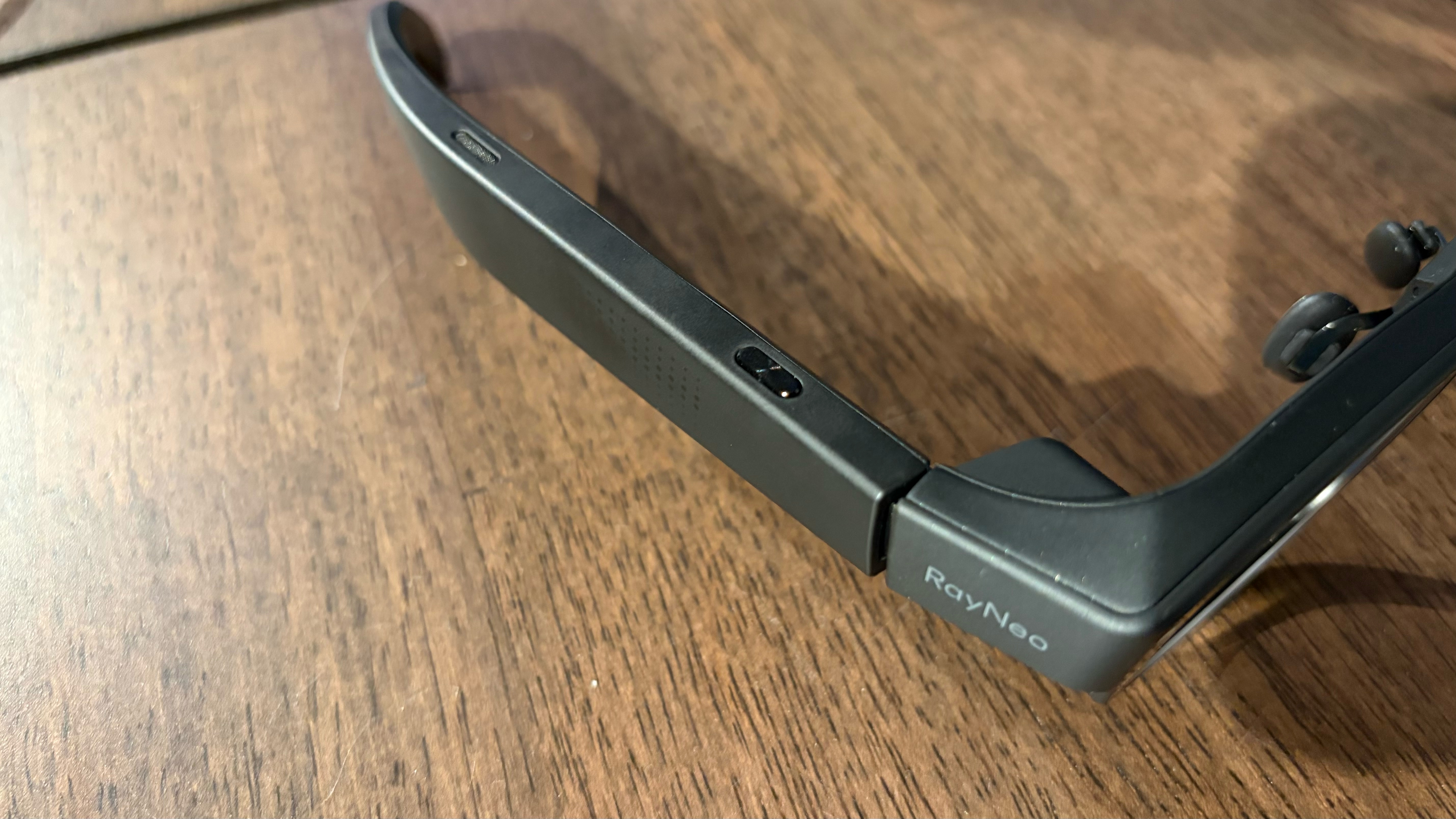
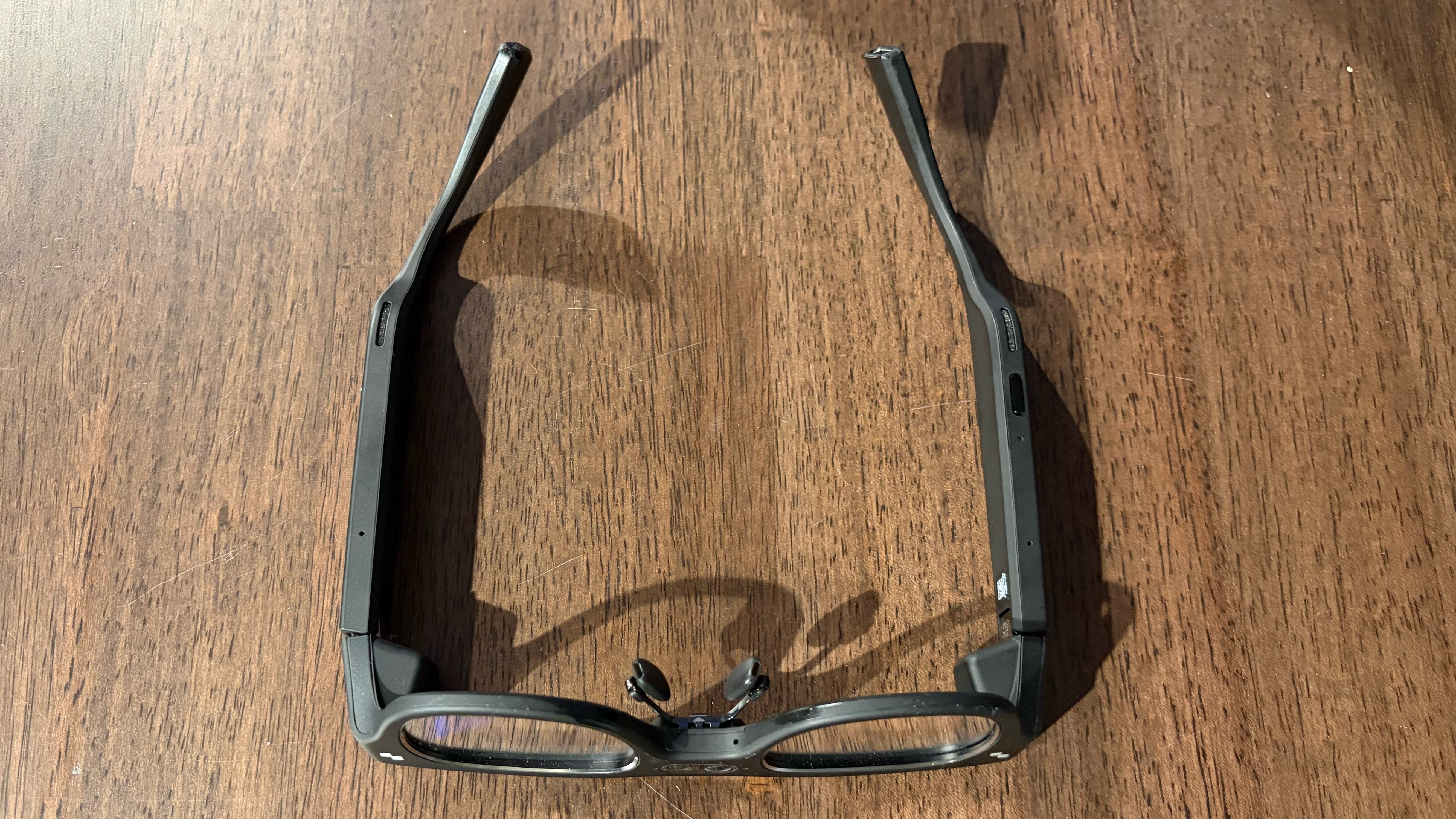
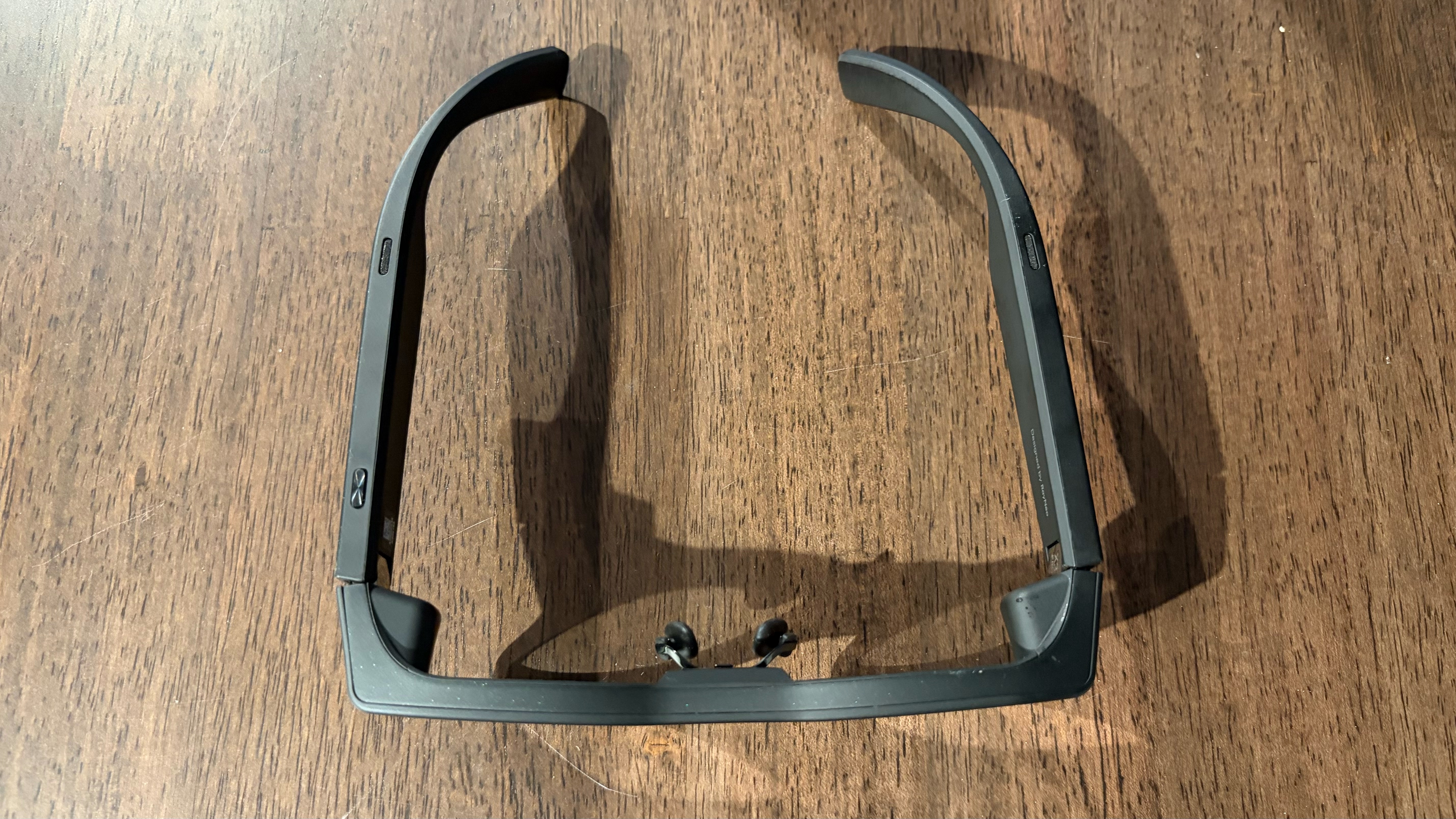
The X3 Pro is made almost entirely of plastic, which contributes to its light weight. It's understandable to prioritize a lightweight design that isn’t fatiguing during everyday use. Still, the plastics used don’t really impart the quality you’d expect from a consumer electronics device retailing at well over $1,000.
RayNeo includes a high-quality, felt-lined carrying case in the box that has enough room for the glasses and the USB-C data/charging cable. There’s also a cleaning cloth, a prescription lens template, two custom nose pads (one comes pre-installed), a user manual, and a quick start guide.
Specifications
Swipe to scroll horizontally
Price | $1,399/$1,099 Early Bird Pricing |
Optical Engine | Full-Color Optical Engine 0.36 cc Micro-LED litho-etched RayNeo waveguide |
Brightness | 6 000 nits peak (3,500 nits average) |
Color Mode | Full-color |
Camera | Dual-cam “Falcon Imaging Plus” |
Motion Tracking level | 6-DoF |
Battery life | 5 hours (manufacturer claim) |
Audio | Quad-speaker system |
Dimensions | 6.03 × 1.80 × 6.64 inches |
Weight | 2.68 ounces |
RayNeo X3 Pro Hardware
The X3 Pro is powered by a Qualcomm Snapdragon AR1 Gen 1 SoC, which has plenty of power to handle the computing required for augmented reality and artificial intelligence. It incorporates 4GB of RAM and a 32GB ROM. According to RayNeo, the glasses also feature Falcon Image technology, which facilitates spatial positioning and AR imaging (the X3 Pro supports 6 DoF). The positioning tech is used in combination with the dual front-facing cameras to ensure that what you see in the real world is properly aligned with the AR inputs you see on the displays.
Speaking of the displays, the X3 Pro uses a dual micro-LED projector system and optical waveguides embedded in the lenses. The optical engine can output 16.77 million colors, with a typical brightness of 3,500 nits and a peak brightness of 6,000 nits. The refresh rate is capped at 60 Hz, and the field of view is 30 degrees.
The power button is at the bottom of the right temple, while a shortcut is at the top. There are also two touch-sensitive panels on the outer edges of the right and left temples. The right touch panel supports swiping up/down/left/right to navigate the menu system. A single tap confirms an action, while a double-tap goes back in the menu system. A long press displays the control center. The left touch panel is primarily used for media functions. Swiping up or down adjusts the volume, while swiping left and right cycles through previous or next tracks. Double-tapping plays or pauses music, and a long press invokes the AI assistant. A four-speaker audio system is integrated in the temples
The glasses incorporate wear detection, so they will power off when you’re not wearing them, helping reduce battery consumption. Speaking of the battery, total capacity is a minuscule 245 mAh, which RayNeo claims is suitable for up to five hours of use.
Using the RayNeo X3 Pro
Given that I was shipped a prerelease version of the X3 Pro, the RayNeo AR iOS app would not detect or set up the glasses, as it only supports the X2 Pro. So, I reached out to RayNeo, who directed me to Apple’s TestFlight app, where I was able to download and install a prerelease version of RayNeo AR with support for the X3 Pro.
Setting up the X3 Pro was relatively straightforward: the RayNeo AR app automatically found the glasses over Bluetooth, performed the initial setup, and installed requisite firmware updates. It also presented a thorough walkthrough that guides you through using the hardware buttons and touch panels for navigation.
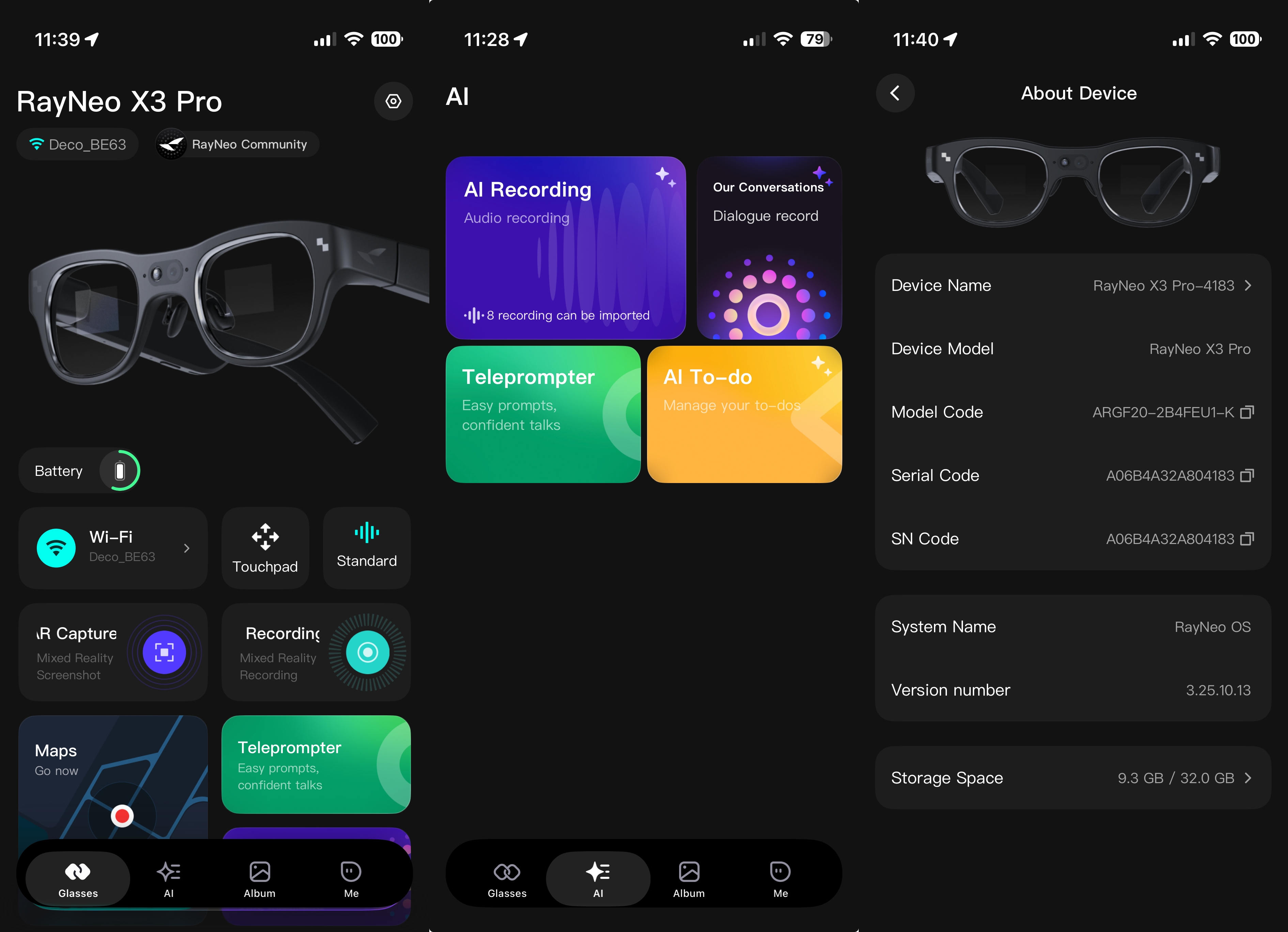
Once setup was complete, I decided to test out the RayNeo AR app, which is attractive and well-organized. There’s a large image of the X3 Pro front and center, with a battery life indicator directly below. You’ll also find your currently connected Wi-Fi network, along with shortcuts for capturing AR photos and videos, and for AR navigation in Google Maps.
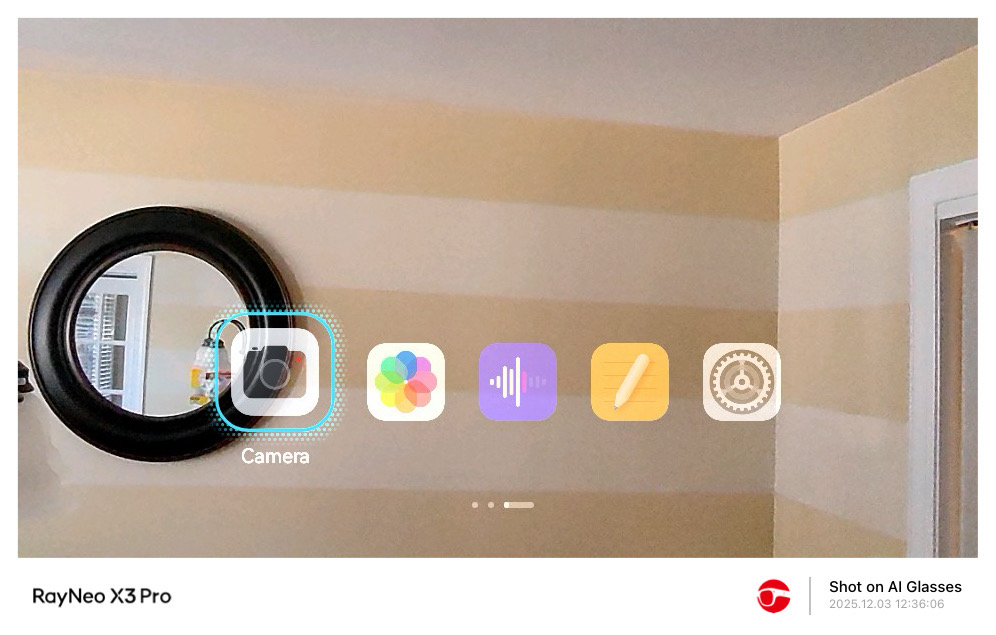
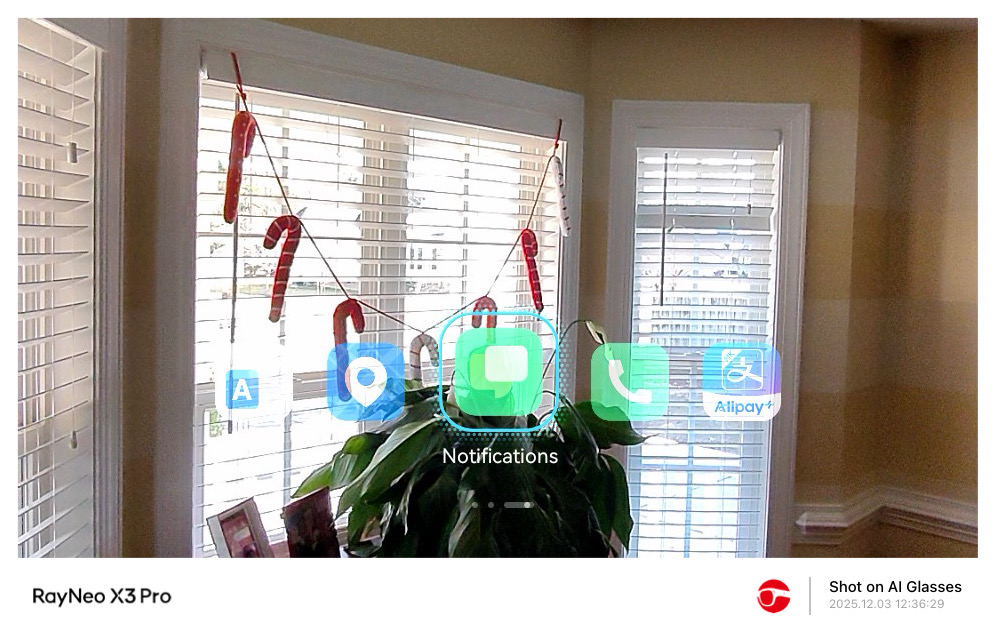
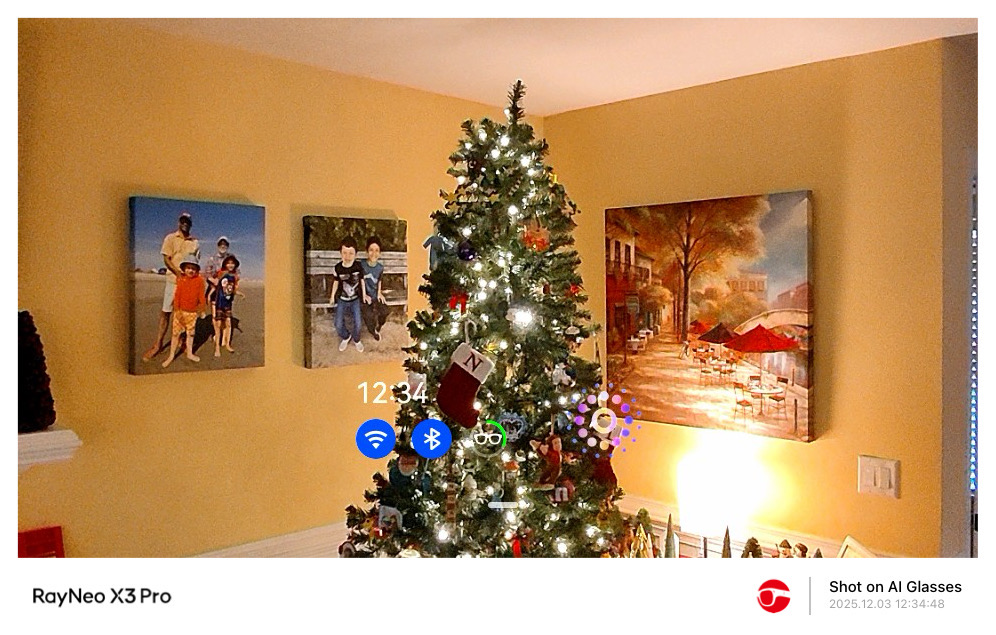
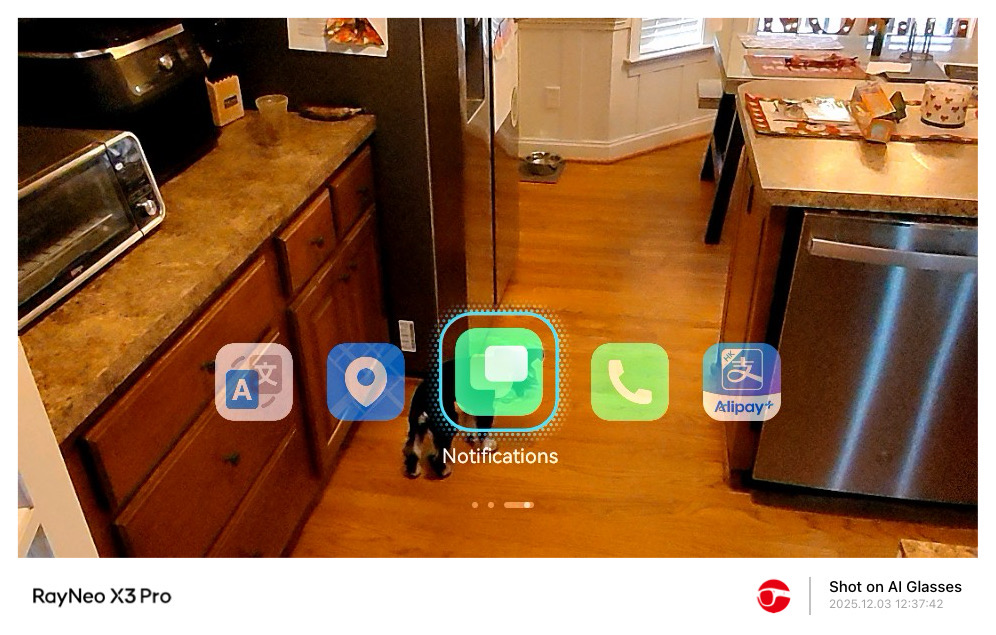
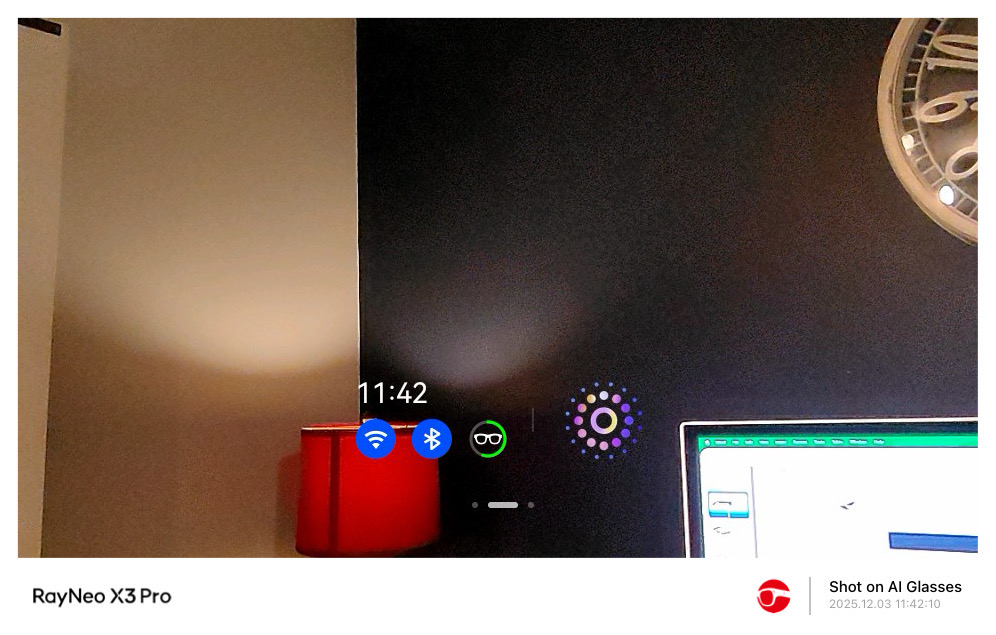
Next, I actually wore the glasses and spent time getting used to the waveguide displays. They are surprisingly bright and sharp with good color. The main UI for the glasses appeared in the lower third of my field of view, with the following information always present: Time, Wi-Fi, Bluetooth, and Battery. Swiping to the right reveals additional native apps you can select, along with a dedicated Settings app for managing a limited set of on-device controls.
The user interface on the X3 Pro was easily readable indoors, and the waveguide displays were bright enough for outdoor use. Once I got accustomed to the user interface, I next tried using the built-in AI assistant, which is invoked by long-pressing on the left touch panel. I was able to ask simple questions about the weather and breaking news items. It also recorded voice notes (it transcribed my grocery list quite well). Interestingly, even though the X3 Pro was connected to my smartphone, it was unable to complete my query, “How long would it take to drive to Greensboro, North Carolina,” without first asking me for my current location.
I then used the voice assistant to get directions to Target in Garner, North Carolina, and it repeated the address and said I could “get directions using navigation apps like Waze.” However, I was able to navigate to the built-in Google Maps app on the X3 Pro using the right touchpad. I scrolled right through the interface and found the app. I was then able to search for the Target in Garner by voice. It then asked if I wanted driving or biking directions. I chose walking (even though it’s a 12-mile trek), and an AR overlay appeared in front of me with distance calculations, an arrow pointing me in the right direction, a compass, and an arrival time.
On-device translation is accomplished using Google Translate, allowing me to translate foreign text into English or even translate spoken foreign languages into English in real time (I used a YouTube video of someone speaking Spanish to test live translation).
Additional native apps include Camera, Album (for your captured photos and videos), AI Recording, To-Do, Media, Phone (taps into your phone contacts), and Notifications (mirrors notifications from your phone).
The four-speaker audio system is surprisingly potent. While I wasn’t expecting AirPods Pro 3 quality, the X3 Pro holds its own with ample bass, low distortion at high volume, and good mid-range punch.
While I appreciated the ability to perform menial tasks on the glasses, navigating using buttons and the touch panels was slower and more cumbersome than just whipping out my iPhone. In addition, the pictures taken with the camera were awful. While the X3 Pro lets you take images with the AR overlay embedded, I could only get it to work from the home screen. Attempting to take an AR image or video while in an app like Google Maps wouldn’t work at all.
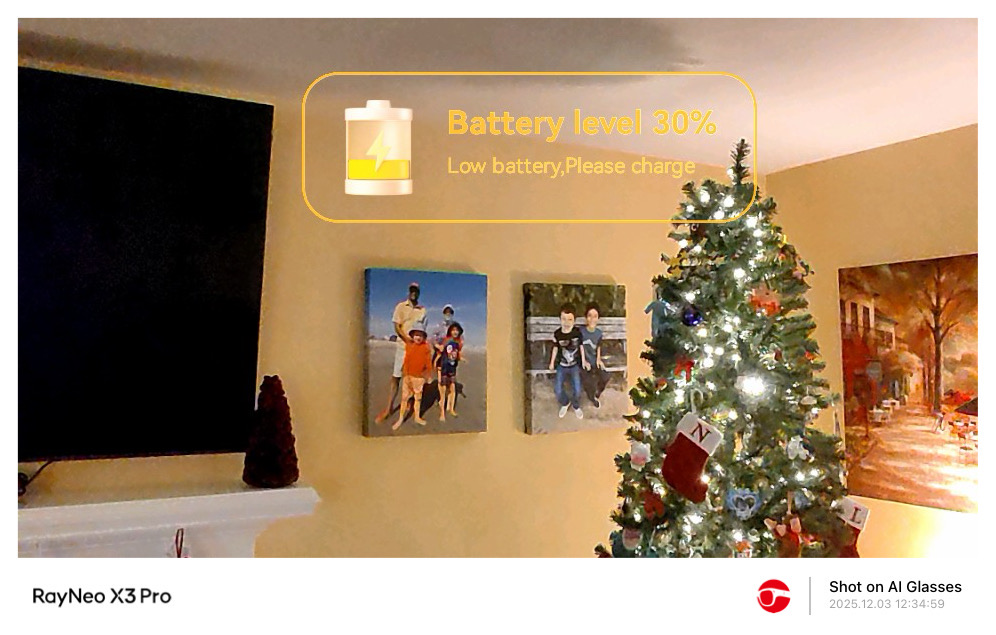
But the biggest letdown is battery life. The battery drains incredibly fast on the X3 Pro. I was at 50% and opened the Google Maps app to test the aforementioned trip to Target. Within less than 10 minutes, I received a warning message that the battery was below 30%. Even if I wanted to make the full 12-mile walk to Target, the battery would likely be dead before I reached the half-mile mark.
Even playing music caused the battery to drop quickly. I listened to “Last Christmas” by Wham! And “Rocking Around the Christmas Tree” by Brenda Lee, and saw the battery drop from 35 percent to 32 percent in that short time (roughly six and a half minutes).
In general use, I never got more than an hour’s worth of battery life from the X3 Pro, despite RayNeo’s claim of up to 5 hours. Using Google Maps was by far the worst offender in terms of battery drain.
Bottom Line
The X3 Pro feels more like a nifty tech demo. It shows what’s possible when you combine a fast SoC (Qualcomm Snapdragon AR1 Gen1) with a sleek and lightweight glasses frame. It can help lighten the load on your smartphone by taking pictures, translating text and speech in real time, recording voice notes, and even providing navigation directions with Google Maps.

However, the touch-sensitive controls are cumbersome to use, and I expect higher-quality materials from a device that carries an MSRP of $1,399 ($1,099 for early birds). The real nail in the coffin is battery life, which, in my experience, never lasted more than an hour, and much worse when using Google Maps.





 English (US) ·