
VirtualBox is often considered among the best virtual machine software available, particularly for users looking for a free and flexible solution. Its cross-platform support and open-source model make it a popular starting point for anyone exploring virtualization, even if more advanced users may eventually outgrow its limitations.
VirtualBox: Plans and pricing
One of VirtualBox’s biggest advantages is that the core platform is completely free to use and distributed as open-source software under the GPL license.
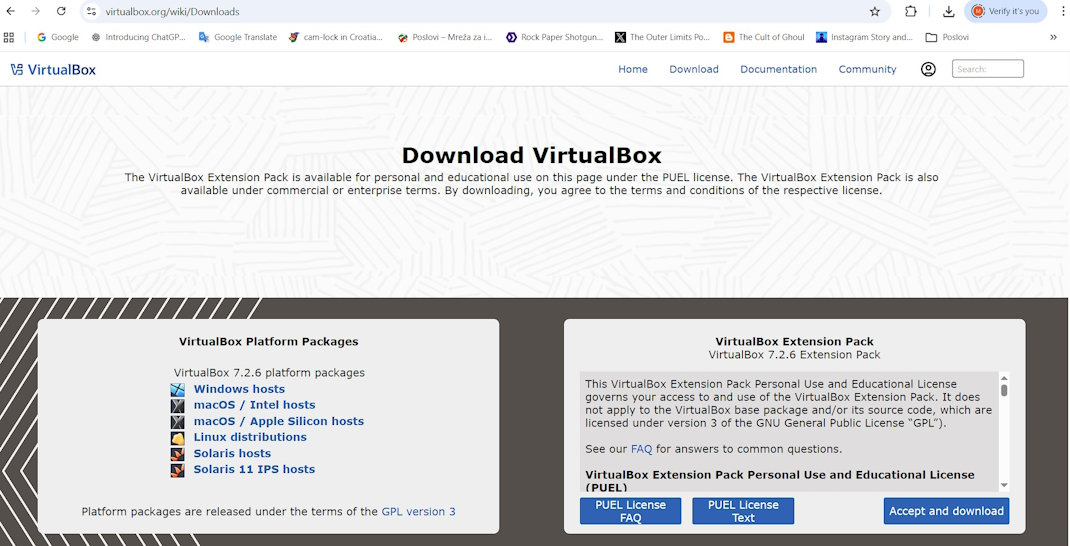
However, not all functionality falls under the same licensing model. The optional Extension Pack, which adds features such as enhanced USB support and remote desktop capabilities, is free for personal and educational use but requires a commercial license in business environments.
Latest Videos From

In practice, this means that while individual users can access most of VirtualBox’s functionality at no cost, organizations may need to factor in additional licensing considerations depending on how the software is deployed.
Recent changes in the virtualization market, including VMware making its desktop hypervisors free for personal use, have also reduced VirtualBox’s traditional advantage in this area.
VirtualBox: Features
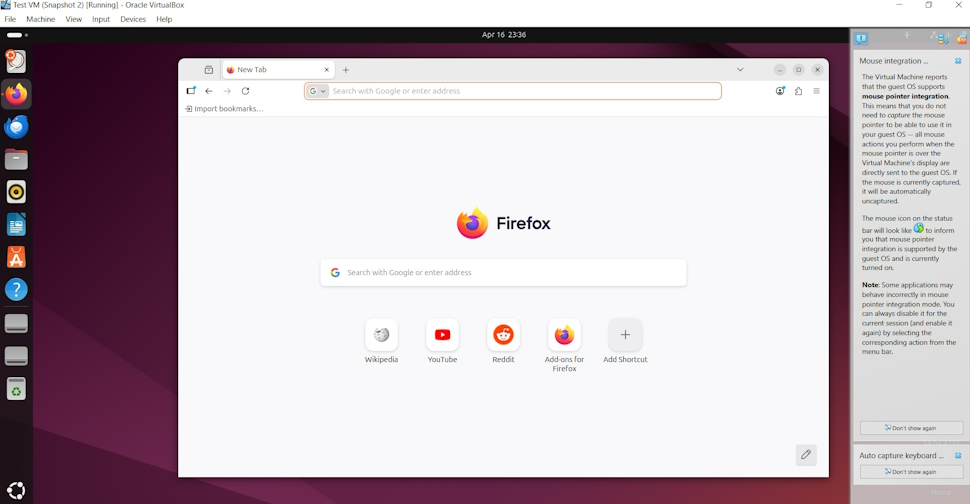
VirtualBox supports a wide range of guest operating systems, including Windows, Linux, and other platforms, and allows users to allocate system resources such as CPU cores, memory, and storage on a per-virtual-machine basis.
It includes core virtualization features such as snapshots, which allow users to save and restore the state of a virtual machine, as well as shared folders and clipboard sharing between host and guest systems when Guest Additions are installed. Multiple networking modes are also available, including NAT and bridged networking, enabling different connectivity scenarios depending on user needs.
Additional functionality is provided through Guest Additions, which improve display handling, enable better mouse integration, and support features such as dynamic screen resizing. While the feature set is comprehensive for a free solution, some capabilities, particularly in areas such as graphics acceleration, remain more limited compared to commercial alternatives.
Recent versions have also introduced support for features such as virtual TPM, making it easier to run newer operating systems, including Windows 11.
VirtualBox: Interface and use
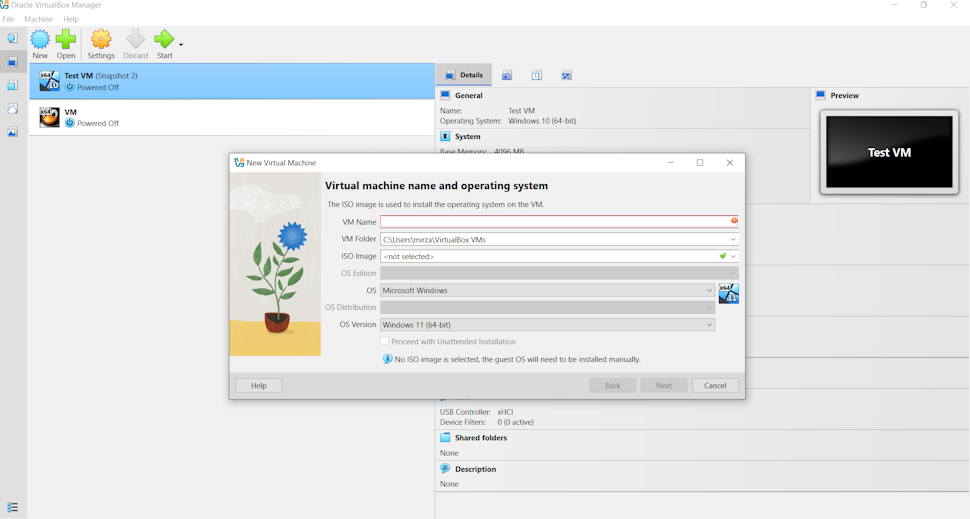
VirtualBox uses a familiar, structured interface centered around a main dashboard for managing virtual machines and a detailed settings panel for configuration. Compared to earlier versions, the interface shows clear signs of improvement, with a more organized layout and better separation of system and machine-level tools.
That said, the overall design still feels more functional than refined. While navigation is logical once you understand where everything is, the experience lacks the level of polish and guidance seen in competing platforms, particularly for less experienced users.
Creating a virtual machine is handled through a guided setup process that covers operating system selection, resource allocation, and storage configuration. The process is generally straightforward, although certain steps such as attaching installation media or adjusting system parameters require a basic understanding of virtualization concepts.
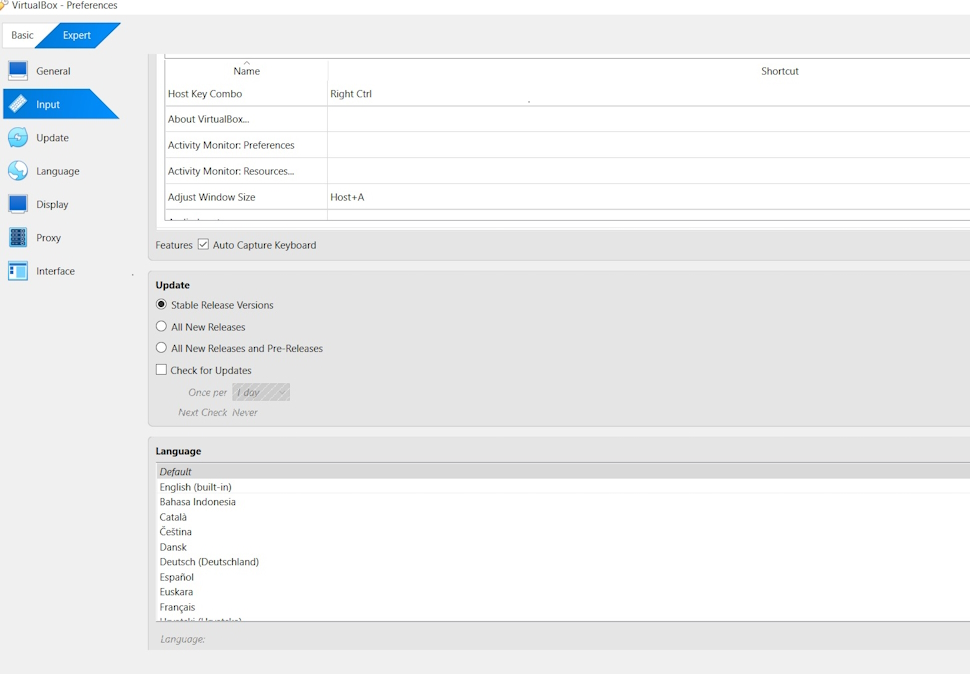
In day-to-day use, the experience is stable but not always seamless. During testing, interaction within the virtual machine worked reliably for basic tasks, but usability is affected by small friction points, including mouse and keyboard capture behavior, which can feel unintuitive at first. While these issues can be managed with experience, they highlight the platform’s more technical orientation compared to more streamlined alternatives.
VirtualBox: Performance
In use, VirtualBox delivers adequate performance for basic virtualization tasks, but it does not match the consistency or responsiveness of more polished alternatives. During testing, the virtual machine booted reliably and handled light workloads such as web browsing and system navigation without major issues.
However, performance can become less stable under heavier use. Applications may take longer to respond, and overall system interaction can feel less fluid compared to competing platforms. This is particularly noticeable in graphics handling, where VirtualBox’s limited acceleration capabilities restrict its suitability for more demanding workloads.
Resource usage is another factor to consider. Running a virtual machine requires careful allocation of CPU and memory, and on more modest systems, this can impact both host and guest performance. While the platform remains usable for everyday tasks, it is not optimized for high-performance scenarios.
Overall, VirtualBox performs well enough for testing environments, development setups, and general-purpose virtualization, but users seeking consistently smooth performance or advanced graphical capabilities may find stronger options elsewhere.
VirtualBox: Support
VirtualBox primarily relies on documentation and community-driven resources, including official manuals and user forums, as its main support channels.
Oracle does offer paid support through its enterprise programs, but this is limited to specific configurations and use cases. For most users, support is therefore largely self-service, which can make troubleshooting more time-consuming compared to commercial virtualization platforms with dedicated support channels.
VirtualBox: The competition
VirtualBox operates in a competitive space alongside tools such as VMware Workstation and Parallels Desktop, both of which offer similar core virtualization capabilities but target slightly different user needs.
Recent changes, including VMware making its desktop hypervisors free for personal use, have significantly increased competition in this space.
VMware Workstation is often seen as the more polished alternative, with stronger integration across enterprise environments and broader ecosystem support. While VirtualBox has largely caught up in terms of core features, VMware still tends to offer a more refined experience and better integration with other VMware products.
Parallels Desktop, on the other hand, focuses more on ease of use and performance, particularly on macOS systems. It offers tighter system integration and more seamless workflows, although this comes at a cost, unlike VirtualBox’s free and open-source model.
In practice, VirtualBox remains a strong option for users who prioritize cost and flexibility, while VMware and Parallels are often better suited to those who need higher performance, deeper integration, or a more streamlined user experience.
VirtualBox: Final Verdict
VirtualBox remains one of the most accessible virtualization tools thanks to its free and open-source model. It covers the essentials well and offers a high degree of flexibility, but the experience still lacks the polish and consistency of commercial alternatives. While it performs reliably for basic tasks, users looking for smoother performance or a more intuitive interface may be better served elsewhere.







 English (US) ·