
Net Nanny may be one of the oldest names in the parental control software business, but it's kept adding new features, and the latest edition includes tools you won't always see in the younger competition.
The app's web content filtering doesn't rely on simple blacklists and site categories, for instance - it uses real-time content analysis to detect issues on every web page your child tries to access. There's smarter YouTube monitoring, too, with search and viewing histories.
The company hasn't forgotten the basics, and you can also block or restrict app usage, limit screen time, and view detailed reports on your child's recent activities.
Latest Videos From

Tracking tools include the ability to view the location (and location history) of all your children on a single map. Net Nanny has added geofencing support, too, allowing you to define important locations (home, school, grandma's, whatever you need) and get alerts when a child leaves or arrives.
Read on for a detailed look into Net Nanny's offerings and whether it's the right fit for your needs.
- Interested in Net Nanny? Check out the website here
Net Nanny: Plans and pricing

Net Nanny's pricing is a little more complicated than usual, with three plans on offer.
The first protects a single desktop for $40 a year. This boils down to a super-affordable $3.33 per month, making it one of the cheapest parental control monitoring apps around. Sure, Mobicip does have a Lite plan that costs only $2.99 per month, but it does not come with the full range of features offered by Net Nanny.
The second covers up to five desktop or mobile devices for $55, and the third protects up to 20 devices for an annual $90.
(As we write, the company says these prices are discounted, with '30% off for a limited time.' A quick visit to the Wayback Machine showed Net Nanny offering the same prices six months ago, though, so it doesn't seem that limited. Still, it's possible the prices will be significantly higher by the time you read this.)
There are significantly cheaper apps around, though. For instance, Mobicip plans start at just $2.99/month and allow you to monitor up to five devices.Now, Net Nanny used to offer a 14-day free trial with its Android app. However, it has now done away with any free trial, and you’ll need to purchase a subscription right away to use the application. This is a bit of a letdown, since competitors like Bark offer a 7-day free trial.
Net Nanny: Supported platforms
When we last tested Net Nanny, it still supported Android devices. However, since the beginning of 2024, the provider has stated that it no longer supports Android, Kindle Fire, and Chromebook devices. As of now, Net Nanny works only on devices running Windows (10 and above), macOS 10.13 to macOS 11.x, and iOS 11 and higher.
Now, while you may still be able to operate Net Nanny on Windows and iOS devices, its macOS support is pretty outdated. For context, macOS 11 Big Sur was launched back in November 2020, with the current version being macOS 26 Tahoe, released in September 2025. This means Net Nanny’s Mac support is five major versions behind the current macOS version.
Most Mac devices bought in the last four to five years would be running at least macOS 12 Monterey, while the oldest macOS version that still receives Apple security updates is macOS 14 Sonoma. This means that Net Nanny’s macOS support sits entirely outside the range of Apple’s supported and patched operating systems, making its macOS support practically unusable.
Net Nanny: Setup
Net Nanny's setup process began when we installed the parent's app. We entered our email address and chose a password to create an account, selected the free three-day trial, and the app launched a wizard to help us begin.
This can look a little intimidating, but there's a plus in NetNanny's live chat support (Monday to Friday, 10am to 7pm EST.) It's not 24/7, but it beats many smaller companies, which often provide support via email only. It was also good to see the company send us an email with more instructions, so even if we had to give up on our current session, we'd have guidance on what to do next.
We followed Net Nanny's advice, visiting install.netnanny.com on our child's Android app, clicking a link to visit the relevant Google Play page, and installing the app.
This prompted us to log in and create our child's basic profile - name, gender and age - and then walked us through the process of approving various Android permissions (device administrator, location, content checking.) There are a lot, but they're necessary for parental control apps, where you're keeping a very close eye on how a device is being used.
Finally, Net Nanny prompted us to manually enable Safe Search in the Google app. That's good advice, but many apps do this automatically, and some do the same with other search engines (Kaspersky can enforce Safe Search with Google, Bing, Yahoo, and Yandex.)
The Safe Search setting isn't protected, either, so your child could simply disable it later. That's not automatically a disaster, as even if your child finds dubious content in a search, it should be blocked by Net Nanny's filter, but it's still a weakness in the system.
Net Nanny: Screen time

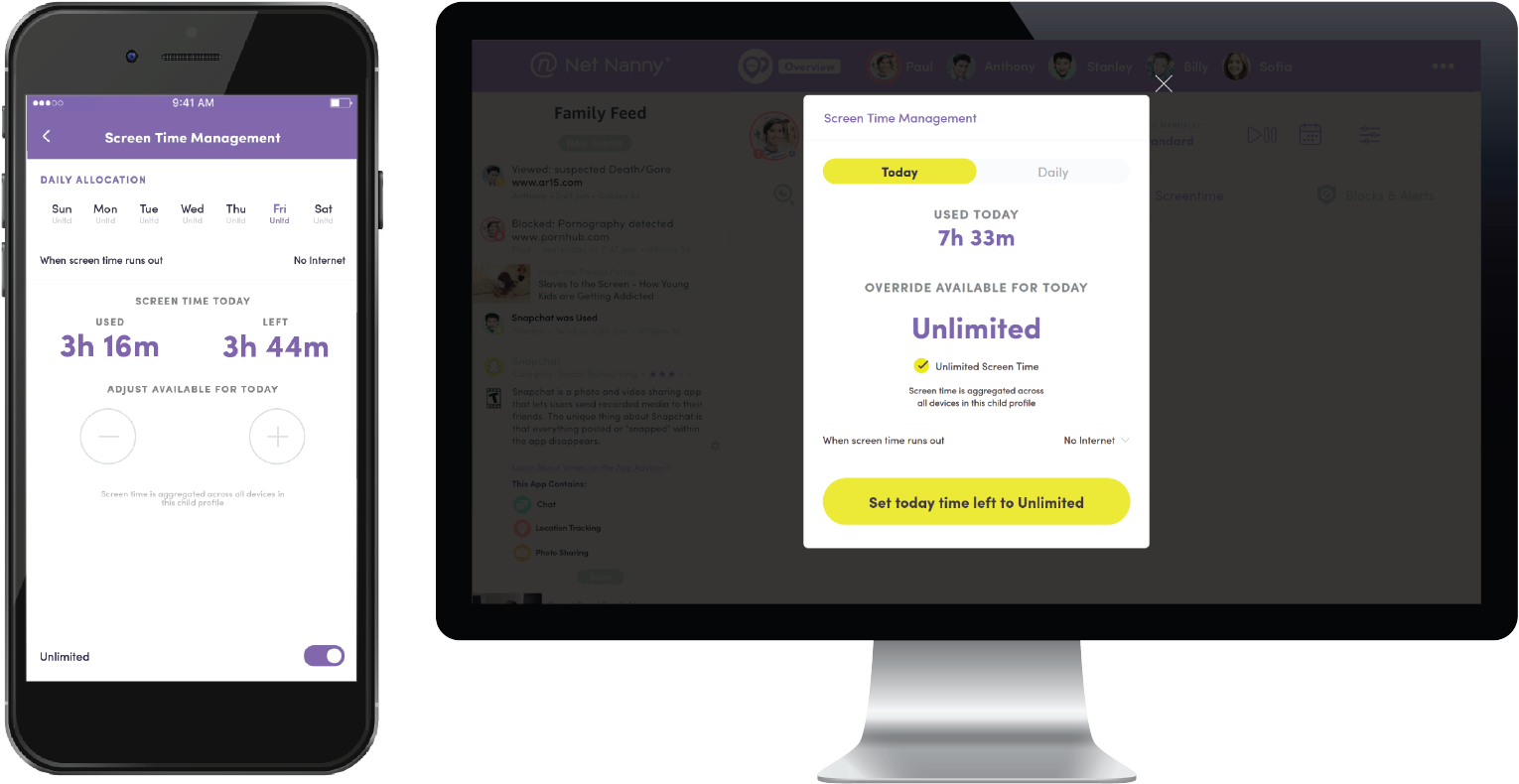
Net Nanny gave our test 9-year-old unlimited screen time by default, but that's easy to change. We were able to set separate usage time limits for every day of the week, and with a precise number of minutes each time (many apps support only 15 or 30-minute increments, and Mobicip schedules usage time in one-hour blocks only.)
When screen time is up, you can opt to pause the device, prevent app usage, or just block internet access. That's a handy level of control you won't get with most apps.
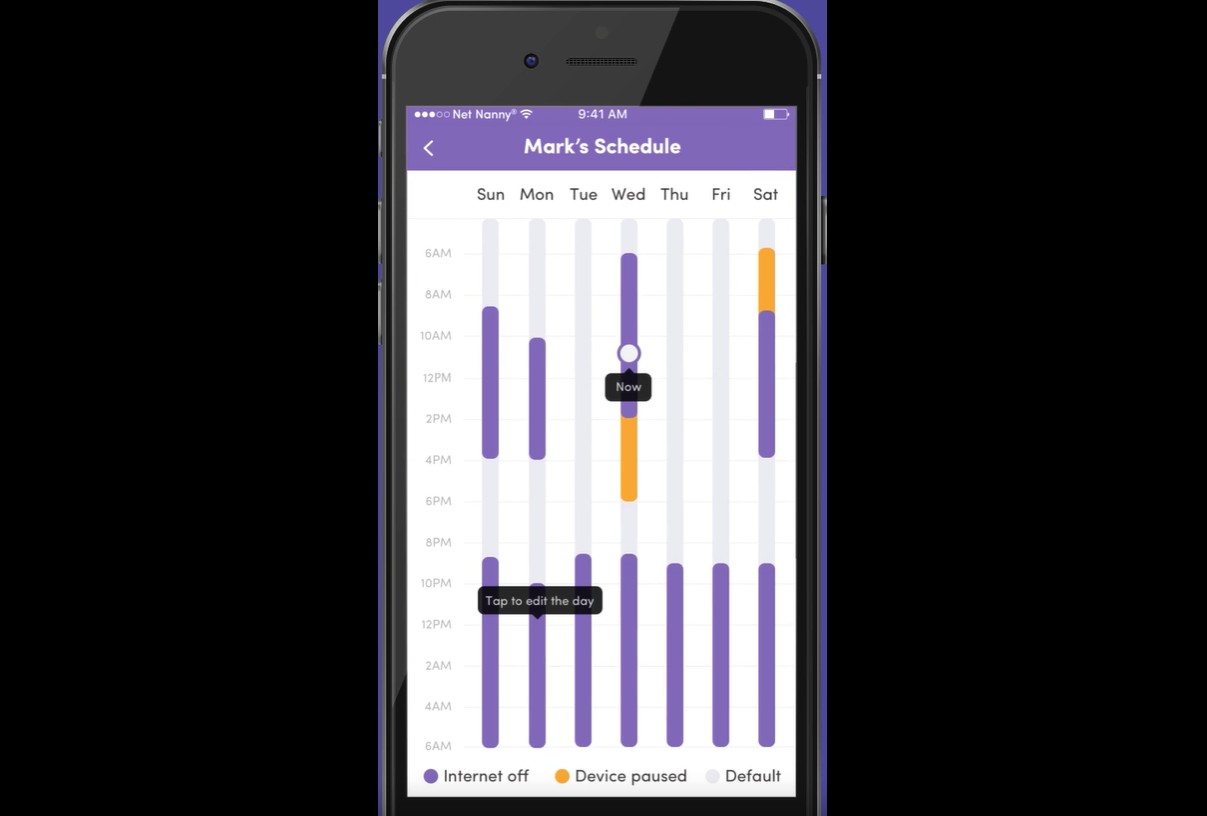
We couldn't initially find any way to schedule specific times when a device could be used, for example, to block device access from bedtime until the morning. The Help site pointed us in the right direction: for some reason, Net Nanny places time scheduling in an entirely different area of the control panel, doesn't link them, and doesn't highlight the feature later (it's the bottom option of a drop-down list.)
Once you find it, though, the scheduler works more or less as expected, allowing you to allow or deny internet access in one-hour blocks throughout the day. Many apps only support a single range ('8am to 9pm'), but Net Nanny's approach gives you far more control, for example allowing you to deny device use at mealtimes (5-6pm) and restore it for an hour or two afterward.
Net Nanny: Content filtering
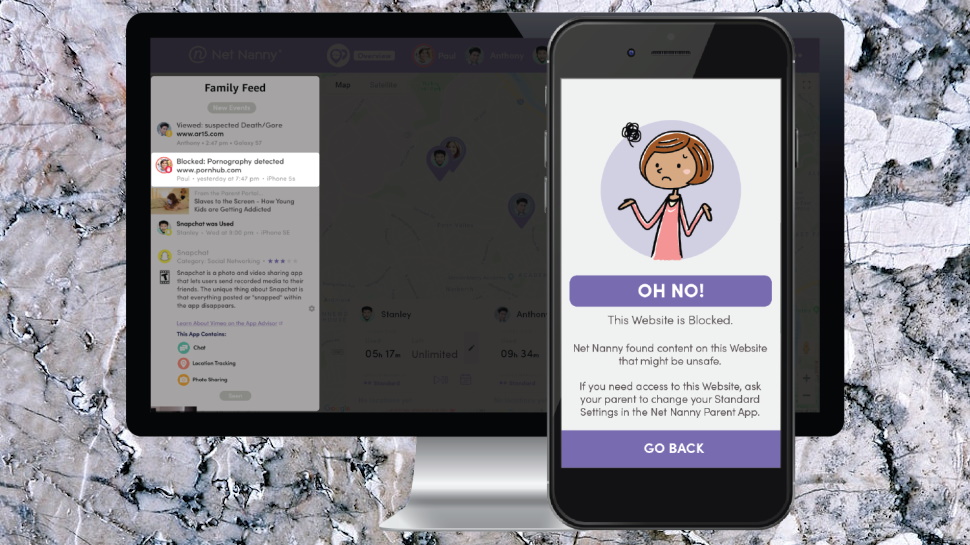
Most parental control apps filter web content using blacklists and whitelists, but Net Nanny is much smarter. Real-time text analysis looks for dubious content as it's accessed, giving the app a chance of blocking even brand new dangers. And Net Nanny even takes account of context, enabling it to tell the difference between a Wikipedia article that references drugs in a responsible and relevant way, and a site that really, really doesn't.
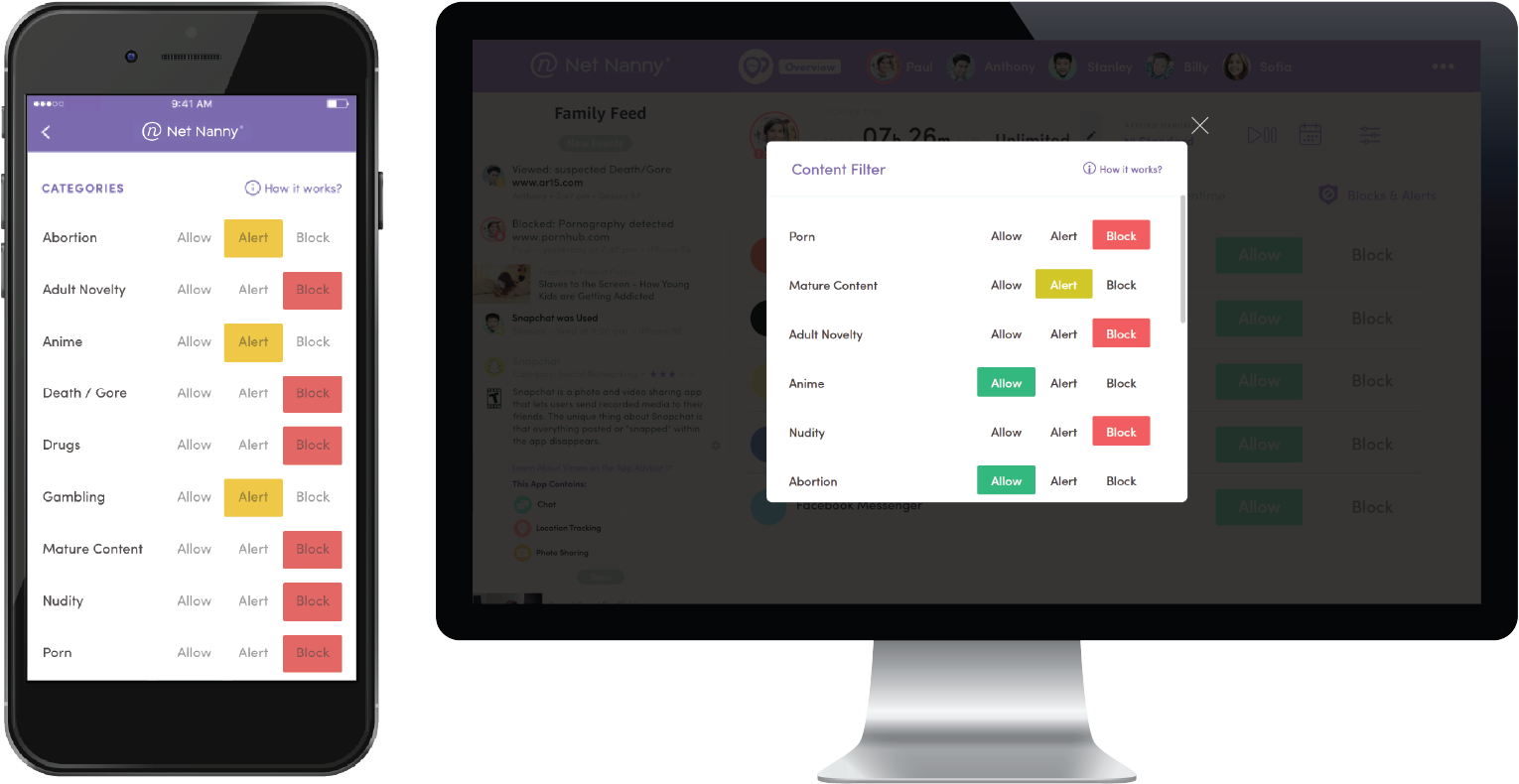
Net Nanny's content filtering can be customized using 14 categories: Drugs, Porn, Suicide, Weapons and more. Each category has three settings: always block, always allow, or an intermediate 'alert' (the child can access the content, but you'll be warned they've done so.)
You can also add custom filters that block content including a specific keyword or phrase. That gives you a lot of control but could block some worthwhile sites, as you won't fully benefit from Net Nanny's context-sensitive analysis. Adding 'suicide' or 'self-harm' might prevent access to genuinely dangerous forums, for instance, but may also block access to useful mental health resources.
If you need more control, Net Nanny supports building your own custom lists of sites it'll always allow, or always block. That's particularly handy if your child finds a blocked site she thinks should be available. Tap 'Request Access' in the child's app, the parent app raises an alert, and if it looks reasonable, you can add the site to the child's whitelist with a tap.
A bonus 'Mask Profanity' feature tries to mask swear words, replacing them with hash signs (####.) This didn't quite work 100% of the time but did much better than we expected. After we entered our favorite profanities at Google, for instance, Net Nanny masked our original search term, then hid it in all but one of our search terms, too.
Although this worked as expected, Net Nanny's child app crashed a couple of times during the review, leaving us to access whatever sites we like. That might be an issue relating to our specific device or its setup, but it's an issue we've not seen with other providers, and has to be a concern.
Net Nanny: App management
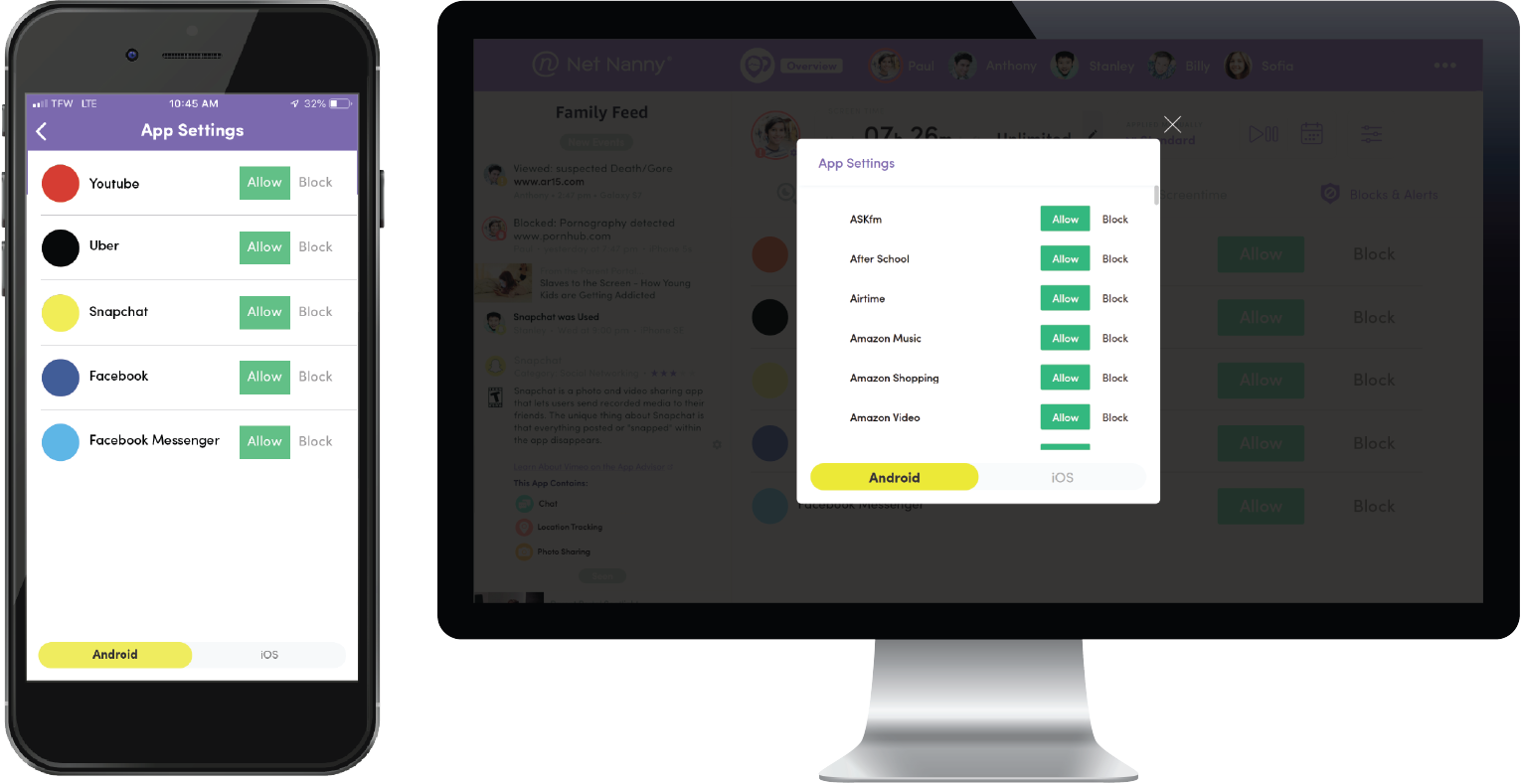
Net Nanny supports viewing the apps on your child's Windows device, getting alerts about newly installed apps, and blocking anything unsuitable.
There's support for blocking iOS apps, too, but only from an approved list. That's not unusual, though - iOS doesn't allow parental control apps as much power as Android - and Net Nanny's list is at least a long one, with around 125 top apps.
Whatever your platform, making this happen is easy - just scroll down the app list and tap Allow or Block as necessary. Social Media is listed as a separate category, allowing you to block all social media apps with a tap.
If that's too extreme, you can selectively block or allow individual platforms as necessary. An intermediate 'Protect' setting allows access but uses Net Nanny's content filters to block dangerous content. It's only available on a few sites, but they're all big names: Facebook, Instagram, Pinterest, TikTok, Tumblr, Twitter and YouTube.
We tried this with some custom keywords, and it delivered. If we set our filter to 'Block', Net Nanny didn't display content which contained the test keywords; if we set it to 'Alert', our test device could view the content, but we saw a warning in the Parent's dashboard.
What you don't get is any option to limit app use by time. ESET Parental Controls can set app usage to a set number of minutes, or a scheduled time of day, potentially very useful ('you can play that game, but only for 30 minutes of your three hours, and only in the evenings.')
Net Nanny: Location tracking
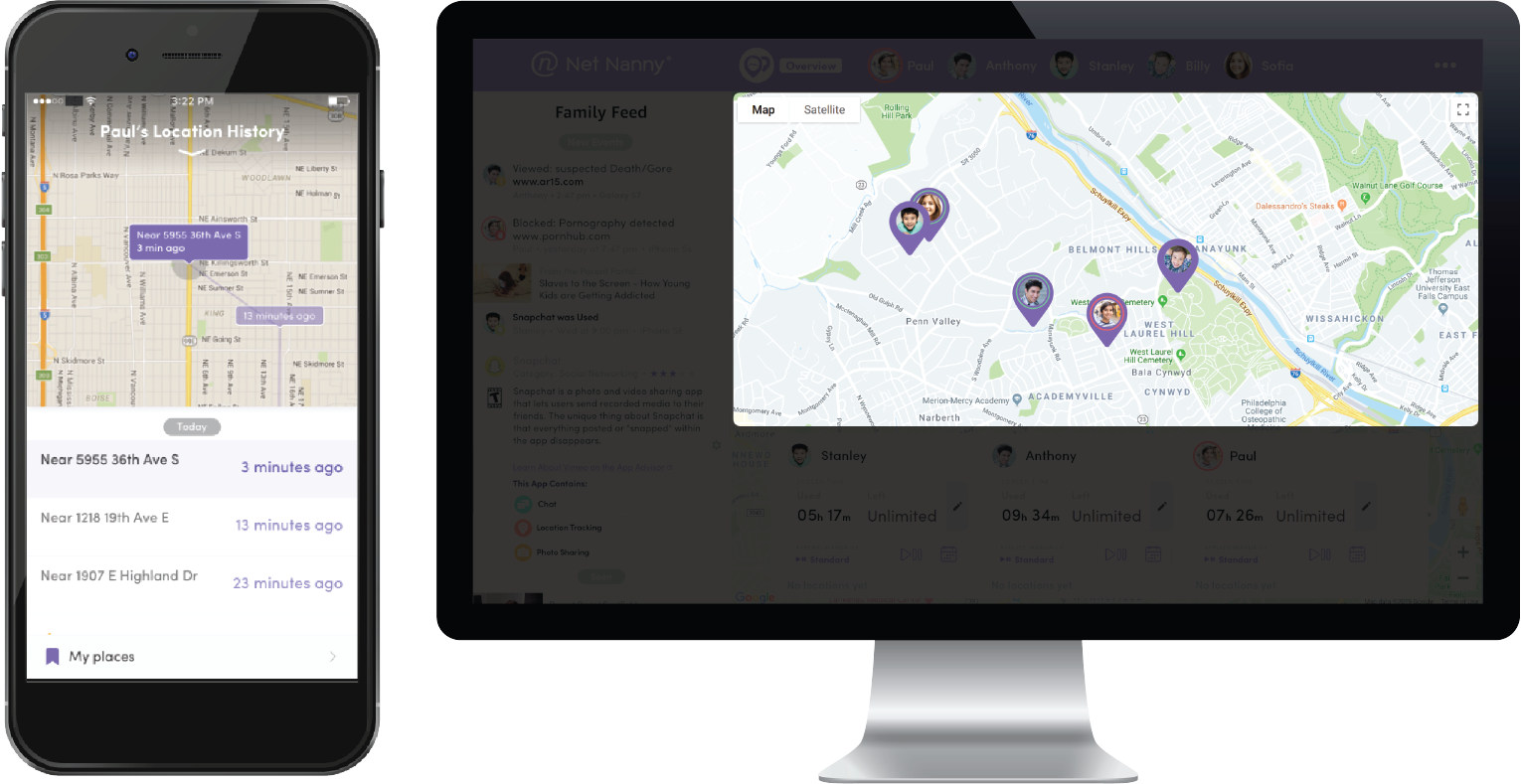
Tapping Net Nanny's Location tab displays the location of your child's device on a regular Google map, with nearby stores and businesses highlighted, and we even got access to Street View when accessing our dashboard via a browser. That could be useful if you don't immediately recognize a location, or you're wondering why your child is there, and it's an improvement on the plain street-name-only maps you'll get with some parental control apps.
Net Nanny detected and displayed our location correctly, and it didn't stop with the usual pin icon, either. It also displayed our approximate address, and how long we'd been there.
By default, Net Nanny displays the current location, but a toggle at the bottom of the screen shows location history, instead. That's a useful and unusual extra, although one or two apps deliver even more (Kidslox also displays location history over a week, and adds journeys in the last 24 hours, too.)
Tapping the location marker accesses Net Nanny's basic geofencing support. You can give the location a name (Home, School), though there's no way to edit the address (ours was a few buildings out.) You're able to tell Net Nanny whether you'd like to be alerted when your child arrives at the location, leaves, or both. You can apply the same rules to everyone in your family, too, so you don't have to set them up separately.
This has some major limits. You can only use a place one of your children has visited before, for instance. There's no way to set up a zone in advance, so you're notified when they arrive somewhere they've never been before, which might be one of the key reasons for setting up geofencing in the first place.
There's no option to set zone size, either, so Net Nanny can't reliably be used as a general location monitor, for instance, to raise the alert if your child is more than a quarter of a mile from home.
Plus, location tracking only works for iPhone and not Windows or Mac devices. If you can live with those issues, though, Net Nanny's mapping features are easy to use, and its location history is a welcome plus.
Net Nanny: Monitoring
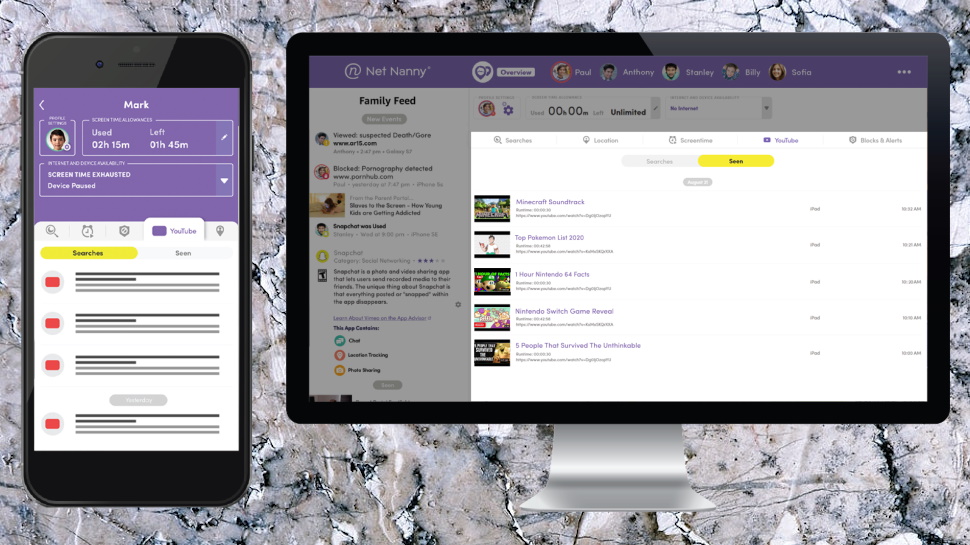
Net Nanny's web dashboard includes several useful monitoring tools. You can watch your child's remaining screen time count down, for instance, and look at reports of how it's been used in the past week, or month.
A Searches tab shows recent internet history searches, their time, and the device where they were used.
A YouTube panel correctly showed our YouTube searches. A 'Seen' tab should display the videos we'd watched, but it remained blank throughout the review.
There are no tools for monitoring calls and texts, or managing your child's contacts. Check out Qustodio or Boomerang if that's a problem.
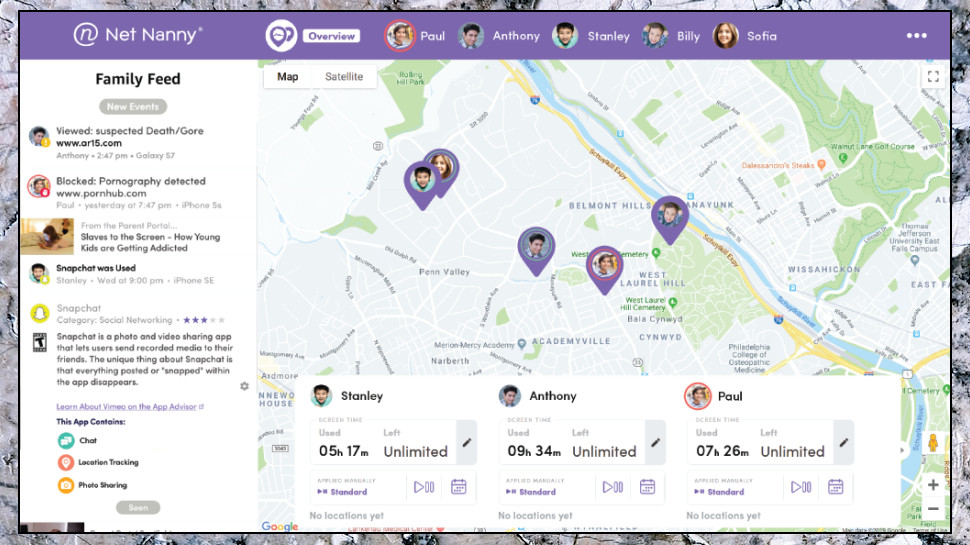
Net Nanny scores for its reporting, though, with a Family Feed view which not only summarises recent events, it adds useful links to explain common issues, and even points you to articles with useful guidance ('GroupMe & Other Dangerous Apps Parents Should Know'). It's a great way to make sense of what's happening, especially important if you've a lot of kids generating warnings, and a welcome plus for the service.
Net Nanny: The competition
It’s not difficult to point out that Net Nanny is not yet a complete parental monitoring solution and comes with a few drawbacks, the biggest of which is the lack of a message monitoring feature. This is why apps like Bark have consistently had an edge over Net Nanny.
While Bark may be on the expensive side, with its monitoring app costing $14 per month, it comes with all the bells and whistles you require to keep a constant check on your child’s activity. For instance, it supports both Android and iOS devices, making phone and location monitoring easy.
You also get a 7-day free trial with Bark, whereas Net Nanny has done away with its 14-day trial, which is no longer offered. Plus, you can add unlimited devices at this price, whereas Net Nanny can protect a maximum of 20 devices with its highest-tier plan.
While Net Nanny is already pretty affordable, with an effective cost of just $3.33 per month, it can quickly become expensive if you’re trying to monitor more than one device. This is why you could look at options like Mobicip, which offers a Lite plan at just $2.99 per month, allowing you to manage up to five devices.
You get all the basic features, such as website blockers, screen time limits, activity reports, and the ability to remotely lock your child’s device from anywhere.
Final verdict
Net Nanny is a robust parental monitoring application, especially if you’re trying to track your child’s iPhone, Mac, or Windows devices. It offers a solid set of features, such as screen time monitoring, content filtering, and app management, all of which are easy to use and worked pretty well during our testing.
That said, it does have a few drawbacks, such as the lack of proactive geofencing and Android support. Even so, it remains on the cheaper end of the market, costing just $40 per year, which boils down to $3.33 per month. Only a few providers, such as Mobicip, are able to beat this price.
However, Net Nanny does not support the latest versions of macOS, with the last supported version being around five years old, which significantly impacts its usability. If you’re looking for Android tracking, you’ll need to consider other options such as Bark or Qustodio.
- We've also featured the best free parental control software







 English (US) ·