
Huion Kamvas Pro 24 Gen 3 review: one-minute review
The Huion Kamvas Pro 24 Gen 3 is a large-scale drawing tablet that — as the name implies — is designed firmly with the experienced artist in mind. However, I’d argue that if you’re an enthusiastic amateur who's looking to create art on a much larger scale, then it’s attractively priced enough to be worth considering, too.
Performance is impressive, too. Thanks to its expansive color gamut, the Huion Kamvas Pro shows off any artwork with the same level of vibrancy seen on many of the best drawing tablets. Not only does it avoid any trace of parallax or jitter, it’s capable of extreme tilt angles, plus its pressure sensitivity appears super accurate, even if I’d argue its 16K pressure levels don’t offer any palpable improvement over 8K. In addition, its driver software allows you to tweak a significant range of options, from pressure curves to assigning shortcuts to those concentric dials on its remote.
Huion’s styluses are also decent, although I wouldn’t say they stand out over and above their nearest rivals. I found both the Slim Pen PW600S and chunkier Pen PW600 comfortable to use over long drawing sessions, although neither displayed the same pitch-perfect balance as those offered by the XP-Pen. They do offer eraser shortcuts on their tips, though — as a perennial bumbler, the ability to quickly nix my mistakes is one of my must-have features.
Looking at the Huion Kamvas Pro 24 Gen 3 as a complete package then, it's easy to recommend. What you lose in portability compared to smaller options, you gain in that epic sketching space. It’s capable of impressive precision and its color gamut means every hue positively glows on its screen. Moreover, its $1,399 / £1,299 / AU$1,999 price is competitive, coming in cheaper than rival Xencelabs' slate, although marginally more expensive than its nearest XP-Pen equivalent. All told, I think you’re unlikely to be disappointed with this purchase.
Huion Kamvas Pro 24 Gen 3 review: price and availability
- Launched on October 17, 2025
- List price of $1,399 / £1,299 / AU$1,999
Having launched on October 17, 2025, the Huion Kamvas Pro 24 Gen 3 is available now, for $1,399 / £1,299 / AU$1,999. To put that in a wider context, that’s cheaper than the Xencelabs Pen Display 24 — reduced from a list price of $1,899 / £1,850 (around $2,725) to $1,749 / £1,699 (around AU$2,725), but more than the XP-Pen Artist Pro 24 (Gen2) 4K, which has dropped down from a list price of $1,299.99 / £1,199 / AU$1,899.99 to $1,039.99 / £1,079 / AU$1,424.99. As such, the Huion slate sits firmly in the middle of the pack of the largest tablets for price.
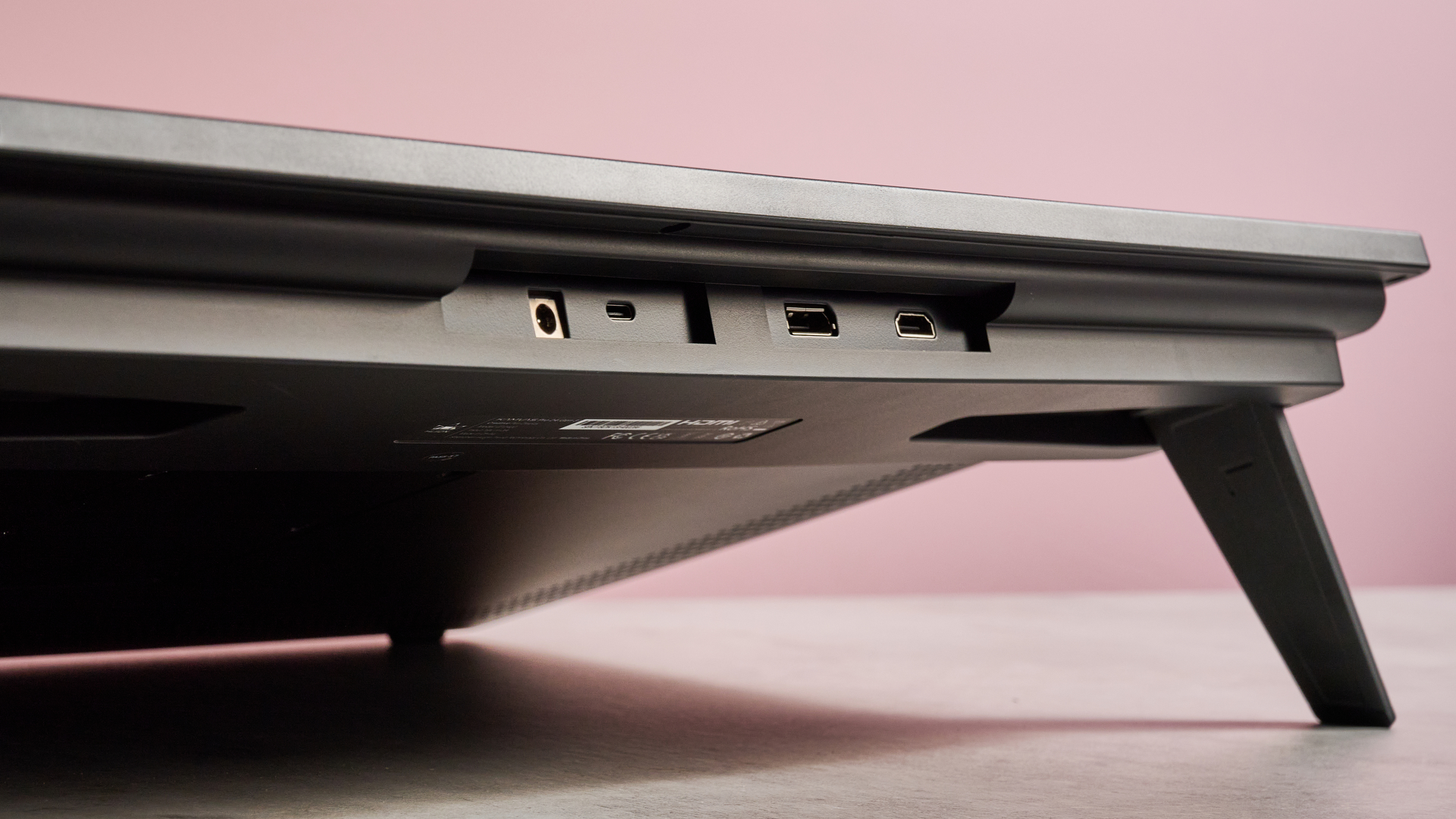
But what does that spend net you? In addition to the tablet itself, you get the Huion Keydial Remote, all the cabling you could require (including HDMI and USB-C / USB connections), both the Pen PW600 and Slim Pen PW600S styluses, and a pen box. There’s no case or bag included, while its stand is built in. Unusually, though, it also includes a G1 Colorimeter for calibration, which is a nice touch for professional artists and designers.
Huion Kamvas Pro 24 Gen 3 review: specs
Swipe to scroll horizontally
Dimensions | 23.2 x 14.3 x 0.9 inches / 589.2 x 364 x 22.7mm |
Active drawing area | 20.70 x 11.65 inches / 525.89 x 295.81mm |
Weight | 14.04 lbs / 6.37kg |
Display resolution | 3840 x 2160 pixels |
Pressure levels | 16,384 |
Compatibility | Windows 10 or later; macOS 10.12 or later; Android 6.0 or later; Linux (Ubuntu 20.04 LTS) |
Huion Kamvas Pro 24 Gen 3 review: Design
- Huge 24-inch 4K screen
- Good range of accessories
- Lower 185ppi pixel density than some smaller slates
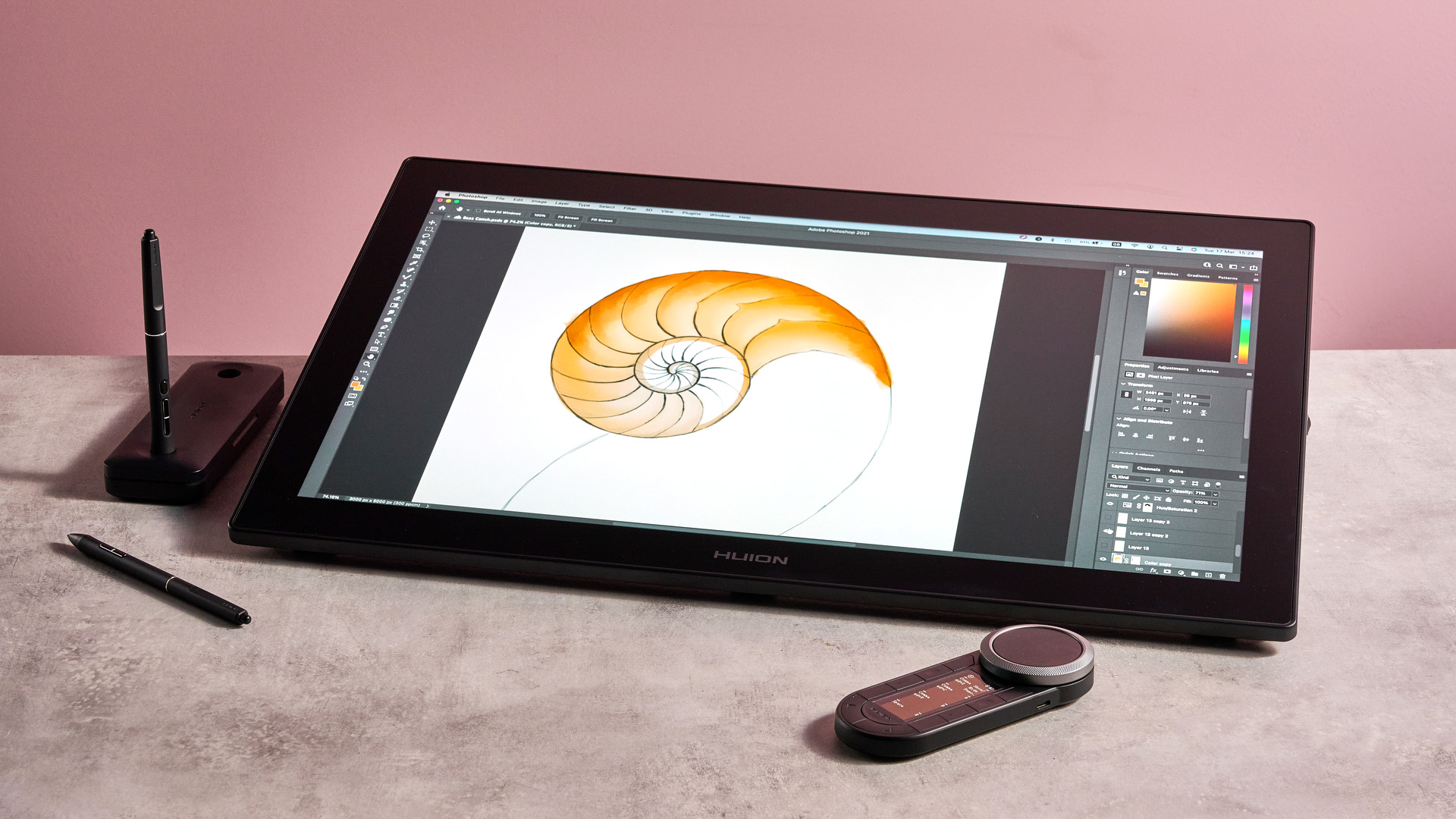
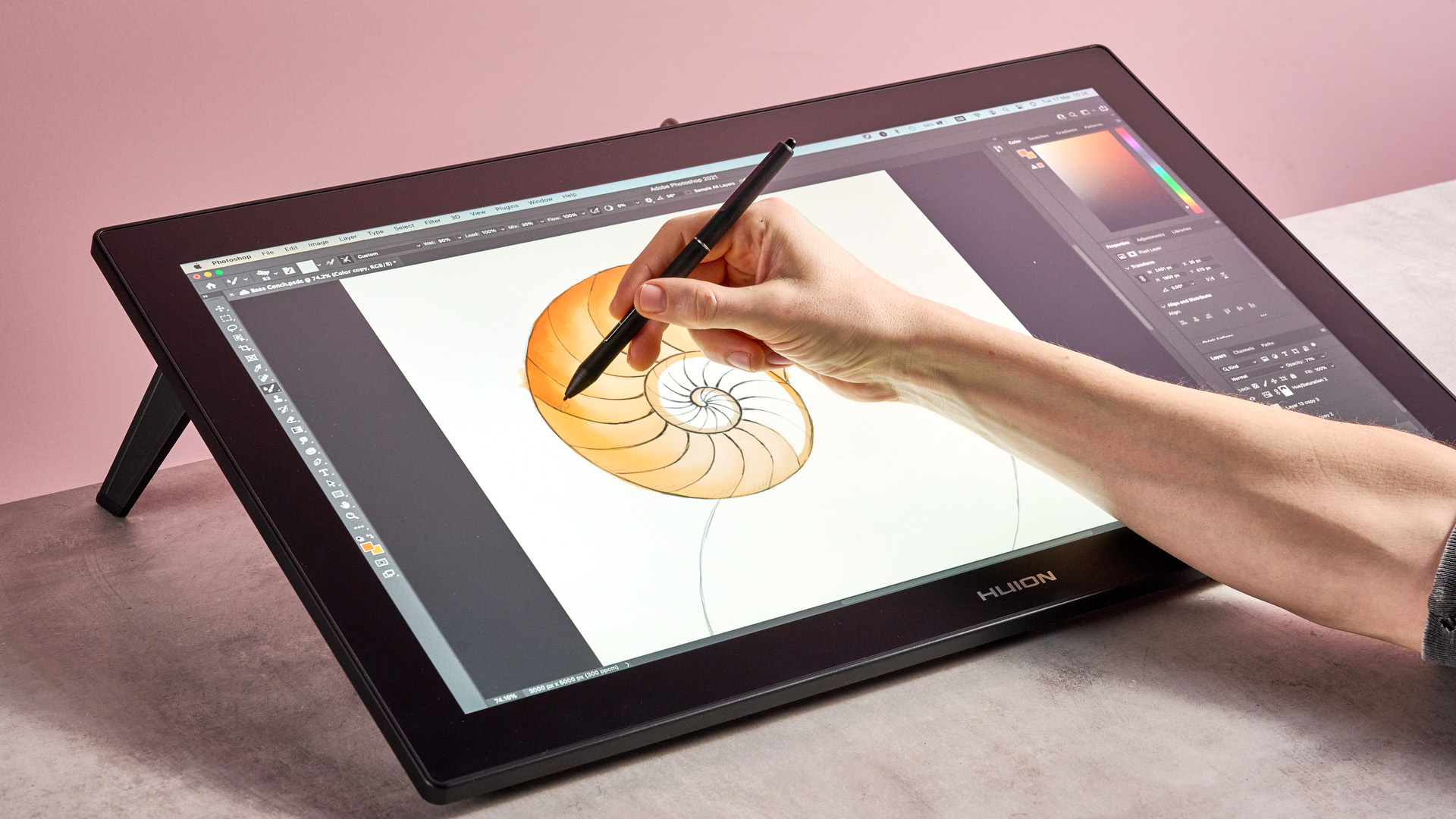
The first thing you’re likely to notice about the Huion Kamvas Pro 24 Gen 3 is its size. As the name suggests, its screen is a colossal 24 inches — very few drawing tablets exceed this size, apart from Wacom’s colossal Cintiq Pro 27. And while I’ve previously stated that I prefer 16-inch models for the flexibility and portability of their size, the Huion Kamvas Pro 24 Gen 3 has gone a long way towards convincing me that I might have been wrong.
Having such an enormous canvas provides the freedom to hone fine details while still being able to see them in the context of the wider piece. However, since it offers a 4K resolution, the Kamvas Pro 24's pixel density of 185ppi is actually lower than some drawing tablets — it falls shy of the Xencelabs Pen Display 16’s 275ppi, for example. That’s the price you pay for all that extra screen estate, though.
And while we're back to its size, I have to say that I didn’t notice the Huion’s extra bulk as much as I’d thought I would. Part of this is because it requires a more permanent workstation setup than some of its immediate rivals. Although I loved using Xencelab’s drawing tablet while kicking back on the couch, it was abundantly clear from the off that trying to do the same with the Huion model might lead to crush syndrome. Once set up as a workstation, though, the Kavas Pro 24 feels like the beating heart of your sketching setup.
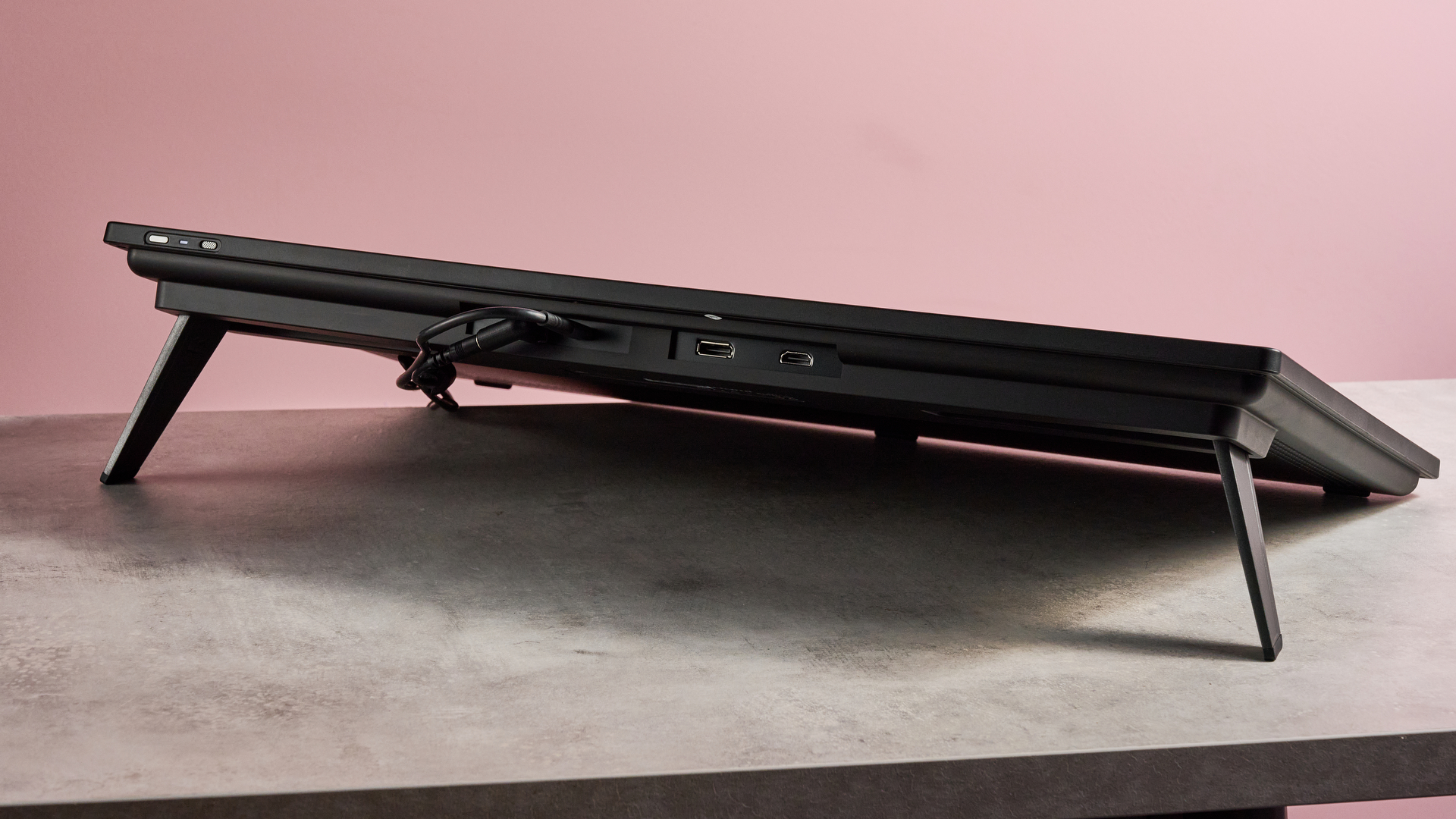
This is definitely helped by the Kamvas Pro 24’s ergonomic design. Rather than needing a separate stand, its built-in feet will see it prop up at a comfortable angle of 20 degrees — although I can’t help but think that a couple of different height settings, so users could select the perfect angle for themselves, would have been better. Case in point: although it has a nice thick inch-wide bezel upon which to rest your wrist while you sketch, I didn’t often use it as the angle didn’t always feel the most natural for me.
Elsewhere, the rest of the sketching experience feels pretty great. The screen is made of Huion’s lightly etched Canvas Glass 3.0, and while on a personal level I'd prefer a bit more bite like some paper-like displays exhibit, it’s neither too slippery nor prone to catching as some other drawing tablets out there. And when you’re using the felt nibs, in particular, there’s definitely some tactile feedback as it glides across the screen.
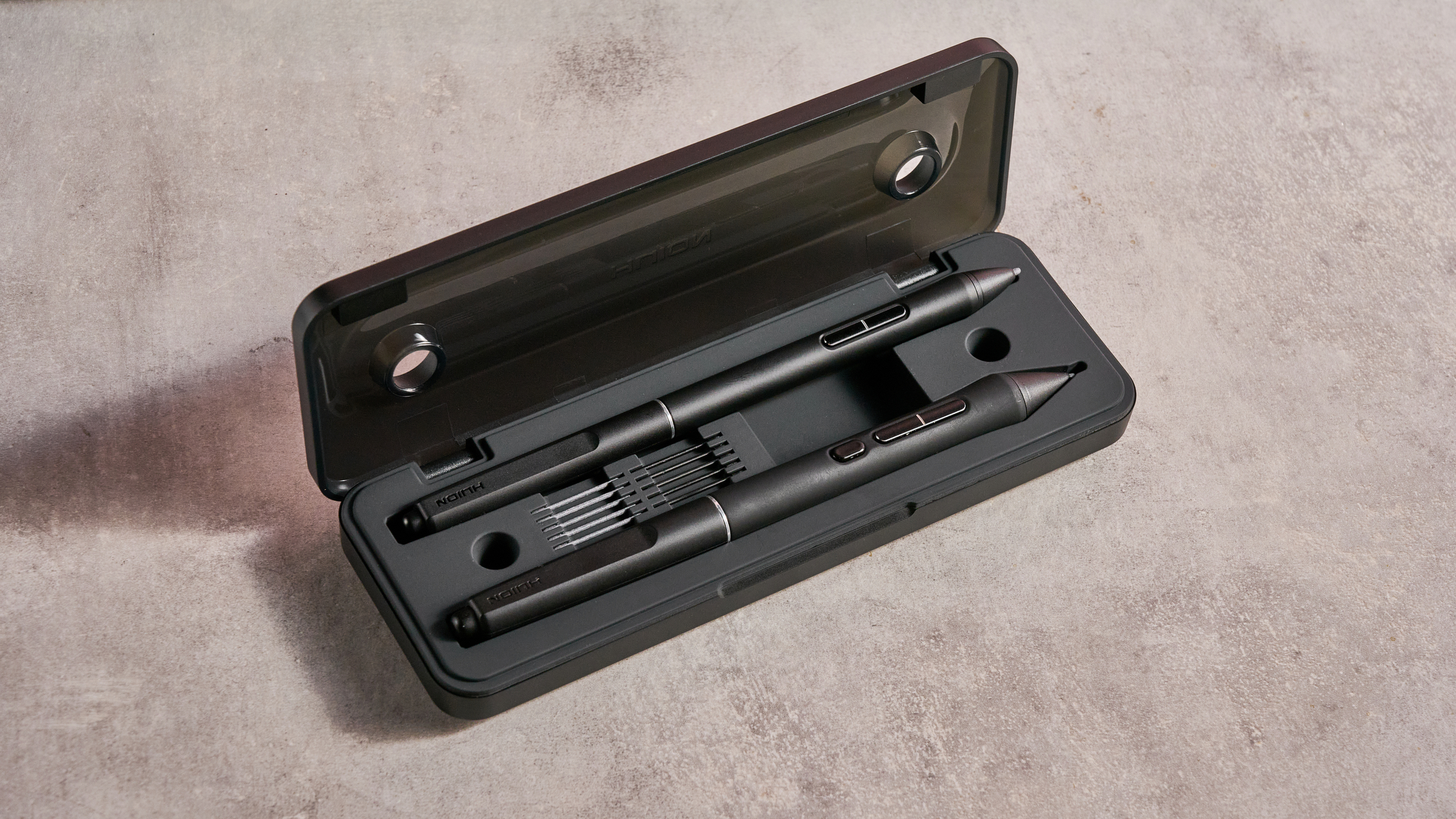
Speaking of, not only does the Huion come with two styluses, one streamlined and one pro, its bundle is crammed with accessories. In addition to a wallet that includes 11 spare nibs, it also comes with all of the cabling you could need — USB-C-to-USB-C or HDMI cable — and, remarkably, the Huion G1 Colorimeter for calibrating the tablet. There’s no case included, although I suppose that’s understandable since this isn't really a very luggable device.
Given this is the kind of tablet that will be permanently stationed on a desk, I didn’t find the cable setup at all onerous. Most of the time, you’ll need just a USB-C hookup for your laptop and a power cable. Plugging in an HDMI cable for screen recording or using the shortcut remote wired will add to this — but, for the most part, your cable flow will be a basic two-lane road rather than a massive interchange.
- Design score: 4.5 / 5
Huion Kamvas Pro 24 Gen 3 review: performance
- Bold, accurate color
- Zero parallax or jitter
- 16K pressure levels offer little benefit over 8K
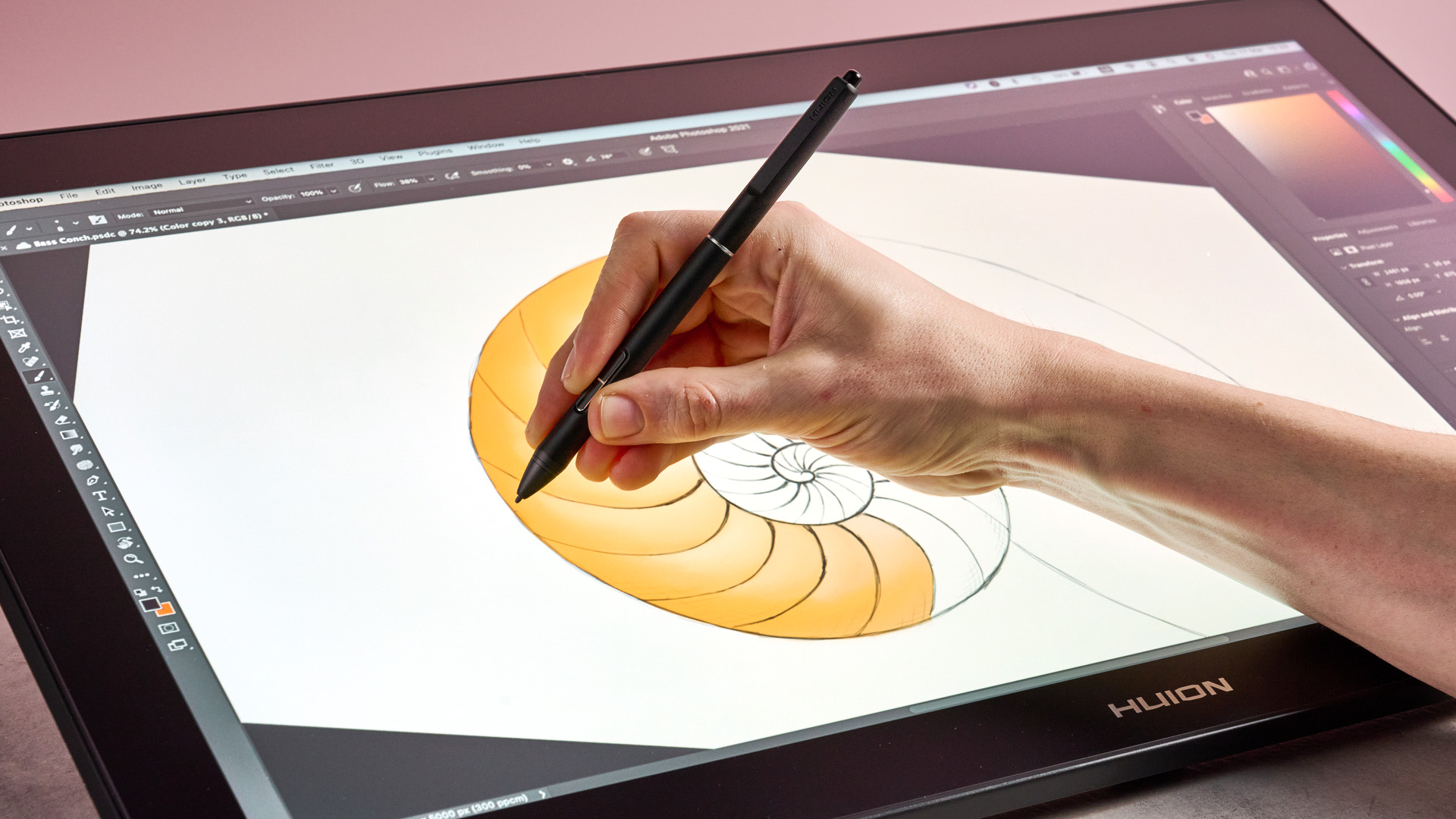
So how does the Huion Kamvas Pro 24 Gen 3 perform? Honestly, pretty smoothly. Drawing on it felt natural. Shaping arcs with a flick of my wrist was incredibly fluid, making the spiraling nautilus shell I was sketching far easier to shape, without having to spend time tidying up and correcting mistakes — my own personal achilles heel when drawing freehand.
But it isn't only with line drawings that the device excels. Once I moved on to coloring in my sketch with orange and peach inks, it became clear that the Huion also offers impressive color performance. Its color gamut includes 99% sRGB, 99% AdobeRGB, 98% DCI-P3 and 98% Display P3 coverage, narrowly edging out tablets such as the Xencelabs Pen Display 16, and meaning it’s capable of rendering your artwork in sumptuous, vibrant hues.
Obviously, basic issues such as parallax or jitter would be a deal-breaker given the Huion's cost, but I’m pleased to report it suffered neither: the brush always seemed to sit precisely below the stylus nib, while any lines drawn were impressively stable, even at high speeds. There was a bit of lag on occasion when I was laying down a lot of ink at speed — but, to be honest, I blame my aged MacBook Pro here rather than the tablet itself.
While carrying out these line tests, it quickly became clear that the packaged stylus is capable of some extreme drawing angles. According to Huion, this tops out at 60 degrees, but I wasn’t actually able to find an angle at which it stops recording an input. Basically, as soon as I could tilt the stylus enough for the nib to touch the screen, it was able to record the result, which means you’ll be able to sketch no matter the slant at which you’re holding the pen.
On paper, the stylus’s pressure sensitivity sounds similarly superlative, as it’s capable of 16K pressure levels. However, in practice, you’re unlikely to feel the benefit of this over the 8K what other tablets offer — it’s too granular for the human hand to detect. This was largely borne out in my tests. The curves I was capable of drawing didn’t show any smoother gradation of pressure, and while testing sensitivity out in the Huion driver software, I found it hard to maintain a specific pressure level consistently enough for the difference to be beneficial even if it were detectable.
Naturally, the driver software also allows you to customize the pressure sensitivity to more accurately imitate the responsiveness of different mediums. Not only can you choose from five preset pressure curves, but you can also create your own to tailor how quickly the stylus responds. This allowed me to replicate everything from a rock-hard H pencil to a nice, fluid marker.
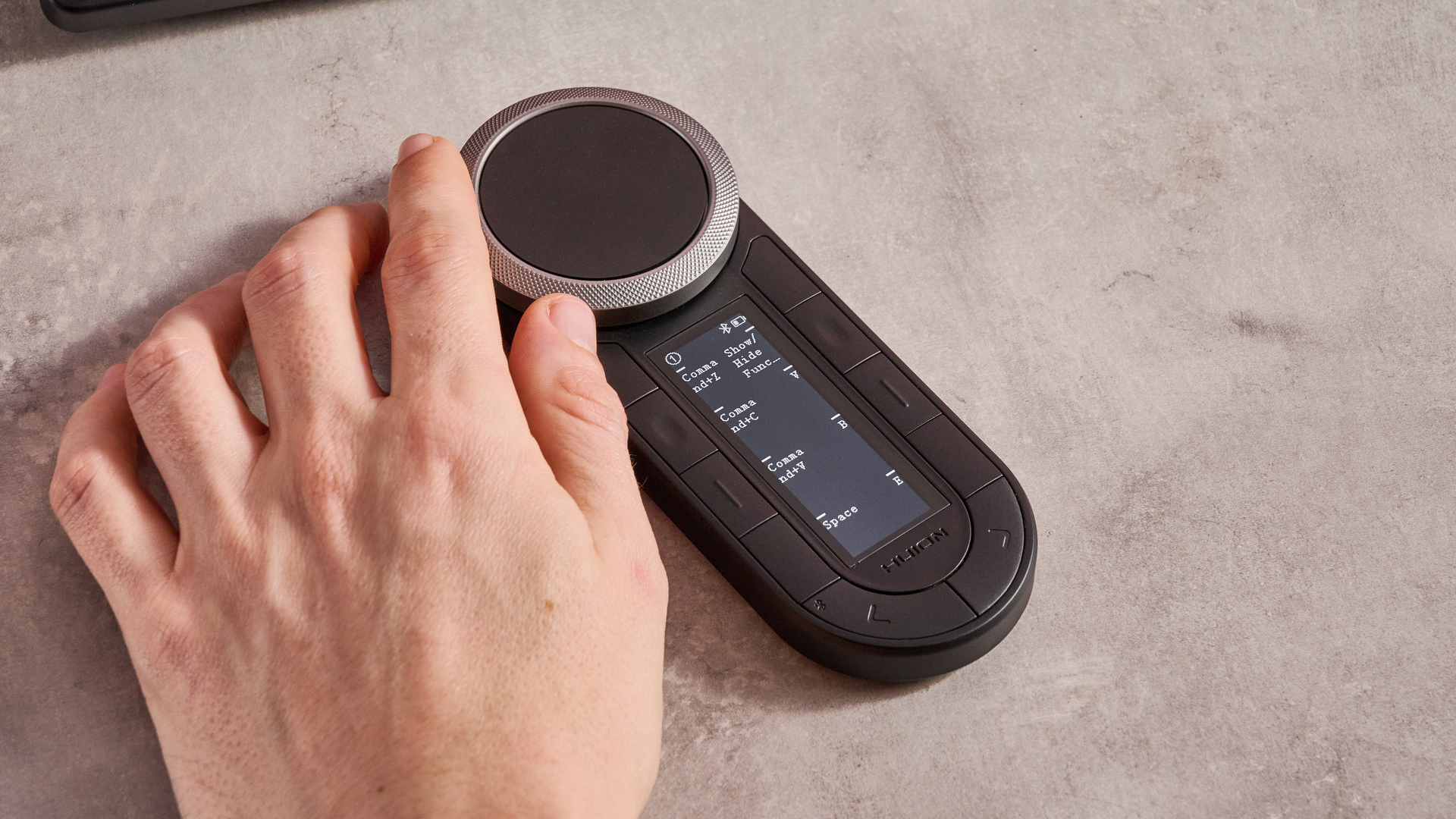
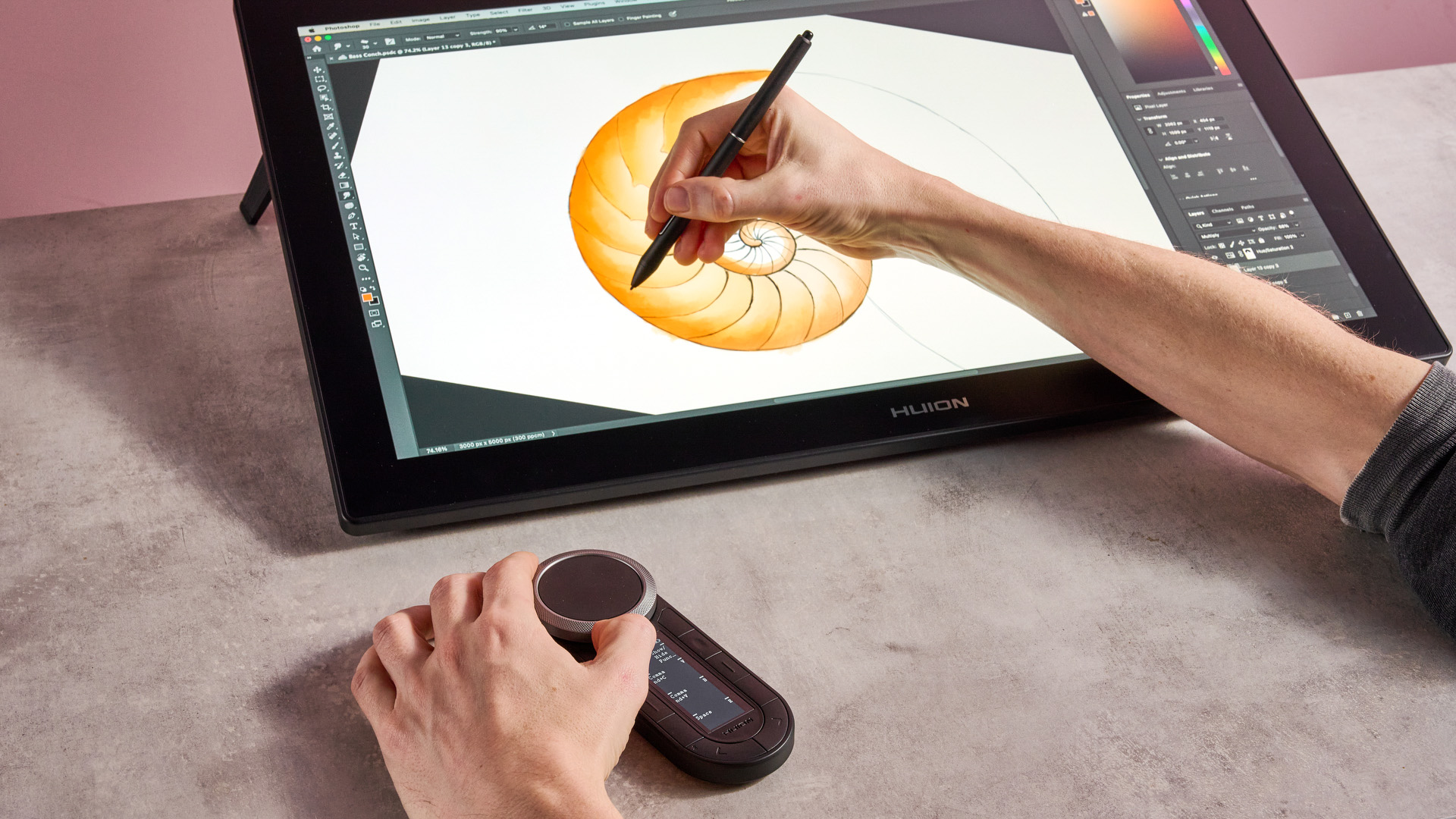
You can also use the driver software to customize the shortcuts on Huion’s fantastic Keydial Remote. Not only do its keys offer an array of handy shortcuts — whether that’s a keyboard key combo, text input, mouse clicks or tool specific functions — but it also features two concentric dials. Being able to set canvas zoom or brush size to one dial and canvas rotation or brush rotation to the other delivered a really fluid way to interact with the canvas, without having to switch up the tools I was using.
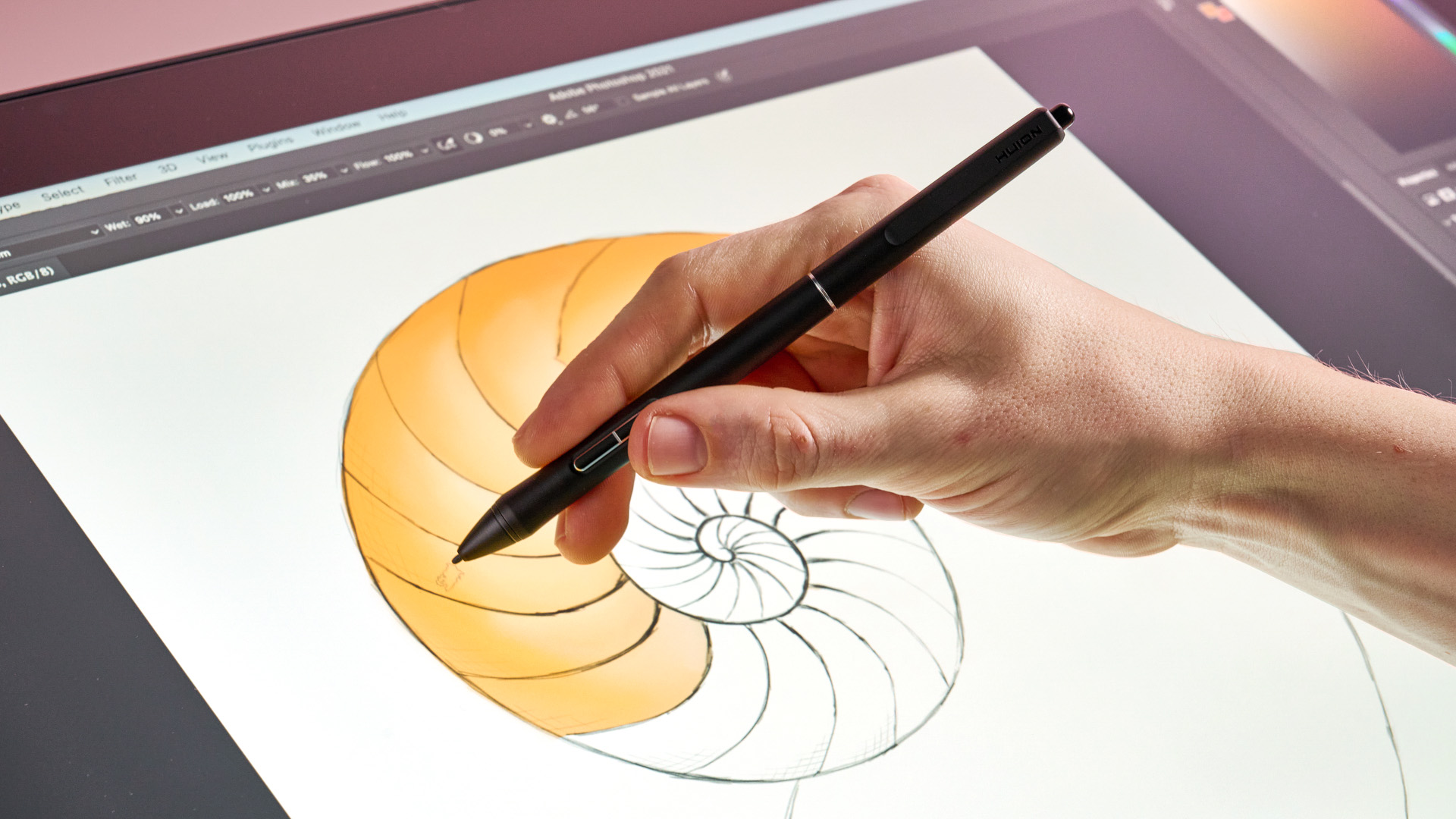
The shortcut buttons on both styluses are more standard: the Pen PW600 has three and the Slim Pen PW600S has two. The options on offer are incredibly helpful, particularly if you’re willing to look up a few of your drawing software’s keyboard shortcut combos. For example, I set them to control Photoshop brush pickup and clean settings, allowing me to quickly alter the mix of pigment on my brush at the tap of a button.
- Performance score: 5 / 5
Huion Kamvas Pro 24 Gen 3 review: stylus
- Comfortable and responsive
- Not quite as well balanced as the XP-Pen model
- Include eraser shortcuts
As I’ve mentioned above, the Huion Kamvas Pro 24 Gen 3 comes with two styluses — one chunky and pro, the other slim and refined — but whichever you use, you’ll find it pleasingly ergonomic. Both feel comfortable and natural in use, even across long sketching sessions for hours at a time. As is an issue with most styluses, I did occasionally knock their shortcut buttons accidentally; but that’s easy to avoid, if you’re careful with your grip.
Really my only criticism of Huion’s styluses is that they don't quite measure up to XP-Pen’s X3 Pro Slim Stylus and X3 Pro Roller Stylus. When I tested the XP-Pen Artist Pro 19 Gen 2, I raved about the exquisite balance of its styluses — since the fulcrum sits right on top of your fingers, it's easy to keep them in perfect equilibrium as you pivot and rotate them. By comparison, the balance of Huion’s styluses sits much further back.
Having said that, Huion’s styluses trump XP-Pen’s in a more practical manner: their inclusion of an eraser. And while I found these had a tendency to mark the screen on the Huion Kamvas Pro 19, my frantic rubbing out doesn’t seem to have defaced the Kamvas Pro 24’s display so far.
- Stylus score: 4 / 5
Should I buy the Huion Kamvas Pro 24 Gen 3?
Swipe to scroll horizontally
Value | Decent value, sitting in the middle of the pack of the mid-range drawing displays. Comes with almost every accessory you could need, plus a colorimeter. | 4 / 5 |
Design | A huge 24-inch beast whose 4K screen deliver a whole load of sketching space. Some more height settings for its legs would be nice, though. | 4.5 / 5 |
Performance | Very responsive sketching, without parallax or jitter. Vibrant colors, huge tilt angles and (slightly OTT) 16 pressure levels. Fantastic shortcut remote. | 5 / 5 |
Stylus | Super comfortable to use. Not quite as ergonomically well balanced as XP-Pen’s devices, but the Huion's styluses come with erasers. | 4 / 5 |
Buy it if…
You want a huge amount of drawing space
At 24 inches, the display here is huge, giving you a massive artboard to sketch on. While you can get bigger — the 27-inch XP-Pen Artist Pro 27 (Gen 2), for example — you’ll have to spend a fair amount more.
You’re after an awesome shortcut remote
With its concentric twin dials, the Huion Keydial Remote offers even more ways to flexibly interact with the canvas. It’s the best I’ve tested to date.
Don’t buy it if…
You want to take it elsewhere
This drawing tablet offers up both vast proportions and top performance — but portable it certainly isn't. At 6.37kg, it won't be accompanying you on your commute.
You’re after the biggest bargain
The Kamvas Pro 24 Gen 3 is great value, but you can get smaller slates for less. And even if you must have a screen this expansive, the XP-Pen Artist Pro 24 (Gen 2) 4K costs less money.
Huion Kamvas Pro 24 Gen 3 review: also consider
Swipe to scroll horizontally
Dimensions | 23.2 x 14.3 x 0.9 inches / 589.2 x 364 x 22.7mm | 24.4 x 15.3 x 1.4 inches / 619.8 x 388.6 x 3 5.6mm | 25.1 x 16 x 1.7 inches / 638 x 408 x 44mm |
Active drawing area | 20.70 x 11.65 inches / 525.89 x 295.81mm | 20.75 x 11.7 inches / 527.1 x 297.2mm | 16.1 x 9.1 inches / 409 x 230mm |
Weight | 14.04lbs / 6.37kg | 14.55lbs / 6kg | 16.1 lbs / 7.3kg |
Display resolution | 3840 x 2160 pixels | 3840 x 2160 pixels | 3840 x 2160 pixels |
Pressure levels | 16,384 | 8,192 | 16,384 |
Compatibility | Windows 10 or later; macOS 10.12 or later; Android 6.0 or later; Linux (Ubuntu 20.04 LTS) | PC: Windows 7 or later Mac: OS X 10.11 or later (latest update) Linux: Ubuntu 14.04 or above, Debian 9.5, CentOS 7.0 or above, RedHat 7.0 or above | Windows 7 or later; macOS 10.13 or later; Android USB3.1 DP1.2; Chrome OS 88 or later; Linux |
Xencelabs Pen Display 24
The Xencelabs Pen Display 24 offers a gorgeous 4K display, showing off bold, vibrant colors. However, it’s the drawing experience that will really stick with you, feeling precise while offering just enough bite to its textured glass to deliver a realistic drawing experience. It’s also comfortable and super ergonomic to use, thanks to its decent wrist-rest. Read our full Xencelabs Pen Display 24 review.
XP-Pen Artist Pro 24 (Gen 2) 4K
The XP-Pen Artist Pro 24 (Gen 2) 4K boasts many of the same strengths as the Kamvas Pro 24 Gen 3, including a huge 24-inch 4K display, broad color gamut. and built-in stand. But perhaps the most compelling factor is that price — at its reduced price of $1,039.99 / £1,079 / AU$1,424.99, it’s considerably cheaper than the Huion, making it a super-tempting option. Read our full XP-Pen Artist Pro 24 (Gen 2) 4K review.
How I tested the Huion Kamvas Pro 24 Gen 3
- Tested it over the course of several weeks
- Used it for line drawing, blending colors and touching up images
- Tried out all of the core accessories and driver software
I used the Huion Kamvas Pro 24 Gen 3 for several weeks, for doing line sketches, blending oil paint brushes, and touching up images in Photoshop. In addition, I also carried out a range of line tests to gauge the accuracy of the styluses and how they responded to pressure.
In terms of specifics, I put all of the tablet’s accessories through their paces while creating artwork, including both styluses and the Keydial Remote. To test the driver software, I tweaked pressure curves and programmed various shortcuts for the styluses and remote to see how well they functioned in a real-world environment.
I have been testing gadgets, including a range of mid-market drawing slates, at TechRadar for several years now. I’ve been creating art as an amateur for several decades, both digitally and using acrylic and canvas, which gives me the first-hand experience required to be able to assess what artists look for in drawing tablets such as these.
- First reviewed: March 2026
- Read more about how we test






 English (US) ·