
Sometimes it’s the simplest things that confound you with AI. Creating an image in ChatGPT is super simple — just select Create image from the + menu and type in what you want to see. But when it comes to deleting that image from your Library, the delete option only appears for newly created images, since the new Library was added in May 2026, but not for your older images.
ChatGPT recently added file storage, and you can find your files in the new Library option in the sidebar menu. It's easy to add or delete files you've uploaded and images you've created from here; however, it won't work with older images created before it introduced the Library.
ChatGPT still treats your older images separately and keeps them in the Images menu.
Choose Images in the sidebar menu of ChatGPT’s web interface, or the top-left ‘two horizontal lines’ menu in the mobile app, and you’ll see every single image you’ve ever created with ChatGPT in one big grid. Tap or click on an image to view it full size, and you get options to edit or share it…but no delete option.
If you’re anything like me, you’ve had several attempts at creating an image before ChatGPT finally got it right. And you don’t necessarily want to keep all the old versions hanging around in your image library. But there’s seemingly no way to delete them — or so I thought, until I found this little workaround.
How to delete old images in ChatGPT
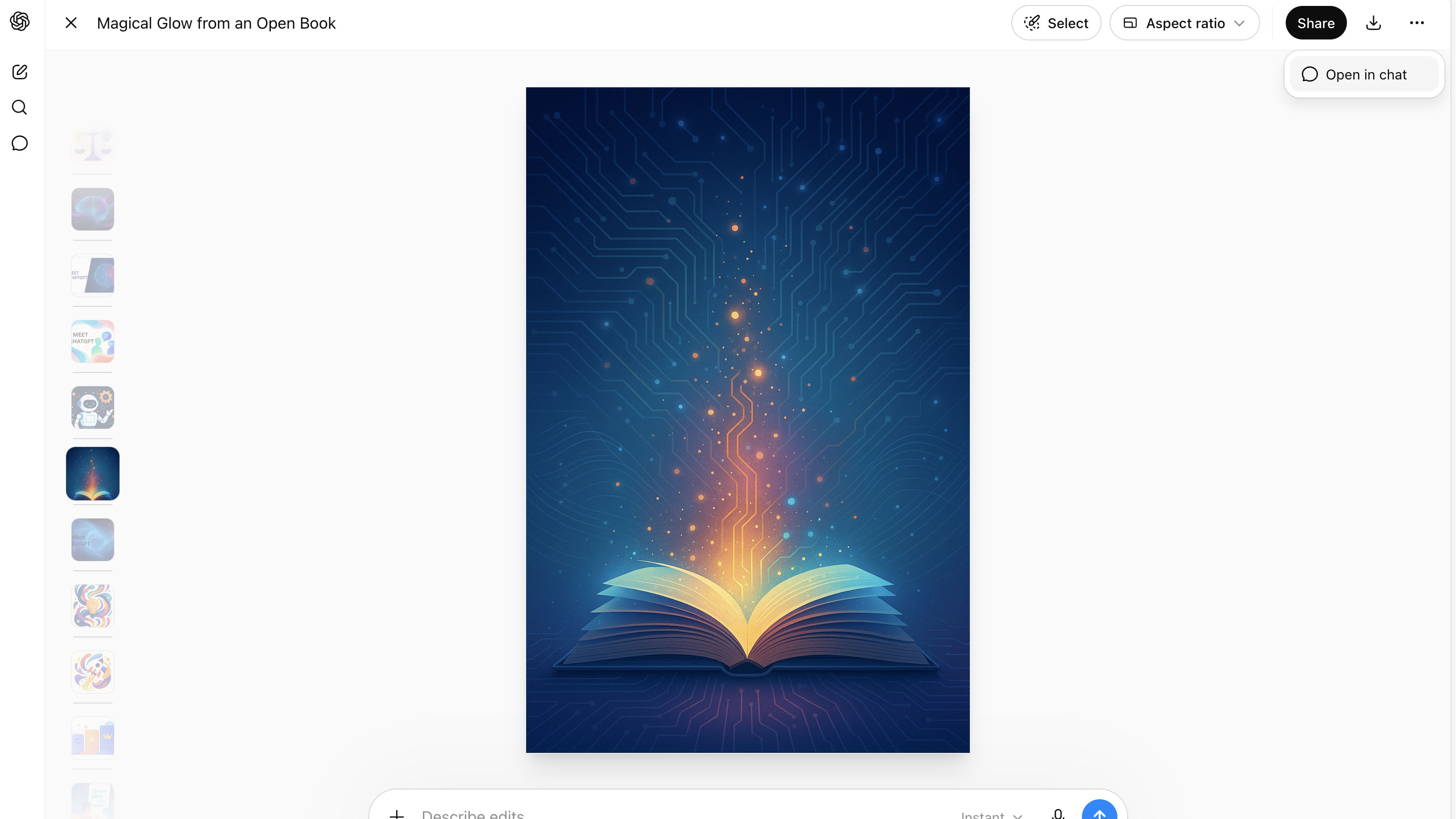
To remove an old image, you first have to open the chat where the image was created and then delete the whole chat. This removes the images from your Images library, but be warned: if multiple images were created in that chat, you’ll be removing all of them.
Here’s how to do it:
- Select the image in question in the Images grid, then click or tap the ‘...’ menu and choose ‘Open chat’.
- In the chat, write something like “Hi”. It doesn’t matter what you write, or what ChatGPT replies — what you’re actually doing is pushing the chat to the top of your ‘Most recent’ list.
- Close the chat, and you should now see it at the top of your ‘Most recent’ list in the sidebar menu.
- Tap and hold, or hover your cursor over the chat, then select Delete from the ‘...’ menu that appears.
Now go back to Images and refresh the page in your browser, or pull down to refresh in the mobile app. Once it refreshes, you should find that all the images from that chat have been removed from your Images for good.
There’s no doubt this is a messy solution, but until OpenAI adds a proper delete option for your older images, it’s currently the only reliable way I’ve found to do it.
ChatGPT storage
Now that it's introduced the new Library and given all users the ability to remove newly created images, I suspect that OpenAI will never get around to adding a delete option for the older images. That's a shame, but at least there is one workaround that solves the problem, as messy as it is.

Follow TechRadar on Google News and add us as a preferred source to get our expert news, reviews, and opinion in your feeds.





 English (US) ·