
 3 weeks ago
41
3 weeks ago
41
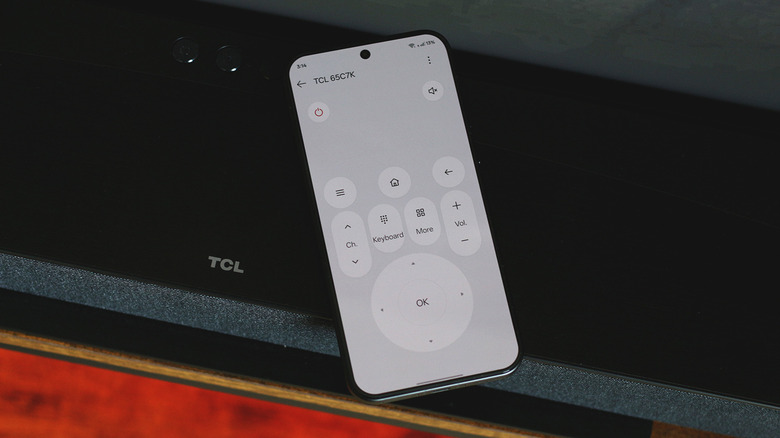
It's much easier to use your phone's keyboard than the one on your TV.
Adnan Ahmed for Engadget
Smart TVs have come a long way in terms of user experience and features, with support for conveniences like AirPlay, voice control and smart hub functionality. Yet, the remote control remains an essential part of the TV experience, and yes, infrared tech is still very much alive despite most remote controls relying on Bluetooth for sending commands. A plus side of having modern connectivity standards built into smart TVs is that you can use your smartphone as a remote control.
Most people carry their smartphones on them, and it's not too difficult to misplace your TV's remote control. It also helps that typing on a smartphone to search for content on your TV is much easier than it is using an on-screen keyboard with a remote control. A couple of modern Android smartphones actually feature built-in IR blasters and come with a universal remote app preinstalled. If your Android phone supports the feature, this is the easiest way to turn it into a remote control for your TV.
Launch the IR remote app, look for an add device button and select your TV manufacturer. The app will then instruct you to test a few buttons to make sure it has found the right set of infrared commands for your TV model. The best part about using an infrared remote control app is that you can even turn your TV on and off using your phone. Unfortunately, this hardware addition is quite rare and isn't available on mainstream smartphones from Samsung, Google or Apple. But don't worry — you have other options.
Use the official app for your smart TV
Adnan Ahmed for Engadget
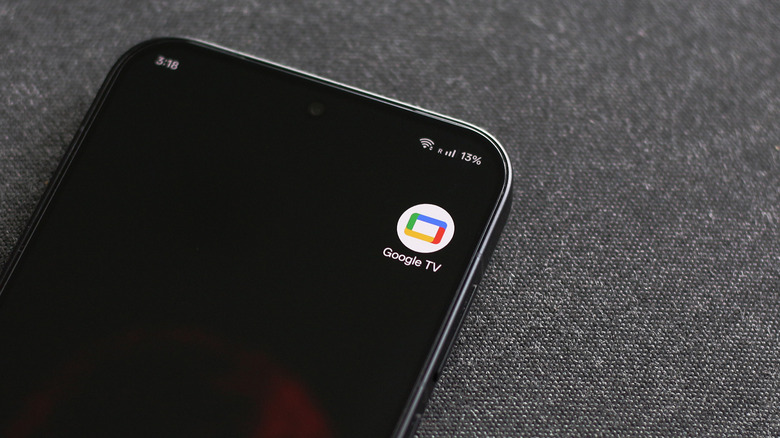
Fortunately, a lot of smart TV platforms ship with mobile companion apps that typically offer remote control functionality. Smart TVs running the Google TV or Android TV platforms can be controlled via the Google TV app on Android and iOS. Launch the app on your phone, tap on the Connect TV button at the bottom and select your TV from the list. You'll need to be connected to the same Wi-Fi network as your TV and have Bluetooth enabled on both devices.
The Roku mobile app works for Roku TVs and streaming sticks, and there's the Fire TV mobile app for Fire OS devices. The setup process should be pretty similar regardless of which platform you're using. You'll find D-pad controls similar to those on a physical remote, alongside buttons for volume control and other commonly used functions. When you enter a text field on your TV, the remote app on your phone will bring up your smartphone's QWERTY keyboard, making it much easier to type out searches and credentials.
A lot of these apps also serve as a second space where you can find and curate content you want to watch on the big screen. You can create watchlists and launch apps directly. You don't have to use the app's discovery features if you don't want to, though most of them do require you to sign in to an account before you can pair the virtual remote control with your TV.
Try a third-party universal remote app
Adnan Ahmed for Engadget
If you have an Apple TV and an iPhone, you don't even have to install a separate app. Head to the Control Center and tap on the remote icon. If you don't spot it, you might have to add it by tapping on the "+" button. Unfortunately, this is a feature native to iOS and isn't available on Android, but that's where third-party remote control apps come in handy.
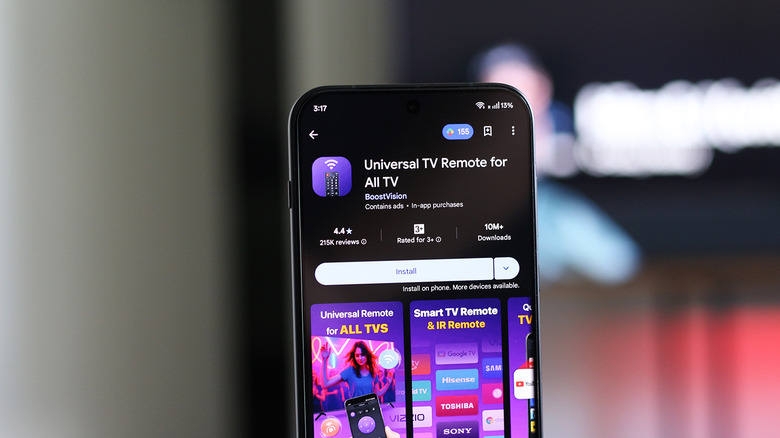
The TV (Apple) Remote Control app is a popular pick available on the Play Store with over 500,000 downloads and a 4.6-star rating. It features a similar button layout to Apple's own remote and lets you send commands to your TV over a local Wi-Fi network or via infrared signals. You also don't have to stick to your TV manufacturer's official companion app if you don't like its interface. There are other universal TV remote apps on Android and iOS that you might end up liking more.
The right app can help you replace your TV's physical remote control, especially if it's beat up or has gone missing. Some smart TVs can even be turned on from standby mode using your phone. Look for a feature labeled as Wake-on-LAN in your TV's network settings and make sure it's enabled. On some TV models, you might instead have to navigate to power settings and set the energy mode to Increased or Optimized.



 English (US) ·