
 3 weeks ago
47
3 weeks ago
47
From transcripts to trimming, the iOS Voice Memos app has a lot to offer,
Stockinq/Shutterstock
iPhones are known for their quality cameras, but what about when you only want to record audio? Maybe you're interviewing someone, or want to record a class or meeting. Thankfully, it's easy to record audio on your iPhone, and you don't need to download any new apps for the job.
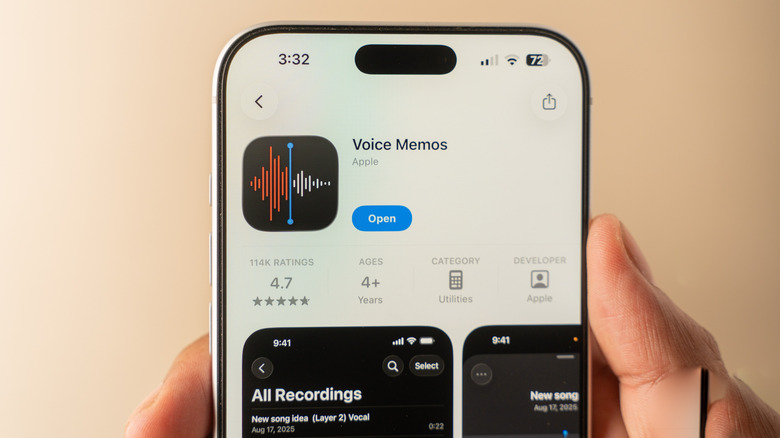
Apple's Voice Memos app comes built into iOS and works on all modern iPhones. It has some great features, like the ability to transcribe your recordings. To get started, open the Voice Memos app (a black icon with sound waves). If you can't find it on your Home Screen, drag down to use Search. If you uninstalled this in the past, you can reinstall it for free from the App Store.
Once you're in the app, it's simple to use: just tap the red button to start recording. Tapping the button again will stop the recording and save it. Beyond that basic use, there are a few tricks to learn.
Hidden features in the iPhone's Voice Memos app
Filipe Espósito for Engadget
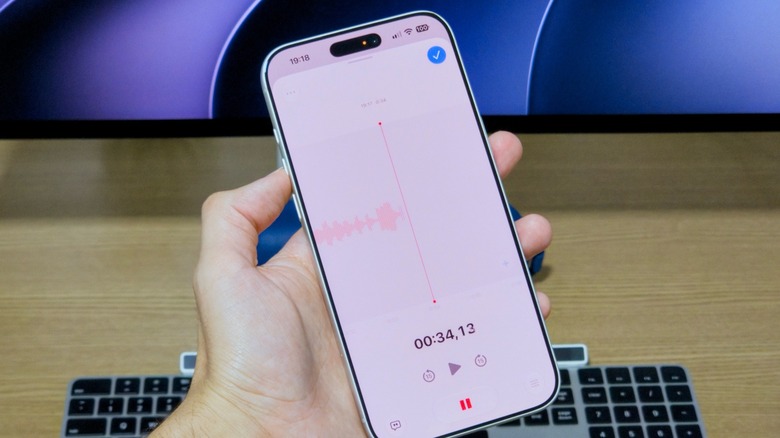
While recording, you can find some hidden extra options. Swipe up from the recording card to reveal a full-screen interface with controls to pause and rewind the recording. Aside from using this to revisit a key point, rewinding also lets you replace a prior section with new audio. For example, if you misspeak or there's sudden background noise, you can re-record just those few seconds. Multitrack audio recording is also available with the Plus button, although this requires an iPhone 16 Pro or newer.
Before you make a lot of recordings, head to Settings > Apps > Voice Memos to change an important option. Under Recording Mode, choose between Mono, Stereo and Spatial (on supported models). Spatial is "3D audio" that sounds like it's coming from all around you.
Back on the recording page, you'll see four different buttons (one in each corner of the screen). Tapping the three-dot button at the top-left provides a Copy Transcript option so you can paste what was said into other apps like Notes or Messages. Trim lets you cut parts of audio clips that aren't needed.
Next, the bottom-left button that looks like a speech bubble shows the full transcript of your audio. This will update in real time as speech continues, and tapping a word will jump back to that part of the audio. The bottom-right button with three sliders lets you adjust the playback speed. For mono or stereo recordings, there's a self-explanatory Skip Silence toggle, as well as Enhance Recording to "reduce background noise and echo." For spatial recordings, you'll instead see a Studio Sound option, along with a slider to control its intensity. This makes your voice "sound more like it was recorded in a studio."
Finally, use the blue button to apply your chosen settings, then tap it again to save your voice recording. If you have location services enabled, the memo will be named after your current location; select the name to change it.
Listening to voice memos and syncing them to iCloud
Filipe Espósito for Engadget
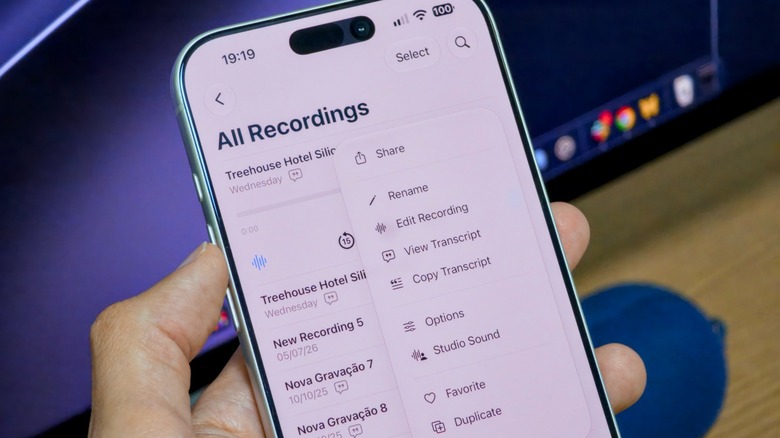
The app's interface for listening to and managing your voice memos is also straightforward. They're sorted by the order they were recorded, with the most recent memos at the top. Tap one to listen to it, or use the three-dot button to bring up options such as sharing to another app, renaming, adding to favorites or viewing the transcript.
If you have a lot of recordings, the Search icon can even find matches within transcripts. Use the arrow at the top-left to browse recordings by type, with the option to create folders for better organization.
It's worth noting that your voice memos are synced across your Apple devices via iCloud for convenience. Make sure you've enabled this by going to Settings > [Your name] > iCloud > Saved to iCloud and confirming that Voice Memos is enabled in the list. By the way, iOS has a native feature for recording your calls that's much smoother than using Voice Memos on another device.







 English (US) ·