
 1 hour ago
4
1 hour ago
4
There are a few settings to check if you're having issues with your map's location accuracy.
subh_naskar/Shutterstock
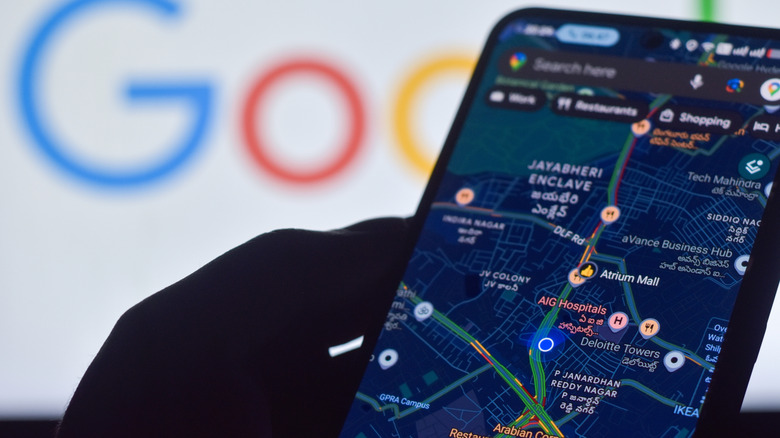
The best Android phones use built-in GPS to determine where you are, which is necessary to guide you with turn-by-turn directions. To accurately know how to get to where you want to go, after all, the phone first needs to know exactly where you are. You might also use this feature to send a pin of your location to someone, or maybe mark the location of your parked car so you can find it in a busy shopping mall. It's also useful for safety reasons in the event that you get lost or hurt. Bottom line: you want location information to be as accurate as possible. While precise location hinges largely on the phone's built-in GPS antennas, there are settings you can adjust to improve it.
The phone can use wireless signals, GPS, and device sensors to determine where you are, and even in what direction you're facing. A setting called Location Accuracy Service, formerly Google Location Services, is your first step to improving accuracy, especially if you're indoors or in a densely populated area where GPS signals aren't available or as clear. If the location is completely wrong, it means there's no working signal at all and the phone might be picking up where you last were and not where you are now. This can be frustrating, but it's easy to fix.
Improving location accuracy
Christine Persaud for Engadget
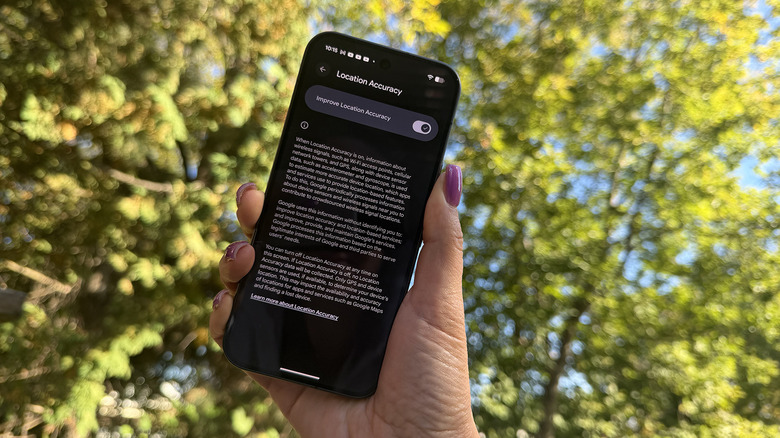
A simple settings tweak can improve your location accuracy. Go to Settings > Location > Location Services > Location Accuracy with most Android 12 and above devices and Settings > Location > Advanced > Location Accuracy with Android 11 and below. Enabling this ensures that the phone uses any available wireless signal to determine your location, including GPS, Wi-Fi, and the cellular network and towers, along with sensors like the accelerometer, barometer, and gyroscope to also further determine your location. If Location Accuracy is off, the phone can only use GPS and the phone's sensors, which limits its capabilities.
Google anonymously collects information about wireless signals and sensors from your device and others, and basically crowdsources estimated location data to improve accuracy. It's similar to how apps like Waze crowdsource traffic information from users, or the best item trackers use Bluetooth on nearby devices to let you know where you left your keys or wallet.
Where you'll find Location Accuracy most useful is when you're in areas where a GPS signal might be blocked, like a dense urban area with a lot of tall buildings. It's also helpful when you're indoors and a GPS signal is not available at all. Keep in mind that you also need to go to Settings > Location and select App location permissions (or wherever this menu item might be on your phone) and ensure location is enabled for the apps you want to be able to use it.
Fixes in Google Maps
Christine Persaud for Engadget
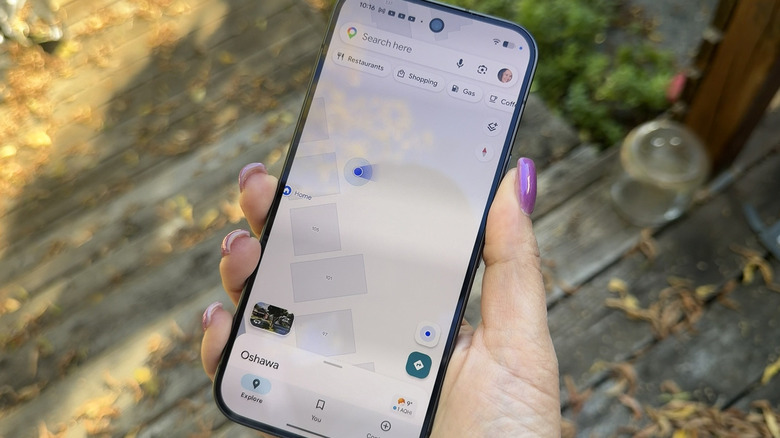
One of the most common apps you might rely on for location accuracy is Google Maps, which is now enhanced with Gemini integration. If the app is unable to determine your exact location, indicated with a light blue circle around the blue dot that signifies you (you might even see a "low accuracy" label), you'll want to first make sure that Location services in general are turned on. Go to Settings > Location and turn on Use location. Usually Google Maps prompts you to turn on Location Services to use it in the first place.
Turning on Location Accuracy using the steps noted above comes next. Make sure that you are connected to an active mobile data or Wi-Fi network and the phone isn't in Airplane Mode. If you're on a Wi-Fi network but the signal is weak, try disconnecting and using cellular data to see if that helps.
You can also calibrate your locations using Lens in Maps. Stand by a landmark or specific venue, search for the place on the map and select View. Point your camera at the place and this will let Maps know where you are to help it more precisely help you navigate to where you want to go. Alternatively, you can calibrate using the phone's compass. In Google Maps, make a figure eight with the phone a few times and see if this helps strengthen the location accuracy and remove the circle around your blue dot.
If the phone is still having trouble determining your exact location, your best bet is to move to a different spot. Completely shut down the app, walk to somewhere nearby where a signal might be stronger, and try again.






 English (US) ·