
 2 weeks ago
46
2 weeks ago
46
More and more, DxO’s PhotoLab stands out as a worthy alternative because you don’t have to pay for it every month. You pay once and can hang on to that version for as long as you like, though upgrades to new versions come with a fee — usually about half the price. Version 10 isn’t as big a step forward as past ones but it patches some holes left behind by the others.
The newest improvements center on masking to cut down lengthy, methodical adjustments when isolating elements in a frame. It’s a neat implementation for depth, while teasing us with AI masking aimed at humans.
Fast and Efficient
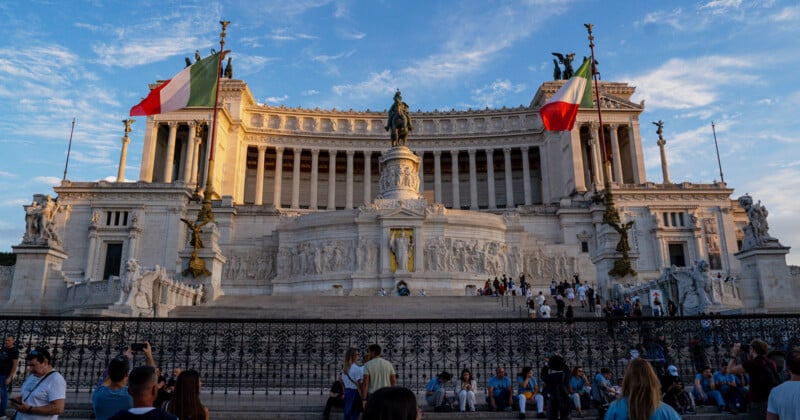
One thing I really like is that the Depth Mask has some flexibility. Moving the icon anywhere on the photo applies the mask to a different layer within the image. Oftentimes, it’s great at separating a sky or building from the rest of the image, but PhotoLab 9 also established much of that already. What feels different here is how the mask flows from one element to another within the frame.
The granularity goes further in how you can refine the mask by moving the depth sliders in any direction to extend or retract it. There are subtleties here I really like, primarily because I could, as an example, extend it just enough to cover the fence and base of the Vittorio Emanuele II Monument in Rome without touching the crowd below. I don’t have to select the crowd separately to subtract them or re-adjust later — I cut that part out of the workflow entirely.
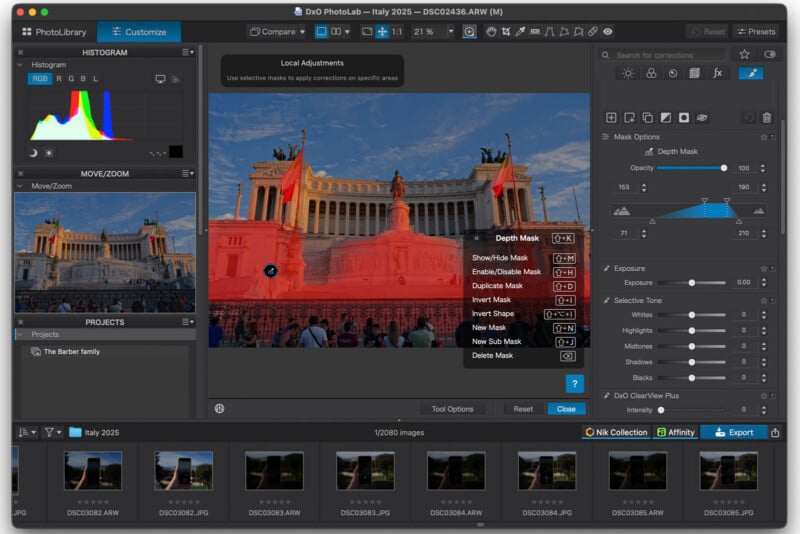
Switching the mask mode to black and white treats it like a layer mask, where white reveals and black conceals, to further illustrate exactly where its edges truly lie. I played around with the mask this way a fair bit, switching back and forth between black and white and color overlay (which could use a quicker shortcut) to ensure it’s just right.
It’s not perfect, mind you, as the initial depth mask may misinterpret what’s actually layered onscreen. Still, this would be more of a hit-or-miss feature without the sliders, which also go a long way toward not only getting it right but also avoiding brushes and other tools to ward off the excess. It’s one of my frustrations with Lightroom, where the mask can’t help but bleed out where it’s not supposed to.
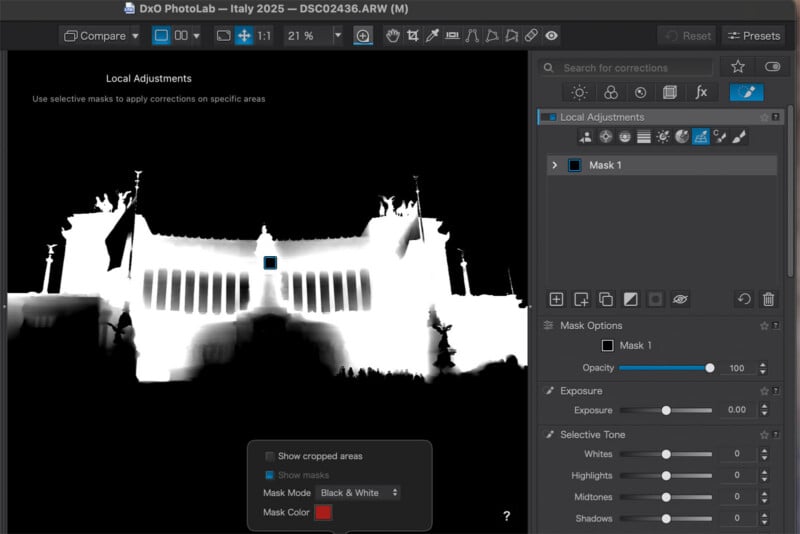
Where this falls a little flat in PhotoLab is its ability to isolate a specific portion of an image or layer within it. For instance, if I want to only isolate the middle statue and its base, I have to play around with the sliders a lot to get close to what I want. Even then, the back-and-forth process can prove both tantalizing and irksome because the AI is trained to think that I’m trying to be systematic in catching what’s around the base.
It’s in cases like this that a rounded object with varying depth can prove a little problematic. The mask isn’t built to see objects so much as to interpret the distance between what’s in the frame and the lens capturing it. Don’t get me wrong — there’s real brilliance here in how DxO pulls this off — but there will be times where the tool might hit a tough mix it struggles with.
Skin and Lips are Only for People
Depth masks work differently from the AI mask; only the gist is that PhotoLab 10 recognizes a subject in the frame and can apply a mask to it. This includes animals, unsurprisingly, as the previous version provided that more precise effect. The big difference here is that there’s no simple way to isolate details. For human subjects, it’s easy to select eyes (iris, pupil, sclera), teeth, facial hair, face skin, and lips, but not with animals.
This turns out to be hit or miss. I could select the eyes of a macaque, albeit as two separate masks, unless I pick one eye first and then add a sub-mask for the other one to pair them. Weird things would happen otherwise, like an odd ability to isolate an ear but not a mouth or lips (it would select the whole mouth). At the same time, it does a pretty stellar job catching errant strands from fur. I don’t know how well it might do with a cat’s whiskers or an especially fluffy dog, but there’s nothing primitive going on here.
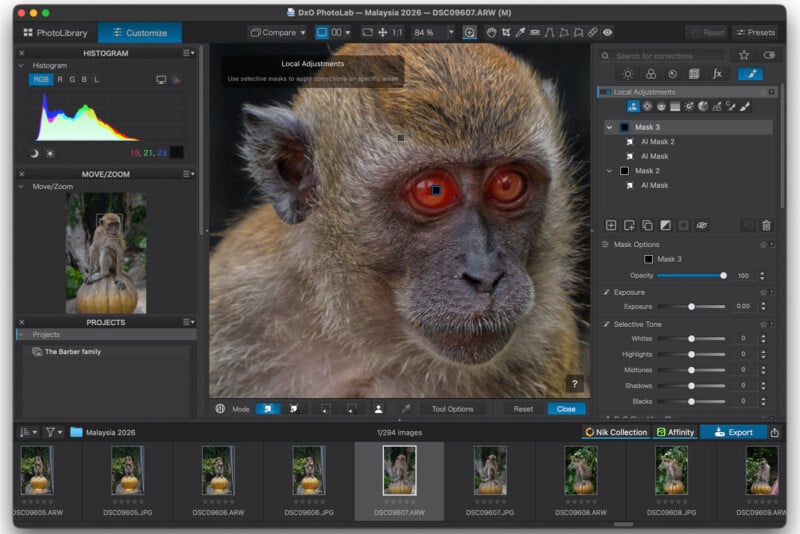
Mind you, with such a variety of wildlife in the animal kingdom, I can’t tell you how effective or ineffective masking would be in the grand scheme. The visible upsides certainly don’t hurt, such as they are.
Granted, DxO doesn’t make any claim to dealing with animals or other objects, like cars, with the same kind of precision as humans, but the more I test this out, the more I feel like its engineers could’ve waited a bit longer to refine it. My guess is a future software update may very well finish the job.
One Color Wheel is Enough?
This one is likely highly subjective, especially since competing software tends to keep color wheels separate for highlights, shadows, midtones, and global. I don’t mind the implementation here, though I can understand the annoyance of always having to check the corresponding section first before making a change. It’s those micro adjustments between them that make the extra step feel more like a chore.
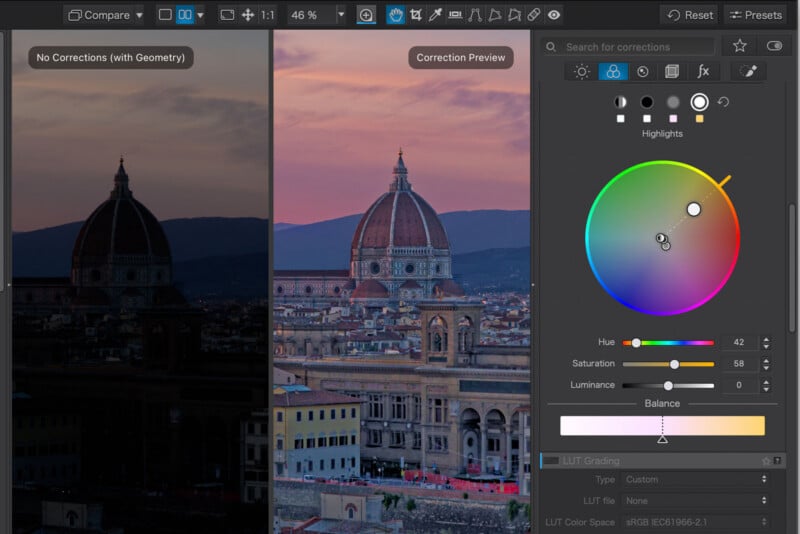
Fortunately, DxO sets it up so the dots on the wheel itself are the shortcuts. Moving them around freely isn’t the hard part, it’s remembering the associated color or pattern for the dot itself. I caught myself choosing a dot incorrectly more than once; a minor quibble in the bigger picture, since clicking anywhere on the wheel can reset the color.
Saving a combination as a preset helps if it’s a formula you want to use for a batch of images, since you can apply it to all of them afterward. The color adjustments themselves don’t change with this version of PhotoLab, meaning it’s not like it does it faster or places it on images more effectively, just that it consolidates color grading into one tool.
What About Affinity?
The Affinity integration is something I’ll need more time with. I just don’t personally know my way around it all that well yet, so can’t present much other than a cursory experience. The integration definitely works, and even if you don’t have it, clicking the button on PhotoLab takes you straight to a download page.
Support for iPhone Photos
DxO maintains the expanded file format support previously introduced in PhotoLab 9 when it added support for Apple HEIC/HEIF and ProRAW images. RAW files from Android phones are a mixed bag, however. DNG files are out, too. I experienced this with PhotoLab 9, and it’s the same situation so far with this version. JPEGs work fine, but even running Android DNG files through Adobe’s DNG Converter doesn’t make them compatible here.
Takeaways
The more I use PhotoLab 10, the more I like the specificity it offers in some respects. I’m not thrilled at the lack of preset compatibility with Lightroom, where it would be a lot easier to apply them without going back and forth. Even so, I have no problem processing a RAW image here first before putting finishing touches in Lightroom.
One enduring advantage is that DxO doesn’t rely on the cloud to apply AI help along the way. Working on an image in my home office or on a plane doesn’t really make a difference onscreen.
All that said, the clear focus with version 10 is to expand on what we got in the previous version, making this feel somewhat like PhotoLab 9.8 or 9.9, but that’s just my take after playing around with it for two weeks.
One thing worth noting: PhotoLab 10 won’t run on macOS Sequoia or earlier, so if you’ve avoided Tahoe up to now, you’ll need to get on board just to run this. Windows 11 remains standard spec for Windows machines. And a mobile app? Yeah, not this time.




 English (US) ·