
 3 weeks ago
29
3 weeks ago
29
Store mode could be why your new television's screen looks so weird.
Erman Gunes/Shutterstock
Picture this: You just set up a new TV. You've been patiently waiting from the moment you ordered it to start using your living room upgrade. It's plugged in, connected to your various streaming boxes and game consoles; you're ready to binge Heated Rivalry. But when you hit play on HBO Max, the picture quality looks nothing like what you expected. In fact, it's pretty awful. Before you dive into manual adjustments, there's one setting to check because it could fix things in just a couple of taps.
More specifically, the thing to look for is store or demo mode in the settings menu. New TVs often ship with this enabled, even if you didn't visit a physical store to purchase it. This makes certain adjustments for in-store environments and may even reset any changes every few minutes so the next customer who walks by sees the fresh picture as the manufacturer intended. This is the main reason why you shouldn't start making brightness, contrast or any other adjustments before you check to see if the mode is active.
What is store/demo mode?
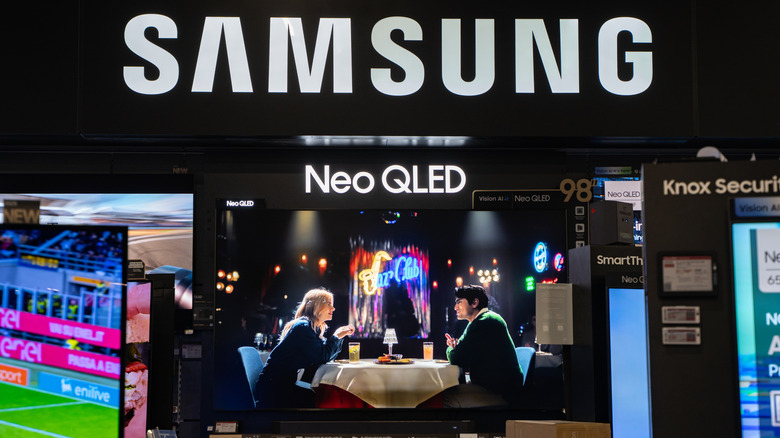
Store or demo mode is a setting on new TVs that accounts for the lighting conditions in retail environments. Even though many of us shop online these days, manufacturers still plan for their TVs to sit on store shelves at some point. As such, they're likely to be used for demo purposes so that prospective customers can see a new display's potential before purchasing one.
This setting typically maximizes brightness by cranking up the backlight and adjusts contrast settings to offset store lights. The result may look good under the fluorescents at Best Buy, but it will likely look terrible in your living room. Demo mode may also include looping ads or on-screen info specific to the model, such as resolution, refresh rate and other important specs.
Lastly, and perhaps most importantly, this mode can wipe any settings changes every few minutes. If a customer starts exploring, the TV reverts back to the store mode baseline for the next shopper. If you notice the fully bright, high contrast picture quality at home and start manually tweaking things, the next time you turn on your new TV it will probably look terrible again.
How to turn off demo mode
Thankfully, turning off store or demo mode is quick and easy. Just note that the setting may live in different places on TV menus from various manufacturers. In my case, it resides under Settings > Advanced Settings > Usage Mode on my new TCL TV. If you have a TV from another brand, Advanced Settings is a good place to look. A quick Google search will also turn up the exact location because demo mode woes are a common problem. From there, I simply had to switch from Store Mode to Home Mode. You may also see this listed as Demo Mode or Retail Mode.
Your TV may also have an Auto Store Mode option in the settings menu. You'll want to make sure that option is turned off as well.
Once you've disabled store or demo mode, you'll immediately notice an improvement in picture quality. You may still have to tweak some settings or enable one of your TV's content-specific presets to find the perfect view, but simply disabling the retail settings will likely give you something more like what you expected to see out of the box.





 English (US) ·