
Regular readers will know I’ve reviewed Cyberlink’s PowerDirector 365 a few times over the years, mostly because, as a subscription service, they update their software very regularly.
Sometimes these improvements are minor, like additional transitions, or season-specific effects, while others introduce new tools or refine existing ones.
So, I wanted to see what’s changed and what's new, and whether it's still one of the best video editing software options out there (spoiler: it is, but it's easier to recommend on Windows over macOS).
Latest Videos FromTechRadar
CyberLink PowerDirector 365: Price & availability
- Perpetual license and subscription options
- Reasonable pricing
Cyberlink’s PowerDirector is mostly a multi-platform tool - I say mostly because although you can run it on the Mac and PC, there isn’t full feature parity between the two versions. In fact, the PC version gets updated much more frequently. With that in mind, I’ll be looking at the PC version in this review.
As for the cost, although Cyberlink pushes you (hard) to rent their software, there is an option to buy a perpetual licence, which you can do for $140. Existing owners of versions 2024 and 2025 can upgrade for $90. You won’t get access to as many features, and you can only take advantage of any future updates for a year, but at least you won’t need to pay any more.
If you prefer renting, and enjoying all the latest additions as and when they’re released, the usual price is $80 per year, but as of this writing, you can subscribe for $55, which is the equivalent of around $4.60 a month, much cheaper than some of its competition.
Thankfully, a free trial is also available - no credit card required - which allows you to test the software, and make sure it does what you need it to do, before deciding which financial route you’d like to take.
CyberLink PowerDirector 365: Interface
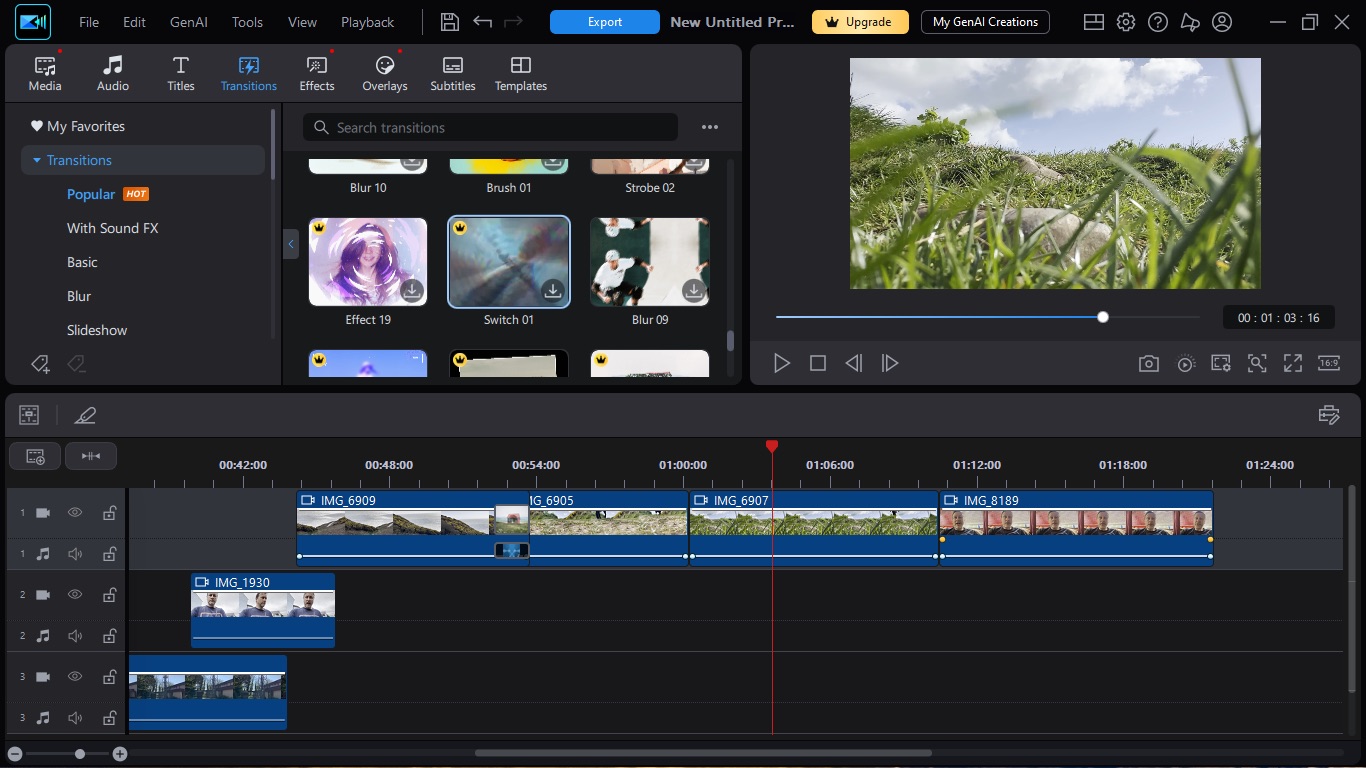
- Well-organized interface
- Clear navigation
Launch PowerDirector and you’ll be graced with its welcome screen. From there, you can of course click on ‘New Project’ and get into the editing side of things (more on that in a minute), but that’s not all that window has to offer. You’ll find a handful of large icons, most of which offer quick drag-and-drop effects.
They’re there if you’ve already got a video clip or exported project which you wish to alter with one specific effect throughout. Click on one of those icons, a pop up window appears, drop a clip onto it, and the software will get working. Convenient, yes, but editing this isn’t. So let’s check out the editing side of things.
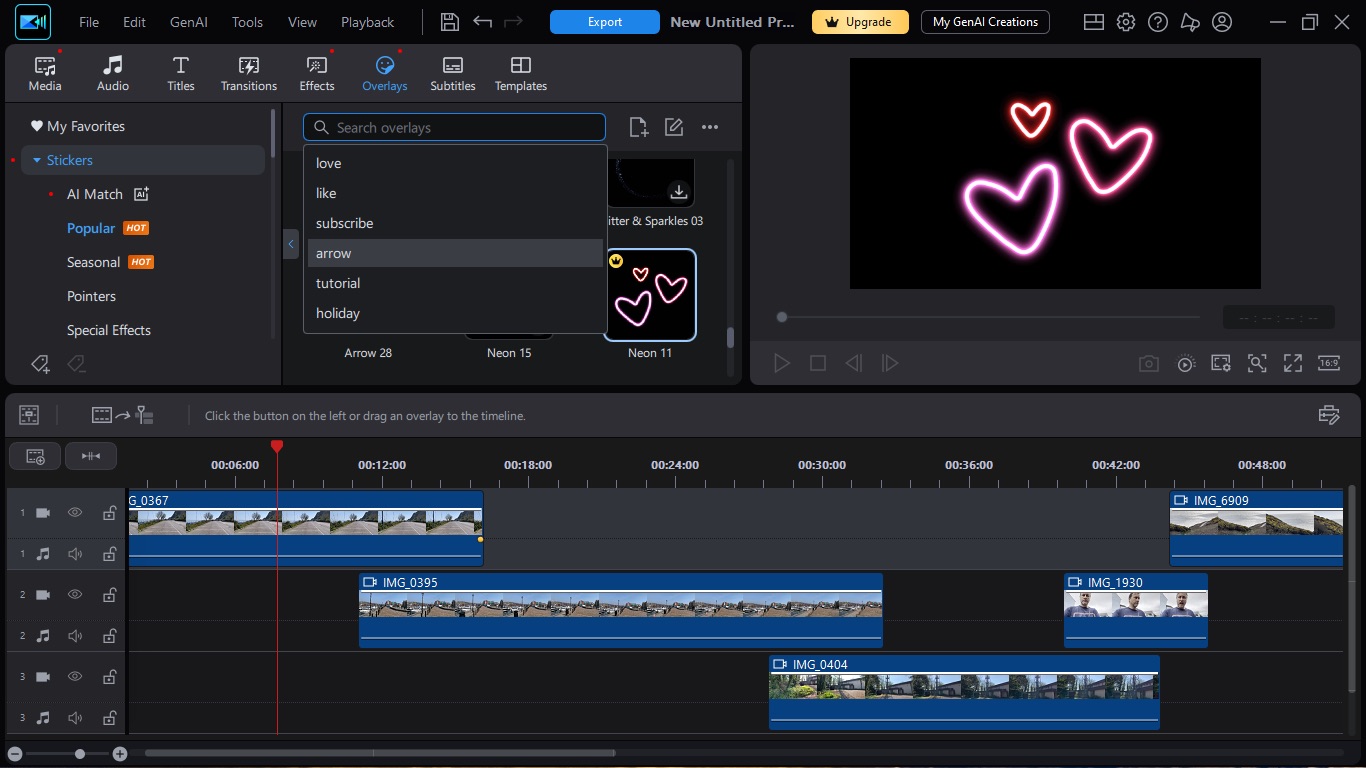
We’ve reached the stage now in terms of interface development, that if you’ve seen one video editor, you’ve pretty much seen them all. I don’t view that as a bad thing: it makes it easy to switch between them; aside from having a sidebar on the right instead of on the left, or similar, it should take you seconds to find your way around PowerDirector’s interface.
You’ll find a list of icons, top left, which control the top third of the interface. These allow you to switch between your clips, and specific functions, such as titles, transitions, effects, and so on. Top right is the preview section; it’s linked either to your timeline (which takes up the bottom half of the interface) or any selected clip in your media section.
Unlike Premiere Pro, the interface isn’t customisable. You work with what you get. It’s even more inflexible than Final Cut Pro - and I thought FCP was strict! - but at the end of the day, that’s not entirely a bad thing: it means you can sit in front of any computer with PowerDirector installed and know where everything is. That’s a big plus in my book. But the price for that familiarity is a rigid interface. A price worth paying? That would depend on your preference and workflow.
CyberLink PowerDirector 365: Tools
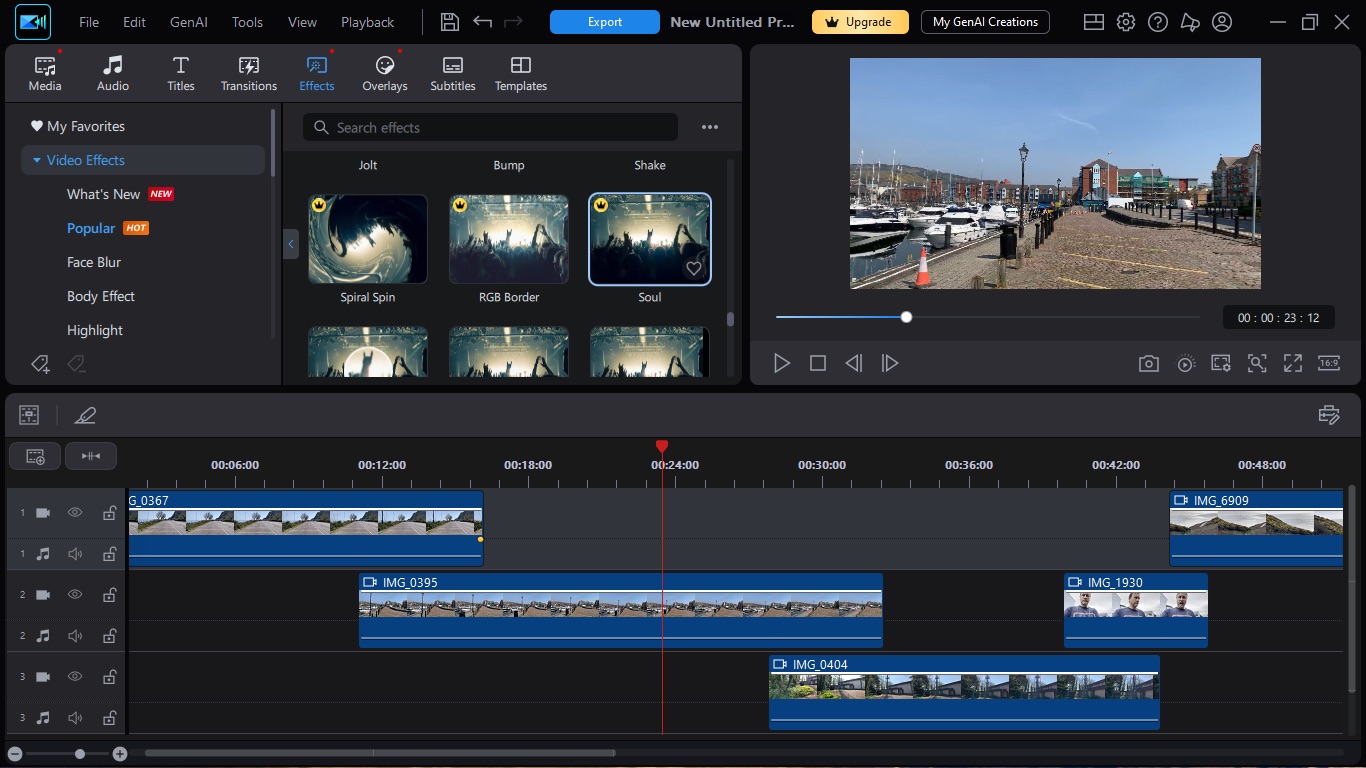
- Everything you need to edit a video
- Free to add effects, transitions, and titles
- No keyboard controls
Everything you need to edit a video project is there for you to use. The timeline has multiple layers, so you can end up making a relatively complex movie. You’ll find various animated titles, Transitions, Effects, Particles, Stickers, and more, all ready to spruce up your edit. They are all excellent and well crafted.
If you’re on a subscription, it’s all available to you, but if you’re working with the free version, you’ll encounter some serious limitations: most of these tools are ‘premium’ ones; you can recognise them thanks to a small black crown inside a yellow circle, top left of a tool’s icon. Despite that, you’ll still be able to insert them into your project, but when it comes to exporting it, you’ll be offered the option of forking out some of your money to be able to use them, or having them automatically removed prior to rendering.
Some tools can’t be accessed unless you log in to your CyberLink account (which is free to setup). That’s because they’re AI-based and require credits to function. You do get 100 credits per month with a subscription, and any additional credit packs are reduced by 50% as long as you keep paying, but you can also get these packs at full price while using the free version. They start at 100, and go up to 2,000, and obviously the more you buy, the cheaper each individual credit gets.
Editing is simple, but it could be easier, mind you. Maybe it’s because I’m used to more professional editors: I use the keyboard a lot when editing, and other programs allow me to use the JKL keys to playback in reverse, stop and go forward respectively; using the left and right arrow keys moves me back or forward one frame, and the up and down arrow keys jump me to the next or previous edit point…
And there are so many others. These greatly speed up my work. Unfortunately, PowerDirector doesn’t have any of those, which forces users to rely more on the mouse or trackpad. It’s not necessarily a bad thing, especially if you’re not used to such shortcuts, but the lack of options certainly is.
CyberLink PowerDirector 365: Editing
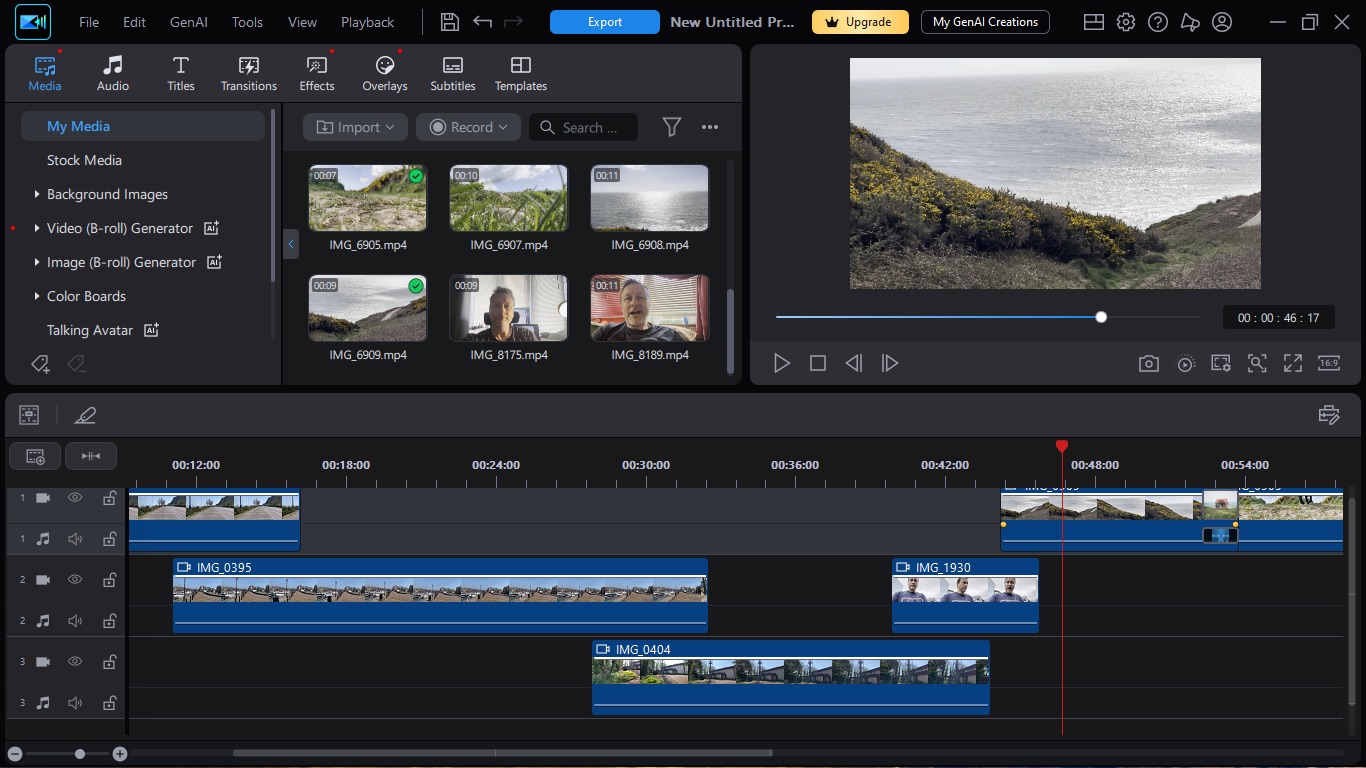
- A great editing platform (layering order notwithstanding)
- A wealth of very well done effects, transitions, templates and titles
When it comes to editing, proper editing I mean, with fingers, a keyboard and a mouse or trackpad, and not a text prompt in sight, PowerDirector is pretty darn good at it.
There are however two approaches when working with multiple layers of media. One replicates what happens in the real world: place a sheet of paper on top of another, and you can no longer see the one that’s underneath.
The other does the opposite: the sheet on the bottom is the one you see. I personally prefer the former, but Cyberlink have designed their interface on the latter. Either approach works. It’s just a question of preference and of getting used to it.
Aside from that personal inconvenience, I found PowerDirector to be an extremely competent video editor. As you’d expect, you’re offered Titles, Effects, Transitions, and even Overlays and Templates to add to your project. Many are free to use with the trial version, but some, those with a yellow crown icon on their thumbnails are premium effects. You can add them, but you won’t be able to export your work without paying.
Subtitles are added manually (a chore), by importing a compatible SRT or TXT file (a better option), or by spending credits to let AI do the work for you (the rise of the machines).
Whether you use AI or not, this is an excellent video editor with great looking effects that are easy to add to your project. I found myself editing very quickly with it, even though I’m no fan of their layer order.
CyberLink PowerDirector 365: AI
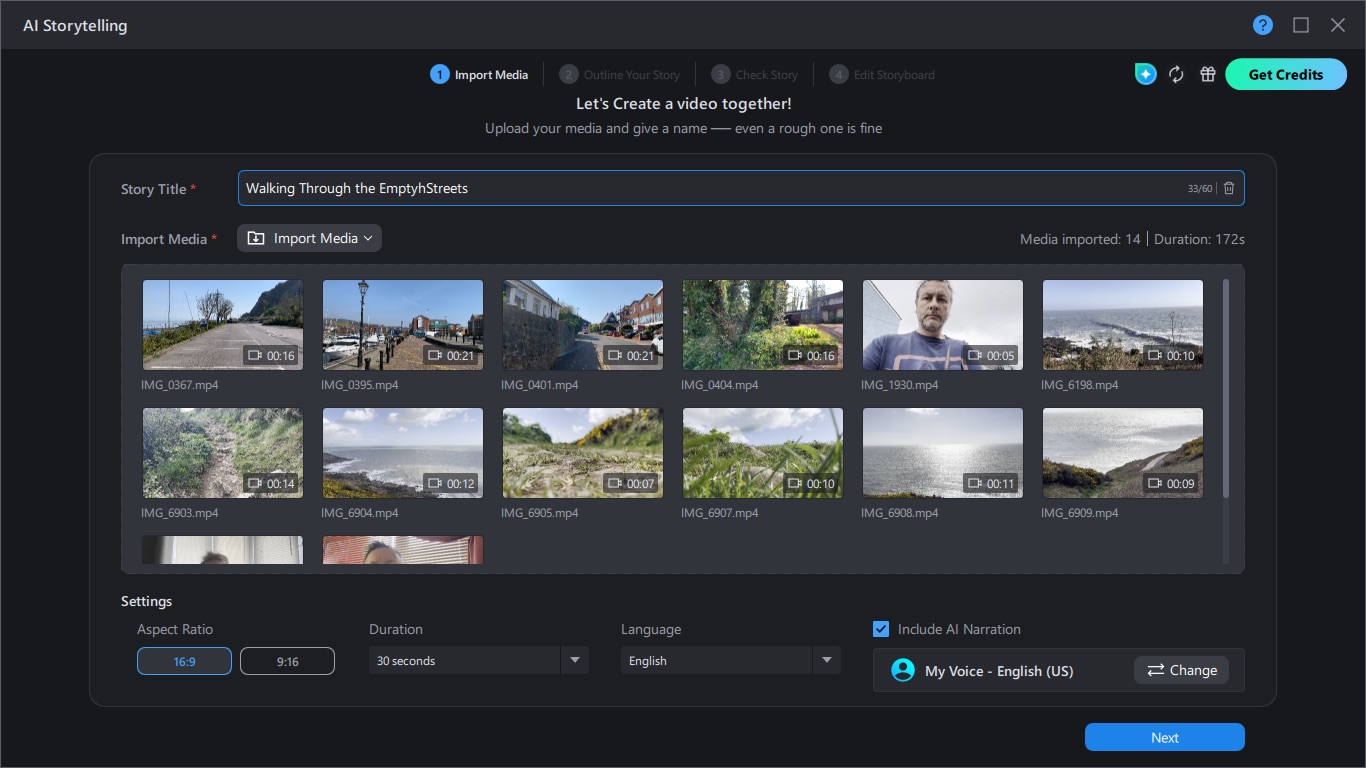
- Fully embraces AI tools
- You’ll need credits to use them, or edit without ever touching them
With each passing year, CyberLink makes a greater and greater emphasis on AI in PowerDirector, essentially encouraging you to let AI do all the heavy lifting for you.
For instance with ‘AI Storytelling’, you get to import your shots, choose an AI narrator (or let PowerDirector clone your own voice - which absolutely, definitely isn’t freaky at all), select the type of movie you’d like it to create and let it get on with it. Of course, you have control over some settings, but if a machine did all the work for you, did you actually do anything at all?
Or course, any feature that needs to offload its work to an online server will cost you AI credits. If you’re renting the software you’ll have 100 of those each month, and you can also earn 3 additional credits every day, although you need to collect these manually to get them. Be aware that all these credits do not roll over and expire after 30 days.
If you’re into AI, there’s a lot there to appreciate. In addition to letting a machine edit for you, you can use AI to create a talking avatar, using audio imported for that purpose, or a typed script which will be converted into audio for you.
If you’ve run out of media to use, and can’t find anything suitable through free online media libraries, like Pexels.com, PowerDirector’s AI can generate video or images for you.
It can create cinematic shorts, allow you to edit by chatting to it through a text prompt, even transform images into video. Like I said, the push for AI is strong. So strong in fact, the software’s subtitle is "Edit like a pro with AI”.
And if you’re really into AI, you’ll know how credit-hungry these features are, and 100 a month (or 190 if you manage to get those 3 free credits each day) won’t be enough to satiate your appetite. Thankfully, you can buy more. There’s a sliding scale the more you buy; for instance, 1,000 credits will cost you $60, whereas 50 go for $6. Additionally, purchased credits are valid for one year.
CyberLink PowerDirector 365: Latest updates
- Regular updates
- Most tentpole features are AI-based
This is actually one great advantage of this software: the developers constantly release new features and improve its tools.
Some of the latest include pretty powerful AI-based ones. One feature I liked is ‘Auto-Reframe’, which analyses your project and crops it so it looks great on any platform, whether the video ends up being 16:9, 9:16 or 1:1.
Aside from the usual refinement of existing functionality (something that’s always welcome), the very latest features as of this writing, include ‘Text to Video’. The title says it all really, but you also have the ability to upload a reference image so the algorithm has some idea of what you’re after.
Essentially all the major new features added this year are AI-based. It’s AI all the way down with PowerDirector, including ‘Text to Image’, and ‘AI Storytelling’ (the feature where a computer pretty much does your project for you, with you guiding it along the way).
Should I buy CyberLink PowerDirector 365?
Buy it if...
You’re looking for a video editor brimming with AI tools that can help do a lot of the editing work for you.
Don't buy it if...
You feel the world is going too AI crazy, and would prefer using your brain, fingers and mouse to build an edit rather than let a machine do it for you.
How I tested CyberLink PowerDirector 365
Although Cyberlink PowerDirector is available for both Macs and PCs, there isn’t feature parity between the two platforms and, unsurprisingly, most of the latest and coolest toys (ie new features) are on the PC side of the equation, so I grabbed my venerable Core i5 PC laptop and fired it up.
It’s obviously not a top of the line machine, but it shows that despite that, PowerDirector still performed admirably. While some software demands ever more power, this one worked well on what is now considered a mid-range computer, which is definitely a tick in PowerDirector’s favour.
You most definitely don’t need the latest and greatest hardware to run this video editor on (probably because all the AI stuff doesn’t rely on your computer’s specs, but is sent to a server somewhere in the world which handles all the heavy lifting).









 English (US) ·