
 3 weeks ago
47
3 weeks ago
47
Over the past several years, I’ve reviewed a growing number of augmented reality (AR) glasses. For the most part, these shades share the same mission: to give consumers a way to enjoy video content and even work on productivity tasks with a Mac or Windows device via a 150-inch (ish) virtual screen.
Most of these glasses top out at a 120 Hz refresh rate and weren’t designed specifically for a gaming audience (though many can be used for gaming). That is changing with the Asus ROG Xreal R1, which is a collaborative effort from two big names in tech. Not only does the R1 boost the maximum refresh rate to 240 Hz to appease hardcore gamers, but it also serves as a breakout box for gaming on your PC, Xbox, PlayStation, or Switch.
The R1 promises and delivers a lot, but it comes at an even higher price than Asus’ AirVision M1, which debuted at $700 two years ago.
Latest Videos From

Design of the Asus ROG Xreal R1
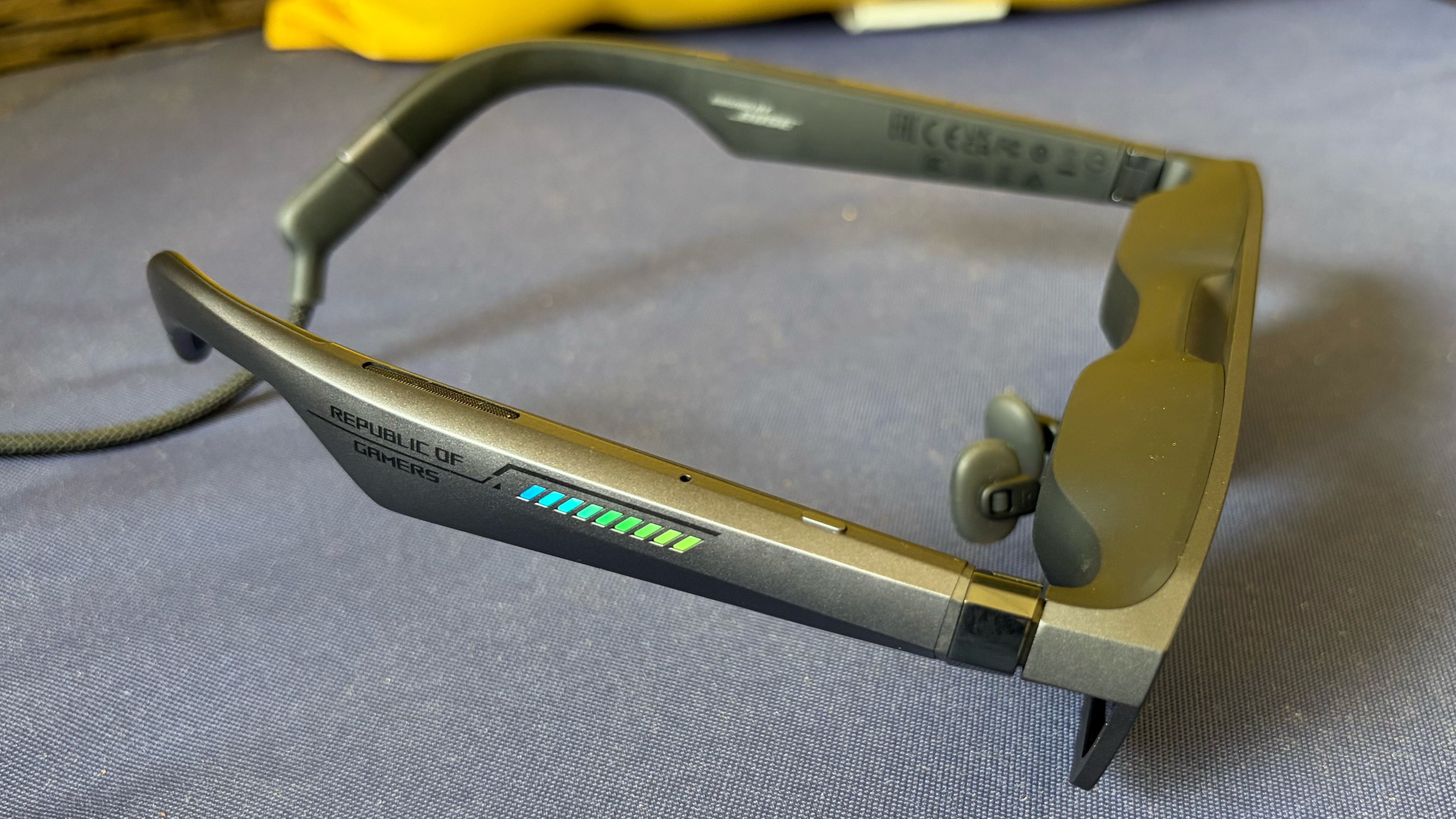
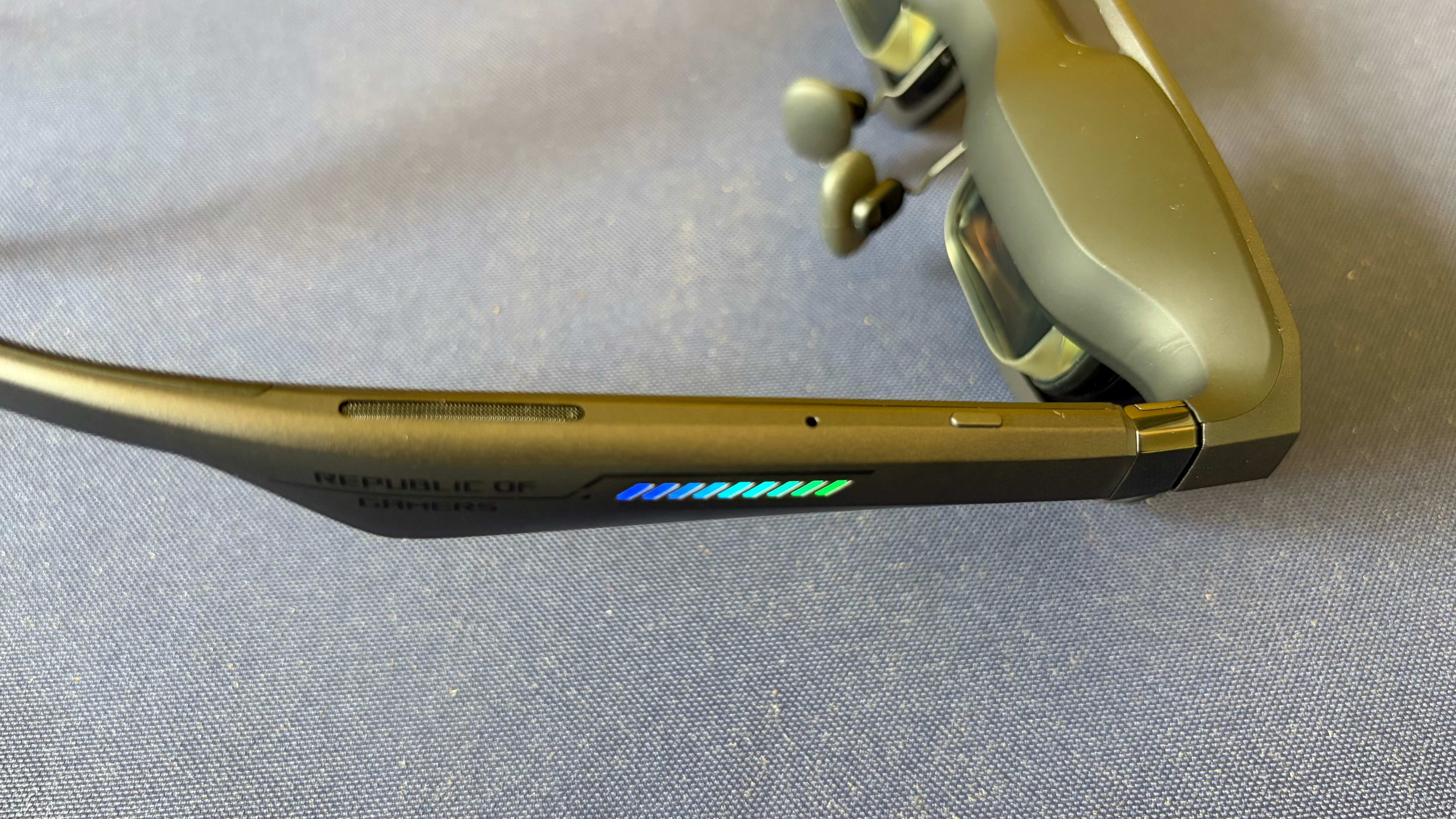
Although it shares many of the same internals as the Xreal One Series AR glasses, the R1 has an unmistakable ROG flair. Whereas the “One” glasses have smooth surfaces and rounded edges, the R1 has a more angular design and chamfers along the temples. And in keeping with ROG design ethos, there is a line of 9 LEDs along both temples, along with Republic of Gamers etchings.
The glasses are constructed from high-quality plastic, which feels similar to that of the Xreal One and One Pro. But whereas the Xreal glasses have a soft, matte finish, the R1 has a shimmering grey finish. Unlike the One glasses, the R1 doesn’t have a detachable front frame, which probably isn’t too much of a hindrance, as the glasses already have a clean, modern aesthetic when viewed from the front.
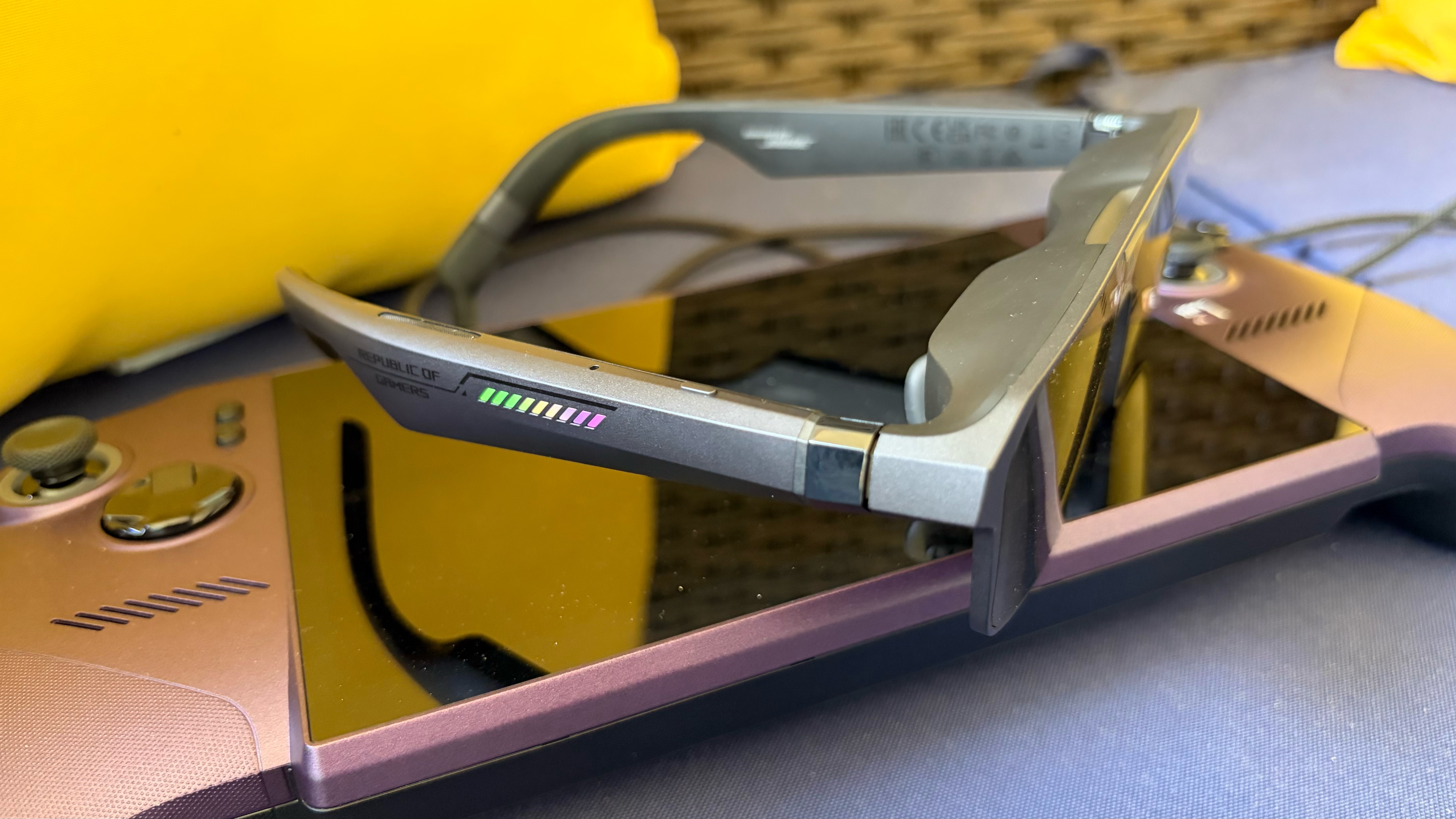
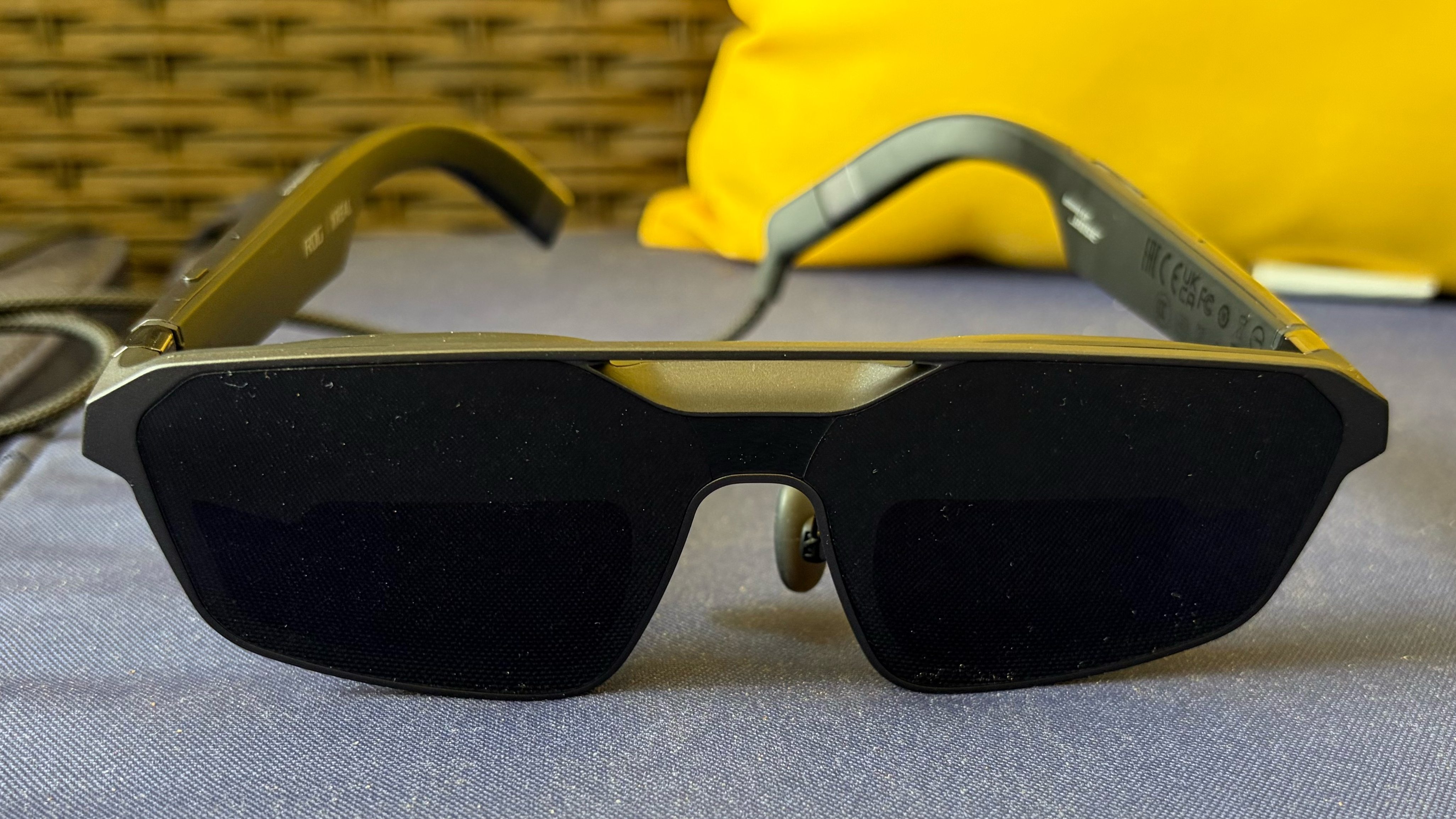
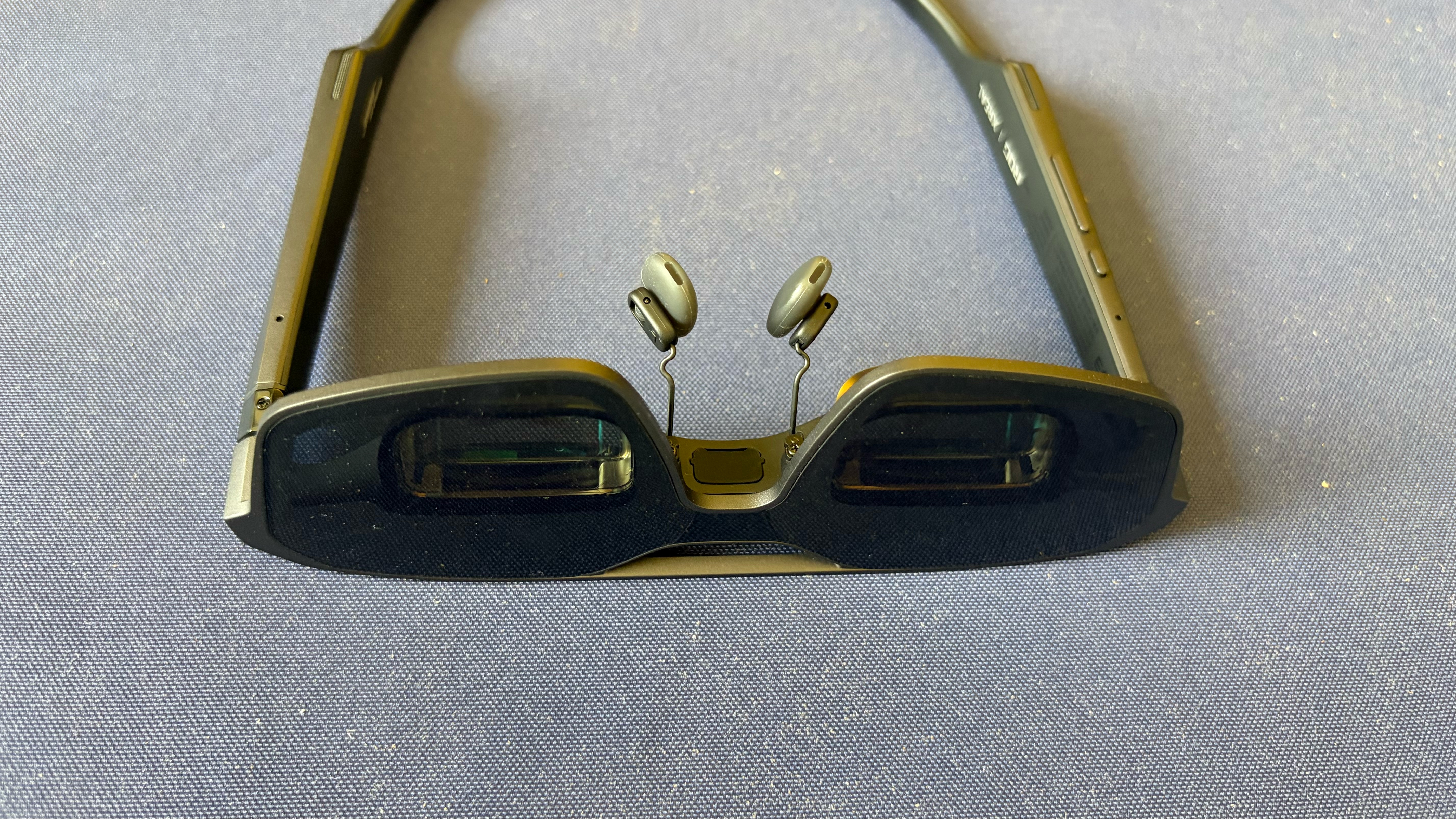
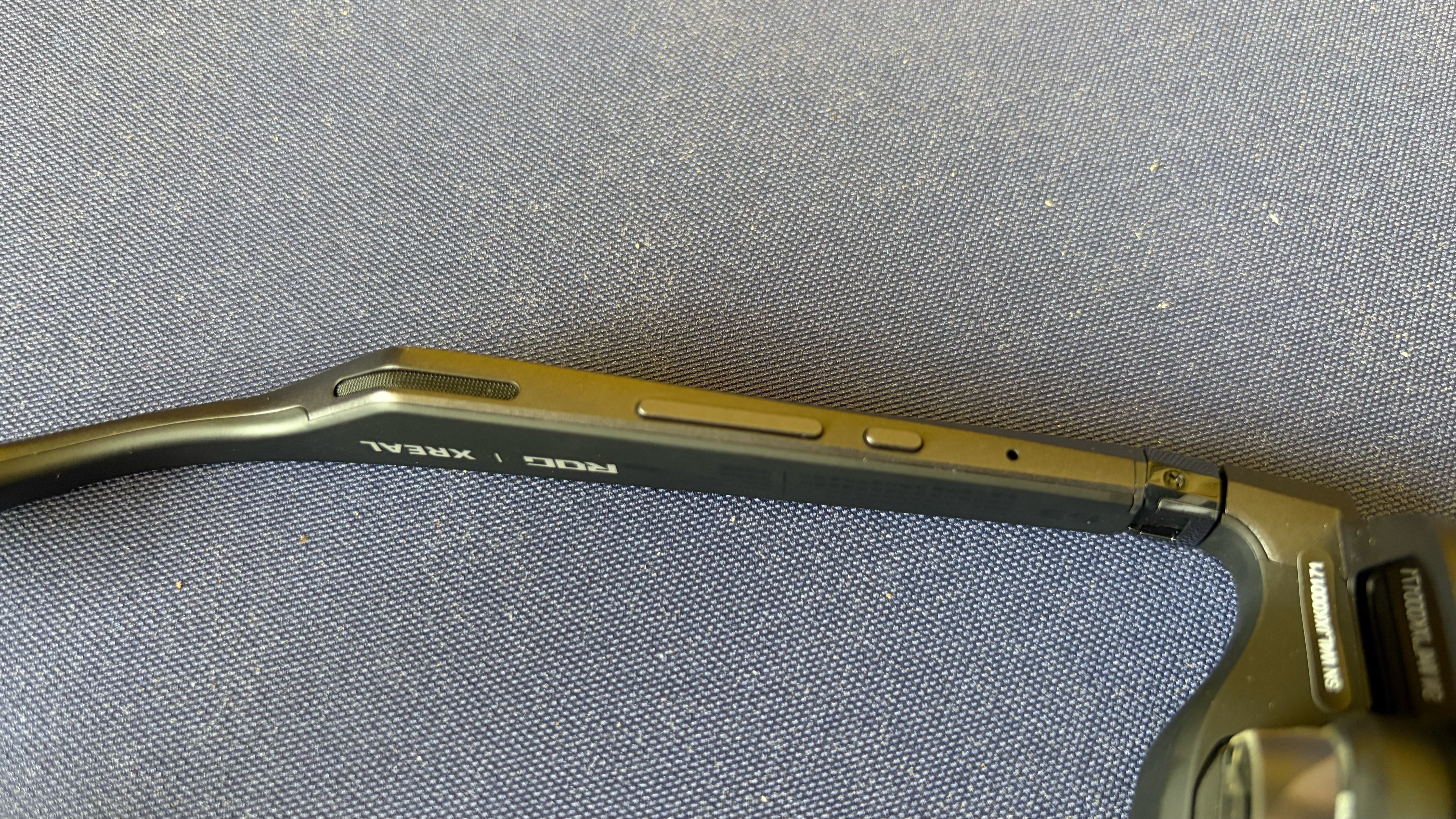
The R1 features open-air speakers along the temples, with a USB-C port at the rear of the left temple. The top of the right temple features a programmable Quick button. On the underside of the right temples, you’ll find a menu button and a rocker switch that navigates through the menu system. When the menu is inactive, that same rocker switch adjusts the display brightness.
The R1 uses a flat-prism lens design, resulting in much less visual heft near your eyes than traditional bird bath lenses. This design also results in a 57-degree field of view, which is identical to the One Pro. Content is projected using dual 0.55-inch Sony Micro-OLED displays, featuring a 0.01 ms response time and a 240 Hz refresh rate (double that of competing AR glasses) with Frame Rate Boost enabled. The glasses can also project an image equivalent to up to 171 inches across at a distance of 4 meters.
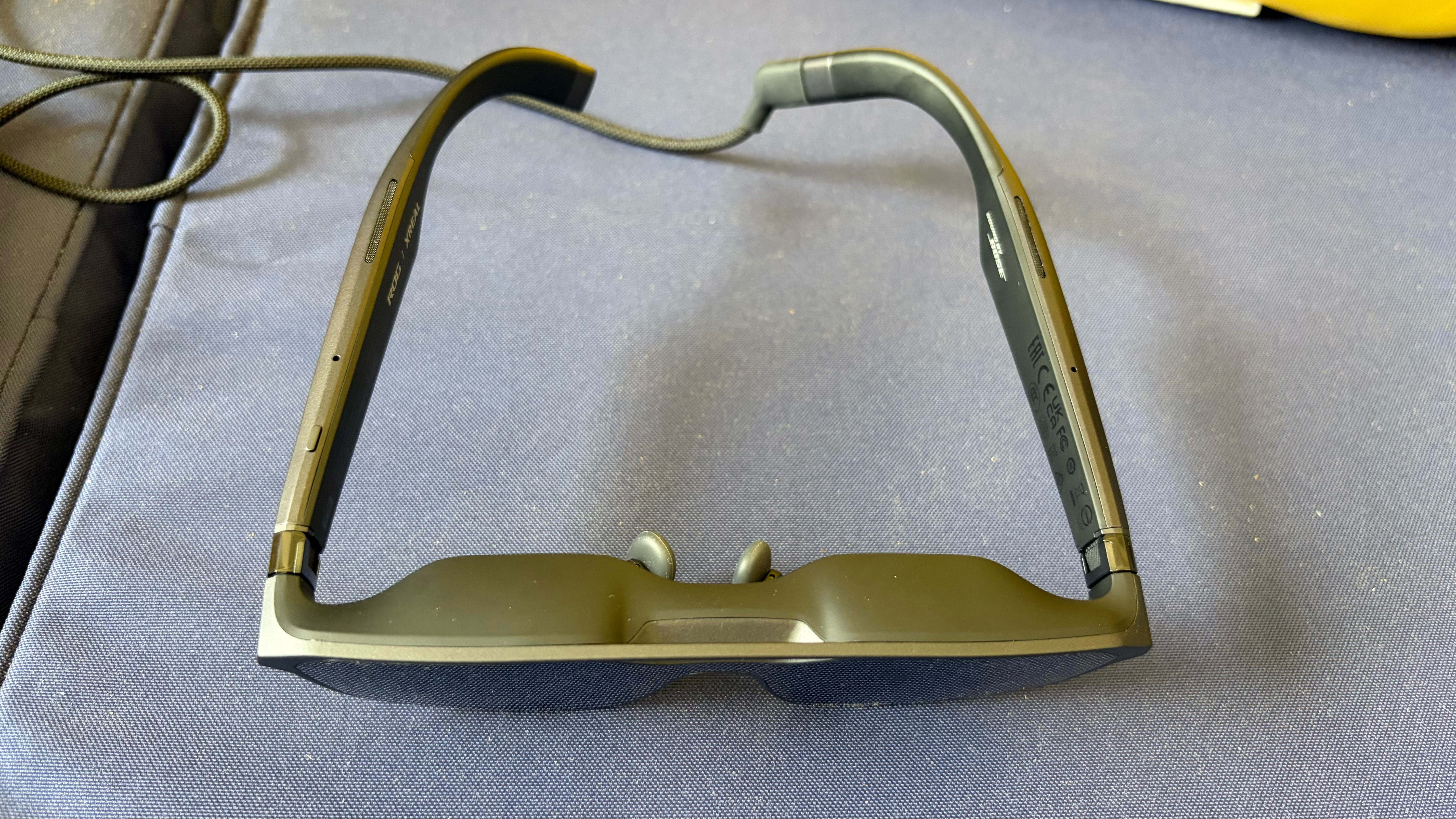
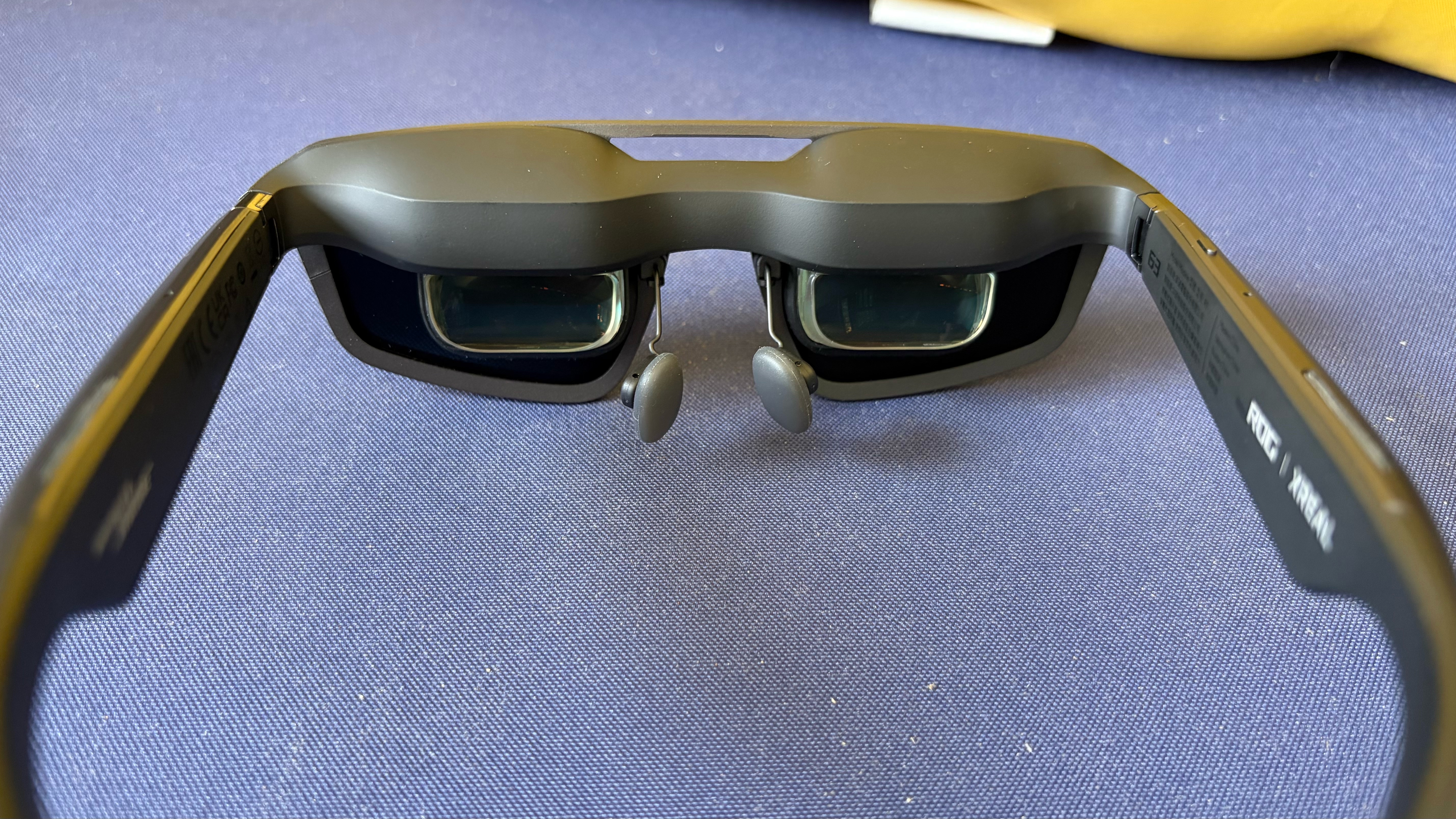
Three levels of electrochromic dimming are offered on the R1. The darkest setting blocks most, but not all, environmental light to heighten the sense of immersion while gaming or viewing media content. Electrochromic dimming is a must at this price point, since less expensive glasses rely on cheap physical plastic light blockers to achieve the same effect. And the physical light blockers are an all-or-nothing affair, with no granularity in their light-blocking abilities.
One other item of note: The R1 features the same accessory port between the nose pads that accepts the Xreal 6 DoF camera module.
In addition to the R1, the retail box includes a hard carrying case, the USB-C-to-USB-C cable, a prescription lens frame, small and large nose pads, a polishing cloth, and the ROG Control Box.
Specifications for the Asus ROG Xreal R1
Swipe to scroll horizontally
Display | 1920 x 1080 per eye |
Display Type | OLED |
Refresh Rate | 240 Hz |
Brightness | 700 nits |
Field of View | 57 degrees |
Virtual Screen Size | 171 inches |
Degrees of Freedom | 3 DoF |
Audio | Dual open-air speakers |
Connectivity | USB-C |
Weight | 3.06 ounces (87 grams) |
Asus Xreal ROG Control Dock and the Asus DisplayWidget Center
Our R1 review unit shipped with the ROG Control Dock. It’s a lightweight accessory designed to connect your R1 glasses to a PC or gaming console. The front of the unit has a single USB-C port for video out to your glasses. The back panel features two HDMI ports and a DisplayPort for video input. There are also two USB-C ports: one for power-in and one for power-in and data.
The dock ships with two USB-C-to-USB-A cables for connecting power and managing data throughput from your PC.
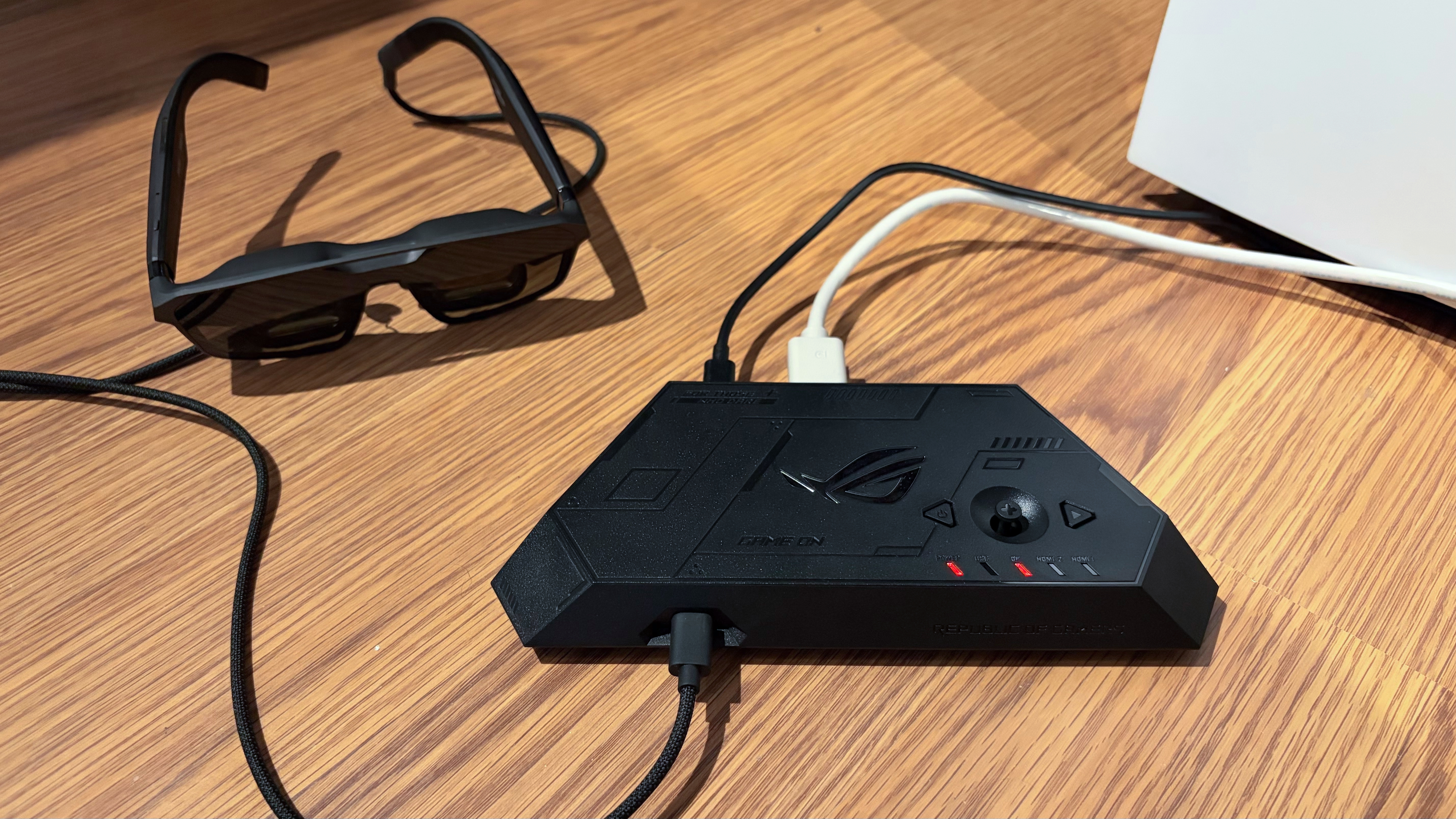
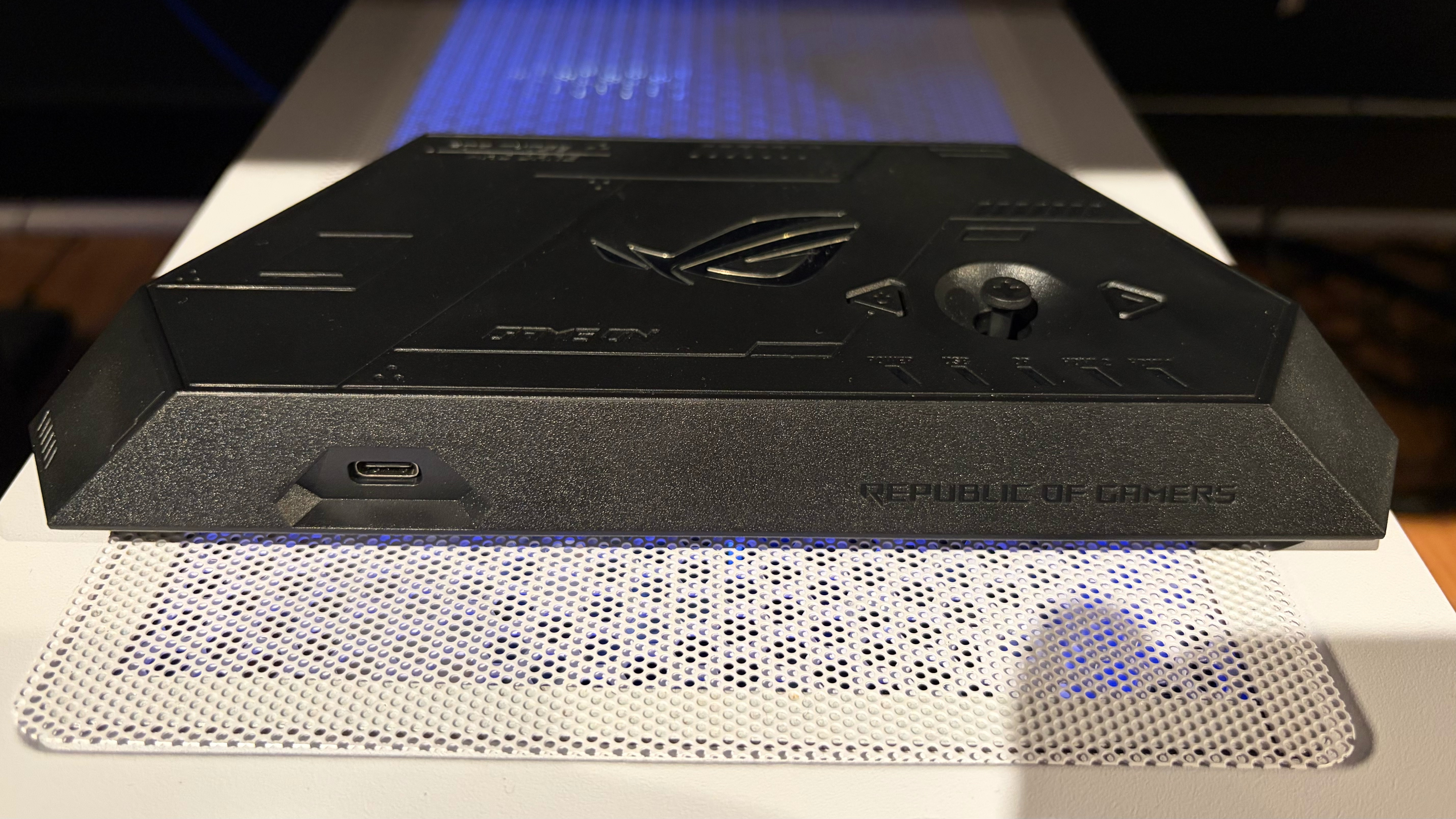
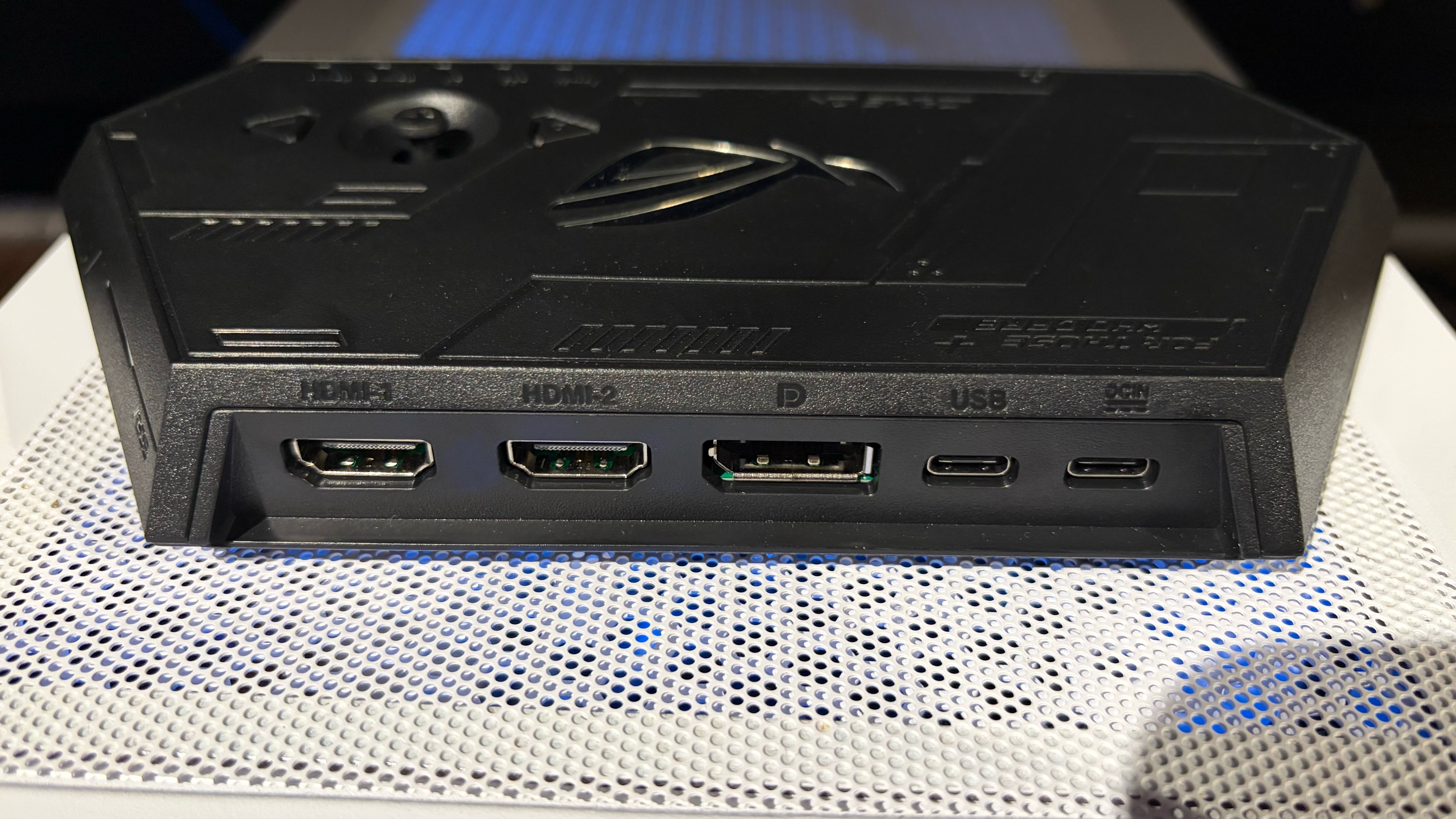
The top of the unit features a power button, an exit button, and a joystick to navigate the glasses' OSD. If you don’t want to install any additional software, you can control all R1 settings (including screen brightness, refresh rate, color modes, tint level, and more) using the joystick and the OSD.
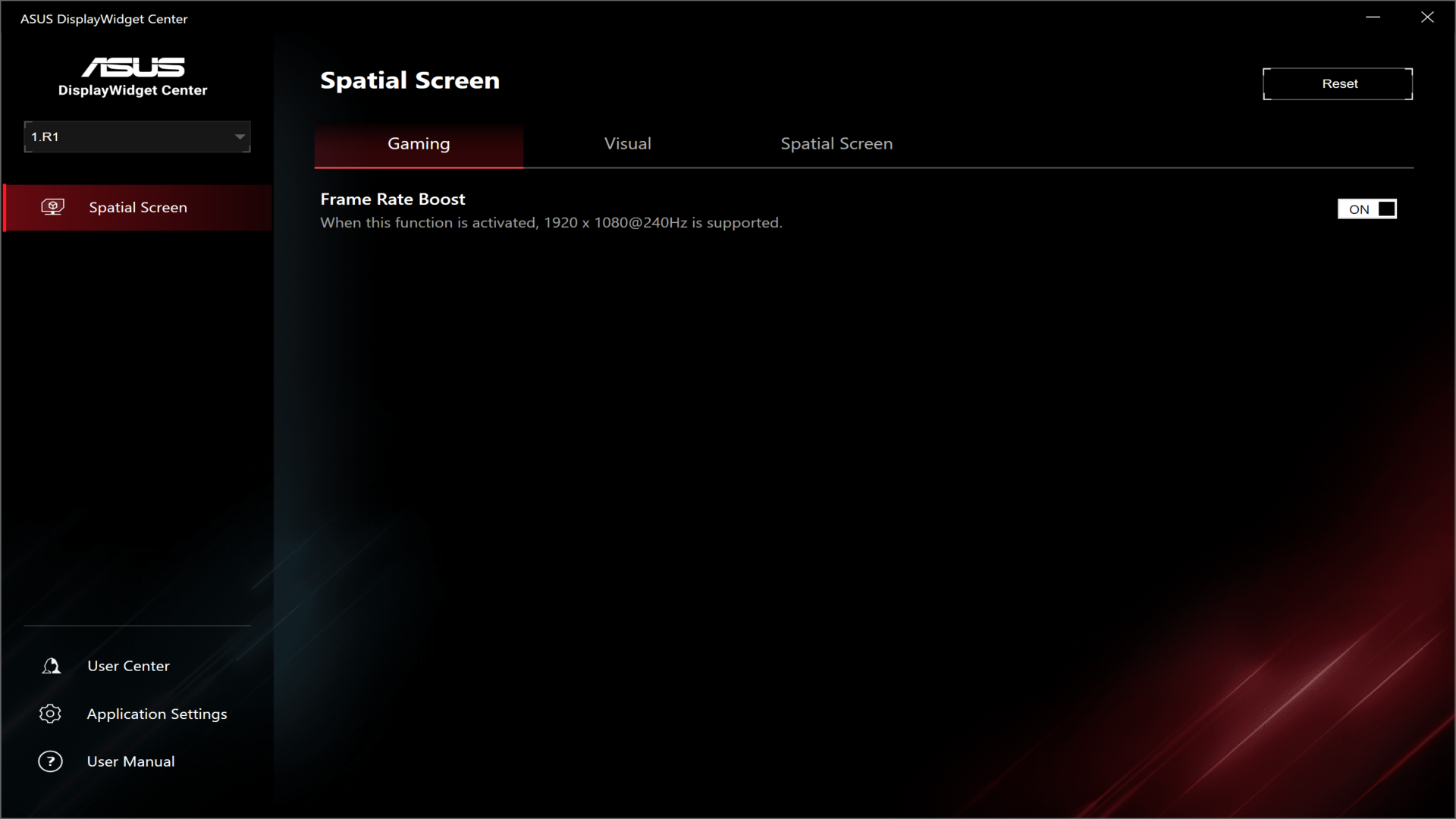
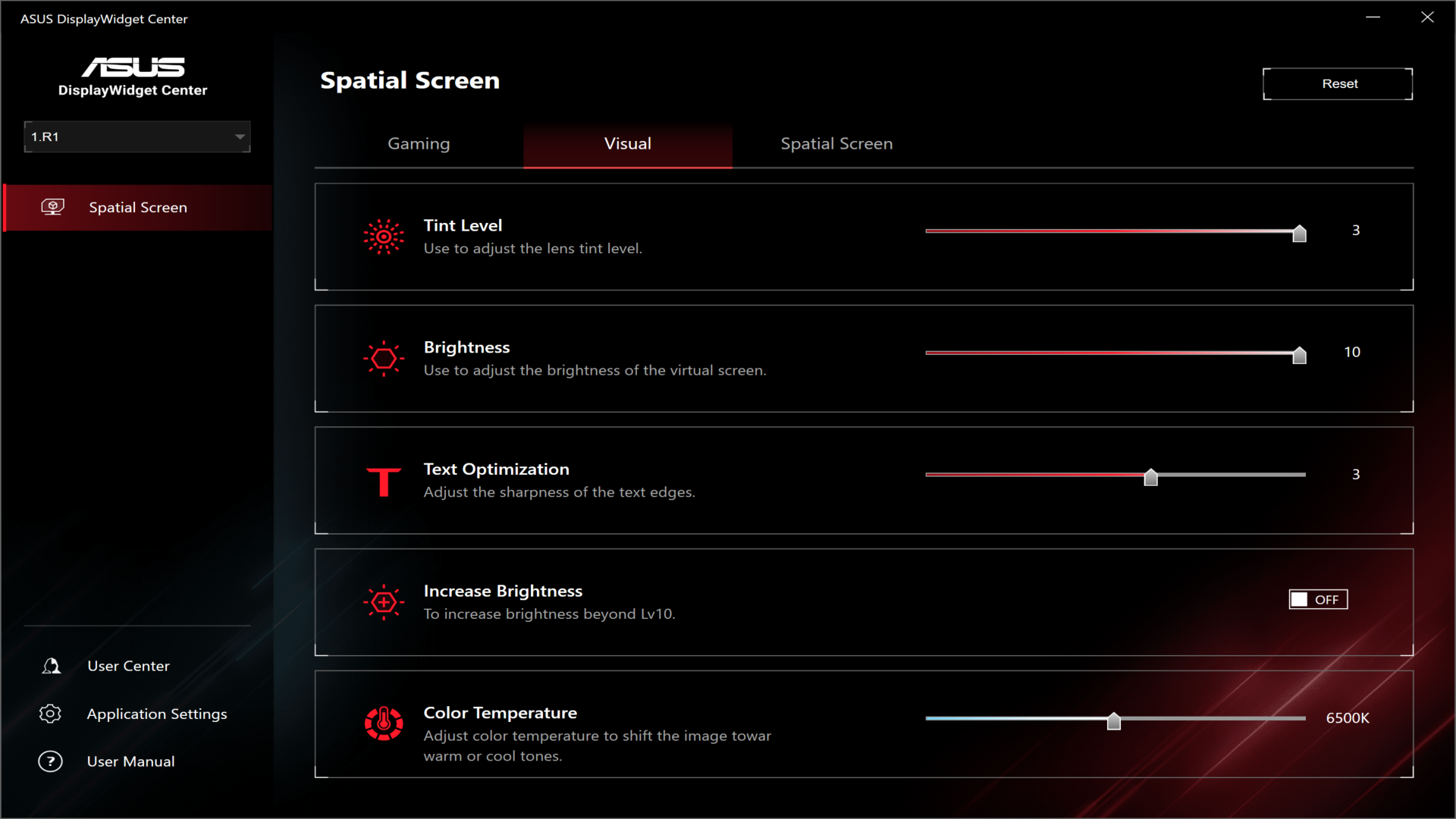
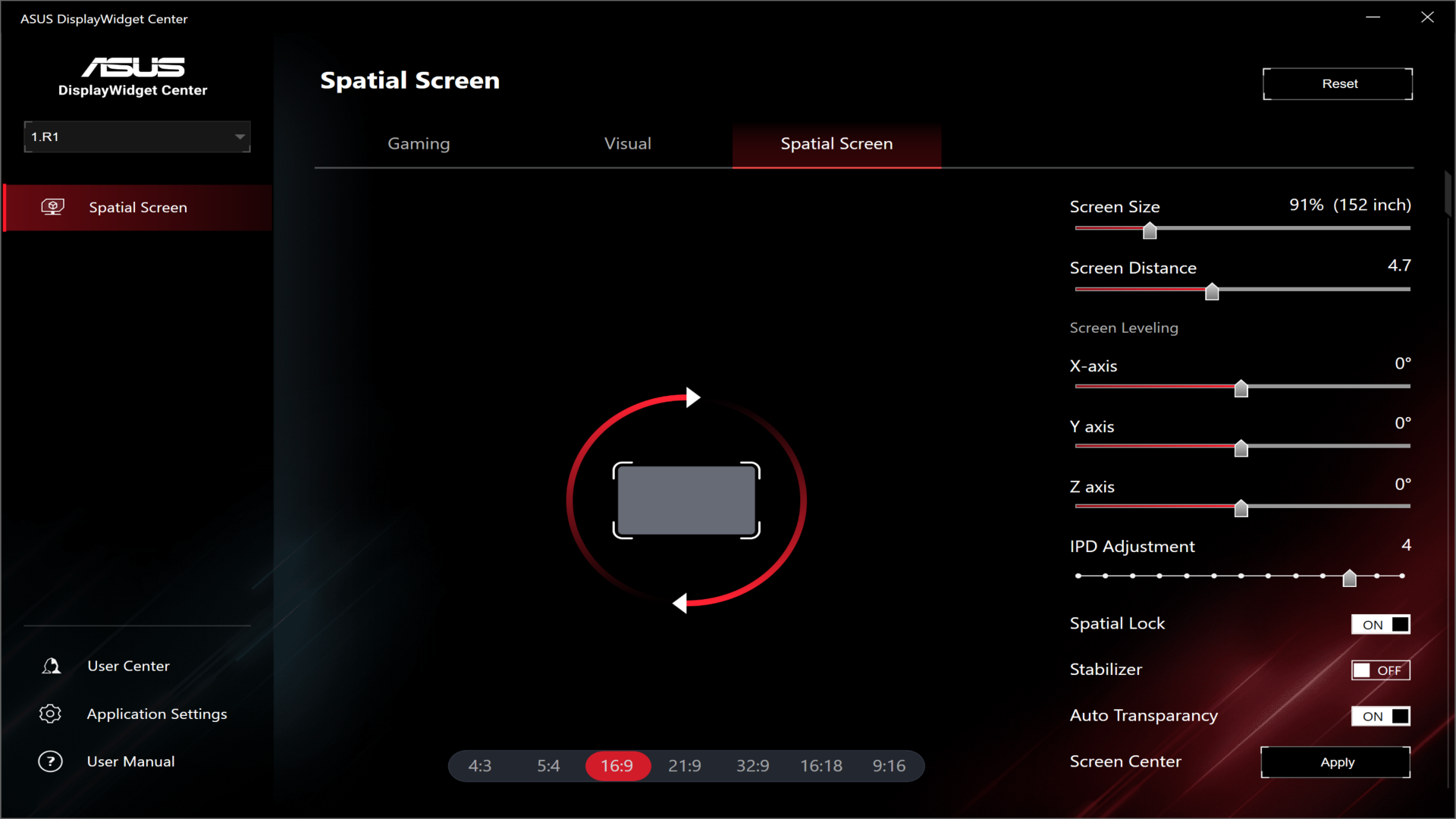
However, I found that the easiest way to control (most of) the R1’s settings is to use the Asus DisplayWidget Center. After installing the app, the R1 appeared as a controllable “display” within it. From there, I could control R1 settings via three menu tabs: Gaming, Visual, and Spatial Screen. The only option under Gaming is to enable Frame Rate Boost, which allows you to set a maximum refresh rate of 240 Hz (up from the default 120 Hz). From the Visual tab, you can control the tint level for the electrochromic lenses, brightness, text sharpness, and color temperature. In the Spatial Screen tab, you can adjust the screen aspect ratio, screen size, screen distance, IPD (57 to 66 mm), and control spatial lock.
Using the Asus Xreal ROG R1
The R1 is designed with gaming in mind, so I dedicated most of my time to testing it in that environment. For my testing, I used two different gaming rigs: a desktop PC with a Core 7 Ultra 265k and an RTX 4060 Ti, and an MSI Claw 8 EX AI+ handheld gaming PC with an Arc G3 Extreme SoC.
Without question, working with the desktop system was the most involved, as it required using the ROG Control Dock with various wires going in and out for video and power. However, using the R1 with the Claw 8 EX AI+ proved to be the simplest, with me only needing to plug the glasses into a free Thunderbolt 4 port.
I’ll take the time here to talk about the much-ballyhooed 240 Hz refresh rate option. This mode is enabled by selecting Frame Rate Boost from the R1’s OSD. However, I found that switching to this mode resulted in worse image quality, with a blurrier image and some jitter (especially at the outer edges of the viewable area), which led to eye strain. The effect was noticeable when using the ROG Control Dock and when plugged directly into a Thunderbolt 4 port. This is the byproduct of Asus and Xreal using a software algorithm to “boost” the frame rate from its native 120 Hz.
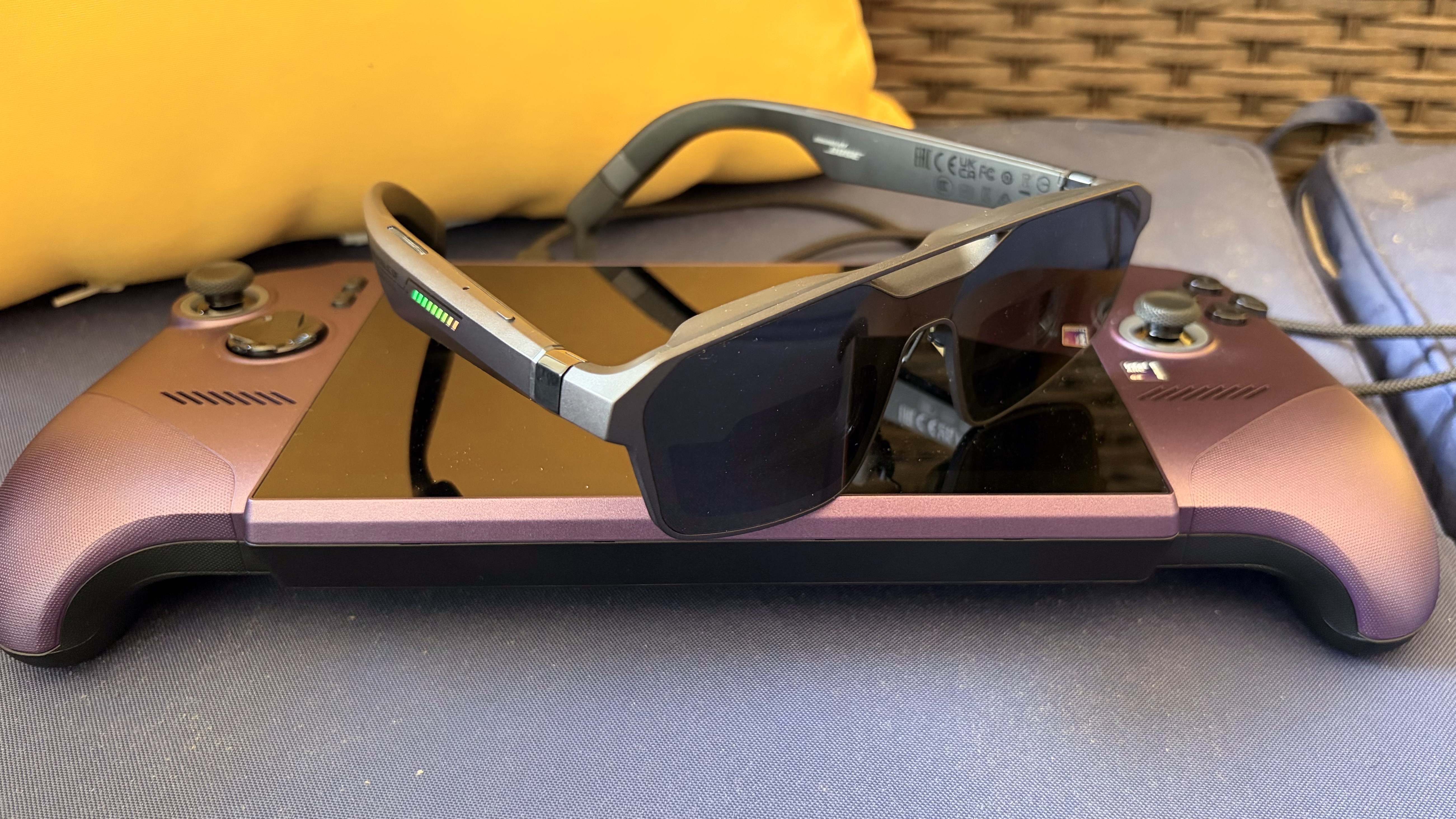
I experienced none of the visual anomalies in the native 120 Hz mode, so the 240 Hz mode was more of a novelty to me than something I’d rely on extensively for gaming. However, your experience may vary in this respect. The R1 supports an IPD range of 57-66 mm, and I’m just outside that range at 71 mm. So it could have been that my eyes were more sensitive to the 240 Hz mode.
While gaming on the desktop, I was able to play Battlefield 6 at 1080p and achieve over 100 FPS with DLSS Balanced enabled at High quality settings. Likewise, I easily hit similar FPS with details maxed out playing Lego Batman: Legacy of the Dark Knight.
The monitor I use for gaming is a 49-inch DQHD 240 Hz OLED, and I love the widescreen gaming aspect ratio. Being limited to 1080p resolution just didn’t seem to do the desktop gaming experience justice for me when using the R1. Yes, the image quality and response times are good, but if I’m sitting at my desk, I’d rather use my monitor.
That whole sentiment changes, however, when gaming on the Claw 8 EX AI+. Going from the 8-inch 1200p display to the simulated 171-inch 1080p display, with no limits on mobility, is an amazing experience. Since there’s only one cable to manage, going from the R1 to the handheld, you have great freedom in where you can game. From gaming on the couch, to the car, to your back porch, to sitting at the airport during a layover – the big-screen sensation that isthe R1 follows you anywhere.
Given the Xreal One Pro starting point, it’s no surprise that the R1 uses similar (or perhaps the same) Bose-tuned open-air speakers. As with the One Pro, the speakers are decent, with a respectable amount of bass and clarity at moderate to high volume levels. If you just want a low-impact, throw-on-and-go experience with the R1 and a gaming handheld, you’ll be more than pleased with the sound output. However, if you want the best mobile gaming experience, nothing is stopping you from also wearing a high-quality pair of wireless earbuds or headphones.
Bottom Line
The Asus ROG Xreal R1 glasses are a real testament to what’s possible when two companies at the top of their game work together on a singular product. Xreal is arguably the leader in modern AR glasses, while Asus is among the leading players in gaming peripherals, laptops, and handhelds. They’ve created an impressive product with a 240 Hz refresh mode, customizable RGB lighting effects, and support for the existing Xreal accessory ecosystem (namely the Xreal Eye camera).
The included ROG Control box lets you connect an HDMI or DisplayPort output from your graphics card to the glasses. It also provides quick access to the R1’s controls using the top-mounted joystick.
But the R1 really comes alive when used with a handheld gaming PC like Asus’ own ROG Ally, or a competing device like the MSI Claw 8 EX AI+. The R1 connects to these devices via a single cable and delivers a fully “mobile” gaming experience projected onto a virtual 171-inch display.
However, the primary sticking point with the R1, like many other high-end AR headsets, is the price tag. $849.99 is a tremendously high price, even with the ROG Control Box included. For example, the Xreal One Pro is $599, the Xreal One S is $449, while the RayNeo Air 4 Pro will set you back just $239. If you look past the 240 Hz mode (which can be hit-or-miss depending on the person), is the R1 really worth $250 more than the One Pro, or over $500 more than the Air 4 Pro? The objective answer is no on both counts.







 English (US) ·