
 5 hours ago
6
5 hours ago
6
With prices generally higher than their LCD counterparts, the best OLED gaming monitors remain a premium category. And within that, there are flagships even though you’ll rarely see the words “bad” and “OLED” in the same sentence.
Asus ROG Swift displays represent an entire series of flagships, with every model featuring plenty of bells and whistles along with benchmark performance. I’ve looked at many of these in the past, and here, I have the latest one, the PG32UCWM. It’s a 32-inch Tandem RGB Stripe OLED with 4K resolution at 240 Hz, FHD at 480 Hz, Adaptive-Sync, HDR10, DisplayHDR 400, Dolby Vision, and wide-gamut color. Let’s take a look.
Asus ROG Swift PG32UCWM Specs
Swipe to scroll horizontally
Panel Type / Backlight |
Organic Light Emitting Diode (OLED) Tandem RGB Stripe |
Screen Size / Aspect Ratio |
32 inches / 16:9 |
Max Resolution and Refresh Rate |
3840x2160 @ 240 Hz |
| Row 3 - Cell 0 | 1920x1080 @ 480 Hz |
| Row 4 - Cell 0 | FreeSync and G-Sync Compatible |
Native Color Depth and Gamut |
10-bit / DCI-P3 |
| Row 6 - Cell 0 | HDR10, DisplayHDR 400 True Black, Dolby Vision |
Response Time (GTG) |
0.03ms |
Brightness (mfr) |
270 nits full-field |
| Row 9 - Cell 0 | 1,000 nits 3% window |
Contrast |
Unmeasurable |
Speakers |
None |
Video Inputs |
1x DisplayPort 2.1 |
| Row 13 - Cell 0 | 2x HDMI 2.1, 1x USB-C |
Audio |
3.5mm headphone output |
USB 3.2 |
1x up, 3x down |
Power Consumption |
52.4w, brightness @ 200 nits |
Panel Dimensions WxHxD w/base |
28.1 x 20.2-23.3 x 10.9 inches (714 x 513-592 x 277mm) |
Panel Thickness |
2.5 inches (64mm) |
Bezel Width |
Top: 0.3 inch (8mm) |
| Row 20 - Cell 0 | Sides: 0.35 inch (9mm) |
| Row 21 - Cell 0 | Bottom: 0.43 inch (11mm) |
Weight |
19.84 pounds (9kg) |
Warranty |
3 years |
First, we’ll tackle the alphabet soup in the room: Tandem RGB Stripe OLED. Let’s call it TRS-OLED, consisting of two light-emitting layers with red, green, and blue diodes. This approach addresses several issues. With two layers comes lower power consumption at a given light level. Tandem white OLEDs do the same thing. RGB Stripe takes care of the fringing issue where white diodes behind color filters can spread their light and cause a loss of sharpness. In practice, you will be hard-pressed to see any softness from any OLED, but an RGB Stripe panel like the PG32UCWM is a tad sharper, and you’ll see it in a side-by-side comparison. To this, Asus adds its True Black Glossy screen coating, which earns its name by reducing the effect of ambient light on the screen. Visually, it deepens black areas and improves perceived contrast.
Latest Videos FromTom's Hardware
Another advantage of RGB Stripe is increased color volume. Most wide gamut screens employ Quantum Dots to increase volume up to 110% of DCI-P3 or more. RGB Stripe achieves most of that without the light-reducing effect of a QD layer. The PG32UCWM delivers an honest 100% of P3, which is a little less than the competition, but it’s more than the 93-95% coverage of non-QD monitors. Asus promises and delivers accuracy out of the box as well with a calibration report stored in the panel’s firmware.
It wouldn’t be ROG without serious gaming performance, and on that, the PG32UCWM delivers in spades. 240 Hz at 4K is available for those with enough video card power to achieve it. If you want maximum fps, there’s a 480 Hz mode with FHD 1920x1080 resolution. You can also employ ELMB at lower frame rates to reduce motion blur. Asus includes its exclusive OLED Anti-Flicker feature, which mitigates stutter during rapid frame rate transitions. Does this translate into a fast and smooth experience? Check out my test results on page two to find out.
The PG32UCWM supports HDR10 with multiple picture modes and an adjustable option. And it accepts Dolby Vision content, which is still a rarity among computer monitors. Its dynamic tone mapping creates a major improvement in picture depth, regardless of the level to which content is mastered. It will show you every nuance and render every detail present in the original material.
Like all ROG Swift screens, the PG32UCWM includes multiple LED arrays on the back and in the stand where a logo can be projected onto the desktop. There is a full list of GamePlus enhancements like aim points and sniper modes. And some of these can be automated with AI to better adapt to the gaming environment. You also get USBs and a full set of the latest video I/O ports: HDMI 2.1, DisplayPort 2.1 and USB-C.
Swift displays usually come with a price premium over their competition, but the PG32UCWM comes out of the gate at $1,299, which isn’t a huge number when you consider its build quality and performance. It is a true flagship.
Assembly and Accessories
A colorfully adorned box houses the PG32UCWM in molded pulp, which is completely recyclable. The stand, base, and panel assemble without tools. The ROG logo projector lens fits under the base with magnets and includes extra lenses. A zippered pouch disgorges a cable bundle consisting of IEC cords, two USBs, HDMI, and DisplayPort. You also get sheets of ROG decals and a microfiber cleaning cloth for that beautiful shiny screen. Speaking of shiny, there is a lot of bling on this monitor, all protected by bits of clear film. It almost becomes a game to find it all, but at least you can be sure your PG32UCWM won’t arrive with scratches.
Product 360
Image 1 of 4
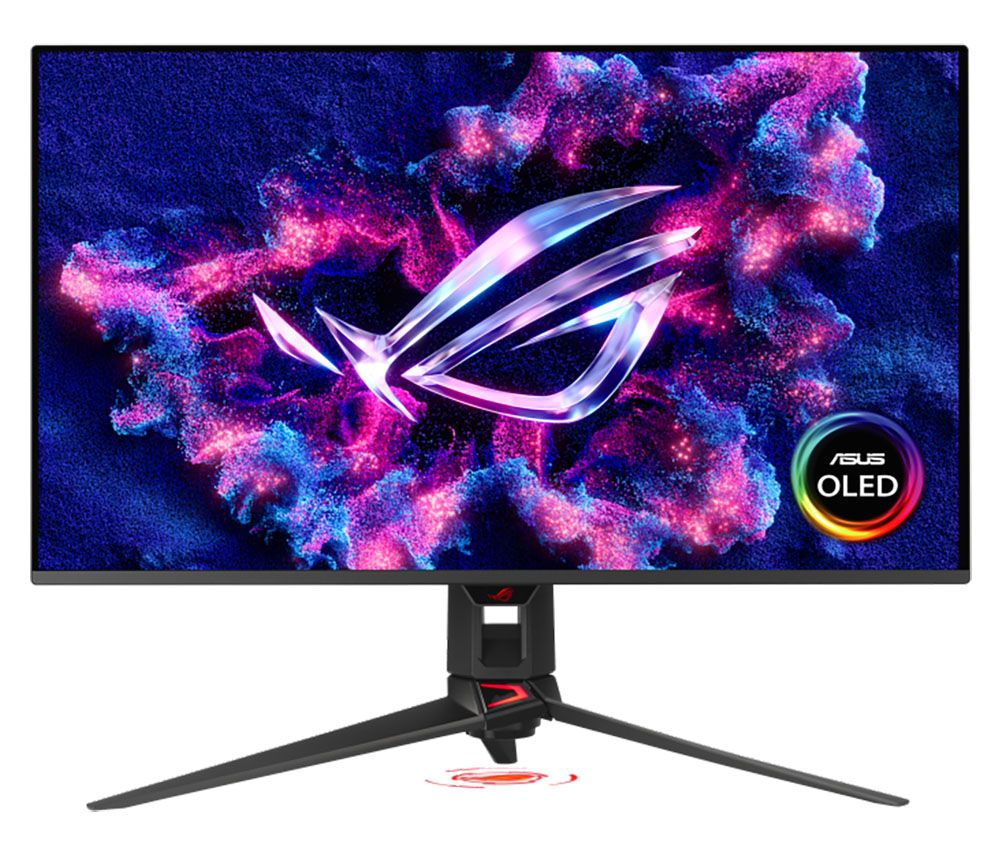
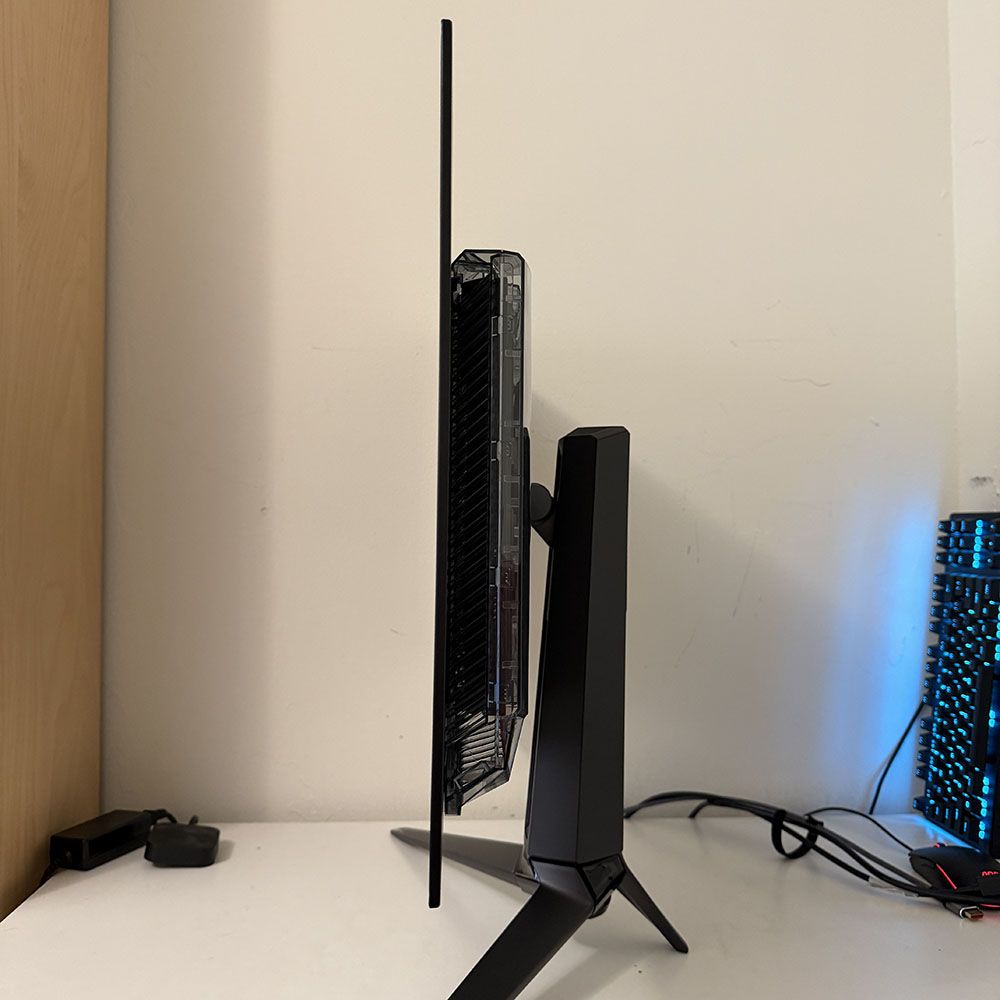
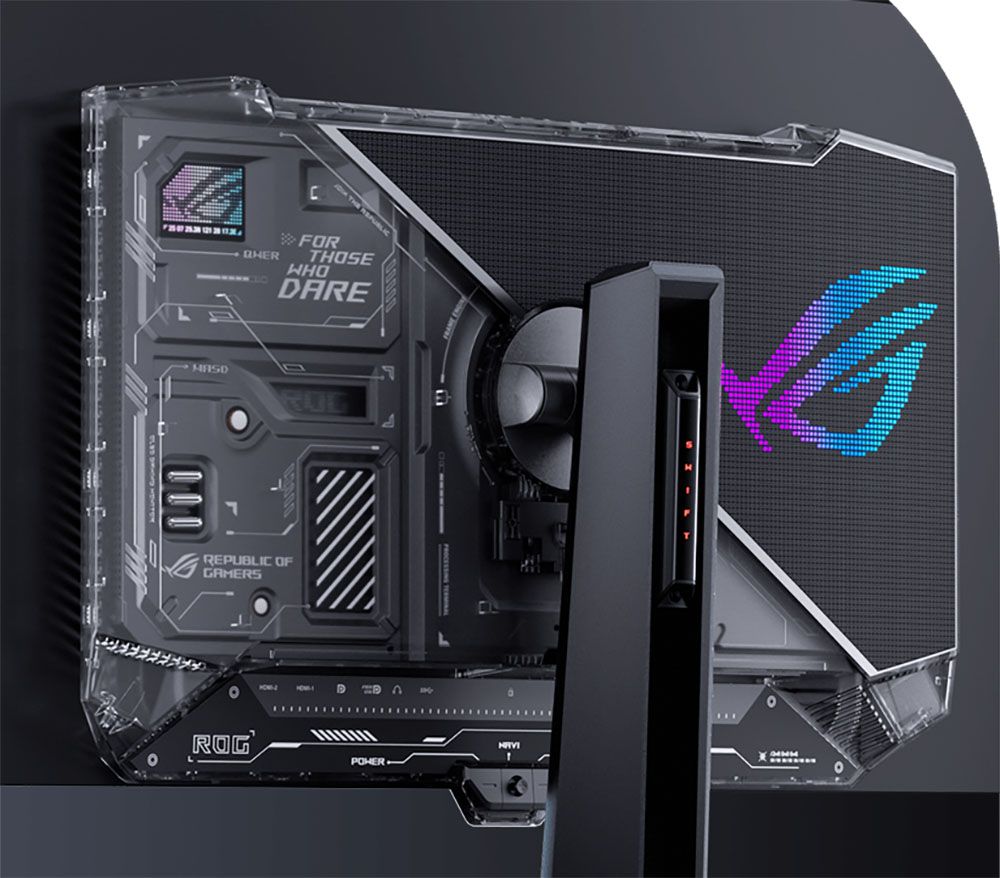
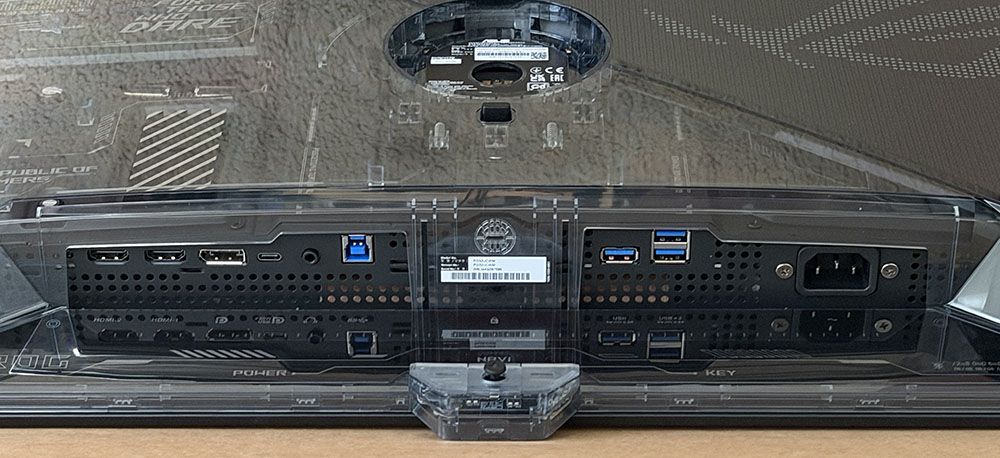
The latest crop of Swift displays, like the PG32UCWM, set themselves apart with LEDs in the stand, a logo projector and clear plastic on the back that reveals the internal componentry. It’s a great complement to a transparent PC case, which Asus can also sell you. The right half includes the Lite-Brite LED feature, which can play a vast array of colors and effects. You also get lighting in the stand where it says “Swift”, in the base, in the ROG logo up front, and in the projector under the stand.
The stand is super solid and includes a 3.1-inch height adjustment plus 5/20 degrees tilt and 15 degrees swivel. There is no portrait mode. If you want one, you’ll need an aftermarket arm that interfaces with the included adapter bracket, which provides a 100mm VESA mount. It comes with beefy fasteners.
The styling is a two-piece configuration with the screen and its metal backing attached to a component bulge. This improves cooling along with a graphene layer and internal heat sinks. Several OLED care features enhance panel life, and Asus backs the PG32UCWM with a three-year warranty that includes burn-in. No internal fans are needed to keep running temps low.
The I/O panel includes one DisplayPort 2.1 (configurable to 1.4), two HDMI 2.1, and a USB-C (DP Alt). USB 3.2 is supported by one upstream and three downstream ports. Audio comes only through a 3.5mm headphone jack; there are no internal speakers.
OSD Features
The PG32UCWM’s OSD has every feature one could want in a flagship gaming monitor, including video processing and extensive image controls. It’s operated by a joystick behind the small protrusion in the front center. Two buttons flank it; one toggles power, and the user can program the other.
Image 1 of 9
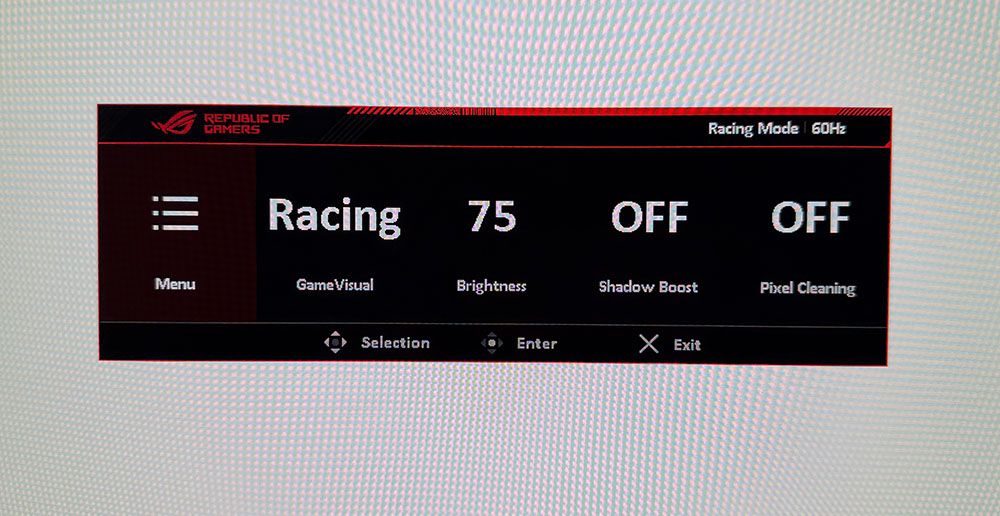
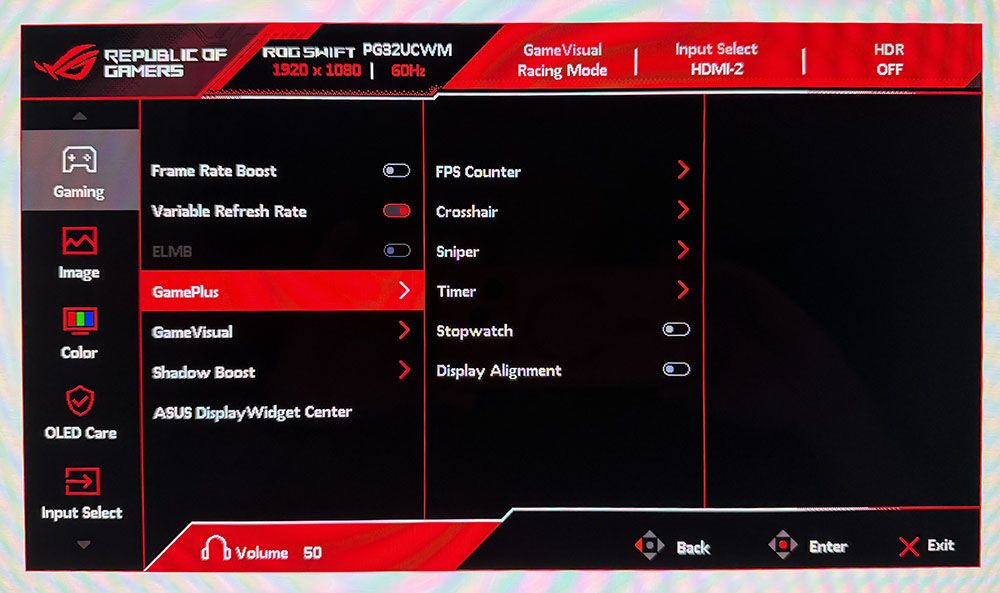
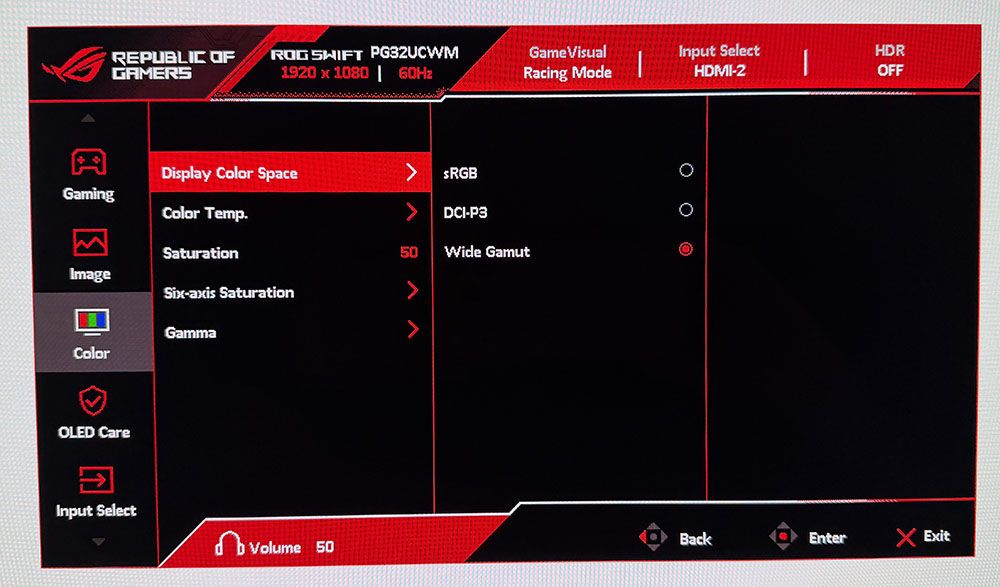
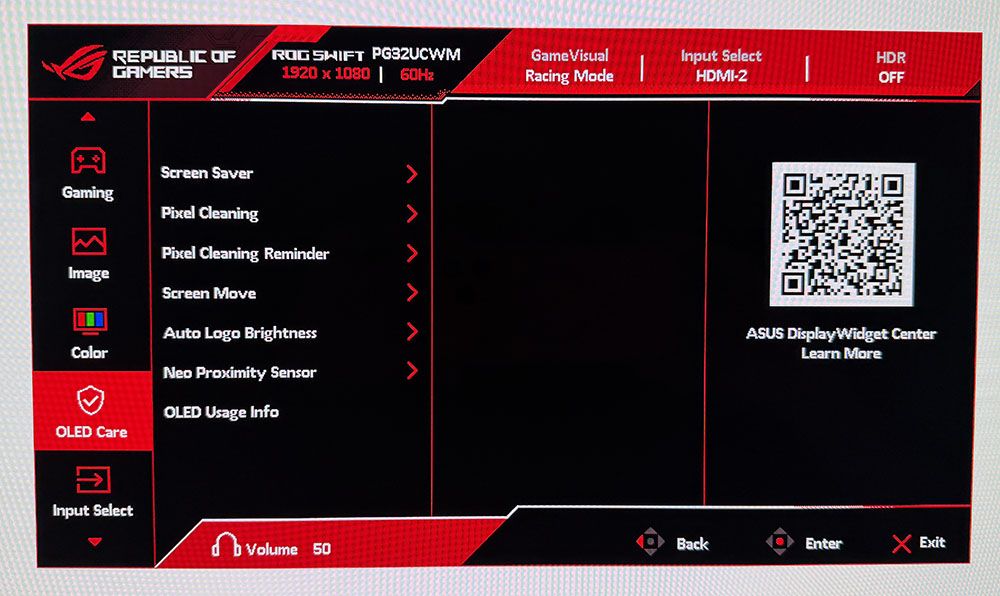
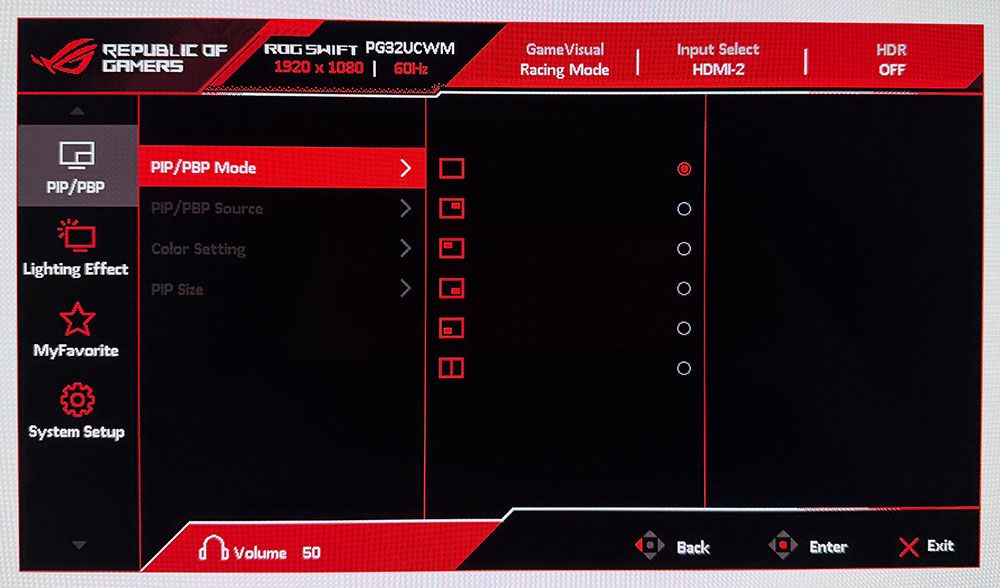
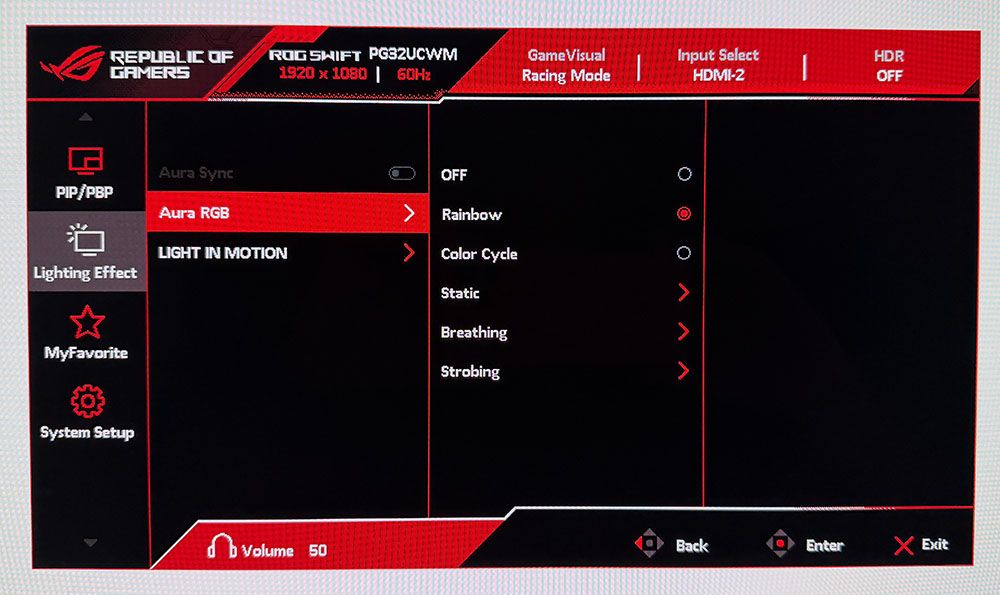
At the top of the Gaming menu is the Frame Rate Boost toggle. You can also switch modes with the left control button. Either way, it takes a few seconds for the picture to return. In GamePlus, you get frame counters, aiming points, sniper modes, timers, a stopwatch, and display alignment marks. Some of these have AI-controlled settings which change things like the reticle color or the gamma of the image’s dark areas to increase visibility.
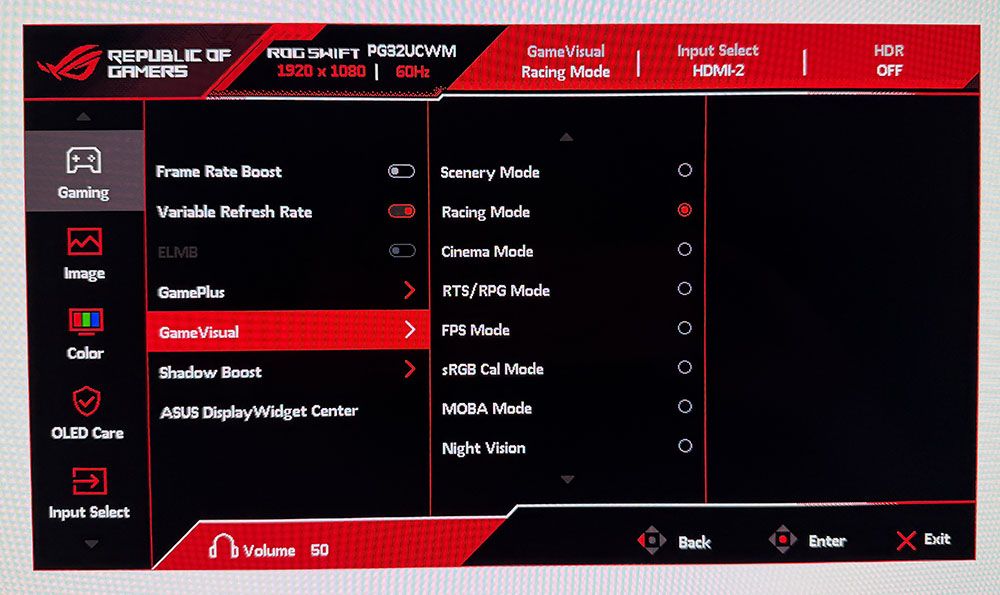
GameVisual has nine picture modes, of which Racing is the default and best choice. Like all Asus ROG monitors, there’s an sRGB Cal mode which is accurate but also grays out the calibration controls. If you want sRGB, it’s better to pick that option from Color Space in the Color menu. Then you can adjust grayscale and gamma if you wish.
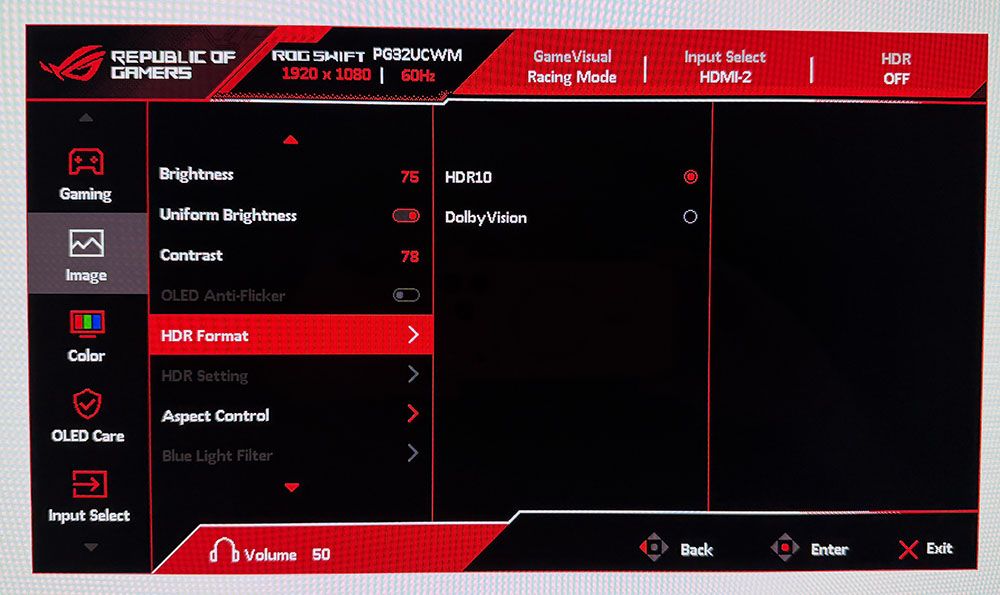
HDR is available in HDR10 and Dolby Vision formats. When the appropriate signal is present, you can pick between four different picture modes and turn on an adjustment toggle that enables the brightness and contrast sliders. Also included is Uniform Brightness for both SDR and HDR. If you turn this off, the peak output of small highlights can top 1,000 nits. I measured 532 nits from a 25% window pattern. This feature improves HDR impact and is handy for SDR gaming and video. Turn it on for productivity and static graphics where it will reduce eye fatigue during long work sessions.
The Color menu includes the aforementioned gamut options plus color temp and gamma presets. A set of RGB sliders can dial in grayscale to a very precise level. If you want to tweak color further, there are global and individual saturation controls.
Asus takes OLED care very seriously with a host of options like pixel cleaning, screen saver, orbiter, and logo brightness. All of these can be toggled individually. When I first powered up my PG32UCWM sample, it recommended running the pixel clean straight away, so I did. This often improves screen uniformity for brand-new monitors, though I didn’t see a difference in this case. You also get a proximity sensor that turns off the screen when you leave your desk.
The PG32UCWM includes PIP and PBP options for viewing two video sources at once. You can have individual color settings for the two windows and position and size them how you like. The Lighting Effect menu controls the many effects possible with LEDs in the base and back of the monitor. With Aura Sync enabled through Asus’ Display Widget Center app, you can coordinate the show with what’s happening on screen.
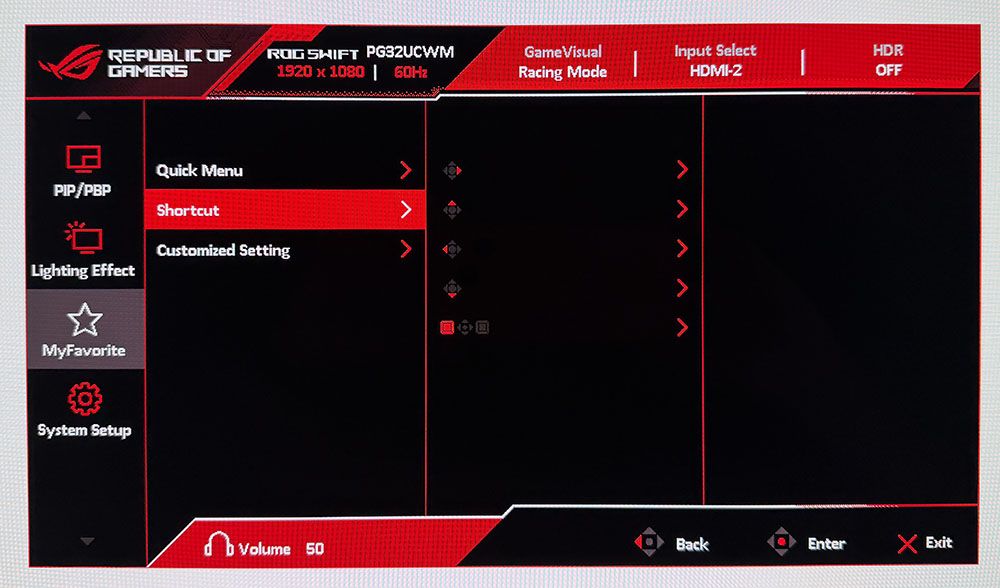
The quick menu has four user-programmable slots for one-click access to different functions. You can also program the four joystick directions and the left control button. There are two settings memories as well.
Asus ROG Swift PG32UCWM Calibration Settings
The PG32UCWM doesn’t need calibration in the Racing mode but I tweaked the RGB sliders for a nice gain, which took it into pro-monitor territory. Color is spot-on whether you choose wide gamut or sRGB. I found similar results in HDR mode when using either Gaming HDR or True Black modes, more about that on page five. Below are my suggested SDR settings including brightness values for Uniform Brightness on or off. You only need to set this value once for each mode, which is nice when switching back and forth.
Swipe to scroll horizontally
Picture Mode |
Racing |
Uniform Brightness |
On / Off |
Brightness 200 nits |
69 / 55 |
Brightness 120 nits |
38 / 37 |
Brightness 100 nits |
30 / 29 |
Brightness 80 nits |
22 / 22 |
Brightness 50 nits |
10 / 10 (min. 25 /25 nits) |
Contrast |
78 |
Gamma |
2.2 |
Color Temp User |
Red 100, Green 100, Blue 97 |
Gaming and Hands-on
I’ve often said that it’s nearly impossible to buy a bad OLED. All the displays I’ve reviewed over the past few years are super close in performance and image quality. That said, there have been several variations in technology that have subtle effects on the picture. Asus currently has the largest selection of different panel types covering Quantum Dot, Tandem, and RGB Stripe as the major categories. The PG32UCWM combines the latter two into a fourth variant, Tandem RGB Stripe. Looking at my sample, I could immediately see its sharper image. OLEDs are always razor-sharp, but this one is sharper, and I could see that in a side-by-side comparison with a typical Quantum Dot panel.
I could see it while gaming too. The detailed environments of Doom Eternal were even more textural and sharply resolved than usual. Little things like the reflections of light on a gun barrel, or the changing hues of the player’s hand as I moved around had me almost entranced. I’ll warn you now, if you audition a PG32UCWM, you will want to buy it. The sharpness and clarity of this monitor is addictive.
Video processing was exemplary, as it is with any Asus ROG Swift display. Movements and transitions happened with surgical precision as I ran through my usual sequence of run-and-gun maneuvers. Turn and shoot became second nature as I was able to stay apart from enemies and still put most of my ammo on target. Lobbing grenades became easier too. I love the sticky ones!
I always check out the HDR calibration screen in Doom’s menu to look for the correct rendering of both highlight and shadow detail. Game HDR showed a little clipping of highlights, but shadow areas were perfect. True Black was the better mode, which showed everything clearly.
I also tried the dual mode switch. You don’t want to do this in a game because it scrambles the image to where you can’t see the menu. Always make the switch on the Windows desktop. The PG32UCWM lets you do this with a single button press. My GeForce RTX 4090 maintained 220-230fps at 4K and around 430fps in FHD. Though the image was softer, this monitor has smoother scaling than other dual-refresh screens I’ve reviewed. It is a good solution for those who can’t run more than 200fps in 4K.
When the games were put away in favor of getting work done, the PG32UCWM continued to provide a picture that was hard to look away from. It is very colorful, though a few Quantum Dot displays will show you a tad more red and green. But the PG32UCWM covers 100% of DCI-P3 so it still overachieves for SDR in a good way. When editing graphics, I switched the Color Space option to sRGB and enjoyed similarly high accuracy.
The effect of Asus’ True Black Glossy coating was also evident. Blacks seemed deeper because there was no reflected ambient light. The screen is shiny, but it rejects room light as if it were matte. This also makes color more vibrant. It was like having a light-blocking hood in place.
My user experience was completely positive. The PG32UCWM has a familiar and intuitive control and menu system. It’s easy to create different settings memories and to set up the quick menus for easy access to things like picture modes and GamePlus options. I could plug input devices into the USB ports, which was handy. My only minor complaint was the lack of internal speakers. But playing with the extensive LED lighting was fun.
Takeaway: The PG32UCWM is a benchmark gaming display with a reference-quality image. It’s incredibly sharp, and it looks great in brightly lit rooms thanks to its advanced screen coating and Tandem RGB Stripe technology. The refresh rate boost will be useful for those with less stout video cards, and its scaling down to FHD resolution is excellent. Paired with a well-endowed gaming PC, the PG32UCWM is about as good as it gets.
MORE: Best Gaming Monitors
MORE: How We Test PC Monitors
MORE: How to Buy a PC Monitor







 English (US) ·