
 5 hours ago
4
5 hours ago
4
Of the many sizes and shapes the best gaming monitors come in, the 34-inch ultra-wide 21:9 screen strikes a good balance between size and player immersion. It’s wider than the 32-inch 16:9 format but not as large as extreme displays like the 52-inch LG I reviewed recently.
What makes them even better is QD-OLED technology, and there, Alienware is offering a nice update to last year’s AW3425DW. It’s the AW3426DW, and it brings a few new features, like a five-layer tandem OLED for higher light output, V-stripe RGB sub-pixels for sharper rendering, a bump from 240 to 280 Hz, and a new anti-reflective screen coating. It’s still WQHD 3440x1440 pixels, and it still offers Adaptive-Sync, HDR10, and wide gamut color, and adds Dolby Vision to its list of supported content. Let’s take a look.
Alienware AW3426DW Specs
Swipe to scroll horizontally
Panel Type / Backlight | Quantum Dot Organic Light Emitting Diode (QD-OLED) |
Screen Size / Aspect Ratio | 34 inches / 21:9 |
| Row 2 - Cell 0 | Curve radius: 1800mm |
Max Resolution and Refresh Rate | 3440x1440 @ 280 Hz |
| Row 4 - Cell 0 | FreeSync and G-Sync Compatible |
Native Color Depth and Gamut | 10-bit / DCI-P3+ |
| Row 6 - Cell 0 | HDR10, Dolby Vision |
| Row 7 - Cell 0 | DisplayHDR 500 True Black |
Response Time (GTG) | 0.03ms |
Brightness (mfr) | 300 nits full field |
| Row 10 - Cell 0 | 1,300 nits HDR 3% window |
Contrast | Unmeasurable |
Speakers | None |
Video Inputs | 1x DisplayPort 1.4 |
| Row 14 - Cell 0 | 2x HDMI 2.1 |
USB 3.2 | 1x up, 1x type A, 1x type C |
Power Consumption | 29.5w, brightness @ 200 nits |
Panel Dimensions WxHxD w/base | 32.1 x 17.5-21.9 x 9.1 inches (815 x 445-556 x 231mm) |
Panel Thickness | 4.4 inches (112mm) |
Bezel Width | Top: 0.35 inch (9mm) |
| Row 20 - Cell 0 | Sides: 0.47 inch (12mm) |
| Row 21 - Cell 0 | Bottom: 0.75 inch (19mm) |
Weight | 17.4 pounds (7.9kg) |
Warranty | 3 years, including burn-in |
The AW3426DW’s Tandem OLED is a new variant of the technology that takes the simple approach of stacking multiple OLED layers for greater light output with less energy consumption. It also taxes the layers less, so they last longer and are more resistant to burn-in. Alienware backs this with a three-year warranty that includes burn-in. The screen has a 34-inch diagonal, a 21:9 aspect ratio, a 1800mm curve radius, and WQHD (3440x1440) resolution.
Latest Videos From

V-Stripe RGB refers to the sub-pixel layout, which is finer and more precisely applied. This makes fine text and detail sharper by reducing color fringing. With its five OLED layers, the AW3426DW now boasts higher light output than last year’s model. The VESA DisplayHDR rating is now 500 nits for a full white field and 1,300 nits for a 3% window. To cap off the imaging improvements, there’s a new anti-glare coating applied to the screen that further deepens black levels and more effectively rejects ambient light.
With 280 Hz instead of last year’s 240, the AW3426DW is a tad speedier, and my test results, which you’ll see on the next page, show a nice drop in input lag. Panel response is typical OLED-quick, resulting in perfect motion resolution and smooth action free of motion blur. Adaptive-Sync is also supported on both Nvidia and AMD platforms.
It’s no surprise that the AW3426DW supports HDR10, but now it adds Dolby Vision to the mix. The benefits of its dynamic tone mapping cannot be understated. HDR10’s tone mapping is fixed to the content metadata, which usually has a peak of 1,000 nits. If a display can’t hit 1,000 nits, or its output exceeds that, it must tone map to render all brightness steps. Dolby Vision controls this process within the content and always knows the display's actual output level. Bottom line: it’s more accurate and consistent, and it looks better. It’s a difference you can plainly see. Dolby Vision isn’t common in games, but it is common from streaming services like Netflix, HBO Max, and Disney+.
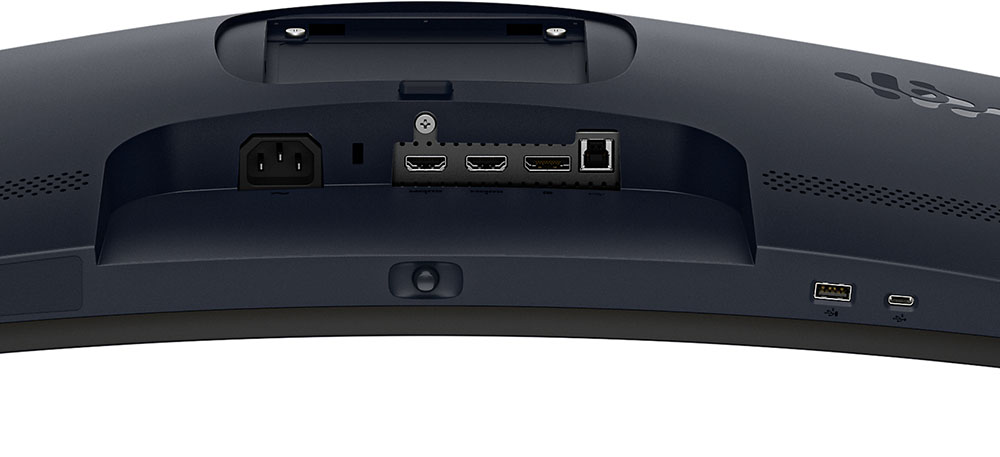
All other features of the AW3425DW carry over to the AW3426DW, like AlienVision and its cool aiming point/sniper mode editor. You also get USB ports and a backlit Alienware logo on the back. There’s no headphone jack or internal speaker, but the downstream USB-A and USB-C ports are on the bottom edge of the panel, where they are within easy reach. Video inputs include two HDMI and a DisplayPort.
Assembly and Accessories
The AW3426DW arrived in secure molded pulp packaging that is completely recyclable. The base, upright, and panel assemble easily with no tools needed. The power supply is internal, so you get IEC power plus HDMI, DisplayPort, and USB cables. A small microfiber cloth is provided to keep that beautiful screen free of dust and fingerprints.
Product 360
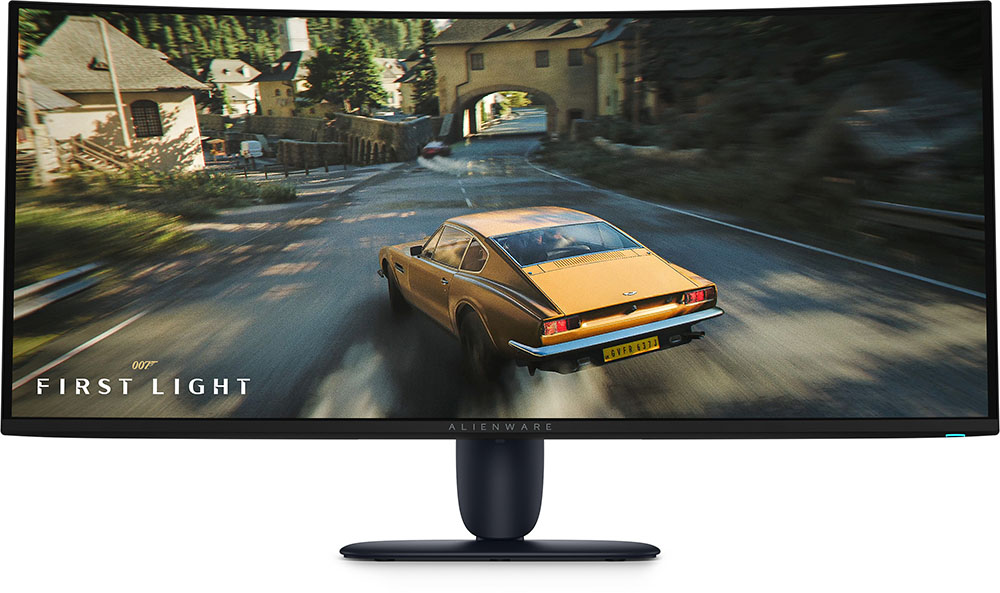
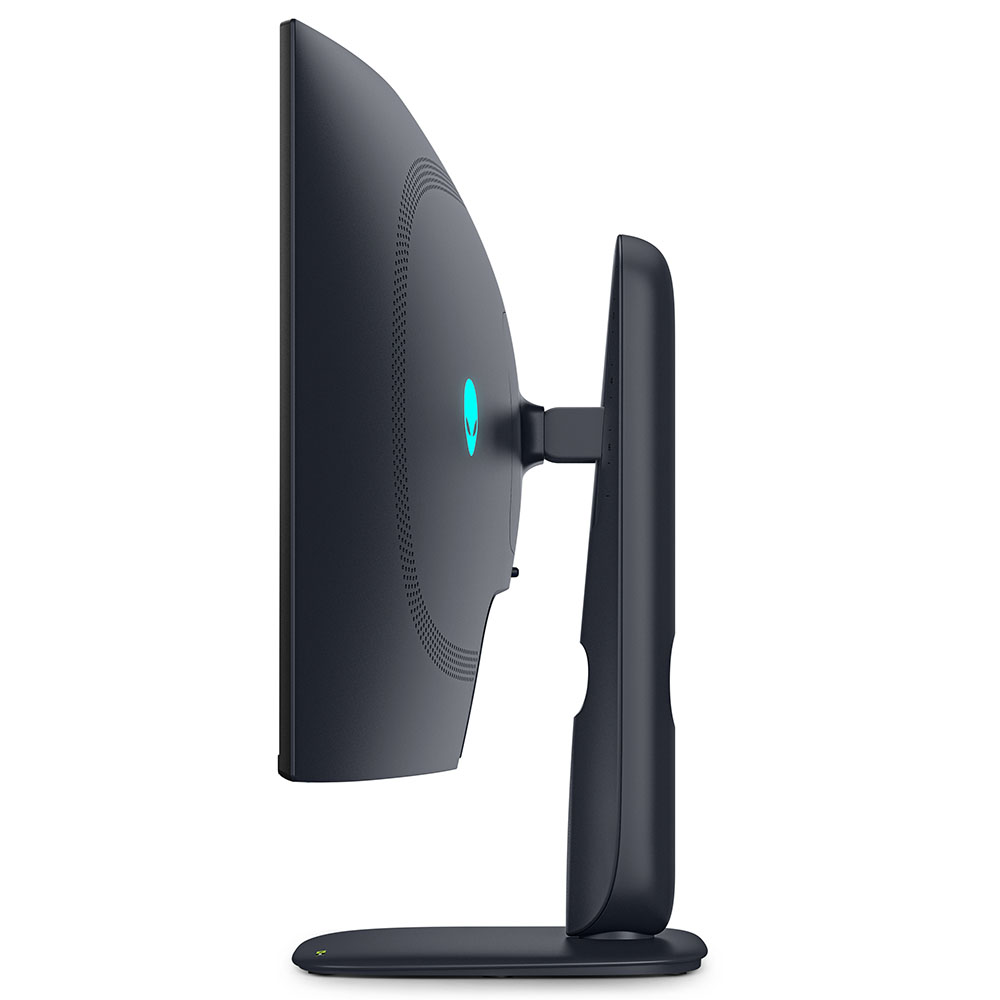
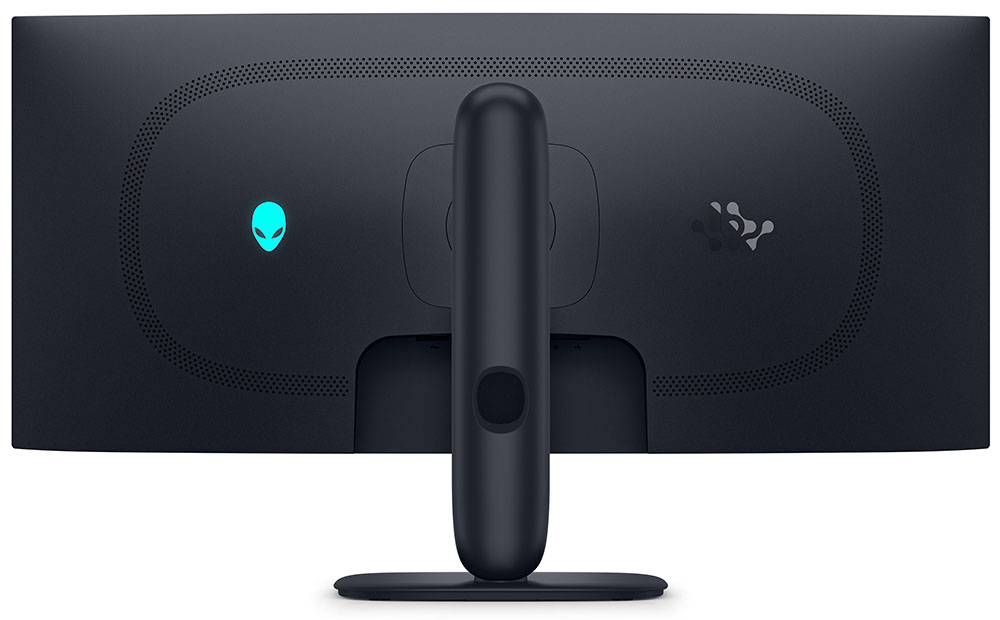
The AW3426DW maintains the aesthetic Alienware introduced last year with softly rounded corners and smooth tapers. My favorite bit is where the upright and base meet; the joint appears to float with a slender swivel point that’s barely visible. In the back is a backlit Alienware head and a polished symbol; “Alienware 30” is the official term. The head can light up with different colors and effects. A subtle vent rings the fulcrum with small perforations that keep the internals cool. A graphite layer behind the OLEDs further cools the screen.
The side photo affords a good view of the rounded aesthetic. The stand has no angles or corners at all, just a small cable hole to keep wiring tidy. Ergonomics include a 5/21-degree tilt and a 20-degree swivel. The height range is 4.4 inches, and there is no portrait mode. Movements are firm and free of play. Build quality is premium in every respect. If you’d rather not use the stand, there is a 100mm VESA mount with fasteners included.
Underneath, you’ll find a small I/O panel with two HDMI 2.1 ports and a DisplayPort 1.4 with Display Stream Compression (DSC). A USB upstream port supports the two downstream jacks on the panel’s edge. You get a USB Type-A and Type-C. The Type-C port supports charging and peripherals, but not video. In the center, you can see the OSD joystick that controls all monitor functions.
OSD Features
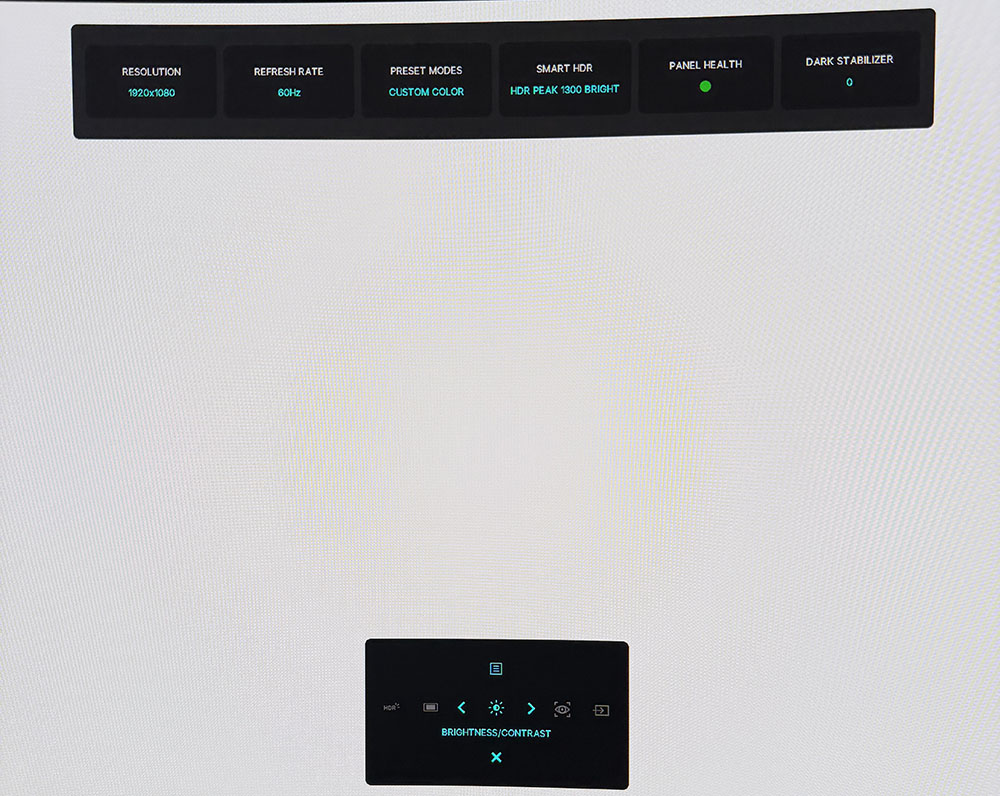
Pressing the AW3426DW’s joystick opens a quick menu at the bottom of the screen with a large status bar at the top. It shows input signal info along with the current picture mode, HDR status, panel health, and dark stabilizer setting. The quick menu has five icons that scroll left to right. They can be programmed for many different monitor functions, such as brightness/contrast, input, AlienVision, HDR, and others. Clicking the joystick up opens the full OSD.
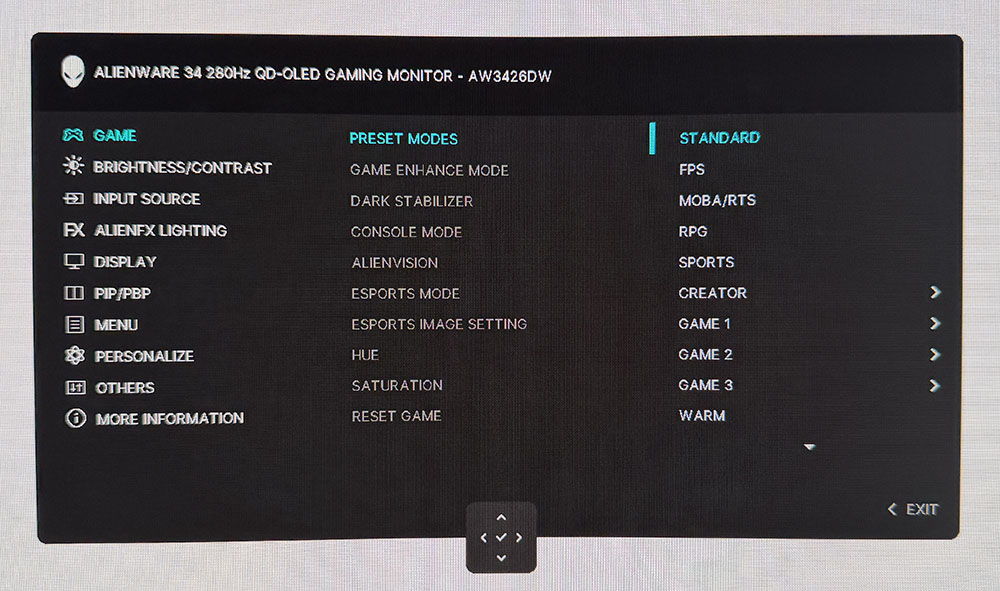
In the Game menu, you can choose from 13 picture modes. Standard works well by default and does not require calibration if you’re OK with using the full color gamut in SDR mode. It covers 105% of DCI-P3. If you want to make adjustments, select Custom Color, where you get RGB gain/bias and color management. To access sRGB, there’s a Creator mode with a gamut selector and gamma presets.
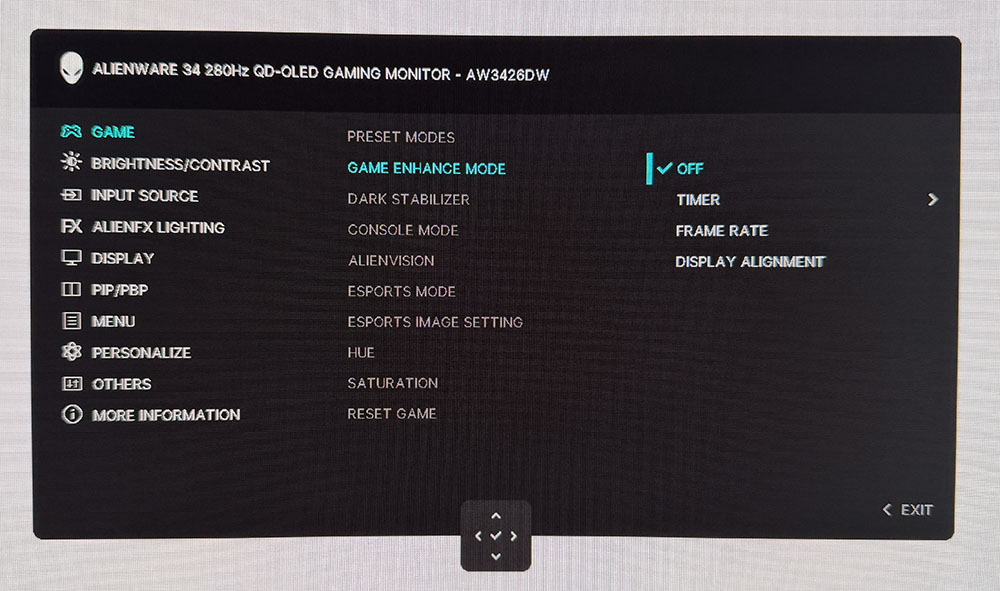
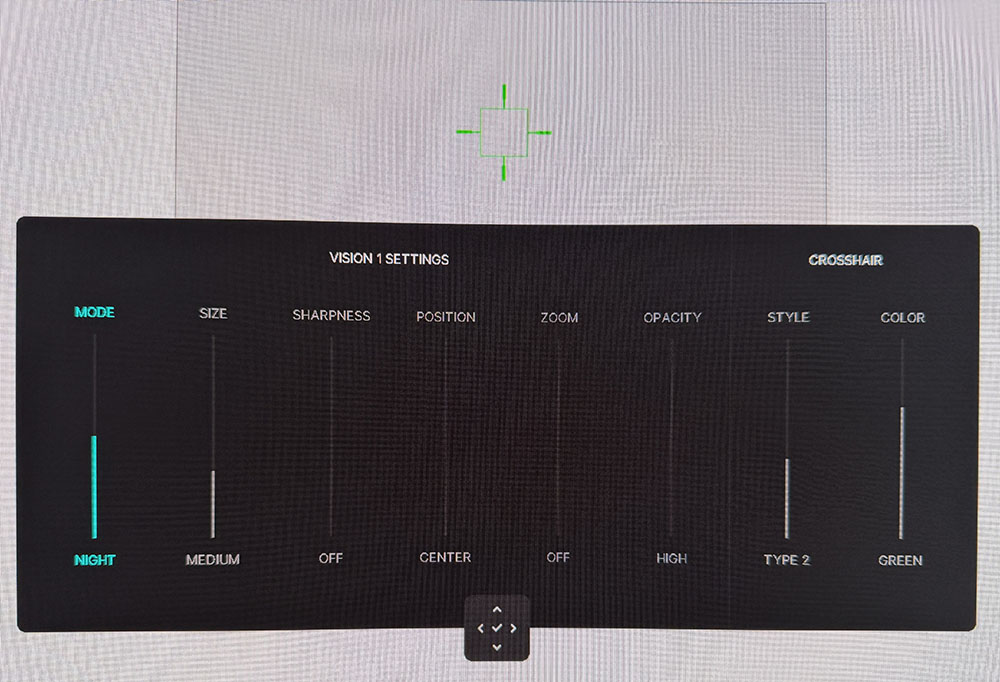
Game Enhance Mode contains a timer, frame counter, and alignment marks, but where are the aiming points? That’s one of the coolest features of the AW3426DW, it’s called AlienVision, and it is a completely customizable set of reticles and sniper modes, eight parameters in all, that can be edited and combined in hundreds of ways to create a custom view of the game environment. Once configured, there are three memories so you can have setups for different games.
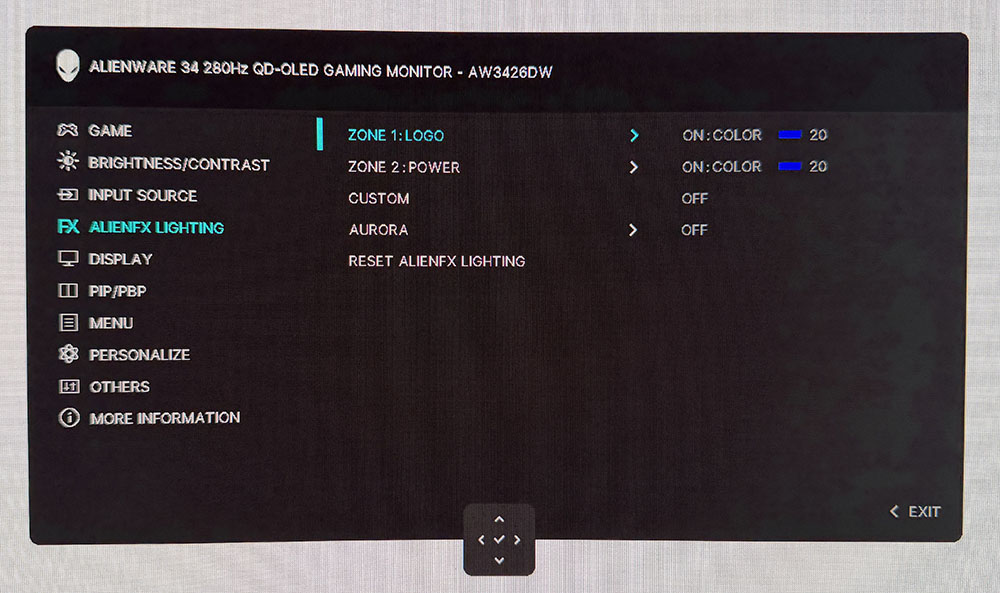
In the AlienFX Lighting menu, you can customize the behavior of the power button and the Alienware head on the back. There are lots of color and effect options, and you can turn on Aurora, which coordinates the lights with what’s happening on screen. You’ll need Alienware Command Center and a USB connection to make that happen.
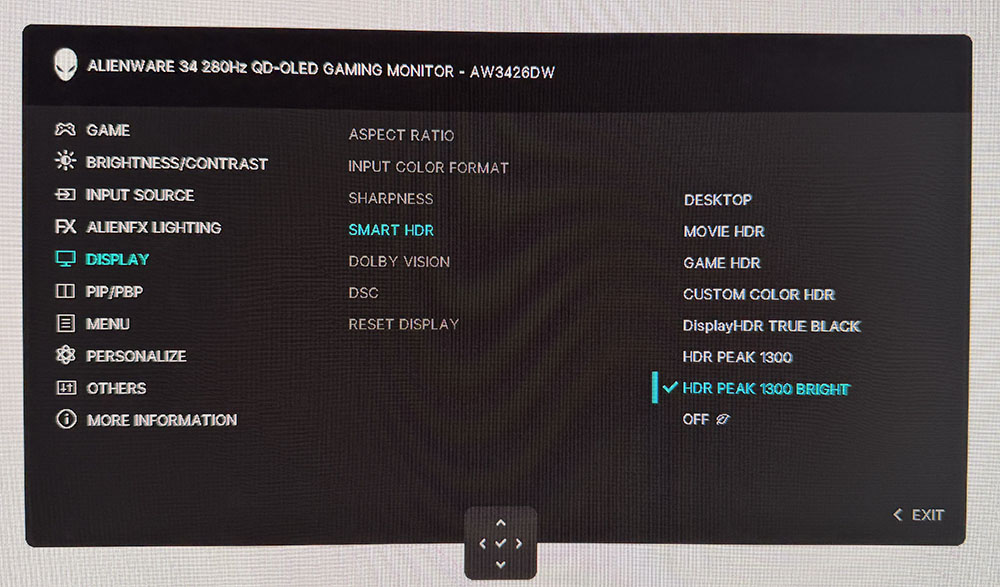
The Display menu has seven HDR modes for HDR10 content, including a tweakable Custom Color option. I found decent accuracy in both Desktop and HDR Peak 1300 Bright modes. I’ll tell you more about that on page five. You can also toggle Dolby Vision on and off here.
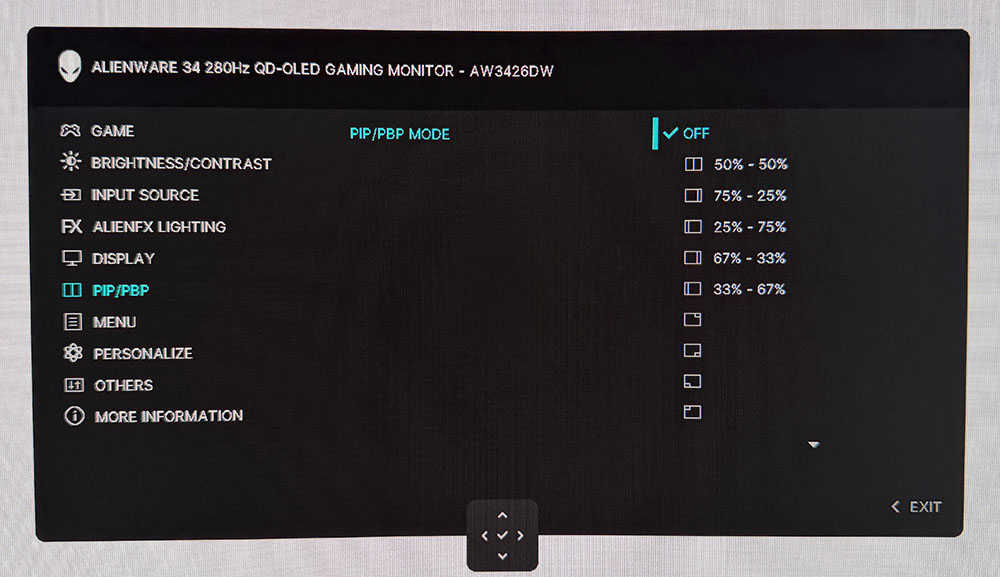
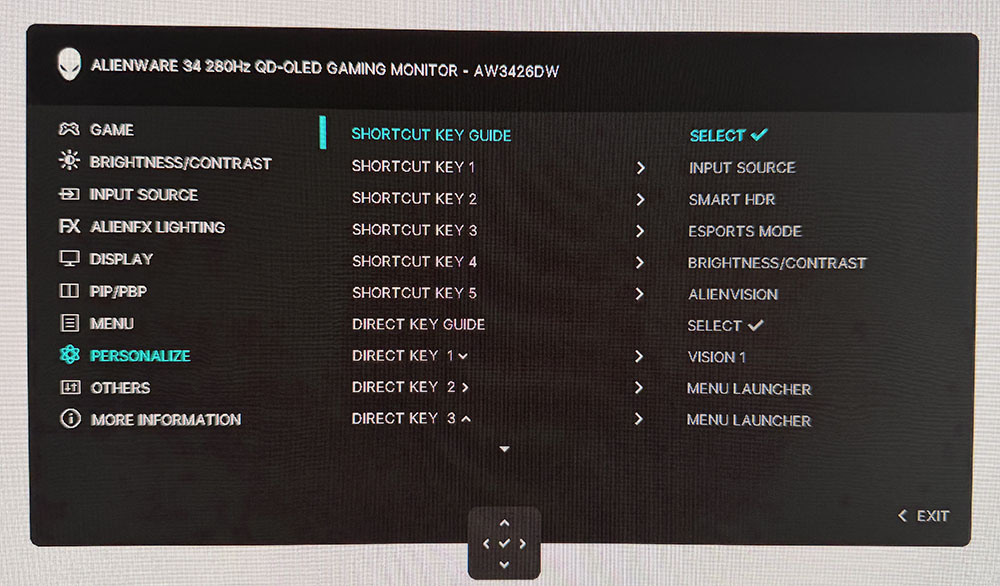
The AW3426DW includes PIP and PBP with options for window size and position. In Personalize, you can specify the functions of the five quick menu icons and the four joystick directions. This makes it easy to quickly change something like the input or the picture mode.
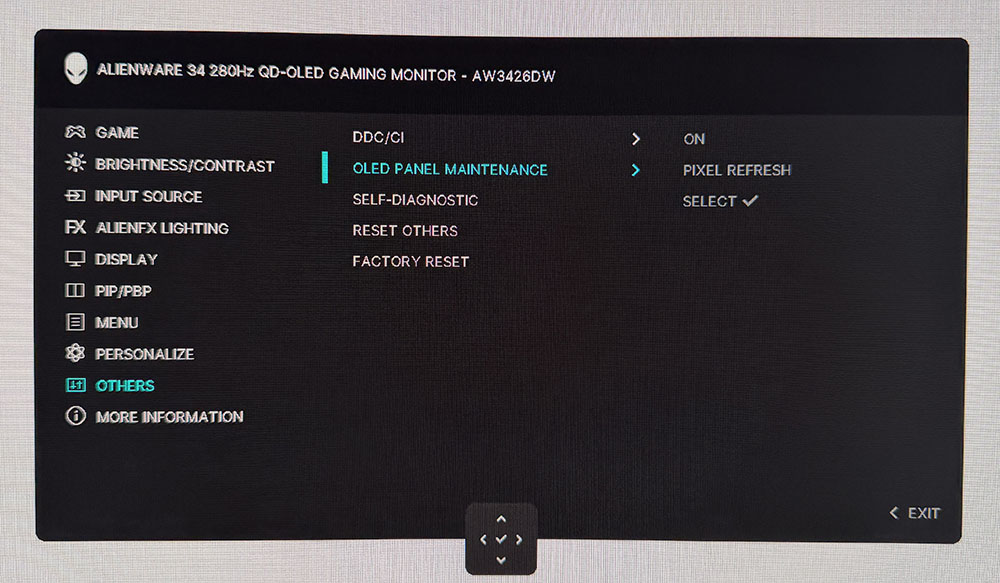
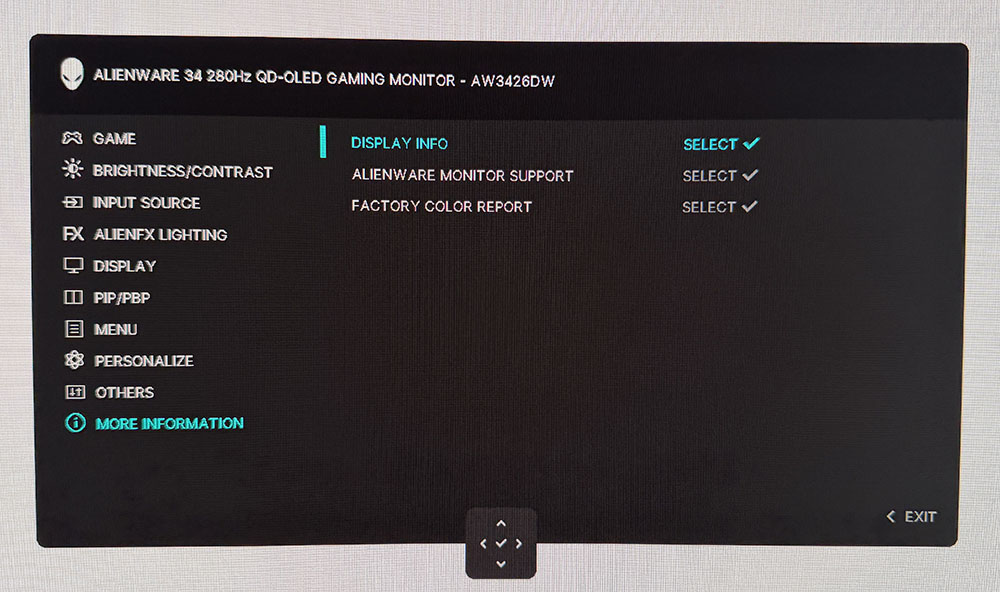
OLED care is much simpler now than in previous models. Functions like logo detection and pixel orbiting are handled automatically by the AW3426DW’s firmware. The only thing you can do manually is pixel refresh. This menu also has a factory reset option. In the Information menu, you’ll find an 11-page calibration report for each monitor, along with signal information and support resources.
Alienware AW3426DW Calibration Settings
Calibrating the AW3426DW is completely unnecessary. Just leave it in the default Standard mode and set brightness to taste. There is no variable brightness for SDR, so only one value is needed. If you want to calibrate, choose Custom Color. It has RGB gain and bias, plus hue and saturation sliders for each color. To change the gamut, use Creator mode. It lets you specify sRGB or P3 and includes five gamma presets. In the three Game modes, you can also adjust color and specify a custom value for the dark stabilizer. My SDR settings are included below.
For HDR content, there are seven more modes. Desktop is the default and is similar to HDR Peak 1300 Bright in its color and luminance tracking. The latter delivers the brightest highlights and the most vivid color.
Swipe to scroll horizontally
Picture Mode | Custom Color |
Brightness 200 nits | 81 |
Brightness 120 nits | 53 |
Brightness 100 nits | 43 |
Brightness 80 nits | 32 |
Brightness 50 nits | 16 (min. 22 nits) |
Contrast | 75 |
Color Temp User | Red 99, Green 99, Blue 100 |
Gaming and Hands-on
I suspect that some readers here will be wondering if the AW3426DW is a worthwhile upgrade over the AW3425DW. After several days of gaming and working, I will say that it is. HDR is brighter, and the new panel with its V-Strip RGB pixel structure is clearer than before. It’s hard to quantify this since OLEDs are sharp by nature, but the AW3426DW does make an incremental improvement. Brighter HDR certainly makes an impact with highlights that pop and a dimensional quality that no premium Mini LED can match.
Color accuracy is superb both out of the box and after calibration, where I changed just two settings, one click each. The AW3426DW is truly factory-calibrated. It equals any professional monitor in terms of measured performance and image fidelity.
Gaming was an addictive experience, as it is with any fast OLED. The smooth motion that comes with panel response, measured in fractions of a millisecond, is something you can’t get from an LCD. An OLED draws the screen about 10 times faster than an LCD with an equal refresh rate. The AW3426DW’s bump to 280 Hz is also a reason to upgrade. It reduces my input lag by 4ms in my test. Could I spot that difference in gameplay? No, but I’m not a competition gamer either. Those looking for every advantage will want to give this monitor an audition.
The 34-inch curved panel proved useful for both work and entertainment. It’s just large enough for me to display two documents side by side. It requires a bit more scrolling than my 16:9 32-inch screen, but the 1800R curve isn’t too severe. There was no image distortion, but I got a nice wraparound effect when navigating first-person shooters and graphical adventures.
I appreciated the inclusion of USB ports, especially the two located on the bottom edge of the panel. It’s easy to plug in peripherals or charge a phone from the USB-C port. But I missed the 3.5mm headphone jack. And there are no internal speakers, so to get audio, you’ll need USB-capable headphones or a desktop amplifier if you want to drive cabinet speakers. And I enjoyed the AlienFX feature with its glowing Alien head. It played colors off the wall behind my desk.
Takeaway: The AW3426DW is a worthy upgrade from the AW3425DW. It’s quicker and brighter, and the image is a tad sharper than before. Input lag is lower as well, which will appeal to skilled gamers looking for every possible advantage. Color is saturated and vivid with accuracy good enough to use right out of the box. The screen’s curve strikes an ideal balance between immersion and a square image.
MORE: Best Gaming Monitors
MORE: How We Test PC Monitors
MORE: How to Buy a PC Monitor








 English (US) ·