
 3 hours ago
3
3 hours ago
3
Last year, Dell's gaming arm substantially updated the Alienware 16 Area-51 with a new design. This year, the laptop has a much more moderate adjustment: the addition of an OLED display, which fans of the pricey brand have been clamoring for for a few years, and that several of the best gaming laptops already have.
Without any major GPU launches, Alienware's other internal update is an upgrade to Intel's latest CPUs, which are a light refresh that didn't provide any massive upgrades to our performance in testing.
You still get plenty of ports, and the $50 mechanical keyboard is worth it – at least to my fingers. And while I can't imagine most people buy new gaming rigs on an annual basis; there's not a ton of change year-over-year.
Design of the Alienware 16 Area-51
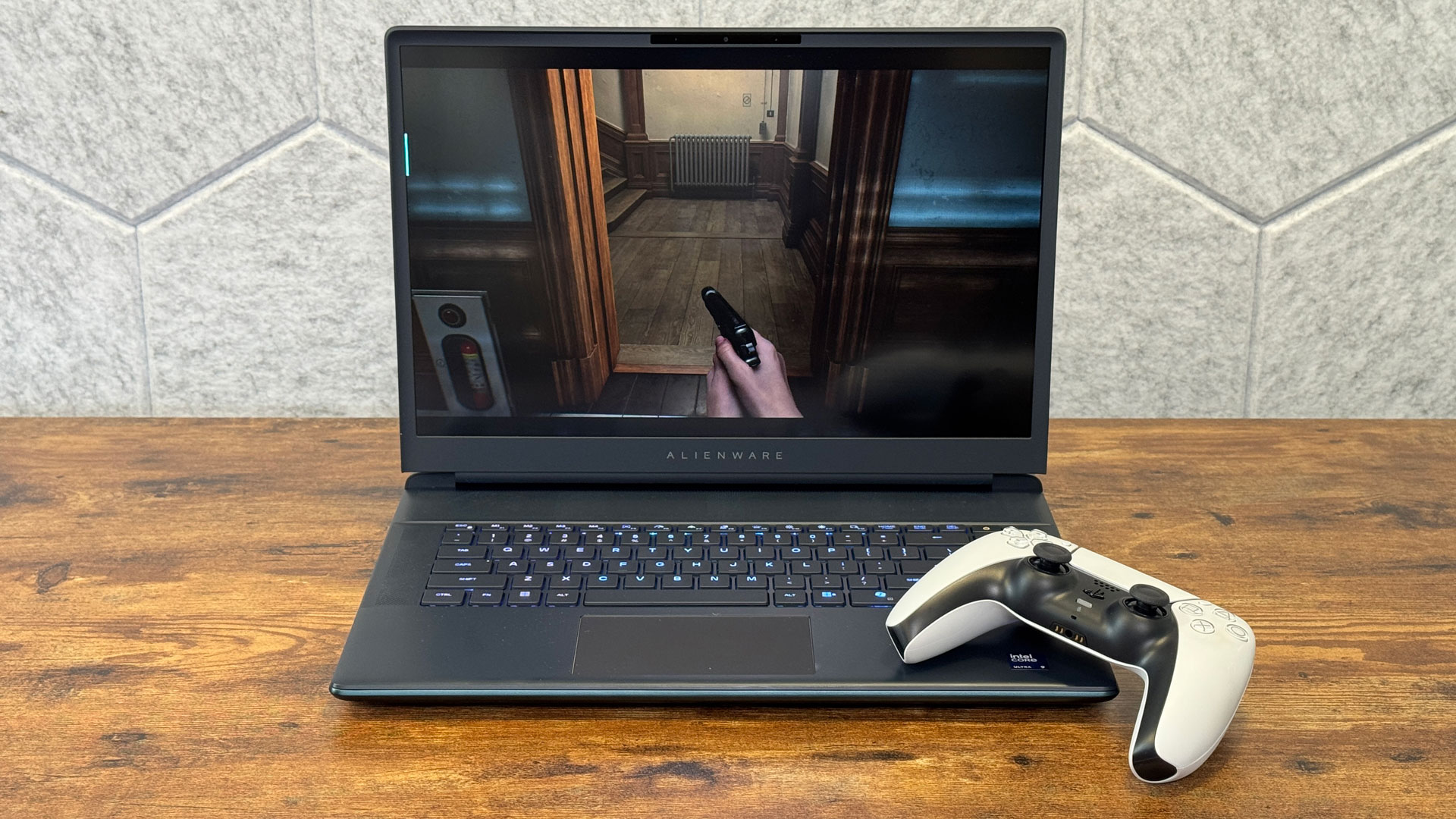
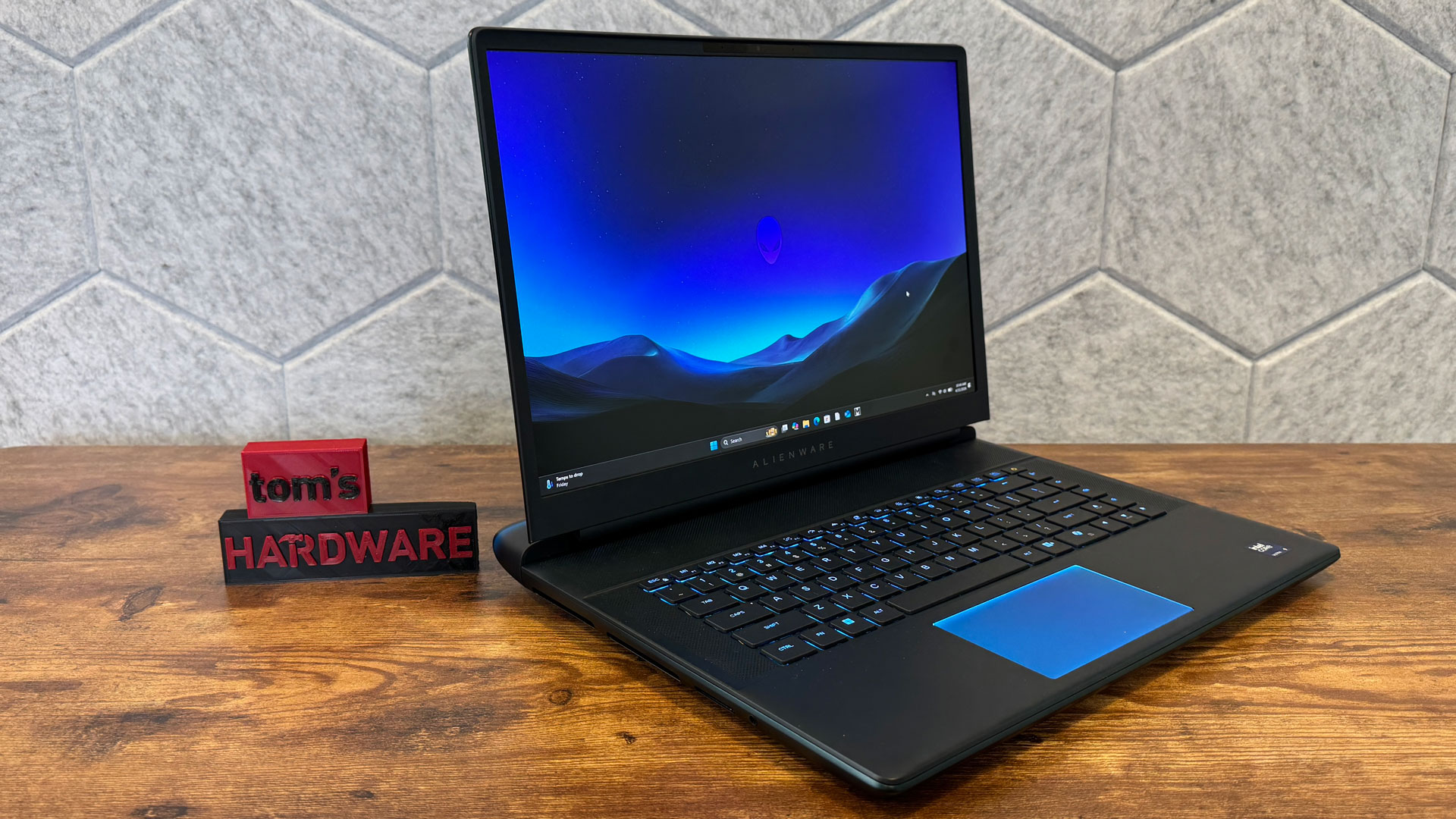
The 2026 edition of the Alienware 16 Area-51 looks identical to last year's model, which was a total overhaul, with rounded corners and curved edges, along with a striking "liquid teal" color that stands out from other gaming laptops and looks like different colors under different light.
The lid features Alienware's alien head logo in a mirror finish, but you can't see that once it glows with RGB lighting when you turn the rig on. The lighting can also be found in a diffused ring around the ports on the back "shelf" where the ports live, as well as beneath the keyboard and around the intake fans.
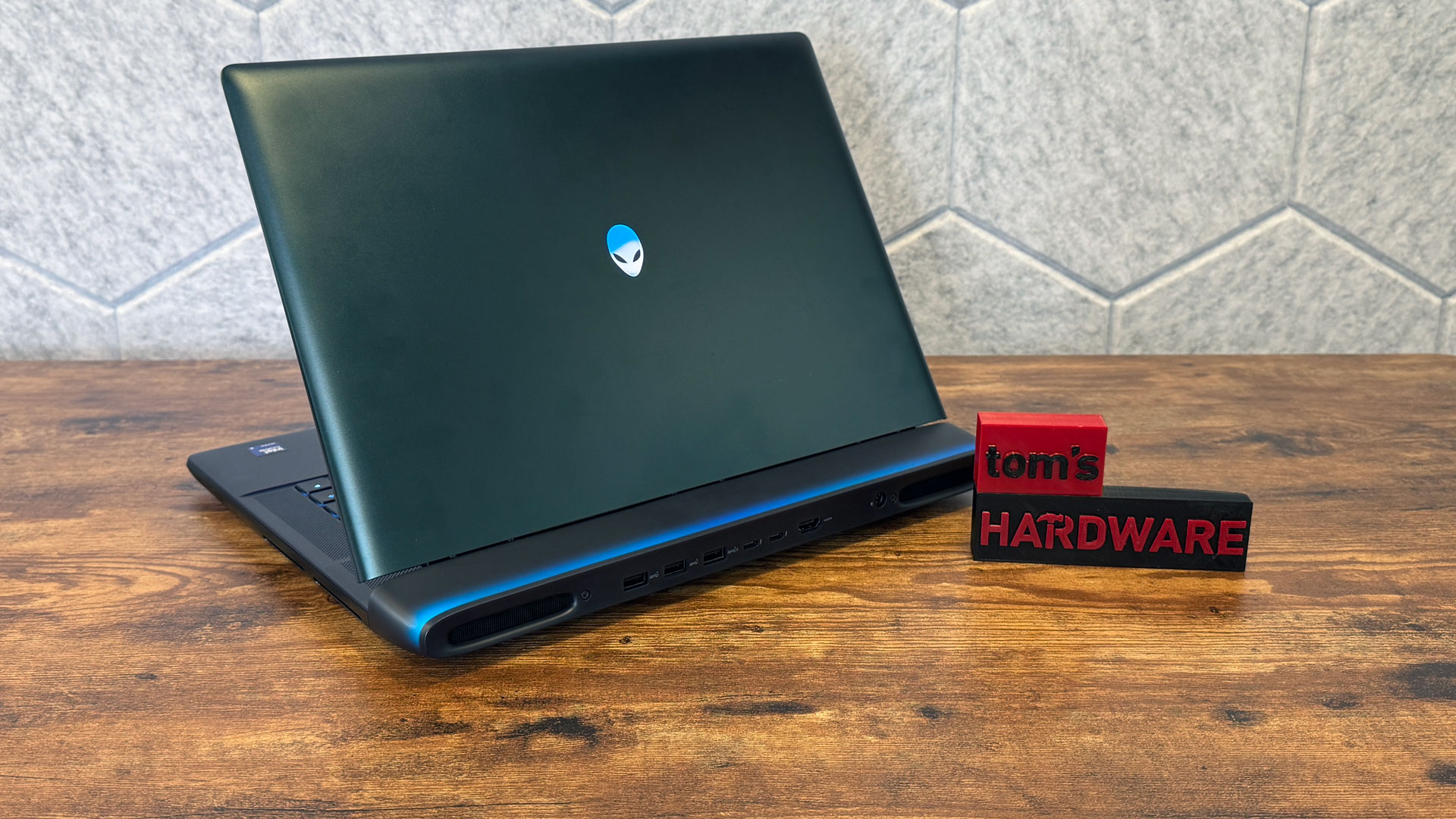
The majority of the ports are at the back of the laptop, including three USB 3.2 Gen 1 Type-A ports, a pair of Thunderbolt 5 ports, HDMI 2.1, and the connector for the 360-watt power adapter. The left boasts an SD card slot and a 3.5 mm headphone jack.
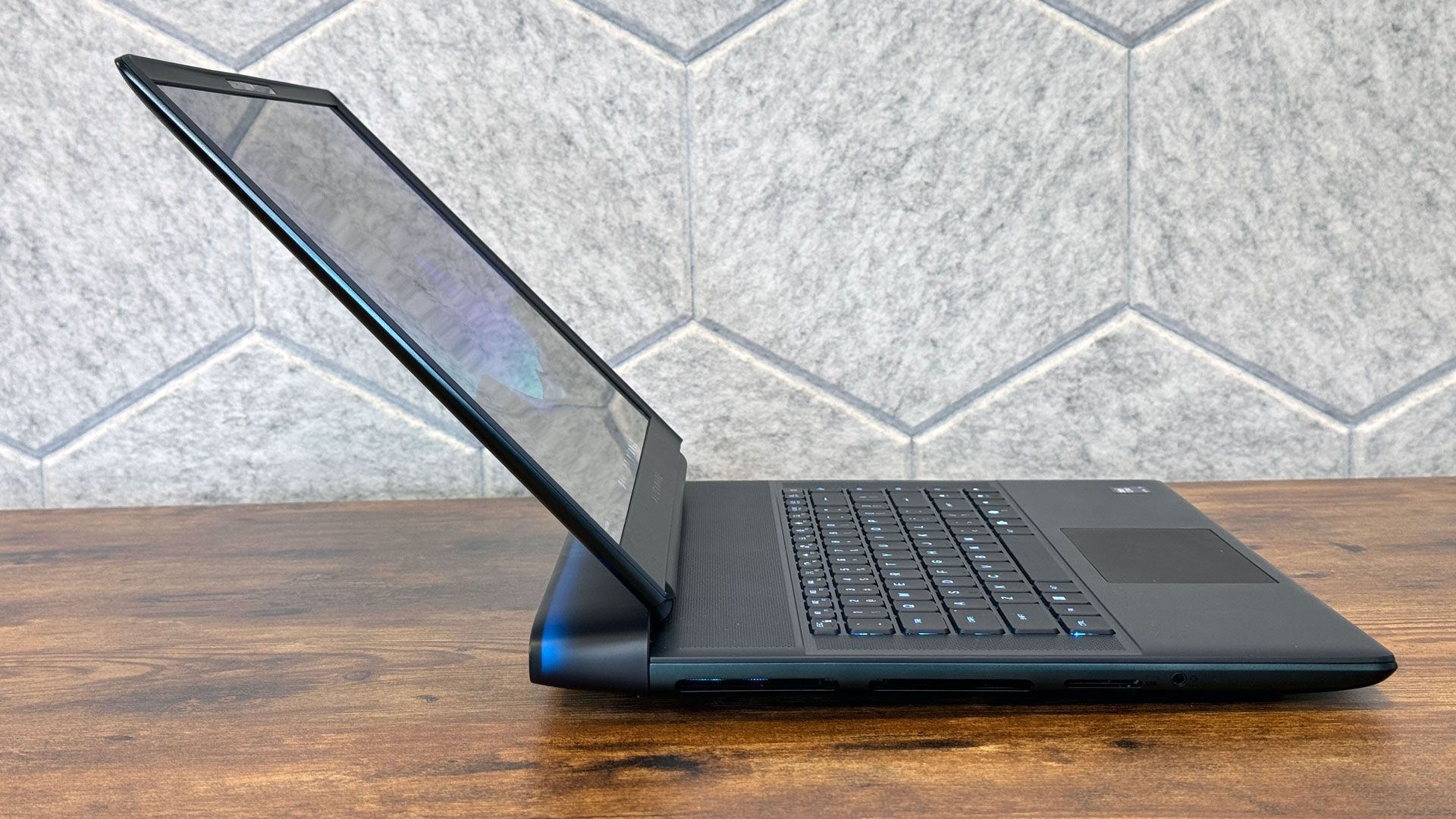
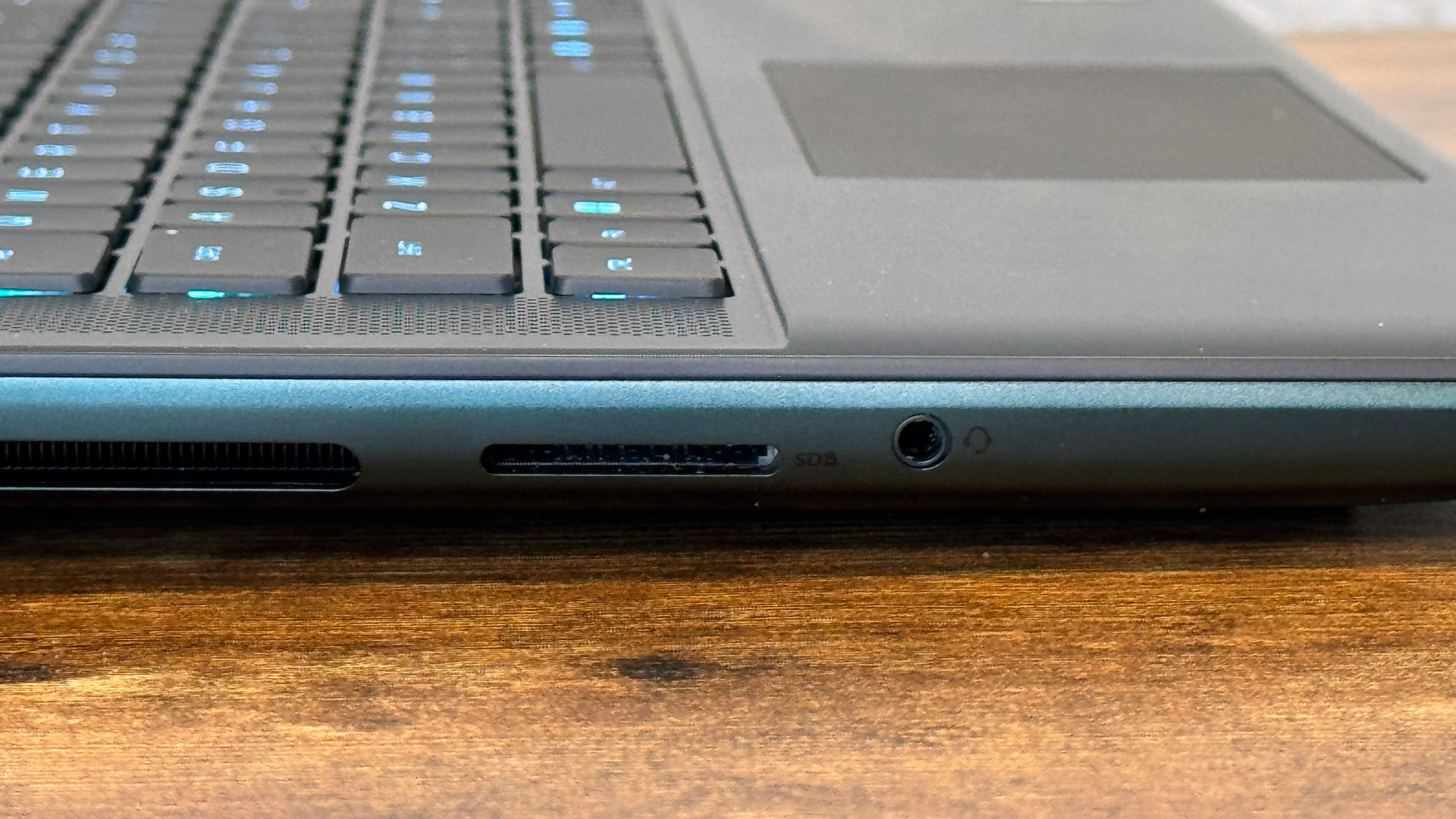
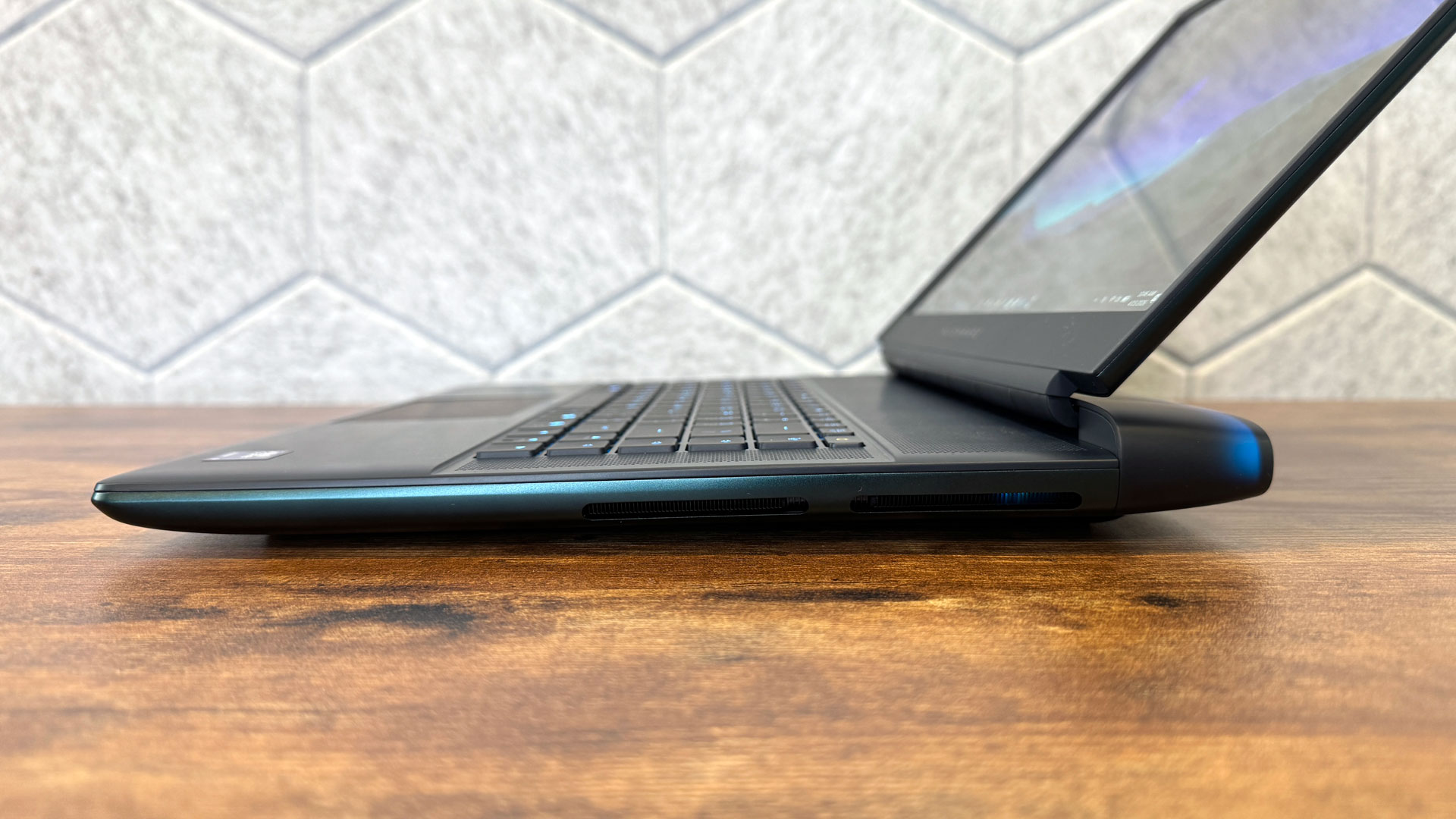
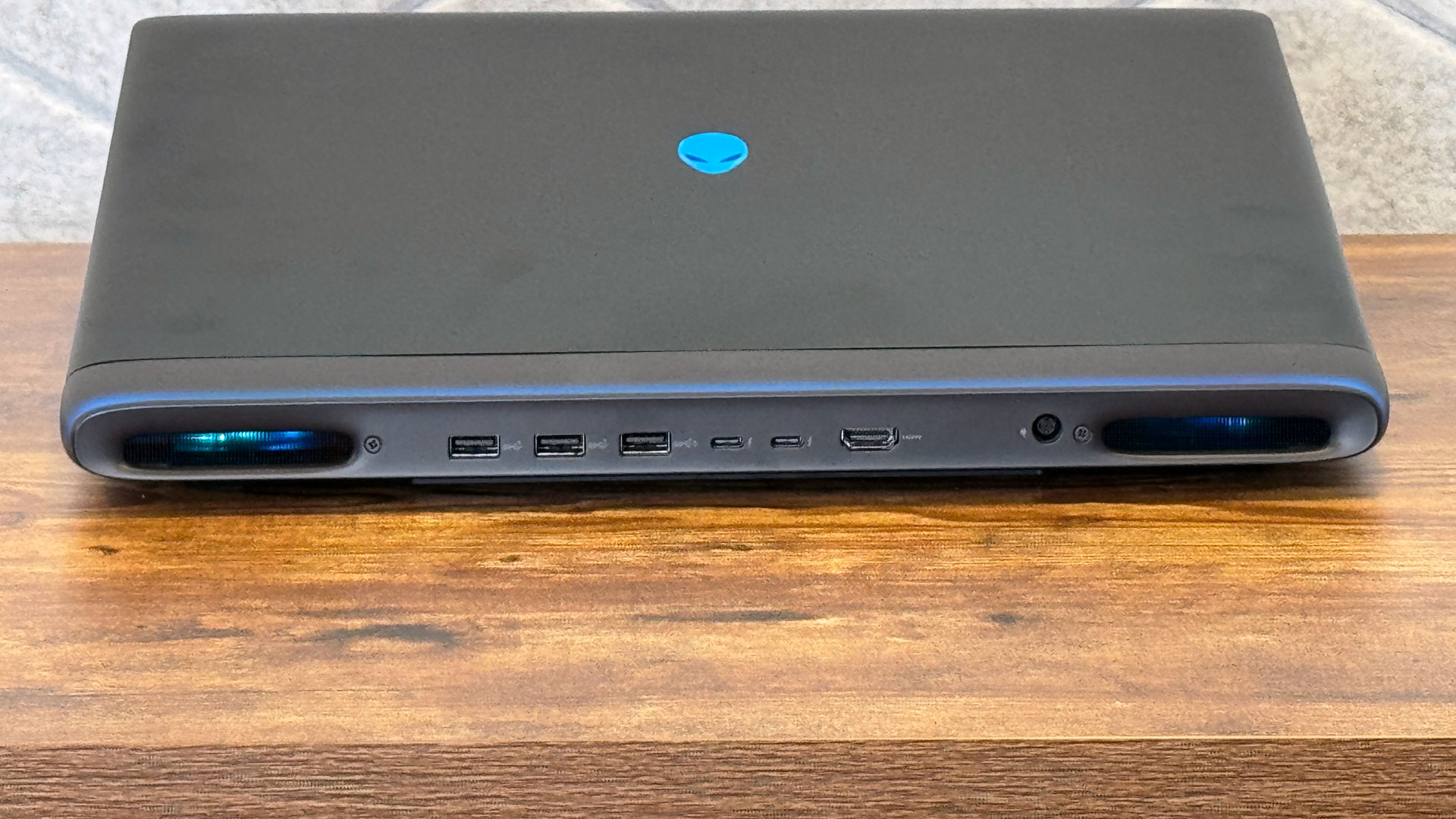
I get why Alienware puts the ports in the back; it lets you plug in major accessories and forget about them, and allows for a clean desk. But if you want to plug in external drives or peripherals that don't always have a home on your desk, you'll have to reach around the back of this big notebook. I would have loved at least one USB port on the side, but Alienware has spent most of the real estate on the side of the laptop for exhaust in its four-fan system.
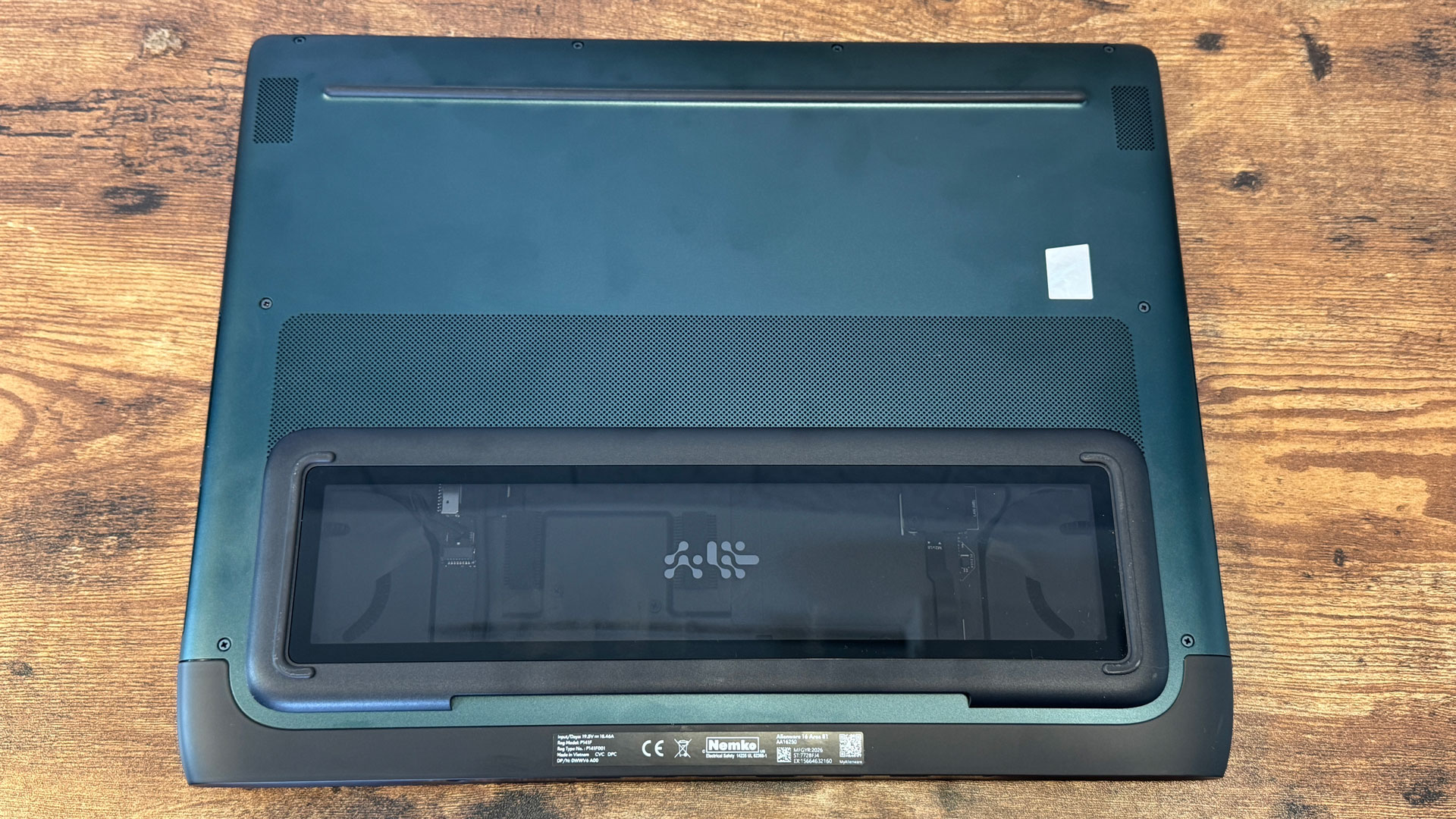
On the bottom of the laptop, there's a glass window exposing part of the motherboard and the cooler, and you can also catch some RGB lighting here. It's cool on first glance, I guess, but I'd rather have something less breakable than glass on the outside of my laptop. It would probably save some weight to switch the glass, too.
The 16-inch Area-51 measures 14.37 x 11.41 x 1.12 inches and weighs 7.49 pounds (before the 2.2-pound power adapter). I could just barely close my backpack around it, largely because of the thermal shelf at the back. And there are smaller flagship 16-inch gaming notebooks out there. The MSI Raider 16 Max HX is 14.29 x 10.62 x 1.14 inches and 5.73 pounds.
Alienware 16 Area-51 Specifications
Swipe to scroll horizontally
CPU | Intel Core Ultra 9 290HX Plus |
Graphics | Nvidia GeForce RTX 5080 Laptop GPU (16GB GDDR7, 175 W TGP, 1,500 MHz boost clock) |
Memory | 32 GB DDR5-6400 |
Storage | 2TB PCIe Gen 5 SSD |
Display | 16-inch, 2560 x 1600, anti-glare OLED, 240 Hz |
Networking | Killer Wi-Fi 7 BE1750w |
Ports | 2x Thunderbolt 5, 3x USB Type-A 3.2 Gen 1, HDMI 2.1, SD card slot, 3.5 mm headphone jack |
Camera | 1920 x 1080, IR |
Battery | 96 WHr |
Power Adapter | 360W |
Operating System | Windows 11 Pro |
Dimensions (WxDxH) | 14.37 x 11.41 x 1.12 inches (365 x 290 x 28.50 mm) |
Weight | 7.49 pounds (3.40 kg) |
Price (as configured) | $4,309.99 |
Gaming and Graphics on the Alienware 16 Area-51
The Alienware 16 Area-51, with its Intel Core Ultra 290HX Plus and Nvidia GeForce RTX 5080 Laptop GPU (16GB GDDR7, 175 W TGP, 1,500 MHz boost clock), proved to be a powerful performer across our benchmarks and in playtesting.
For instance, Resident Evil Requiem ran between 87 and 113 frames per second, as I explored the care center and engaged in a shootout to take down a blisterhead. That was at the system's native 1440p, with ray tracing on, hair strands improvements on, high graphics quality (with some at max), and without any upscaling or frame generation. It fell to 74 FPS in a darker area where I ultimately snuck behind and killed the villain known as the Chef.
We compared the Area-51 to last year's model, with a Core Ultra 9 275HX and an identical RTX 5080 Laptop GPU, to see how much the year-over-year CPU upgrade matters. We also compared it to a slightly more expensive system, the MSI Raider 16 Max HX, with an RTX 5090 and the same Intel Core Ultra 9 290HX Plus as our review unit.
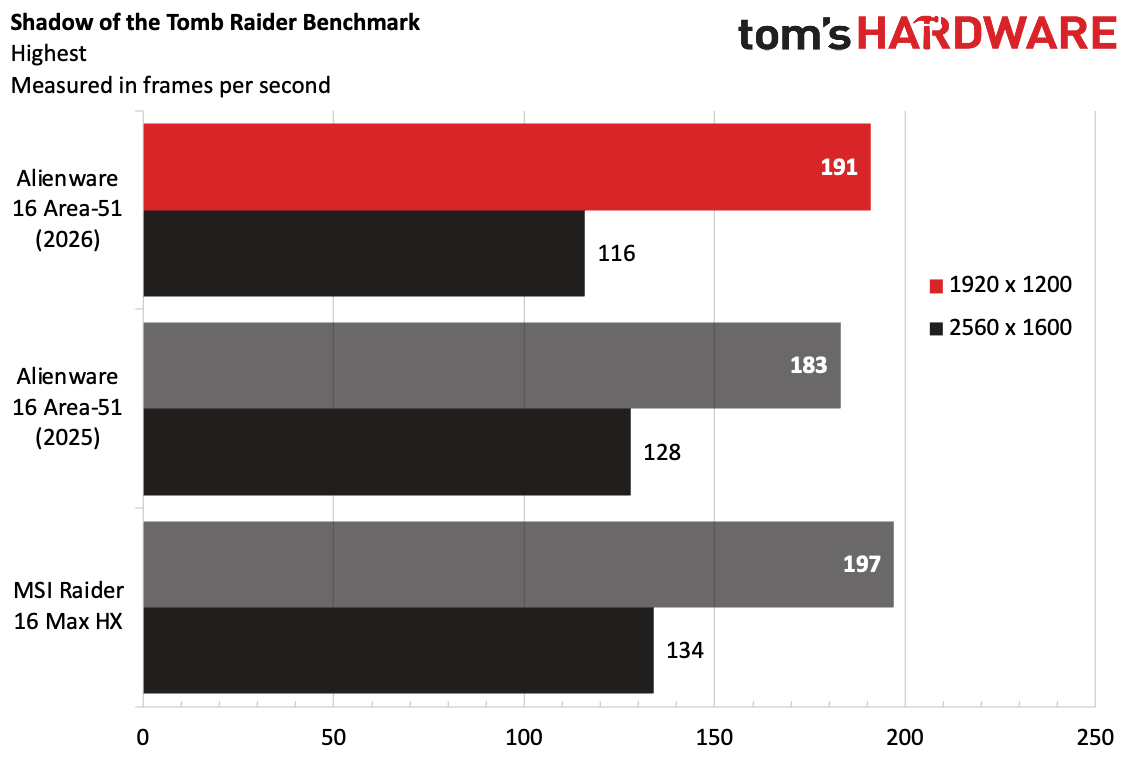
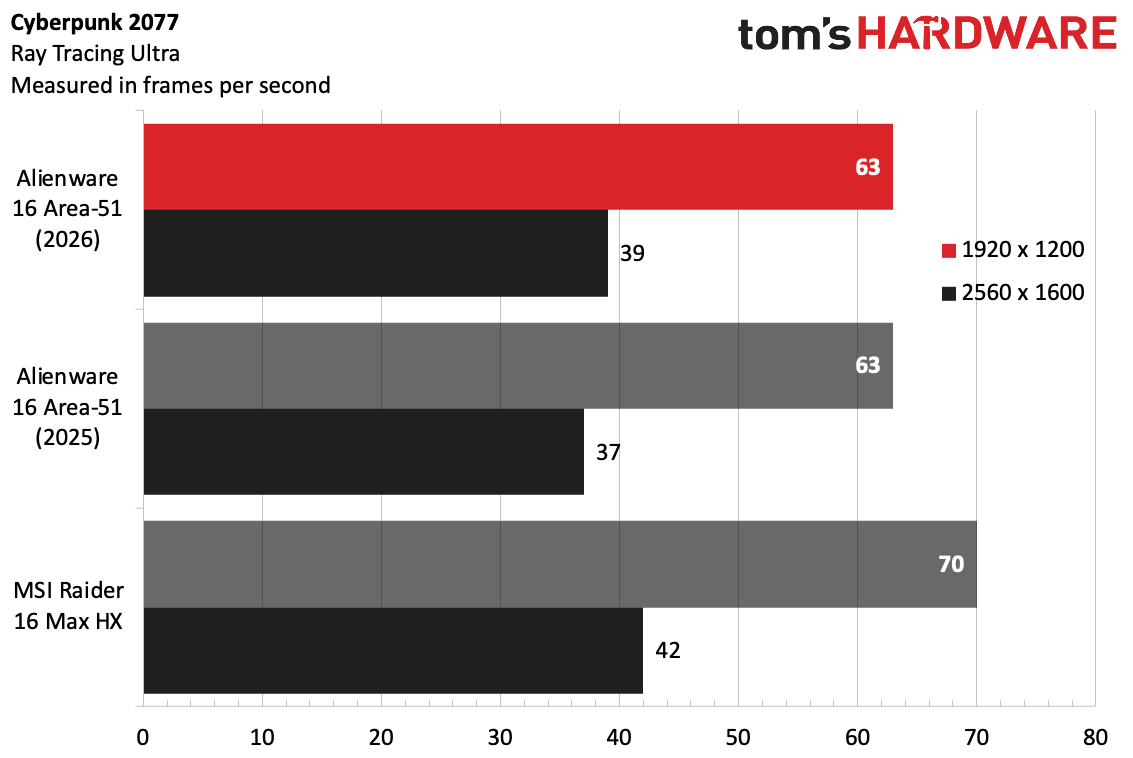
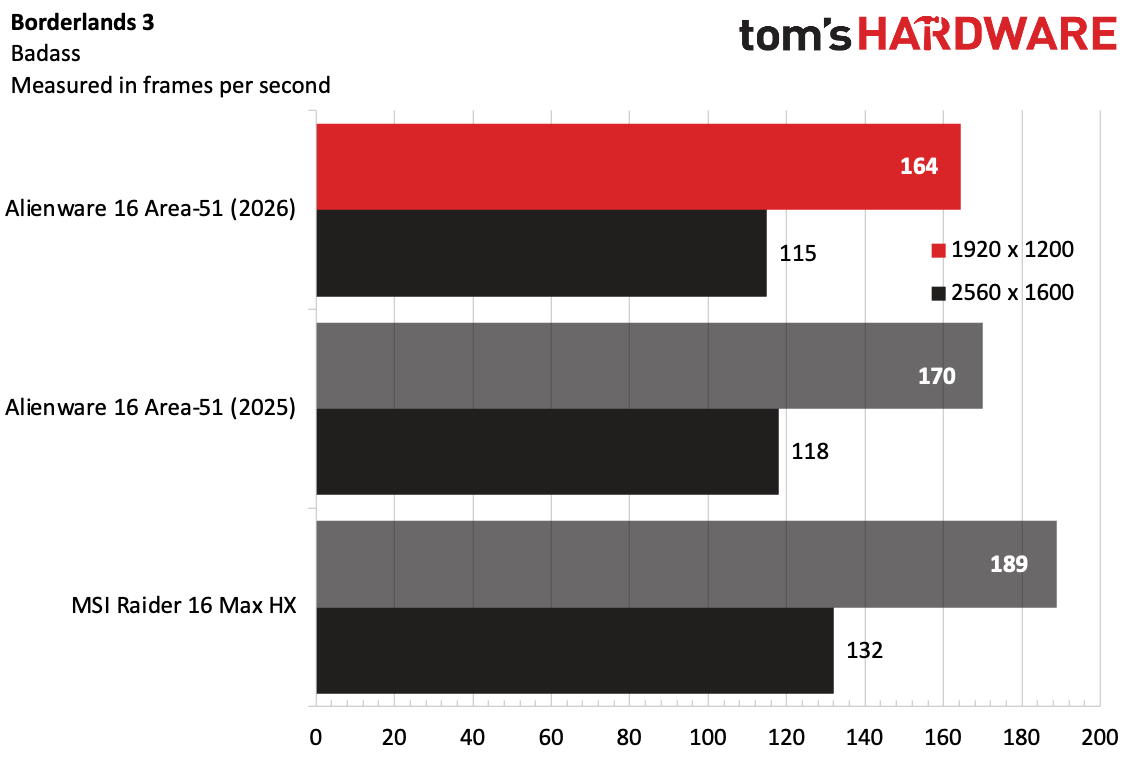
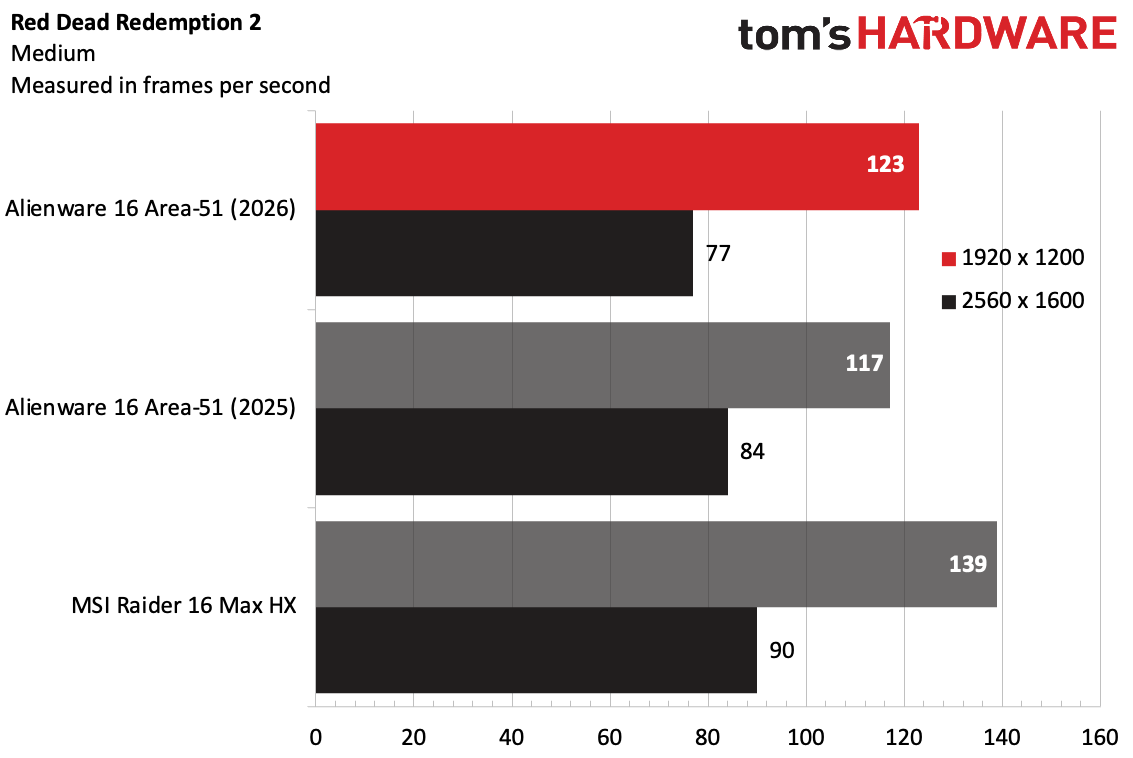
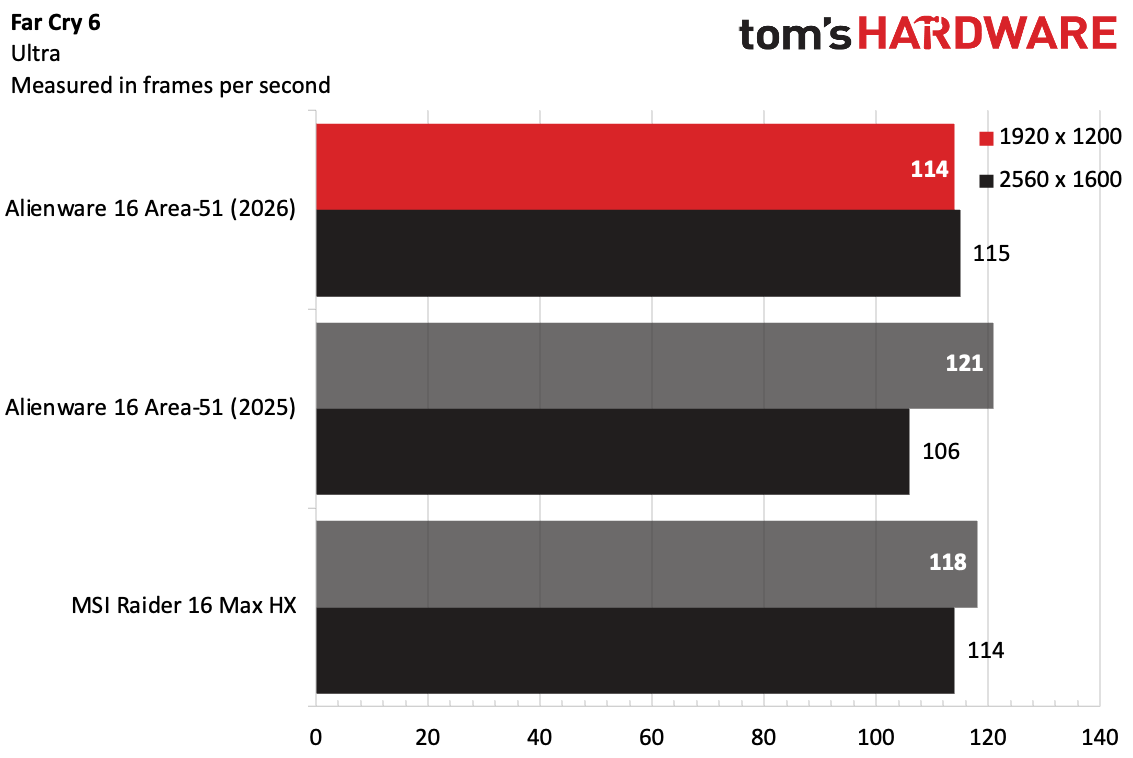
This year's Area-51 and last year's system were consistently in range. At 1920 x 1200, the newer model typically won out, with the exception of Far Cry 6. In a few games, like Shadow of the Tomb Raider and Red Dead Redmption 2, last year's model did better at 2560 x 1600, even if it lost at lower resolutions. In general, though, the two systems were largely in spitting distance of each other.
Unsurprisingly, the MSI's RTX 5090 won out in most games.
But if you just bought a top-of-the-line gaming laptop last year, slight CPU upgrades aren't going to make or break your experience. You likely won't even be able to tell the difference.
During our Metro Exodus stress test, in which we run the game at RTX settings for 15 runs, approximating half an hour or game play, the performance cores on the CPU averaged 4.11 GHz, while the efficient cores hit 2.75 GHz. The GPU ran at an average of 1,950.46 MHz.
Productivity Performance on the Alienware 16 Area-51
The Alienware 16 Area-51 we tested is using an Intel Core i9-290HX Plus. This new chip is based on a refreshed version of Arrow Lake, and we didn't see any massive changes in our testing. Last year's Area-51 that we tested ran on an Intel Core Ultra 9 275HX, while the MSI Raider 16 Max HX we're comparing here is using the same 290HX Plus processor.
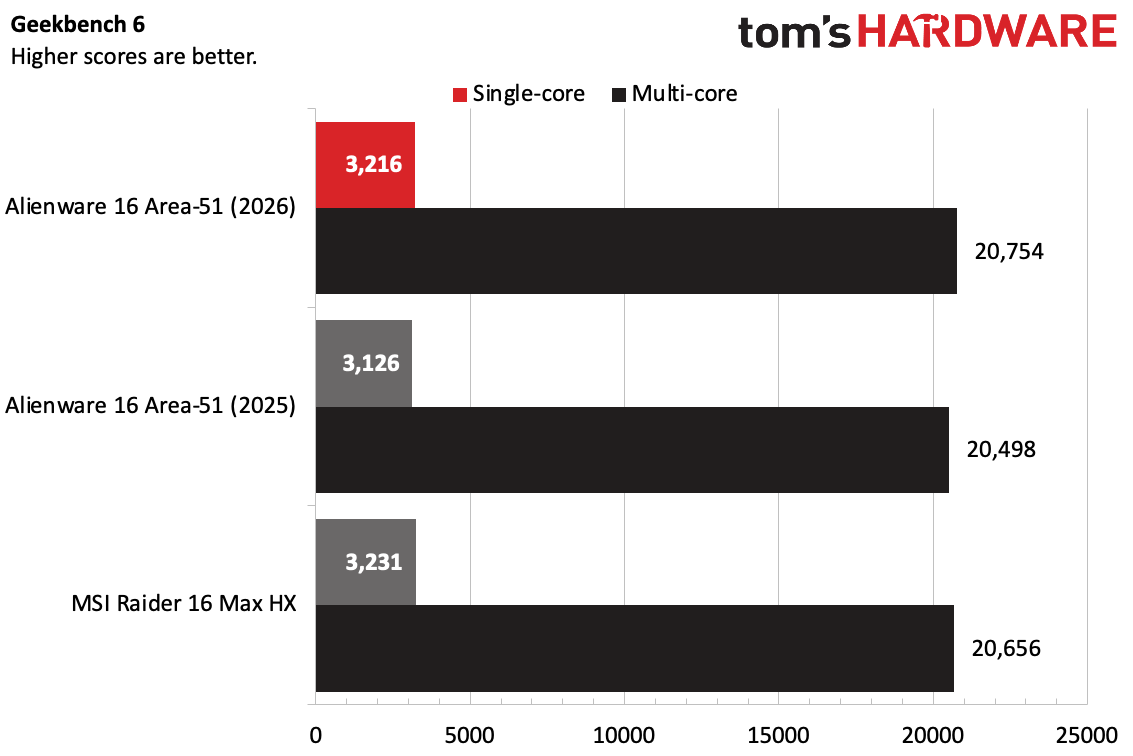
On Geekbench 6, the Area-51 with 290HX Plus earned a single-core score of 3,216 and a multi-core score of 20,754. Last year's Alienware with Core Ultra 9 delivered scores of 3,126 and 20,498, so nothing eye-bulging here. The Raider achieved similar scores as the current model, at 3,231/20,656.
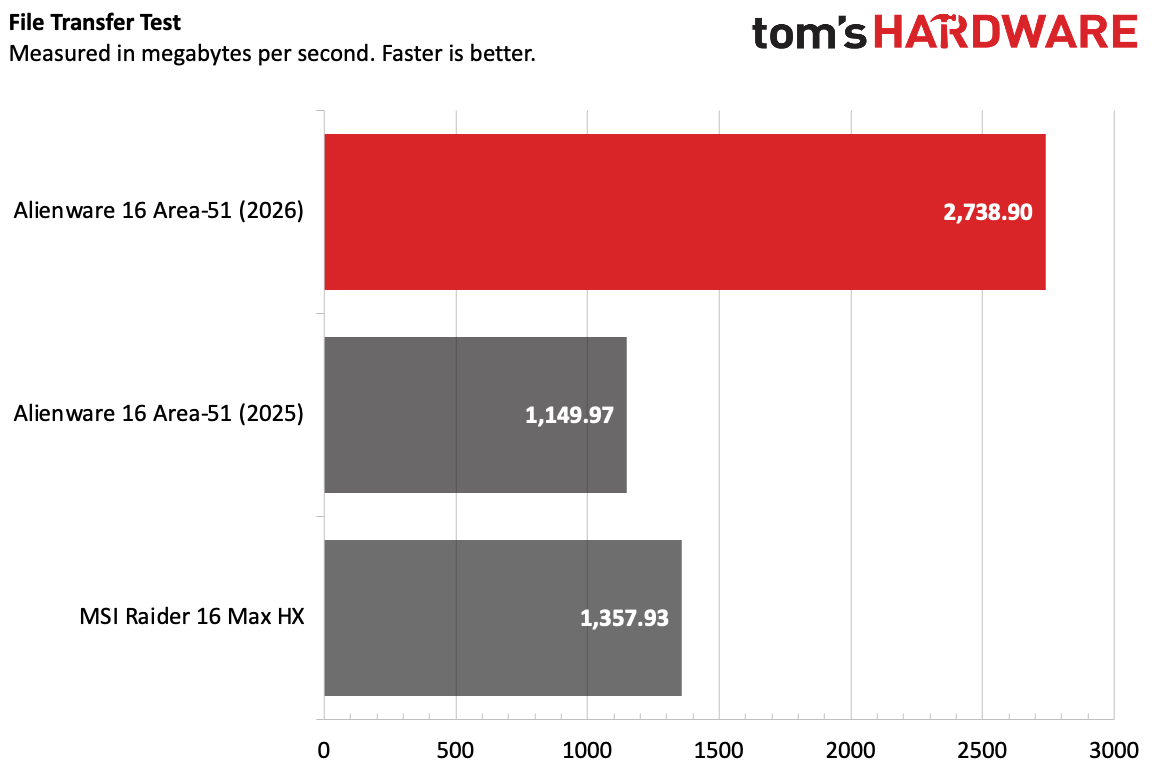
The SK Hynix drive in this year's system proved speedy, copying 25GB of files at a speed of 2,738.90 MBps, easily beating the MSI Raider (1,357.93 MBps) and last year's Alienware.
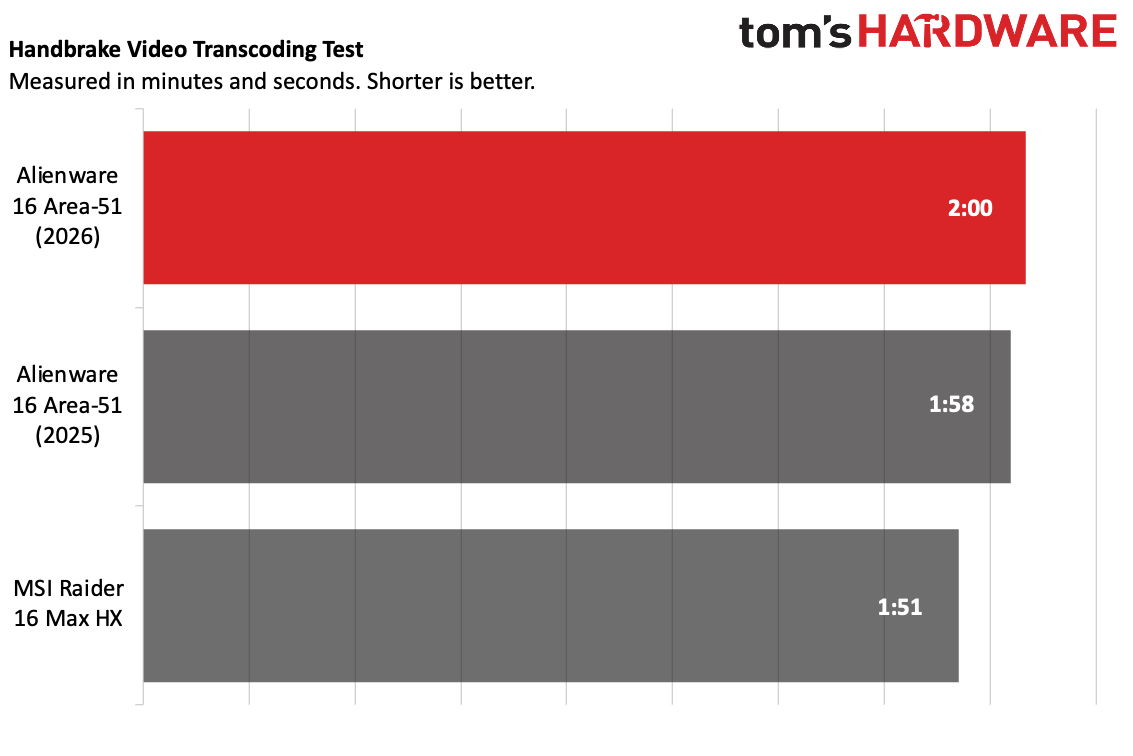
On Handbrake, the Alienware 16 transcoded a 4K video to 1080p in 2 minutes, which is 2 seconds behind last year's model, and enough for me to say it could go either way. The Raider was faster, at 1:51.
Display on the Alienware 16 Area-51
The major difference between the 2026 version of the Area-51 and last year's is the display. It's still a 2560 x 1600, 240 Hz screen, but this year there is an option for an anti-glare OLED panel.
In the trailer for The Odyssey, the screen appeared bright, especially in early scenes with Odysseus and his men underneath clear blue skies. There were some very deep blacks, like when Odysseus enters the cyclops' cave, where green foliage and orange flames all popped. It's not the most vivid OLED screen I've ever seen, but it's still nice.
The OLED worked to strong effect in Resident Evil 9, with dark blacks making for increasingly haunting shadows. But it was just as good with buckets of crimson zombie blood.
I like the anti-glare. I assume this took some of the shimmer out of the screen, but considering I work next to a window at home, I was still able to see most of the screen without reflections, even if the colors weren't as good at an angle.
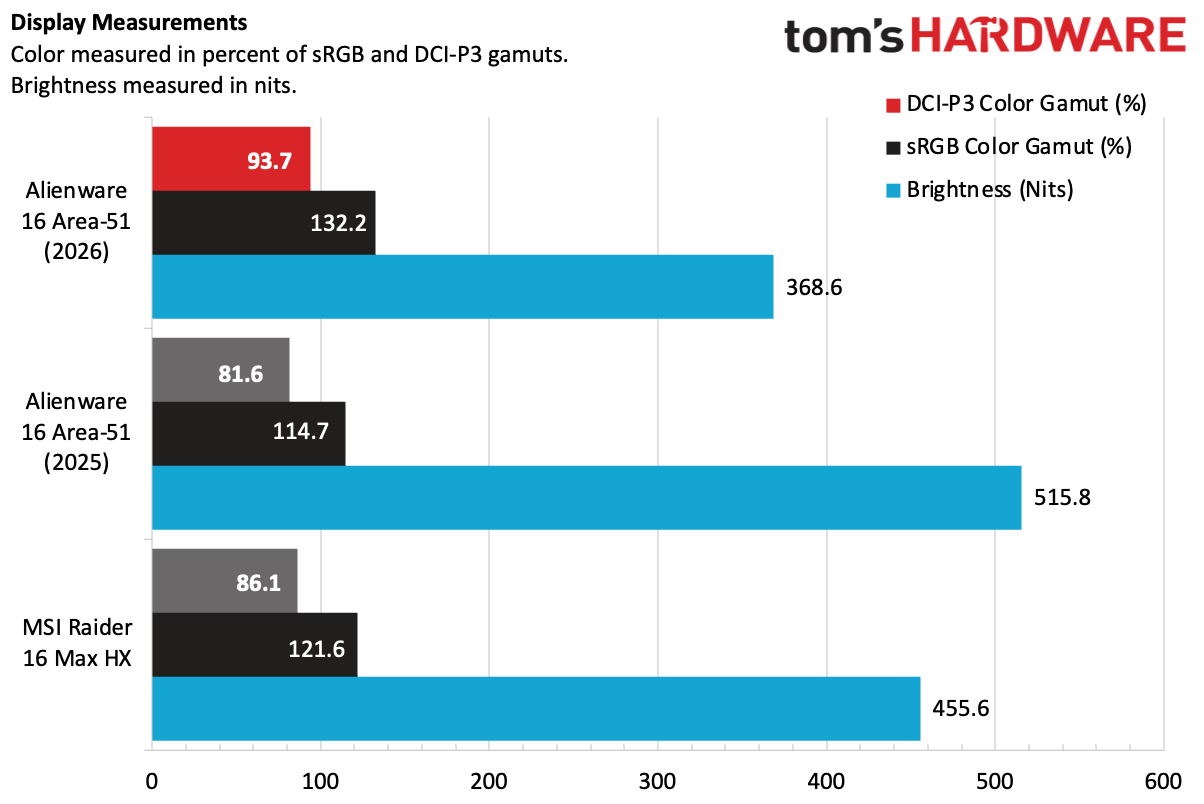
The OLED screen covers 93.7% of DCI-P3 color volume, compared to 132.2% sRGB, surpassing last year's non-OLED model and the screen on the MSI Raider. Those screens, however, were brighter than the Area-51's OLED screen, which measured 368.6 nits on our light meter. Last year's model came in at 515.8 nits.
Keyboard and Touchpad on the Alienware 16 Area-51
Our review unit came with a low-profile Cherry MX mechanical keyboard. We've seen these on a few gaming laptops (mostly from Dell and MSI), and they always seem worth the upgrade. In this case, it's $50. Frankly, I think that on these high-end notebooks, Alienware should just make these mechanical keyboards the default.
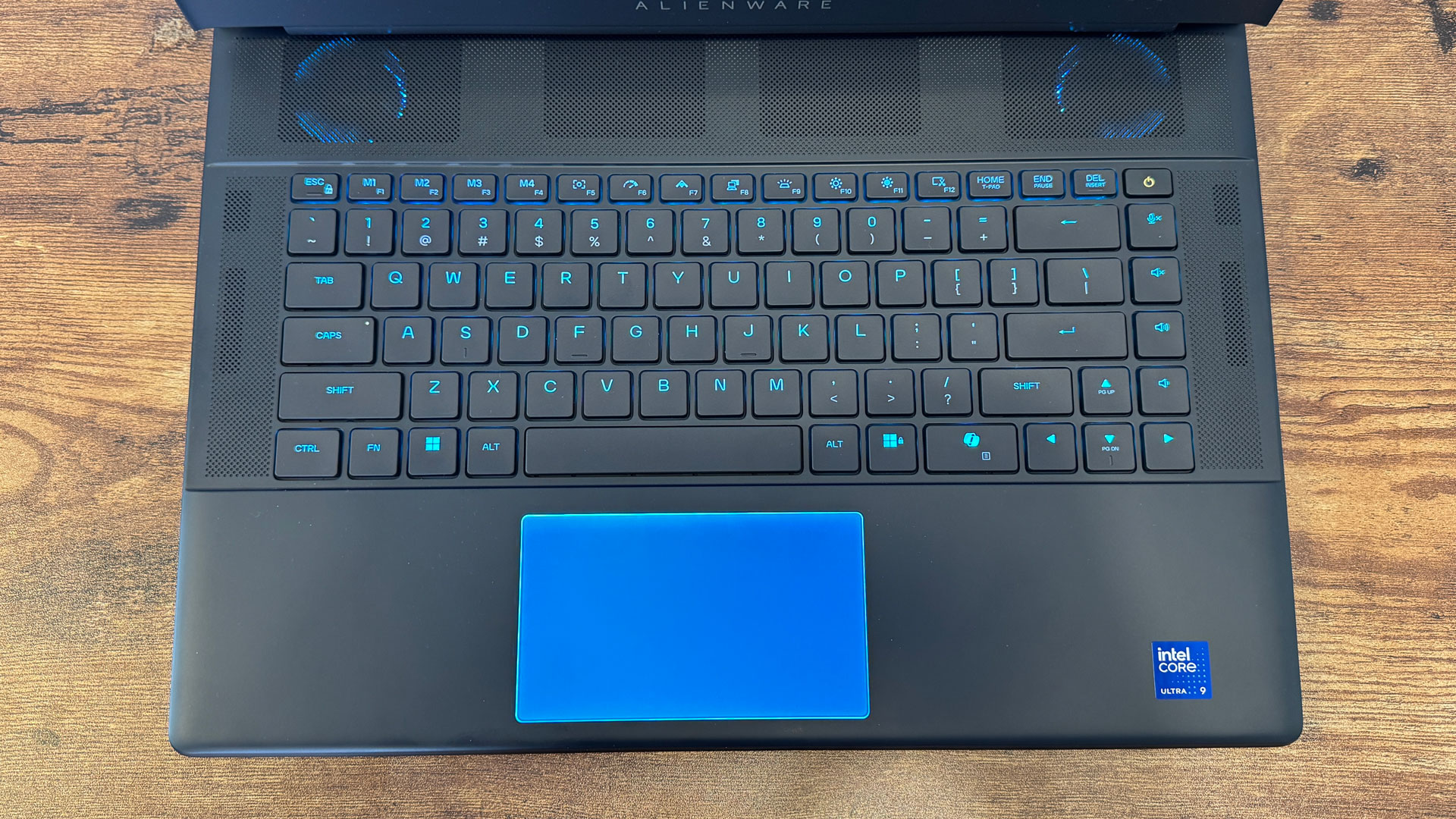
It feels great to type on, and I hit 121 words per minute at 98% accuracy on monkeytype.com. That being said, the keys are clicky, loud, and even have a bit of ping to them. But if you wear headphones while you type, your fingers may be happy enough that your ears don't care.
The layout is a bit weird, with a row at the end of the keyboard for the volume and mute keys. It feels out of place, as I'm used to having those on the function keys. Instead, four macro keys take up those spaces. Additionally, there's a massive Copilot key on the right side. It's about a key and a half wide.
The touchpad measures 4.4 inches wide by 2.5 inches tall, bucking the trend of large touchpads finally making their way to gaming laptops. This one feels a bit cramped, but not difficult to use, especially as people playing games typically use a mouse.
Audio on the Alienware 16 Area-51
There are four speakers on the Area-51: two 2W tweeters and a pair of 2W woofers. They're fine, but nothing special.
Listening to Jade Bird's "I Get No Joy," the computer filled my apartment with sound. Bird's vocals were clear, as were the guitars and some synths. When drums played alone, like in the song's intro, they were clear, but they got lost in the mix with the rest of the instruments. Despite the bulky chassis, there's not much bass here, either.
The system came tuned with Dolby Atmos, but in the settings software, changing the equalizers didn't seem to do very much.
In Resident Evil 9, Grace's nervous breathing was loud (and constant — tamp down, Capcom), and infected zombie growls were clear. The sound was acceptable, if not earth-shattering.
Upgradeability of the Alienware 16 Area-51
To open up the Alienware 16 Area-51, you need to loosen the four screws on the bottom of the system closest to the palm rest. These are captive. Another four screws hold the rest of the cover on, and those come out completely.
The bottom cover has glass on it, which provides a window into the system. Dell's maintenance guides stress that you shouldn't scratch it with a sharp tool, like, say, a screwdriver.
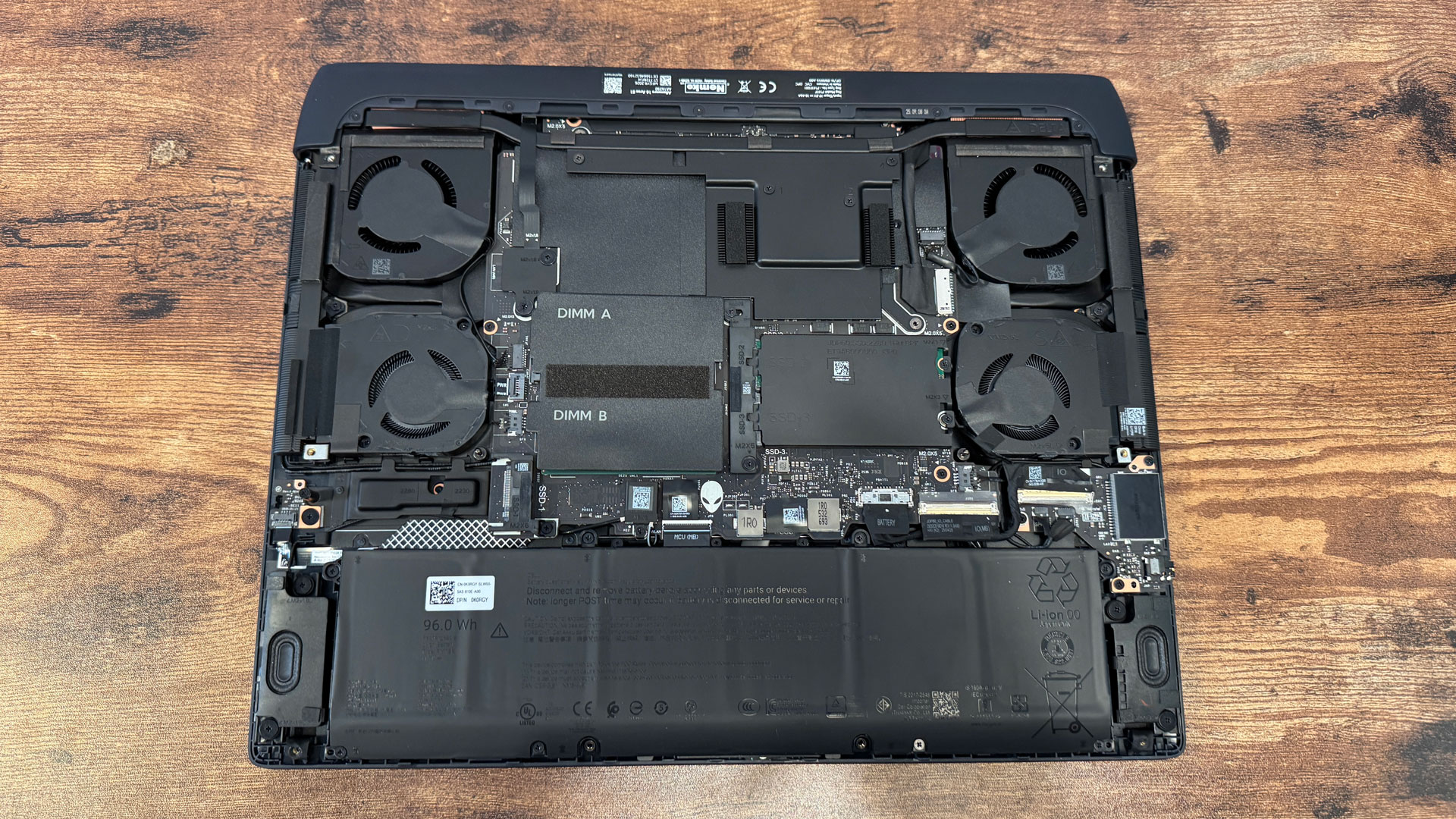
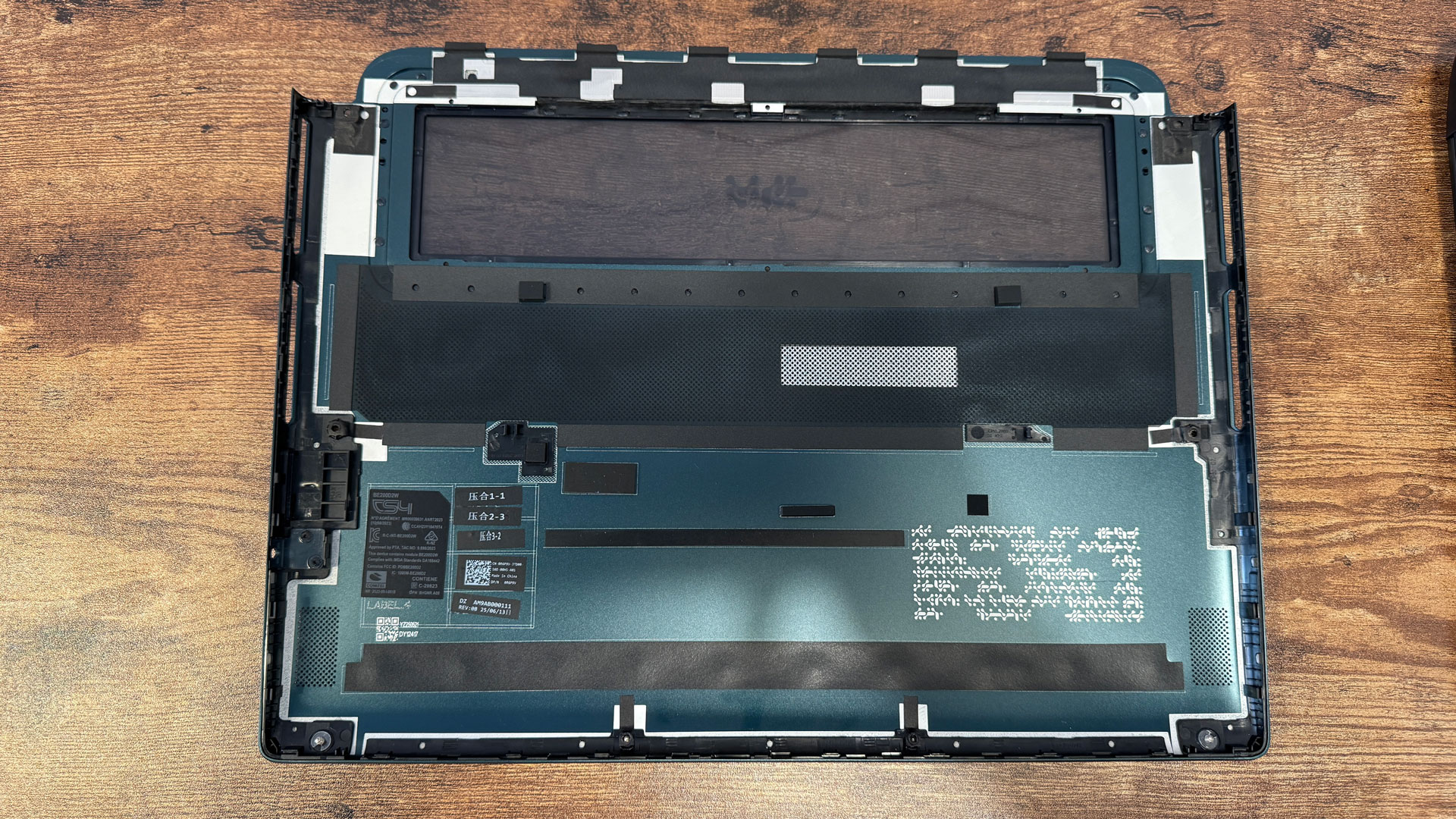
Dell's guides suggest that you can use your fingertip to loosen the base cover, but just like last year, I needed a plastic spudging tool to get through the plastic clips holding it on.
Once you're inside, you have access to the battery, as well as the memory slots and three SSD slots. There's a code written in an alien language on the bottom of the case, but it's identical to last year.
Battery Life on the Alienware 16 Area-51
The 96 WHr battery in the Alienware 16 Area-51 can't power the laptop for too long. On our battery test, which includes browsing websites, streaming video, and running light OpenGL tests with the screen set to just 150 nits of brightness, the system ran for 3 hours and 33 minutes.
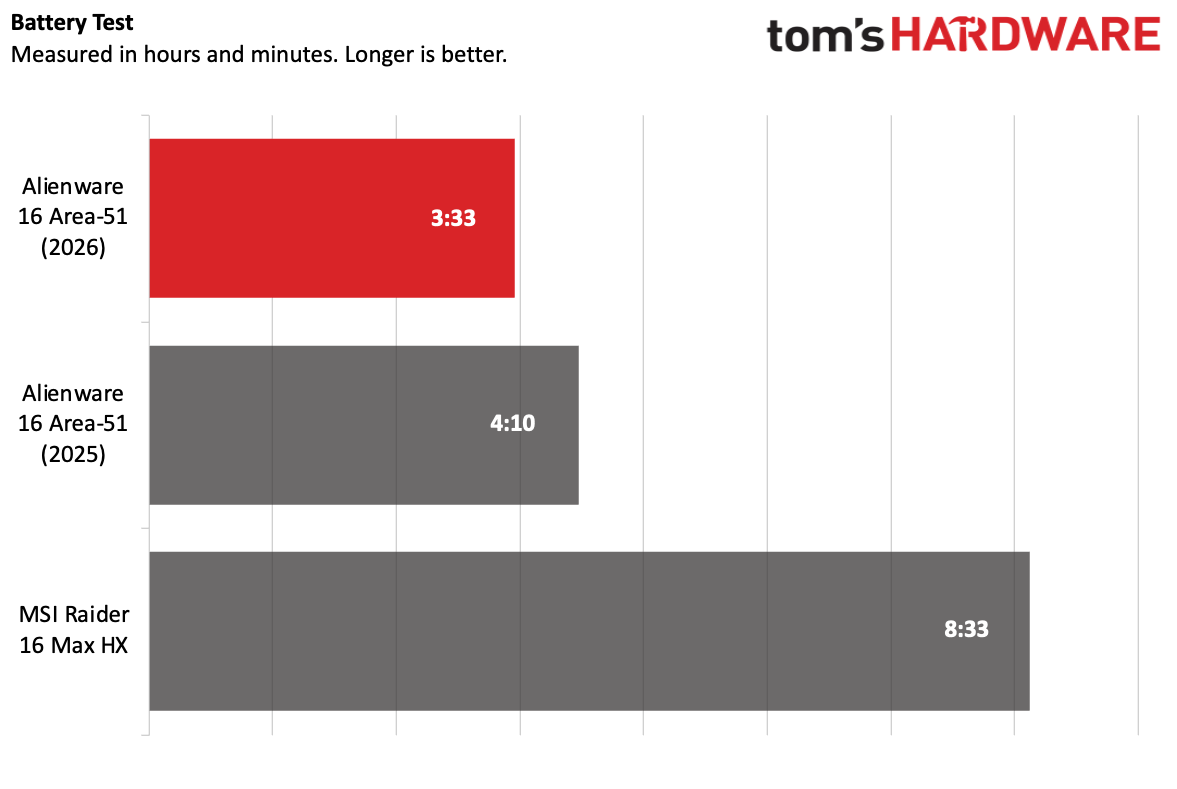
Last year's non-OLED model lasted for 4:10. The MSI Raider 16 Max HX ran for much longer, at 8:33. Both appear to have Nvidia's Advanced Optimus, so it's unclear why the Alienwares aren't running as long.
Heat on the Alienware 16 Area-51
We measured heat on the Area-51 while running our Metro Exodus gauntlet, running the benchmark for about half an hour.
The chassis gopt a bit toasty. The center of the keyboard climbed to 105.5 degrees Fahrenheit, which you can definitely feel, while the hottest spot on the bottom was 114.5 F. The touchpad stayed cool at 83.5 F. Be sure to use this on a desk.
Inside, the CPU measured an average of 82.8 degrees Celsius, while the GPU reached 62.11 C.
Webcam on the Alienware 16 Area-51
There's a 1080p webcam embedded in the Area-51's top bezel. It's OK, though perhaps not befitting of a laptop that costs over $4,000.
While it caught stitching my shirt and individual hairs in my beard, images taken from the cameras had some pixelation, which also occurred in video calls. On the bright side, the camera was color accurate.
Last year, I tested a version of this system with a 4K webcam that I enjoyed more, but Alienware isn't offering it this time around. A representative for the gaming brand said in an email that this would "help pricing without compromising in other areas that are more essential for premium gaming."
Software and Warranty on the Alienware 16 Area-51
Alienware has preinstalled some software. I've seen worse, but there's more than I like here. Alienware Command Center is the primary application on the machine, with control of AlienFX RGB Lighting, system performance adjustments, and a built-in game library.
Otherwise, the Alienware apps include one dedicated to downloading anything you bought at purchase, as well as Dell Support Assist for customer service.
There is bloat on here, including McAfee with a month-long trial.
Alienware sells the 16-inch Area-51 with a 1-year warranty. You can cover accidental damage and spill for a year for an extra $79, while Elite Care adds extended battery support and "top-tier gaming support experts" for $99.
Alienware 16 Area-51 Configurations
We tested the Alienware 16 Area-51 in a $4,309.99 configuration including a Core Ultra 9 290HX Plus processor, GeForce RTX 5080 Laptop GPU, 32GB of RAM, a 2TB M.2 PCIe Gen 5 SSD, and the new 16-inch OLED screen. It also features a CherryMX low-profile keyboard and Windows 11 Pro.
The base model is $1,949.99 with a Core Ultra 7 255HX, an RTX 5060 Laptop GPU, 16GB of RAM, a 1TB PCIe Gen 4 SSD, a non-OLED screen, a membrane keyboard, and Windows 11.
Alienware's configurator has many options in between, including a Core Ultra 9 275HX CPU, laptop GPUs up to an RTX 5090, RAM up to 64GB, and storage up to 12TB in RAID 0 (3 x 4TB). The most expensive configuration we could make came out to $8,009.99.
Bottom Line
The Alienware 16 Area-51 is a large, bulky gaming laptop designed to deliver a ton of gaming power on the go.
It's a heavy system, one that barefly fit in my backpack. Ideally, Alienware could find some way to slim this down, or at least drop a few pounds. But a slim, lighter laptop with the same components almost certainly wouldn’t be able to deliver the same level of performance.
On the bright side, Alienware finally brought OLED screen options, which should have always been available given the prices it's asking for its top-tier laptops. But this year's chip upgrades really don't povide better gaming performance year-over-year (not that most people are buying gaming laptops every single year.) It was unfortunate to see that the webcam was downgraded from 4K to 1080p; while that's arguably one of the parts people might care about least on a gaming rig, this system is over $4,000. It should have the best of the best.
If what you're looking for is a desktop replacement that's plenty powerful and portable enough, Alienware's 16-inch system delivers. But you may need a bigger backpack.






 English (US) ·