
Adobe After Effects is the juggernaut of motion design and visual effects software. You’d think a tool that’s been around for 33 years couldn’t possibly bring new and exciting features to the table, right?
Well version 26 certainly proves you can teach an old dog some impressive new tricks.
Adobe After Effects: Pricing & plans
- Professional software at a professional price
- Subscriptions aren't cheap but there are two options here
- Free 14-day trial
If you know Adobe, you’ll know you can’t purchase their pro apps: you can only rent them, although you do have a few subscription options available to you.
First off, you could just subscribe to After Effects on its own. This would cost you, as an individual, $38 per month, or $456 for the year (other companies give you a discount when paying for the year upfront, but there’s no such benefit here).
Alternatively, you could invest in the Creative Cloud Pro plan, which includes over 20 of Adobe’s professional software, including Photoshop, Illustrator, InDesign, Premiere Pro, and a host of others, and of course, After Effects.
This bundle of powerful tools will set you back $100 a month per user, or $1,200 for the year in advance. Again, no advantage to giving them all your money in one go.
This isn’t cheap, but then again, this is advanced software you’ll be using (students can get it for much less).
If you like the idea of trying before buying, you can get yourself a free 14-day trial, which will automatically enrol you into the monthly or yearly subscription upon completion (your choice), so make sure you cancel before that happens should you decide this isn’t for you.
Now that’s out of the way, let’s take a look at what I feel are some of the most important new features in After Effects 26.
Adobe After Effects: Features
- Seamless VFX creations
- Steep learning curve
- New, useful and long requested featured added, including variable fonts support and native SVG import
By default, After Effects 26 greatly improves playback performance thanks to support for ‘lossless compressed frames’. Behind the scenes, it compresses your clips without losing quality so they take up less space in your disk cache. This means your previews can be longer or you can have more of them before your cache runs full.
Of course, you have complete control over this. Should you wish to disable that feature, you’ll find the relevant tick box in the Disk Settings (look for ‘Enable Compressed Frames (Lossless)’)
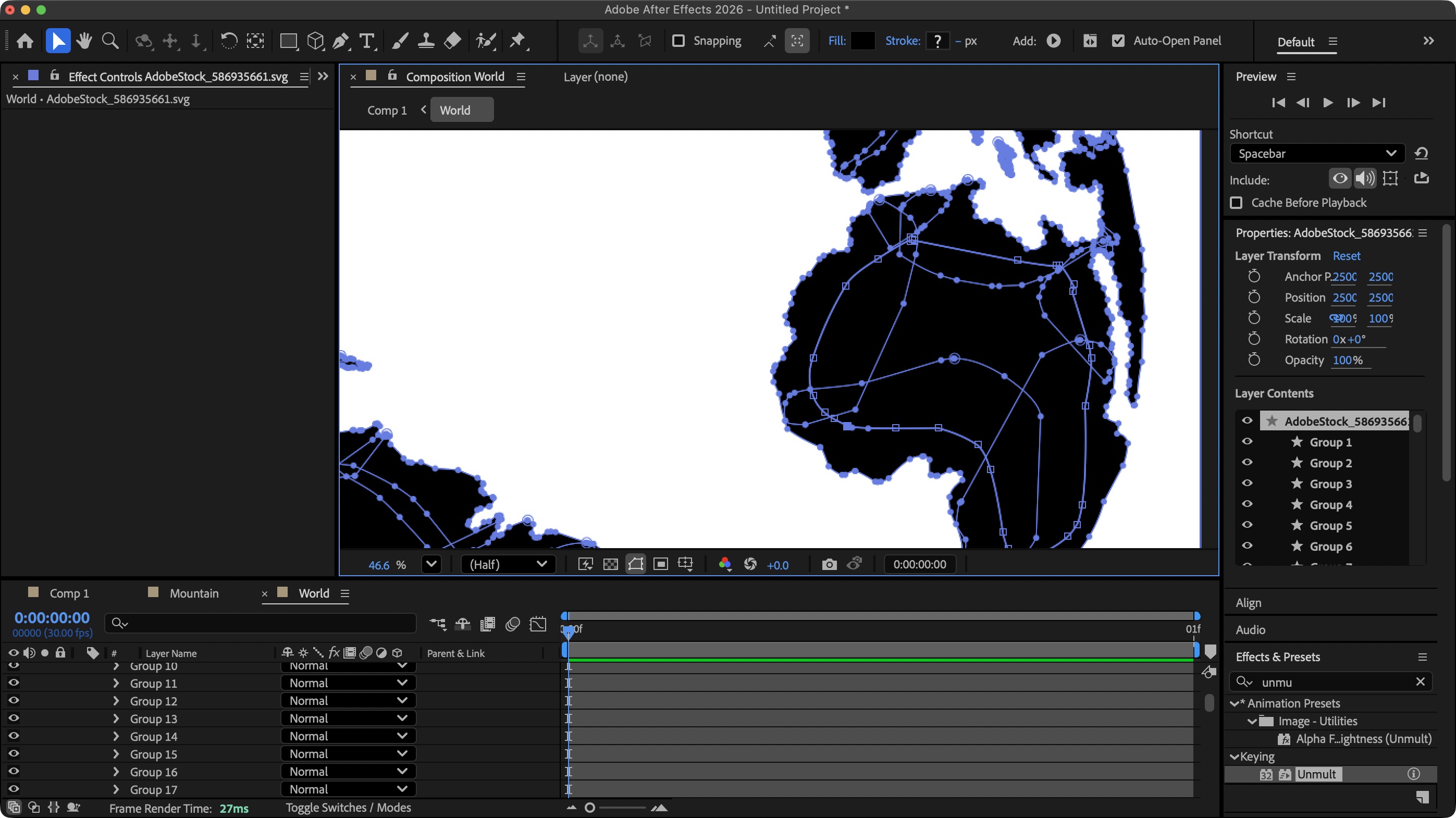
After Effects (finally!) fully supports Illustrator files, enabling you to animate your graphic designs. This includes support for Illustrator gradients.
One feature I found particularly useful is the ability to crop your composition based on a selected asset. Associated with that is a feature I really liked: being able to work with SVG files natively, and even have access to, and being able to, manipulate every vector path that make up the selected illustration. The only downside is the mess that is the naming of the various paths and groups. Still, being able to modify each path over time is a fantastic feature for After Effects to have.
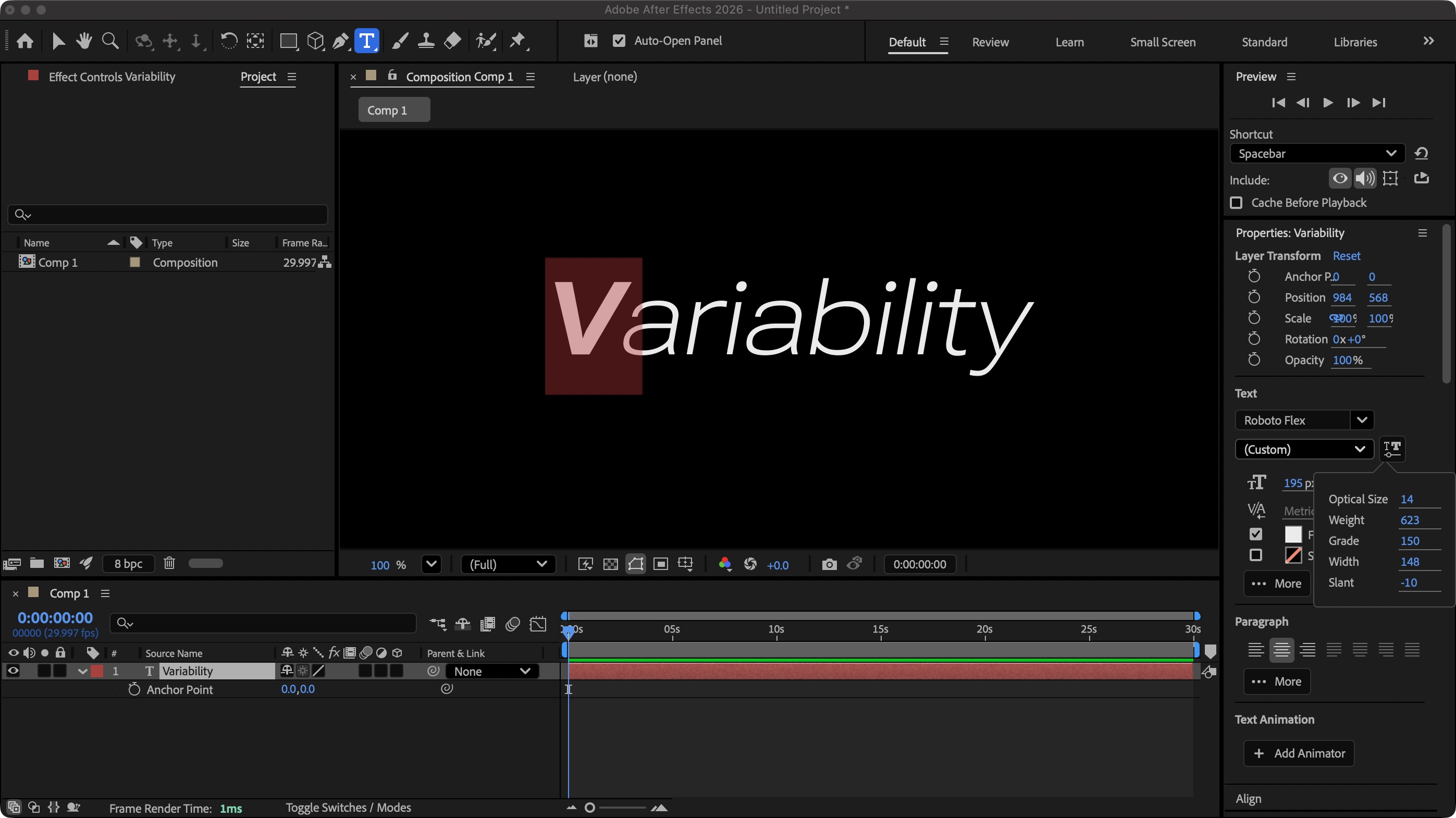
Another cool addition is support for variable fonts. These are fantastic for creating complex animations with ease, as they allow you to make changes to the font’s weight, width, and more, all keyframeable, and you can transform individual letters that way too. These parameters are accessed through an icon to the right of the font’s name in the Text panel.
Variable fonts are a special type of font with various modifiable ‘axes’ - the more a font has the more parameters you’re able to alter. If you don’t have any such fonts in your collection, don’t worry: Adobe has a large collection of them here, and do does Google here.
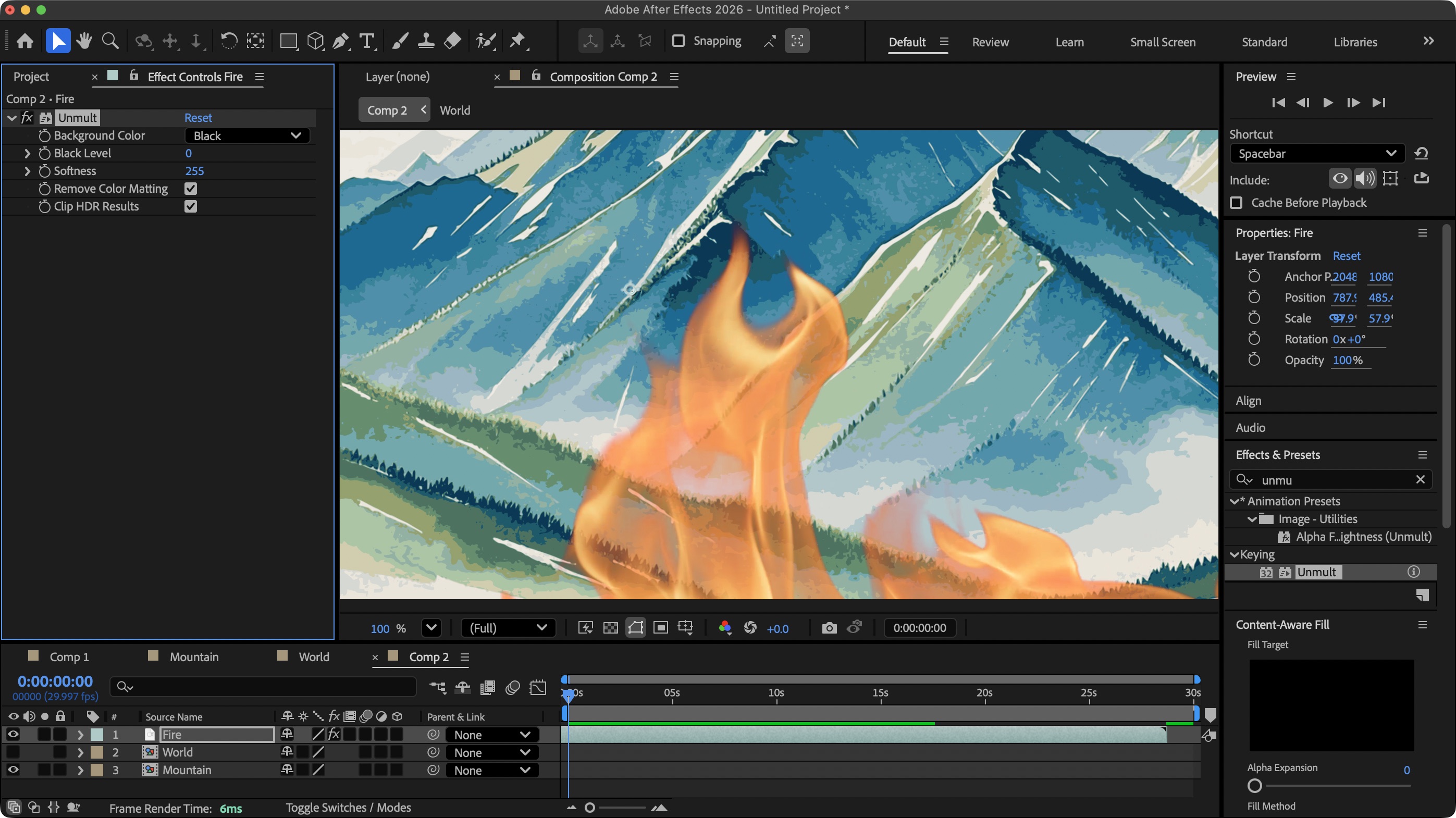
If you’ve ever needed to work with a flame effect, but have struggled to key out the white or black backdrop, you’ll love the new ‘Unmult’ effect. Just drag it onto the clip’s layer in your composition, and as if by magic, the background’s gone, and the fire has a perfect blend of vibrancy and transparency. You do have some parameters you can control (the most notable one being able to choose between keying out a black or white backdrop) but I found the default options worked fantastically well as is.
There are also additional audio controls with 26, such as gate, compressor, and distortion effects, and you’ll notice the Preferences window has been completely reorganised. OCD people might not like that, but the new layout should make it easier to find what you’re after quicker - once you’ve got used to it.
All this is good, really good in fact, but the biggest tentpole feature has got to be the native inclusion of 3D shape creation…
Adobe After Effects: 3D Shape Creation
- Create, control, alter, and manipulate 3D shapes natively
- All happens within After Effects
- A fantastic and most welcome addition
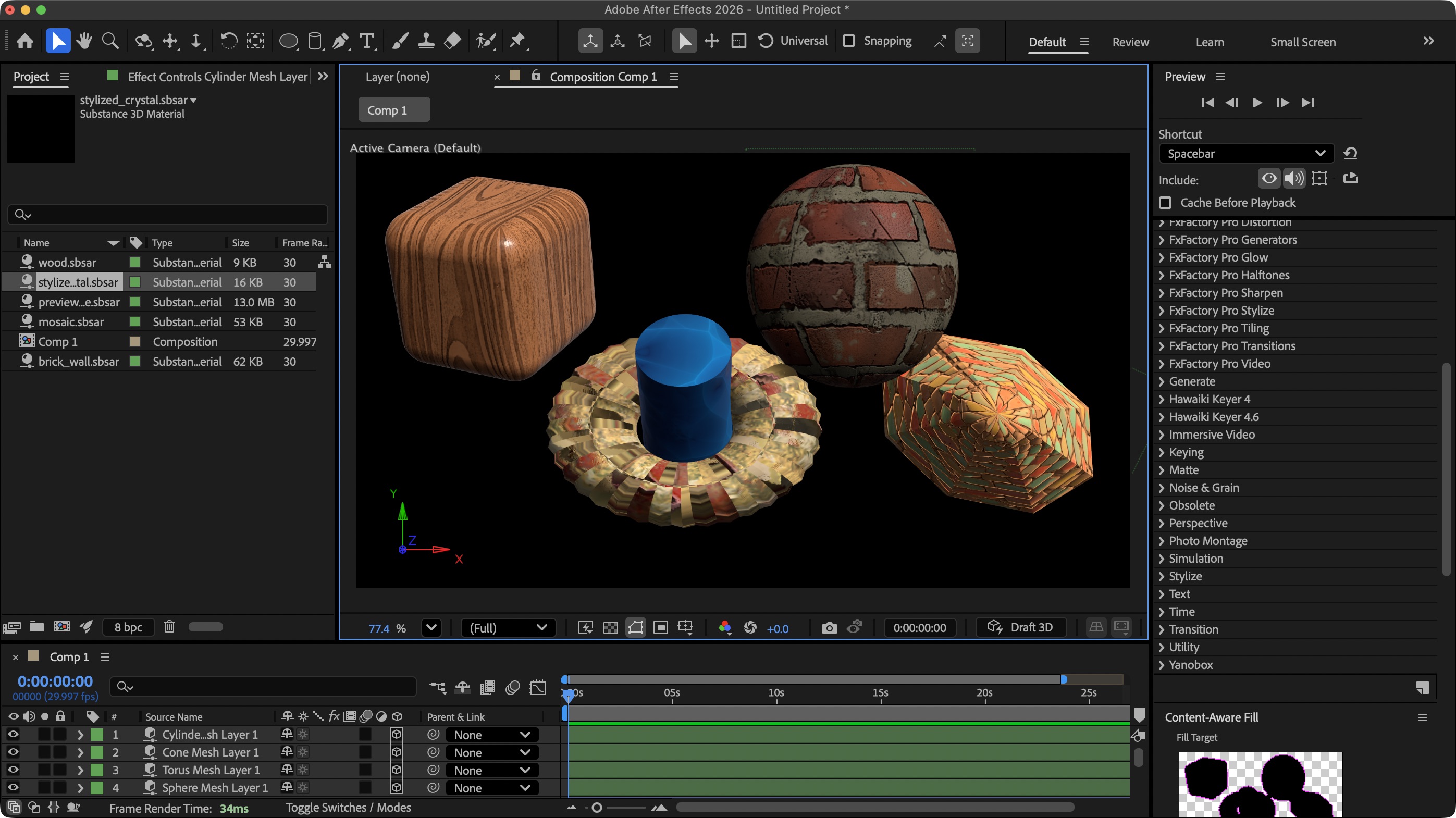
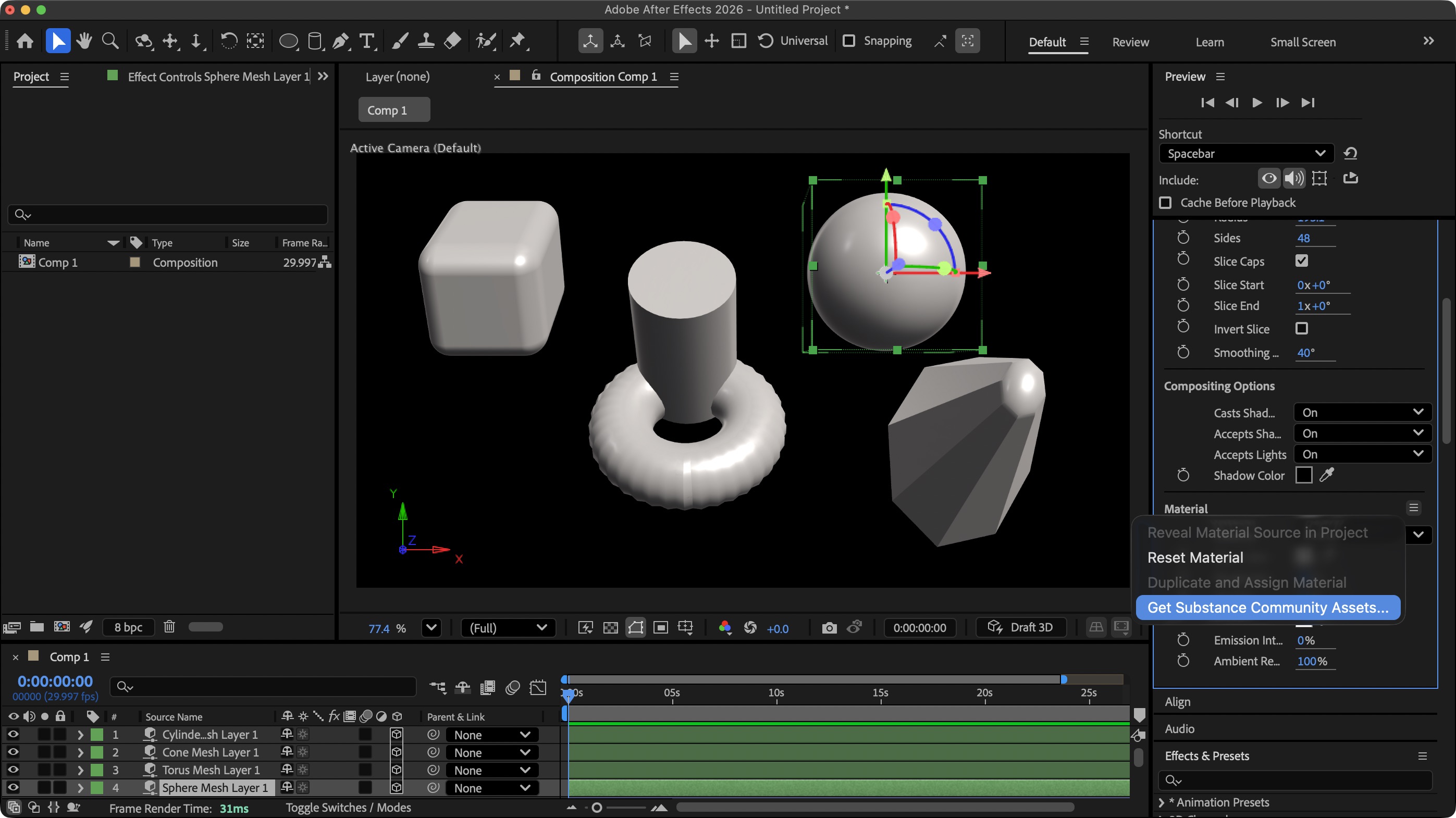
This is a big one: there’s a 3D shape creation tool (conveniently located to the right of the shape creation icon in the top toolbar). With it, you gain access to 6 basic shapes: cube, sphere, plain, doughnut, cone, and cylinder, but that’s far from the end of it; you also have parameters that allow you to change many aspects of those shapes, the most versatile one seems to be the cone in my experience.
I found the bevel tool to be quite useful - it rounds the edges of your cube for instance, and it affects the cone in interesting ways. Slices is another good parameter - you could use it to add ridges to the donut shape for instance, or turn the cone into a multi-wedged cylinder. The variety and options are generous. You can of course animate these shapes over time, and even light them all natively inside After Effects.
But that’s not all: since Adobe owns Substance3D, you can use that service straight from After Effects. Well.. kind of: it’s certainly not as seamless as it could be, but it’s a fantastic way to apply different and interesting skins to your shapes. Scroll down the properties sidebar until you find the Material section. You’ll find a drop down menu there with the ‘Get Substance Community Assets’ command.
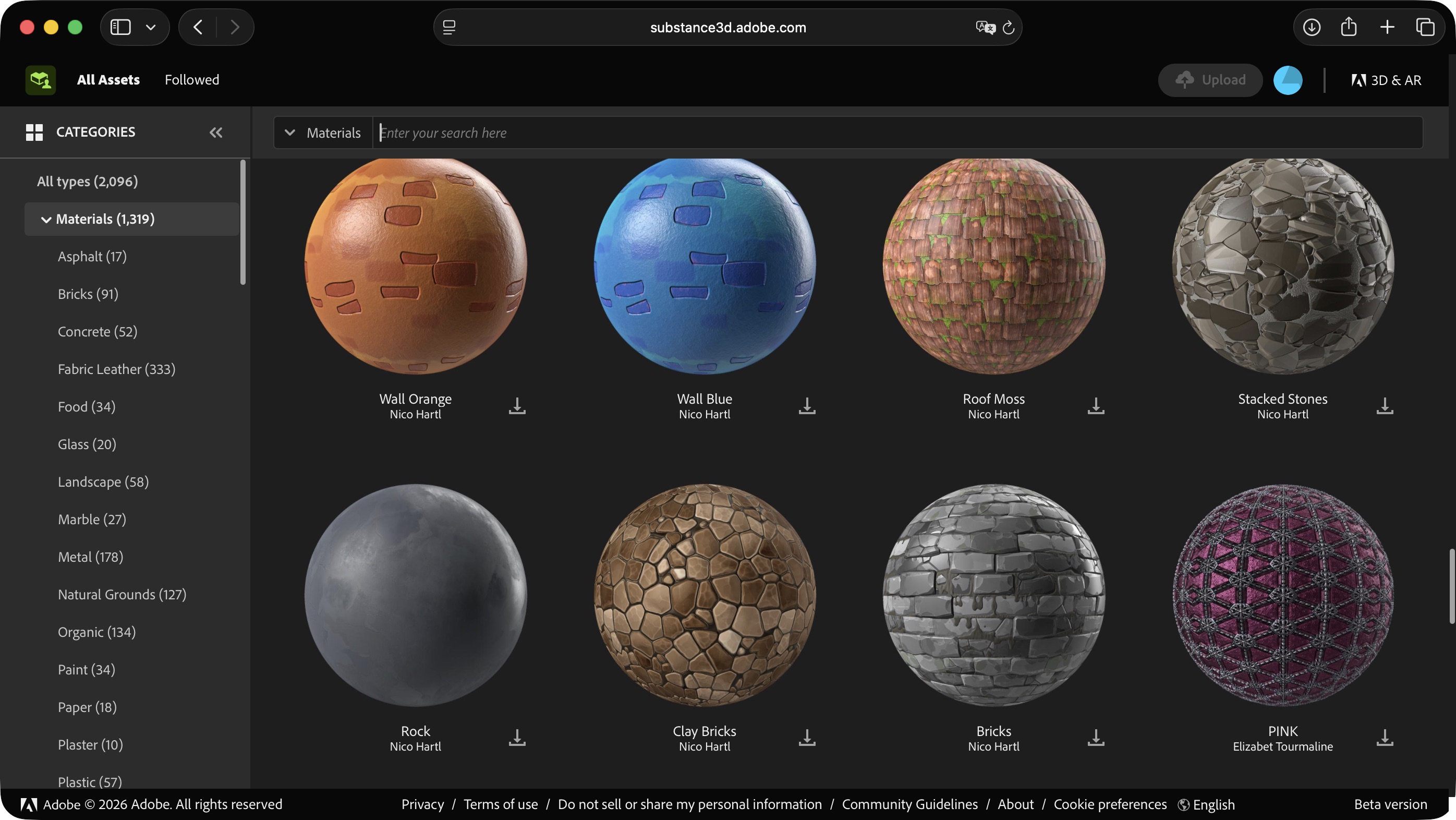
You’ll then be taken out of After Effects for the next part, which is far from user friendly, to a webpage from which you can browse all available materials - and there’s thousands of them - although not all are compatible with After Effects.
Do a search for ‘.sbsar’ and it should filter out those that aren’t. You then download the skins you’re interested in, and drag those into your project. Only then will they appear in the sidebar’s Material drop down menu.
The whole acquiring process feels clunky, but once they’re in your project, all you need to do is select a shape, then choose the right material from that menu, and you’re done. I mean, not quite: you have parameters you can alter to help you get the look you’re after, but at the end of the day, clunkiness aside, it’s a simple enough process to add a skin to a 3D shape.
All in all, it’s an amazing and very welcome addition to an already incredibly powerful application.
Should I buy?
Buy it if...
You need to design and animate graphic design assets - let’s face it, After Effect is the go-to app for such work, and the new features will make this software even more useful.
Don't buy it if...
You don't want another expensive subscription model, and your needs are much simpler than the gargantuan options available with After Effects.
We tested the best video editing apps- and here are our top picks







 English (US) ·